Auto-triage and AI Importance Sort
Last updated: October 8, 2026
Cloudy gives the Tasks queue two helpers: Auto-triage proposes changes to tasks, such as a new priority or an assignee, and you review and apply them; AI Importance Sort ranks the open tasks in your current view by urgency. Nothing changes on any task until you apply a suggestion.
Before you start
Both Auto-triage and AI Importance Sort need the AI assistant switched on for your school, and you need the Edit tasks permission. Each feature also has its own requirement: Auto-triage needs auto-triage switched on, and AI Importance Sort needs AI task sorting switched on. Housing Cloud turns these on per school. The controls have separate gates, so Auto-triage can appear on the queue even when AI task sorting is off. When a feature's requirements aren't met, its control doesn't appear.
Find what Cloudy suggests
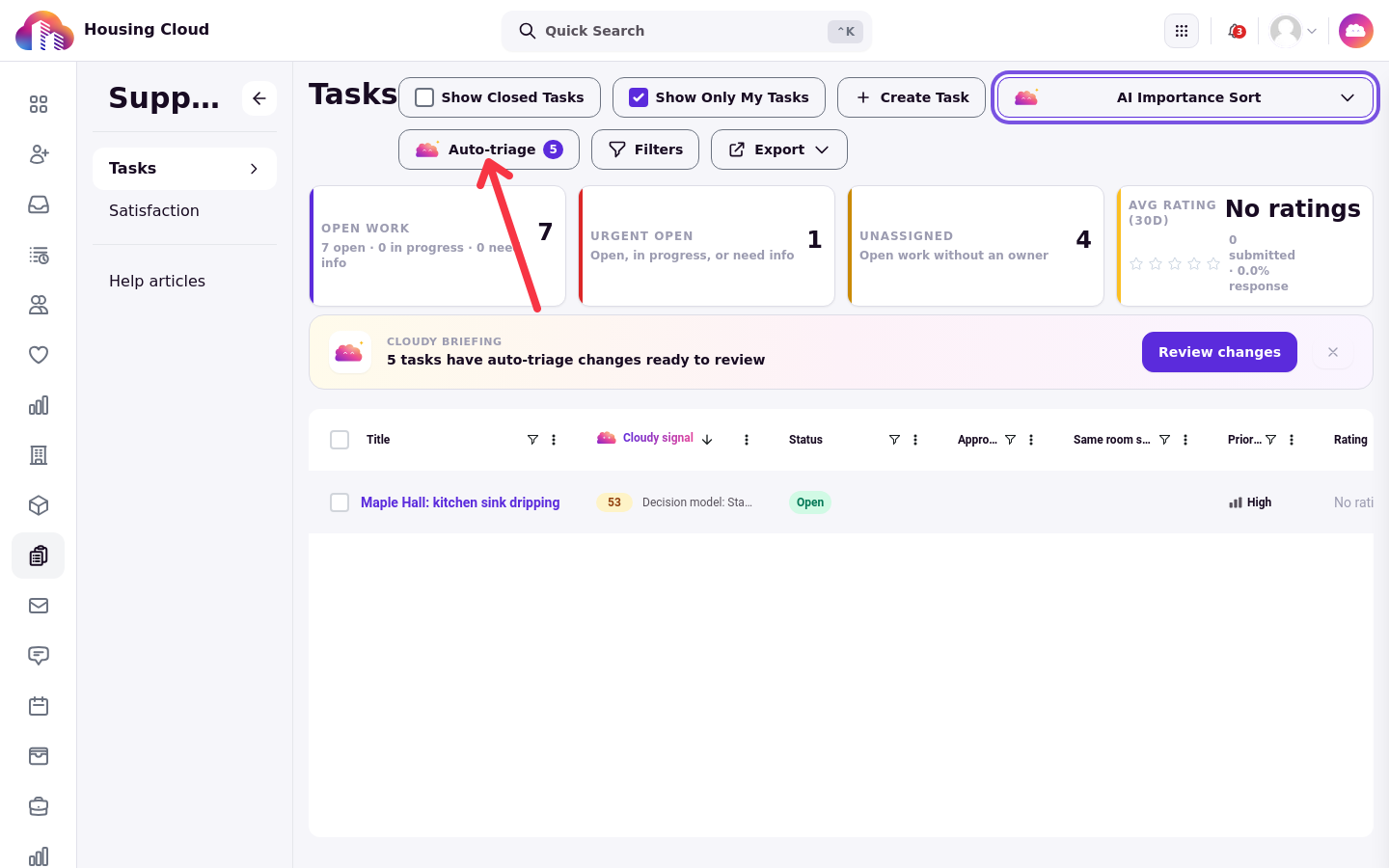
When Cloudy has suggestions waiting, the queue shows a Cloudy briefing banner: "N tasks have auto-triage changes ready to review", with a Review changes button. You can also open the same review window from the Auto-triage button on the queue toolbar, which shows the number of tasks with suggestions.
Review and apply the proposed changes
The review window, titled Auto-triage · review proposed changes, lists one row per suggestion. Each row shows the kind of change, the task, the current value and the suggested value as From → To, a reason, and a confidence bar. Filter the rows by kind: Re-prioritize, Escalate, Close stale, Recategorize, Assign or Draft reply.
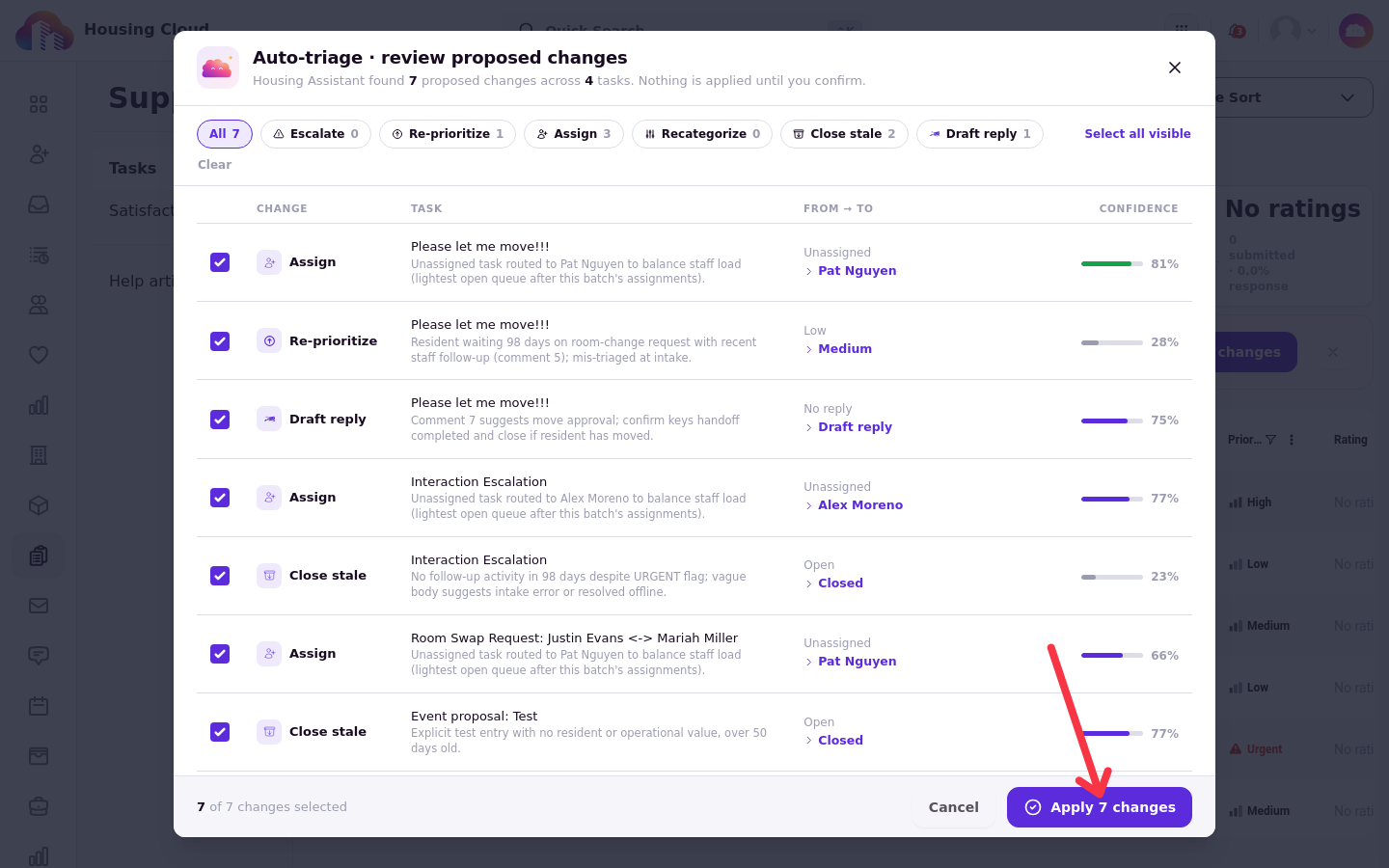
The window starts with every suggestion selected. Use Select all visible and Clear to change the selection, then click Apply N changes. Nothing changes until you apply. A suggestion whose task has changed since Cloudy looked at it is skipped, not applied, so you never overwrite newer work.
Three suggestions behave in ways worth knowing:
Draft reply only ever adds an internal note. It never writes to the resident. Applying one also needs your permission to add notes to tasks; without it, that suggestion is skipped and the rest of your selection still applies.
Recategorize moves the task to the new category but doesn't re-run that type's automatic assignee. If the new type should have an owner, assign one yourself.
Close stale sets the task to Closed, which starts the same rating clock and notices as closing it by hand.
Why the count and the window can differ
The number on the Auto-triage button counts tasks with suggestions across the whole school, closed tasks included. The review window shows only the tasks in your current view: both queue toggles and your filters count, and it scans the newest 600 tasks in that view. The two numbers often differ, and a smaller list than the count is normal.
Rank the queue with AI Importance Sort
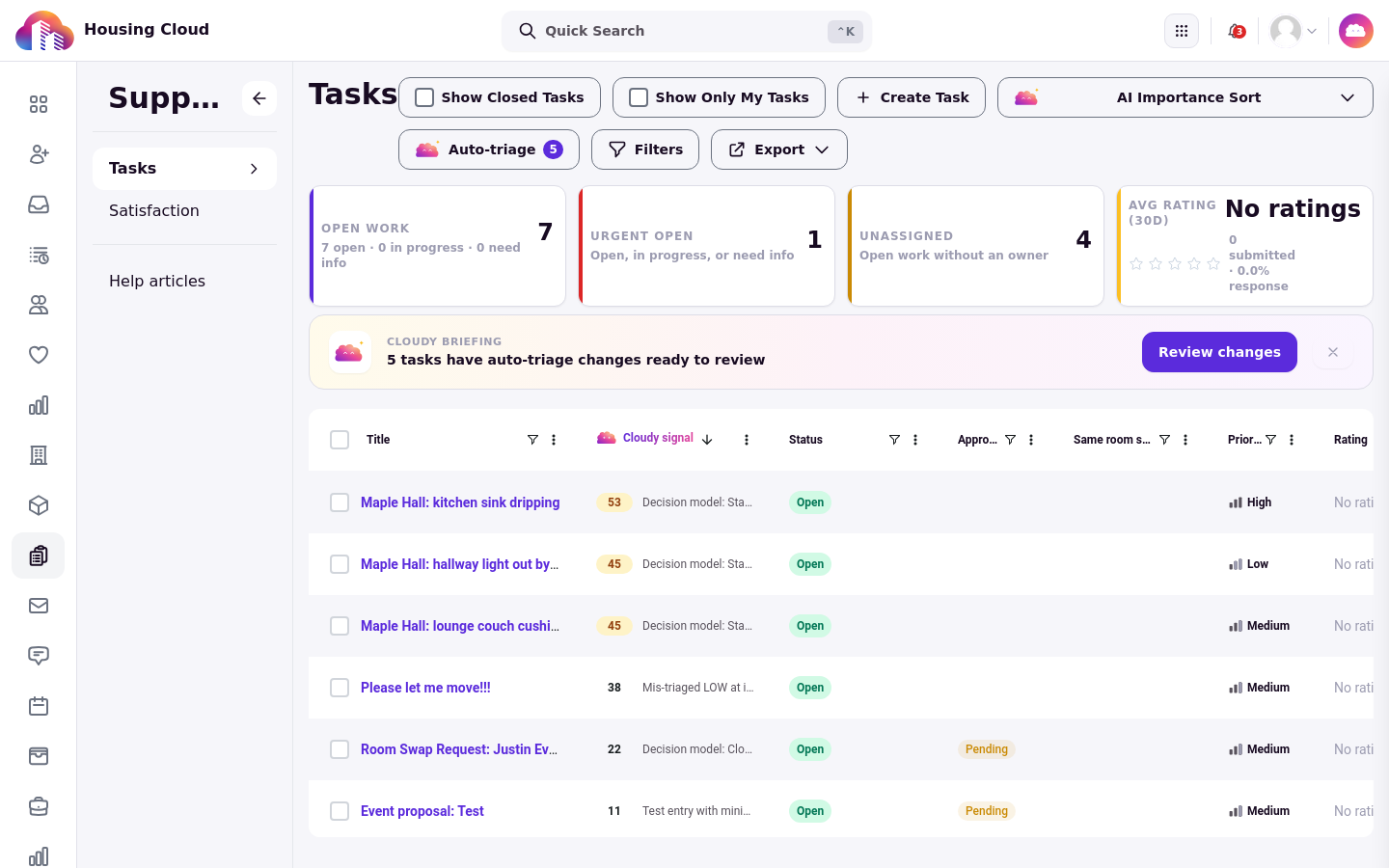
In the views menu, AI Importance Sort scores the unscored tasks in your current view, up to 150 tasks per click, and sorts the queue by the Cloudy signal column, and you can re-sort by clicking that column header. That column shows a score and a one-line reason for each task, so you can see why it ranks where it does. Scores are saved on the tasks, so the sort holds when you come back.
Sensitive tasks
Sensitive tasks are never sent to Cloudy, whatever your access. They get no auto-triage suggestions and no importance score, even when you hold Read access to sensitive tasks. Sensitive Tasks and Who Can See, Edit or Assign Them covers the full behavior.
For asking Cloudy about a task, see Ask Cloudy About a Task; for suggested replies on comments, see Suggested Replies on Task Comments. The Tasks Queue: Filters, Stat Cards and Saved Views covers the filters, stat cards and saved views these tools sit on top of.