Cloudy Automations: Background Jobs That Ask First
Last updated: October 8, 2026
An automation is a job described in plain English that Cloudy runs in the background when something happens, on a schedule, or when you press run. Any change it proposes waits for a person to approve. This article shows how to write one and save it as a draft; switching one on is a decision for your team.
At Maple Hall… Jordan would like every new Maple Hall task to get a follow-up reminder. Jordan drafts the automation and saves it, ready to talk through with the team before anyone switches it on.
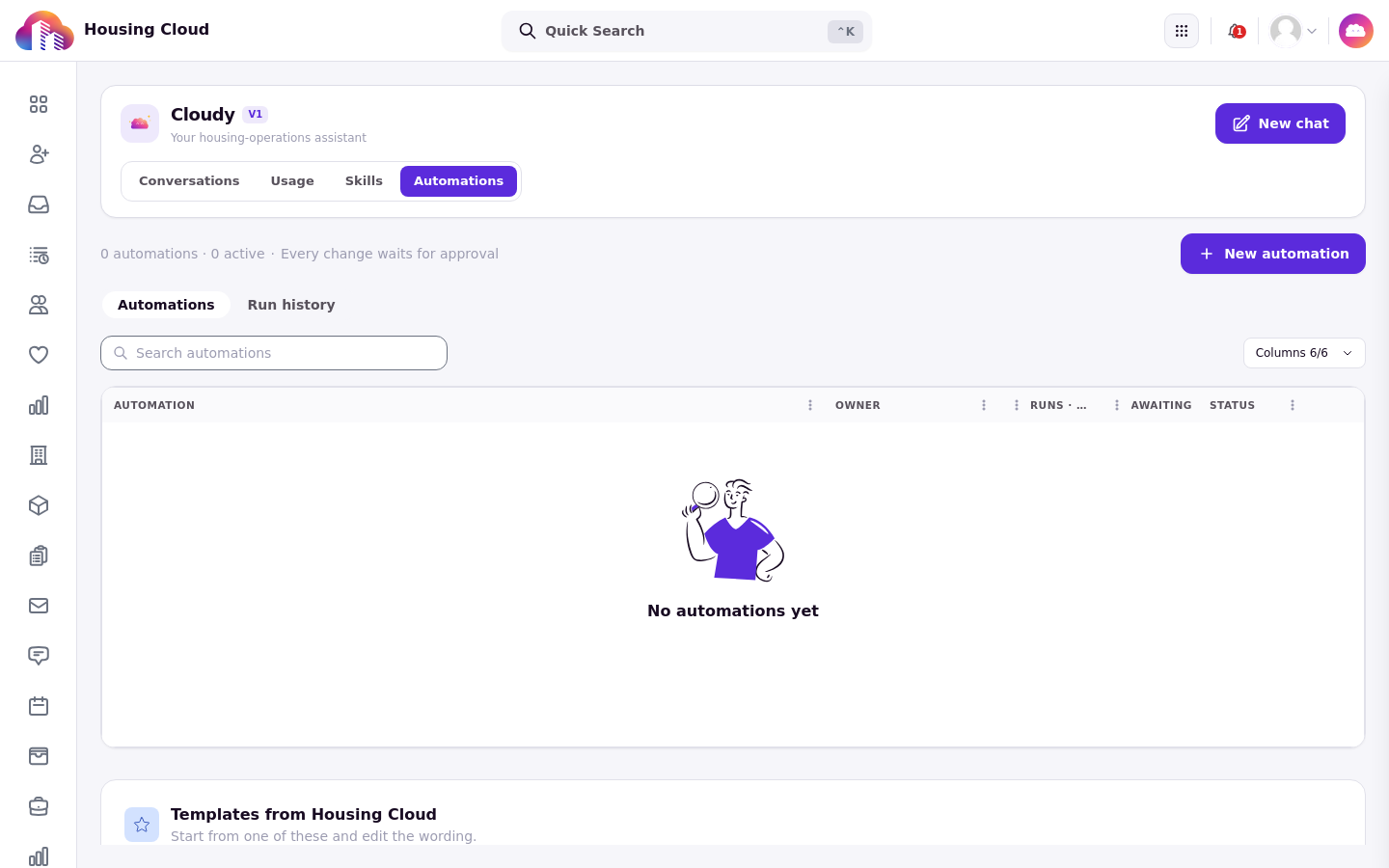
The Automations tab, with "New automation" at the top right and "Templates from Housing Cloud" below the list.
The Automations tab
Open the Cloudy page and choose the Automations tab. Writing automations needs the "Manage automations" permission, and your school must have Cloudy actions and Cloudy Automations on. The list shows each automation with its Owner, its runs over the last 7 days, how many runs are awaiting approval, and its Status.
Create an automation
Click "New automation" and give the automation a name. Choose one trigger: Event (when something happens), Schedule (on a timetable), or Manual (when someone presses run). Then describe in "What should this automation do?" what it should do.
Draft the instructions with Cloudy
Click "Draft with Cloudy" and Cloudy writes the instructions from your sentence; press "Draft instructions" and wait for "Draft ready.". Instructions can include skills with "/", so an automation can reuse a saved job. "Templates from Housing Cloud" offers starting points instead.
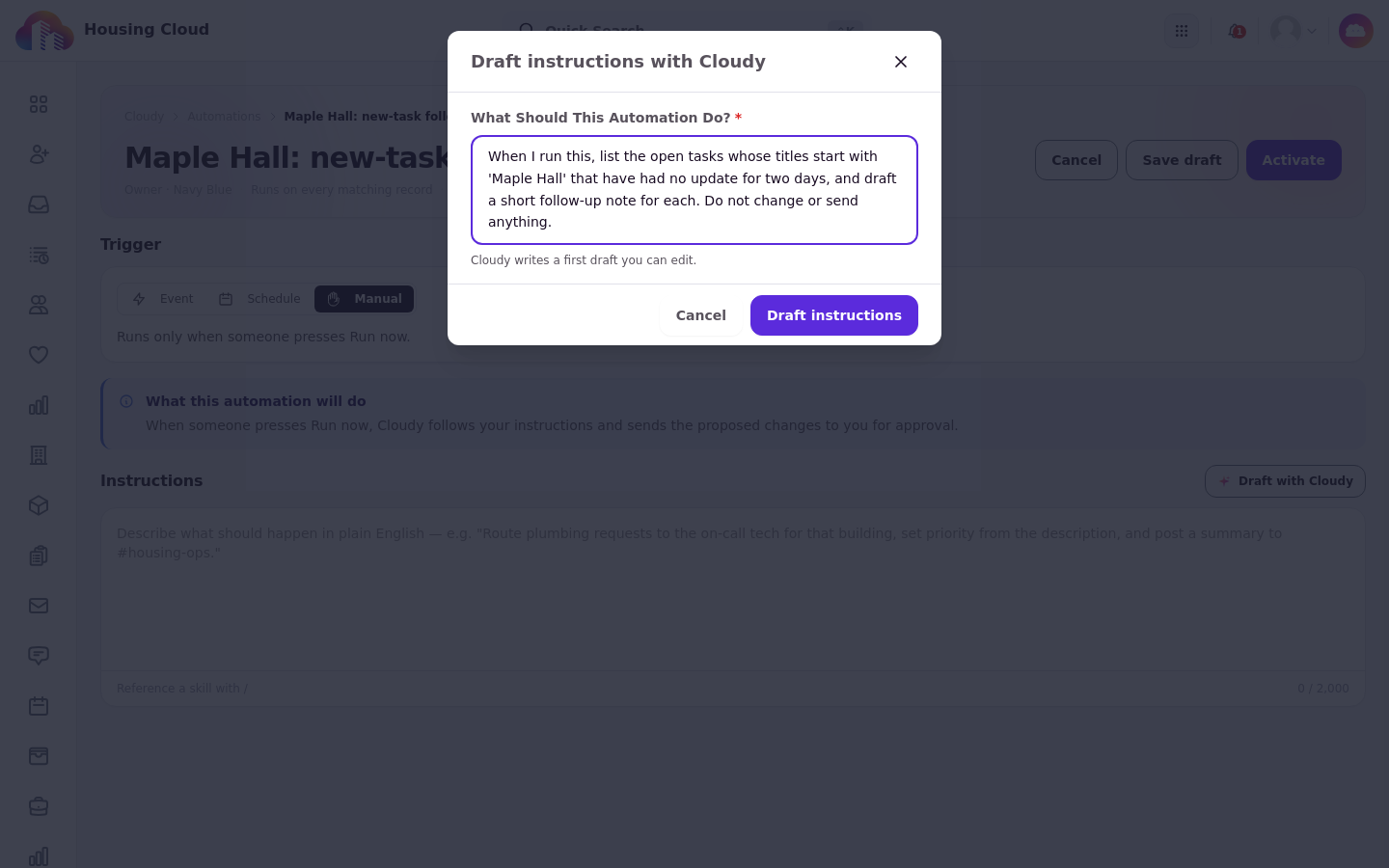
The "Draft instructions with Cloudy" dialog with the automation described in one sentence.
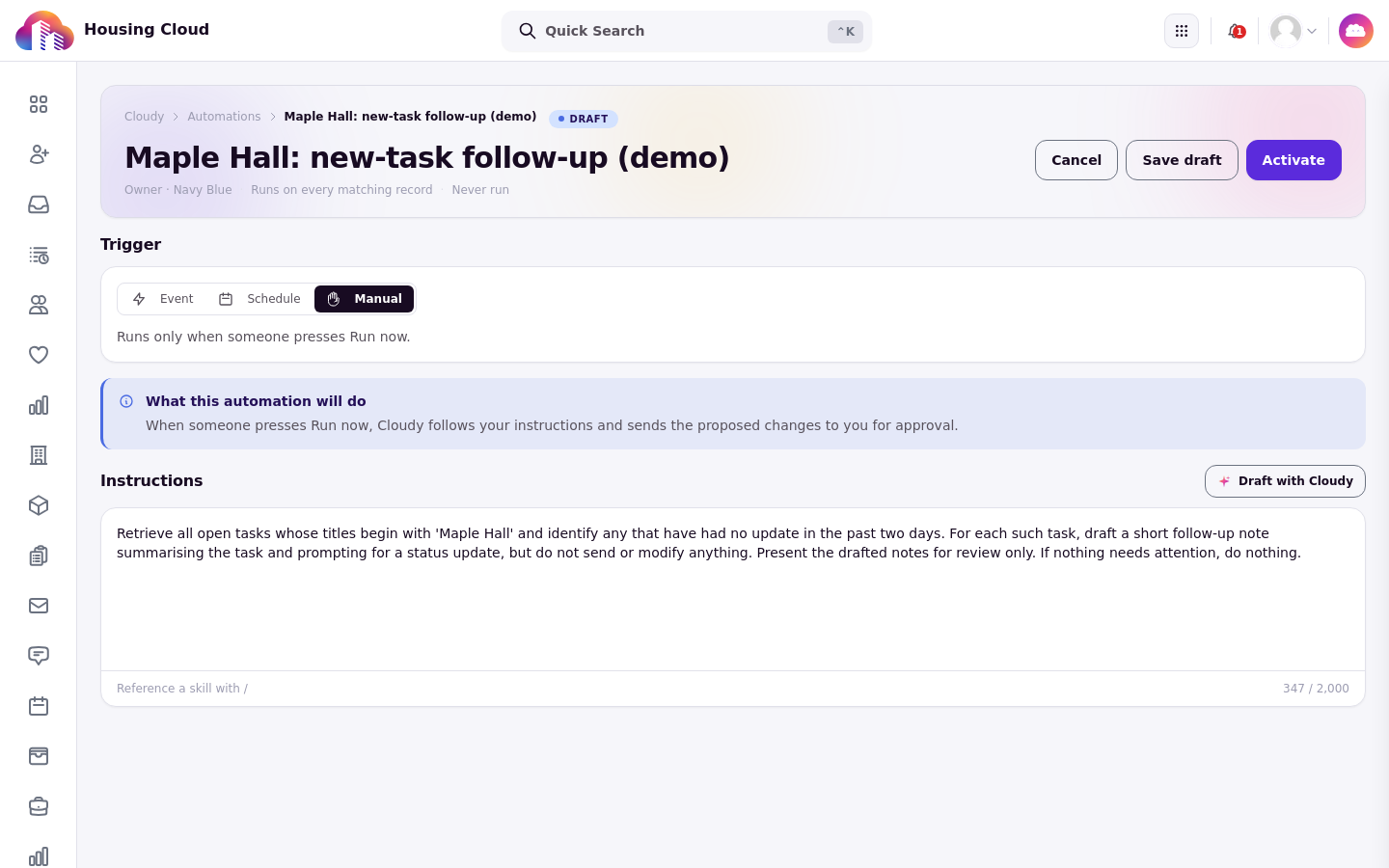
The editor with Cloudy drafted instructions and the Manual trigger ("Runs only when someone presses Run now.").
Save draft or activate
"Save draft" stores the automation without running it; "Activate" switches it on. Only active automations run.

"Save draft" stores it without running it; "Activate" switches it on.
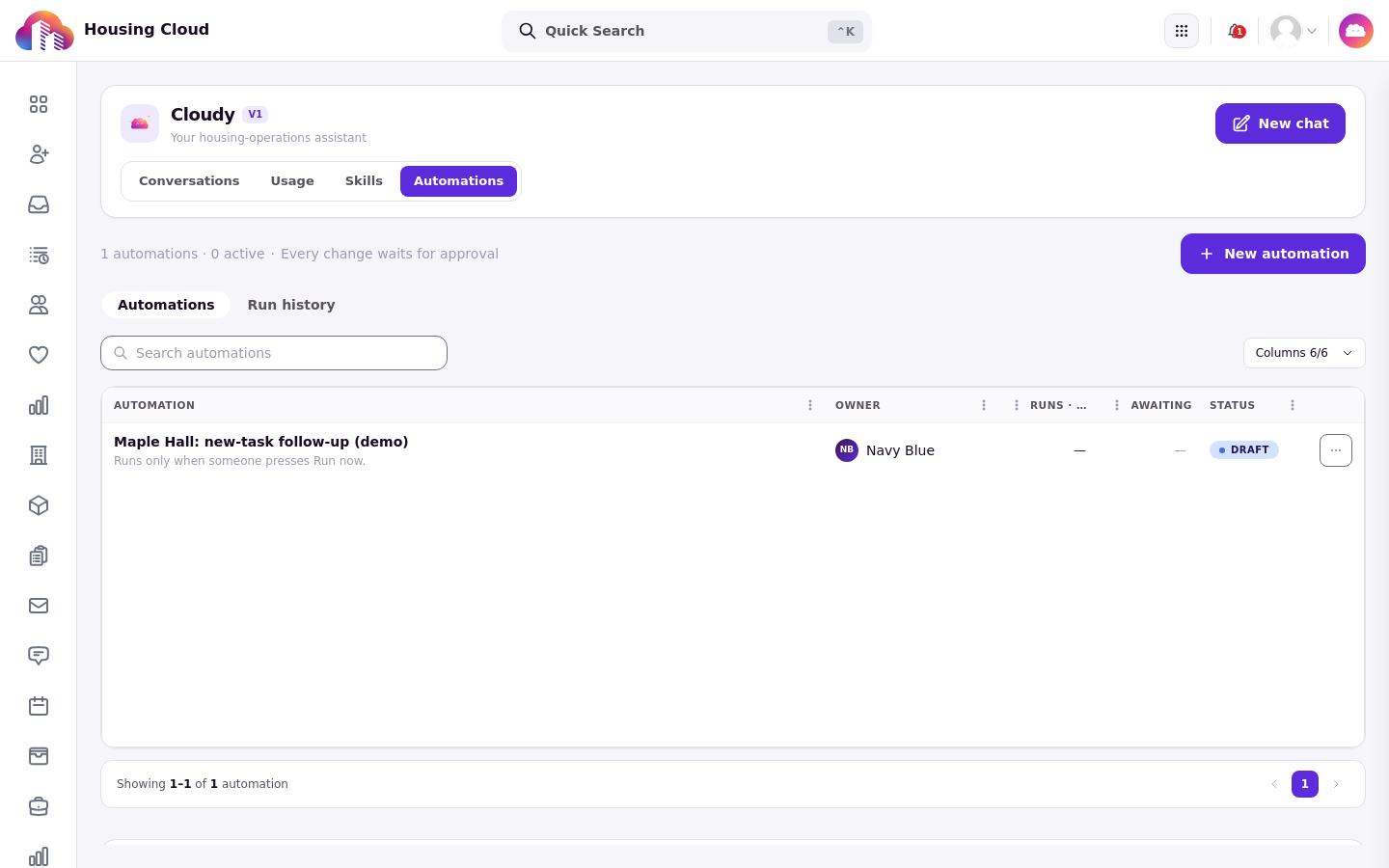
The automation in the list, with owner, runs and its Draft status.
How runs are recorded
The automation runs with the permissions of whoever last edited it. Every change it proposes waits for approval, and the run history shows what happened: "Approved · in the audit log" or "Rejected · nothing was written".
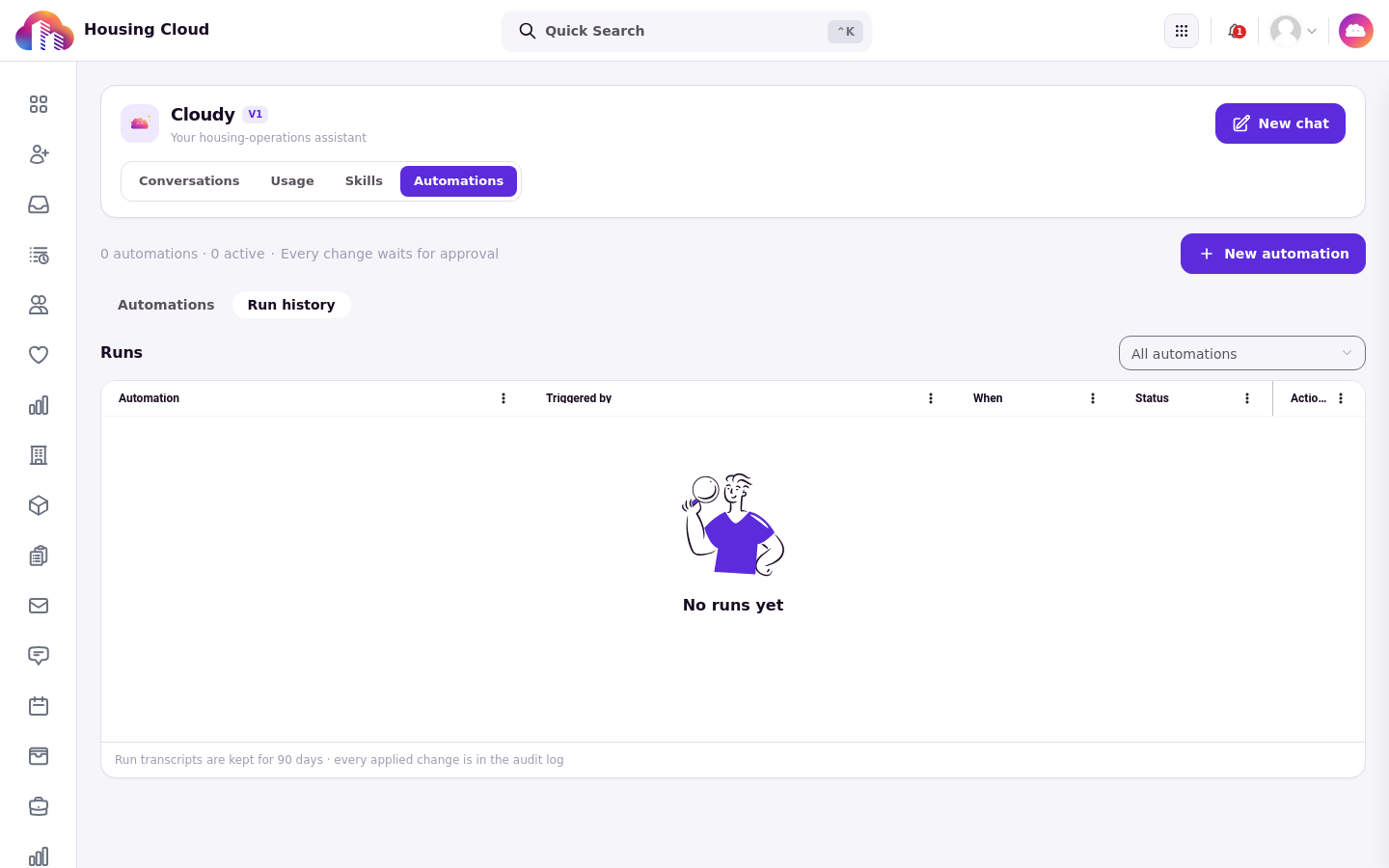
The "Run history" view. The footer notes run transcripts are kept for 90 days and every applied change is in the audit log.
Good to know
Editing or duplicating an automation makes you its owner, and its changes are proposed with your permissions.
An automation can run up to 200 unattended times per rolling 24 hours; Manual runs are not subject to this cap.
Up to 50 runs can be waiting for approval across your school.
Old run details are cleared after 90 days.