Your Conversations, History and Long Chats
Last updated: October 13, 2026
The full Cloudy page keeps your conversations in one place. Go back to any chat, pick it up where you left off, and start a new chat when a conversation gets long.
At Maple Hall… at the end of the day Jordan finds the morning's chat about the sink leak and picks it up where Sam left off.

The Cloudy page header: "New chat" and the Conversations, Usage, Skills and Automations tabs.
The Cloudy page and its tabs
Click "Cloudy" in the left menu to open the full page. Its tabs are Conversations, Usage, Skills and Automations. The last three depend on your role: see "Who Can Use Cloudy: Features and Permissions". "New chat" is available on every tab.
The Conversations list
The Conversations tab lists your chats, newest first. Open one to read it and keep going.
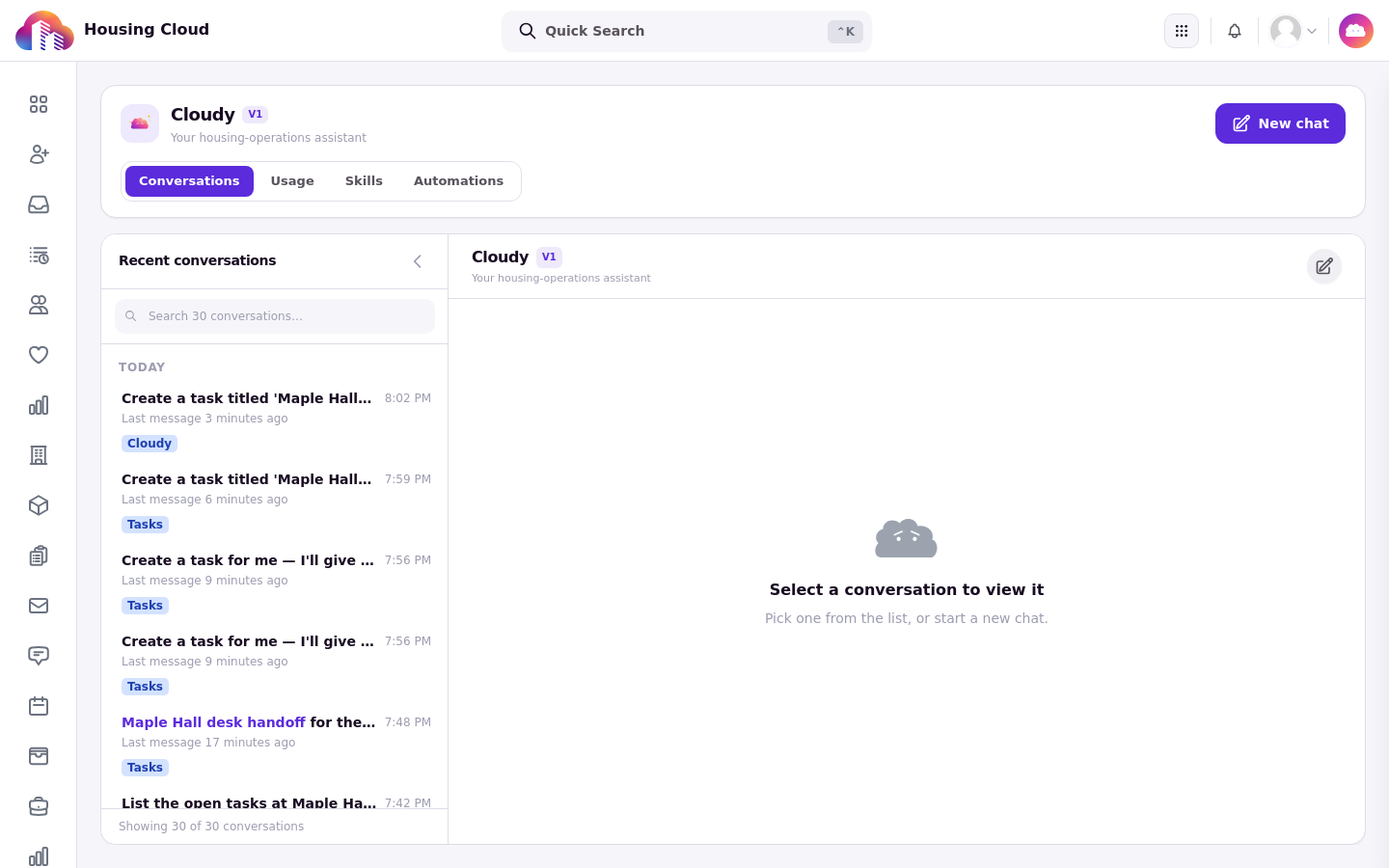
The Conversations list: your chats, newest first, with a search box.
The side panel and the full page share the chat
A conversation you started in the side panel continues on the full page and the other way round. It is the same chat.
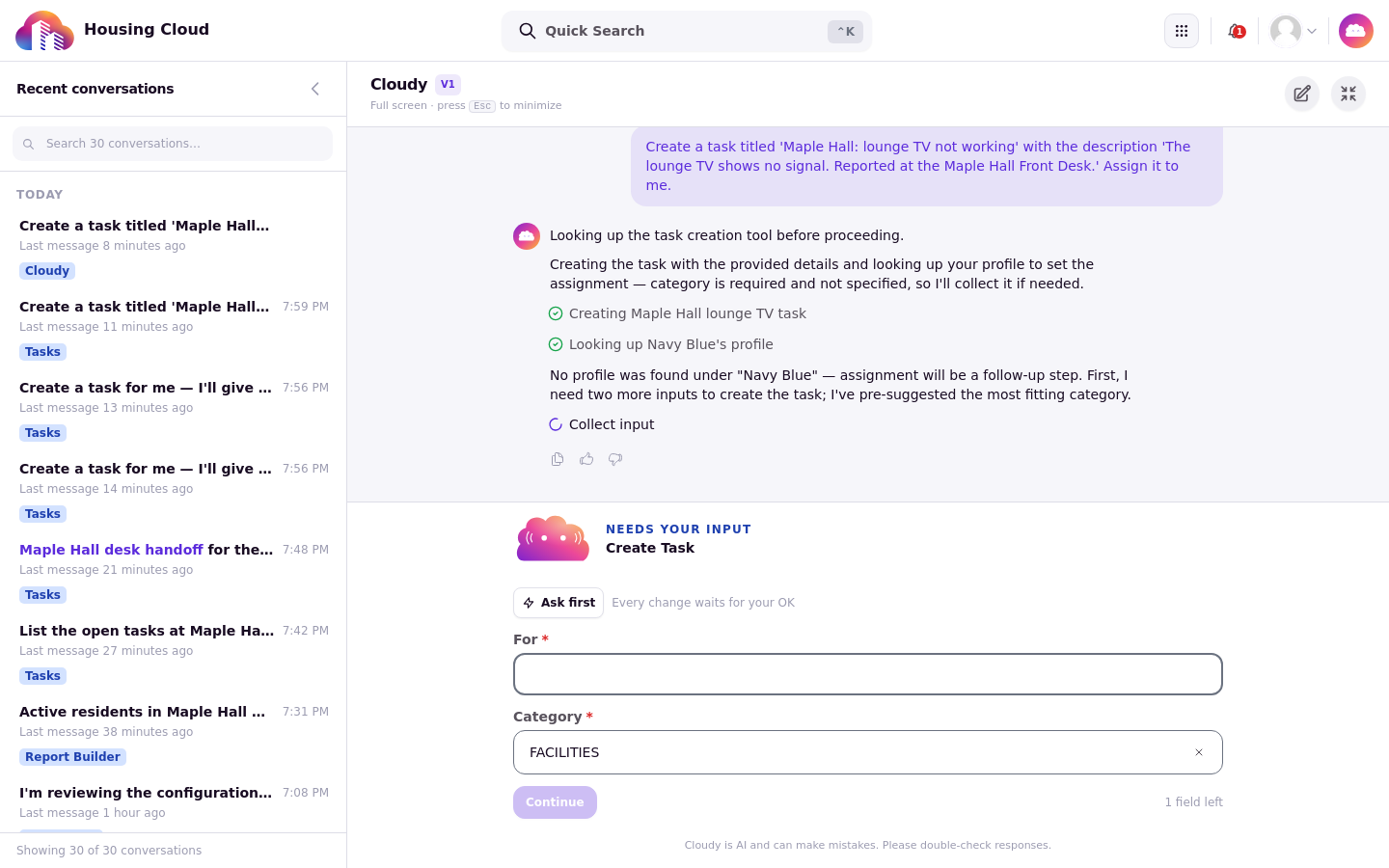
A past conversation reopened on the full page, ready to continue.
When a chat gets long
When a conversation gets long, Cloudy offers to carry a summary into a new chat. Press "Start a new chat" and Cloudy writes the summary; a confirmation reads "Summary carried over to a new chat". The new chat picks up where the old one left off, with less history to read.
No screenshot: none of the day chats was long enough to trigger the notice on the training site.
Good to know
Your chats are private to you (confirm on screen).
Keep Cloudy open in one browser tab. Two tabs share one conversation and can overwrite each other.
Where your school has Cloudy's long-term memory on, Cloudy can remember your preferences between chats. There is no screen to see or clear what it remembers.