View the student portal as a student (Impersonate)
Last updated: October 13, 2026
Impersonating opens the student portal exactly as that student sees it, from their own tab. Use it to reproduce what a student reports before changing anything on their behalf. Impersonation does not give you profile administration tools: you are viewing their portal, not editing their record. Some actions inside the impersonated student portal do change the student's real state and can trigger communications, such as claiming or declining a waitlist offer.
This article covers impersonating a real student. To test a future date, a window opening, or a full housing journey without touching a real student, use Test Drive instead.
Before you start
Your role needs the permission Service actions: impersonate, audit logs etc, found in the Service group of a role. See Permissions you need for impersonation and Test Drive.
The profile must be a student profile. Staff and admin profiles cannot be impersonated by ordinary operators; developers with the appropriate elevated permission are an exception.
Open the student's profile
Go to Profiles in the admin portal and open the student's profile. Their profile card shows their name, photo, and student ID.
Choose Impersonate from Profile actions
Click the … Profile actions button on the profile card, next to the student's name and photo. A menu opens with a Search actions… box at the top. Under the Access heading, click Impersonate.
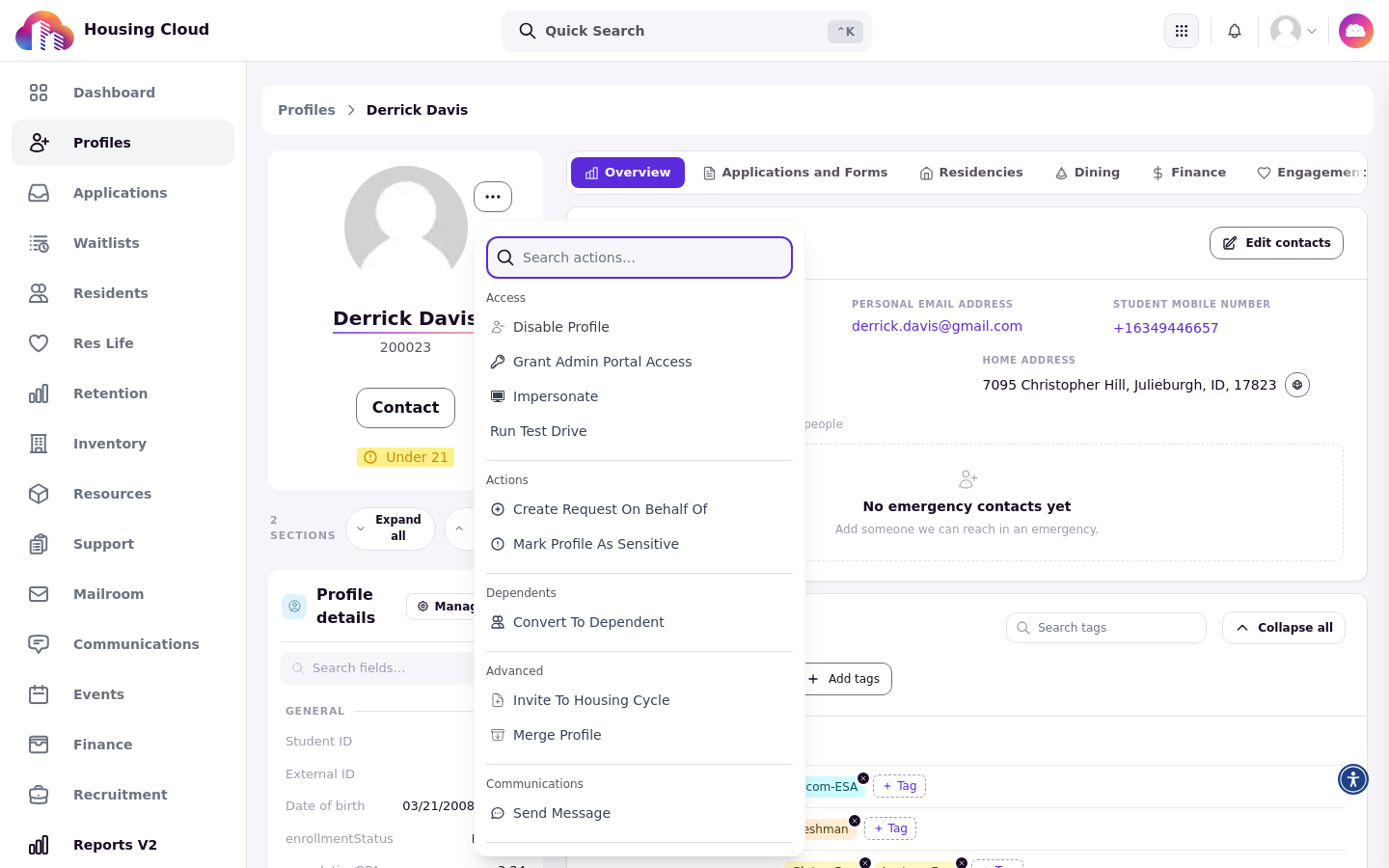
What you'll see: the impersonation banner
Impersonate opens the student portal in a new tab. Wait for the portal to load, then check the top of the page for the banner:
Classic portal: Impersonating: [name] with a red Cancel Impersonation button.
New portal: Viewing the student portal as [name] with an Exit impersonation button.
While the banner is up, everything you do in that tab happens as the student. Anything the portal sends from here (emails, notifications) goes to the student's real contacts, so avoid submitting applications or confirming actions unless you intend to.
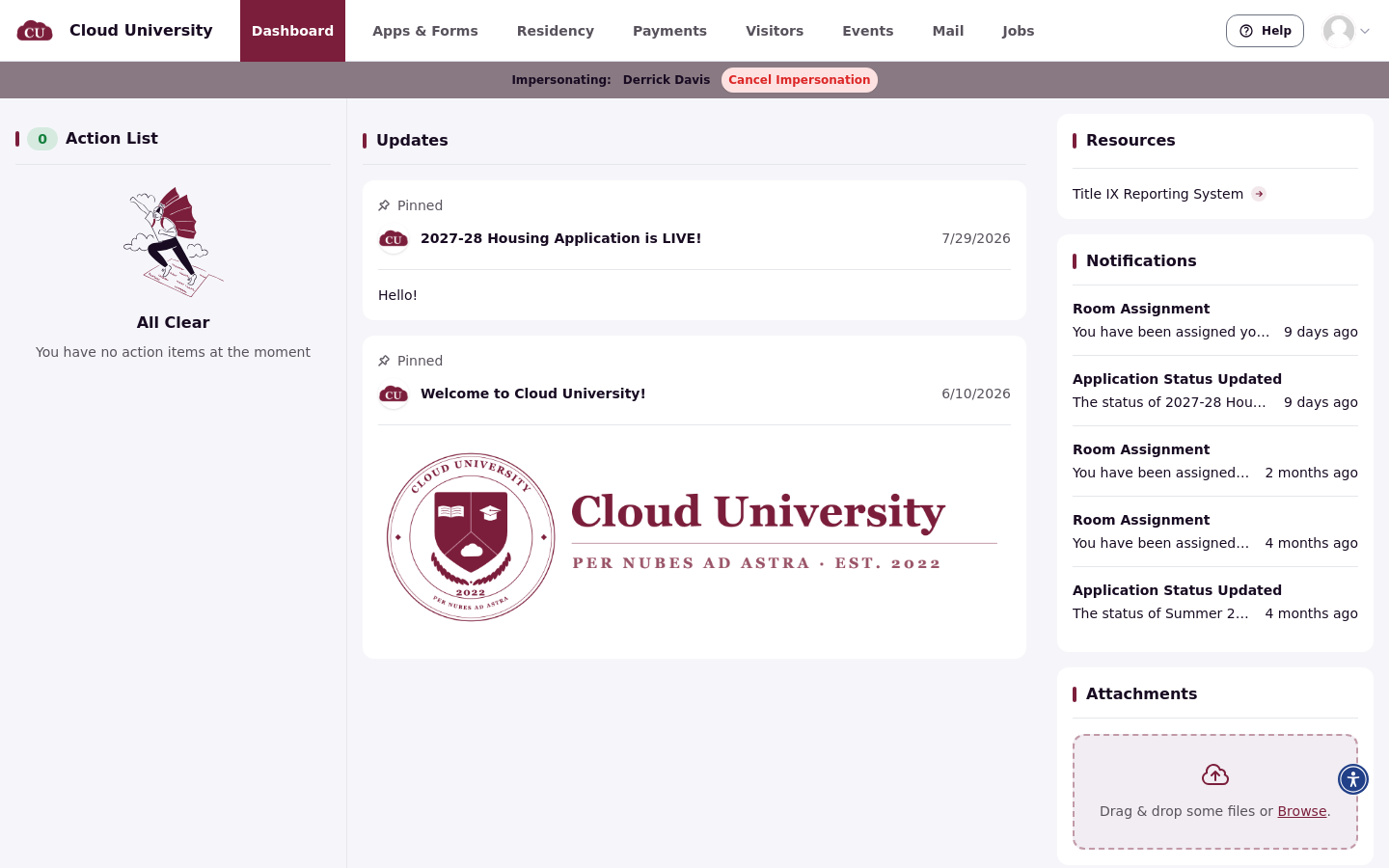
Exit impersonation
You can leave impersonation from either side:
In the student portal tab, click Cancel Impersonation (classic portal) or Exit impersonation (new portal).
The admin header's grid icon opens a Switch portal popover with a Student Portal card, which also opens the portal for the student you are impersonating.
In the admin portal, open any admin page: a banner reads You are still impersonating: [name]. Click Cancel Impersonation on it.
Ending impersonation closes the student portal session. The admin pages keep working normally.
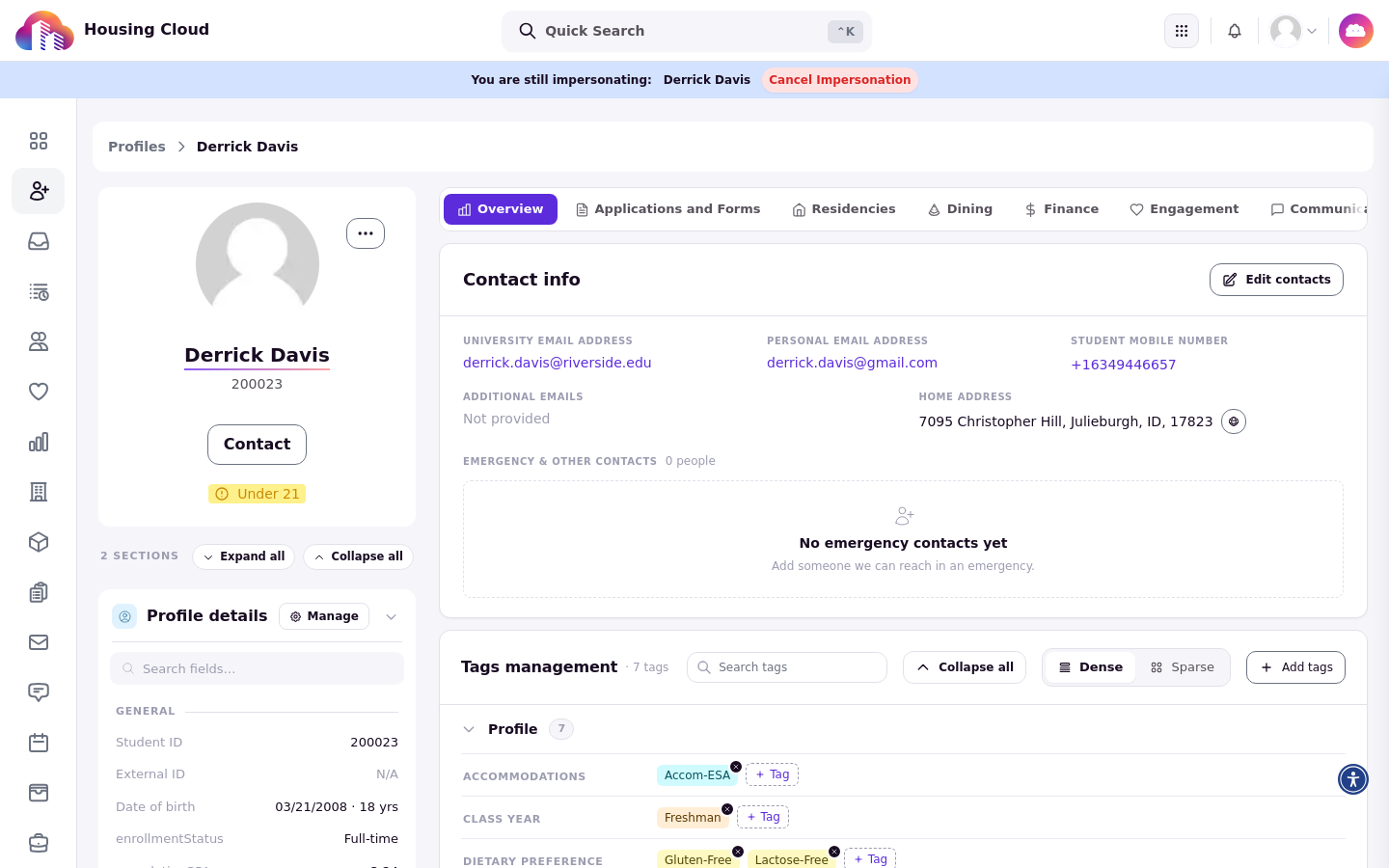
Why Impersonate is greyed out or missing
Cannot impersonate an admin: the profile belongs to a staff member, so impersonation is blocked.
Impersonate is missing from the menu: your role lacks the Service actions: impersonate, audit logs etc permission, or the profile is marked sensitive.
Both cases are covered in Permissions you need for impersonation and Test Drive.