Edit Profile Emails
Last updated: August 28, 2026
Overview
The email editor lets you add, edit, set as preferred, or remove email addresses on a student's profile. This is useful when a student's contact information changes, when an incorrect email was imported, or when you need to ensure the correct email is marked as preferred for communications.
Access to email editing is permission-based. Users with the profileEditEmails permission see the Edit Emails option and can make changes. Users without this permission see View Emails and can only review the email addresses on file.
Open the email editor
Navigate to the student's profile detail page by clicking their name from the Profiles table. On the profile page, locate the biography card and click the three-dot actions menu in the upper right of that card.
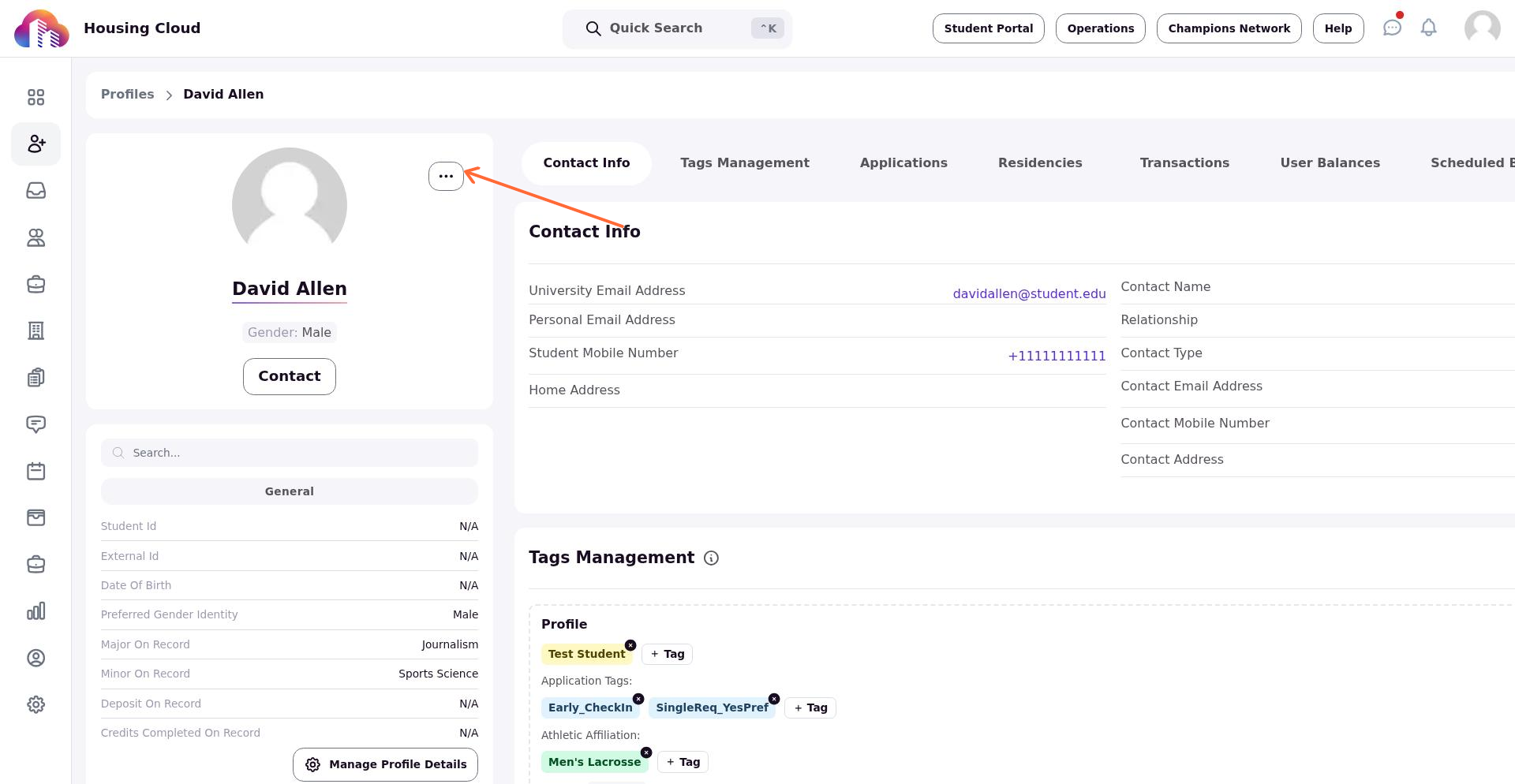
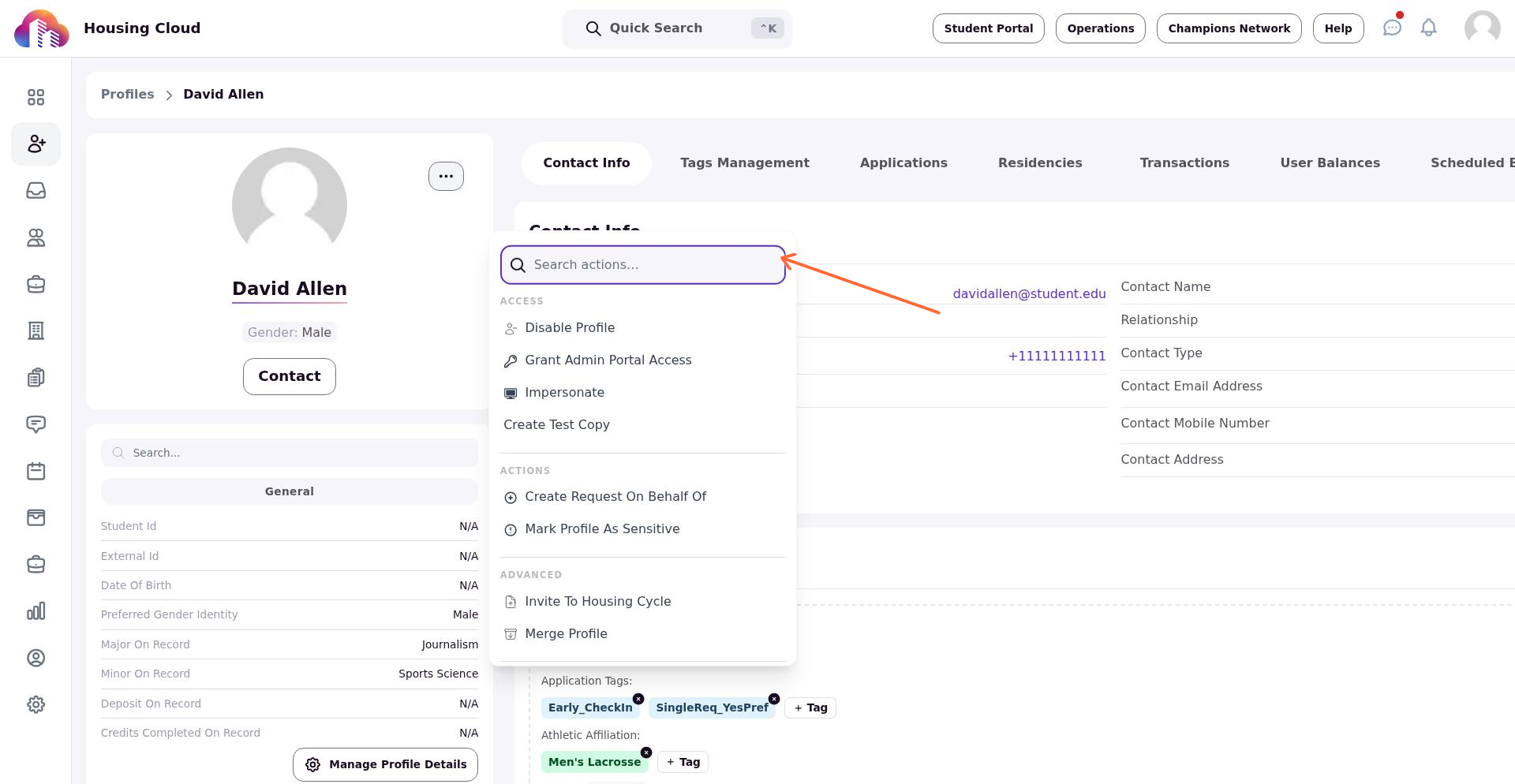
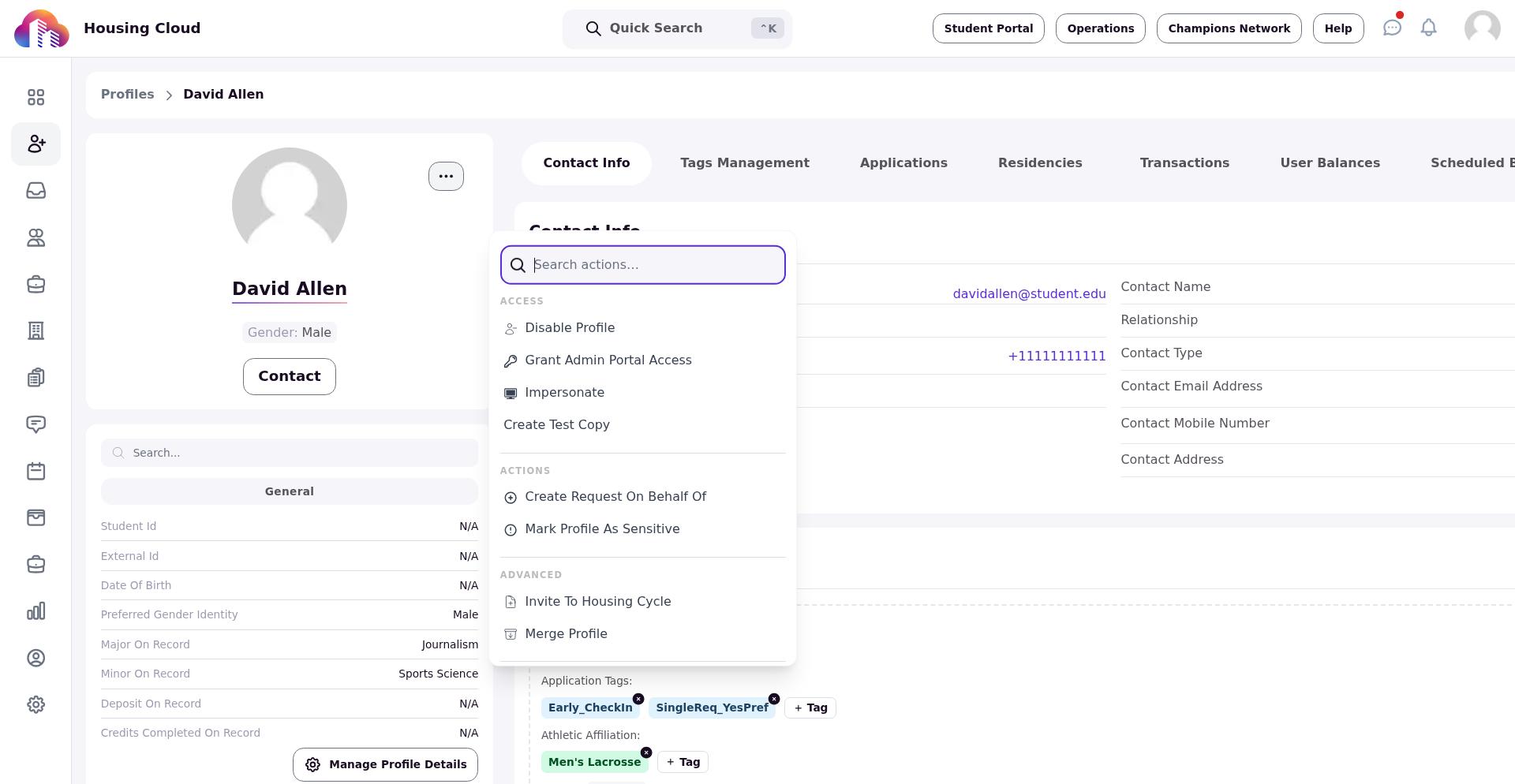
From the actions menu, select Edit Profile, then choose Edit Emails. The Manage Emails modal opens, displaying all email addresses associated with the profile.
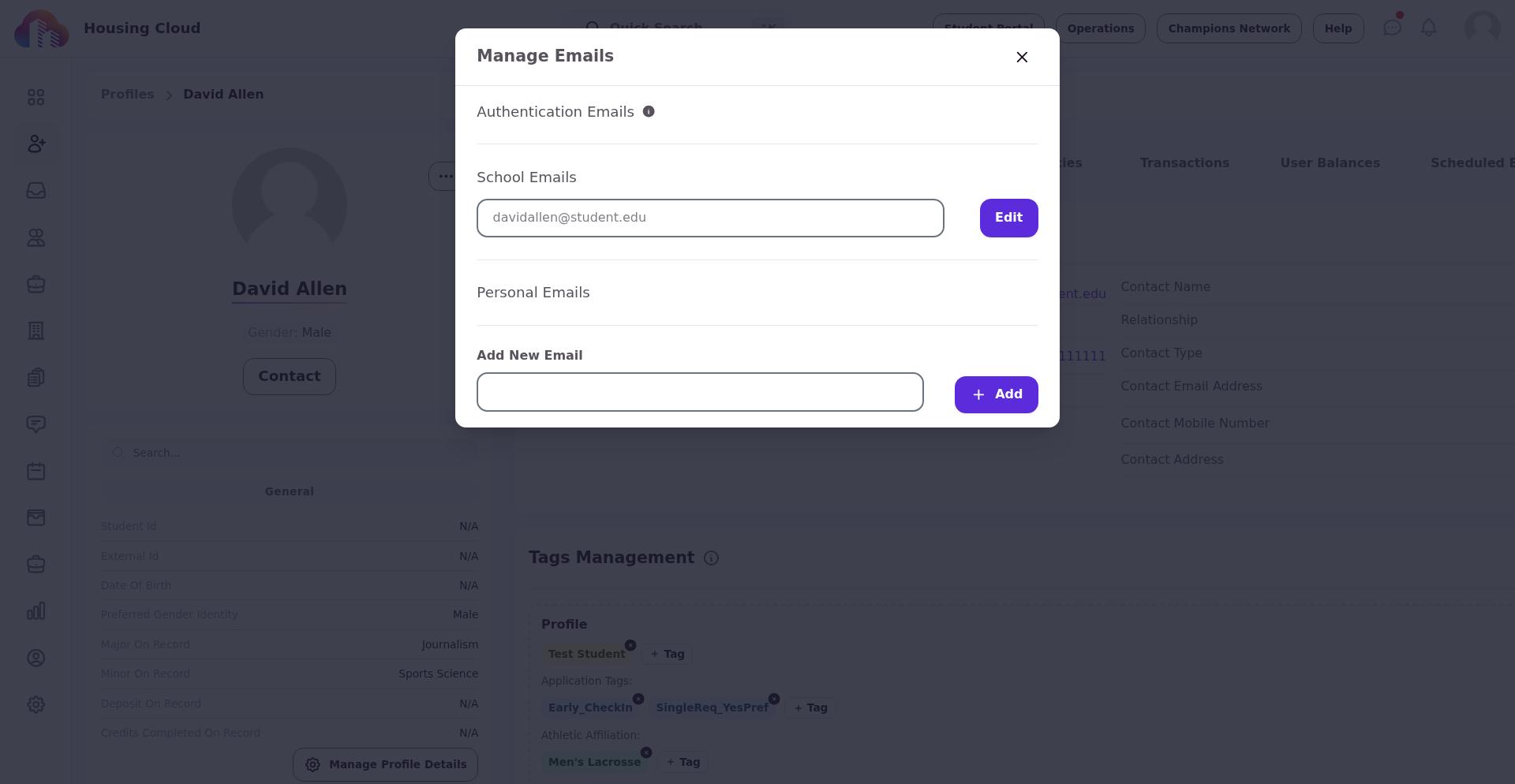
If you do not have edit permission, the menu item appears as View Emails and opens a read-only version of the same modal.
Edit an existing email
In the Manage Emails modal, locate the email you want to update and click Edit. The email field becomes editable.
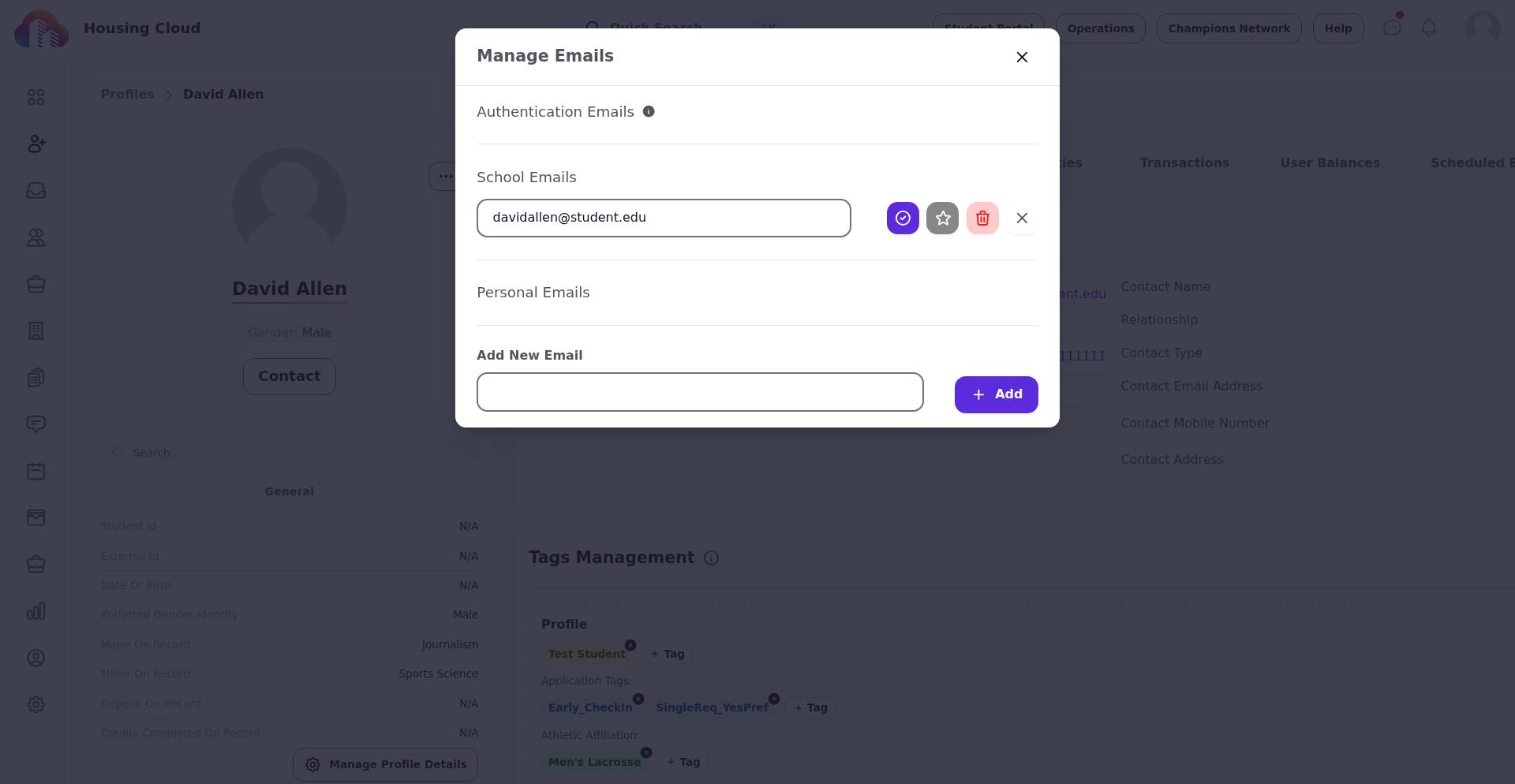
Update the email address in the Email field. The system validates that the address is properly formatted and unique—no two profiles can share the same email address.
Click Save Email Address to confirm the change. The updated email appears immediately in the email list.
Add a new email address
At the bottom of the Manage Emails modal, locate the Add New Email section. Enter the new email address in the Email field.
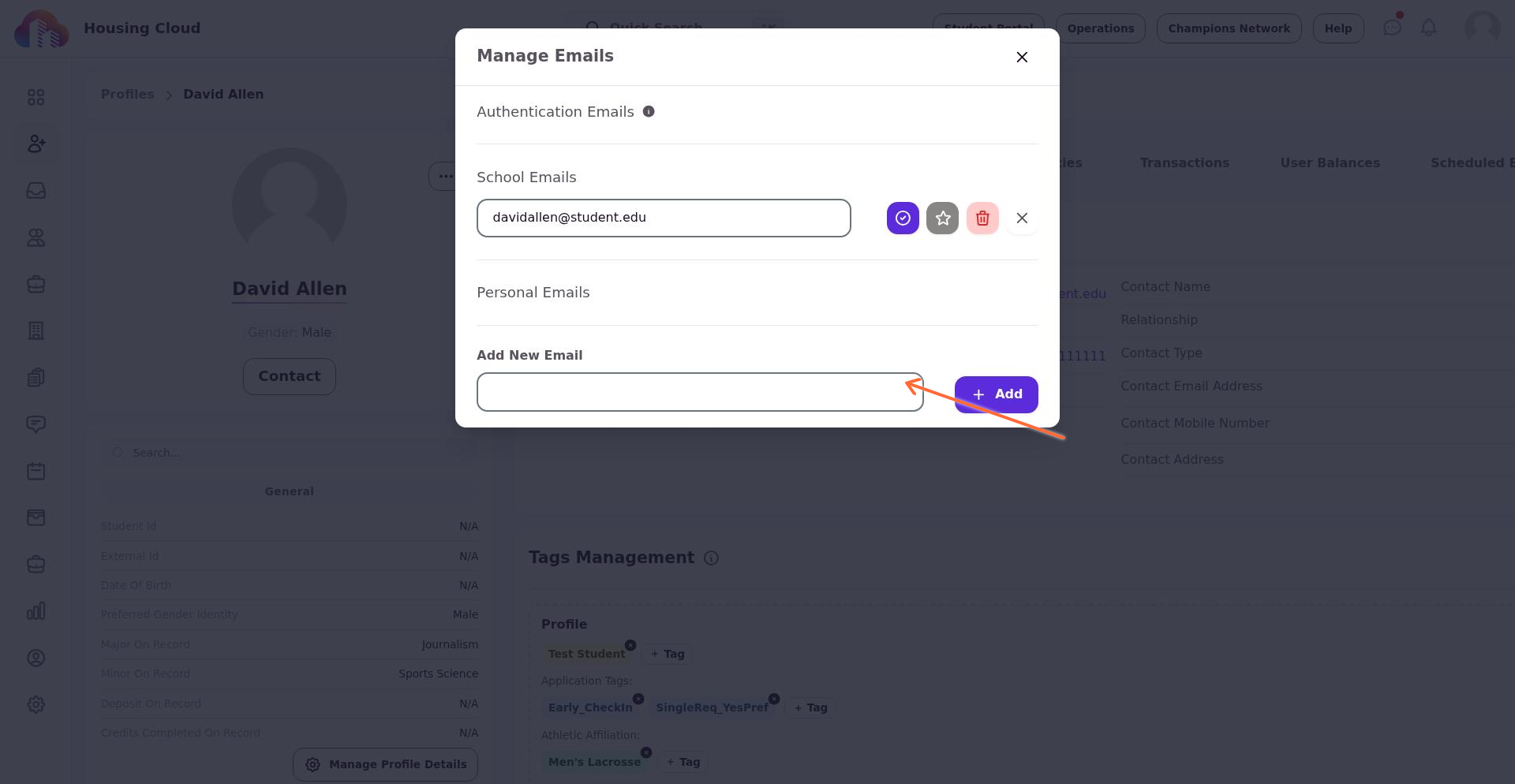
Click Add to save the email. The new email appears in the list. By default, newly added emails are not marked as preferred.
Set a preferred email
The preferred email is the primary address Housing.Cloud uses for communications sent to the student. Each profile should have one email marked as preferred.
To change which email is preferred, locate the email you want to set as primary and click Set as Preferred Email. The system updates the preferred indicator to show Preferred Email next to that address.
Only one email can be preferred at a time. Setting a new preferred email automatically removes the preferred status from the previous one.
Delete an email address
To remove an email from the profile, locate the email in the list and click Delete Email. A confirmation dialog appears asking you to confirm the deletion.
Click Delete to permanently remove the email. The email disappears from the list and is no longer associated with the profile.
You cannot delete the preferred email directly. If you need to remove the current preferred email, first set a different email as preferred, then delete the original address.
Validation and errors
The system validates email entries when you attempt to save. If a validation error occurs, the change is not saved and an error message appears.
- Email cannot be empty: The email field was left blank.
- Not a valid email: The address format is invalid (missing @ symbol, invalid domain, or other formatting issues).
- Email must be unique: The email address already exists on another profile in your system.
Correct the email address and try saving again.
After you finish
Close the Manage Emails modal when you are done. The profile page reflects the updated email addresses. Changes take effect immediately—communications sent after the update use the new preferred email address.
For broader profile management tasks such as editing other contact information or merging duplicate profiles, see Working with Profiles.