Edit Custom Profile Fields on a Profile
Last updated: October 5, 2026
You can edit custom profile field values for individual students directly from their profile, or update the same field across multiple students at once using bulk actions from the Profiles table.
Individual edits are useful for correcting a single student's record. Bulk edits are useful when you need to apply the same value to many students at once, such as updating a class standing or housing status after a data import.
Edit a field on an individual profile
Open the profile details
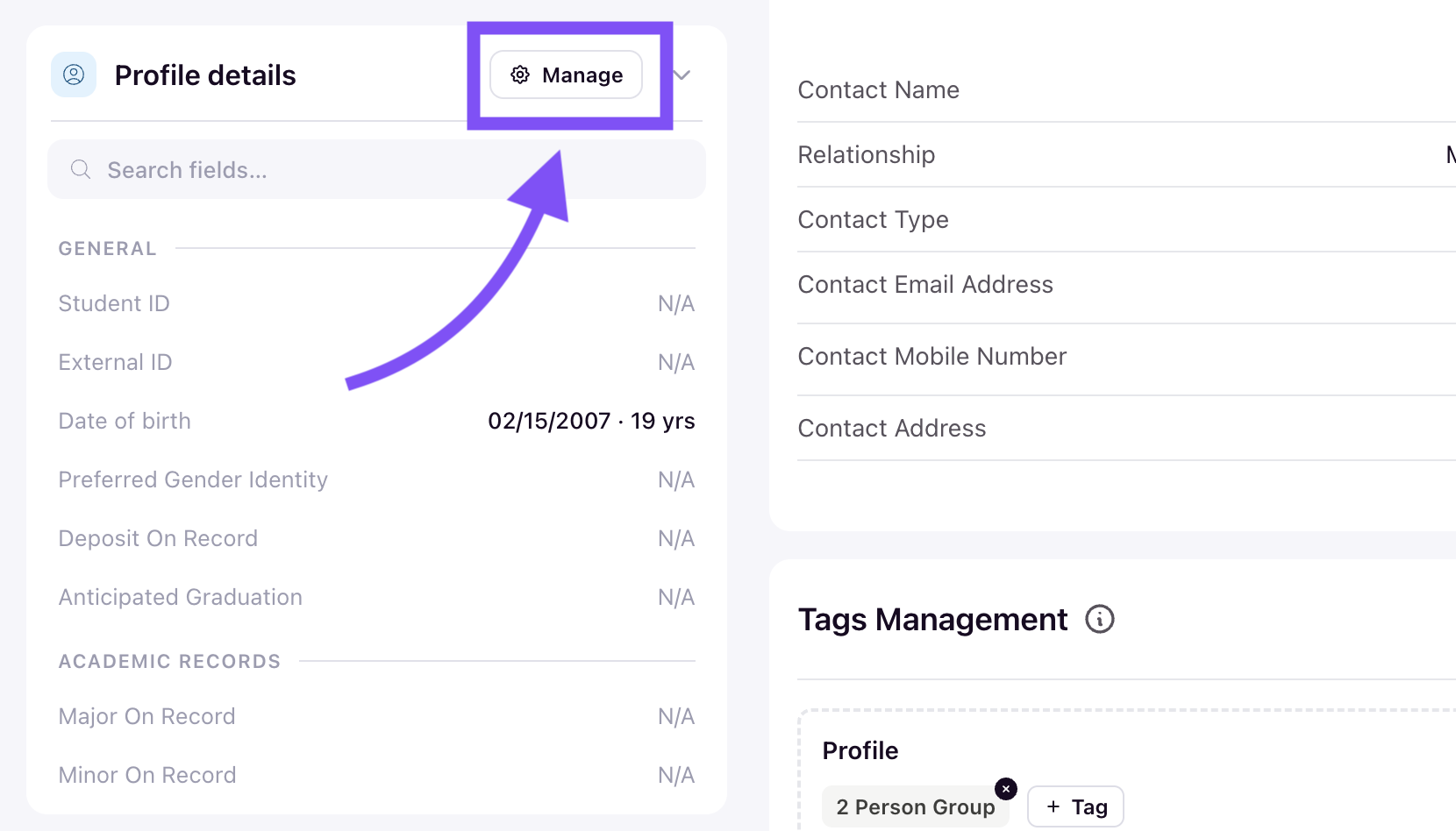
Navigate to a student's profile page (or any page that contains the profile details). The Profile details panel on the left shows all visible custom fields grouped by category. Click the Manage button in the profile details panel to open the field editor.
Make your changes
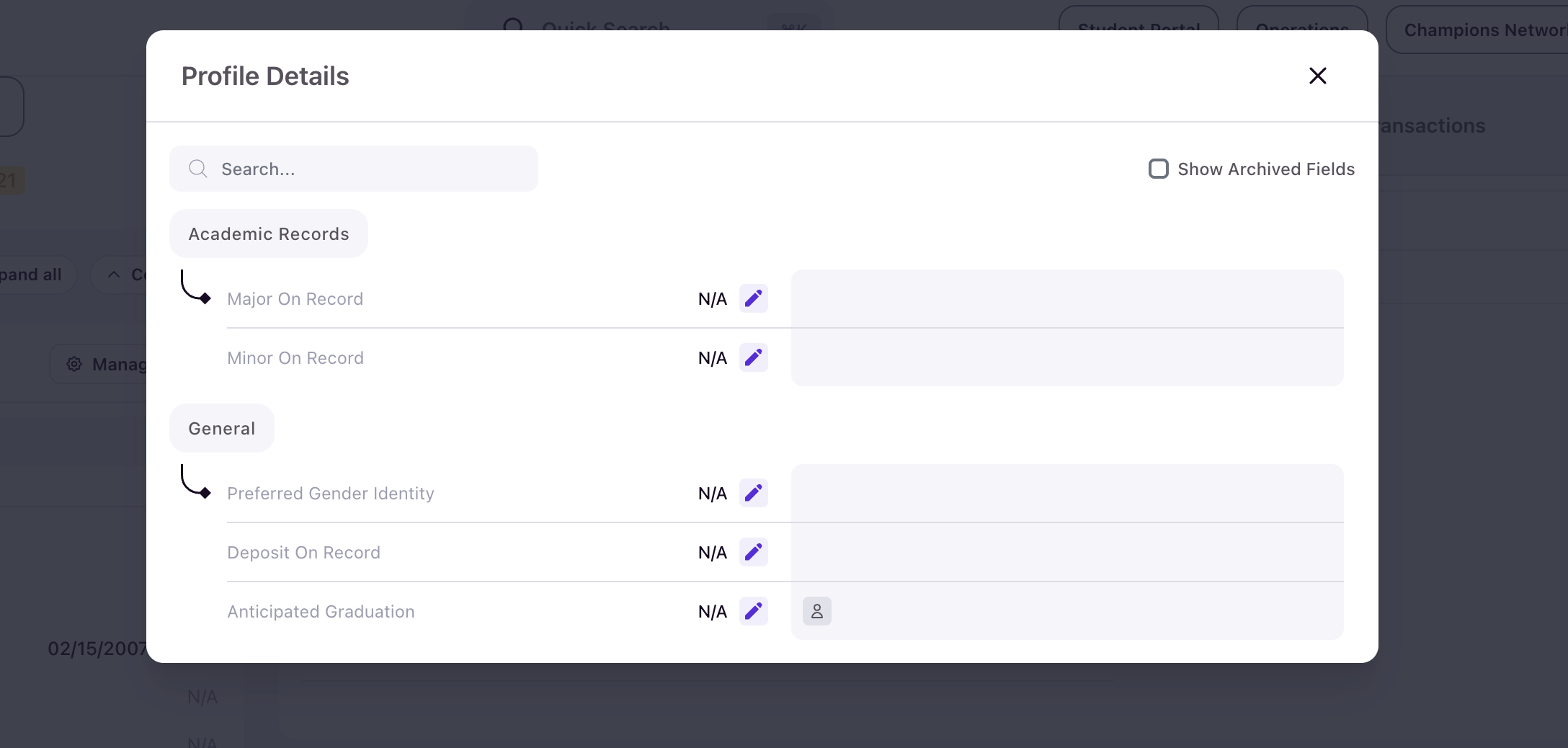
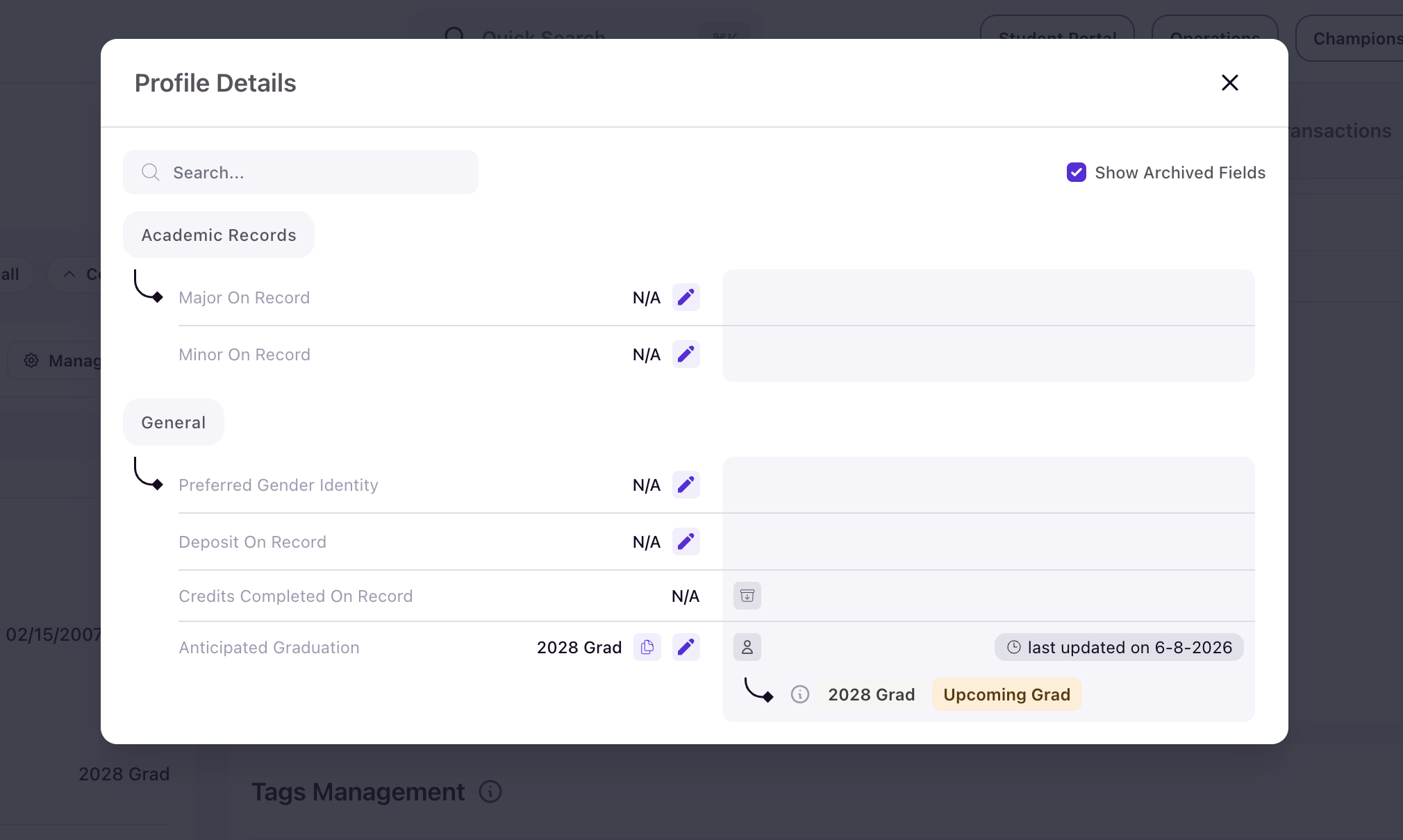
The Profile Details modal opens, showing all fields organized by category. Each field has a pencil edit icon next to its current value. Click the icon to edit the field.
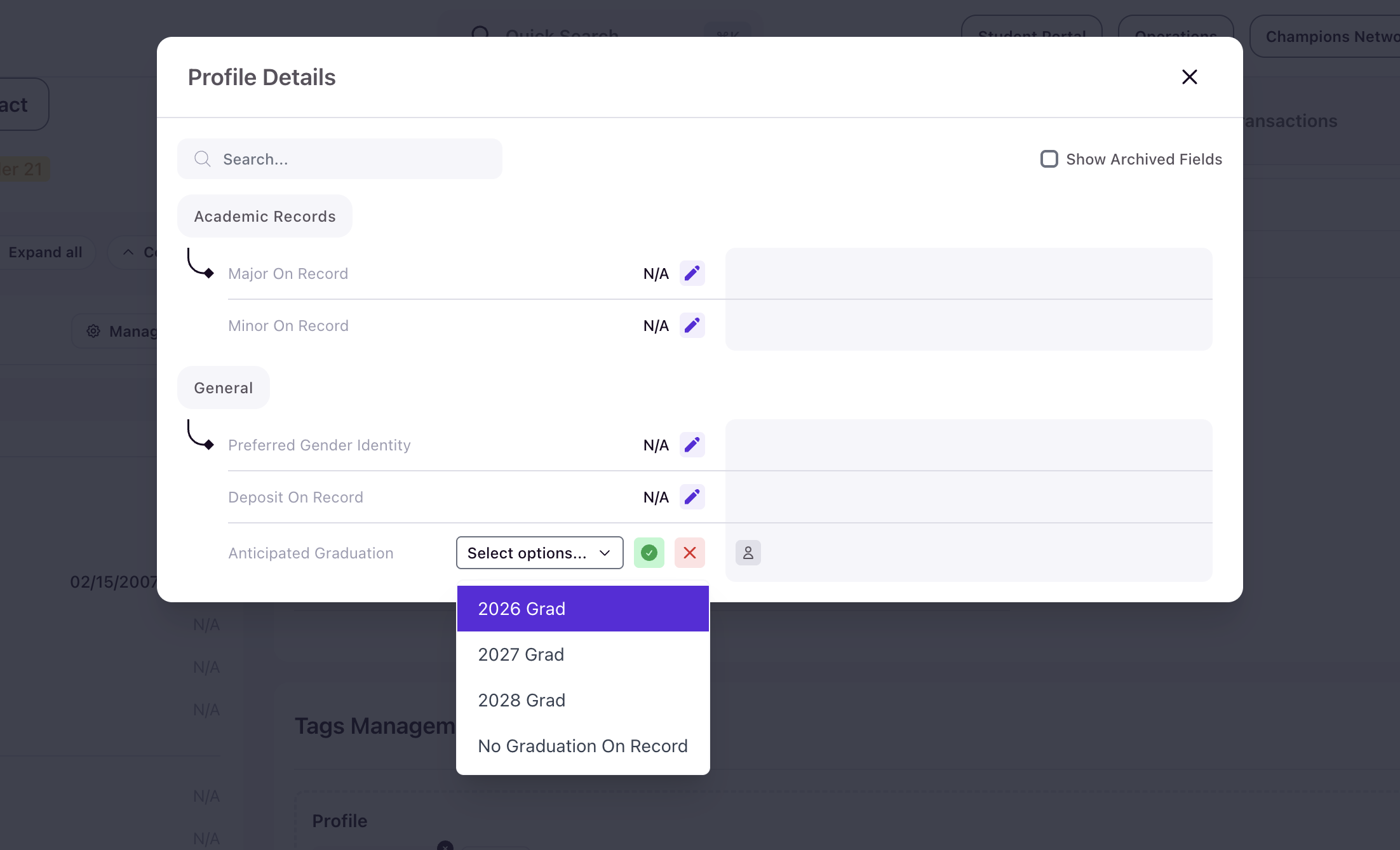
For choice and dropdown fields, a dropdown menu opens with the available options. Select the new value and confirm with the checkmark, or cancel with the X.
Review the update
After saving, the field shows the new value. Any tags associated with that option are automatically applied to the student's profile. The modal also shows when the field was last updated and which tags are now active.
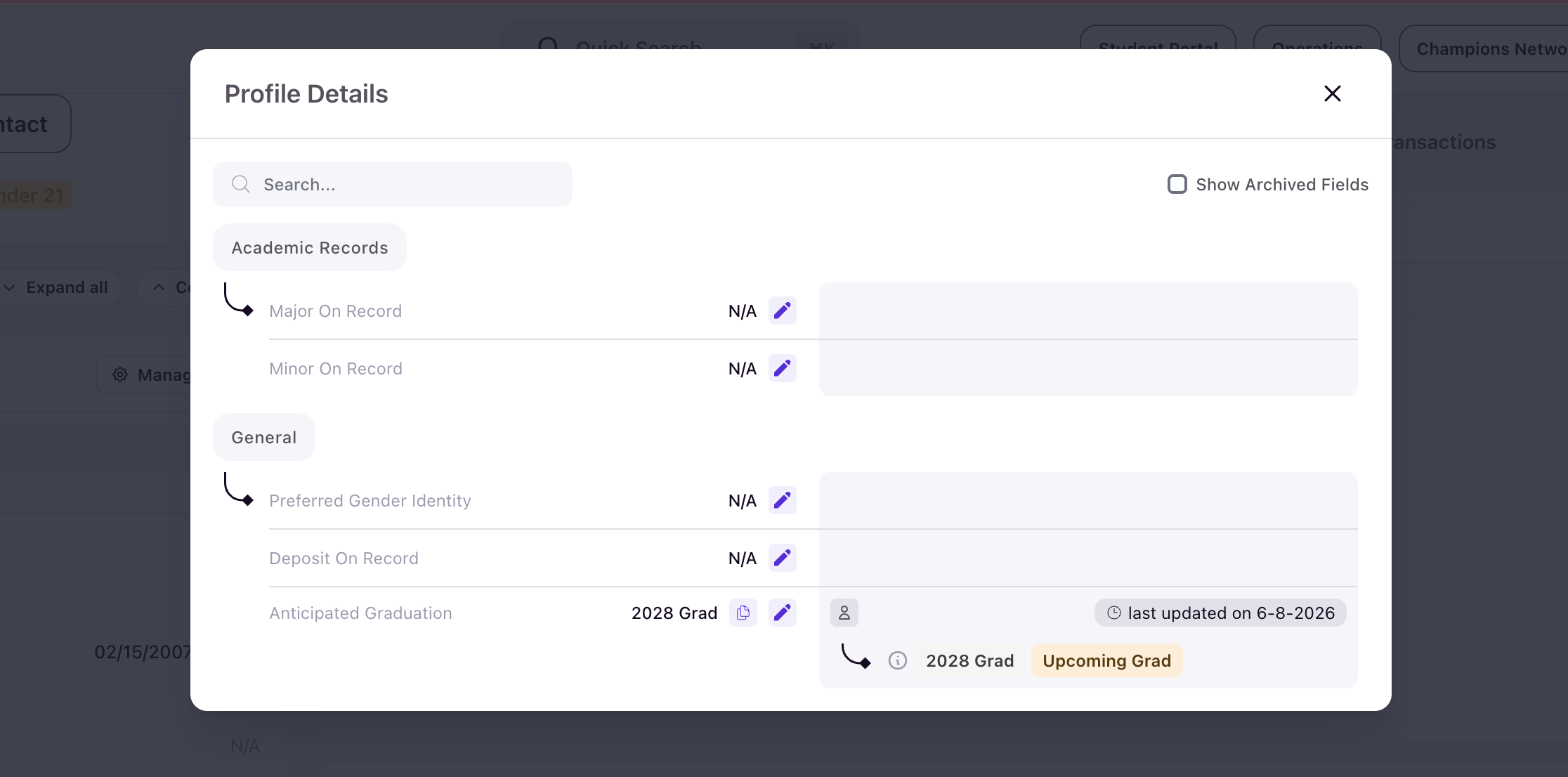
Close the modal to return to the profile. The updated value appears in the profile details panel and any connected tags are reflected in the student's tag management section.
View archived fields
Check the Show Archived Fields checkbox in the Profile Details modal to display archived fields alongside active ones. Archived fields are marked with an archive icon and cannot be edited.
Bulk edit from the Profiles table
Select the students
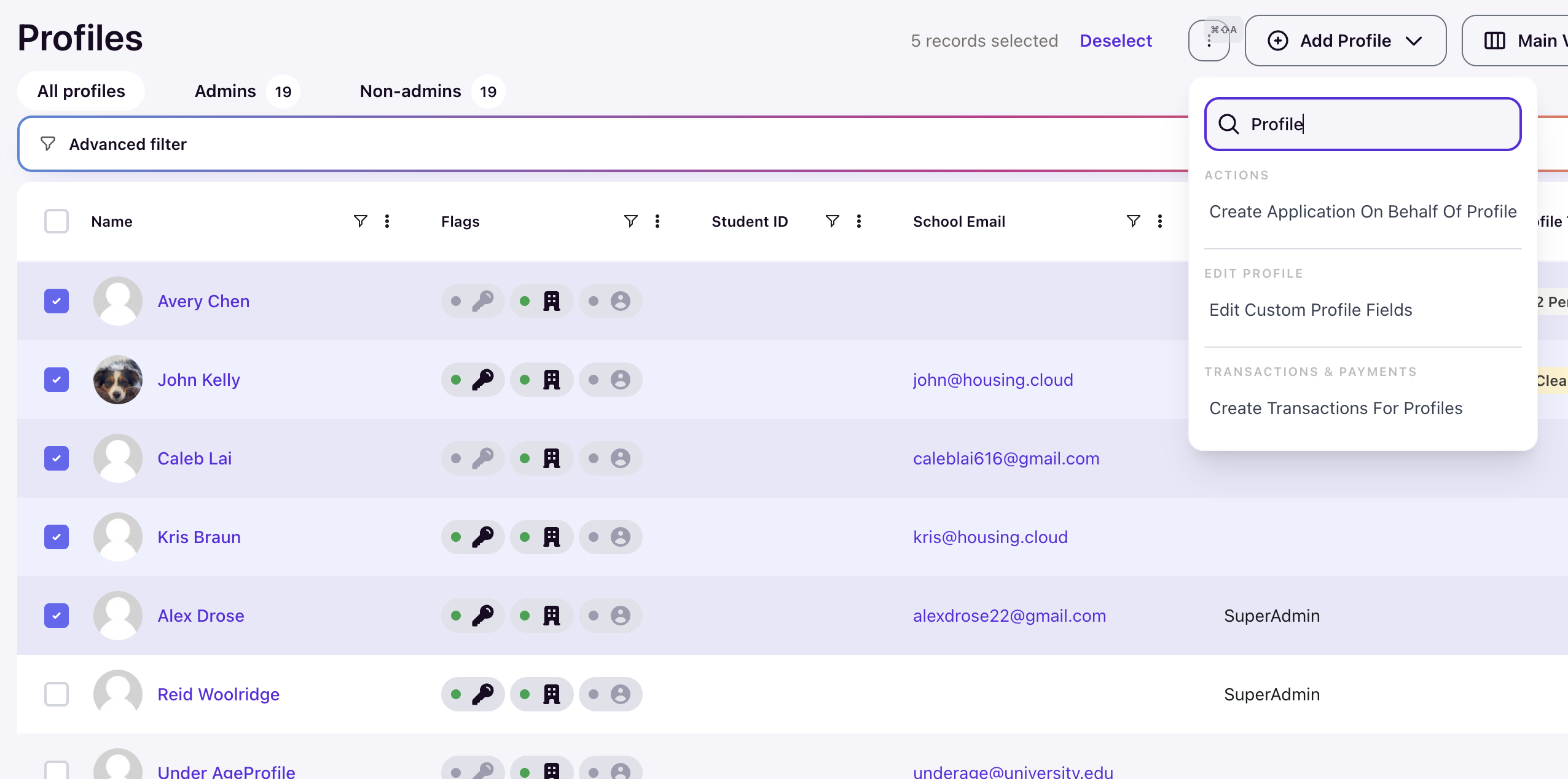
Go to the Profiles table (or other applicable tables) and select the students you want to update andClick the actions dropdown and select Edit Custom Profile Fields.
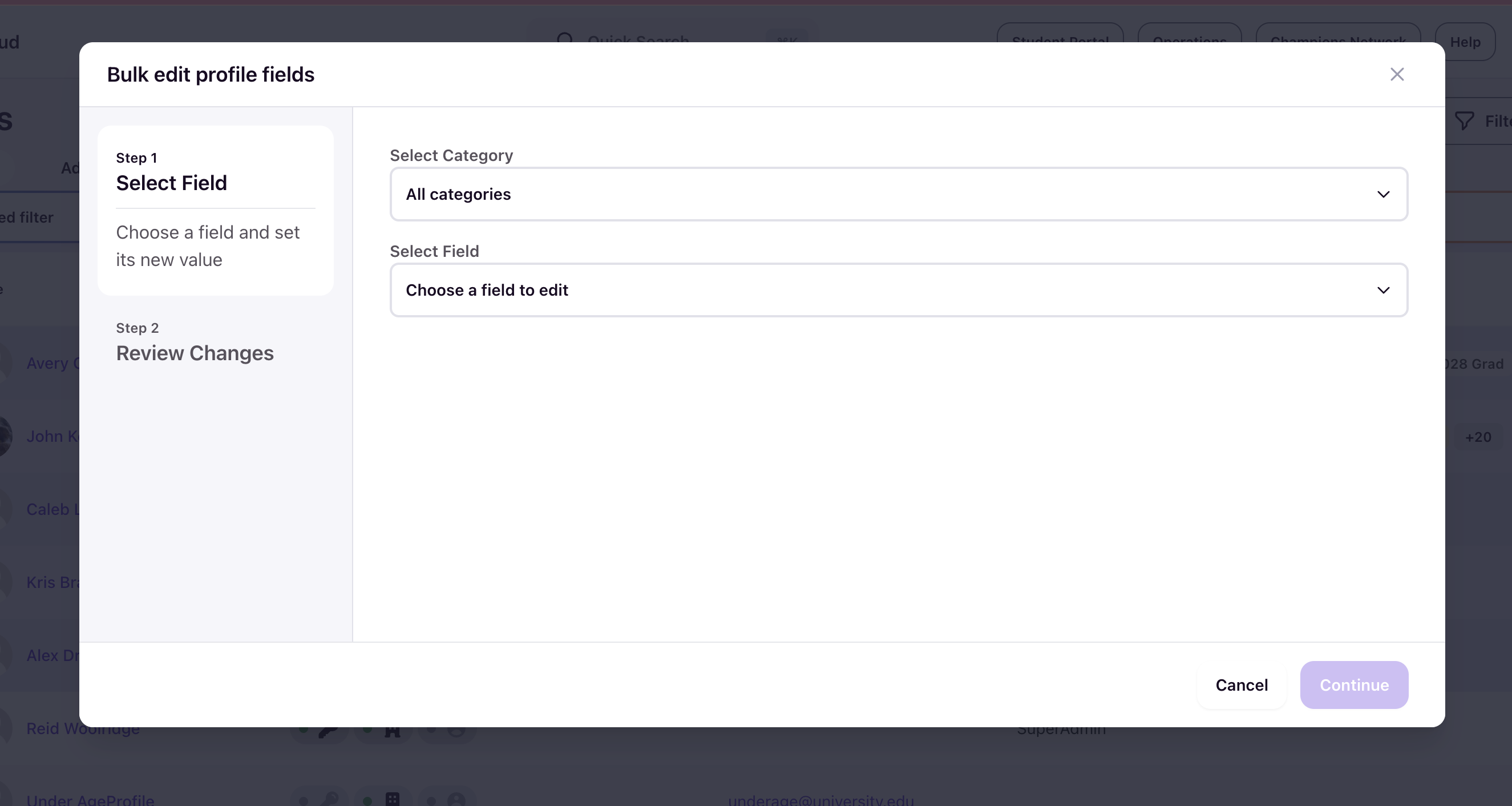
Select the field and new value
Choose a category from the Select Category dropdown, then choose the specific field from the Select Field dropdown.
Select the option you want to apply to all selected students.
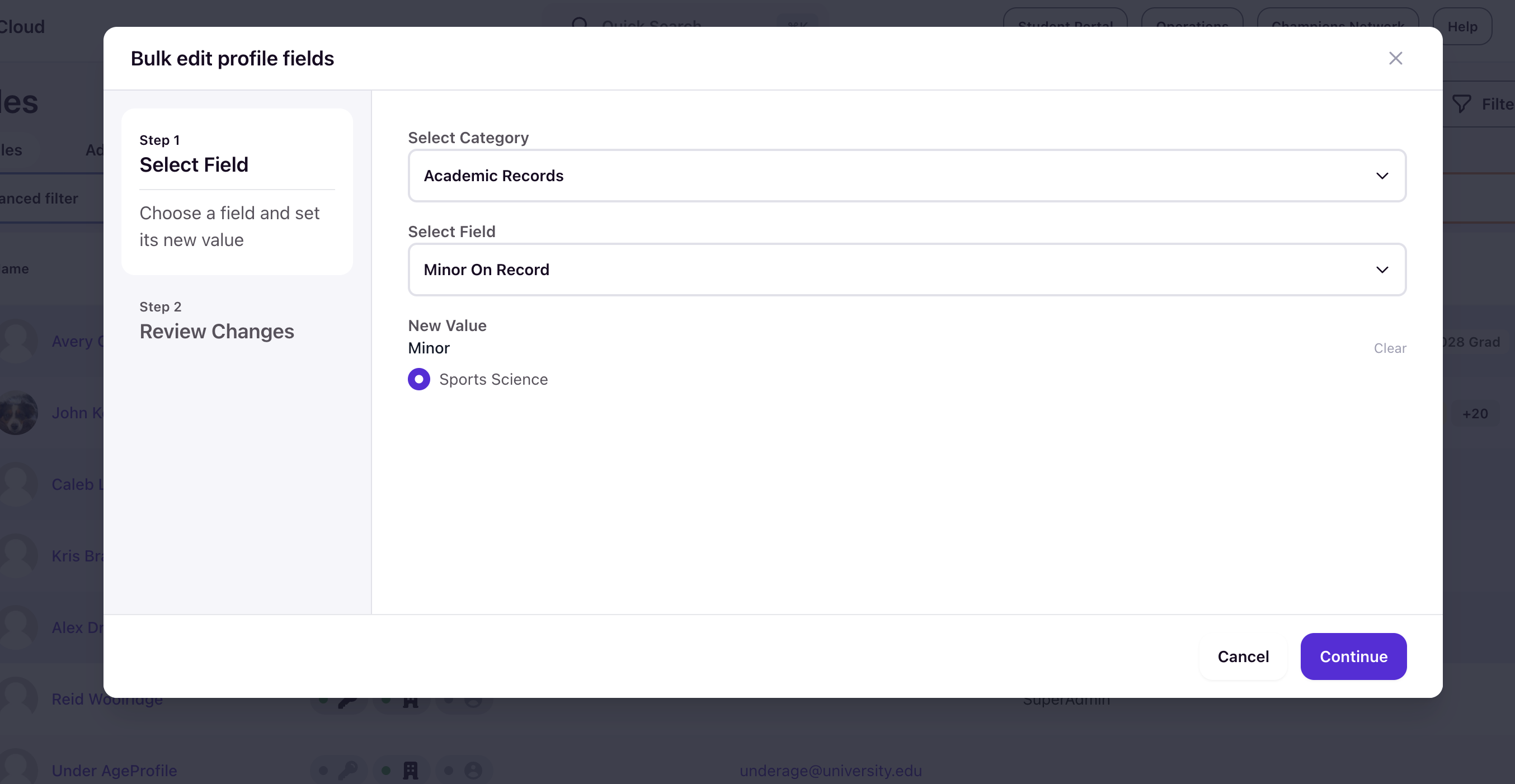
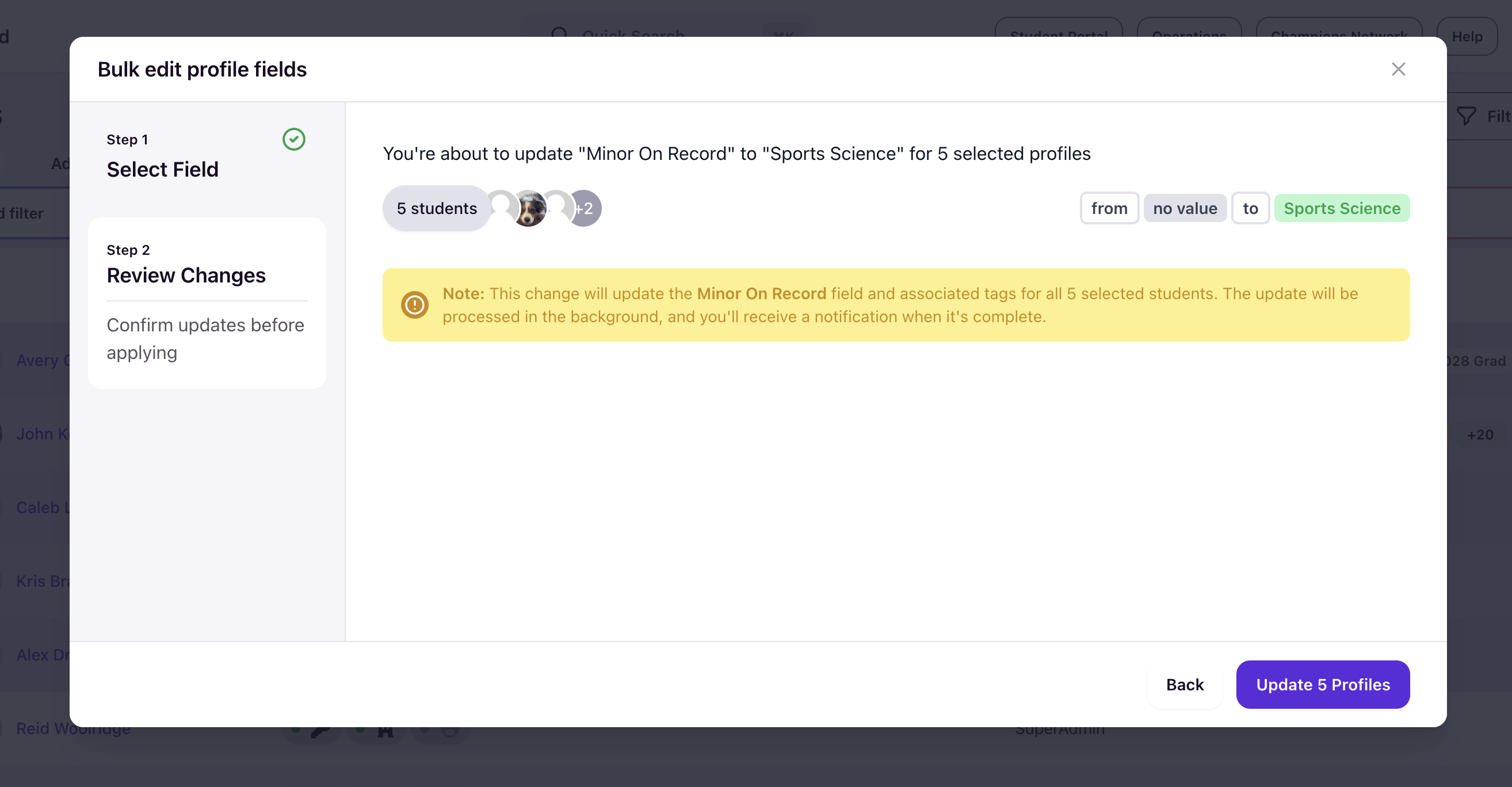
Click Continue to proceed to Review Changes, where you can confirm the update before it is applied to all selected profiles. The review screen shows the field being updated, the new value, the number of affected students, and a summary of the change. Click Update [X] Profiles to apply the changes.
Where the changes appear
After editing, the updated values appear in:
- The student's Profile details panel on their profile page
- The student's Tags Management section, if the field option is connected to tags