Using AI Safely: What Cloudy Can and Can't Do
Last updated: October 8, 2026
Cloudy is safe to use when you understand two things: it only works inside your permissions, and in Ask first mode it asks before it changes anything. This article covers what Cloudy can see, what it can change, what it can never do, and when to double-check its answers.
At Maple Hall… before Sam's first week with Cloudy, Jordan walks through what it will and won't do, and the one habit that matters: check the card before you press Approve.
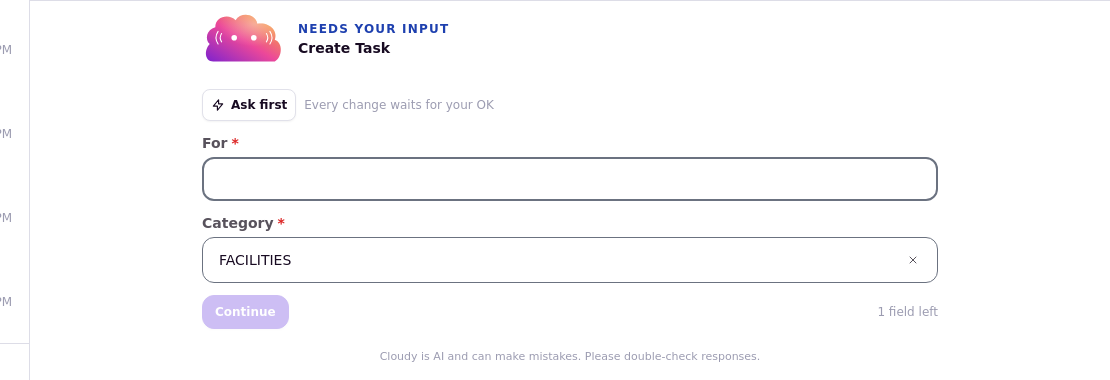
The change card, with the "Ask first" chip reading "Every change waits for your OK".
What Cloudy can see
Cloudy reads your school's own data, through your permissions. If your role can't do something, Cloudy can't do it for you, and columns you can't see are removed from its answers.
Every database question Cloudy asks is checked to stay inside your school before it runs, and it runs read-only. Cloudy never reads other schools' data.
What Cloudy can change
Cloudy can prepare changes to profiles, applications, rooms and billing, and tasks, plus bulk changes, refunds and charges, and short emails to staff. The full list is in "What Cloudy Can Change for You (the 18 Actions)".
In Ask first mode, when Cloudy wants to make one of these changes, it stops and shows a card that reads "Needs your OK". The card shows exactly what will change, with Approve and Reject buttons. Nothing happens until you choose. In Auto accept mode, Cloudy can execute eligible changes itself without showing the card.
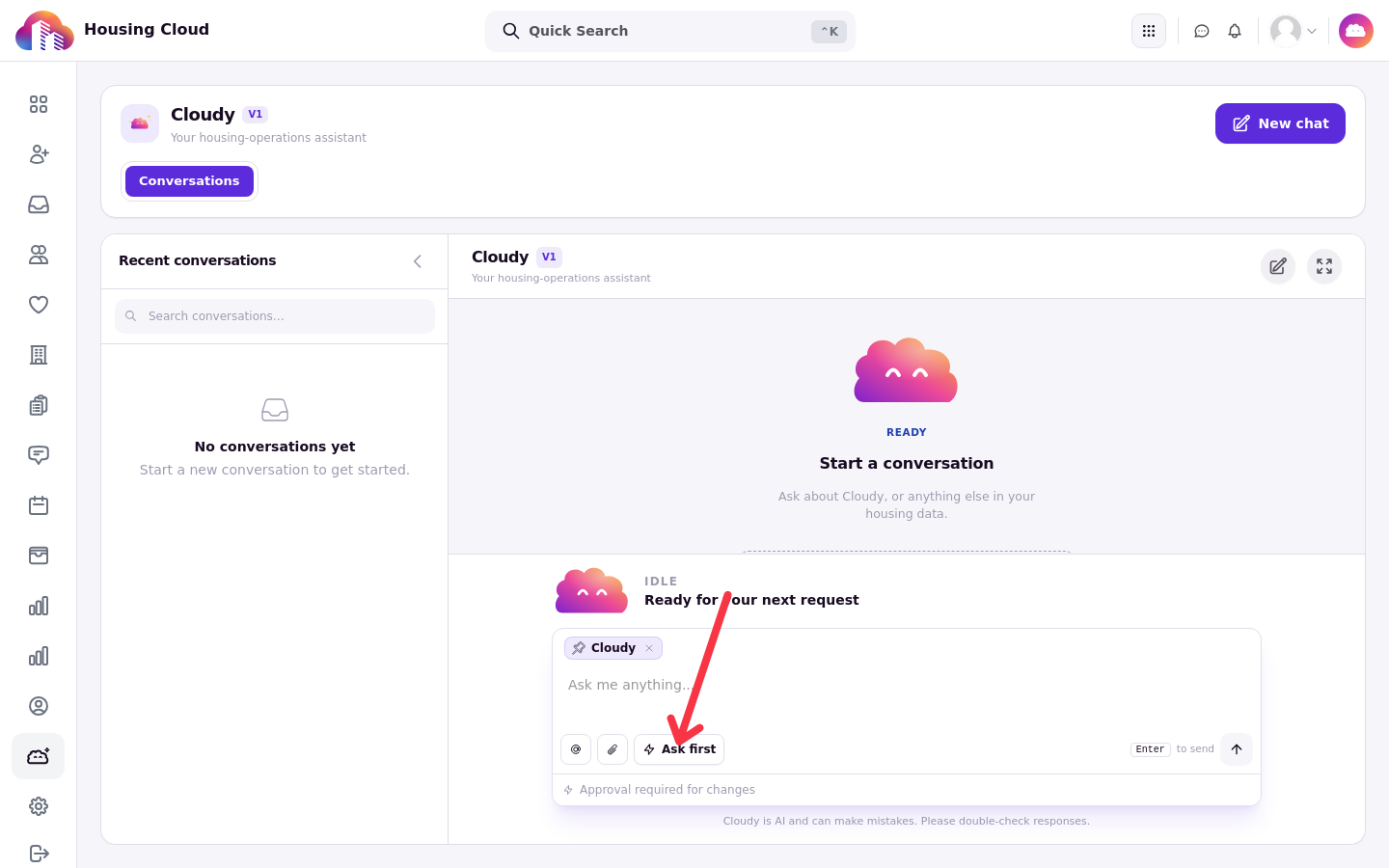
The composer's mode toggle reads Ask first, with "Approval required for changes" underneath.
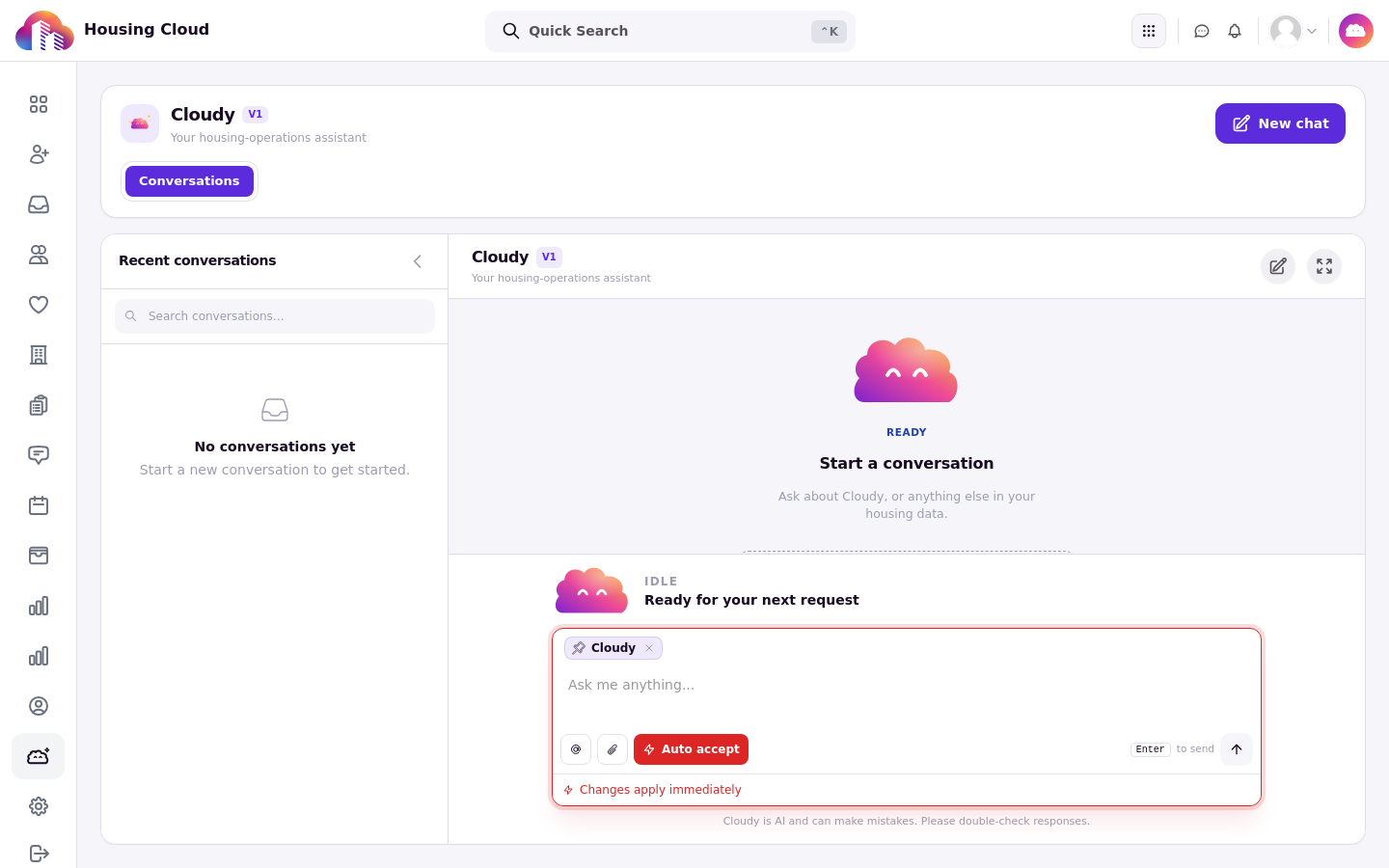
The same toggle switched to Auto accept, with "Changes apply immediately" underneath.
Read the card before you approve
Before you press Approve, read three things on the card:
The record the change applies to, such as a resident's profile or a task.
The change itself, in plain words.
The flags on the card. "Transactions" means the change affects billing. "Bulk operation" means it touches many records. "From an uploaded file" means it is based on a spreadsheet you uploaded.
Every approved change is durably recorded, and normally appears on the record's timeline as "Cloudy, approved by {your name}: {description}".
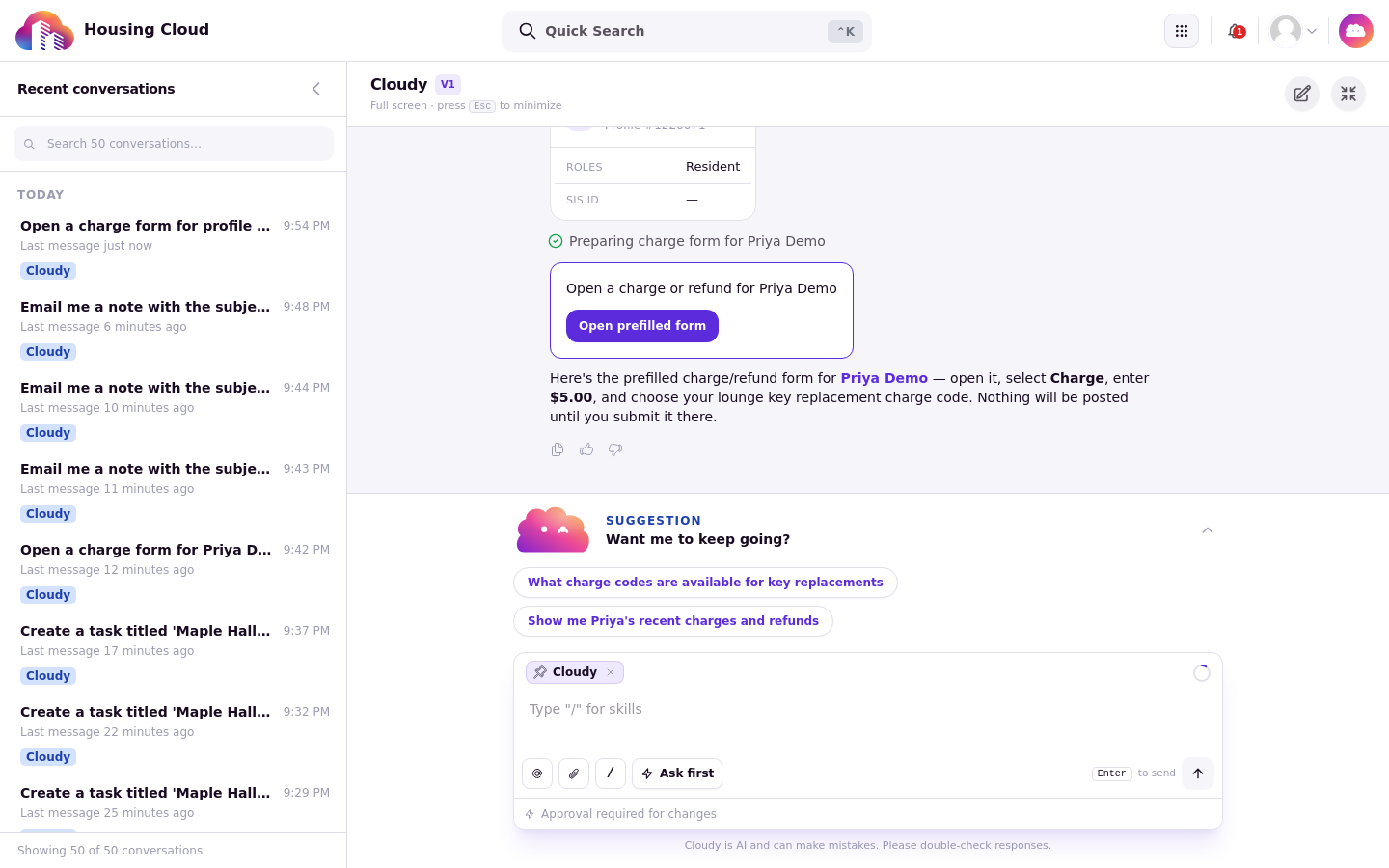
Charge and refund requests that use the prefilled form are a handoff: "Open prefilled form" opens the form, and you review and submit it yourself. Prorated refunds are different: Cloudy can issue a prorated refund itself after you approve it, or without asking in Auto accept mode.
What Cloudy can never do
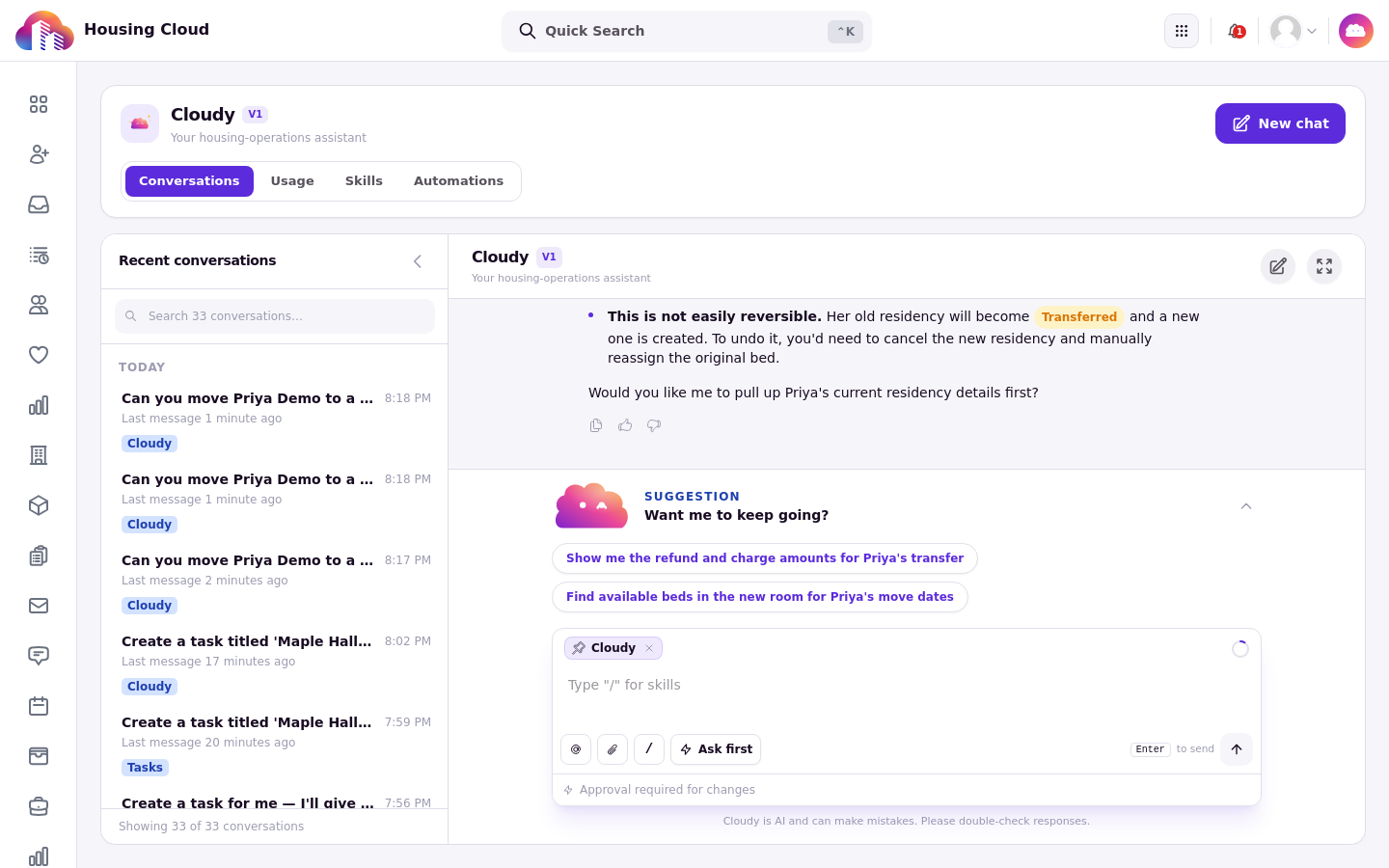
Asked to move a resident, Cloudy explains what the transfer involves and points you to the normal flow instead of acting.
Cloudy cannot:
Change roles or permissions.
Change your school's settings, feature switches or integrations.
Send broadcasts to residents.
Move residents between rooms.
Delete records.
Cloudy can be wrong
Treat Cloudy's answers as a starting point, not a source of record.
Numbers and counts deserve special care. Cloudy has reported 67 urgent tasks when there was one. Ask for the list instead of the count, or check the page or a report yourself. Names and dates should be checked before you approve a change. Drafts that Cloudy writes, such as emails, events and rules, are yours to review and edit before you save or send them.
Keep Cloudy open in one browser tab
Cloudy open in two browser tabs shares one conversation. Tabs can overwrite each other's work, so keep Cloudy in one tab at a time.
Tell us when it's wrong
Every Cloudy answer has "Good answer" and "Bad answer" buttons. When an answer is wrong, press "Bad answer" and pick a reason. See "Rate Cloudy's Answers".
Questions about data use
Questions about contracts, data use and AI agreements go to your Housing Cloud contact.
One Cloudy feature works differently: "Generate plan" in the floor plan builder produces a preview, without a "Needs your OK" card. The layout saves only when you click "Apply to {floor name}" (the button includes the floor's name), which replaces the floor's current layout if one exists. See "Generate a Floor Plan from a Blueprint".
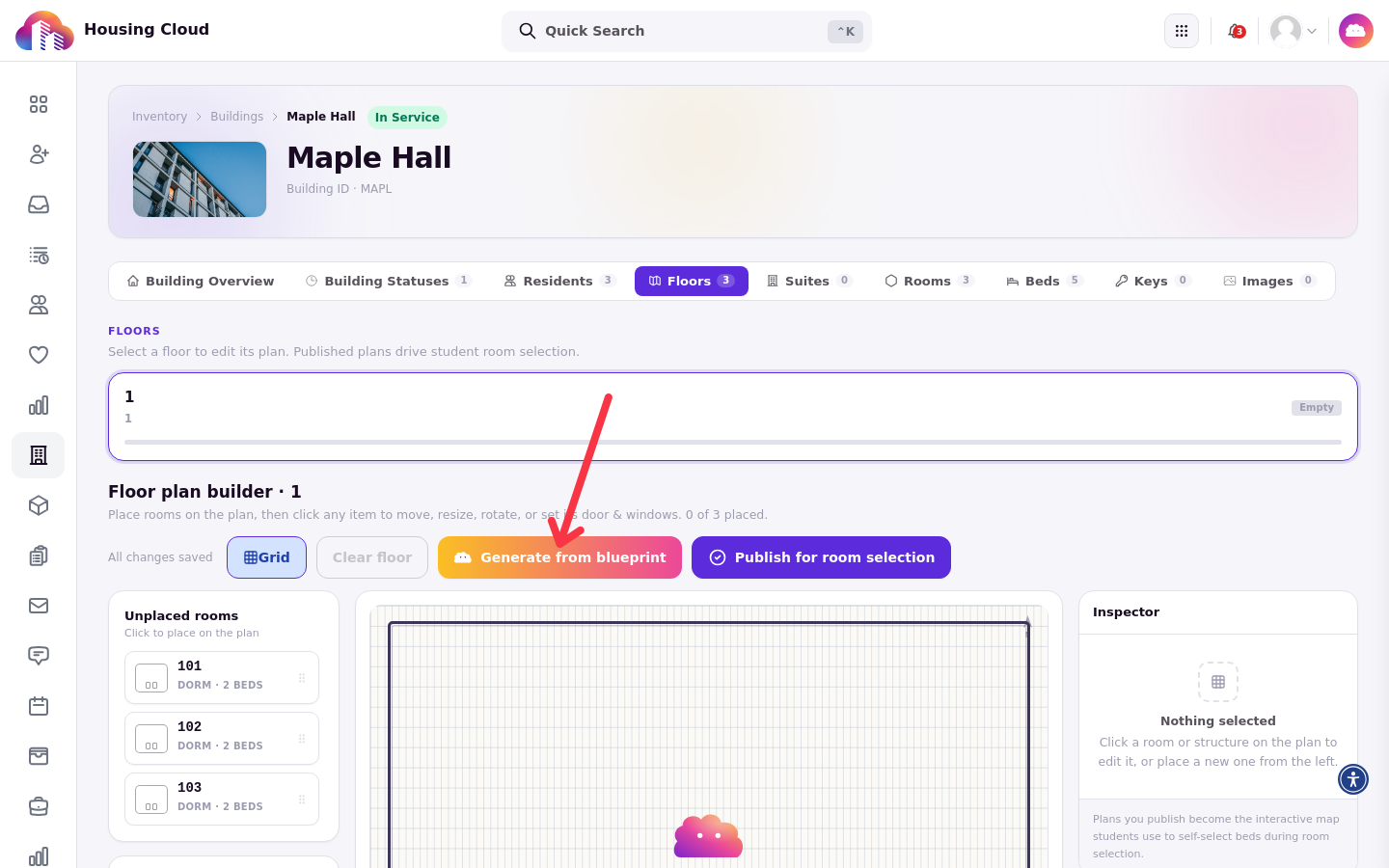
The builder for a floor, with Generate from blueprint in the toolbar.
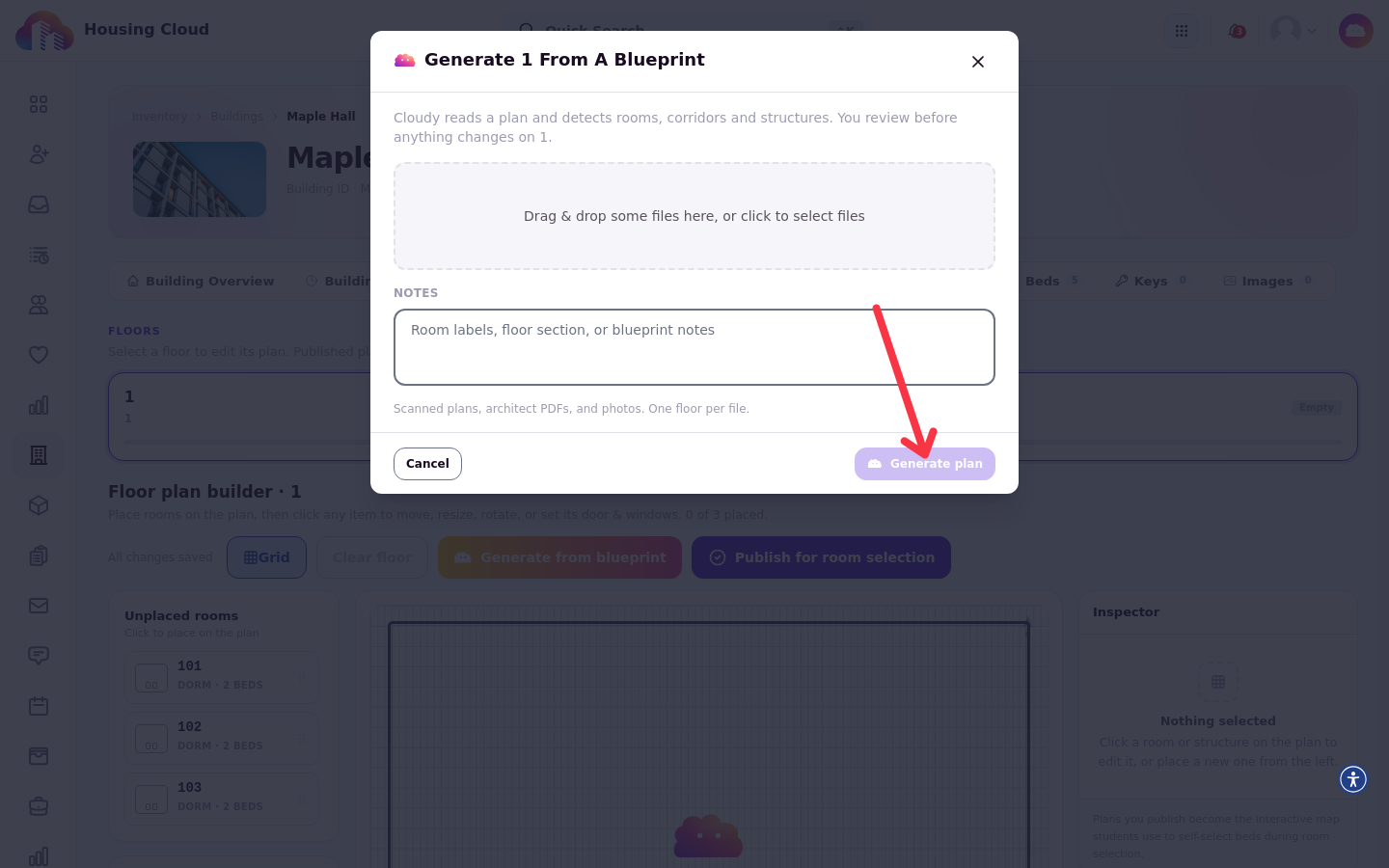
The blueprint modal: upload the plan file, add optional notes, then press Generate plan to see the preview before anything is applied.