Set Up Application Statuses and Interview Dispositions
Last updated: October 8, 2026
Application statuses and interview dispositions are two label lists that every job in Recruitment shares. A status is the label your team applies to a candidate as their application moves through hiring, such as Under review or Hired. A disposition is the verdict a reviewer or interviewer picks on their feedback form, such as Recommend. You set both up once in Recruitment's Configuration, before the first job of the season goes live.
The lists behave differently. A status can notify the candidate when it is applied, which is how applicants hear an outcome from Housing Cloud. A disposition never notifies anyone: it carries a label, a description and a color, and stays on the feedback form.
Before you start
Both lists are school-wide: every job shares the same statuses and dispositions, so settle the wording with your whole department before you create anything.
Recruitment is switched on for your school by Housing Cloud.
Configuration access requires the
hrManageConfigurationpermission or an HR reviewer assignment. Changing statuses additionally requireshrManageCandidates, and changing dispositions additionally requireshrManageInterviews, subject to the current HR access policy.
Open Recruitment configuration
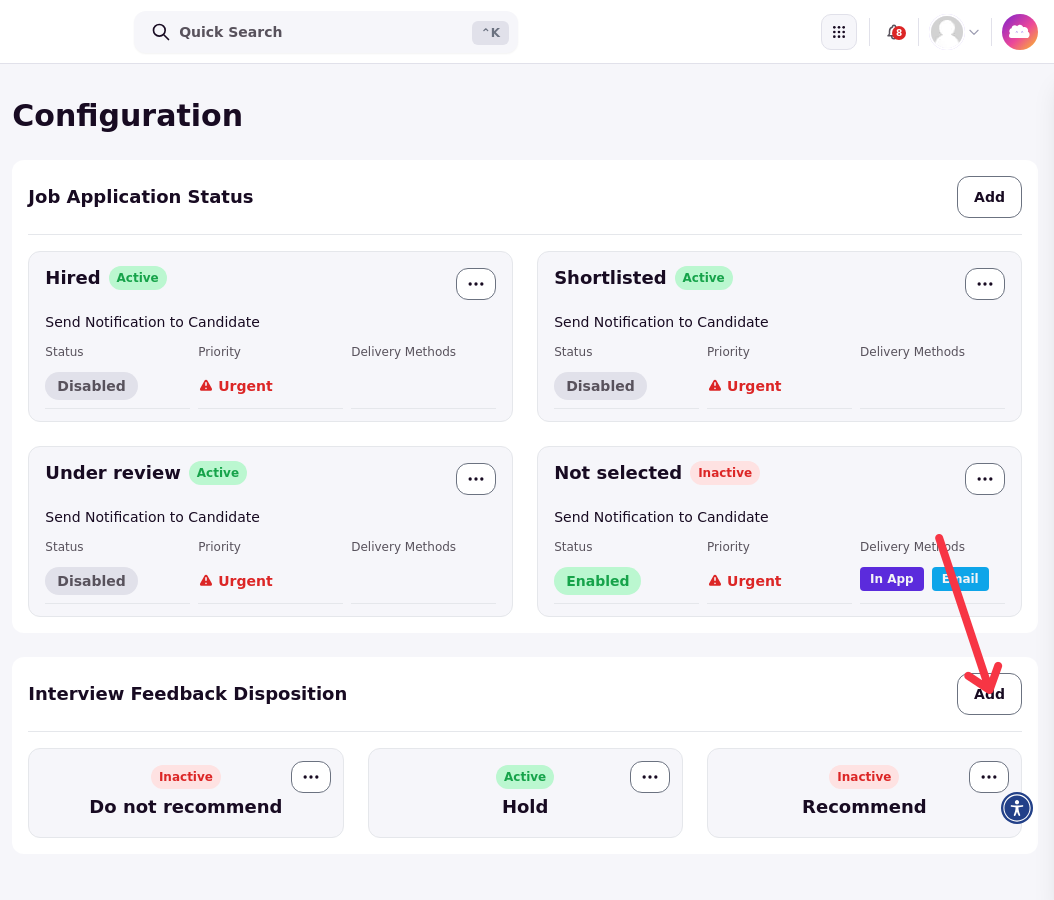
In the admin portal, open Recruitment in the sidebar and choose HR Configuration. Two cards hold the lists: Job Application Status, the labels your team applies to candidates, and Interview Feedback Disposition, the verdicts reviewers and interviewers choose from on feedback forms.
Create a status
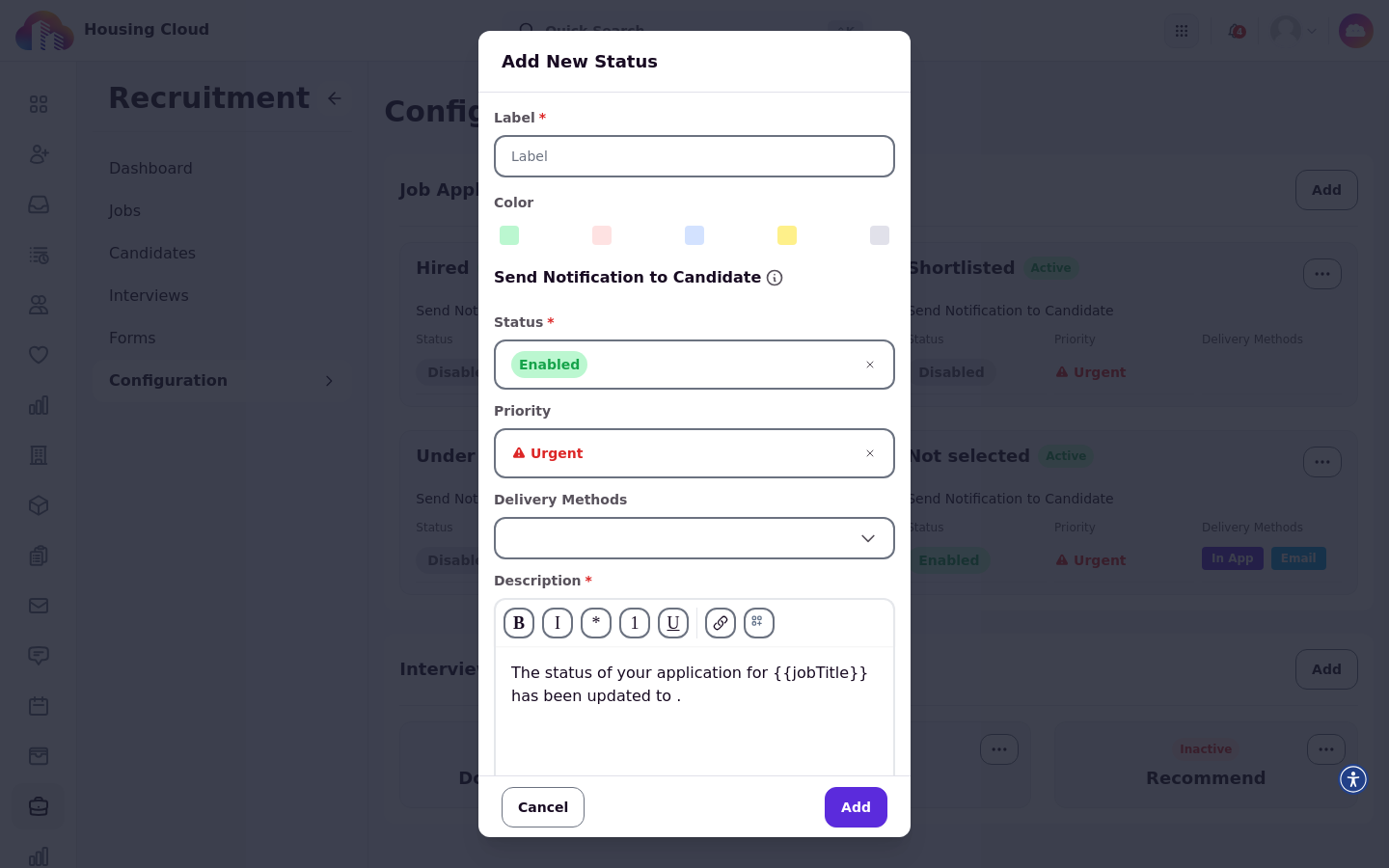
On the Job Application Status card, click Add. The Add New Status dialog that opens asks for a Label and a Color, and shows the notification settings and a Description field. Enter the label, pick a color, and confirm the dialog with Add.
Recruitment also includes a separate Reject action for closing out an unsuccessful candidate. A status such as Not selected, which can email the candidate when it is applied, is another available approach.
Set the candidate notification
A status can send the candidate a message when it is applied. In the same dialog, Send Notification to Candidate carries a Status of enabled, disabled or muted, with a Mute Until date for muted notices, a Priority, and Delivery Methods of Email, In-app or both.
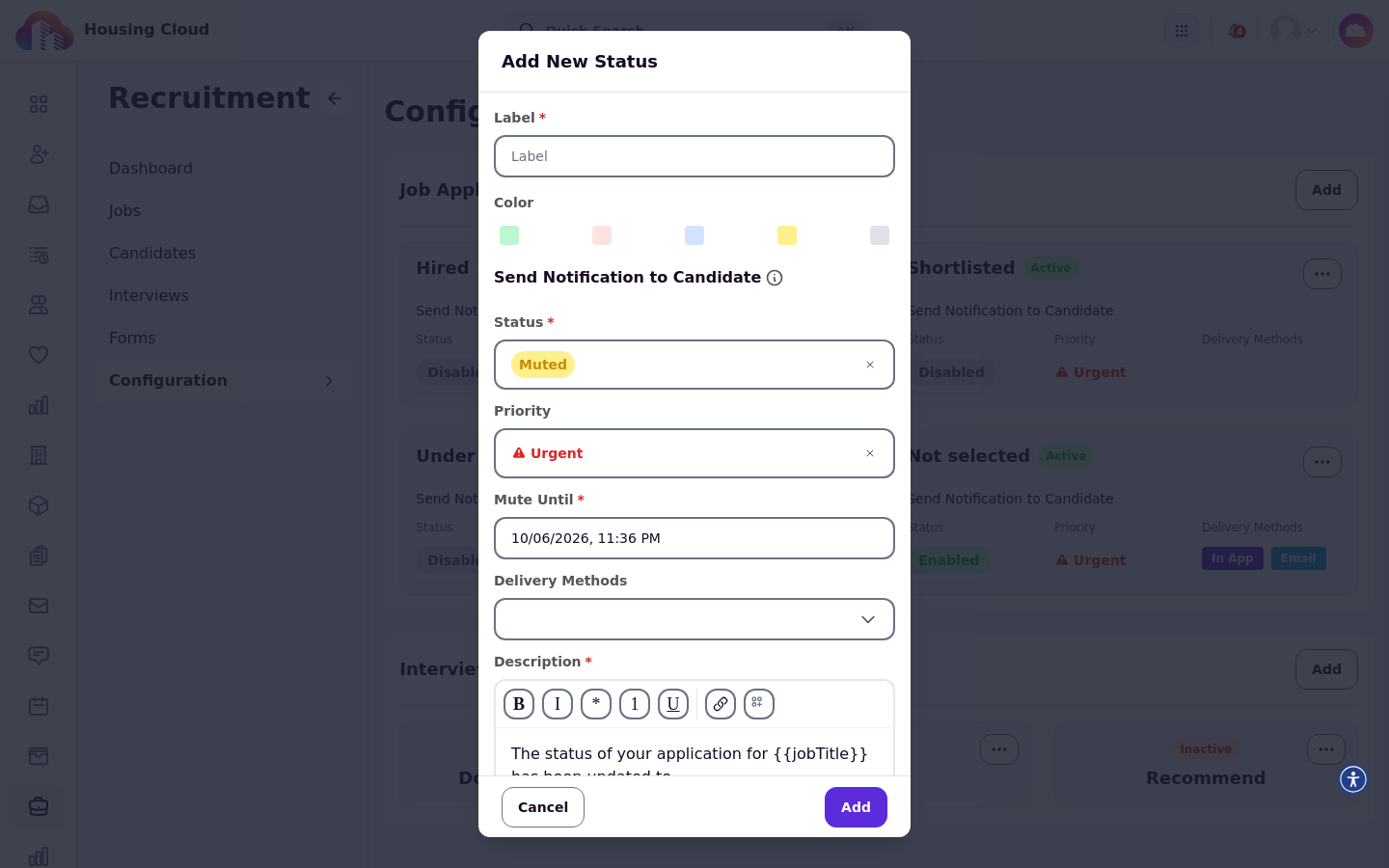
The Description field holds the message the candidate receives when the status notifies. It starts filled with default text: "The status of your application for {{jobTitle}} has been updated to {{status}}." Replace it with your own wording; the merge fields fill in with the job's title and the status label.
The message goes out when the status is applied to a candidate, not when the status is saved.
Create a disposition
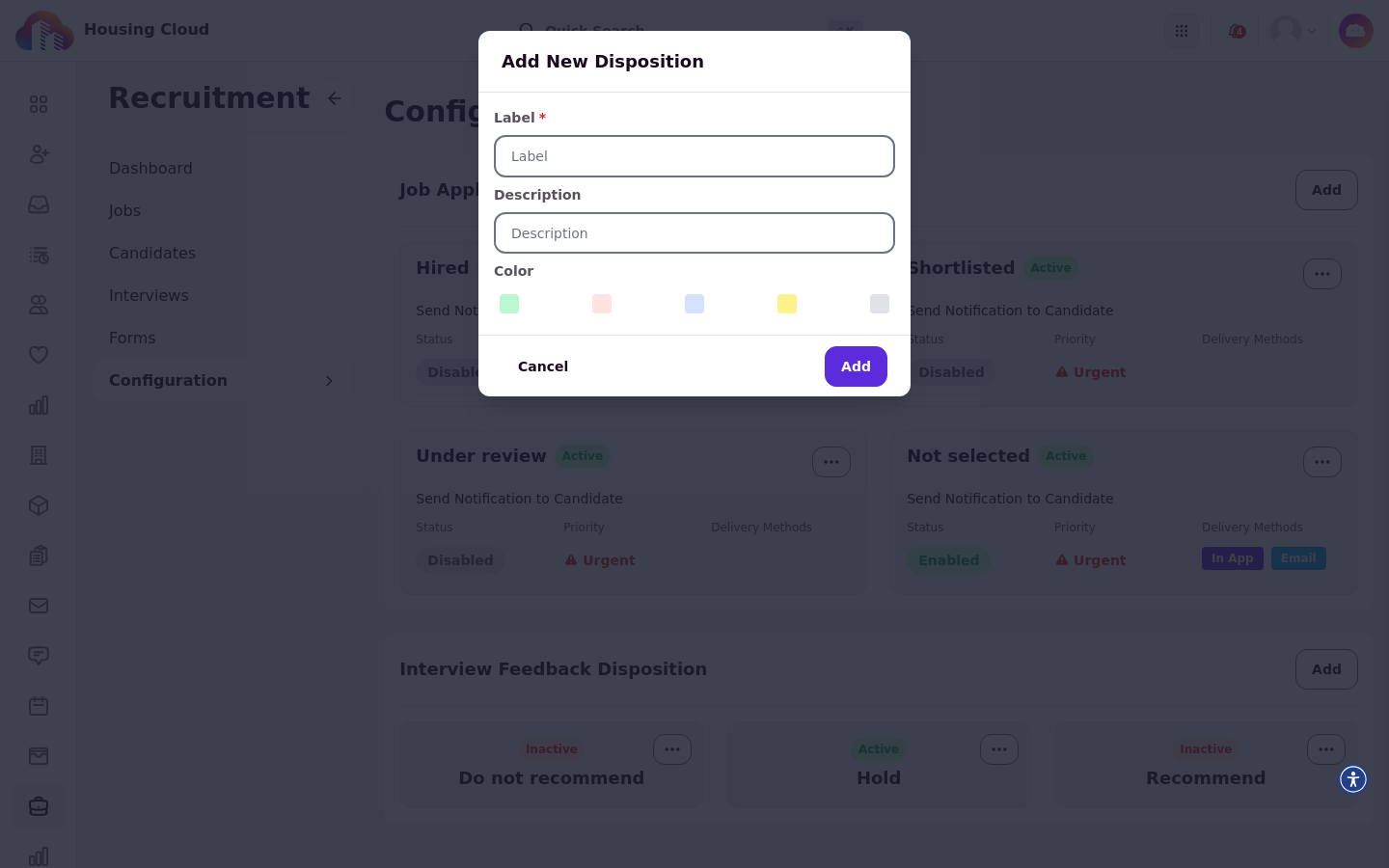
On the Interview Feedback Disposition card, click Add. The Add New Disposition dialog asks for a Label, a Description and a Color; confirm it with Add. Reviewers pick a disposition on application review forms, and interviewers pick one on interview feedback forms.
Archive or activate an entry
Archive hides a status or disposition your department no longer uses, and Activate brings it back.
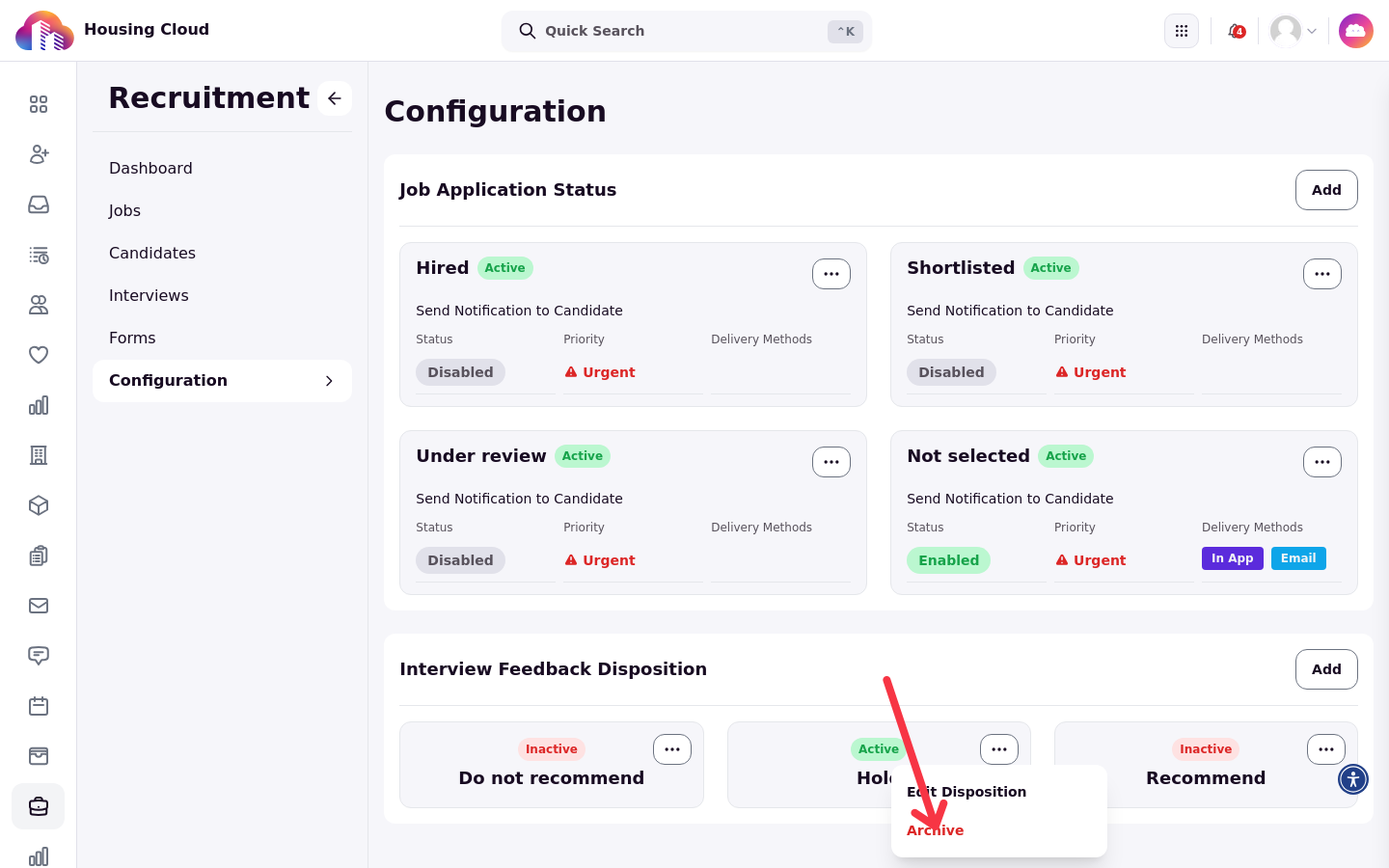
Open the actions menu on the entry (the ... button) and choose Archive.
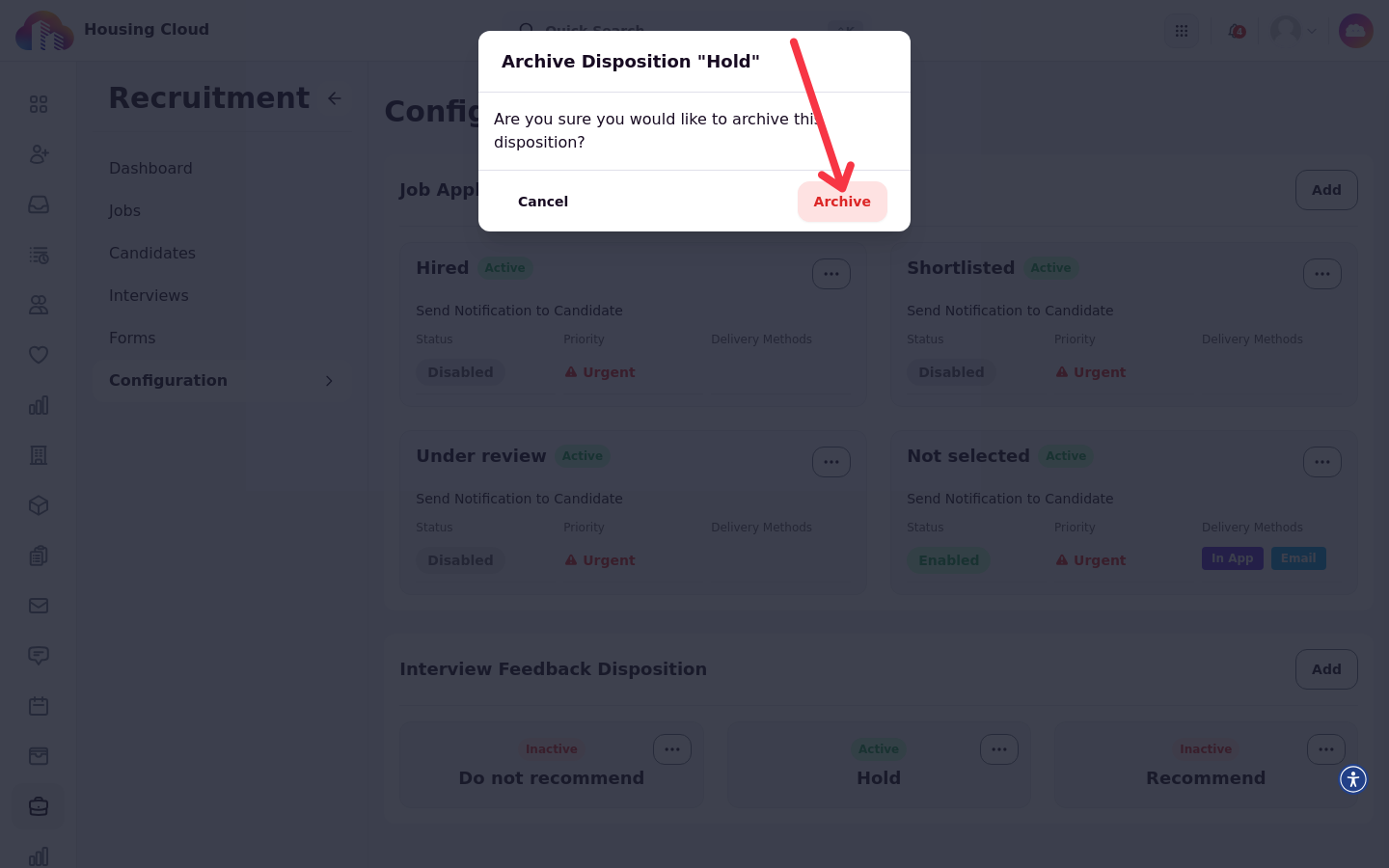
A confirmation dialog asks whether to archive the entry. Confirm with Archive.
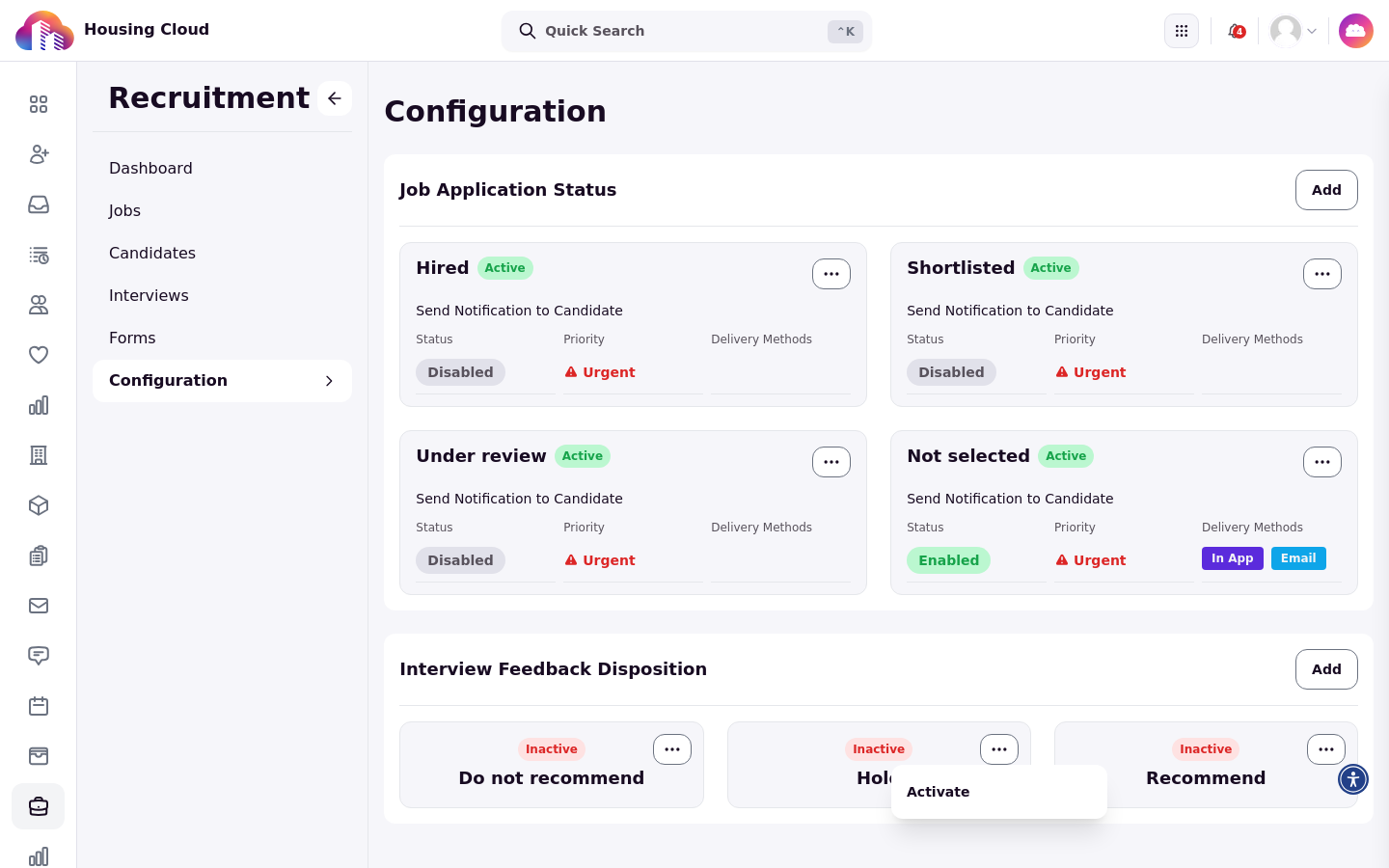
The entry stays on its card with an Inactive label. To bring it back, open the actions menu again and choose Activate.
Verify the new labels
Statuses and dispositions are shared by every job in your school, and creating them sends nothing to anyone. The new labels appear on the two Configuration cards, and a new status appears in the picker when you update a candidate's application status.