Student Staff Hiring Overview
Last updated: October 13, 2026
Student staff hiring runs through Recruitment, the hiring add-on in the admin portal. It takes a job from posting to accepted offer: admins post jobs with their own application forms, assign reviewers, move candidates through statuses and stages, run group and individual interview rounds with bookable time slots, and send offers that students accept, decline or e-sign. Students do their part from the Jobs pages of the resident portal.
Housing Cloud switches Recruitment on for each school, and offers are a second switch on top of it. Without the second switch, a candidate's application has no Send offer button, so the whole hiring season can run but no offers go out.
The admin screens
The sidebar is the map of the whole module: Dashboard, Jobs, Candidates, Interviews, Forms and Configuration.
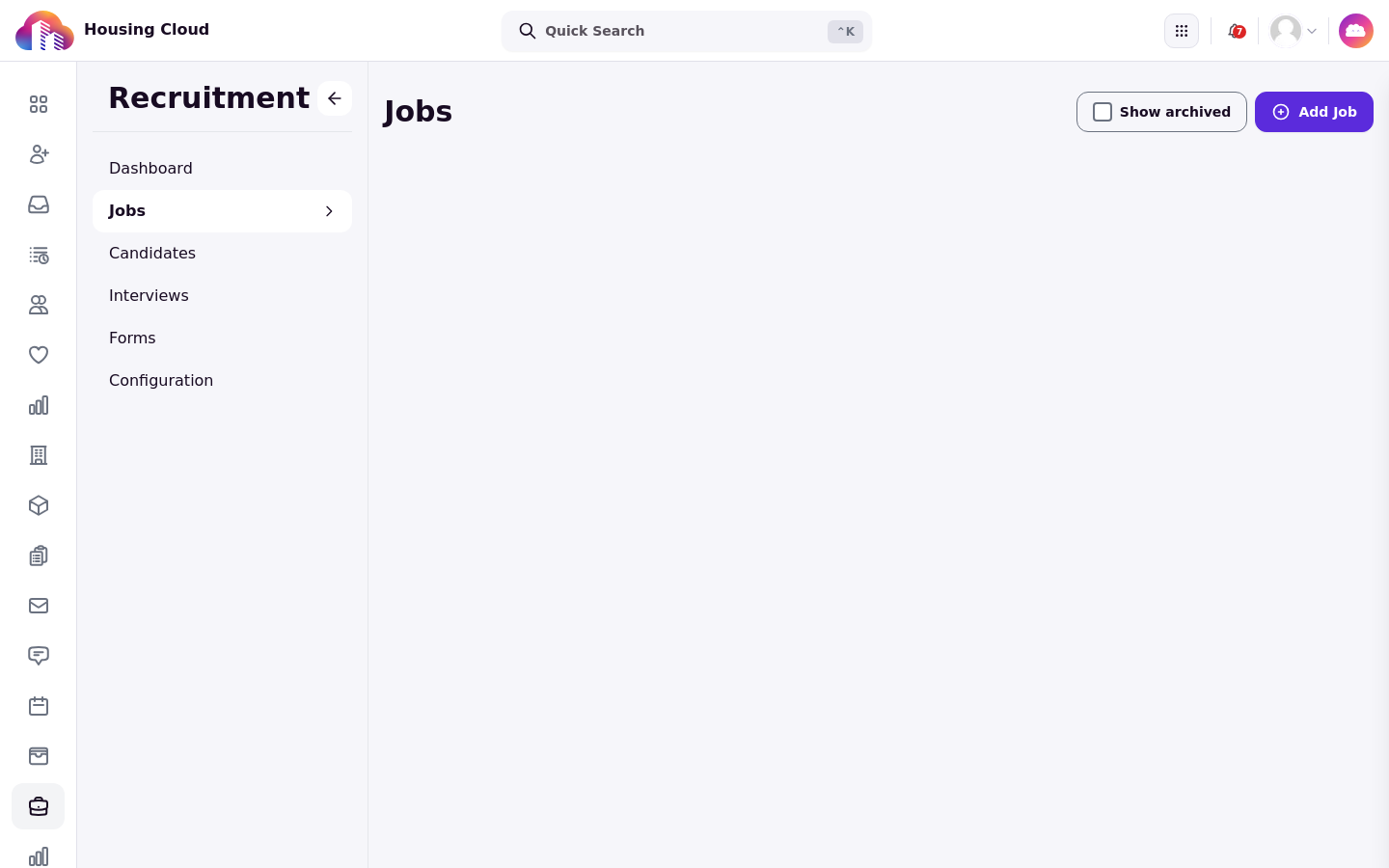
Dashboard holds an Overview, a reviewer's My Assignments, and a Calendar of interviews.
Jobs is where postings are created, edited, archived and reopened.
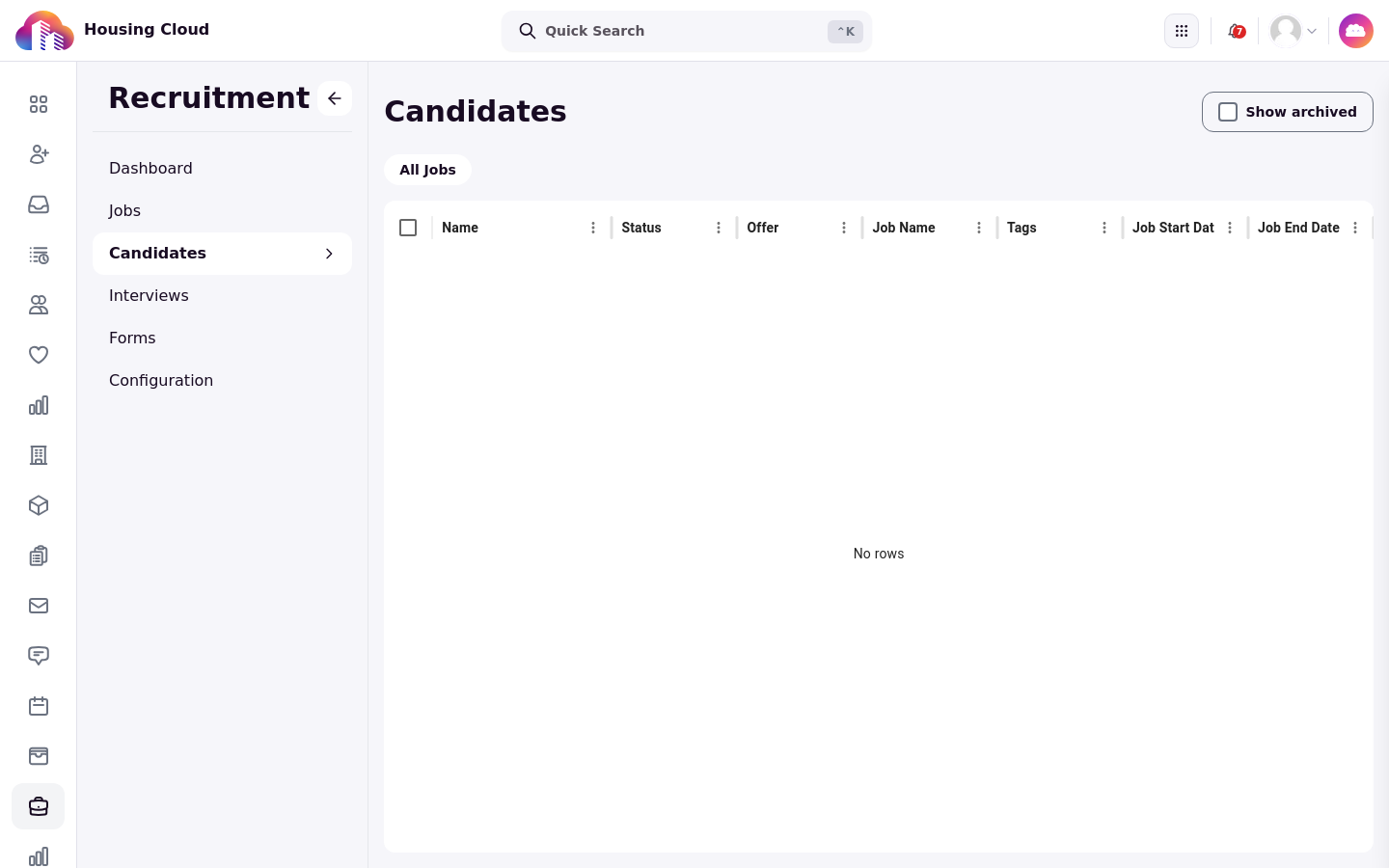
Candidates lists every application, one candidate page at a time. Statuses, stages, tags, notes and offers are managed here.
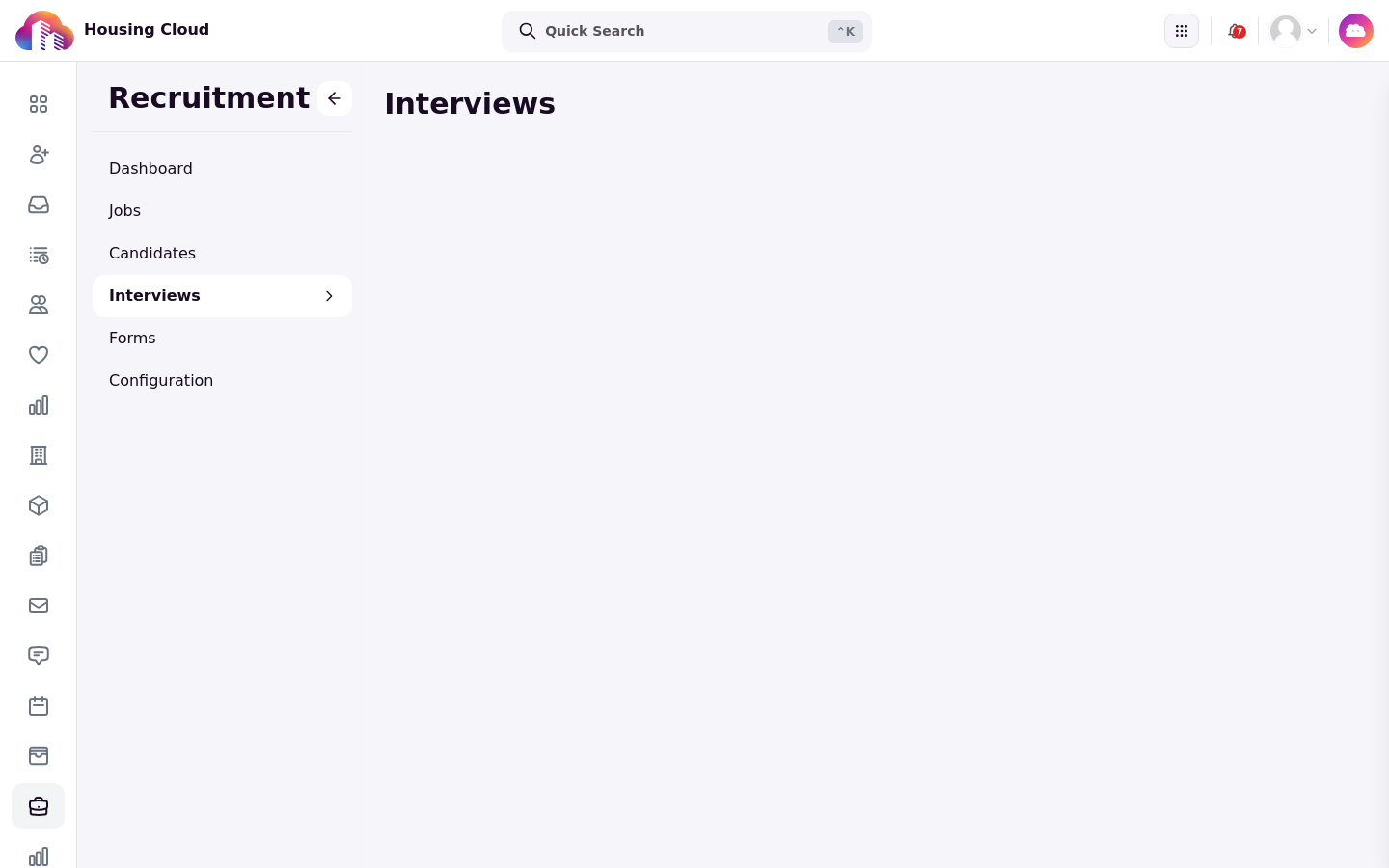
Interviews groups interview rounds by job, with each round's booked interviews.
Forms holds application forms and feedback forms on two tabs.
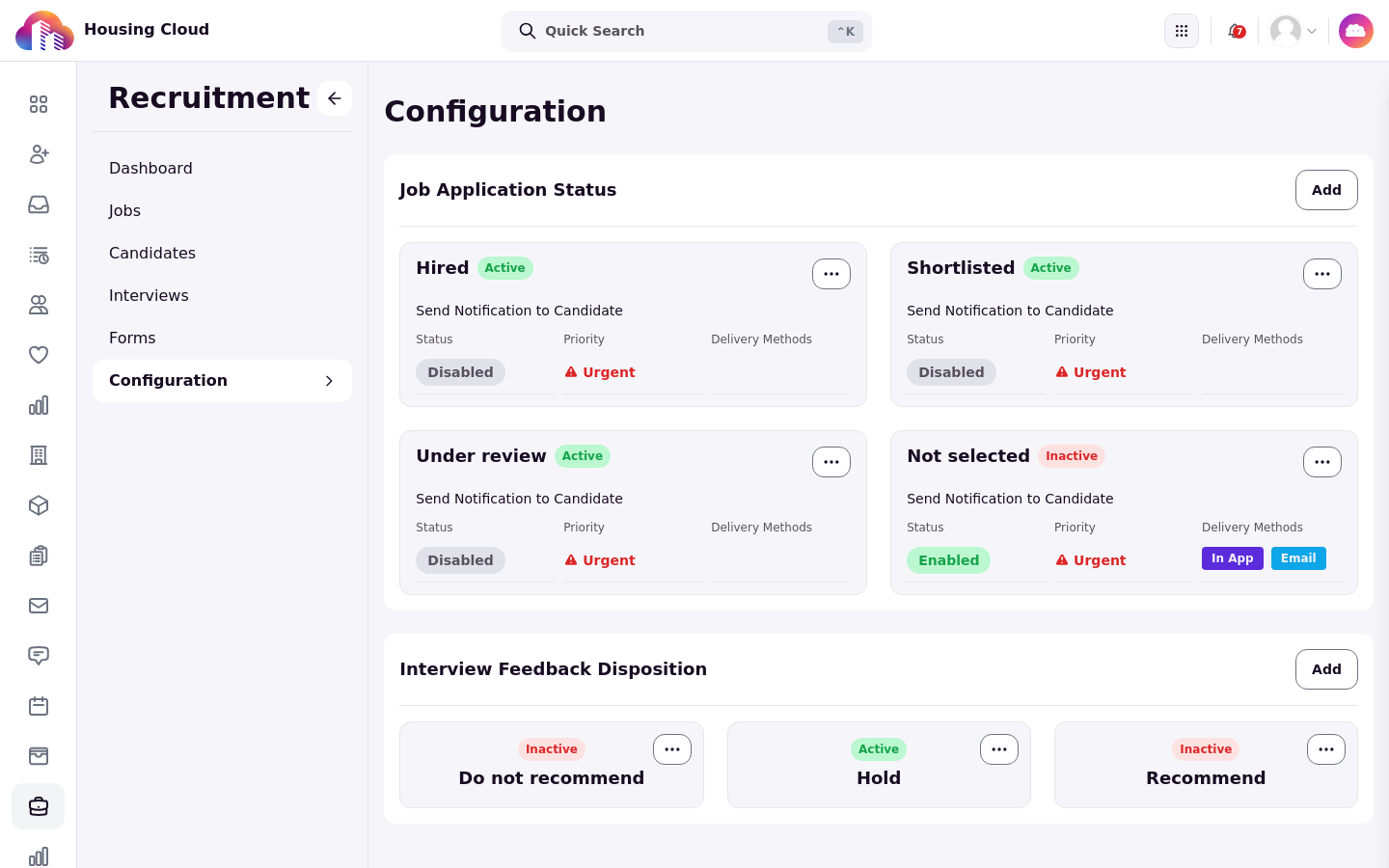
Configuration holds the school-wide Job Application Status and Interview Feedback Disposition lists.
Where students apply
Students work from Jobs in the resident portal: the Jobs board to find postings, My Applications to work on their applications, and My Interviews to book and manage interview times. A job only appears to signed-in students who carry every one of its applicability tags; a job with no tags is open to every student.
The Jobs board is the student view of open postings.
Applications a student has started or submitted live under My Applications.
Booked interview times appear under My Interviews.
The building blocks
A hiring season is built from a few kinds of record:
Jobs contain Workflow Stages, and each stage holds steps of type Application Form or Interview. A job can be a single application stage or a longer pipeline that ends in interview rounds.
Statuses and dispositions come from two school-wide lists, Job Application Status and Interview Feedback Disposition. A status is the label an application carries and can notify the candidate; a disposition is the verdict a reviewer or interviewer picks on their feedback form.
Forms come in two kinds: application forms, which candidates fill in, and feedback forms, which reviewers and interviewers fill in. One feedback form can be reused by every job and interview round.
Offers are sent from a candidate's application, either as a click-to-accept offer or with an e-signed offer letter, and can carry a respond-by date and a message.
Application forms and feedback forms live side by side on the Forms page, on its two tabs:

The Job Application Status and Interview Feedback Disposition lists that drive those labels are managed under Configuration:
The life of an application
An application starts as a Draft the student can return to, becomes Submitted, and can be sent back for changes and resubmitted. From there it moves through statuses and stages as the hiring team works it, until an offer goes out. An offer is accepted, declined, expired or rescinded. A student can withdraw an application while it remains open; withdrawal is unavailable after rejection, acceptance, or other closed states.
The Candidates page is where the hiring team works this pipeline. Every application appears there with its status, offer, job name and tags.
Who does what
Four roles cover the work, and most of them need no special setup:
Job owners can move, update, tag, send back and send offers to their own job's candidates, and receive the offer notices for their job.
Reviewers fill in the feedback form on the applications they are assigned to. Only an assigned reviewer can submit that feedback.
Interview conductors run interviews and record feedback on the interviews they conduct. Only an assigned conductor can submit that feedback.
Admins with Recruitment permissions set up jobs, forms, statuses and configuration, and work the candidate pipeline.
Interview conductors work from the Interviews page, where each job's interview rounds and their booked interviews are grouped.
Admins cannot be impersonated, so nobody can enter feedback for someone else: each reviewer and conductor submits their own.
Where the module ends
An accepted offer does not make anyone staff. The offer, and any status such as Hired, are Recruitment records only; nothing changes until an admin promotes the student on the staffing side.
Good to know
There is no public job board. Jobs appear only on the portal's Jobs pages, to signed-in students who match the job's tags. Applicants need a Housing Cloud login.
New jobs start as Draft and cannot be copied. A job must be activated before students can see it, and visibility is subject to its listing dates. There is no duplicate. Use publication dates and applicability tags to control who sees a job, and reuse the same forms for next year's posting.
Use the Reject action to close out unsuccessful candidates, or apply a status such as Not selected when appropriate.
There is no export from Recruitment. Use the report builder's Student Staff Hiring data, and download notes card by card.
There are no reference checks, onboarding checklist or training tracking. The module stops at the offer.
Interviews are never marked attended. No screen sets an attended or absent outcome, so interviews stay Scheduled and the dashboard's Interviews Attended by Job widget stays at 0.
Feedback belongs to the assigned person. Only assigned reviewers can submit review feedback, and only assigned conductors can submit interview feedback.
Booking interviews needs the interview permission. Scheduling, rescheduling and cancelling interviews requires the interview management permission, even for job owners and conductors.
Offer letters are optional. Candidates e-sign an offer sent with a letter and one-click accept an offer sent without one.
Candidates cannot propose interview times. Bookable slots come only from a round's weekly hours, interview length and date interval.
One application per job, and one open offer per application. Withdrawal is not possible after accepting an offer.
Statuses and dispositions are school-wide. Every job shares the same lists, so name them for the whole department.
A closed job's Apply tooltip is misleading. After the application end date, the disabled Apply button still says "Applications are not yet open for this job"; the posting's (Ended) label is the accurate one.