Review Applications: Feedback, Notes and Send-Backs
Last updated: October 13, 2026
Reviewing an application is how an assigned reviewer reads a submitted application and records a verdict. You pick the review up from My Assignments on the Recruitment dashboard, record feedback with a disposition, and leave notes for the hiring team as you go.
Use this flow whenever an application is waiting on you for review. When a submission is incomplete, a job owner or a user with candidate-management permission can send it back so the student can fix it and resubmit; an assigned reviewer without that access does not have this control.
Feedback is not the same as a status change. Feedback records your verdict on the review form; changing a candidate's status or moving them to the next stage is a separate action in the pipeline.
Before you start
Reviewing needs no Recruitment role: being assigned to an application's stage opens My Assignments and the applications assigned to you.
Feedback can be submitted only by an assigned reviewer, and each reviewer submits their own. An admin with every permission cannot submit feedback for someone else, and admins cannot be impersonated, so nobody can submit it in another reviewer's place.
Find your assignments
My Assignments is a tab on the Recruitment dashboard, and it lists Application to review items and Feedback needed items, so applications waiting on you are in one place. In the admin portal, open Recruitment, go to Dashboard, and open that tab.
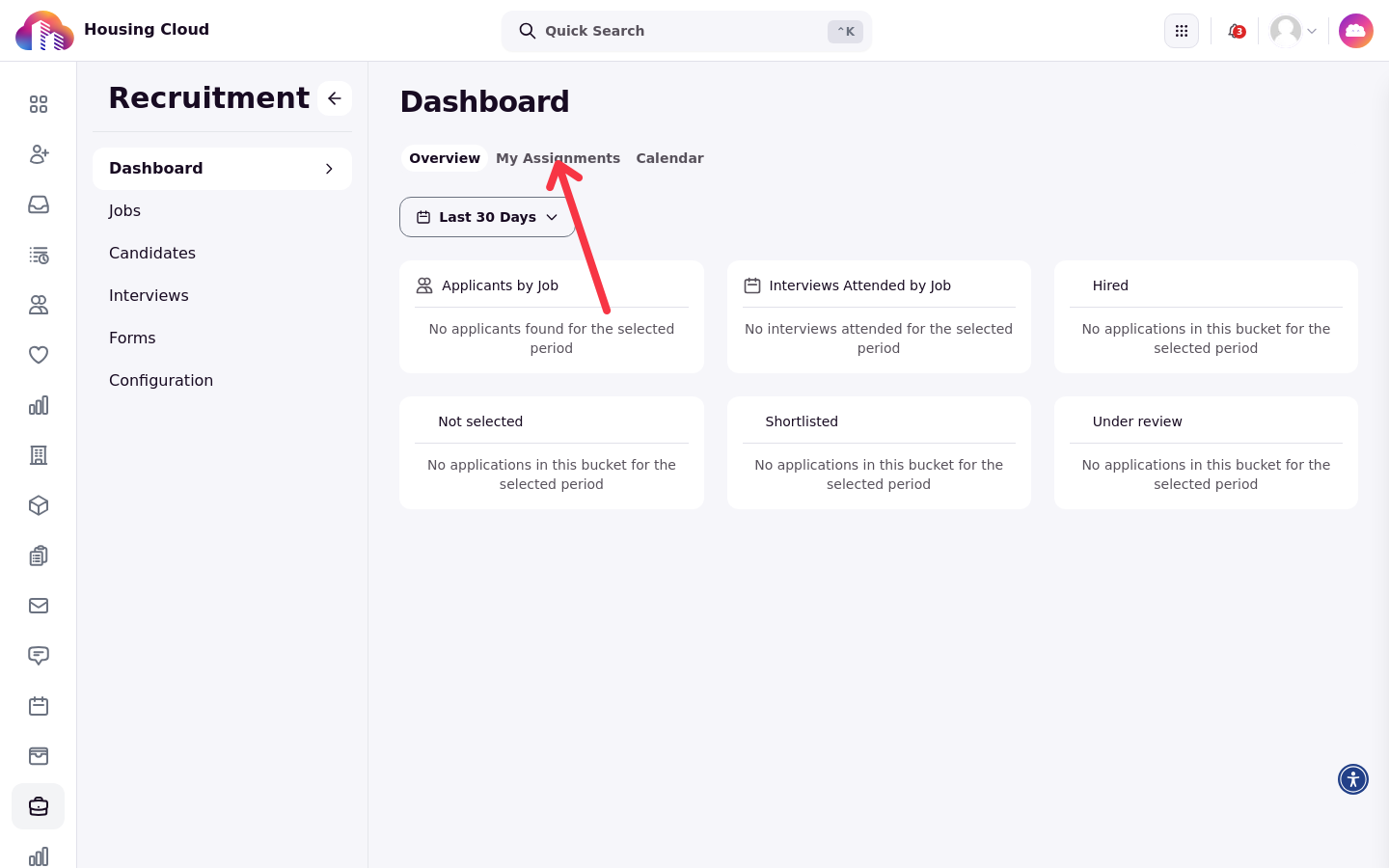
Open an application from the list to review it. You can also reach an application from its candidate's page.
Read the application
The review page shows the full submission. Application Form Info identifies what you are reading: Form Name, Job Title, Workflow Stage, Submitted At, and the Reviewers assigned to it. The candidate's answers follow, and the page carries a Notes card for this review.
The candidate's page holds the rest of the record: View Answers shows the submitted answers, and Attachments holds the documents on the application. Use Go To Candidate Profile to open the candidate's page from the review, or Go To Housing Cloud Profile for the person's profile.
Submit your feedback
Feedback is the job's review form plus a disposition, which is your overall verdict. Fill in the review form under Feedback, choose a verdict under Select Disposition, then click Submit. Recruitment confirms with a "Feedback submitted successfully" message.
Leave notes
Notes record context that does not fit the review form. You can leave notes on the review itself, on the candidate, and on each interview. Adding a note on the review itself requires job-owner or application-management access, so assigned reviewers without that access are view-only for application notes; candidate and interview notes can be added where permitted. Every Notes card can be downloaded.
Send an application back
Send an application back when a submission needs something from the student, such as an answer they skipped. On the review, click Send Back to Candidate, write your message in Send Application Back to …, and confirm with Send Back.
The student receives an Application Sent Back email carrying your message, and their application form reopens so they can change answers and resubmit.
After the review
Your submitted feedback stays on the review, so you can open the review again to see it. A sent-back application shows the sent-back state on the candidate.