Resource Charges, Deposits, Late Fees and Damage
Last updated: October 8, 2026
Resources can bill students in four ways: a rental for booking something, a deposit held against a booking, a late fee for an overdue loan, and a damage or replacement charge. This article explains when each one is created, when it reaches the student's account, and how staff review, waive or reverse one.
Which charge code is used
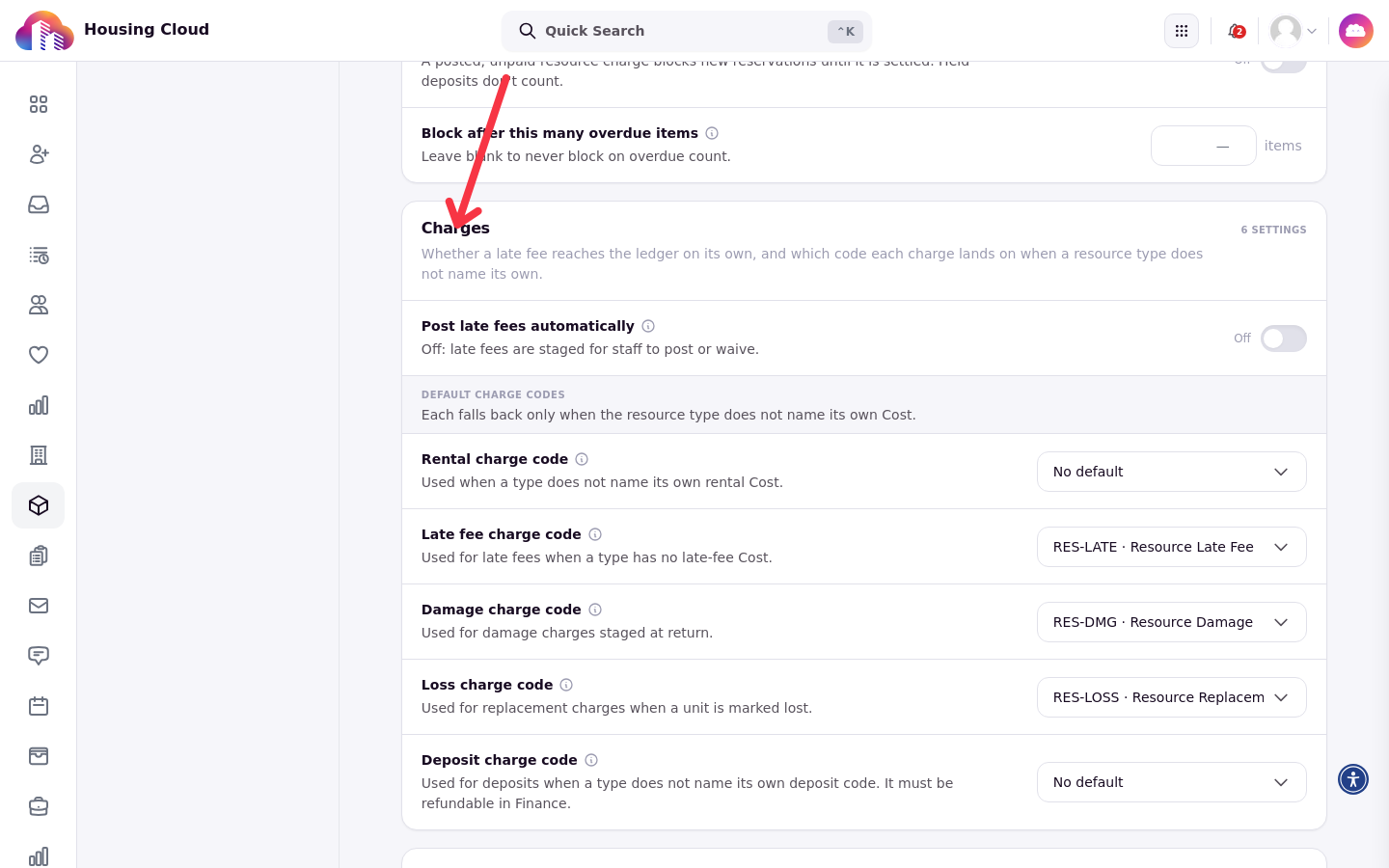
Every charge needs a charge code. Where the system looks for a code depends on the charge: for a rental, the audience rule supplies the charge code; for late fees, deposits, and damage or replacement charges, it looks on the resource type first, then falls back to the defaults in Resource Settings. What happens without a code depends on the charge. A priced rental with no charge code raises a configuration error and the reservation transaction rolls back. No late fee is created at all, so a loan that comes back late with no late-fee code anywhere shows the lateness without creating a charge. Damage and loss flows, such as marking a reservation lost or damaged, instead record the outcome without creating a charge.
The defaults live in the Charges section of Resource Settings.
When rentals and deposits post
A rental and a deposit post when the booking is confirmed, either at booking or at approval for types that need approval, not at pickup. Cancelling or declining the reservation voids a charge that has not posted yet and refunds one that has. A deposit is released when the item comes back clean; for a room, when the booking is completed. A return recorded as damaged or lost keeps the deposit held until staff settle it.
Late fees
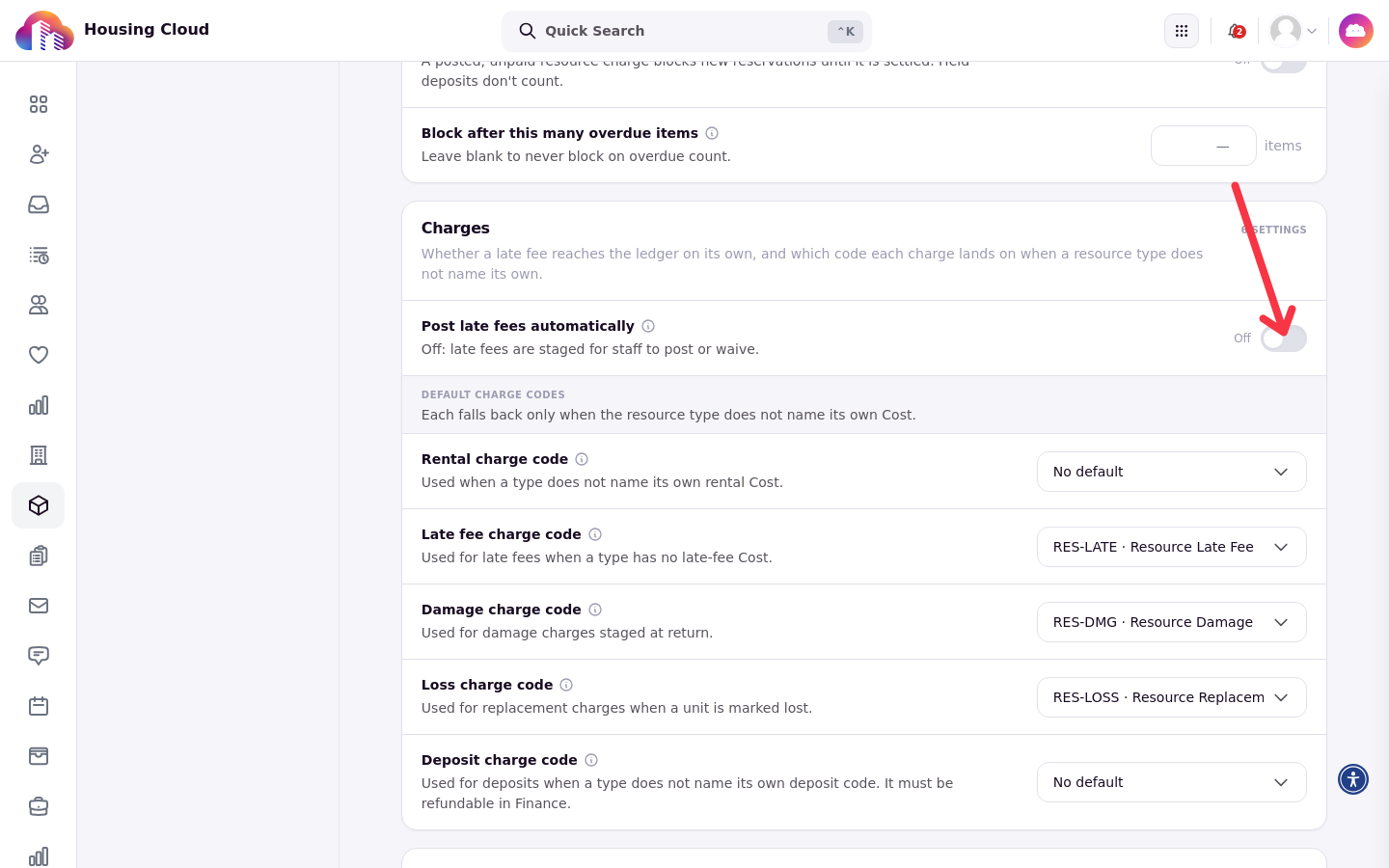
A late fee is one flat amount per loan, however late the item comes back. It is created once the item passes its due time plus the type's overdue grace, either by the periodic overdue check or at the return. By default the fee is held for review: it exists on the reservation but does not reach the student's account until a staff member posts it. With Post late fees automatically on, fees post as they are created; turning that setting on later does not post fees already held, and no fee is created at all when no late-fee charge code is set.
The Post late fees automatically toggle lives in the Charges section of Resource Settings.
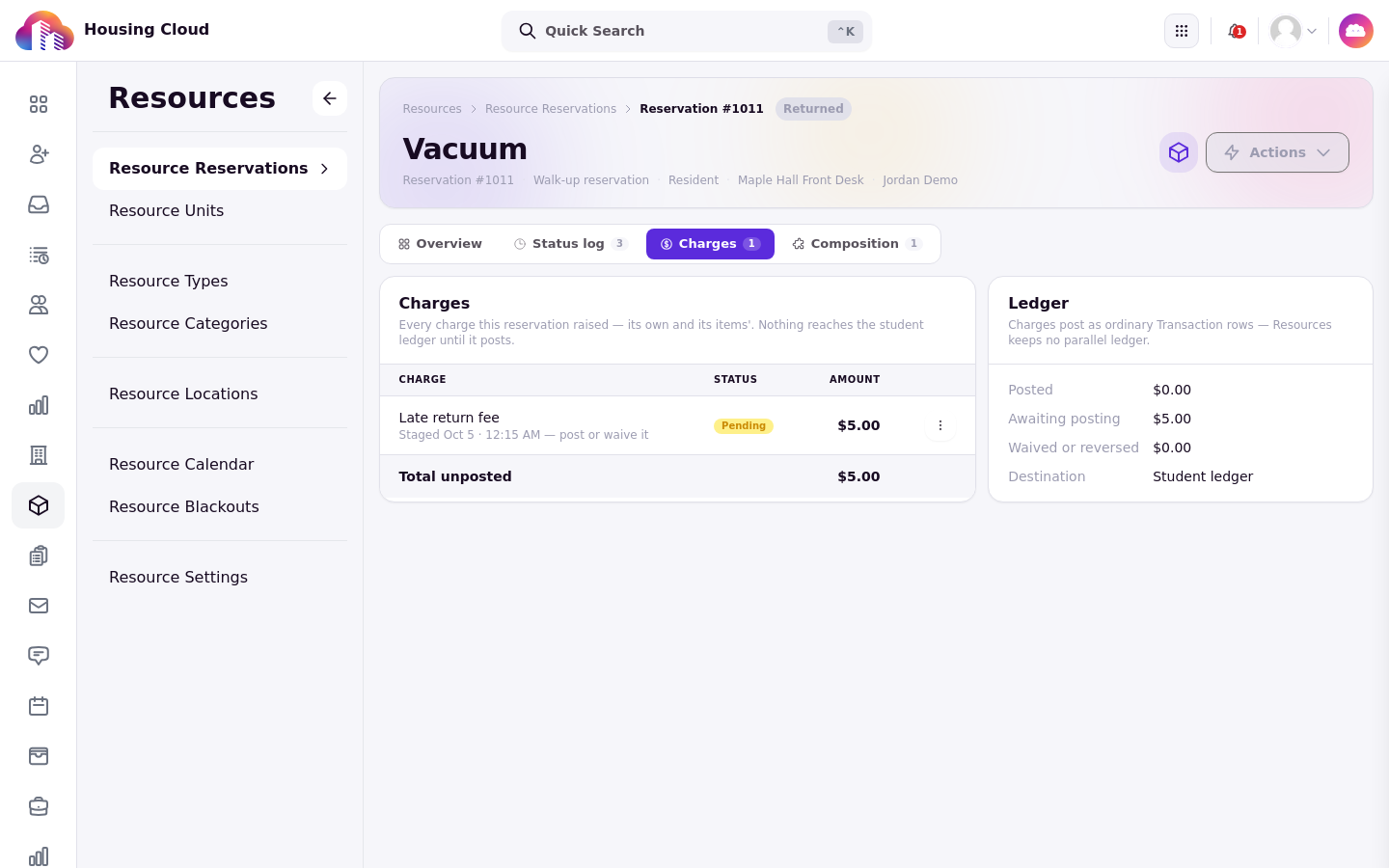
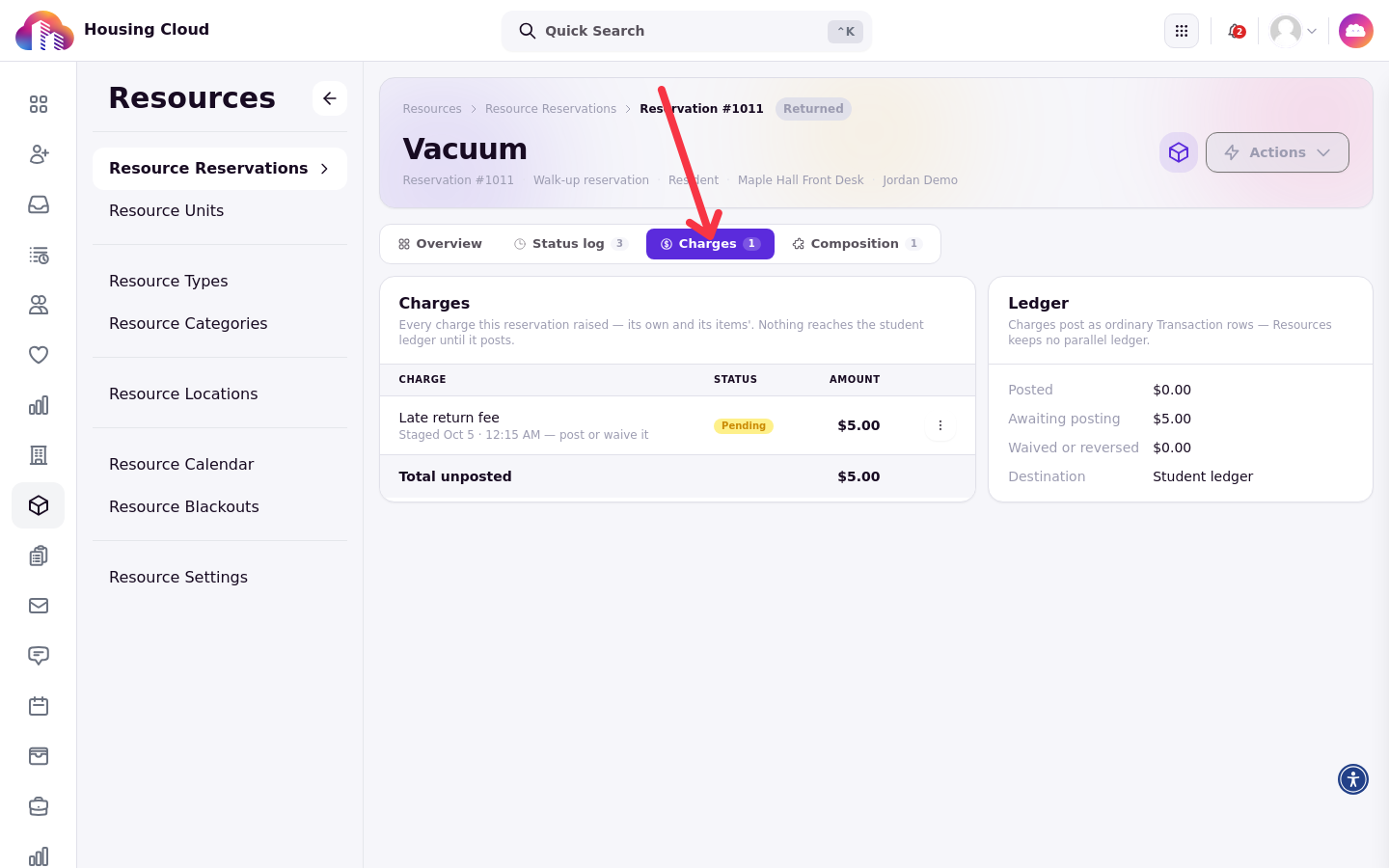
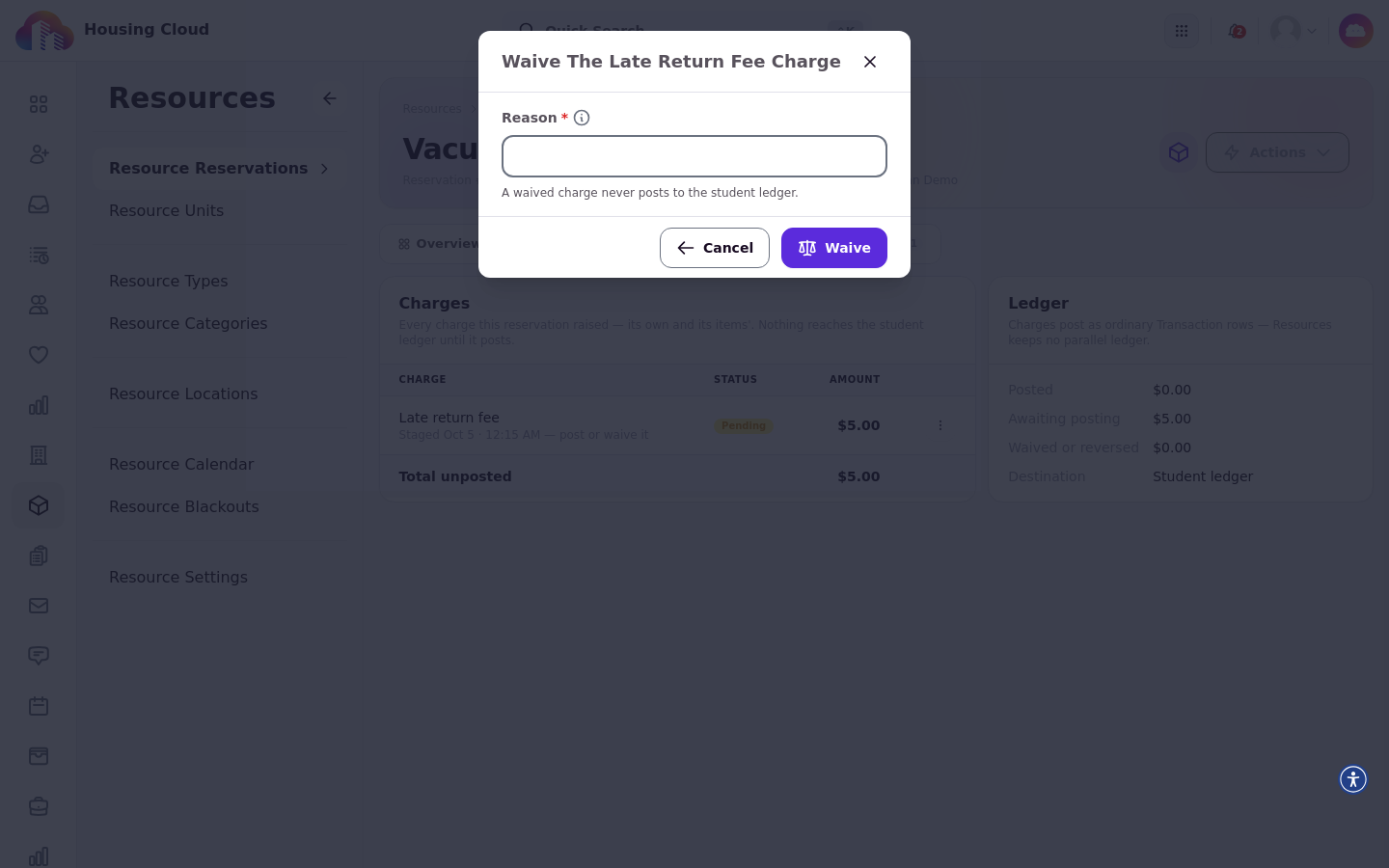
A held fee shows on the reservation's charges area as Pending, with the moment it was staged and the choice to post or waive it. The ledger beside it totals what has posted, what awaits posting, and what was waived or reversed, and names the student ledger as the destination once a charge posts.
Damage and loss
A damage or replacement charge is per item, created at a return recorded as damaged or lost, or when a reservation is marked with Mark lost or damaged. These need a charge code on the type or in the settings. Unlike late fees, a coded damage or loss charge is staged as due immediately and is posted by the next charge sweep unless it is waived or otherwise exempt; the Post late fees automatically setting controls only late fees.
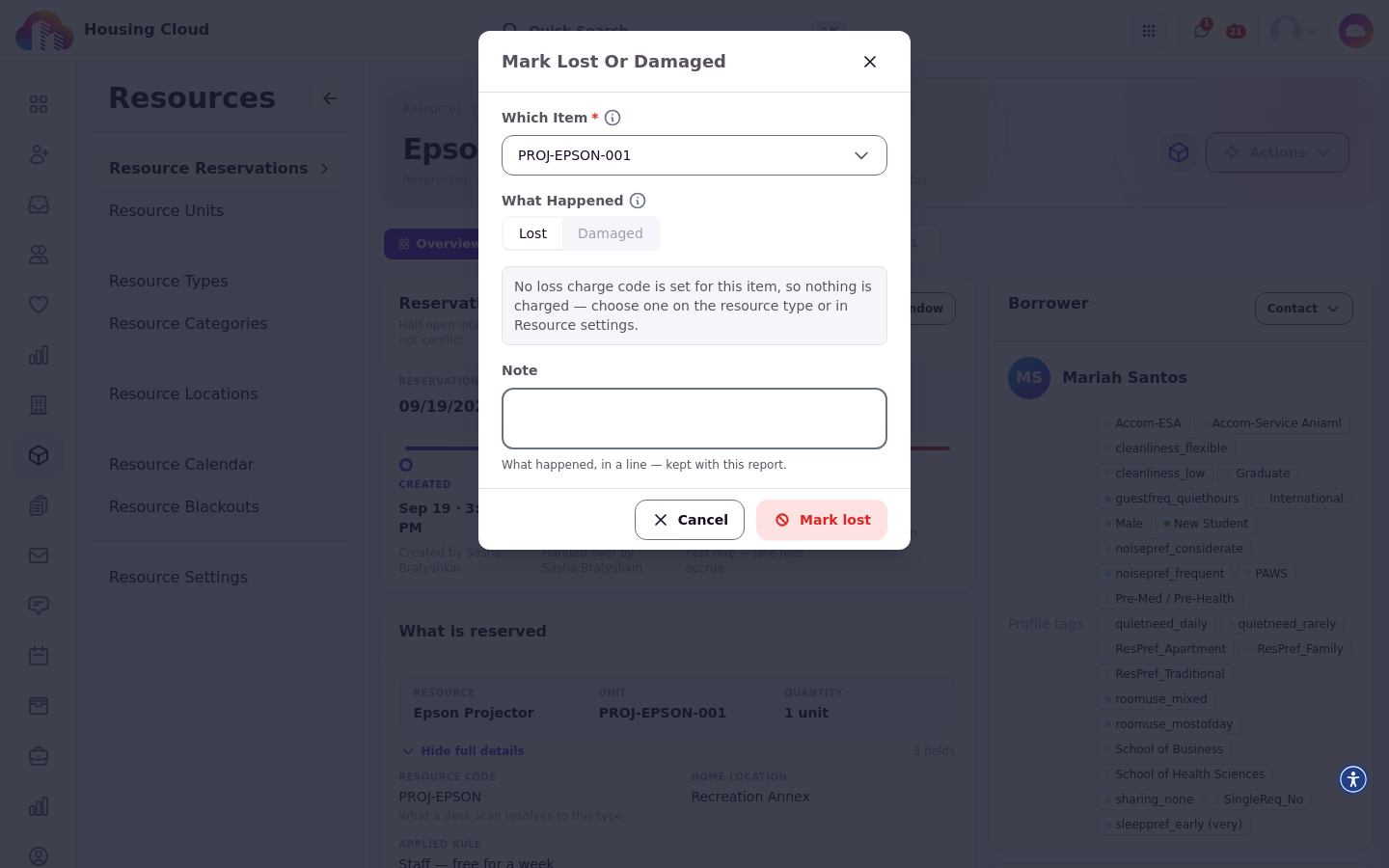
To record a loss on a loan that is still out, open the reservation and its Actions menu.
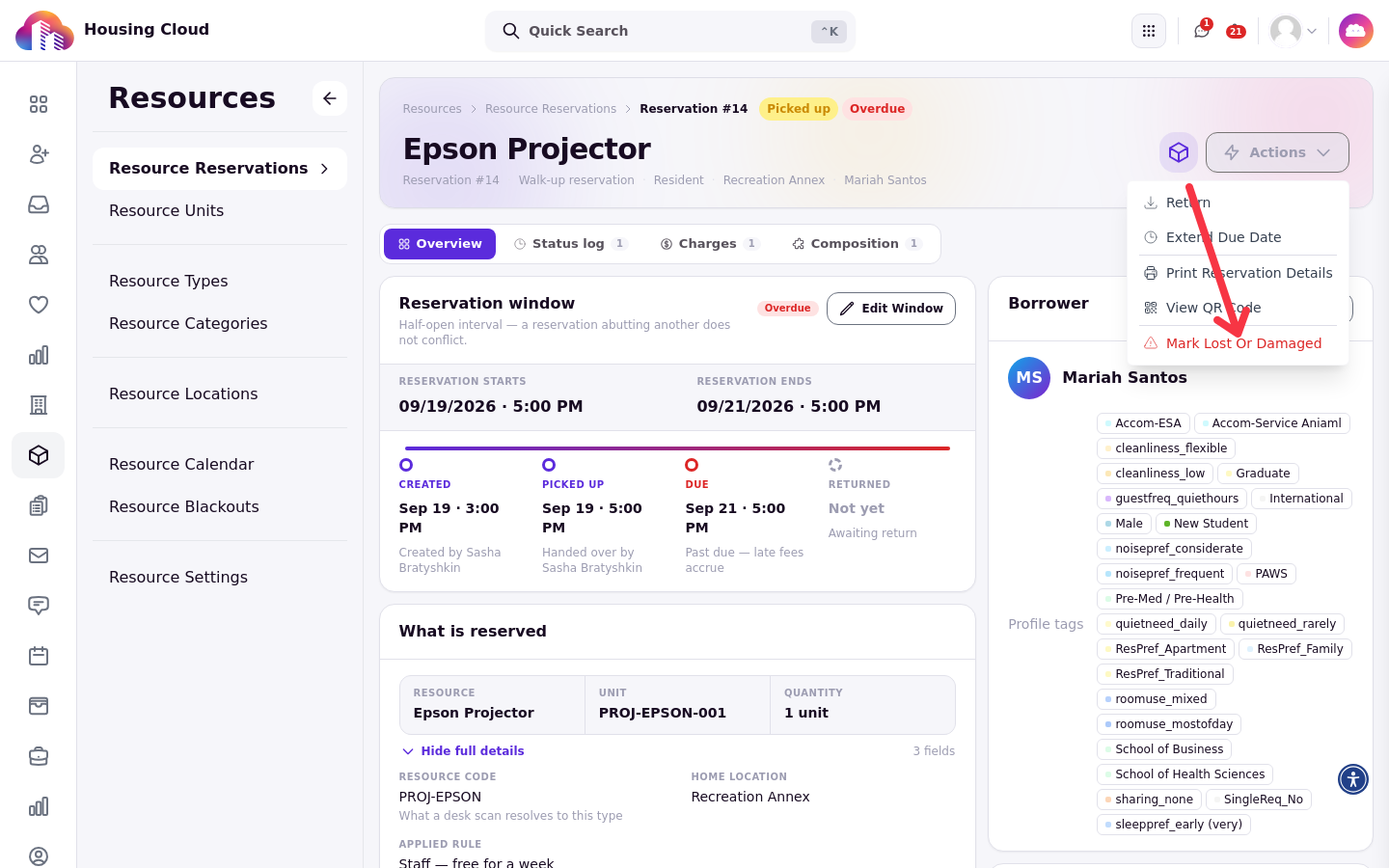
Choosing Mark lost or damaged opens a dialog where you pick the item under Which item, choose Lost or Damaged, and see the charge that will be billed before anything is recorded.
Reviewing a charge
A reservation's charges area is where staff work the money: review a held charge, post it to the student's account, waive it, or reverse one that already posted. Doing any of those needs the Finance permission for adding transactions in addition to the Resources permissions, and the record keeps who acted.
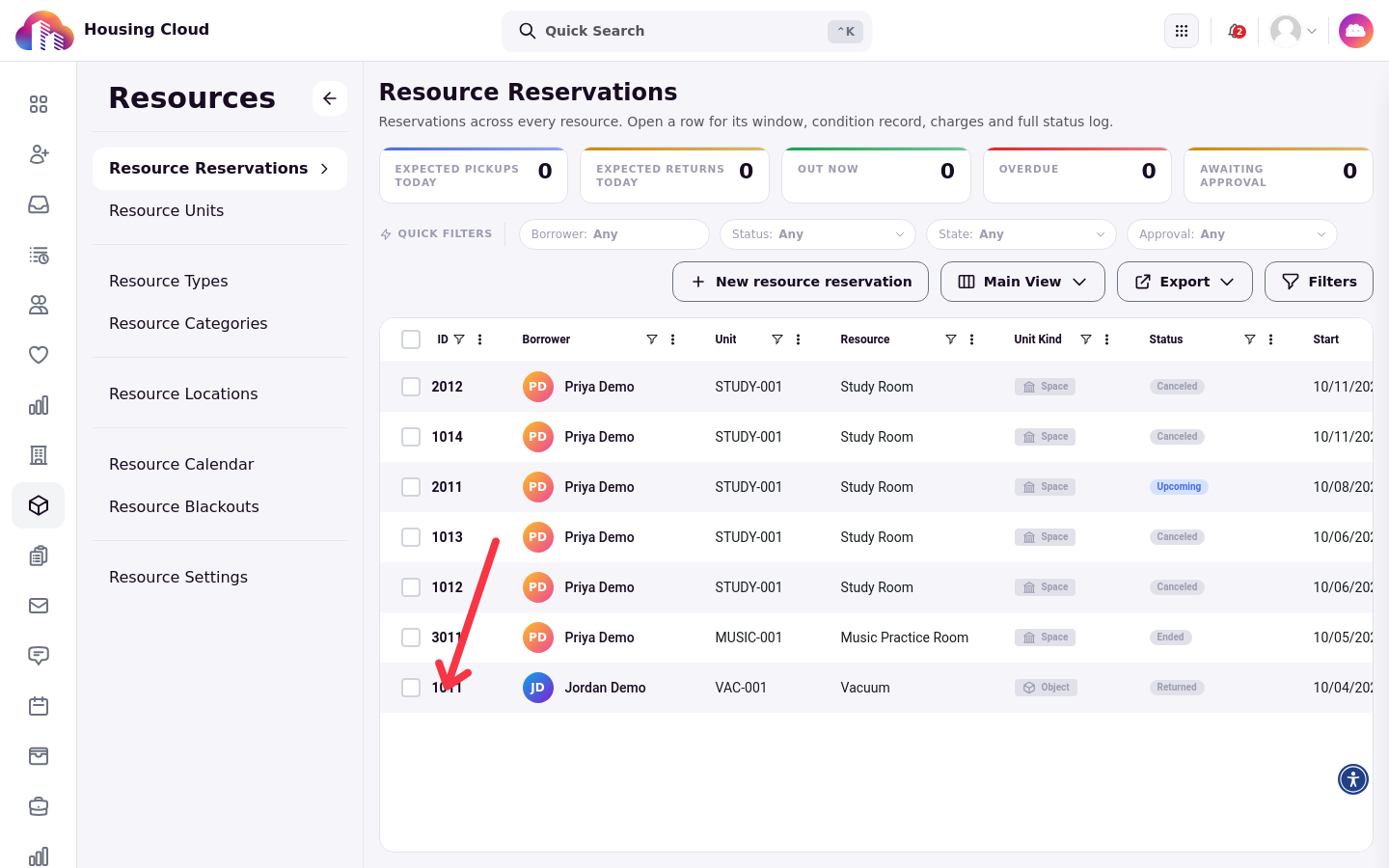
Open Resource Reservations in the Resources menu and select the reservation.
Select the reservation's Charges tab to see every charge with its type, status, and amount, and the ledger totals beside it.
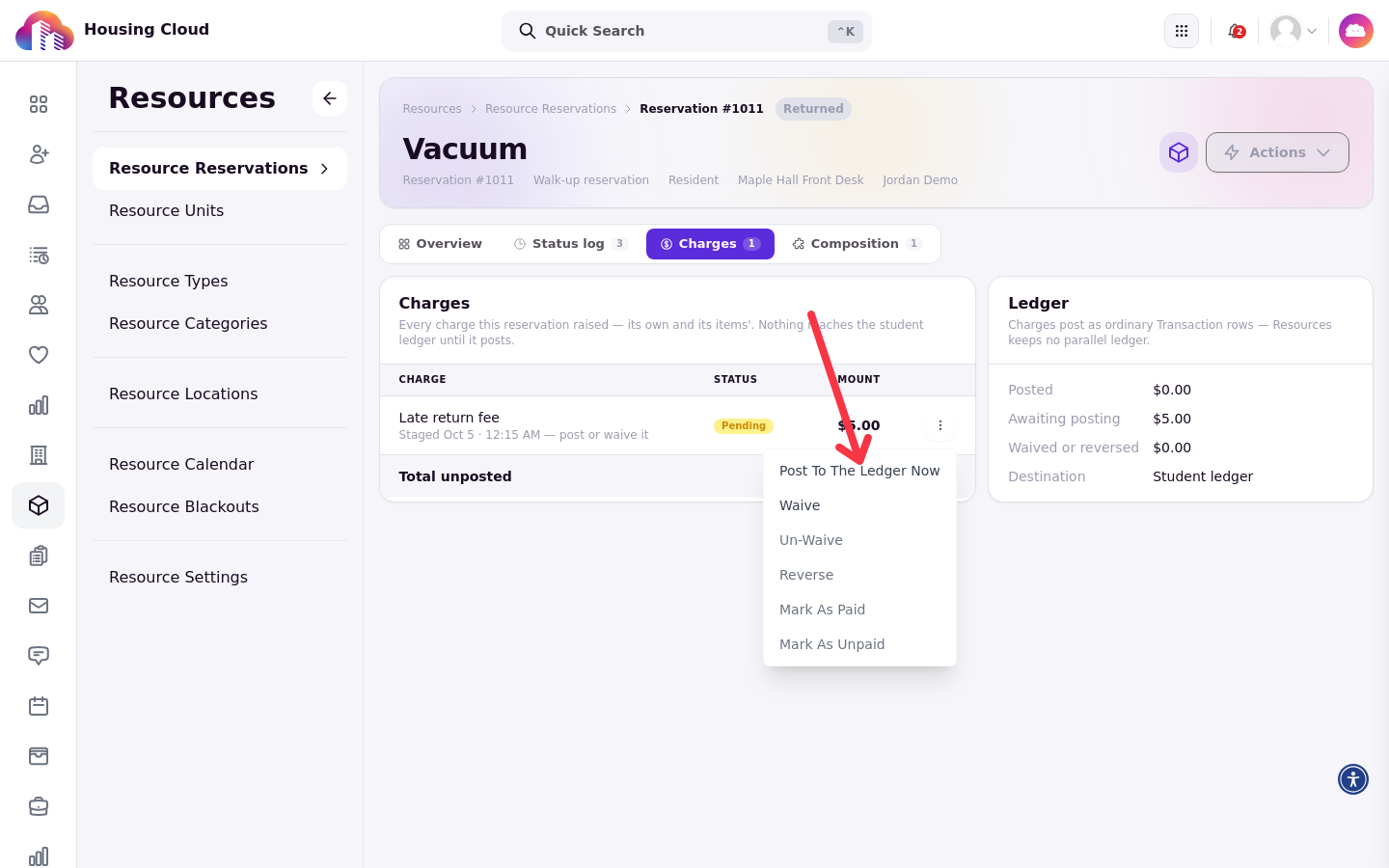
Open the actions menu beside a pending charge to post it to the ledger now, waive it, reverse a posted one, or mark it paid.
Waiving a charge requires a reason, and a waived charge never posts to the student ledger.
Posted charges appear on the student's account like any other transaction, so they flow through the same billing and payment processes as the rest of housing.
What unpaid charges block
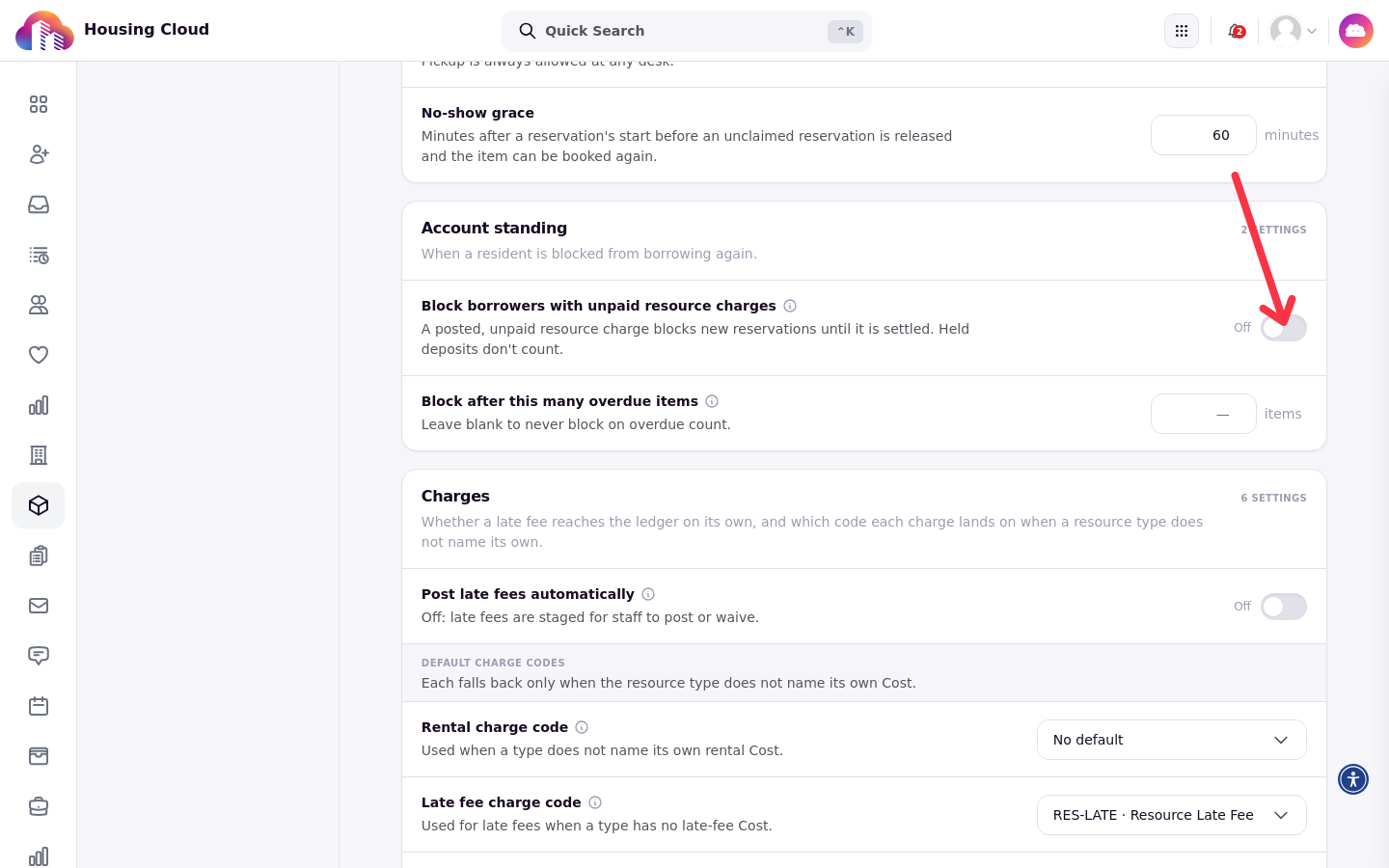
With Block borrowers with unpaid resource charges on, a student with an outstanding posted charge cannot make new reservations. The block does not stop a pickup for a booking they already have, and deposits still held are never counted as unpaid.
The toggle lives in the Account standing section of Resource Settings.
Verify the money story on any reservation: its charges area shows each charge, its code, its amount, and its status, and the grid can show the money columns, such as reservation fee and deposit, across every reservation at once.