Block Out Dates and Use the Resource Calendar
Last updated: October 8, 2026
A blackout closes a resource for a period: one unit for repairs, a whole type for a cleaning day, or everything for a holiday. Residents cannot book inside a blackout, and any start times that fall in it disappear from the booking panel. Create blackouts from the admin menu under Resources and then Resource Blackouts, and read bookings and closures on the Resource Calendar.
Before you start
Creating blackouts requires the Manage resource catalog permission.
Know the scope, the dates, and who the closure is for before you start the wizard.
Create a blackout
Click New blackout and the wizard asks five things in order.
What is unavailable: choose everything, one resource type, or one resource unit. A type-wide blackout closes every unit of that type.
Dates: set the window the closure covers. Pick the exact start and end you need; a full day runs midnight to midnight.
Who it applies to: this step is optional. Leave it empty and the blackout closes the time for everyone; scope it to a set of borrowers and the window closes only for people who match, leaving it open for everyone else.
Reason: also optional, and worth typing. The reason is shown to borrowers who try to book inside the window, so a student sees why the day is closed rather than just that it is. Leave it blank to omit the custom reason: a borrower who tries to book inside the window then sees the generic blackout message instead.
Confirm: the last step summarizes the closure; saving creates it and lists it in the blackouts grid with its scope, window, reason, and state.
Cancelling an upcoming blackout removes it from the blackouts grid but records a timeline audit event containing the closure details. Overlapping reservations are flagged after you save: the blackouts grid warns about bookings that overlap the new closure so staff can review them.
What residents see
A closed day simply has nothing to book: on the resident's booking panel the start-time row for that day shows no open times. If the blackout covers only part of a day, the times inside the window are gone and the rest of the day books normally.
Read the Resource Calendar
The Resource Calendar shows the week by default, with a day view for a closer look. Filter it by resource category or by location, such as one hall's desk, to see that desk's bookings and closures. Click a booking to open it in a quick-peek details modal; the empty slots are live too, and clicking one starts a reservation. Tenant-wide and resource-type blackouts show on the calendar alongside bookings, so a closed stretch is visible at a glance; a closure scoped to a single resource unit may not appear, so check the blackouts grid for those.
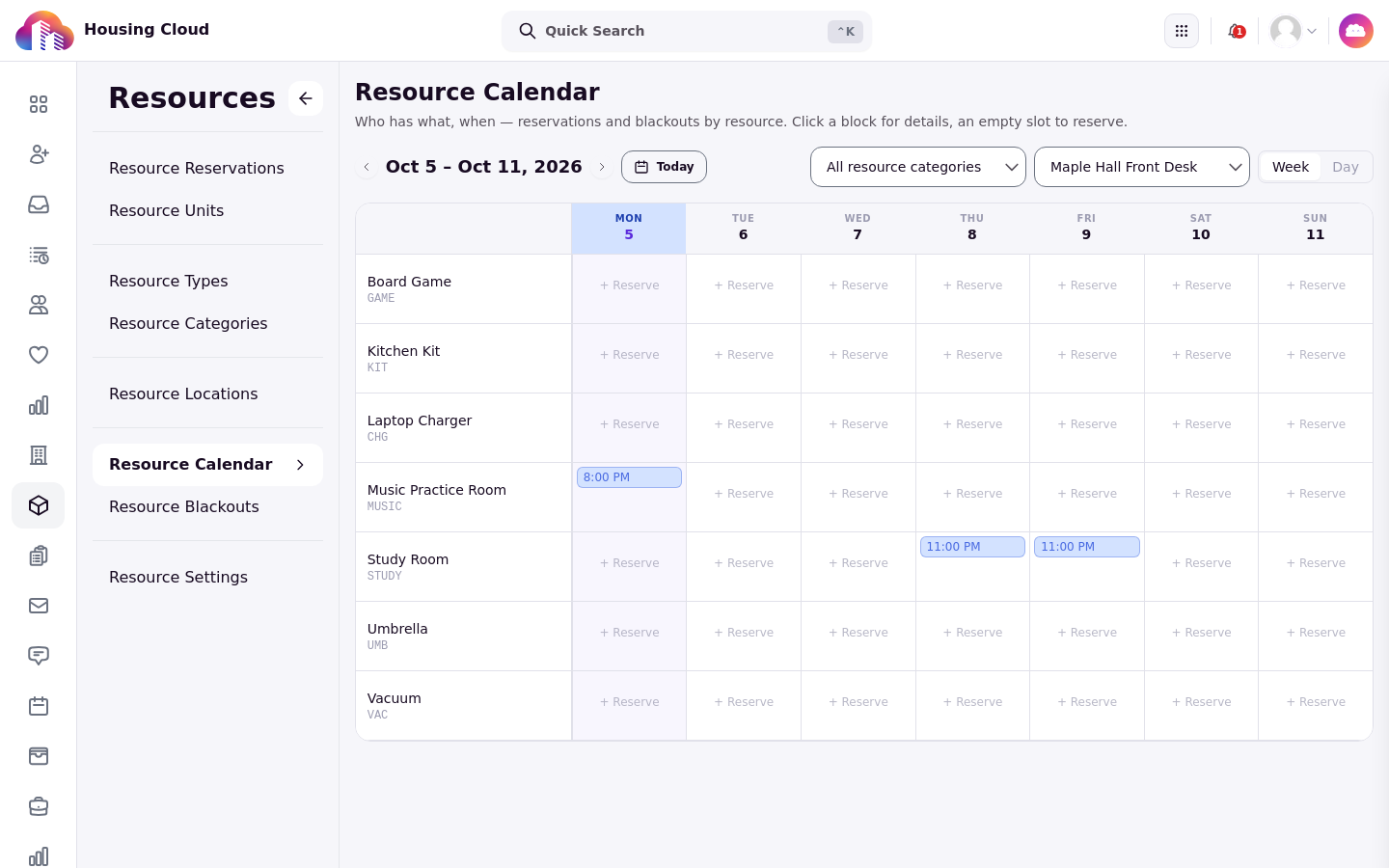
Verify a new blackout two ways: it appears in the blackouts grid, and the calendar shows the closed stretch on the resource it covers.