Reserve Equipment and Rooms, for Students
Last updated: October 8, 2026
When your school turns on Resources, a Resources tab appears in your portal's top menu. There you can borrow equipment (vacuums, board games, chargers) and book rooms (study rooms, practice rooms) that your housing office has made available. Items marked Desk only cannot be booked online; ask for them at your hall's front desk instead.
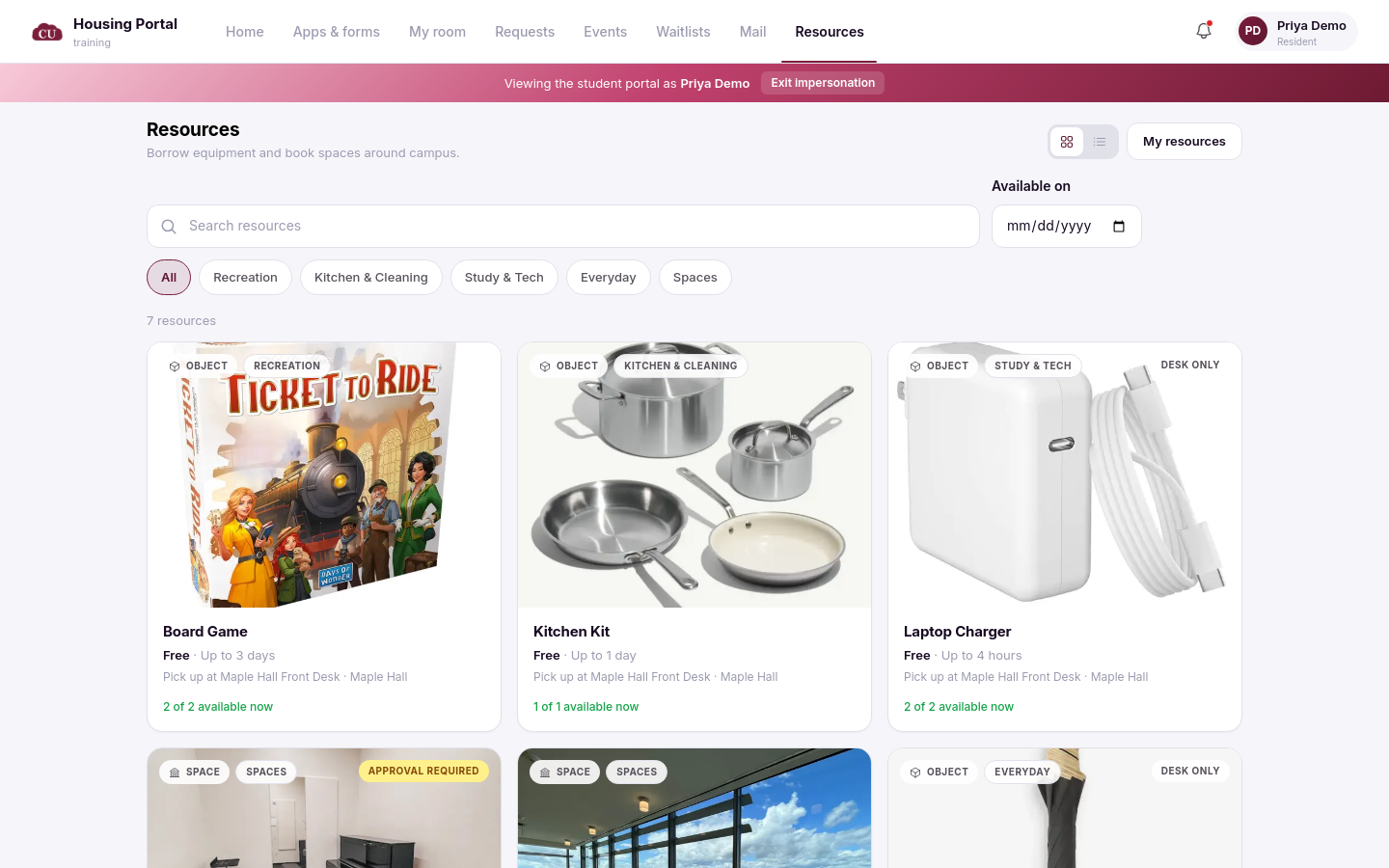
Find what you need
The Resources page lists every item and room you are allowed to borrow. Each card shows what it is, how much it costs (many are free), the longest you can keep it, where you pick it up, and how many are available right now. Cards marked Approval required need a staff member to approve your request before it is confirmed.
Use the search box, the Available on date filter, and the category chips (such as Recreation, Study & Tech, or Spaces) to narrow the list. The buttons at the top right switch between grid and list views.
Reserve a room or item
Click a card to open its details, then fill in the reserve panel:
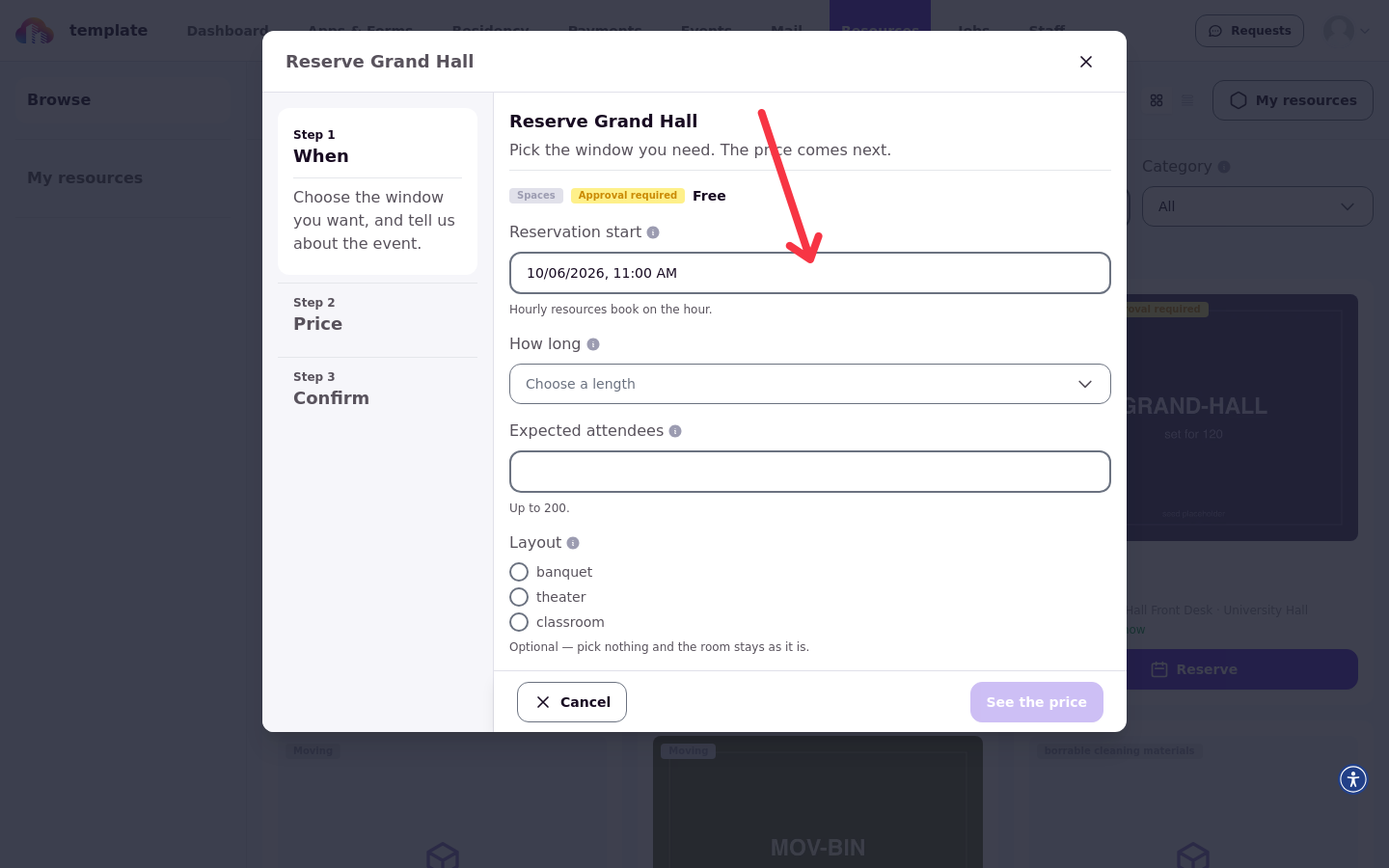
Expected attendees: how many people are coming. Rooms have a capacity limit set by your housing office.
Layout: for rooms that offer more than one setup, choose the arrangement you want.
Day, How long, and Start time apply to hourly resources: pick a date, a length, and one of the open start times. Times that are already taken are crossed out, and if nothing is open that day you will see Nothing free that day — try another date. Your school can also close a resource for certain days (for cleaning or events), and those days show no open times either.
Daily resources use First day and Last day to book a date range instead. Window-based items use Pick up and Return by to set when you take and bring back the item, or just Pick up for items you do not return.
If the resource is free, your reservation is confirmed as soon as you submit it, and you will see a confirmation screen with a QR code. If it needs approval, the button reads Request reservation; your request goes to staff and shows as pending until someone approves it. You will get an email either way.
Track your reservations in My resources
Click My resources to see everything you have coming up, what you have out right now, and your past reservations. Each upcoming reservation shows its window, when it was requested, and your setup choices. The QR code and Cancel buttons appear when they are available for that reservation: some upcoming entries, such as tentative holds, reservations that have already started, and reservations tied to another booking, cannot be canceled.
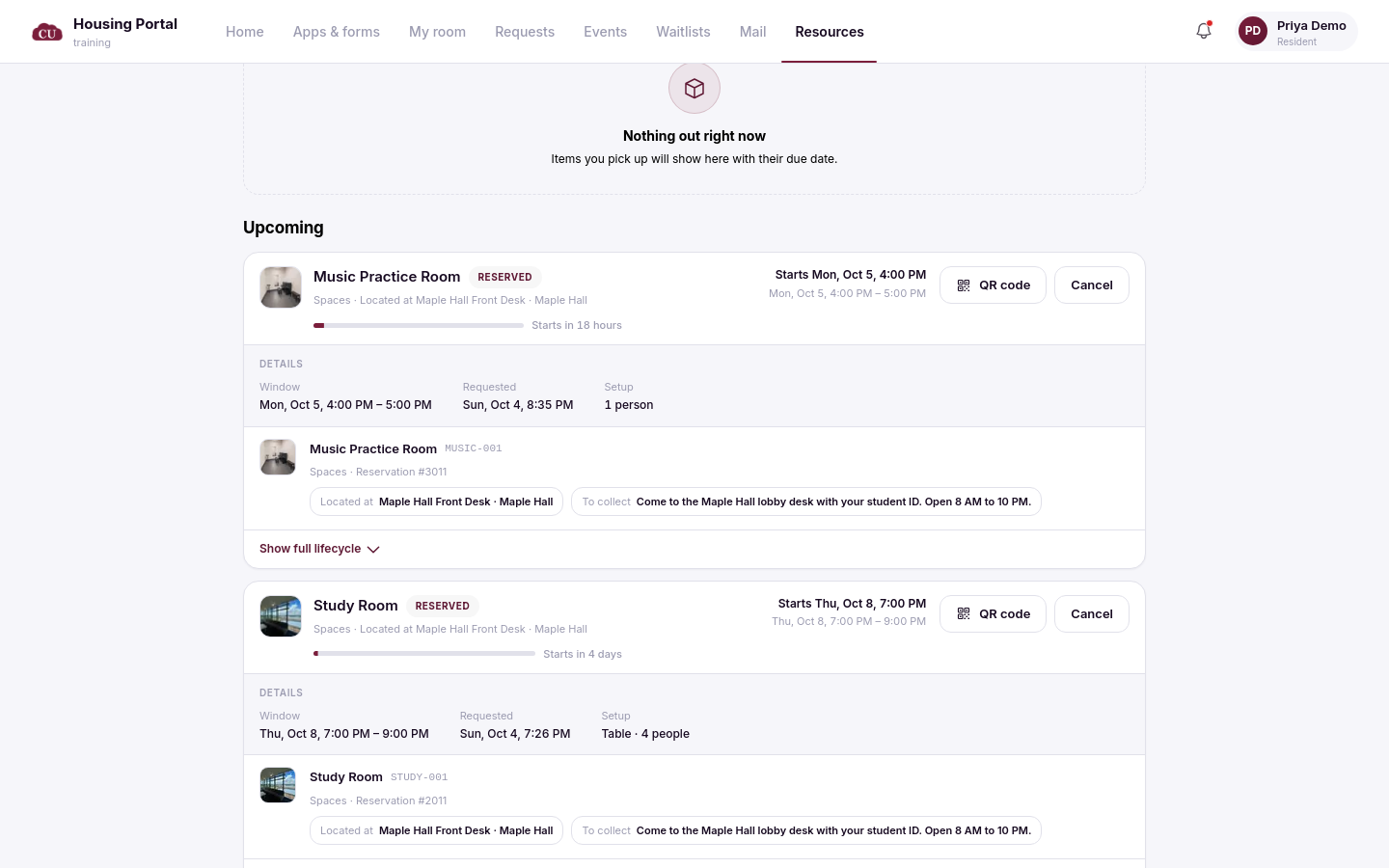
Show the QR code at the front desk when you pick an item up or collect a room key. Where Cancel is available, you can cancel a request or a confirmed reservation any time before it starts.
What happens next
When your reservation is approved, you will get an email, and the item appears in My resources as Reserved. Your school may also send you notices when an item is ready for pickup, coming due, overdue, or when a charge posts to your account. If your school charges for a resource, the cost posts to your student account when the booking is confirmed.
If a resource you expect to see is missing, ask your housing office: they control which resources appear, whether online booking is on, and which items are desk only.