Draft and Polish Messages with Cloudy
Last updated: October 8, 2026
Cloudy can draft your message in the composer, and the "Ask AI" menu in the text toolbar shortens, lengthens or fixes it. Cloudy never sends: you review, edit and send yourself.
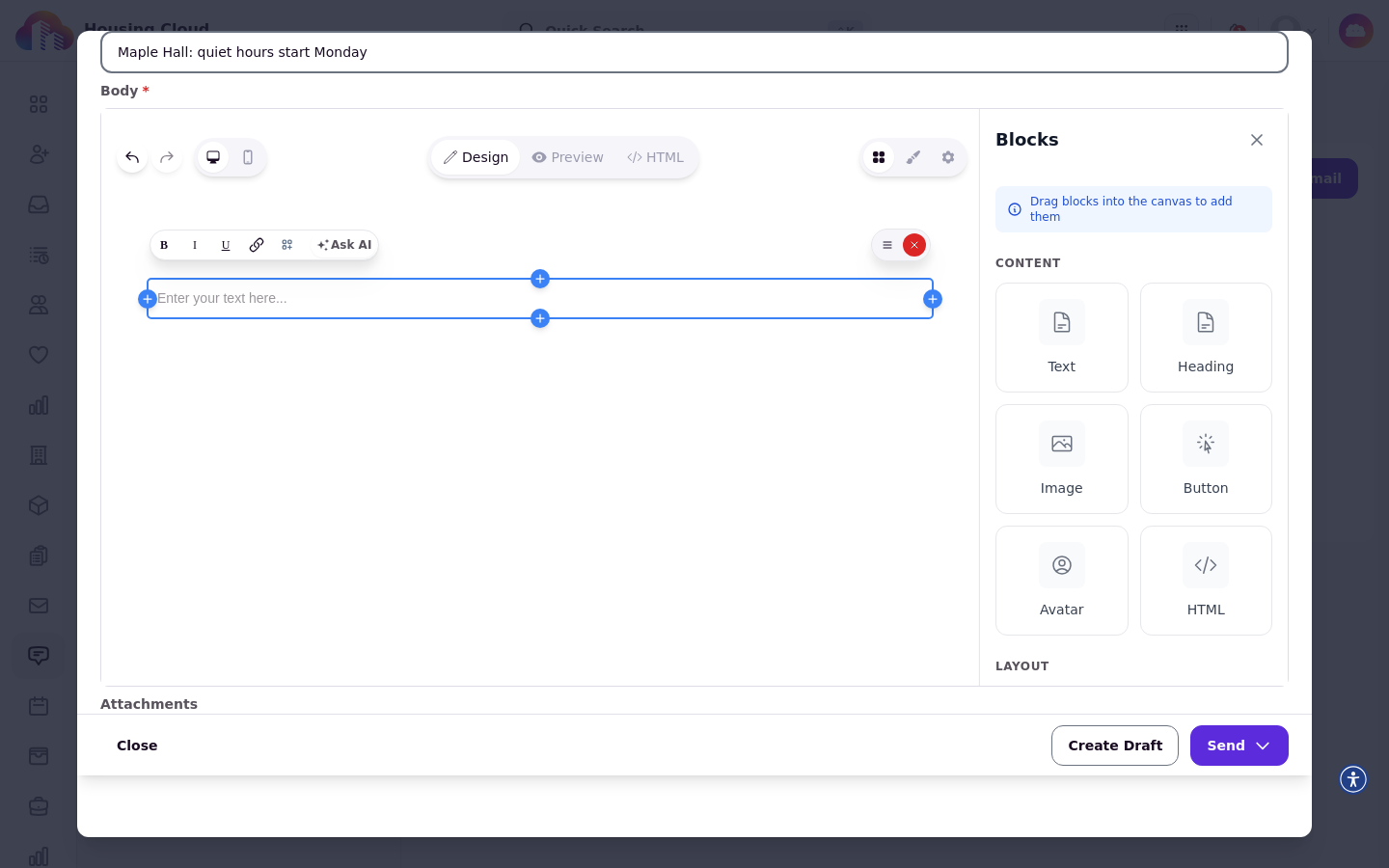
The message composer. The Cloudy control sits in the desktop email toolbar, and beside the Message label for SMS.
Where the drafting appears
The drafting tools appear in the message composer (New message, reminders, outreach, check-ins and surveys) when your school has Cloudy email drafting on.
Draft with Cloudy
Set your subject and audience, then use "Ask AI" with a short request of what the message should say. Starters such as "Move-in weekend logistics", "Quiet hours reminder" and "Package room overflow" give you a head start. When a tone choice shows, pick Friendly or Direct.
Polish with the AI menu
Open Ask AI in the editor for the editing options: Improve Writing, Fix Grammar, Make Shorter, Make Longer and Continue Writing.
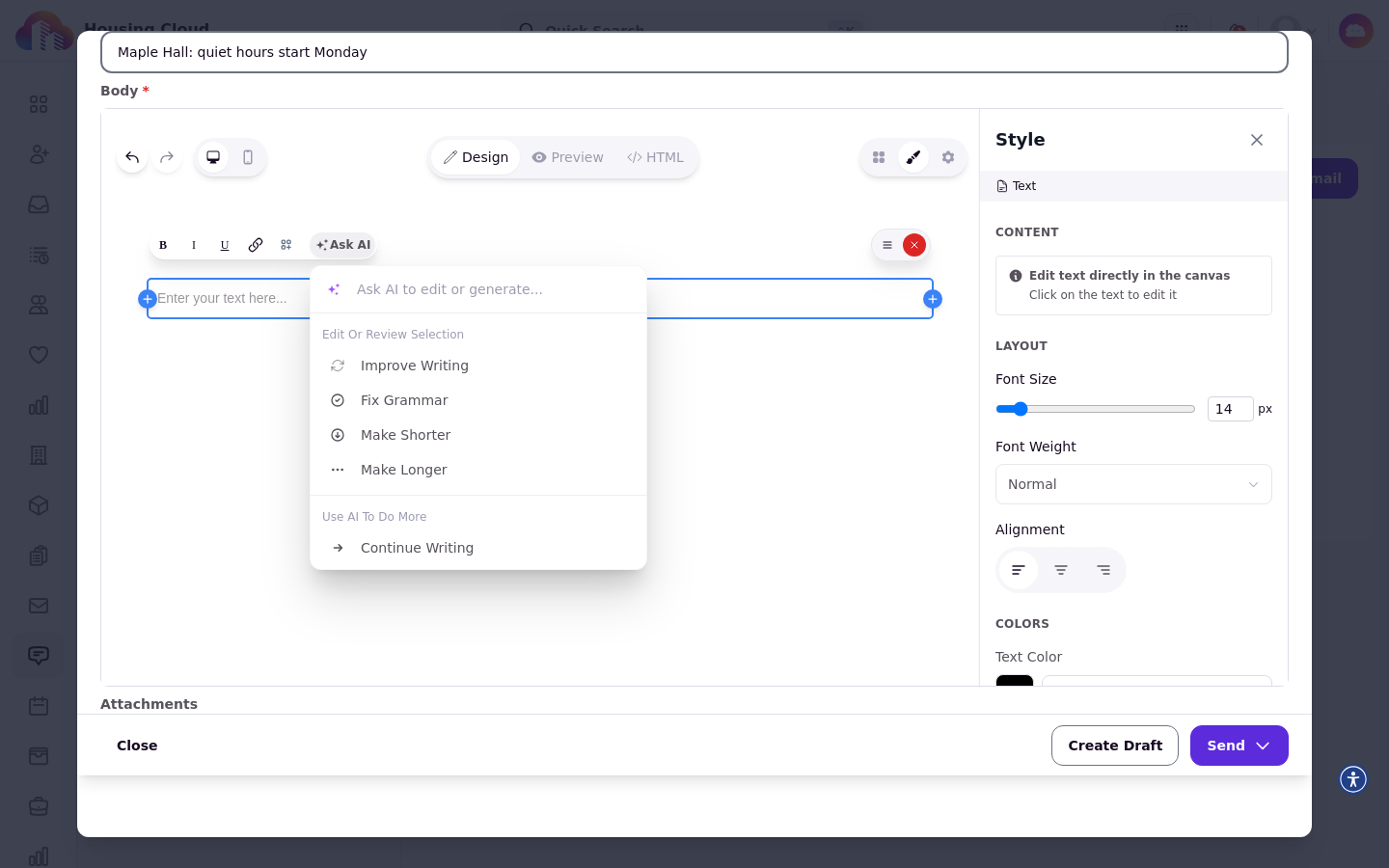
The "Ask AI" menu: Improve Writing, Fix Grammar, Make Shorter, Make Longer and Continue Writing.
Choose what happens to the result
After a draft, choose Replace draft (email) or Replace message (SMS) to fill the editor with it, Insert Below to keep both, or Discard to throw it away.
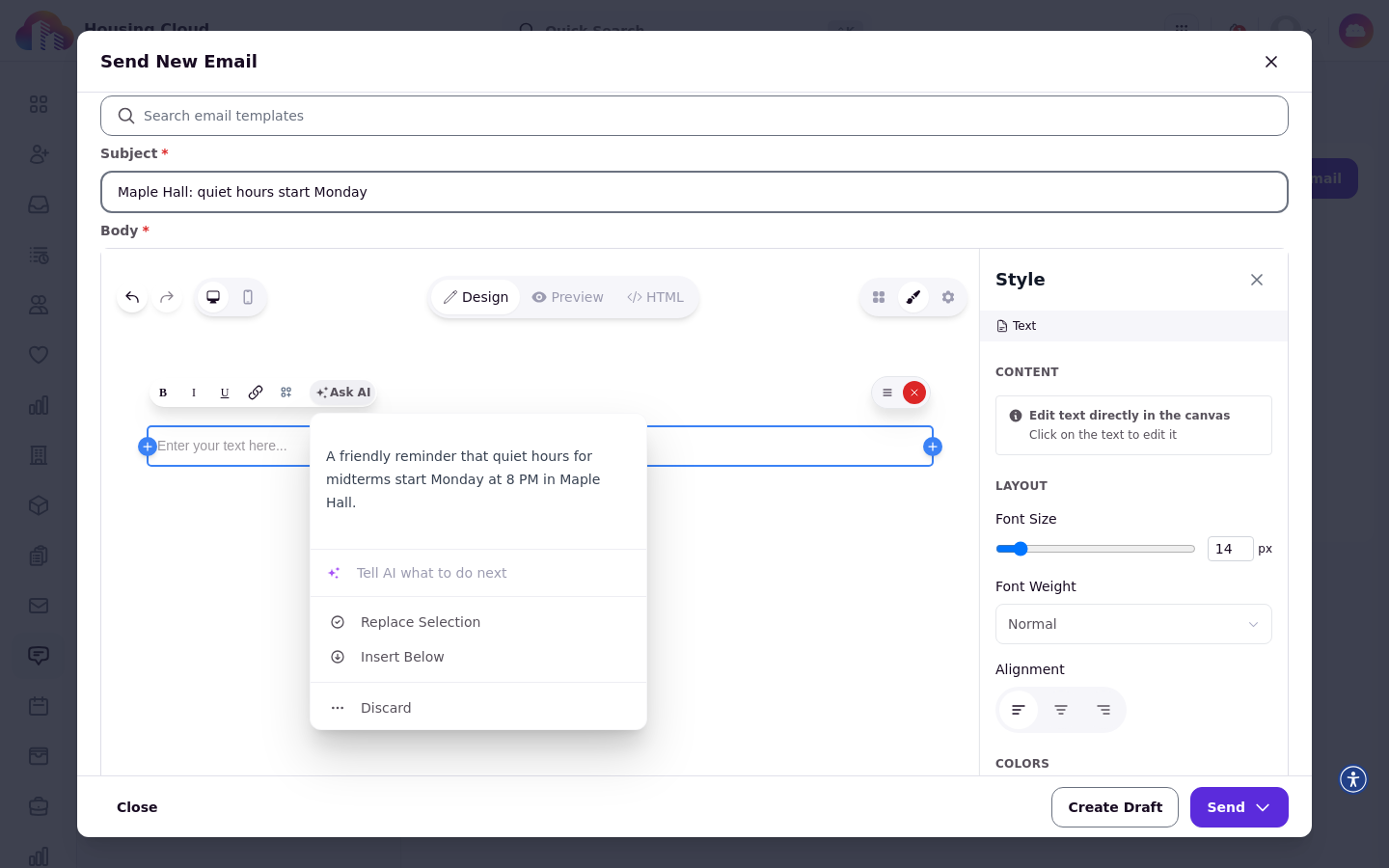
Cloudy drafts the request and offers Replace draft, Insert Below or Discard.
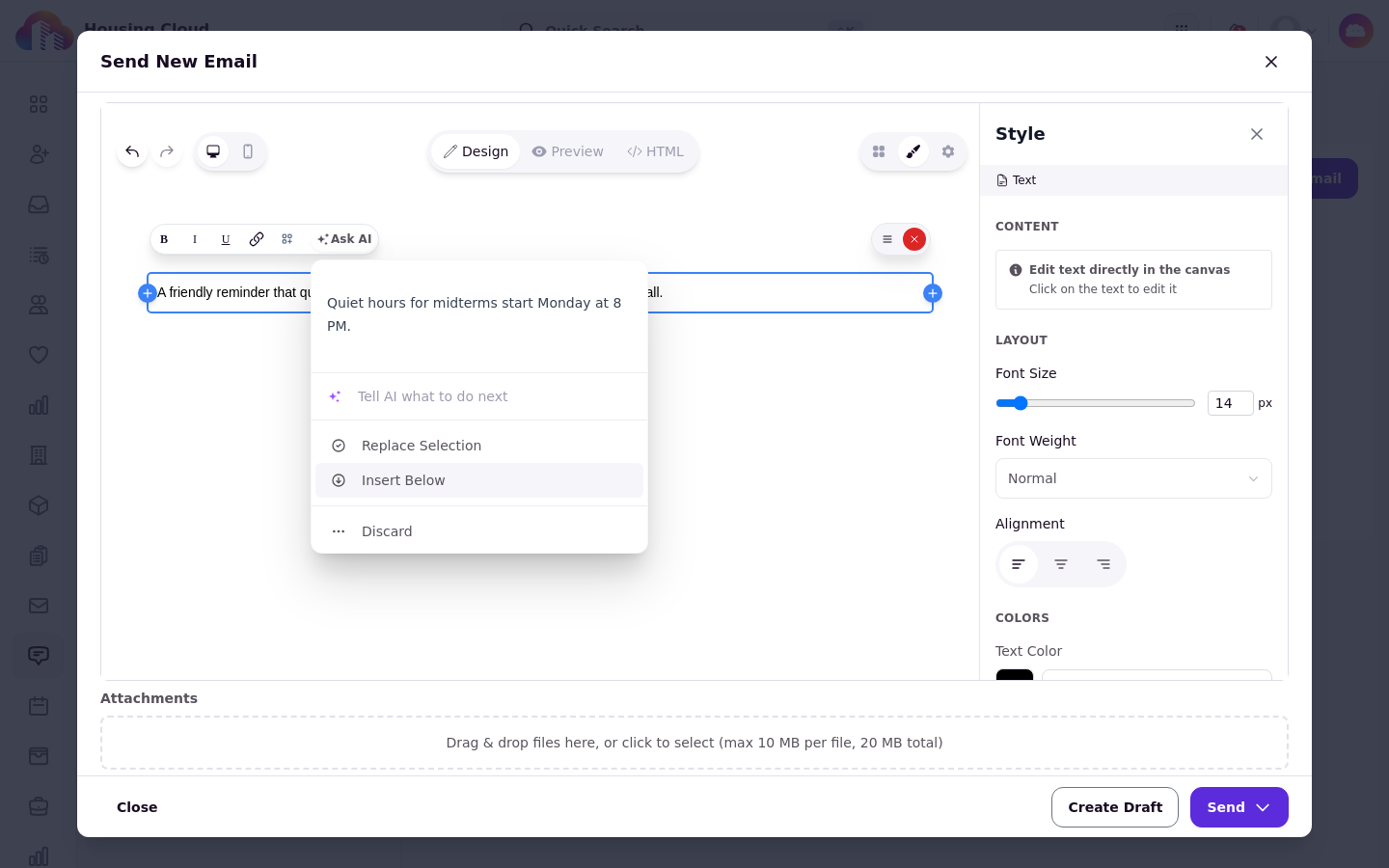
The same text after "Make Shorter": one sentence, with the same three choices.
Writing help in other text boxes
Other text boxes in the product offer the same writing help in the "Ask AI" menu, with the same Replace Selection, Insert Below and Discard choices.
Cloudy never sends
Cloudy drafts the text only. You review, edit and send yourself, and nothing goes out until you press send.
What to check before you send
Check names, dates and links. Cloudy doesn't know about plans that aren't in Housing Cloud, so a draft may promise something your hall doesn't offer.