Create a Resource Type: Items and Spaces
Last updated: October 8, 2026
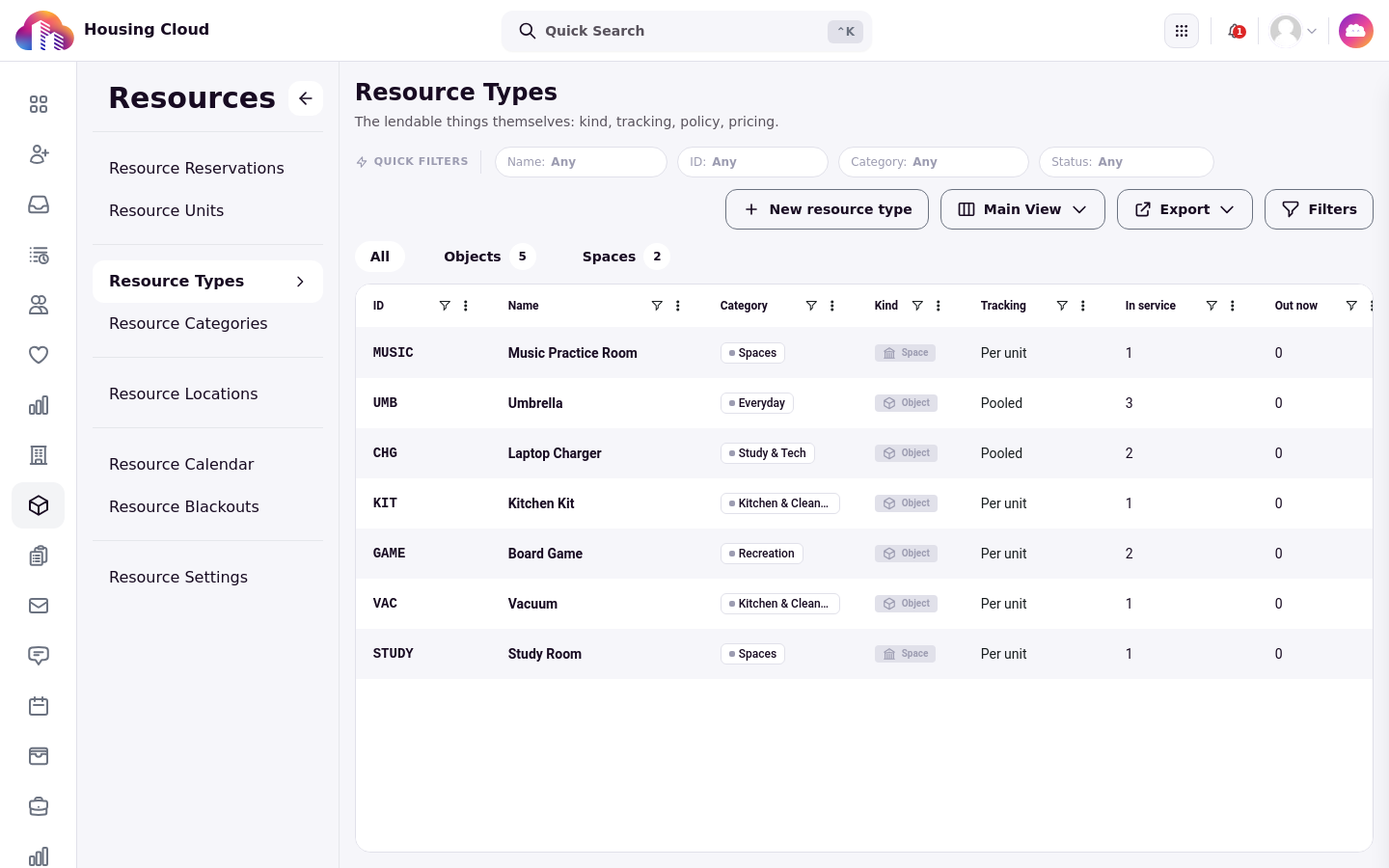
A resource type is the catalog entry that holds every rule about one thing the school lends or rents out: what it is, how it is tracked, when it can be borrowed, what it costs, and who may borrow it. Create the type first, then stock it with units. Open Resource Types from the admin menu's Resources section and click New resource type.
The form walks through the same steps for every type: identity, tracking, availability, pricing, audience, companions, agreements, and a review before you create it. A vacuum and a study room answer the same questions differently, so this article follows both.
Before you start
You need the Manage resource catalog permission.
The category must already exist; a default pickup location is optional.
Charge codes you plan to use must exist in Setup under Charge Codes; a type can also fall back to the defaults set in Resource Settings.
Identity
Give the type a Name residents will recognize, and choose its Kind: Object for an item the desk lends and takes back, or Space for a room residents book. Pick the Category it files under, set an ID prefix (the unit codes generated later start here, so VAC becomes VAC-001), choose the Default pickup location, and add a short Description residents see on the card.
Spaces take three extra fields: Capacity, the normal limit on how many people a booking can include (authorized staff can exceed it with a logged override), Layout options residents choose between, and Where is it, a location note such as floor and room number.
Tracking
How are units tracked? decides whether each copy is its own unit (Individual units) or the type is a shared pool (Pooled), where any available copy serves the next borrower. Reservation mode chooses between Reservable, which residents can book online, and Walk-up only, which the desk lends on the spot and which never appears as an online booking option. Keep Borrowers return it on for anything the desk hands over and takes back; turn it off for giveaways or other consumables that are not returned, such as batteries or tape. Reservations need staff approval sends online requests to a queue instead of confirming them, and Who approves names who reviews them.
Availability
Bookable from and Bookable until set the date range the type can be booked within: leave a field blank and booking starts immediately or has no end date. Daily hours are set on the weekly schedule instead. Reservation granularity chooses Hourly, Daily, or Per reservation, and the minimum and maximum duration bound how long one reservation can run. Buffer between reservations holds a gap between bookings, useful for cleaning a room between groups. Book up to (days ahead) caps how far in the future residents may book, and Overdue grace (minutes) sets how many minutes past due a loan runs before the late fee applies.
Pricing
Each money field pairs an amount with a charge code: the late fee, the replacement value for a lost item, and damage and deposit amounts. A late fee is a flat amount charged once per loan, not per day, no matter how late the item comes back. A blank amount for the late fee, replacement value, or damage charge uses the amount on the charge code selected for that field. A blank deposit amount means no deposit.
Audience
Audience rules decide who may borrow the type and on what terms. Each rule names who it matches by tags, application cycles, or roles, and carries its own rental rate (free, per hour, per day, or per reservation) plus limits such as the most items a borrower can hold at once. Rules match inclusively: any matching rule allows the borrow, and the first match sets the price. A rule with no conditions matches everyone. Click Add audience rule to create the first rule, then configure it: a rule with no conditions matches everyone, so setting its rate is all a no-conditions setup takes. With no rules in the list, the type uses its default policy.
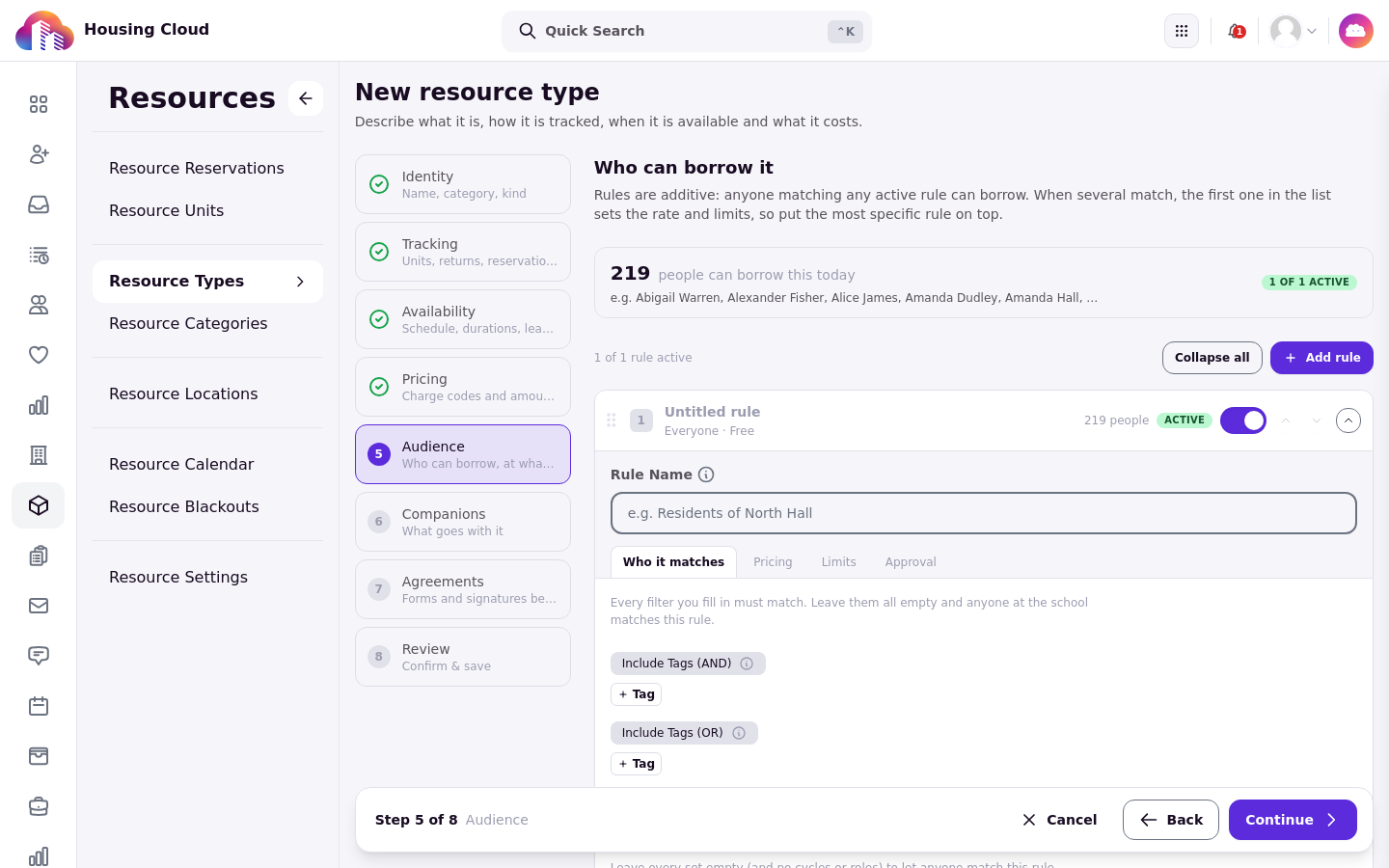
Audience rules have no building field. To keep an item for one building's residents, use a tag those residents carry.
Companions and agreements
Companions link items that go together, marked Required, Suggested, or Exclusive. Agreements are terms a borrower must accept before pickup. Only the main item's agreement is enforced; agreements on companion items are not.
Review and create
The review step summarizes every choice; check it, then click Create resource type. The type exists with no units yet. An Individual units type cannot be reserved until you add units, and a space type with no units tells you so directly. A Pooled type has no unit records by design and is reserved by quantity instead.
Verify the result on the type's detail page, which shows the rules you set. Then stock it by following Add Units and Print QR Labels.