Resources Overview
Last updated: October 8, 2026
Resources is Housing Cloud's add-on for lending equipment and booking spaces. Admins build a catalog of things (vacuums, board games, chargers) and places (study rooms, practice rooms), decide who may borrow each one, for how long and at what price, and residents reserve from their portal. The front desk hands items over and takes them back by scanning a QR code, and any charges post to the student's account.
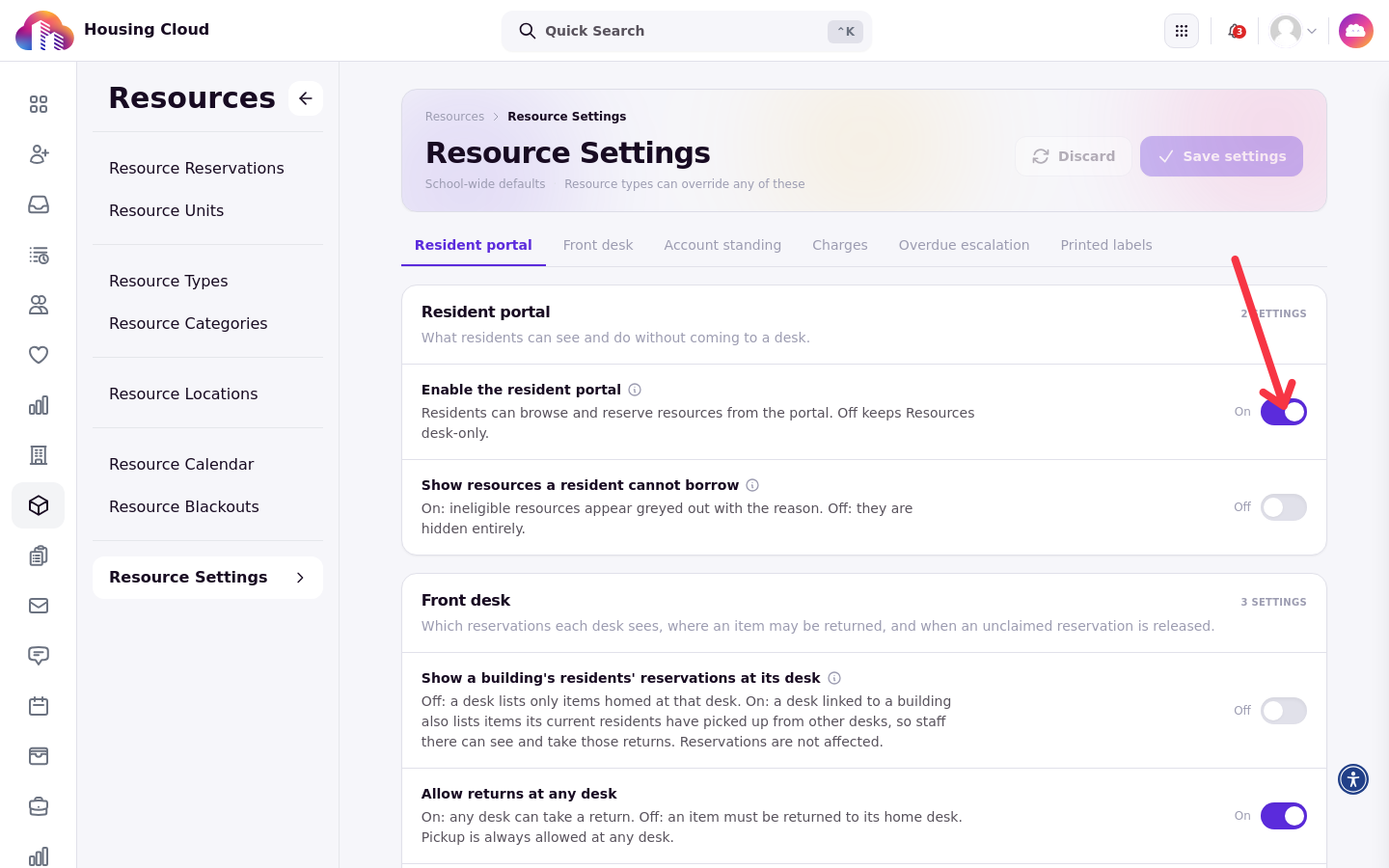
Two things to know before anything else. First, Resources is an add-on that Housing Cloud switches on per school; schools cannot turn it on themselves, and if you do not see a Resources section in your admin menu, contact Housing Cloud. Second, even when it is on, residents see nothing until an admin turns on Enable the resident portal in Resource Settings.
Two kinds of resources
Everything in the catalog is one of two kinds. An Object is a physical item the desk lends and takes back, with a due time, condition checks, and optional late fees. A Space is a room residents book for a window of time; a room booking simply starts and ends on its own, and rooms are never picked up or returned.
The pieces of the catalog
A school's Resources setup is built from five pieces:
Categories group the catalog for browsing, such as Kitchen & Cleaning or Spaces.
Locations are the desks where residents pick items up and bring them back.
Resource types are the catalog entries themselves: a vacuum, a study room. The type holds how it is lent (loan length, fees, approval, who may borrow).
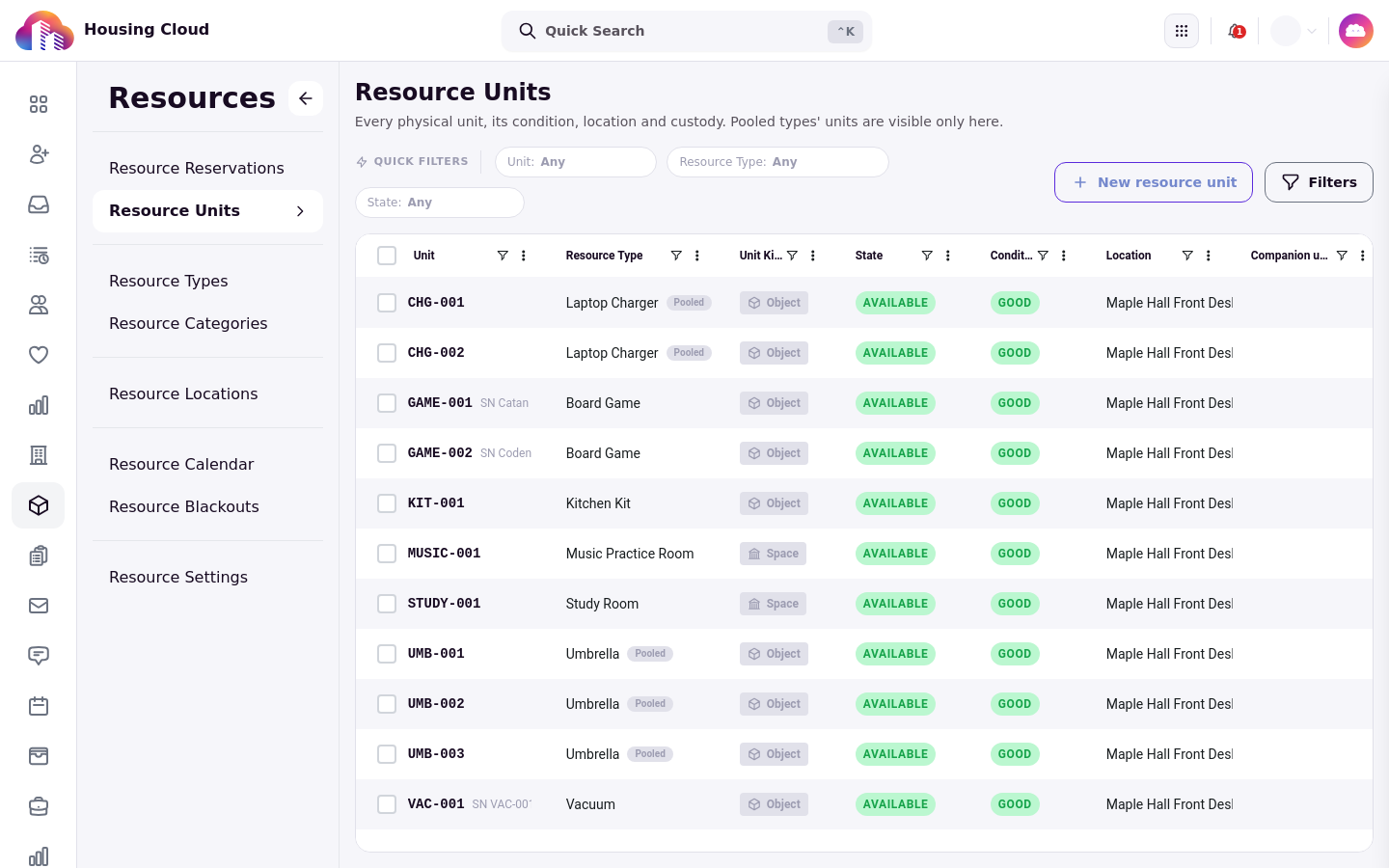
Units are the physical copies. One vacuum type can have one unit; a room type has one unit per room. Each unit gets its own code, such as VAC-001, and its own QR label.
Blackouts close a unit, a type, or everything for a period, such as a maintenance day.
When a resident reserves or borrows, that creates a reservation, which is the record the desk and the reports work from.
The life of a reservation
A reservation that needs approval starts as Awaiting approval, becomes Reserved when approved, is Picked up when the desk hands the item over, and Returned when it comes back. A walk-up loan skips the approval step and goes straight to pickup. A room booking starts and ends on its own; it never shows a pickup or return step.
Where things live
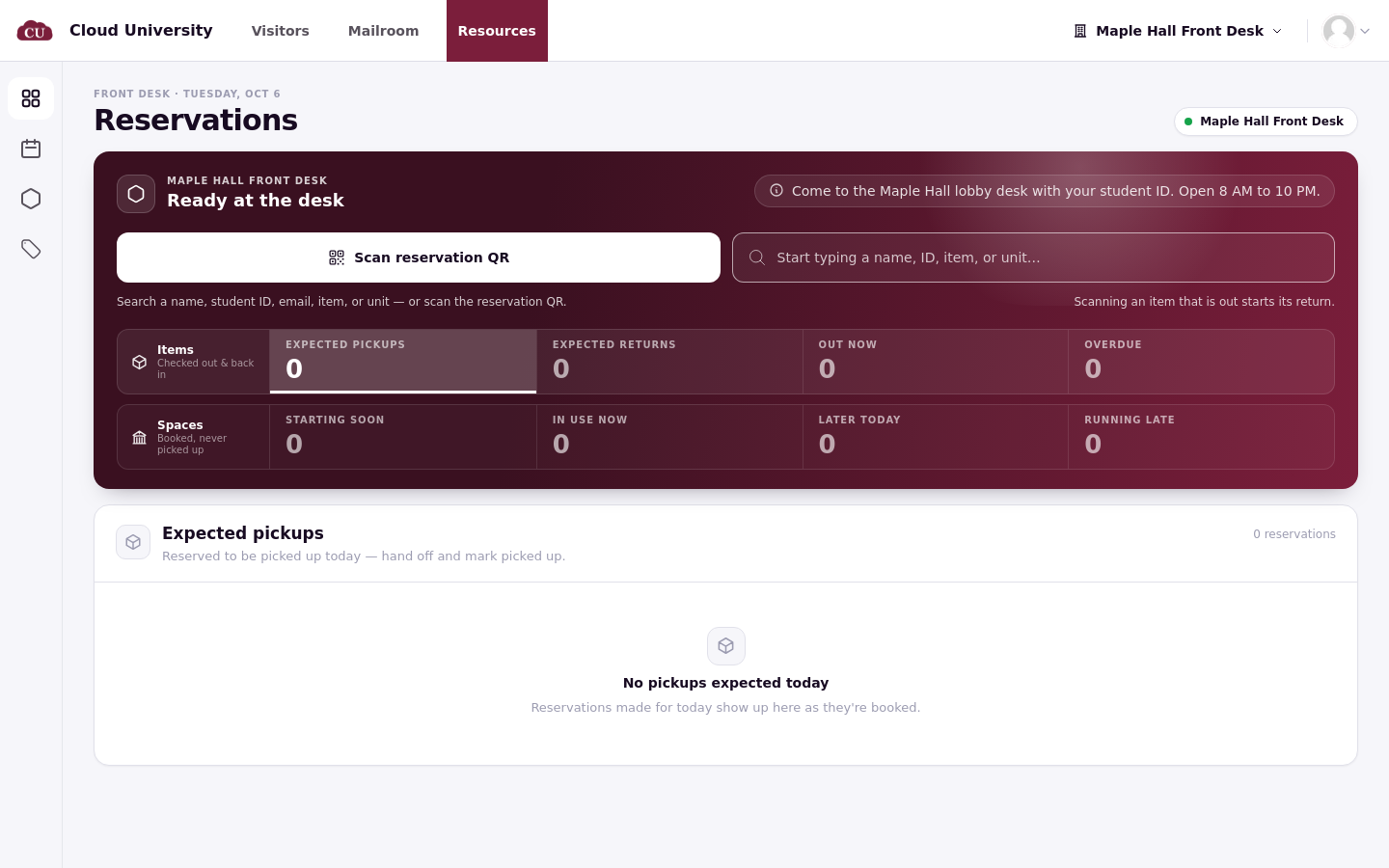
Admins manage Resources from the admin menu's Resources section, which holds Resource Reservations, Resource Units, Resource Types, Resource Categories, Resource Locations, Resource Calendar, Resource Blackouts, and Resource Settings. The front desk works from a separate desk screen at /ops/resources, beside Mailroom in the operations portal. Residents browse and reserve from the Resources tab in their portal, and every reservation also appears on the resident's profile under a Resources tab, where staff can see what a student currently has, what is coming up, and what they borrowed in the past.
Setup order
A new school sets Resources up in this order:
Review Resource Settings and give staff the right permissions.
Create categories and a desk location.
Create resource types (the lending rules).
Add units to stock each type.
Turn on Enable the resident portal so residents can see the catalog.
Good to know
Residents see nothing until the portal setting is on. Switching Resources on for a school is not enough; Enable the resident portal starts off.
Audience rules have no building field. Rules match tags, application cycles and roles. To keep an item for one building's residents, use a tag those residents carry.
Charges post at booking, not at pickup. A confirmed booking bills its rental and deposit right away, or at approval when approval is required. Cancelling before posting voids the charges; cancelling after posting reverses them through the refund path.
Late fees are flat and held by default. One amount per loan, however late. Unless Post late fees automatically is on, staff post them; turning it on later does not post fees already held.
No charge code, no charge. Late, damage and loss outcomes are still recorded, but nothing bills until a code exists on the type or in settings.
Rooms are never picked up or returned. A room booking starts and ends on its own. Rooms need approval by default.
Unpaid charges block new reservations only. They do not stop a pickup for a booking already made, and held deposits never count.
Only people can borrow. Every reservation belongs to one resident or staff profile. No club, floor or guest borrower yet.
Cancelling a blackout deletes it. There is no record of cancelled closures.
Approvers can approve their own requests. The record names who approved.
Agreements on companion items are not enforced. Only the main item's agreement must be done before pickup.