Open Cloudy and Ask Your First Question
Last updated: October 8, 2026
Open Cloudy from the top-right picture, the "Cloudy" menu entry, or any "Ask Cloudy" button, type a question in plain English, and read the answer in the panel or on the full page.
At Maple Hall… Sam opens Cloudy for the first time and asks what is waiting at the desk this morning.
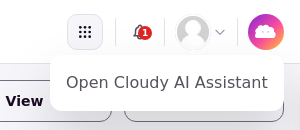
The top-right Cloudy picture opens the assistant side panel.
Three ways in
Click the round Cloudy picture at the top right of any admin page to open Cloudy as a side panel next to your work. Click "Cloudy" in the left menu to open the full Cloudy page. On many screens, "Ask Cloudy" buttons start a chat about the item you're on. See "Ask Cloudy About the Page You're On".
The empty chat
A new chat shows a greeting and suggestion cards that change with the page you're on. The button "See everything I can do" opens the full list of what Cloudy can help with.
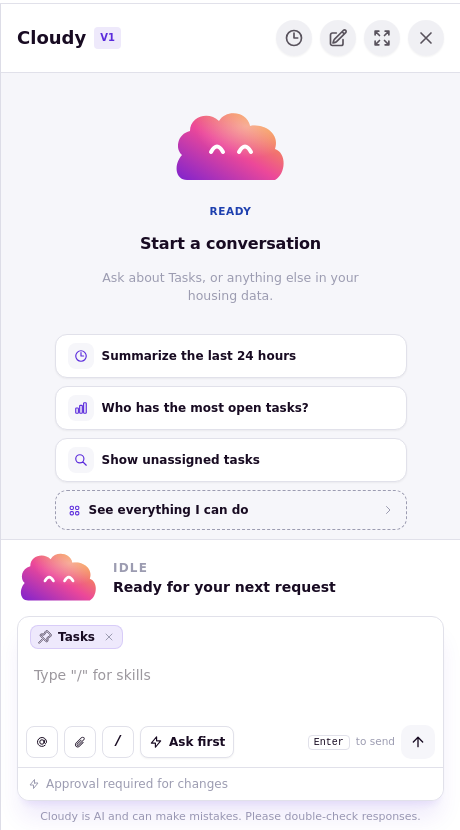
The empty panel shows page suggestions, the See everything I can do button, and the message box.
See everything I can do
Cloudy groups its help into five kinds: Look things up, Report & catch up, Make changes, Investigate and Show me how. Open any one to see the areas it covers.
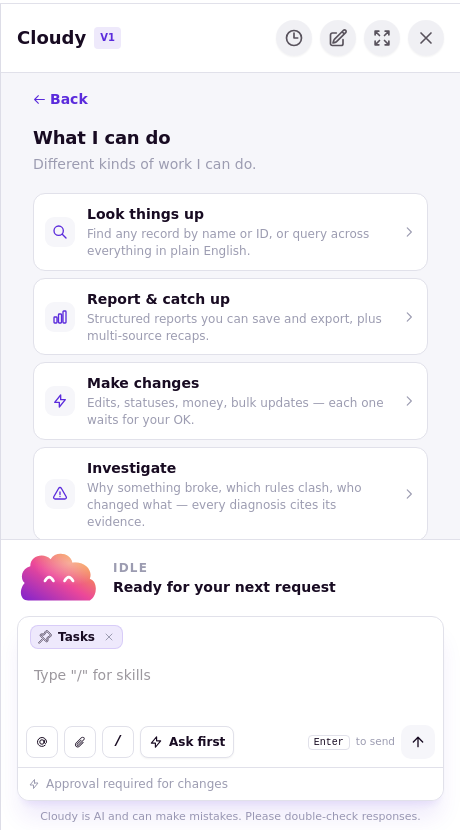
The capabilities view groups Cloudy work under Look things up, Report & catch up, Make changes, Investigate, and Show me how.
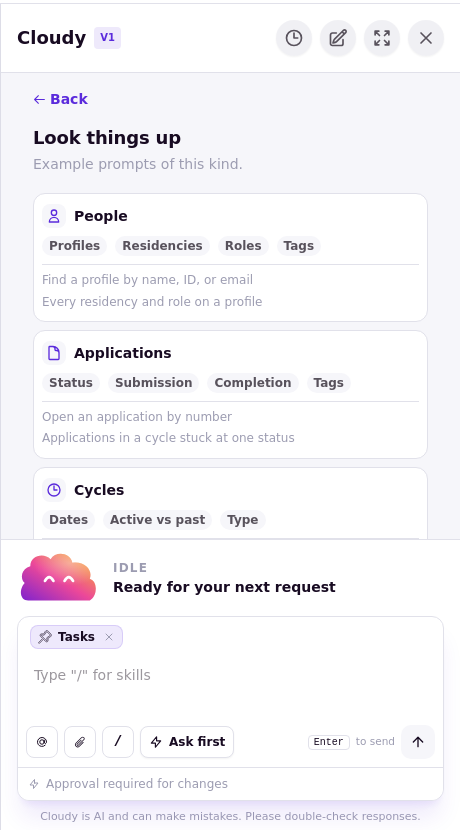
Look things up lists areas such as People, Applications, and Cycles.
Ask your question
Type in the message box and press Enter. The box says "Ask me anything...", or "Type "/" for skills" when your school has Skills on. See "Cloudy Skills: Save a Job Your Team Runs with "/"."
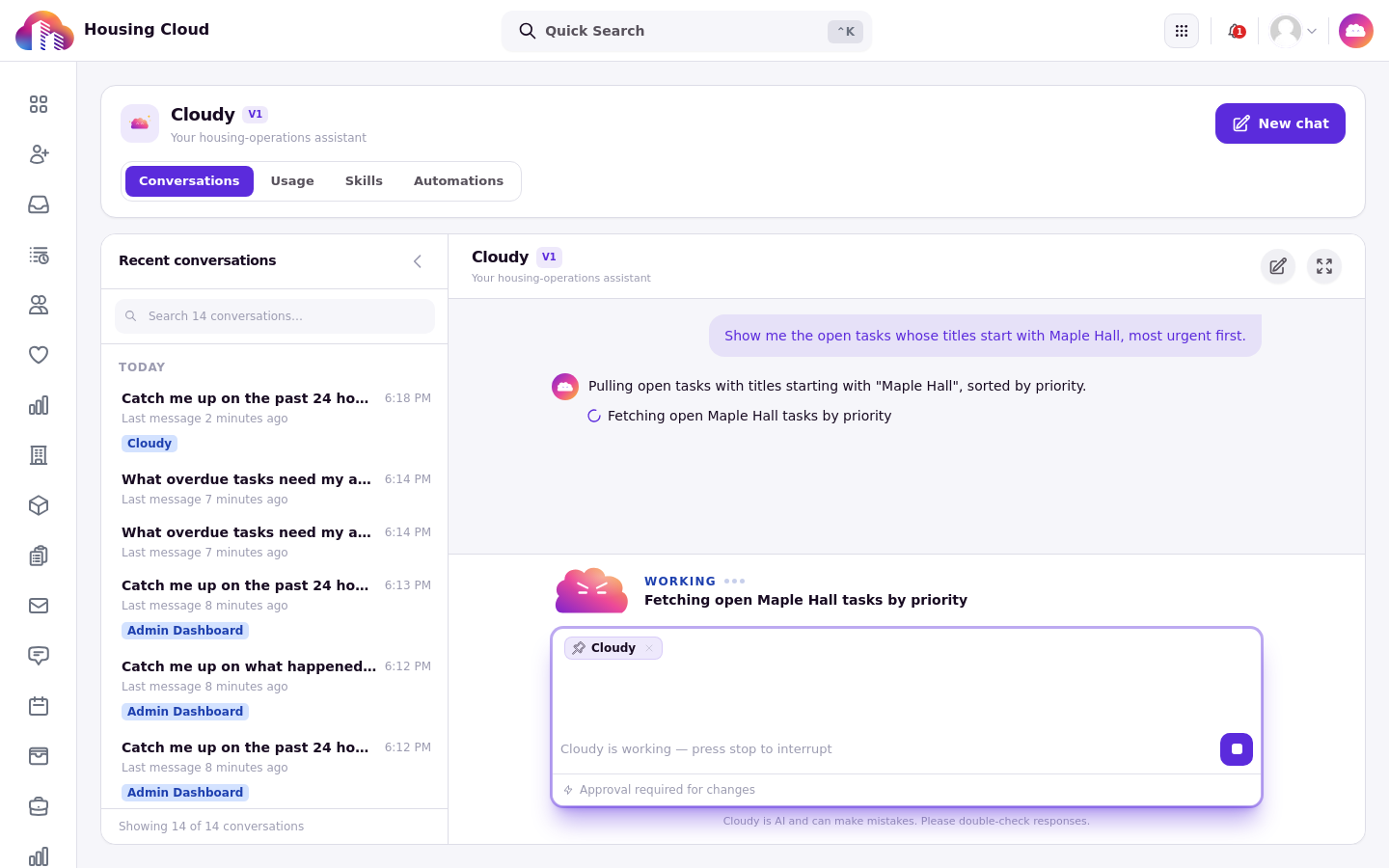
Cloudy shows a working status and the current task-fetching activity while it prepares an answer.
While Cloudy works
A status line under Cloudy's picture shows what is happening, such as "Reasoning" or "Generating response", together with the steps it is taking. You can stop an answer while it is being written.
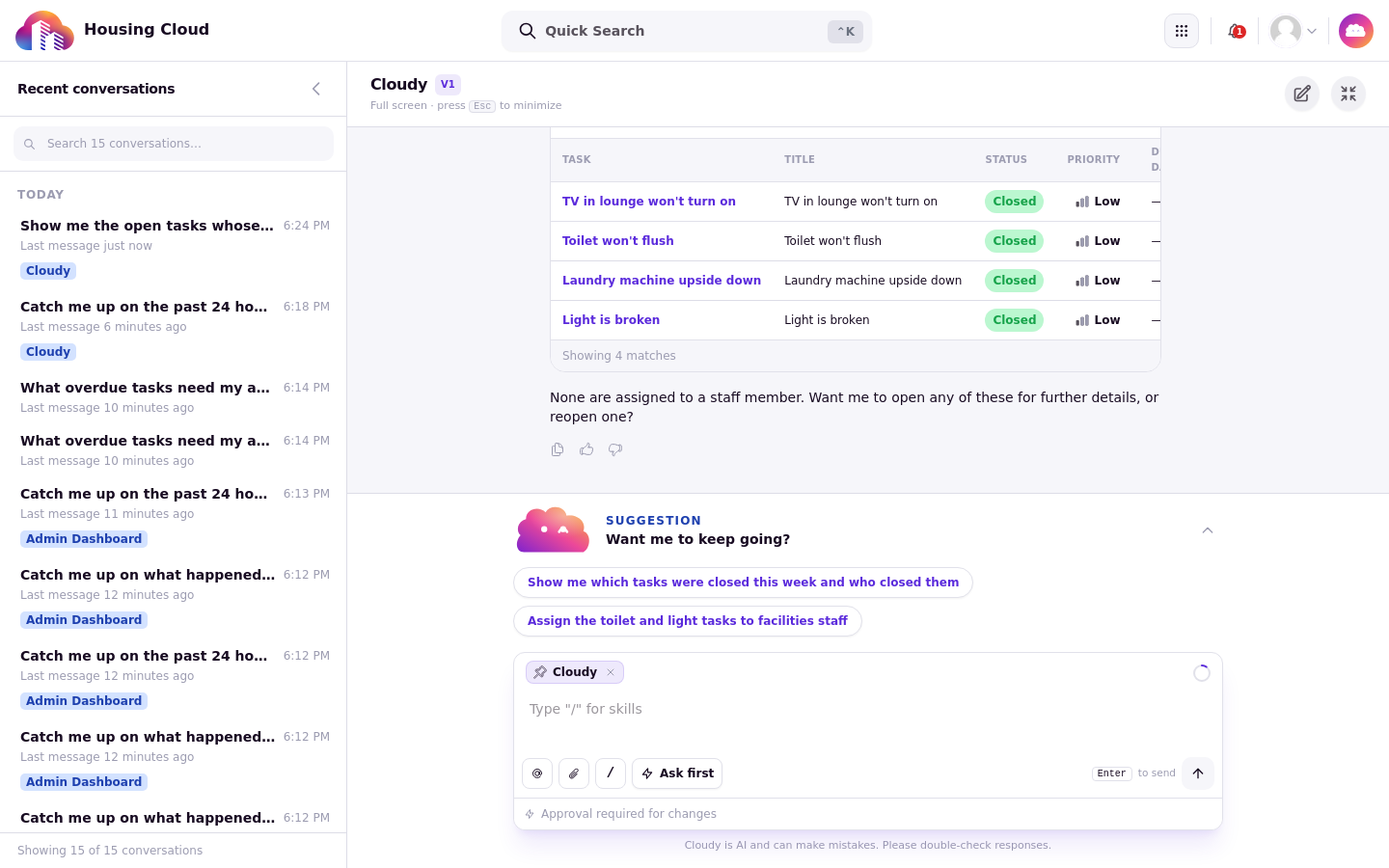
The finished result lists four Facilities tasks and offers follow-up suggestions.
When the answer is done
The status line reads "All done" or "Ready for your next request", and Cloudy may suggest follow-ups such as "Want me to keep going?". Links inside answers open the record they mention, and small tables and cards show results.
[SCREENSHOT 3-7: 07-full-page.png — The same conversation on the full Cloudy page.]
Attaching a file
You can drop files into the chat: images, PDFs, CSV and Excel files (confirm on screen).
Tips for good questions
Name the building, the dates and the people you mean. Ask for a list rather than a count, because count answers can be unreliable.
Keep Cloudy open in one browser tab. Two tabs share one conversation and can overwrite each other.