Cloudy Usage and Credits
Last updated: October 8, 2026
The Cloudy page's Usage tab shows how much of your school's AI allowance has been used this period, how close you are to the limit, and who used the credits.
At Maple Hall… at the end of the month Jordan checks how much of the school's AI allowance the hall team used.
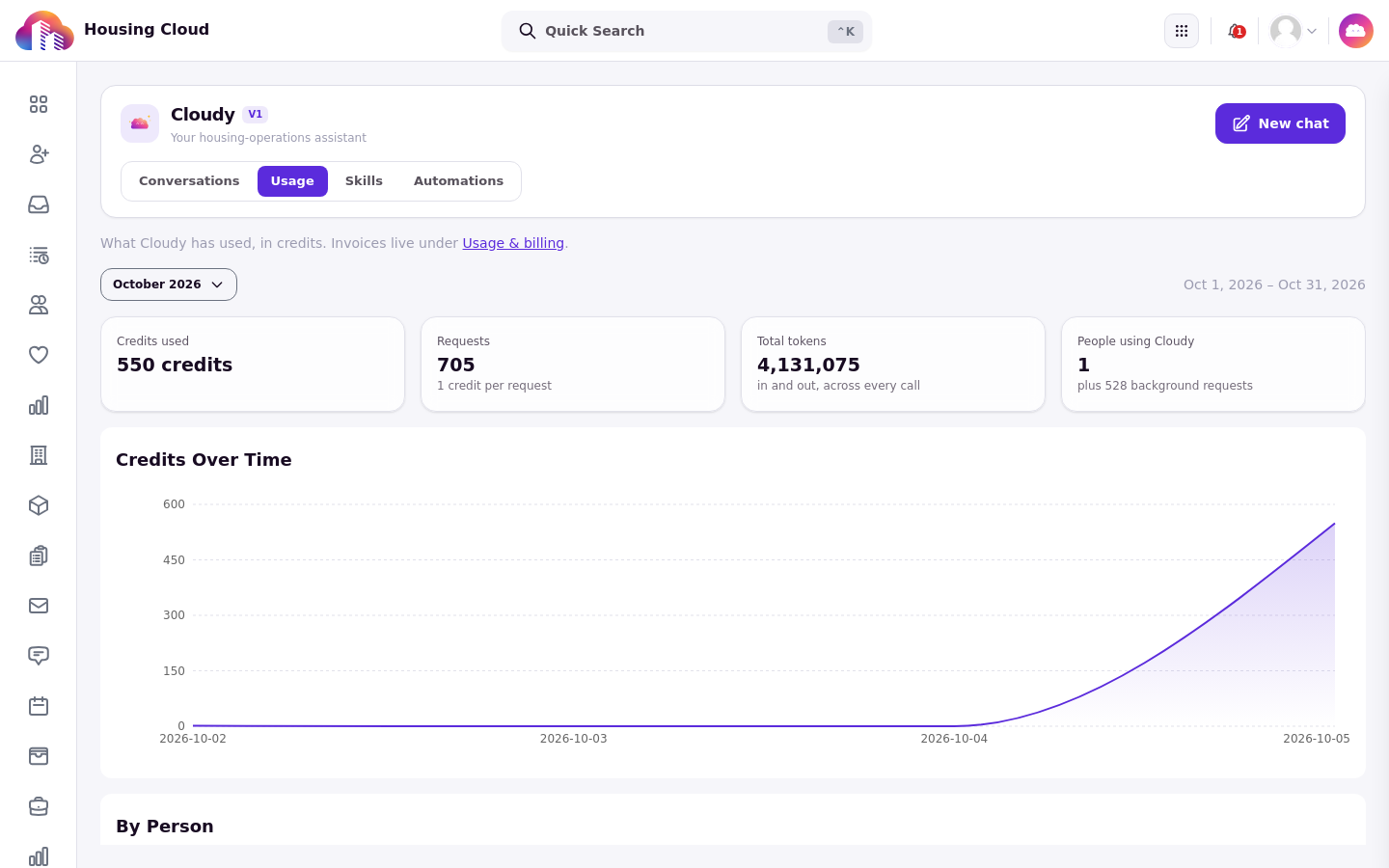
The Usage tab: credits used, requests, total tokens and people using Cloudy, the "Credits Over Time" chart, and a link to "Usage & billing".
Where the Usage tab is
Open the Cloudy page and choose the Usage tab. Seeing it needs the "View billing usage and costs" permission. See "Who Can Use Cloudy: Features and Permissions".
The stat cards and the allowance card
Stat cards show the credits used this period. The allowance card states where your school stands: "On track", "Approaching limit", "AI paused", "Metering overage" or "Unlimited".
Credits over time and by person
"Credits over time" shows usage by day, and "By person" shows usage by staff member.
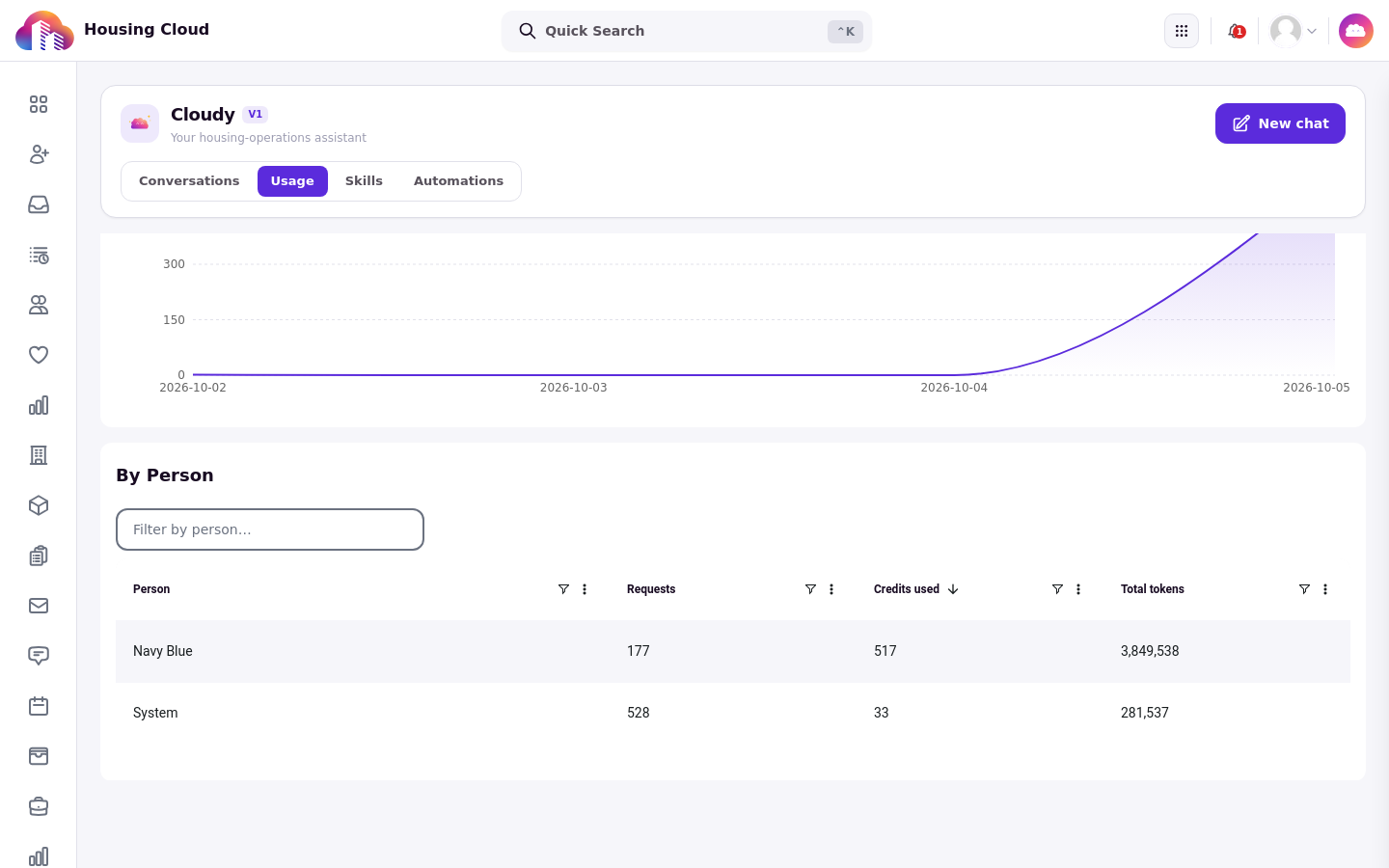
"By Person": requests, credits and tokens for everyone who used Cloudy this period.
What staff see near the limit
When the allowance is running low, the banner states the percentage of the AI allowance the organization has used this period. The message "Your organization is close to its AI allowance for this period." appears only when the percentage is unavailable.
What happens when the allowance runs out depends on the configuration. Blocked and capped overage configurations stop Cloudy's AI features. A blocked monthly or yearly allowance shows a different message and resumes when the allowance resets. Billable-overage and unlimited configurations keep working.
Invoices and plan details
Invoices and plan details live in Setup → Usage & billing (confirm on screen).