Catch Up on Your Day from the Dashboard
Last updated: October 8, 2026
The dashboard card "Housing Assistant · ready when you are" flags recent activity, including what happened overnight and over the past 24 hours, and the "Catch me up" button opens Cloudy with a briefing of your morning.
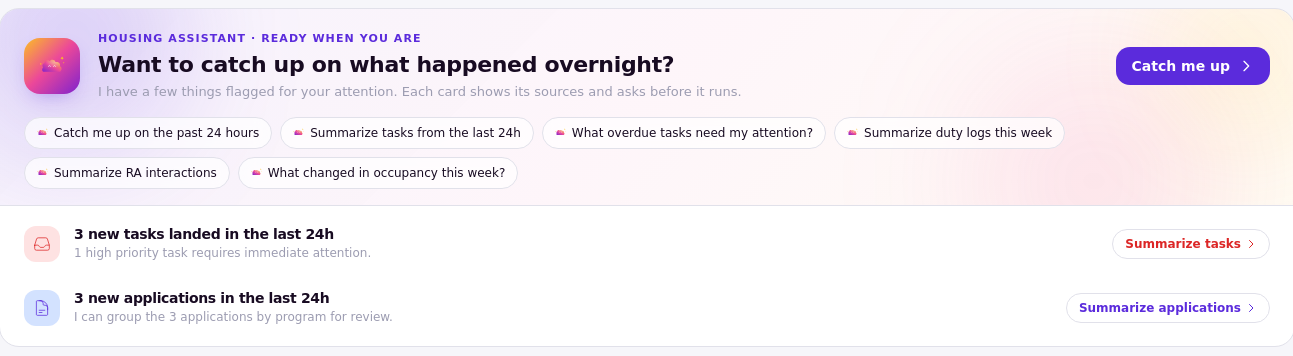
The Housing Assistant card: flagged items for new tasks and new applications, the "Catch me up" button, and the quick questions under it.
Where the card appears
The card sits at the top of the dashboard when your school has the catch-up briefing on. It asks "Want to catch up on what happened overnight?" and flags up to four items, such as new tasks, overdue tasks, interactions, unanswered chats or new applications. Each flagged item shows where it came from.
What you see depends on your role
The card only flags what your role can see. Without task access you see no tasks; without access to staff updates you see no interactions, and so on.
Catch me up
Press "Catch me up" and the Cloudy panel opens with a briefing of what happened. Read it like a handover note.
[SCREENSHOT 11-2: 02-briefing.png — Cloudy's briefing after "Catch me up".]
Quick questions
Under the button, quick questions open Cloudy with one topic: "Catch me up on the past 24 hours", "Summarize tasks from the last 24h", "What overdue tasks need my attention?", "Summarize duty logs this week", "Summarize RA interactions", or "What changed in occupancy this week?".
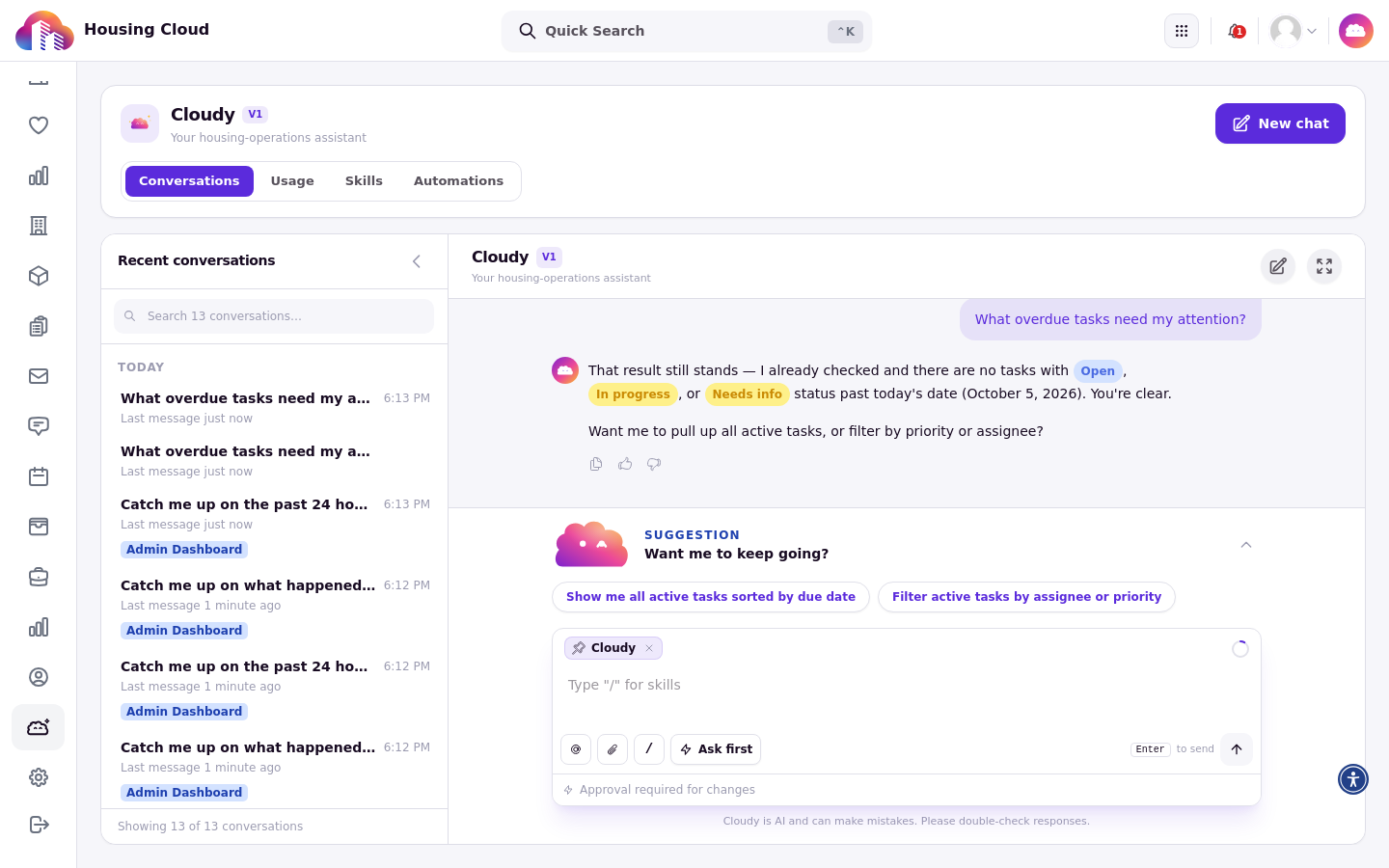
The answer to "What overdue tasks need my attention?", with follow-up suggestions under it.
[SCREENSHOT 11-4: 04-duty-logs.png — Answer to "Summarize duty logs this week" (only if it returns real content; see step 6).]
Click a flagged item
Click any flagged item on the card to ask Cloudy about just that.
Good to know
Treat totals in the briefing as approximate. Count answers can be wrong; click through to the list and check the page or a report.