Change or Add Profile Field Permissions for a Role
Last updated: August 28, 2026
Overview
Profile field permissions control which custom profile fields each admin role can see. When a profile field is restricted from a role, admins with that role will not see the field when viewing student profiles. This allows you to protect sensitive information—such as medical accommodations, disciplinary notes, or financial details—by limiting visibility to only the roles that need it.
Permissions are configured per role through the Restricted fields tab in the role detail page. This is different from the Profile Fields section in Setup, which is where you create and define the fields themselves.
Only admin-only profile fields can be restricted. Fields that are visible to students or public cannot be hidden from admin roles.
Before you begin
- You must have the manageAdmins permission to access Roles & Permissions settings
- The profile fields you want to restrict must already exist and be set to Visible only to Admins visibility
- The ROLE_BASED_PROFILE_FIELD_ACCESS feature flag must be enabled for your tenant
Navigate to roles and permissions
Profile field permissions are configured within each role's settings.
Click Setup in the sidebar, then click Roles & Permissions. The roles list page displays all admin roles in your system.
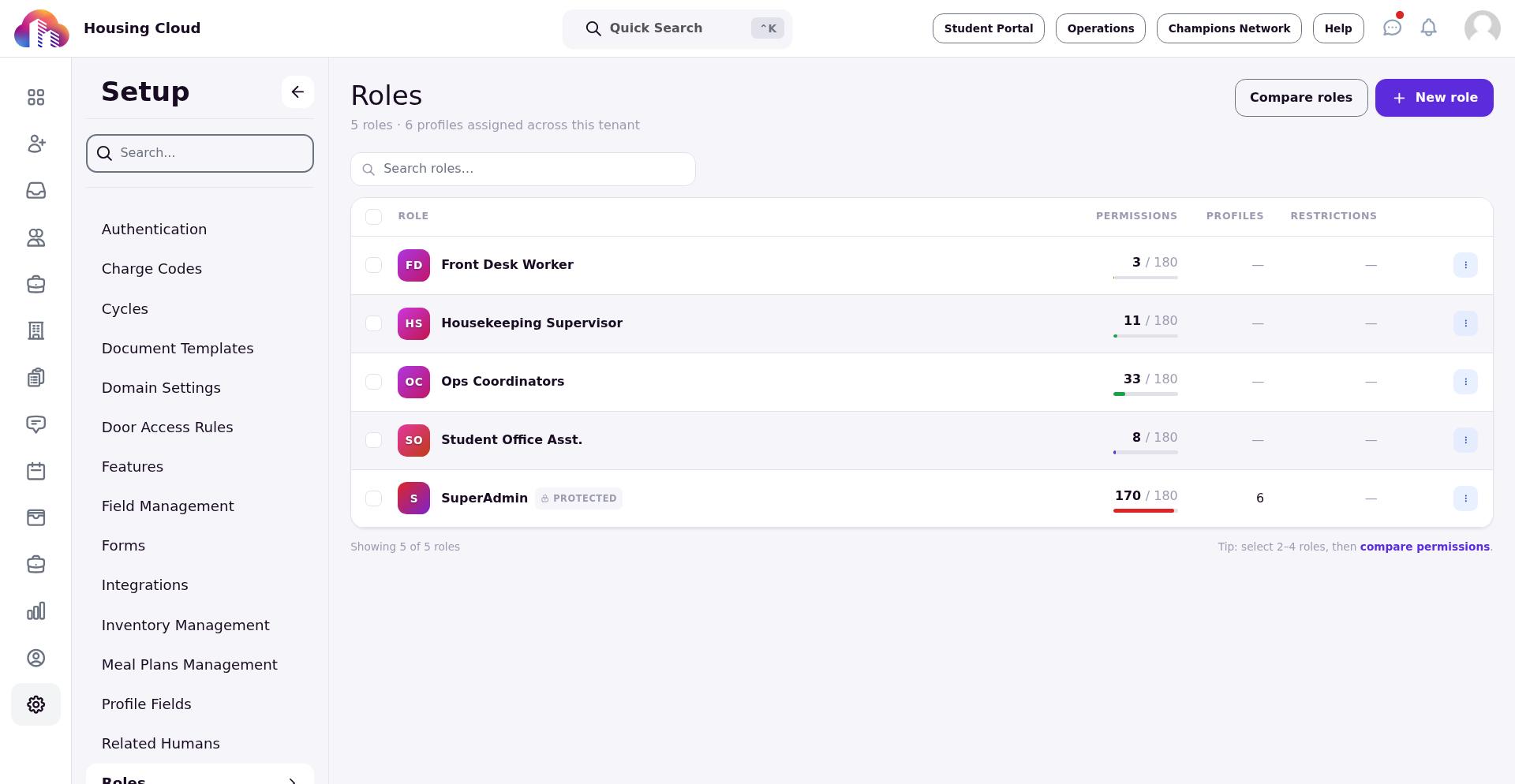
Open the role to configure
Click the name of the role you want to configure. The role detail page opens with tabs for Permissions, Restricted fields, and Report fields.
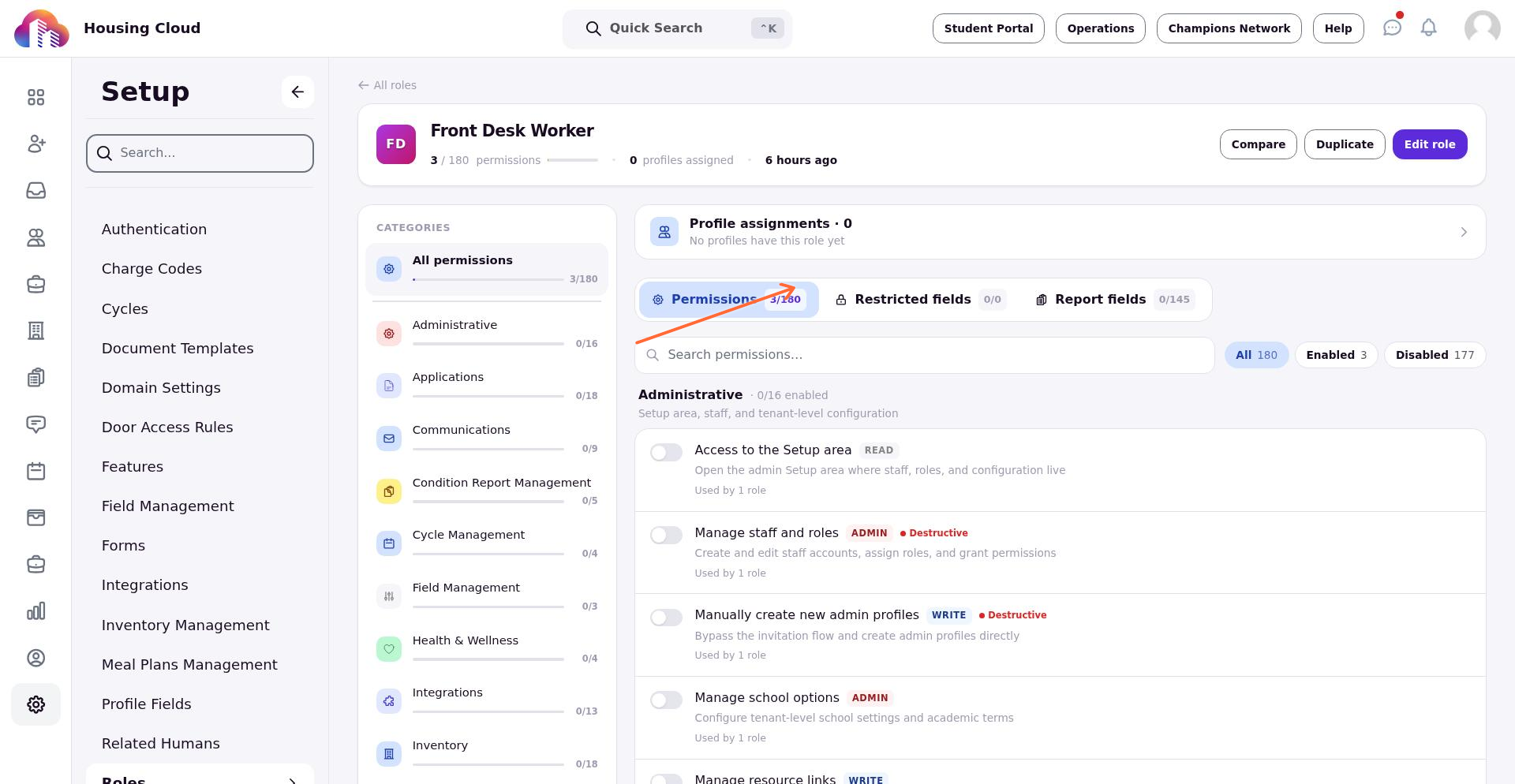
Open the Restricted fields tab
Click the Restricted fields tab. The page displays the Custom profile field visibility section with the heading "Hide specific admin-only profile fields from this role."
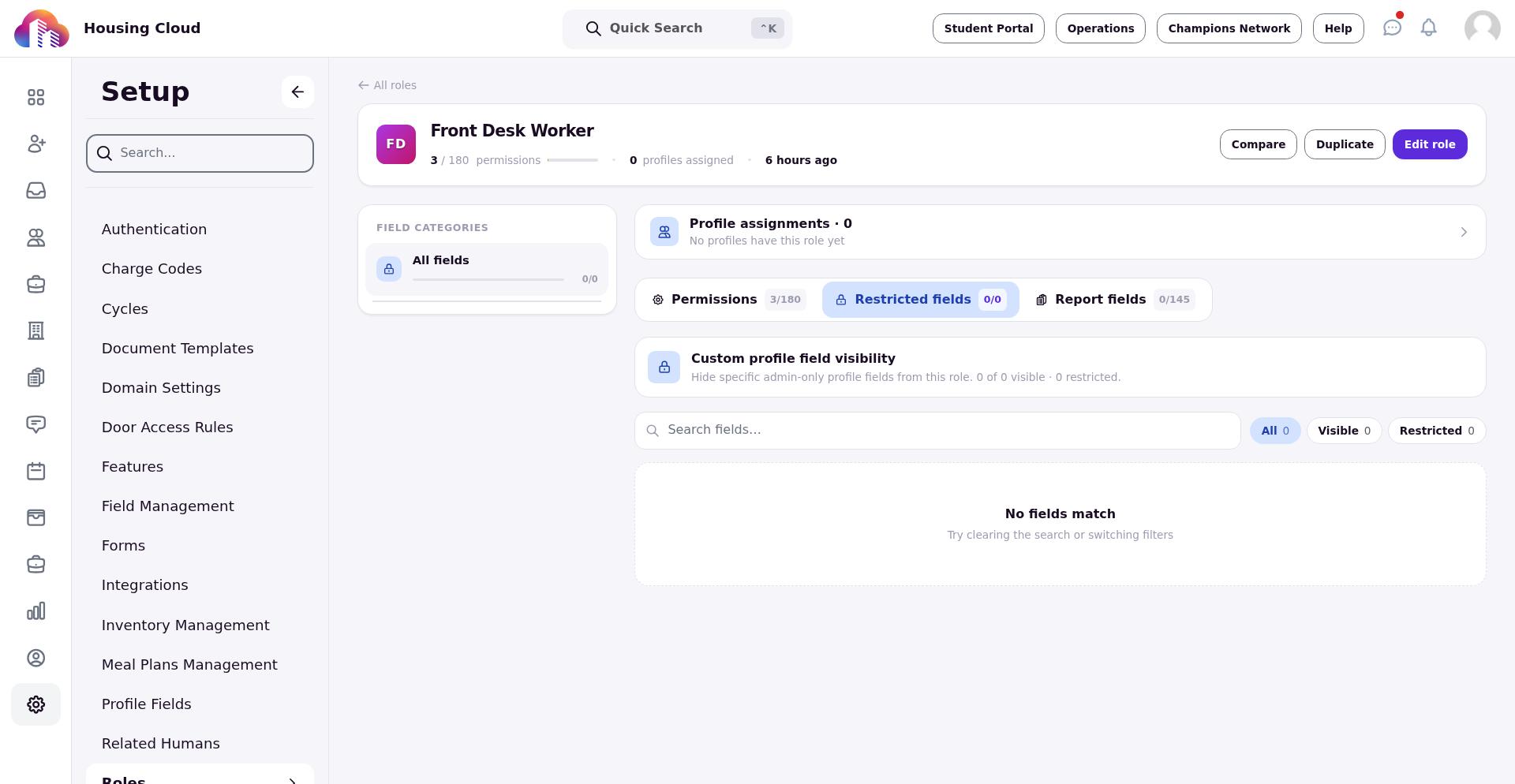
This tab lists all profile fields that have been set to admin-only visibility. Each field can be toggled to control whether this role can see it.
Restrict fields from the role
To hide a profile field from this role, enable the restriction toggle for that field. When restricted, admins with this role will not see the field when viewing student profiles.
To allow a role to see a field, disable the restriction toggle. The field will be visible to admins with this role.
Save your changes
After configuring which fields to restrict, click Save to apply your changes.
The updated permissions take effect immediately. Admins with this role will see the revised set of profile fields the next time they view a student profile.
Verify the configuration
To confirm that field restrictions are working correctly:
- Log in as an admin with the role you just configured, or ask a colleague with that role to test
- View a student profile and verify that restricted fields do not appear
- Compare what you see as a super admin versus what the restricted role sees
If a field that should be hidden is still visible, return to the role's Restricted fields tab and confirm the restriction toggle is enabled.
Distinguishing field definition from field permissions
This article covers role-based permissions—controlling which admin roles can see specific profile fields. This is configured in Setup → Roles & Permissions → Restricted fields.
To create new profile fields or change a field's visibility setting (admin-only vs. student-visible vs. public), go to Setup → Profile Fields instead. That section controls the field definition, including whether it can be restricted from roles in the first place.