Manage Resource Reservations and Approvals
Last updated: October 8, 2026
Resource Reservations is the working queue for everything residents have asked for, reserved, or have out. From here you approve or decline requests, book on a resident's behalf when they call the desk, and change a reservation's dates, unit, or due date. Open it from the admin menu under Resources and then Resource Reservations.
Working the queue and approving requests need different permissions: viewing the page needs View resources, while approving needs Approve resource reservations.
Read today's tiles
The top of the page shows five tiles that answer the questions a desk asks each morning: Awaiting approval, Expected pickups today, Expected returns today, Out now, and Overdue.
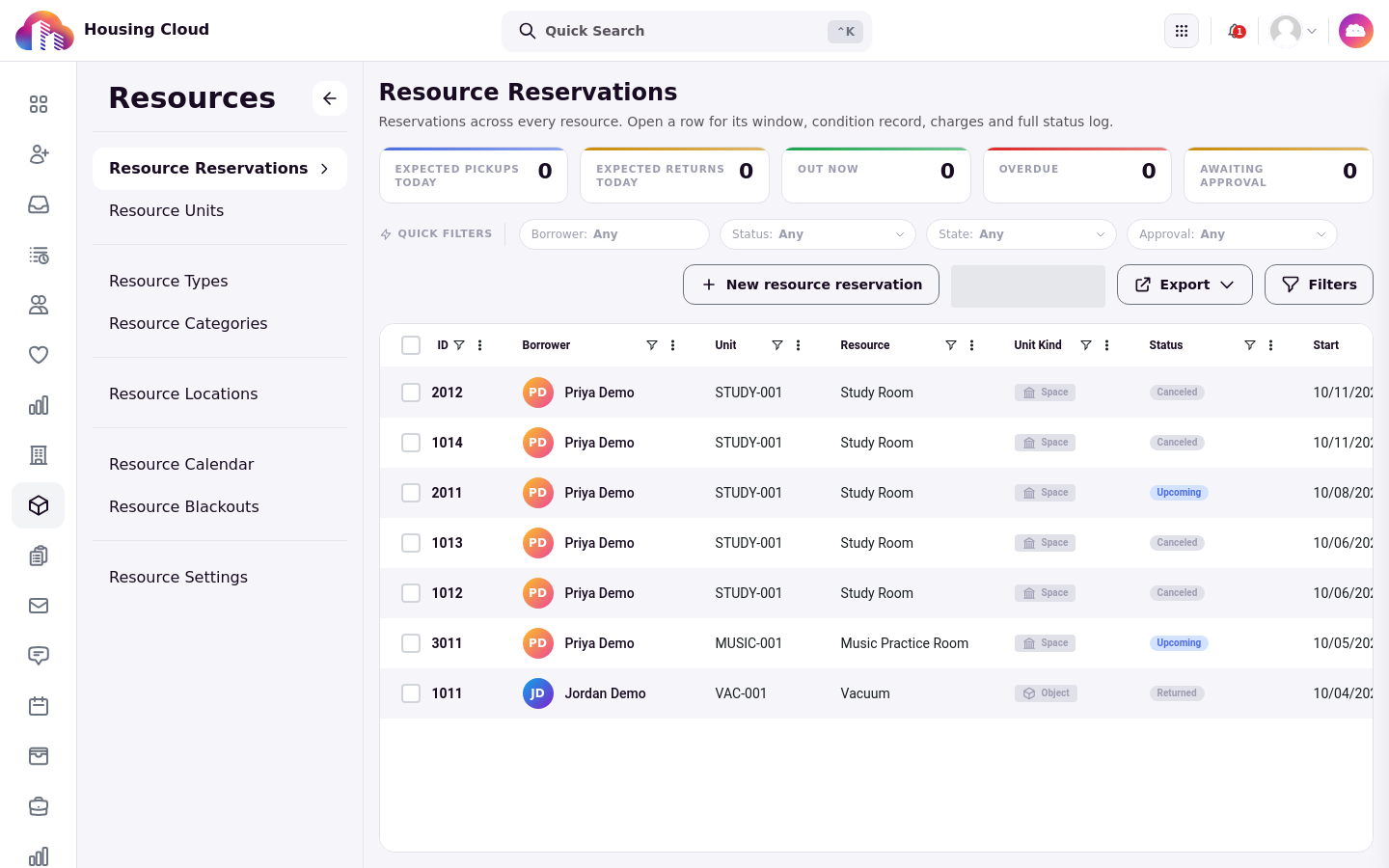
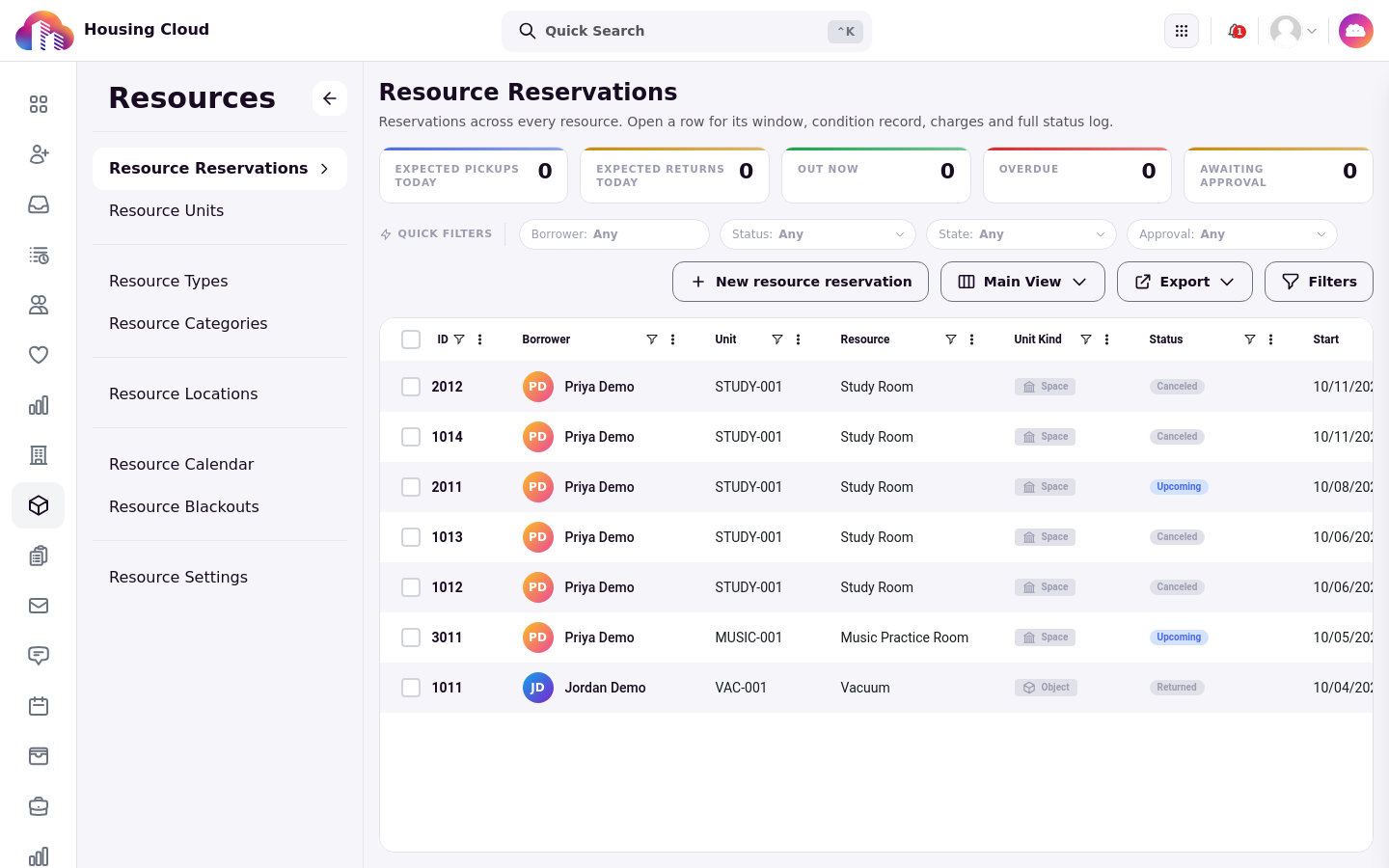
Only the Awaiting approval tile is clickable: clicking it filters the grid below to those requests. The other four tiles are informational counters. The grid itself lists every reservation with its borrower, resource, and window; quick filters narrow by status, and the approval filter can show only Awaiting approval or Awaiting my approval.
Approve or decline a request
Open a request's detail page to review it before deciding. The Approval check panel shows what the system checked — the window, the borrower, and any charges — with Approve and Decline controls. Declining asks for a reason, which is recorded on the reservation. Approval sets the request to Reserved and notifies the resident.
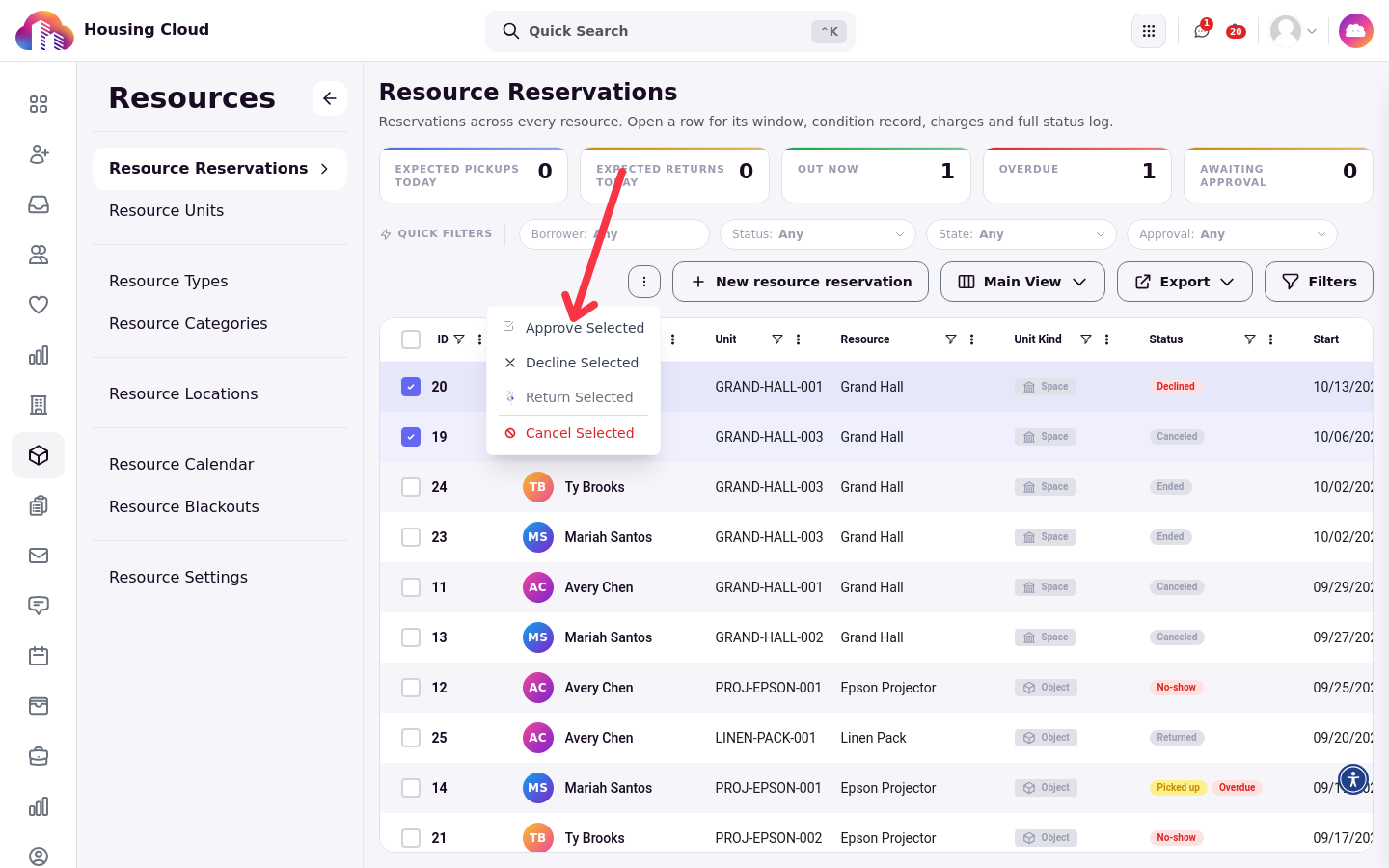
Approvals can also be done in bulk: select requests in the grid and use Approve selected or Decline selected.
Who receives the request depends on the setup: the type's named approver, otherwise the desk's approver, otherwise anyone who can approve. Anyone holding the approval permission can approve, including a request they made themselves; the record names who approved.
A request nobody reviews before its reservation window ends expires on its own, so work the Awaiting approval tile daily.
Reserve on a resident's behalf
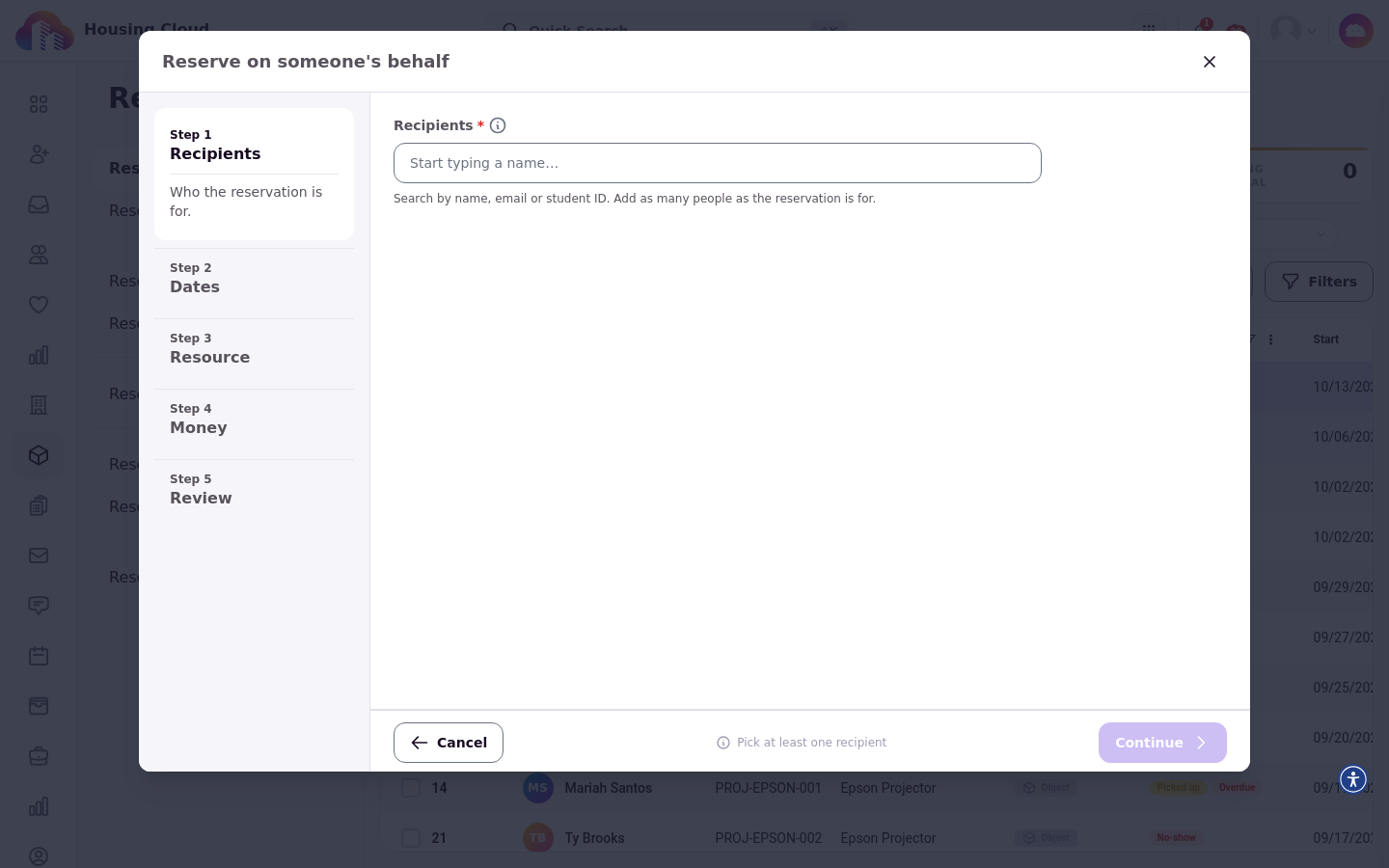
When a student calls the desk, click New resource reservation and walk through the wizard to book for them: pick the resident, the resource, and the window. The reservation is theirs, and it appears in their portal like any other booking.
Change a reservation
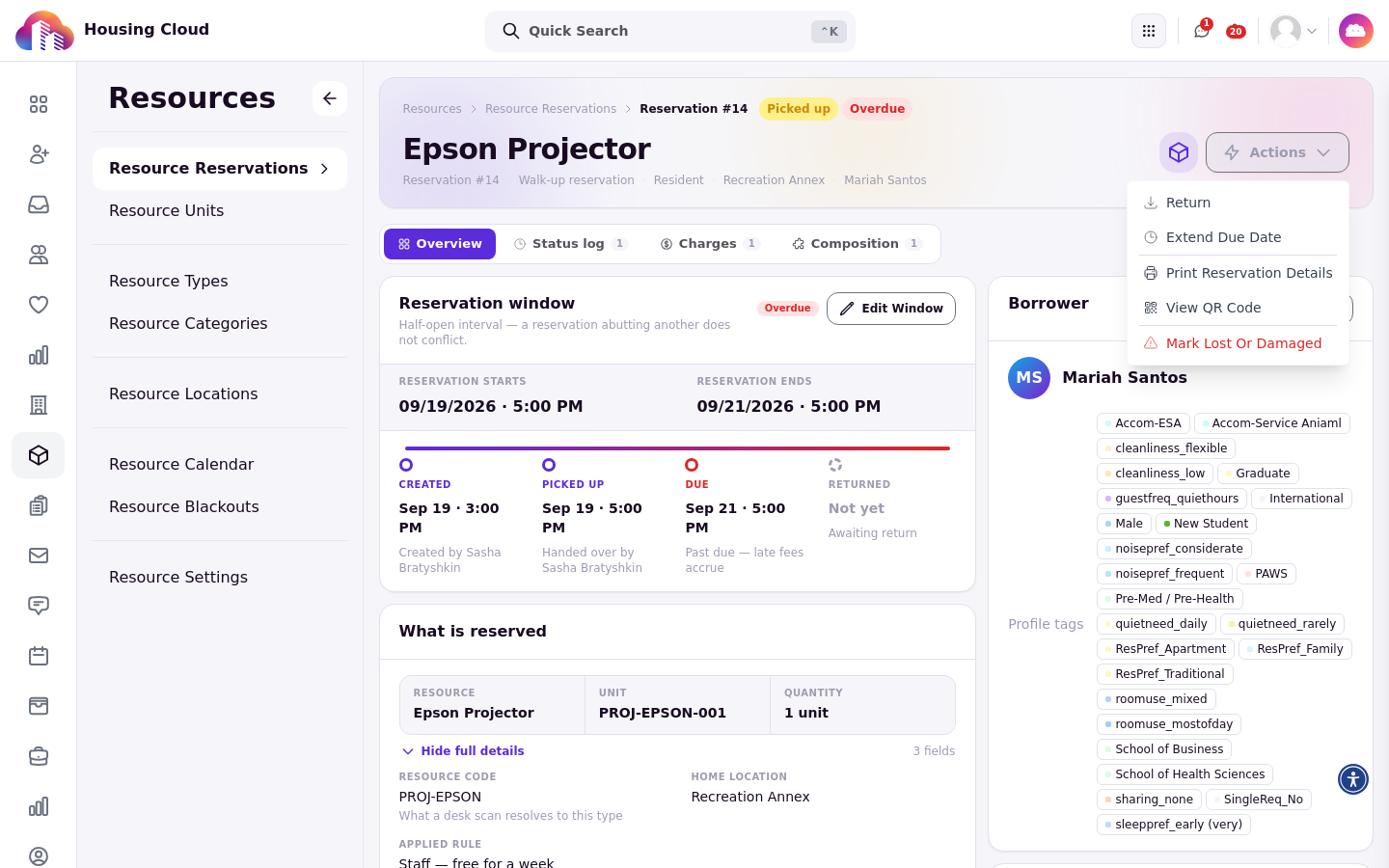
Open a reservation and use its Actions menu: Check out and Check in for items, Extend due date, Change unit, Mark lost or damaged, Cancel reservation, Print reservation details, and View QR code. The window card carries Edit Window for shifting dates and times. Every change is logged on the reservation's status trail, so check there after editing to confirm what changed and when.
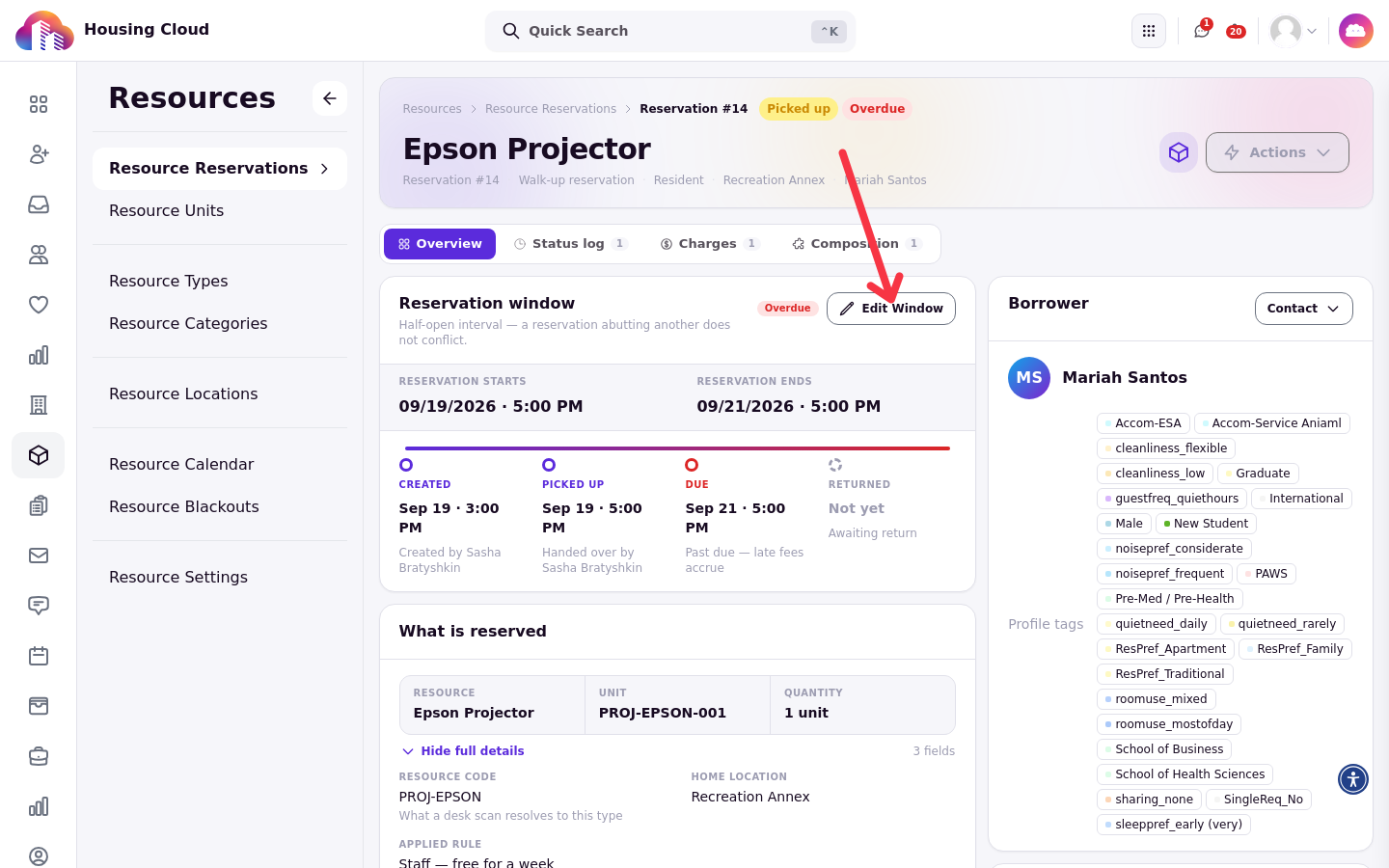
The Actions menu sits in the header of the same reservation detail page. The items it lists depend on the reservation's state: this one is already out, so it shows Return where a not-yet-checked-out reservation would show Check out.