Check a Cycle Before Release with the Cycle Audit
Last updated: October 8, 2026
The cycle editor's "Audit" tab checks a cycle's setup before you release it. It groups issues as Critical, Warning or Notice and says whether the cycle is ready. Cloudy explains any issue when you ask. This is a setup check, not a summary of the cycle.
At Maple Hall… before {CYCLE} opens, Jordan checks the Audit tab and asks Cloudy what one warning means.
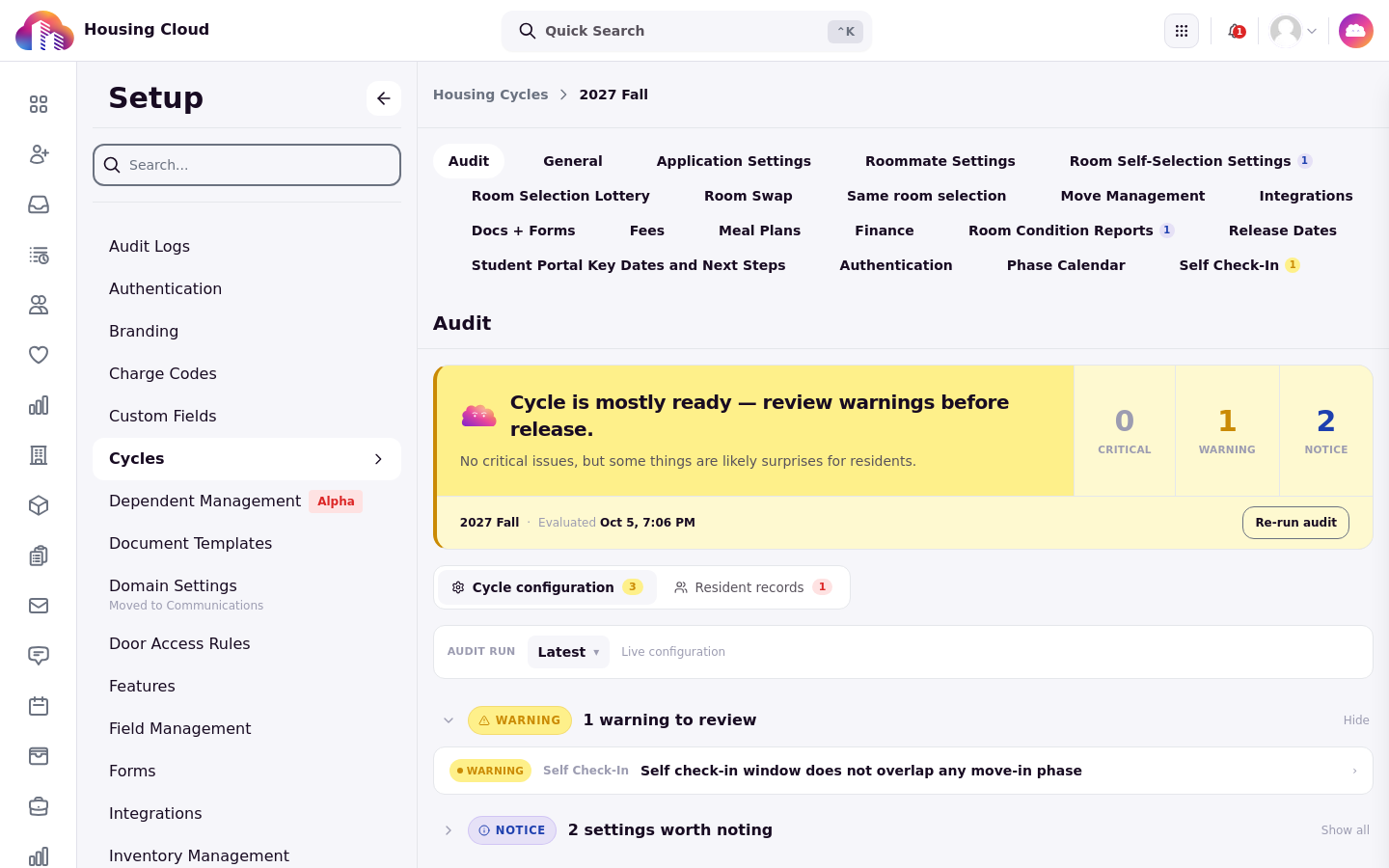
The Audit tab of the 2027 Fall cycle: the headline, the Critical/Warning/Notice counts, and the issue groups.
Where the Audit tab is
Open Setup → Cycles, open the cycle, and click the "Audit" tab. When your school has the audit, it is the first tab in the cycle editor.
The checks are fixed rules, not AI
The audit runs fixed checks, so the same setup always gives the same result. Cloudy's part is explaining a finding when you ask; it doesn't run the checks and doesn't write a summary of the cycle.
The headline and the issue groups
The top of the tab states where the cycle stands, for example "This cycle is not ready to release.", "Cycle is mostly ready — review warnings before release.", "Cycle is ready — a few intentional settings to confirm." or "No configuration issues detected. This cycle is ready to release.". Issues are grouped as Critical, Warning and Notice. Each issue links to the setup tab that fixes it.
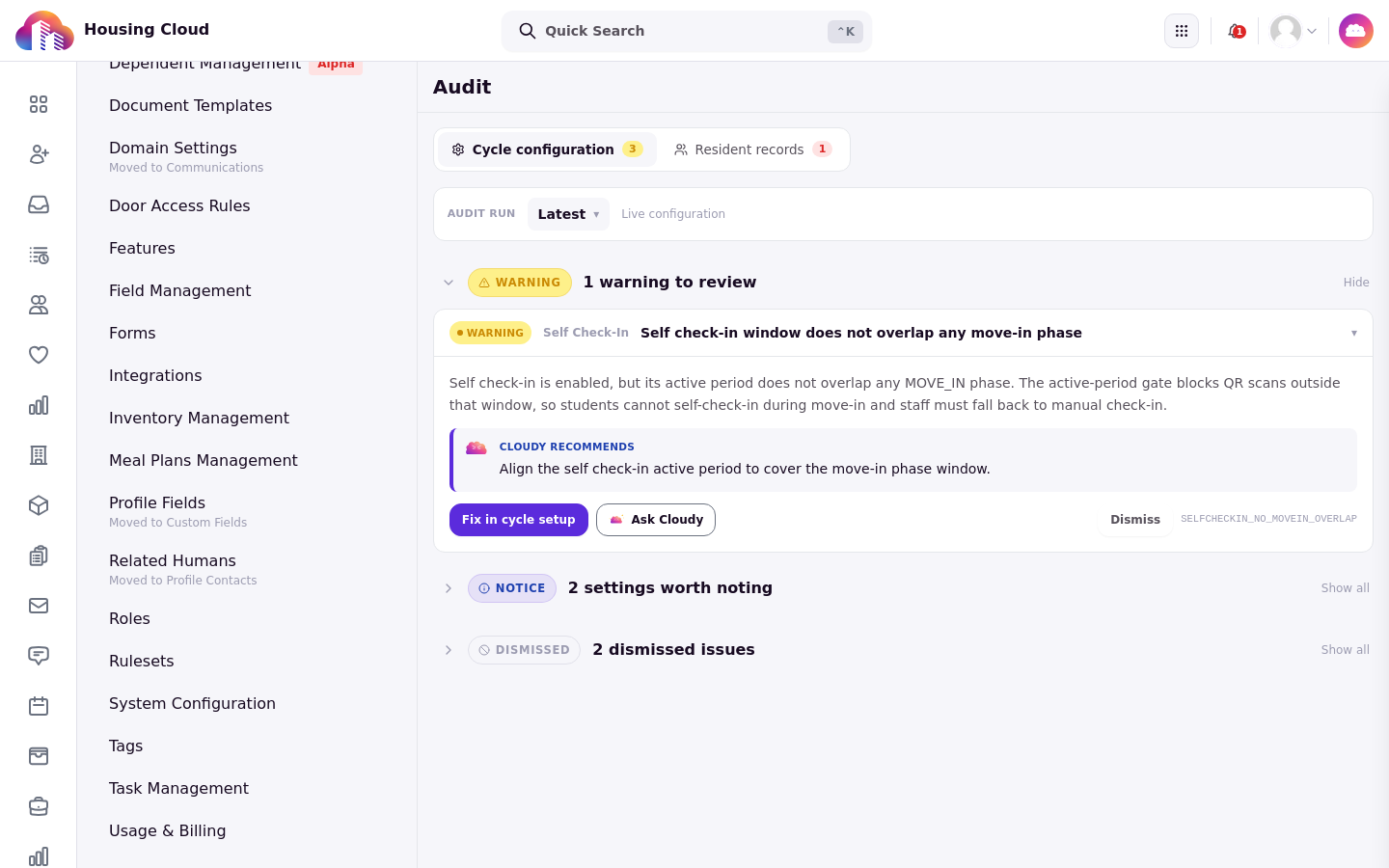
An expanded warning: the explanation, what Cloudy recommends, "Fix in cycle setup" and "Ask Cloudy".
Ask Cloudy about an issue
Click "Ask Cloudy" on any issue and Cloudy explains what it means and what it affects, in the chat panel.
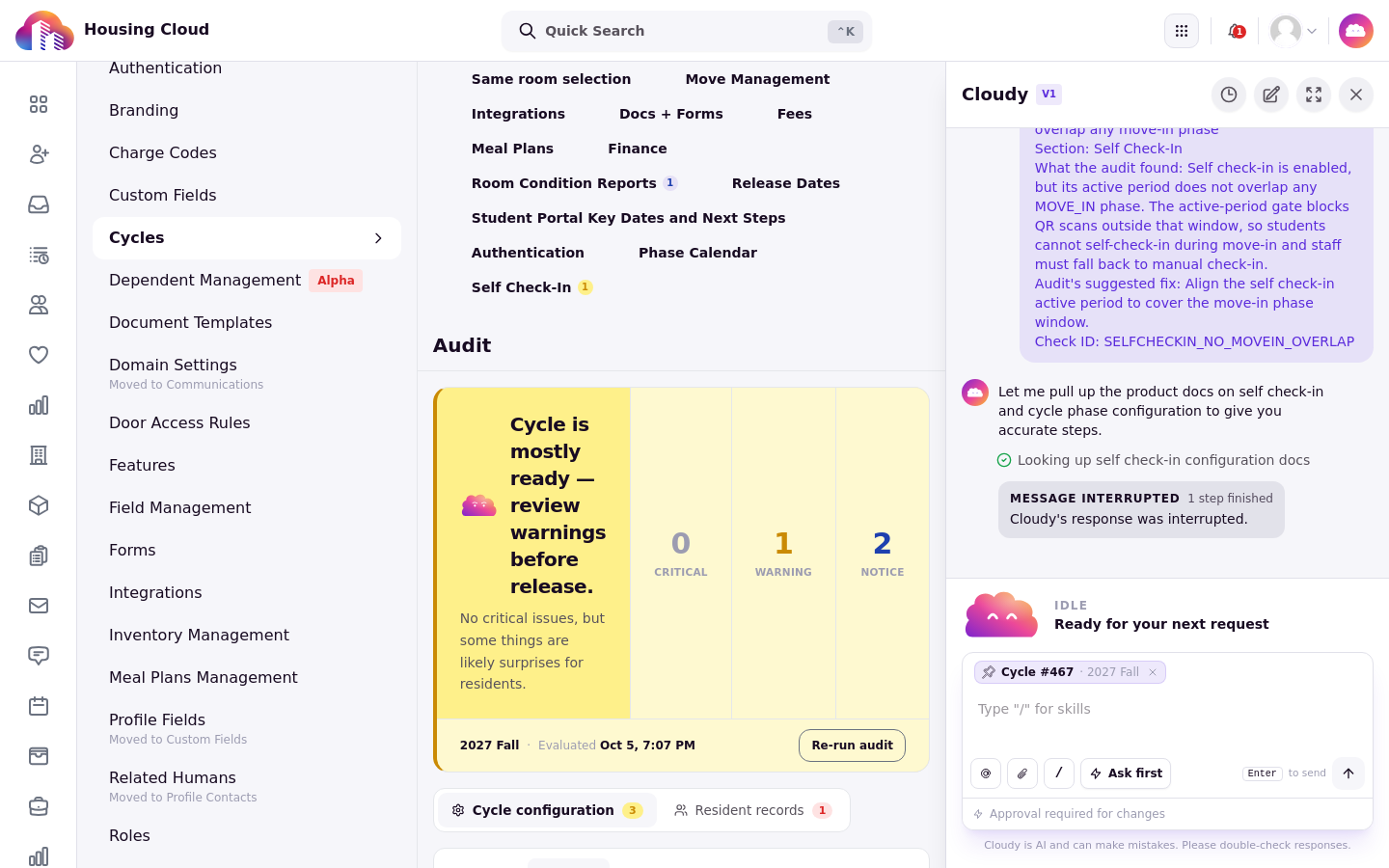
Cloudy explains the issue in the chat panel, quoting the finding and its suggested fix.
Dismiss an issue
When an issue doesn't apply to your cycle, dismiss it with a reason: Intentional configuration, Will address in a later cycle, Not applicable to this cycle, Accepted risk — signed off, False positive, or Other, plus a note. The note is optional unless you pick Other, where it is required. The dismissal is remembered for that cycle and can be restored later.
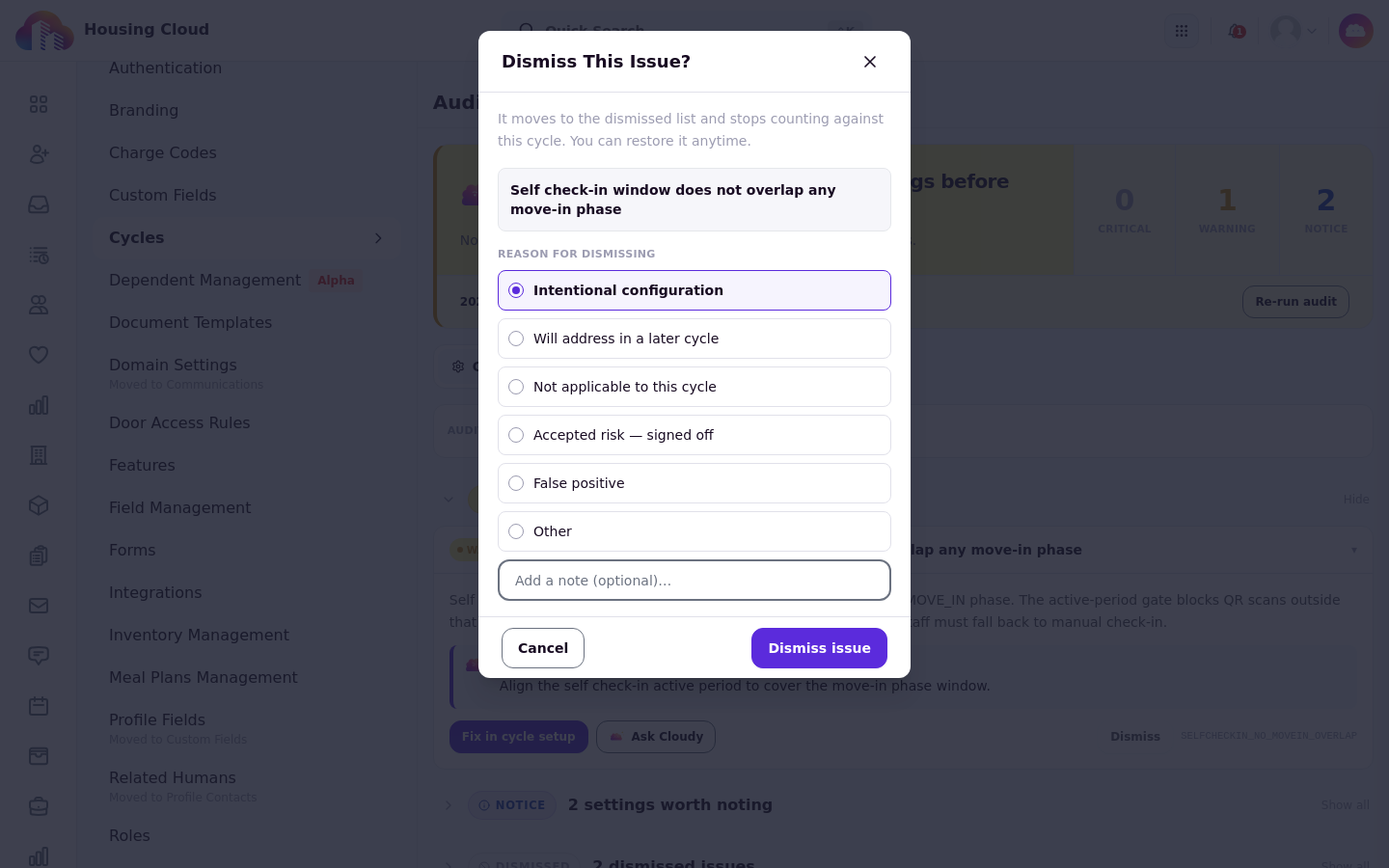
The dismiss window: pick a reason, add a note, then confirm or cancel.
Versions
"Re-run audit" saves a version of the audit. The version bar shows "Live configuration" for the current setup and "Archived snapshot" for earlier runs, so you can switch between runs and inspect each run's findings.

The version bar: the run selector ("Latest") and "Live configuration".