End-of-Week Resources Reports and Exports
Last updated: October 8, 2026
Ready-made Resources reports answer the weekly questions a housing office asks: what went out, what came back late, what got damaged, what revenue resources produced, how busy the rooms were, and who worked the desk. They live in the Resources folder of the reports library. If your school has no Resources folder, ask Housing Cloud to add the ready-made reports.
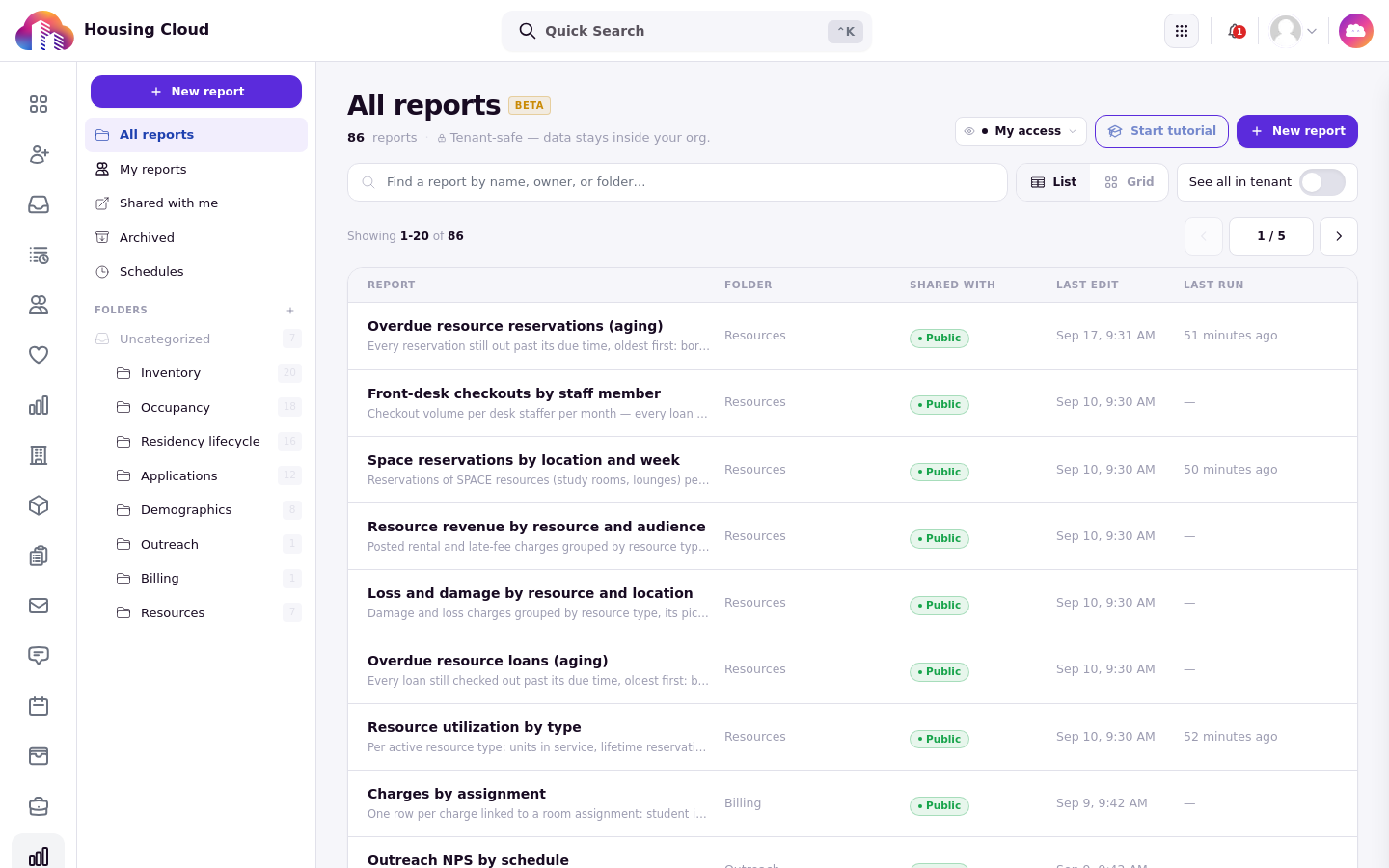
The six reports
Resource utilization by type: how much each resource type was used.
Overdue resource reservations (aging): what is still out and how far past due.
Loss and damage by resource and location: where items come back broken or go missing.
Resource revenue by resource and audience: what each resource earned, broken down by who borrowed it.
Space reservations by location and week: how busy each location's rooms were.
Front-desk checkouts by staff member: who handed what over.
A Friday routine
Three of the six cover a typical weekly review. Resource utilization by type shows which items earned their shelf space. Overdue resource reservations (aging) lists anything still out and how long it has been overdue, so follow-ups go out before the weekend. Space reservations by location and week shows each desk's room traffic, which is the number to bring to the hall director when a room is constantly booked or constantly empty.
Build your own report
The report builder knows Resources too: its data picker includes resource types, units, reservations, and charges, plus the desk staffer who handed an item over. Two fields worth knowing: an overdue flag and days past due, which let you build overdue views the ready-made reports do not cover.
Export a grid
The Reservations and Resource Types grids export directly as CSV or Excel, and the export follows the tab and filters currently on screen, so narrow the grid first and the file comes out the same way. For a resident's resource reservations, open their profile and use its Resources tab: it initially loads five past reservations and can be expanded to show up to 200 of the most recent. For older history, use the Reservations grid.
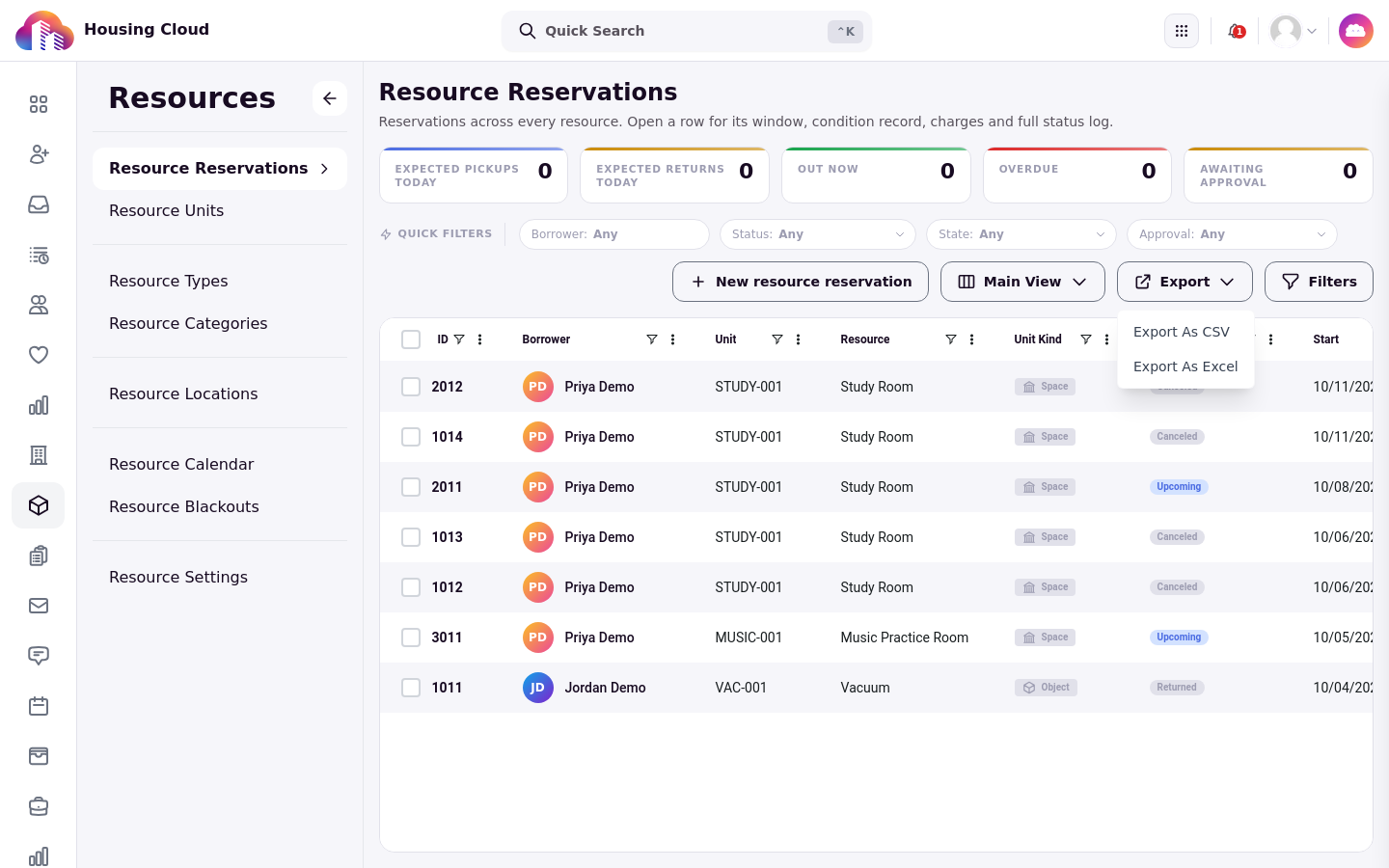
Verify the numbers by cross-checking one reservation: what the report counts for it should match the reservation's own record.