Set Up Resources: Settings and Permissions
Last updated: October 8, 2026
Resource Settings controls how Resources behaves school-wide: whether residents can see the catalog, how the desk handles returns and no-shows, which charge codes bill late fees and damage, and which staff permissions unlock which actions. Open it from the admin menu under Resources and then Resource Settings.
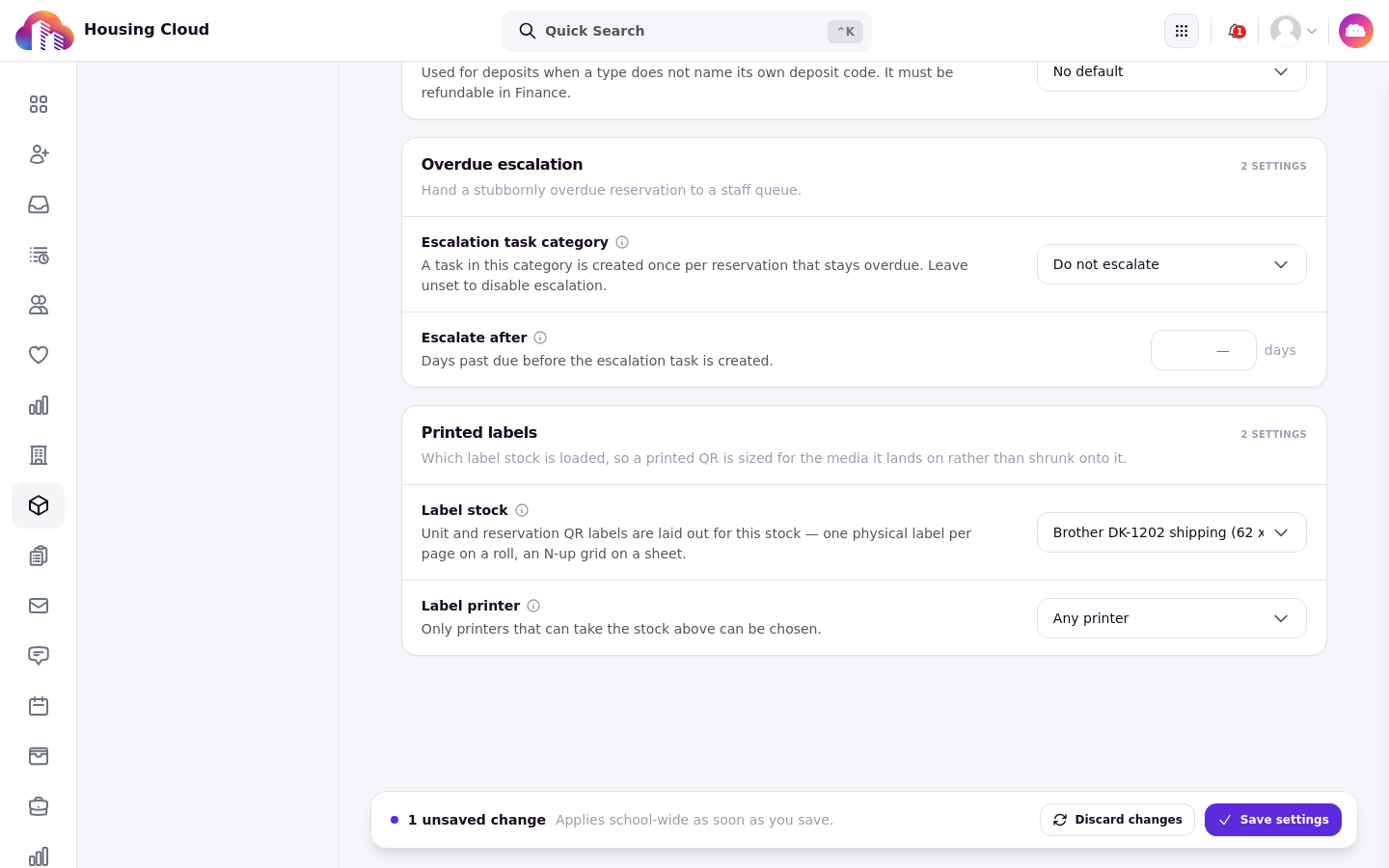
Work through the settings cards top to bottom, then save. Every Save settings click saves the whole page, not just the card you changed, and a bar at the bottom shows how many unsaved changes you have before you commit. Settings apply school-wide as soon as you save.
The save bar appears as soon as you change anything:
Before you start
You need the Manage resource catalog permission to open Resource Settings at all.
Changing settings requires the Manage resource catalog permission.
Charge codes must already exist in Setup under Charge Codes before you can pick them here.
The deposit charge code must be marked refundable in Finance, or deposits cannot be returned.
Resident portal
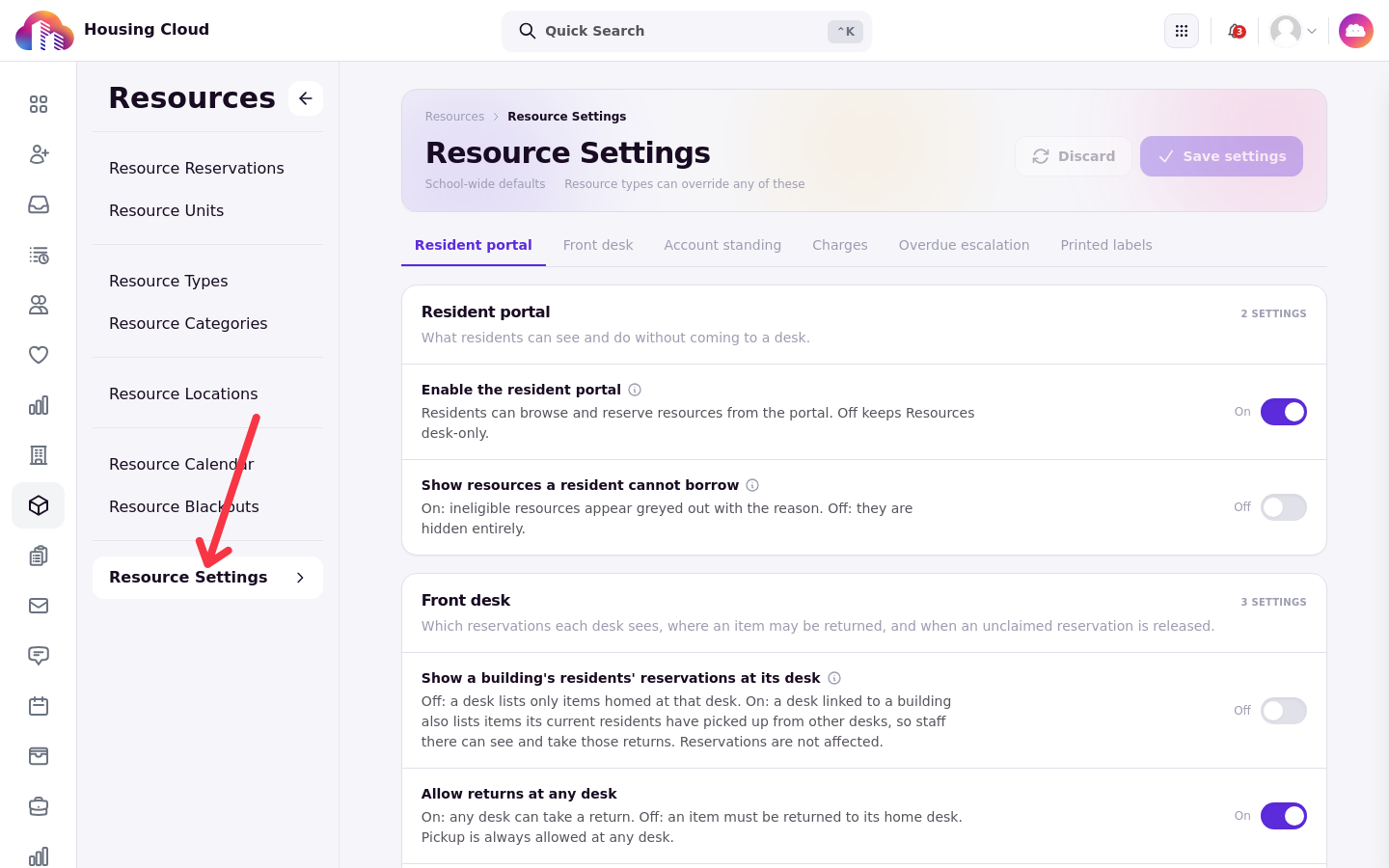
Enable the resident portal is what makes the Resources tab appear for residents, and it starts off. Turning Resources on for the school is not enough: until this setting is on, students see nothing no matter what the catalog contains. Show resources a resident cannot borrow instead greys out cards a resident does not qualify for, so they can see the item exists and ask at the desk.
The page opens on the Resident portal card:
Front desk
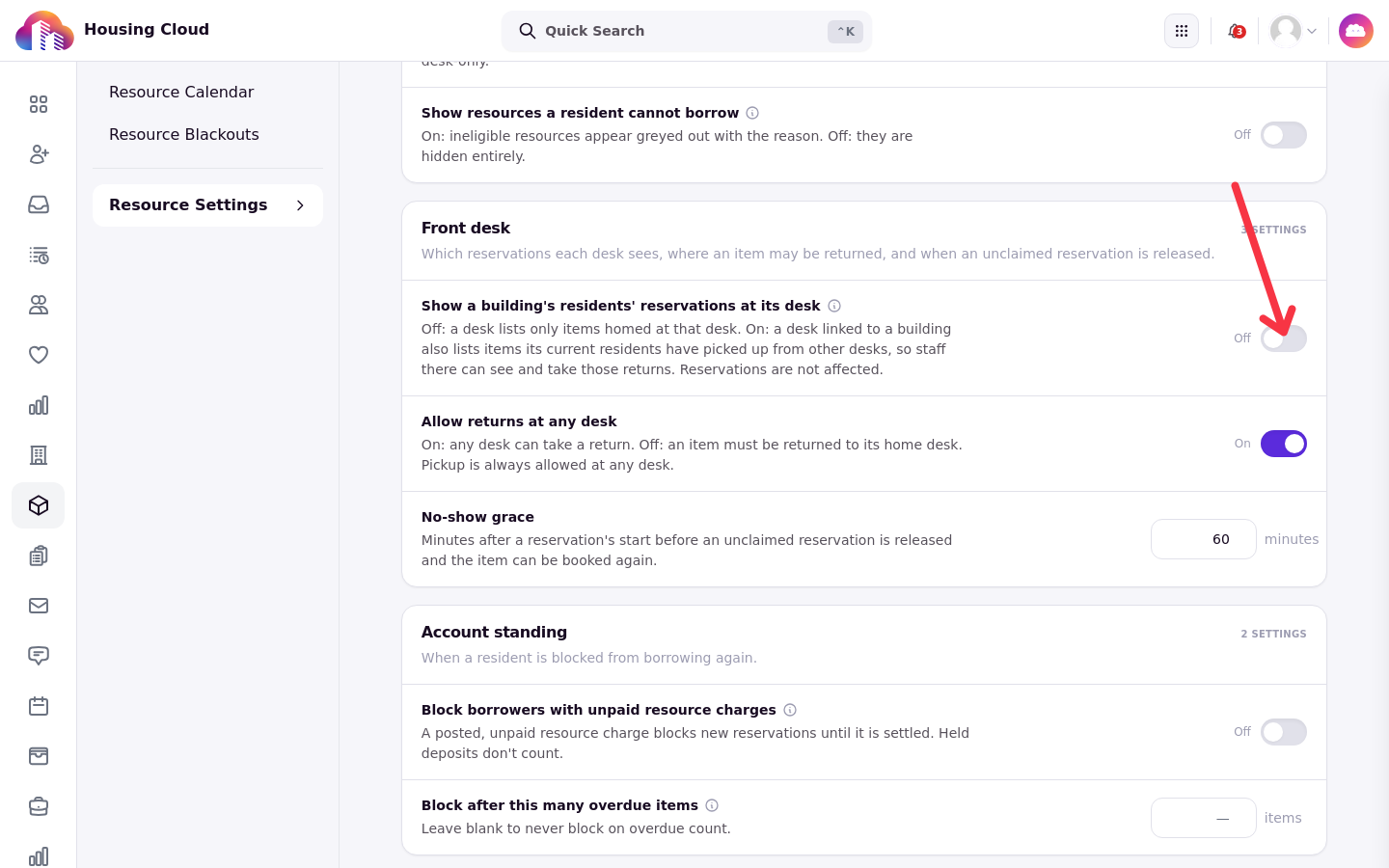
Show a building's residents' reservations at its desk widens the desk queue to include the held resources and check-out loans of everyone living in its building, not just items tied to that desk; reservations are not widened. Allow returns at any desk lets a resident bring a borrowed item back to a different hall's desk; with it off, an item must be returned to its home desk, though it can be picked up at any desk. No-show grace is how long the desk holds a reservation before releasing the item for someone else.
All three desk settings sit on one card:
Account standing
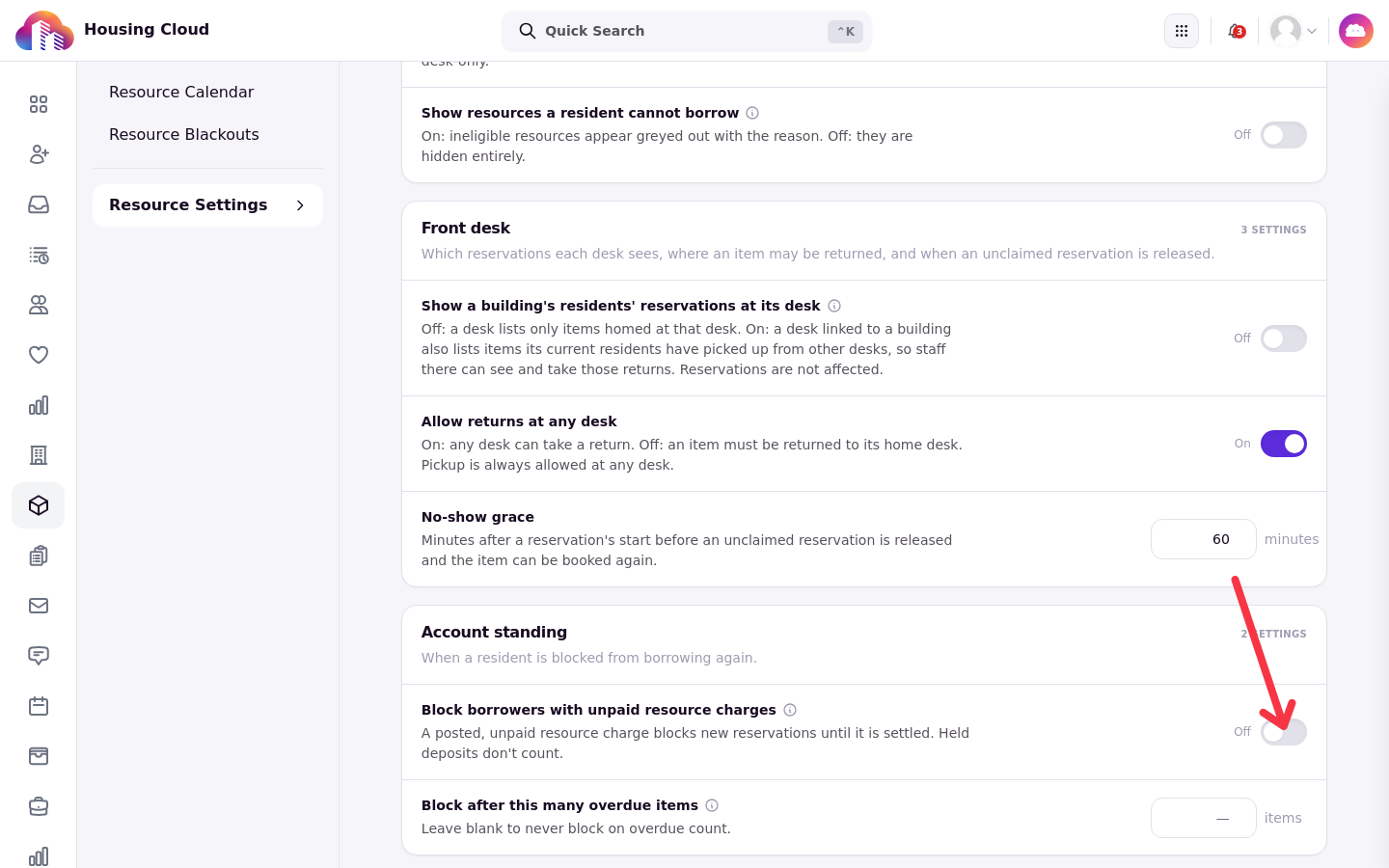
Block borrowers with unpaid resource charges stops students with outstanding resource charges from making new reservations; it does not stop a pickup for a booking they already have, and deposits still held are never counted as unpaid. Block after this many overdue items sets how many overdue loans a student can have before new reservations are blocked.
Both blockers live on the Account standing card:
Charges
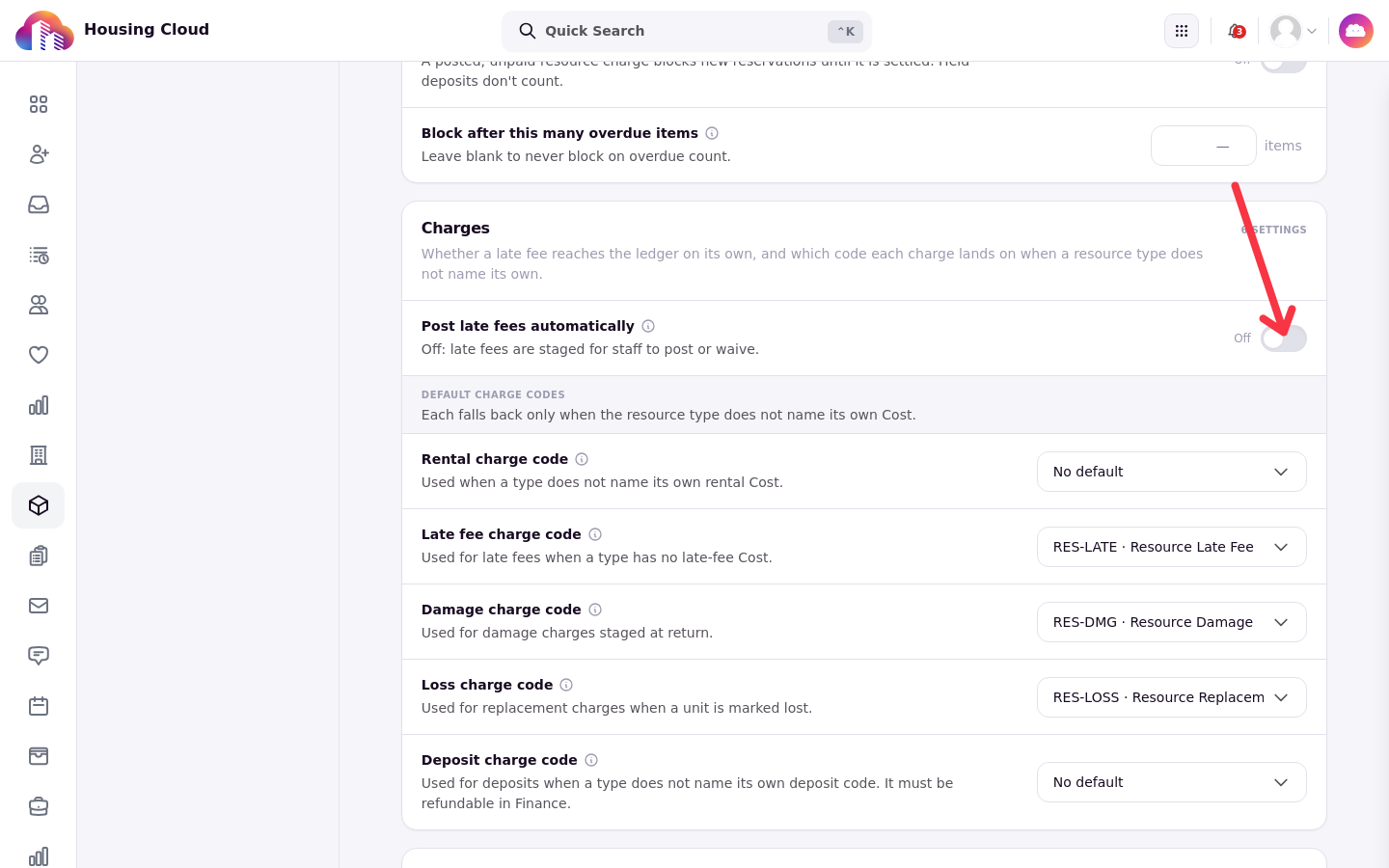
Post late fees automatically decides whether a late fee is posted to the student's account during the next automatic posting flow, or waits for a staff member to review and post it. With it off, the default, every late fee is held for review; turning it on later does not post fees that are already held.
Below the toggle, five default charge codes apply to any resource type that does not name its own: the rental code, the Late fee charge code, the Damage charge code, the Loss charge code, and the deposit code. A type with no code of its own falls back to these; if neither the type nor the settings names a code, the outcome is still recorded but nothing bills.
The toggle and the five charge codes share one card:
Overdue escalation
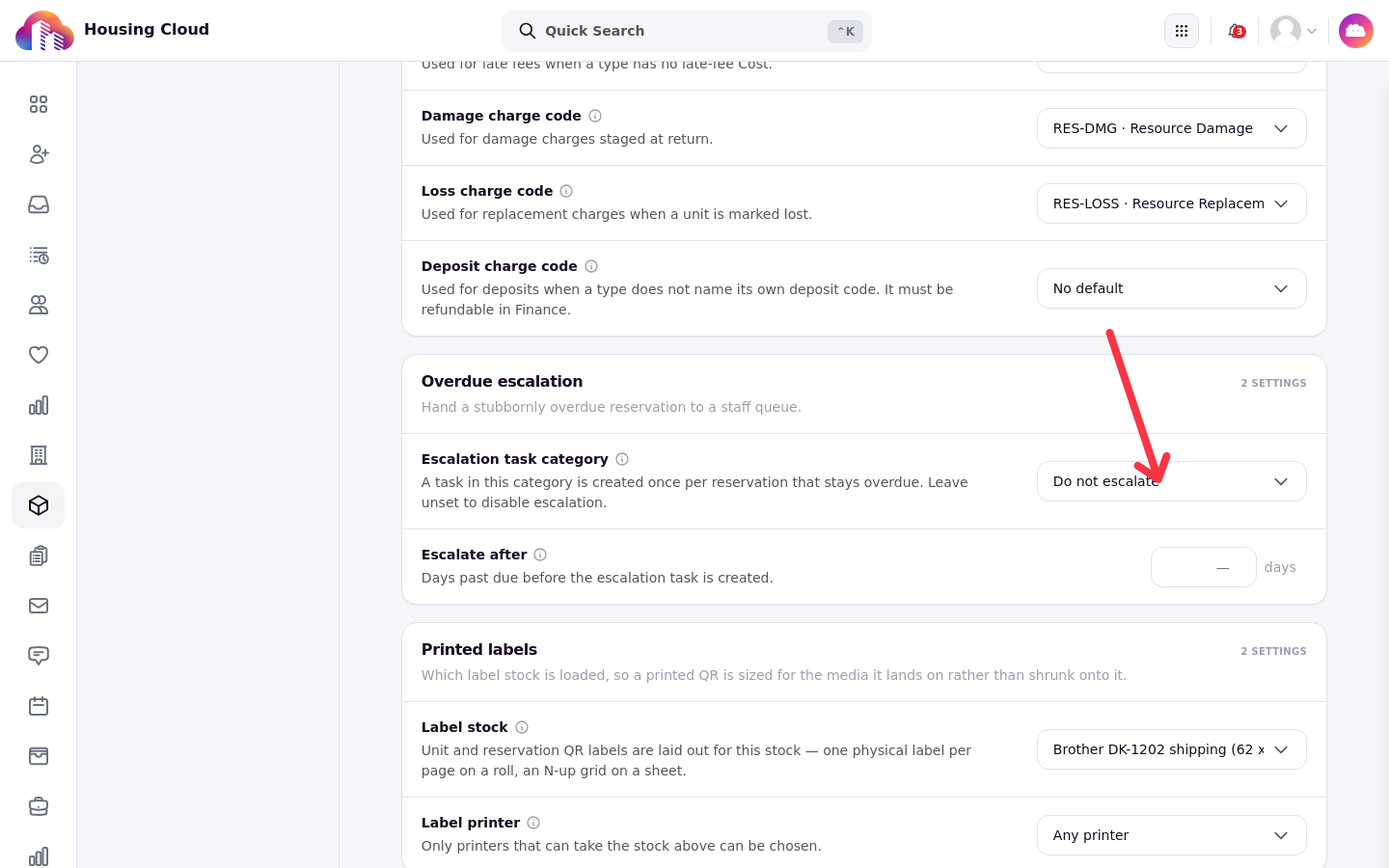
An Escalation task category hands a stubbornly overdue reservation to a staff queue: one task is created per reservation that stays overdue. Leave the category unset to disable escalation. Escalate after sets how many days past due the task waits before it is created.
Both escalation fields sit on the Overdue escalation card:
Printed labels
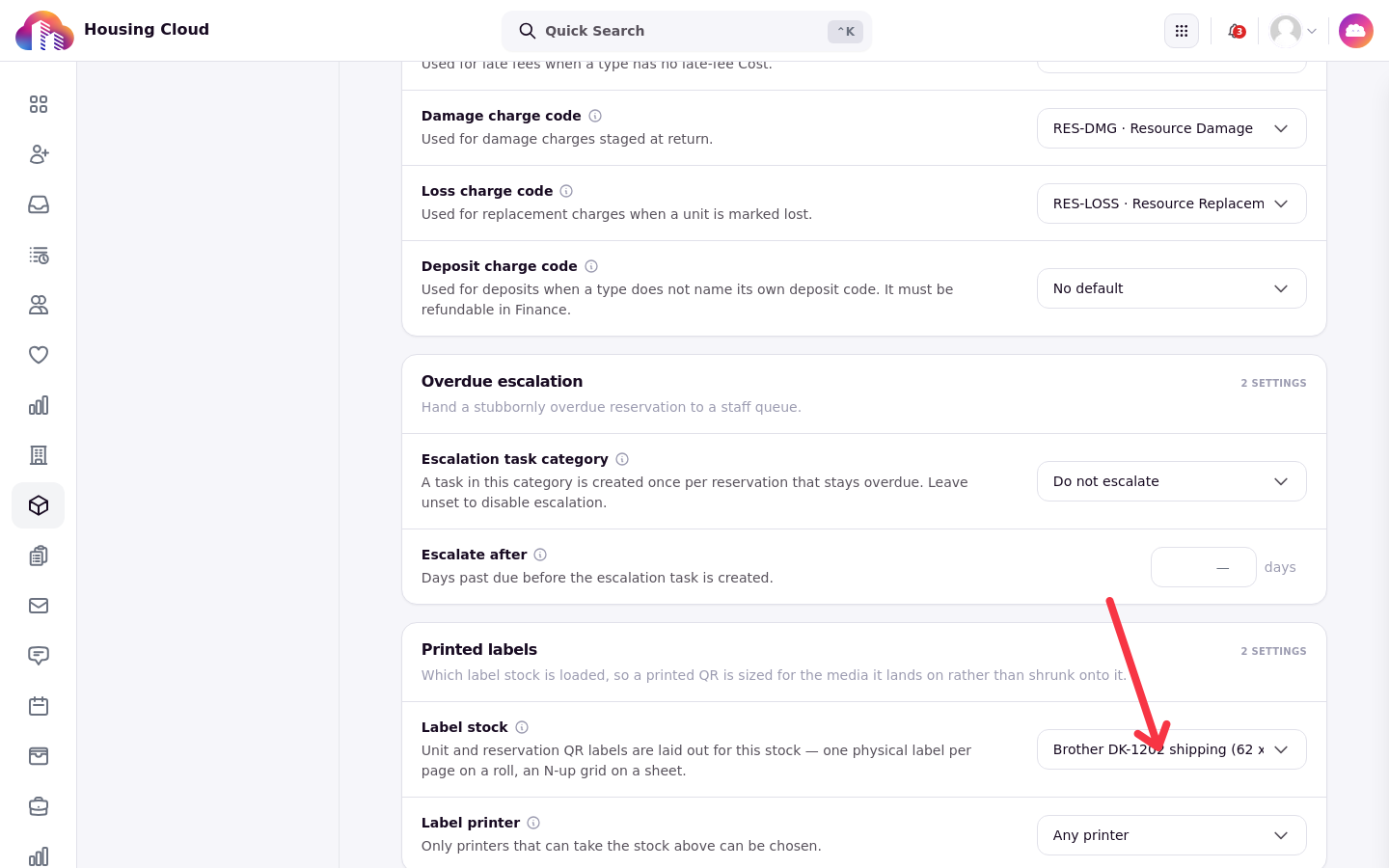
Label stock sizes the QR labels the desk prints, one physical label per page on a roll or laid out on a sheet, so the printed QR matches the media it lands on. Label printer lists the printers, with ones that cannot take the chosen stock shown disabled and marked "Cannot take the chosen stock"; leaving it unset lets the desk choose at print time.
Both label fields sit on the Printed labels card:
Permissions
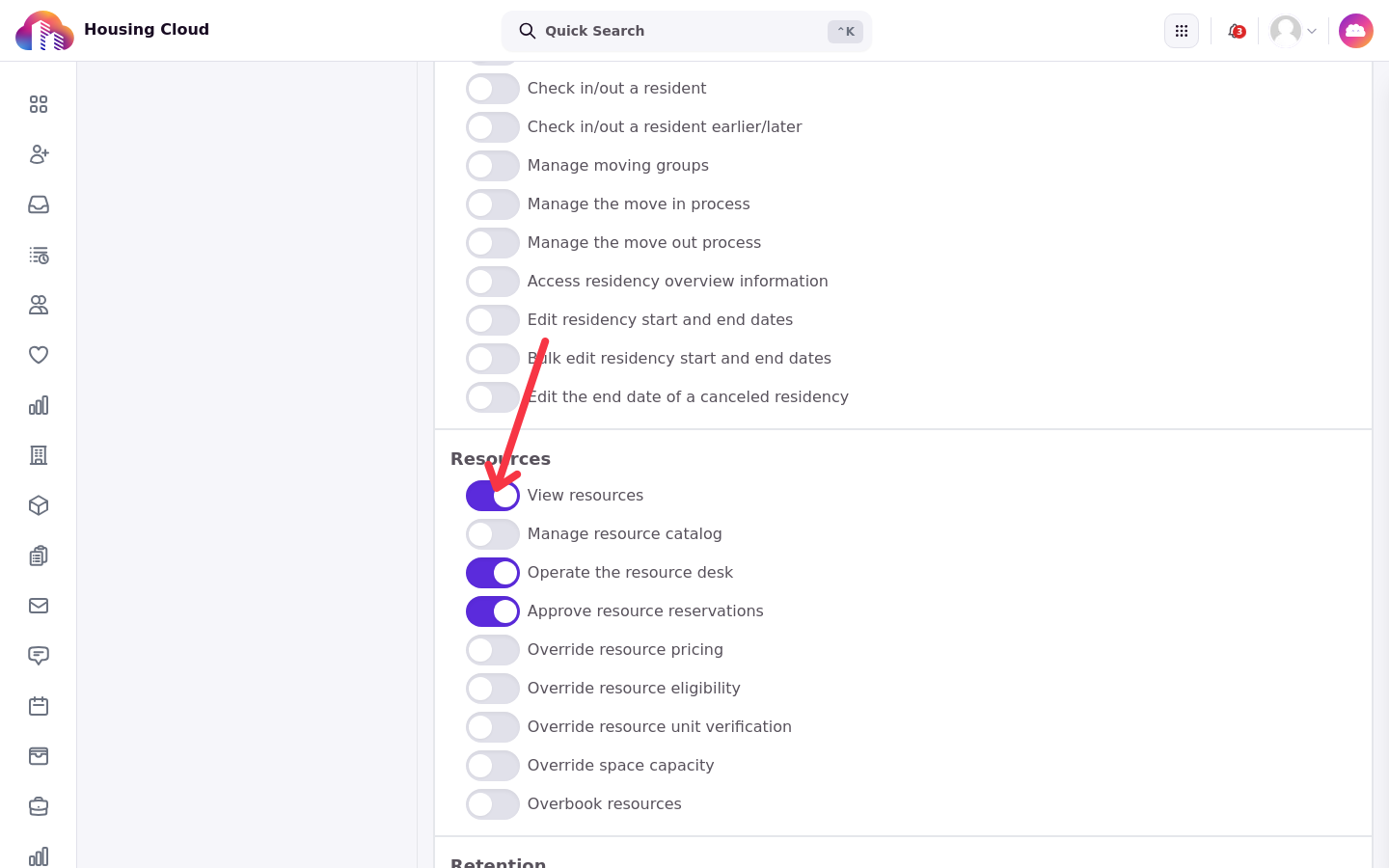
Resources permissions live in the role editor under Setup, in the Resources permission group:
View resources: open every Resources admin page. Everyone on the desk needs this.
Manage resource catalog: create and edit categories, locations, types, units, blackouts and settings.
Operate the resource desk: use the desk screen, reserve on a resident's behalf, pick up, return and extend.
Approve resource reservations: approve and decline requests, including walk-ups that need approval.
Override resource pricing: change a price, with a reason.
Override resource eligibility: lend outside the rules, with a reason.
Override resource unit verification: accept a scan that did not match, with a reason.
Override space capacity: book a room for more people than its capacity allows.
Overbook resources: double-book a unit or set a due date past the borrower's limit.
The Resources group in the role editor, with all nine permissions:
Posting, waiving or reversing a resource charge also needs the Create transactions on students permission in the Transactions + Payments permission group, so desk staff who only lend items do not need it.
After you save
The bar confirms each save, and the settings apply school-wide immediately. Verify the result by opening the resident portal: with Enable the resident portal on, the Resources tab appears for residents; with it off, it does not.