Meet Cloudy, Your AI Assistant
Last updated: October 8, 2026
Cloudy is Housing Cloud's AI assistant. You ask in plain English, it answers from your school's own data, and when it prepares a change it stops and waits for your approval.
Cloudy appears in more places than the chat. It is built into the dashboard catch-up card, the table filter panels, the report builder, the ruleset editor, the cycle audit, assignment recommendations, message composers, the Tasks page, profile summaries and briefings, event drafting, and floor plan generation. Each of these is covered in its own article.
At Maple Hall… Sam used to start the day by opening six screens. Now the first thing on the dashboard is a card that offers to catch Sam up.
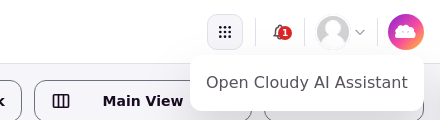
The round Cloudy picture at the top right; its tooltip reads "Open Cloudy AI Assistant".
The "Cloudy" entry in the left menu, just above Setup.
Where Cloudy lives
You can open Cloudy from three places. Click the round Cloudy picture at the top right of every admin page to open it as a side panel. Click "Cloudy" in the left menu to open it as a full page. On mobile, the header shows "Ask Cloudy".
Many screens also carry their own "Ask Cloudy" buttons that start a chat about that item, such as a cycle audit issue or an auto-assign setup. Cloudy features also appear inside other pages without opening the chat at all, for example "Catch me up" on the dashboard, "Ask Cloudy to build a filter" in table filter panels, "Help me build this report" in the report builder, "Draft with Cloudy" in the message composer, and "Summarize with Cloudy" on a resident's interactions.
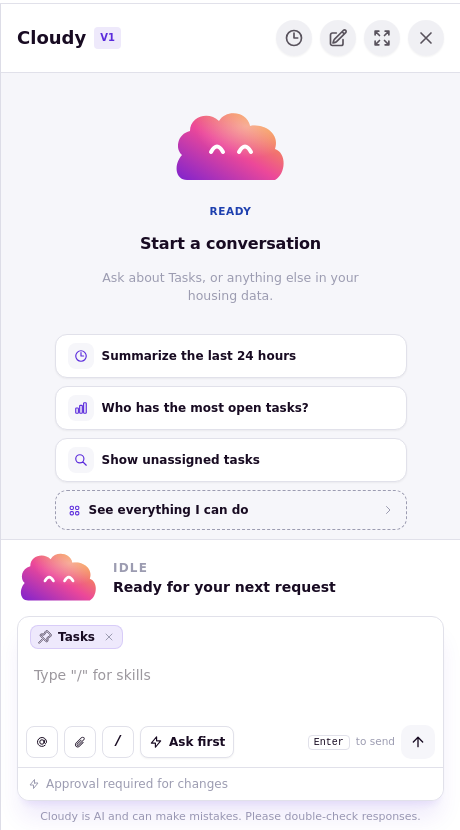
The Cloudy side panel, open on the Tasks page.
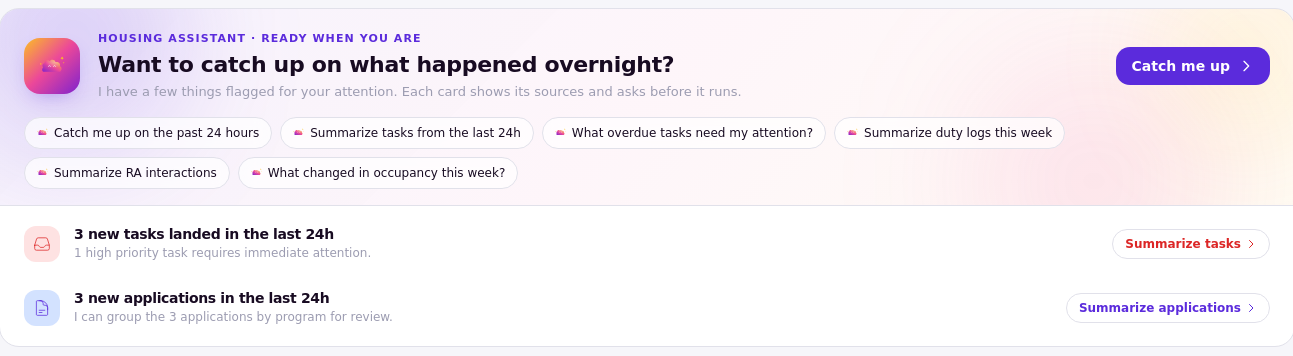
The dashboard card, "Housing Assistant · ready when you are".
Names you'll see
The product calls it Cloudy almost everywhere. Two other names appear: the dashboard card reads "Housing Assistant · ready when you are", and some buttons say "AI", such as "AI Importance Sort" on the Tasks page. Older help articles called it "Assistant"; this article set replaces that name.
Turned on feature by feature
Cloudy is a set of features, not one switch. Housing Cloud turns each part on for your school separately, and your role decides which parts you see. Two schools, or two people at one school, can see different Cloudy features. See "Who Can Use Cloudy: Features and Permissions" for the full list.
It works inside your permissions
Cloudy works inside your own permissions. If your role can't do something, Cloudy can't do it for you. When Cloudy makes most changes, it asks first: a card that reads "Needs your OK" shows exactly what will change before anything happens. A few operations are excluded from this approval step and run without a prompt, such as generating a floor plan from a blueprint, saving a memory, or exporting data. See "Using AI Safely: What Cloudy Can and Can't Do" and "When Cloudy Asks First: Approve or Reject a Change".
Good to know
Cloudy's answers can be wrong, especially numbers and counts. Confirm any "how many" answer on the page or a report before you act on it.
Each part of Cloudy is switched on separately for your school, so a colleague may see features you don't.
Where to go next
Start with "Open Cloudy and Ask Your First Question", read "Using AI Safely: What Cloudy Can and Can't Do", then try "Catch Up on Your Day from the Dashboard".