When Cloudy Asks First: Approve or Reject a Change
Last updated: October 8, 2026
When you ask Cloudy to change something, it prepares the change and stops. A card that reads "Needs your OK" shows exactly what will change, and nothing happens until you press Approve or Reject.
At Maple Hall… the lounge TV is out. Sam asks Cloudy to log a task and to add {STUDENT1} to the hall's follow-up list, approves what it can, then asks Cloudy to email a note about it and rejects the send.
Ask and Cloudy prepares the change
Describe the change in plain English, for example "Create a task titled 'Maple Hall: lounge TV not working'". Cloudy works out the details and stops at the card instead of acting. If a detail is missing (a required field on the form it is about to fill), Cloudy first shows a "Needs your input" card that collects it, then waits for your OK.
Ask in one sentence what you want done. Cloudy replies with the card instead of acting.
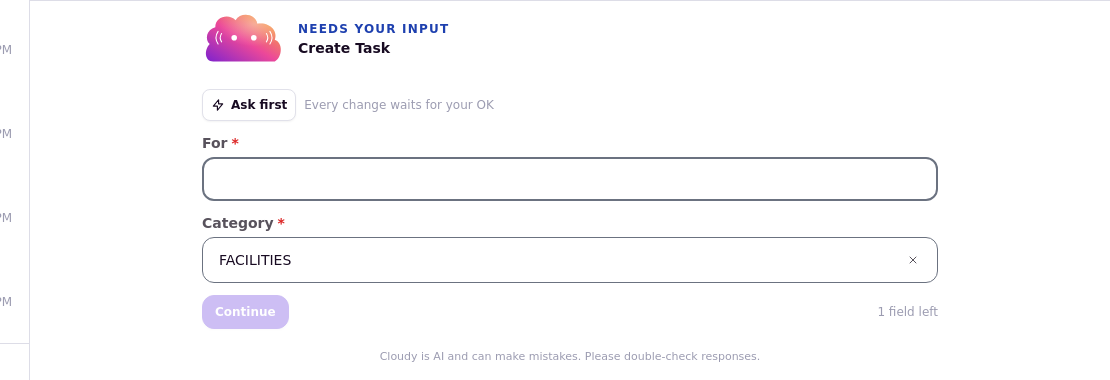
The "Needs your input" card: the "Ask first" chip reads "Every change waits for your OK", and Cloudy collects the missing field before it prepares the change.
Read the card
The card shows the record and the change, with the Approve and Reject buttons. Chips flag anything that needs extra care: Transactions for changes that affect billing, Bulk operation for changes that touch many records, and From an uploaded file for changes based on a spreadsheet you uploaded. While a card is waiting, the message box is hidden until you decide.
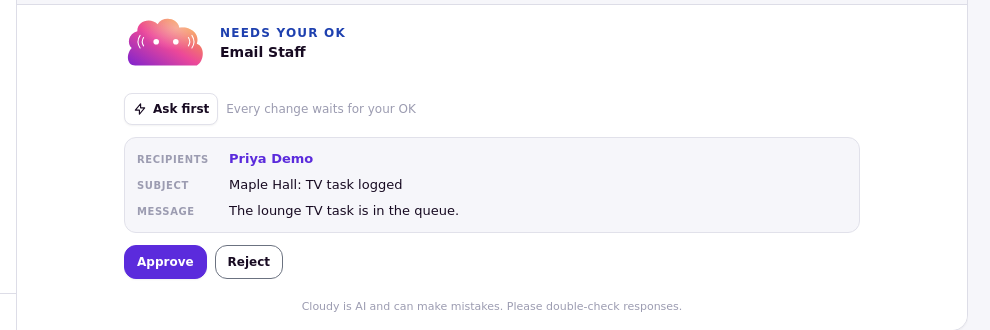
The card: what will change, the "Ask first" chip, and Approve and Reject.
Approve the change
Press Approve and Cloudy makes the change, then confirms what it did. The record itself shows the result, for example the new task in the task list or the tag on the profile.
After you approve, Cloudy carries out the change and confirms it; the record shows the result.
Reject the change
Press Reject and a box appears where you can say why: "Why are you rejecting? (optional — Cloudy uses it to revise)". Type a reason if you want Cloudy to try again differently, then press "Confirm reject". Nothing changes on the record.
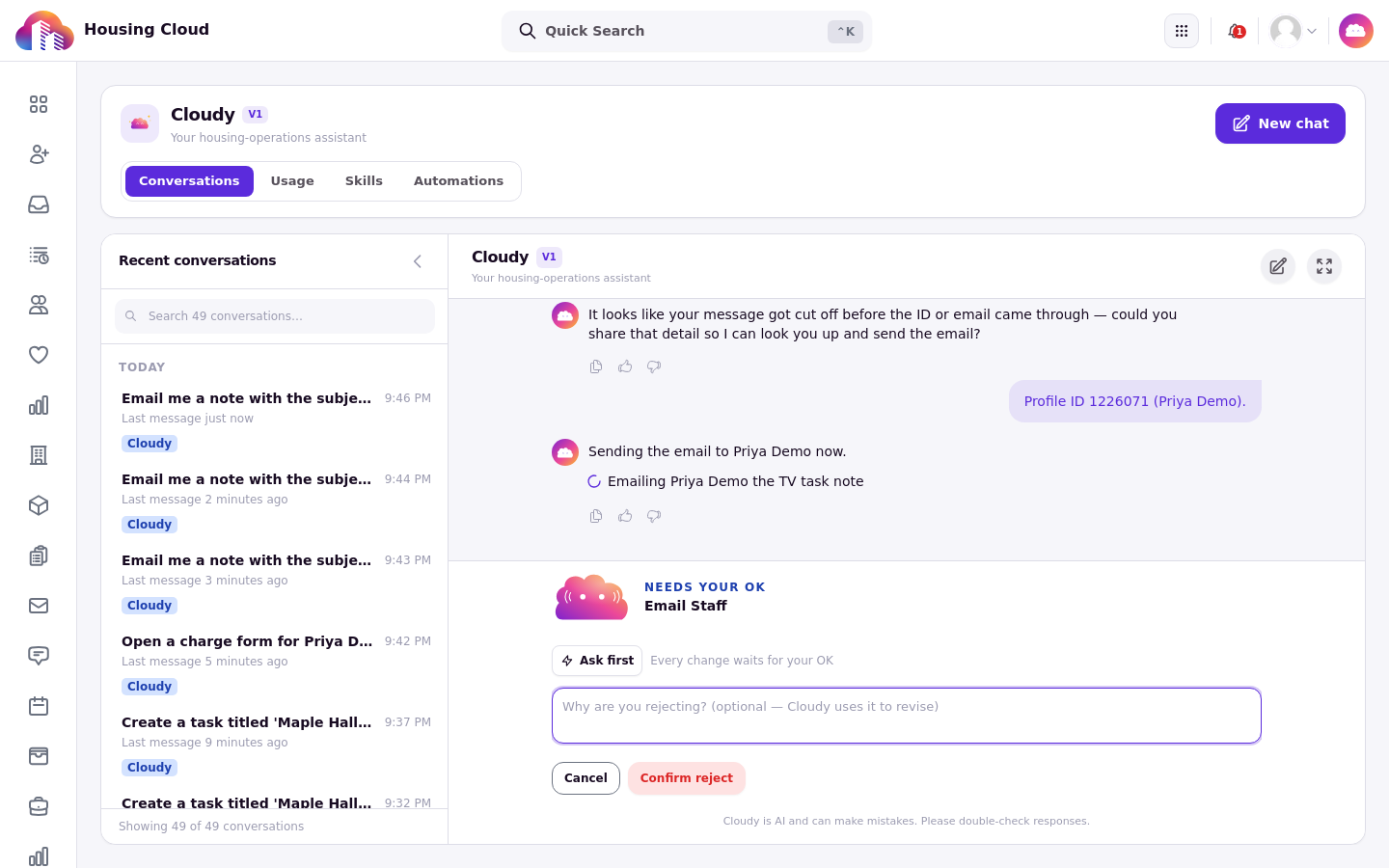
After Reject, an optional reason box appears above "Confirm reject".
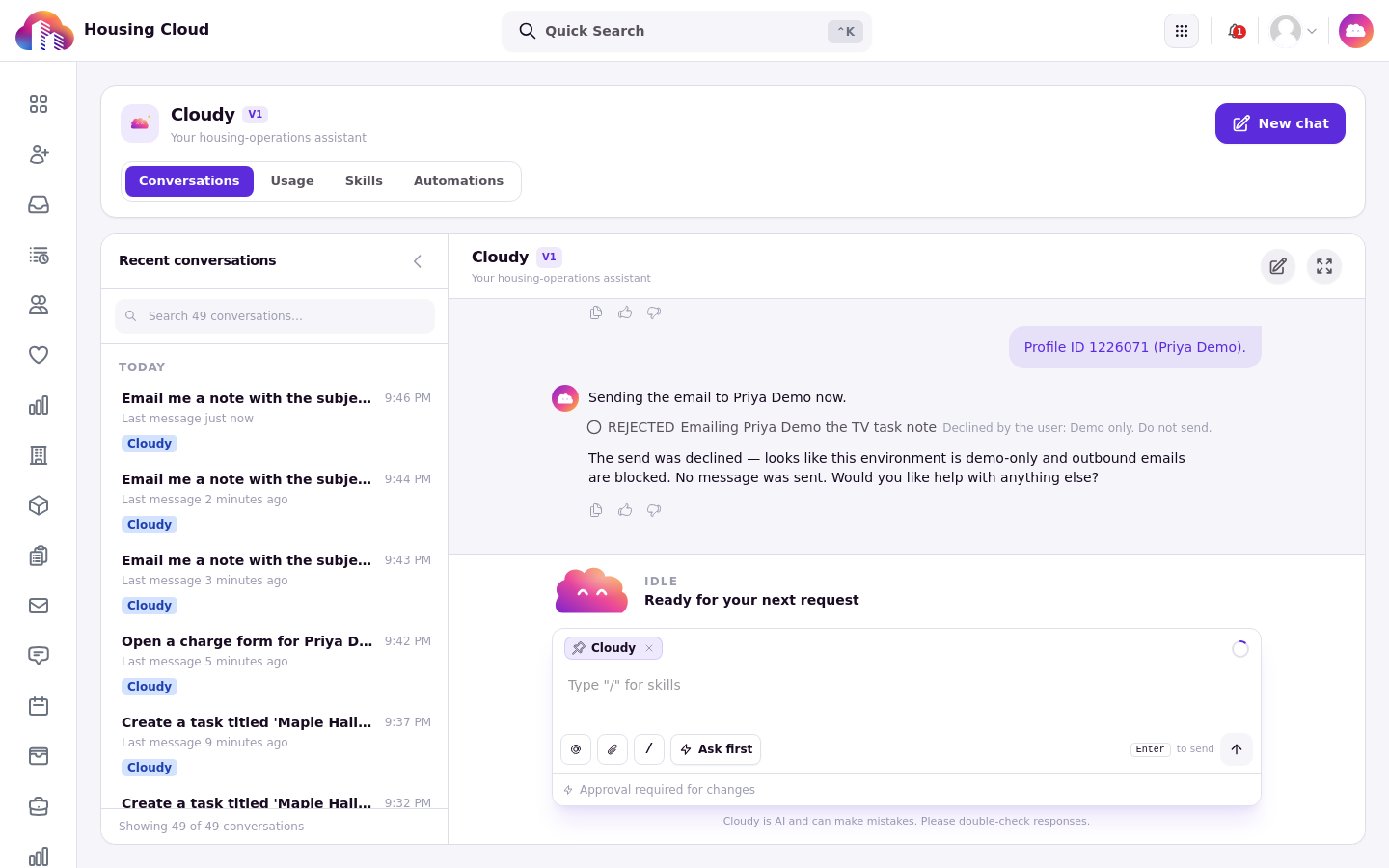
After "Confirm reject", Cloudy confirms the change did not happen.
Several changes queue up
If one request asks for several changes, Cloudy shows one card after another. Decide each in turn.
Where the change is recorded
The record's timeline shows the approved change as "Cloudy, approved by {name}: …" (confirm on screen), so you can always see who approved what.
The record timeline shows the approved change and who approved it.
Good to know
If your role can't make the change, Cloudy doesn't offer it. Cloudy works inside your permissions.
Money is different for standard charges and refunds: they open a prefilled form you finish yourself. A prorated refund instead arrives as a card that waits for your approval like any other change. See "What Cloudy Can Change for You (the 18 Actions)".