Auto-Assign Setup: Pre-flight Checks and Ask Cloudy
Last updated: October 8, 2026
The auto-assign setup screen warns about problems before a run with pre-flight checks, and "Ask Cloudy about this setup" explains your choices. This article covers only the Cloudy parts; running auto-assign has its own articles.
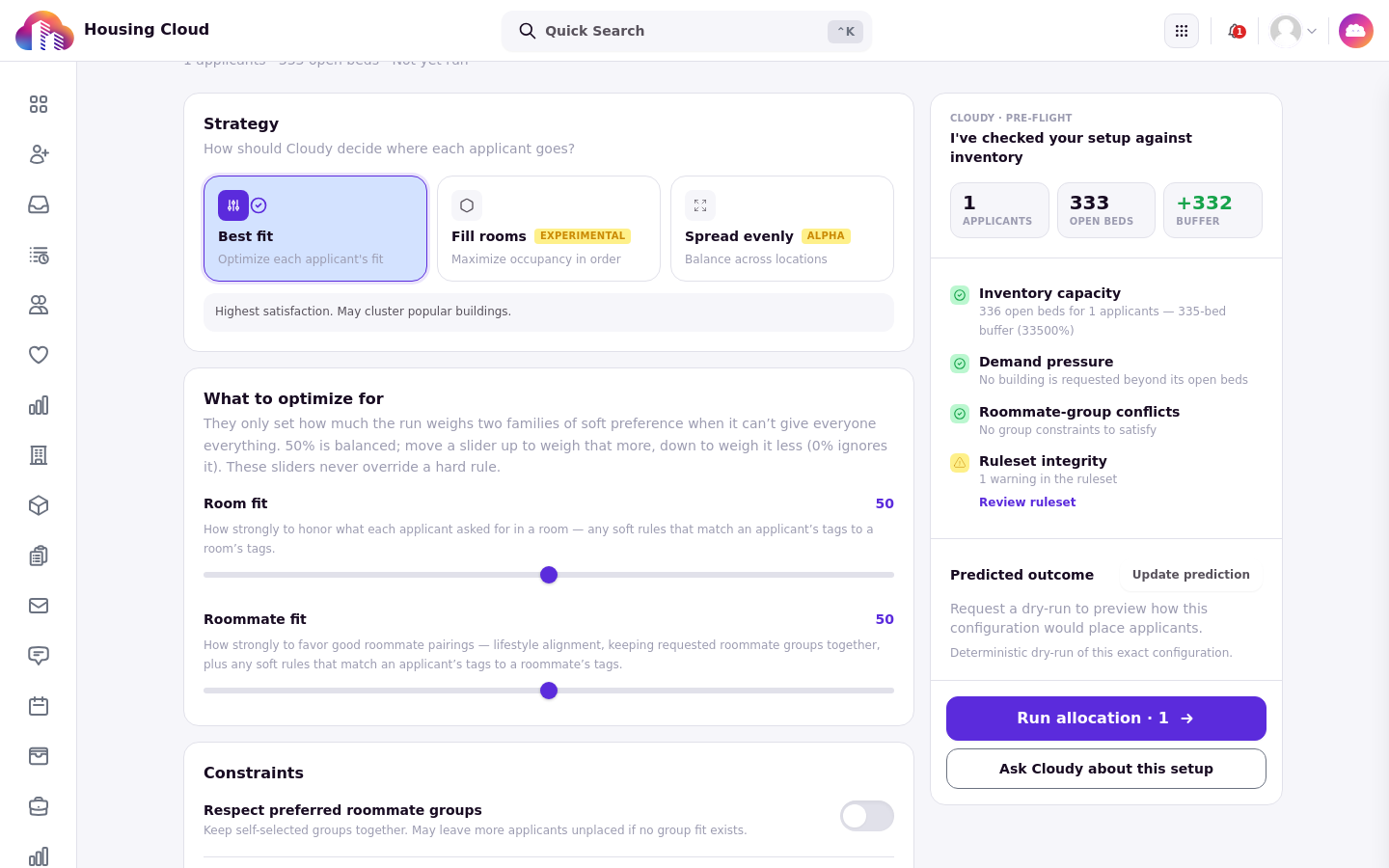
Where the setup screen is
The setup opens from Applications: select one or more applications from a single cycle, open the bulk-actions menu, and choose "Auto-Assign Based on Ruleset". The "Automatic assignment" screen shows Strategy, "What to optimize for", and Constraints, and stays a Draft until you run it. The entry needs a resident cycle with a ruleset, and your role needs the permission for assigning beds.
The pre-flight checks
Before a run, the setup screen runs four checks: Inventory capacity, Demand pressure, Roommate-group conflicts and Ruleset integrity. They are information only and never block a run. Read them as early warnings about how the run will go.
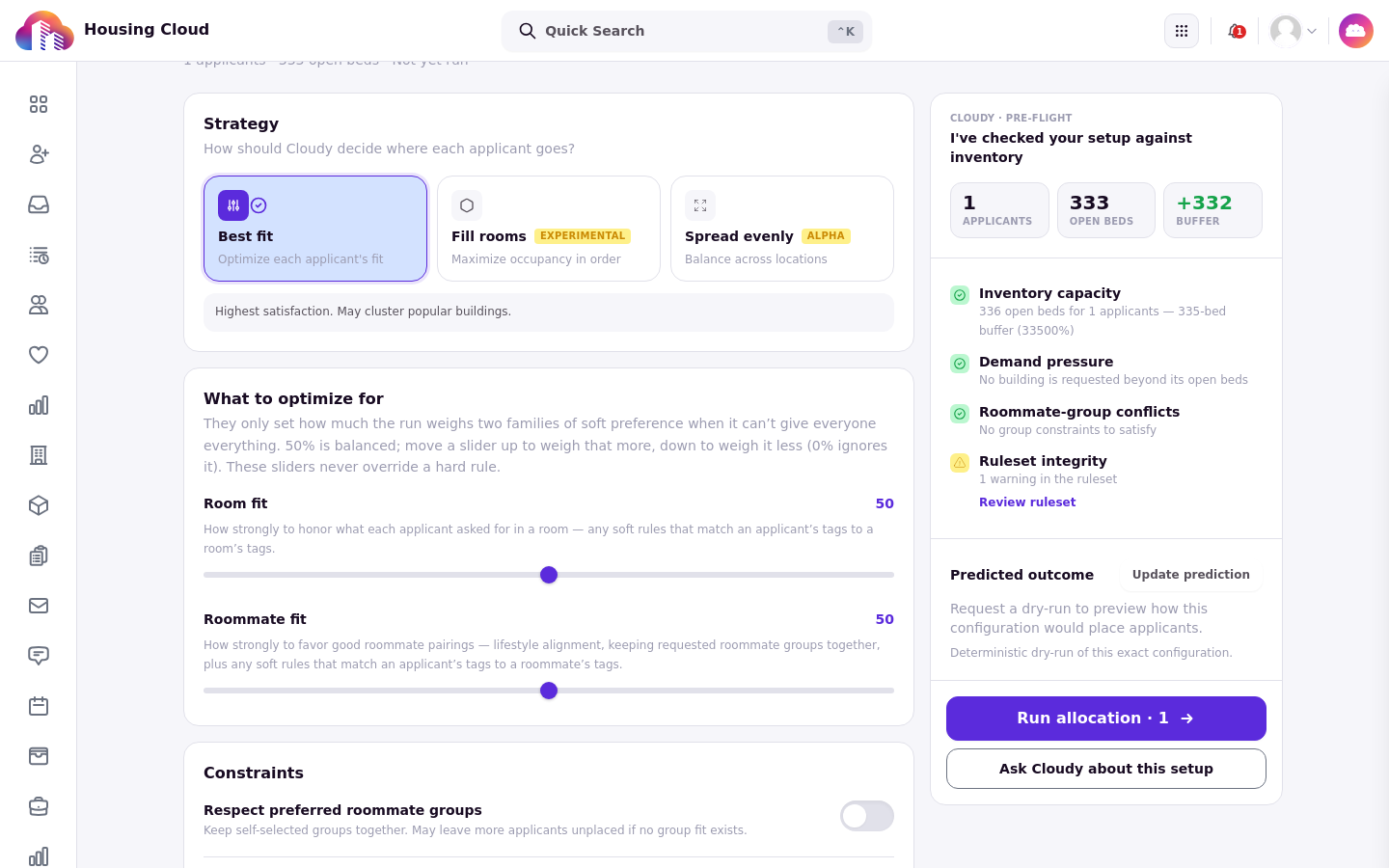
The "Cloudy · pre-flight" rail: the fact tiles (Applicants, Open beds, Buffer) and the four checks. Ruleset integrity here warns about one ruleset warning, with a link that opens the ruleset.
Ask Cloudy about the setup
Press "Ask Cloudy about this setup" and Cloudy opens in the panel with the setup as its context chip. It reviews the setup summary, the inventory counts, the number of custom rules, and the pre-flight warnings, then offers risk and configuration guidance.
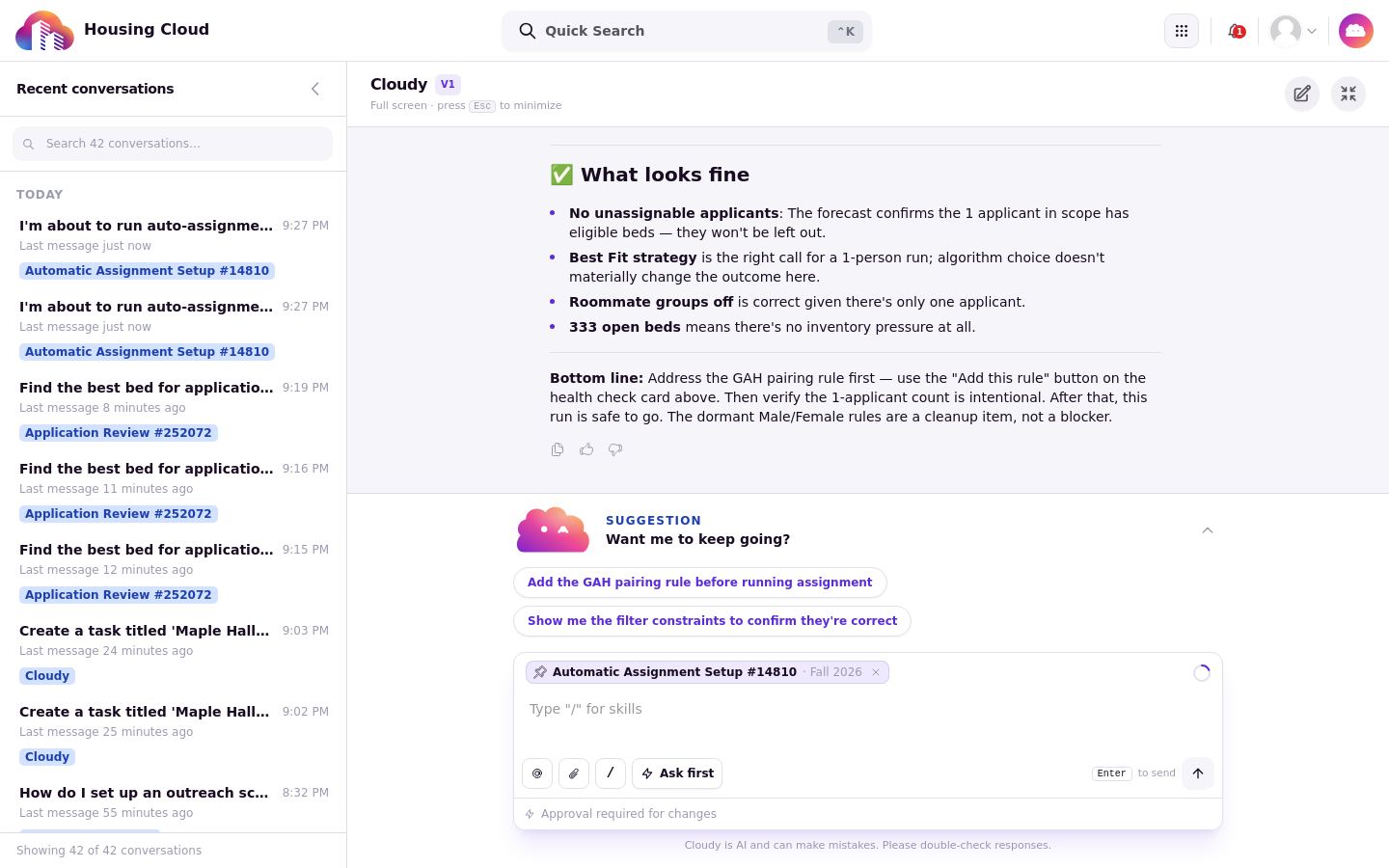
Cloudy reviews the setup summary, the inventory counts, and the pre-flight warnings, then offers risk and configuration guidance.
Ask Cloudy after a run
On the review screen after a run, "Ask Cloudy about this run", "Ask Cloudy about this selection" and "Ask Cloudy about this placement" explain what happened. Cloudy explains; you press "Run allocation" and accept or reject the results yourself.
What Cloudy doesn't do here
Cloudy never runs auto-assign and never accepts results. The run and the review are yours. See the auto-assign articles for running and reviewing a run.