Log a Busy Delivery in One Session
Last updated: October 8, 2026
When several trucks arrive at once, log every item in a single scan session with Save & next, then send one notice to all of them with Save & notify all. Each resident gets a single New Mail Arrived email even if they have several items in the batch, so nobody is spammed by a busy hour.
The session works exactly like logging one item (see Log Incoming Mail); the difference is what the footer does after each save.
Queue items with Save & next
Fill the wizard for the first item as usual and click Save & next in the footer instead of saving outright. The item is queued, the wizard starts fresh for the next package, and the mailroom and storage location you picked stay selected for the next item, which is usually right during a single delivery.
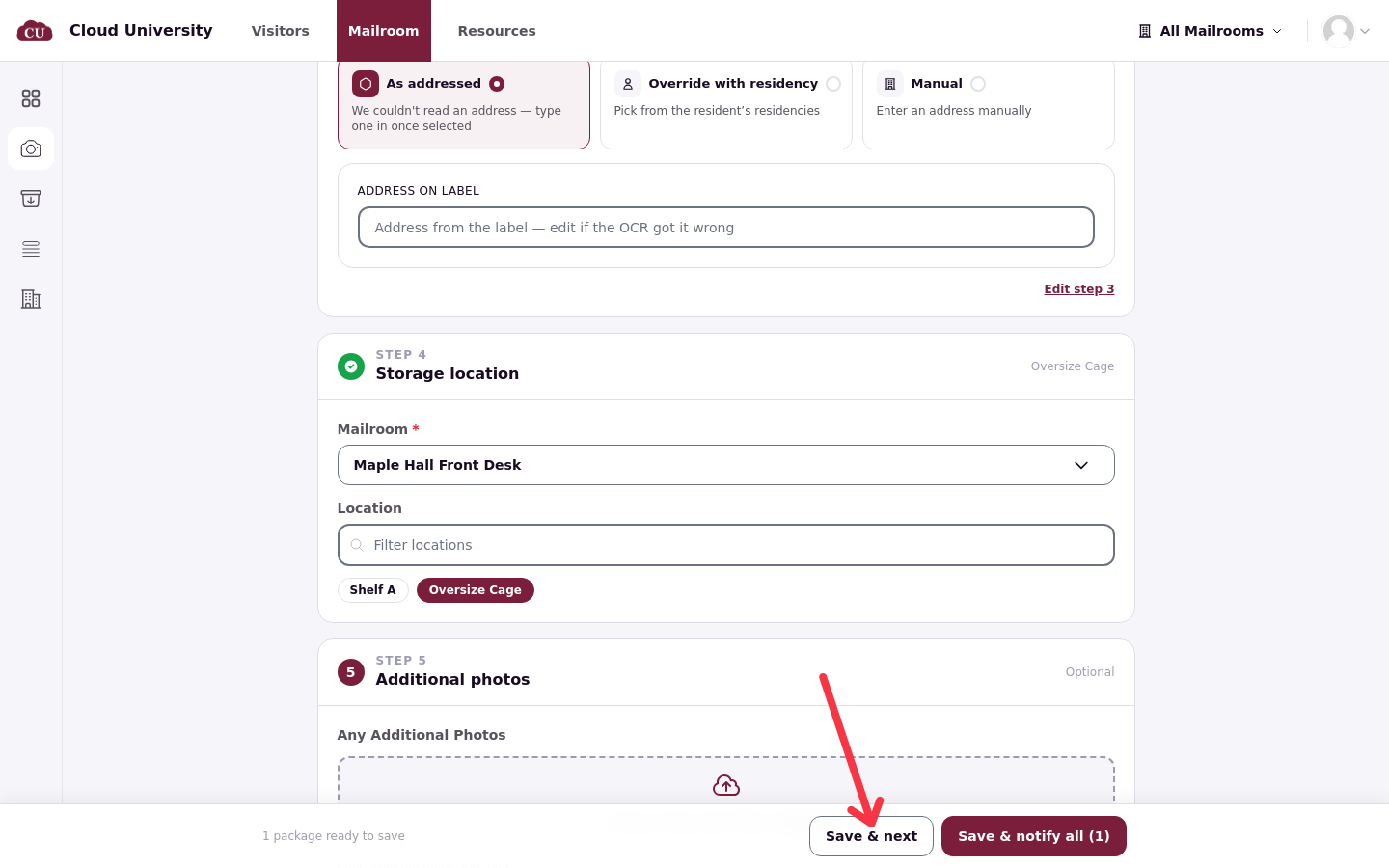
Watch the footer count
The footer keeps count of the session: it reads "1 package ready to save" after the first Save & next, then "1 queued + this one (2 total)" while you fill the next item, and "2 packages queued" once that one is queued too. The count tells you exactly what is still unsaved if you get pulled away.
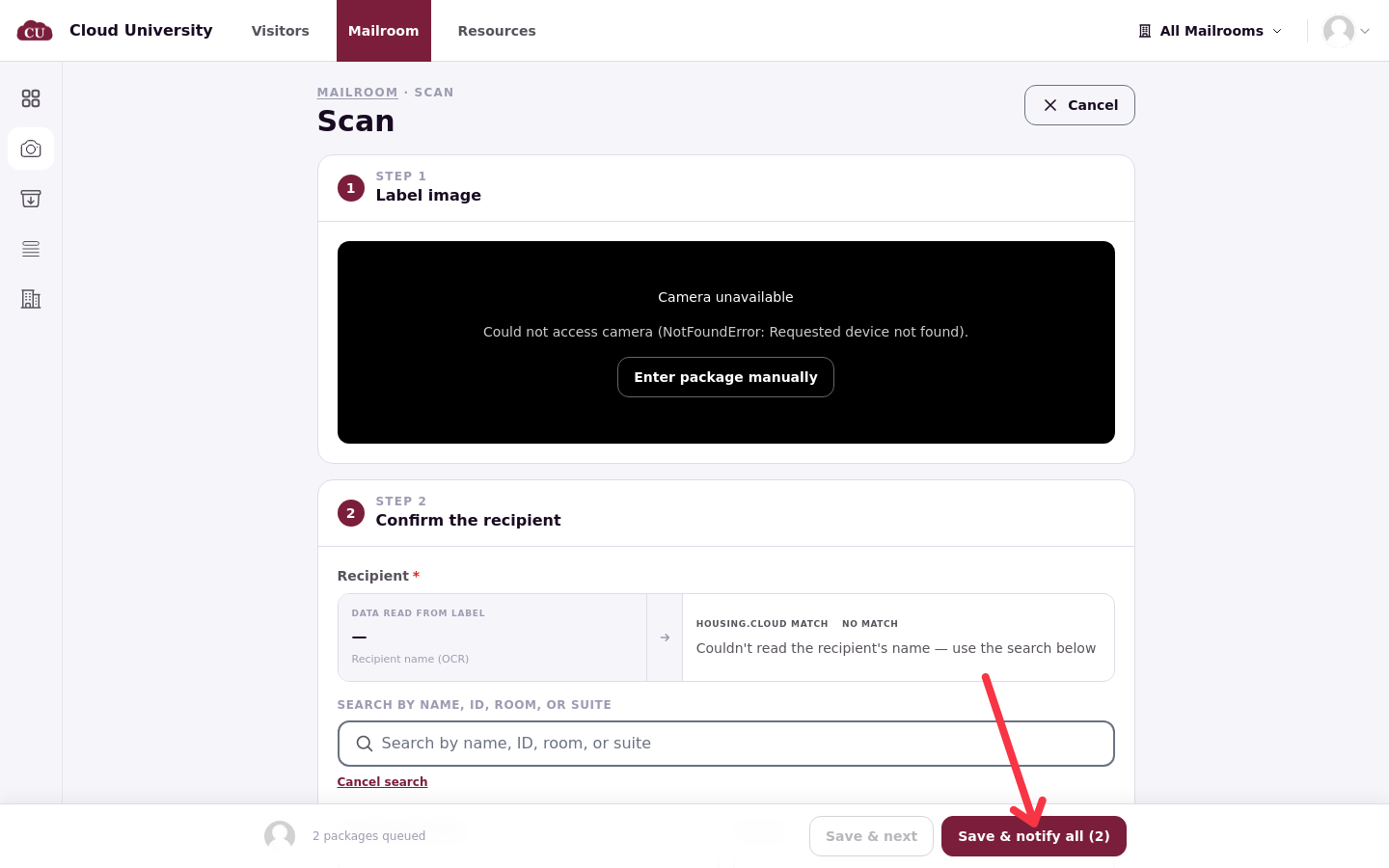
Save the lot with Save & notify all
When the last item is filled in, save the batch: on desktop, click Save & notify all; on mobile, tap Notify all (N), where N is the queued count. Every queued item is checked in and every resident in the batch is notified, with a confirmation such as 2 mail items checked in. Residents with several items in the session receive one notice covering them all.
Good to know
Leave carefully. Leaving the Scan page with queued items asks for confirmation before you go. Navigating outside the page in the browser shows the browser native confirmation dialog; in-app navigation such as Cancel or Mailroom shows "You have unsaved scan progress. Leave without saving?" Queued means not yet checked in, so save the batch first unless you mean to discard the queue. Queued means not yet checked in, so click Save & notify all first unless you mean to discard the queue.
There is no perishable or oversize type. Mark a fridge box or a large item with the storage location and a note after logging (see Large, Perishable and Recipient-Only Items).
Verify the batch in All items: every item from the session appears with status Holding and today's check-in date.