Large, Perishable and Recipient-Only Items
Last updated: October 13, 2026
After logging, open an item and click Edit to change its mail type, add a note for the desk, correct the carrier or tracking number, add photos, move it to another shelf or mailroom, or restrict who may collect it. The scan wizard does not ask for any of this, so a fridge box, a meal kit or an envelope is adjusted on the item's page once it is checked in.
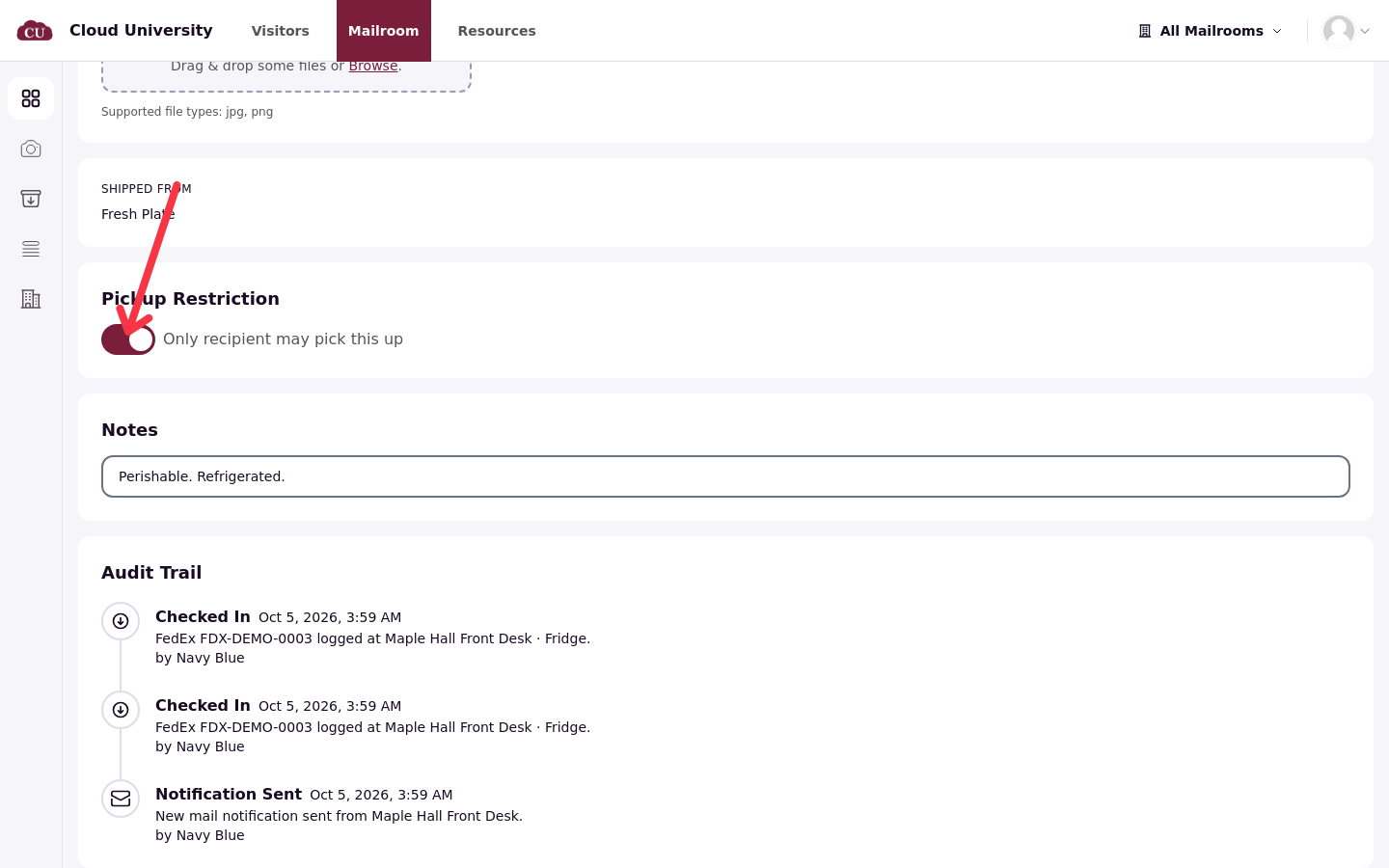
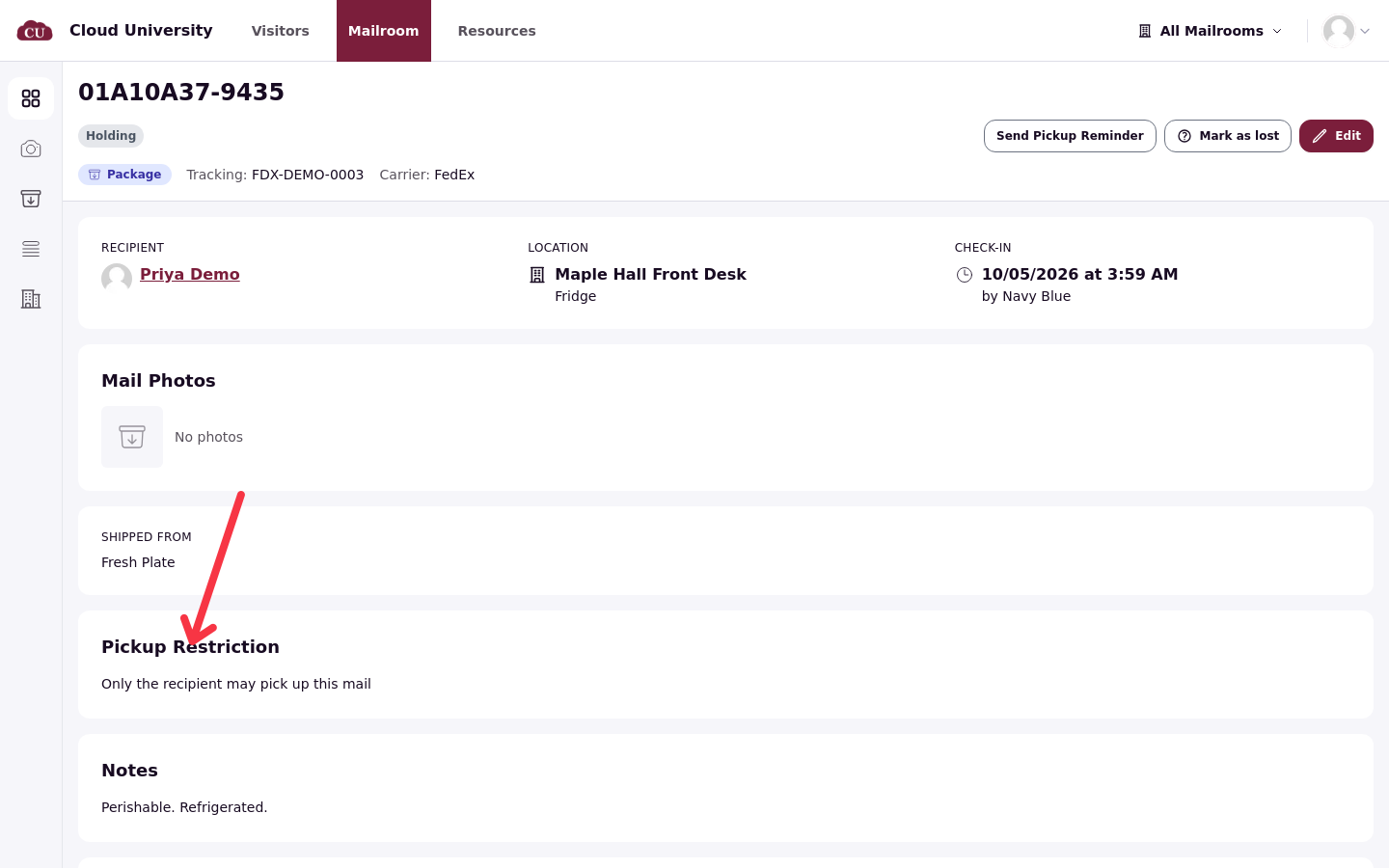
There is no perishable, oversize or signature-required item type. The desk's convention is a storage location plus a note: put the meal kit in the Fridge location and note "Perishable. Refrigerated.", and note "Large item, 40 lb. Bring a cart." on an oversize box.
Open an item and edit it
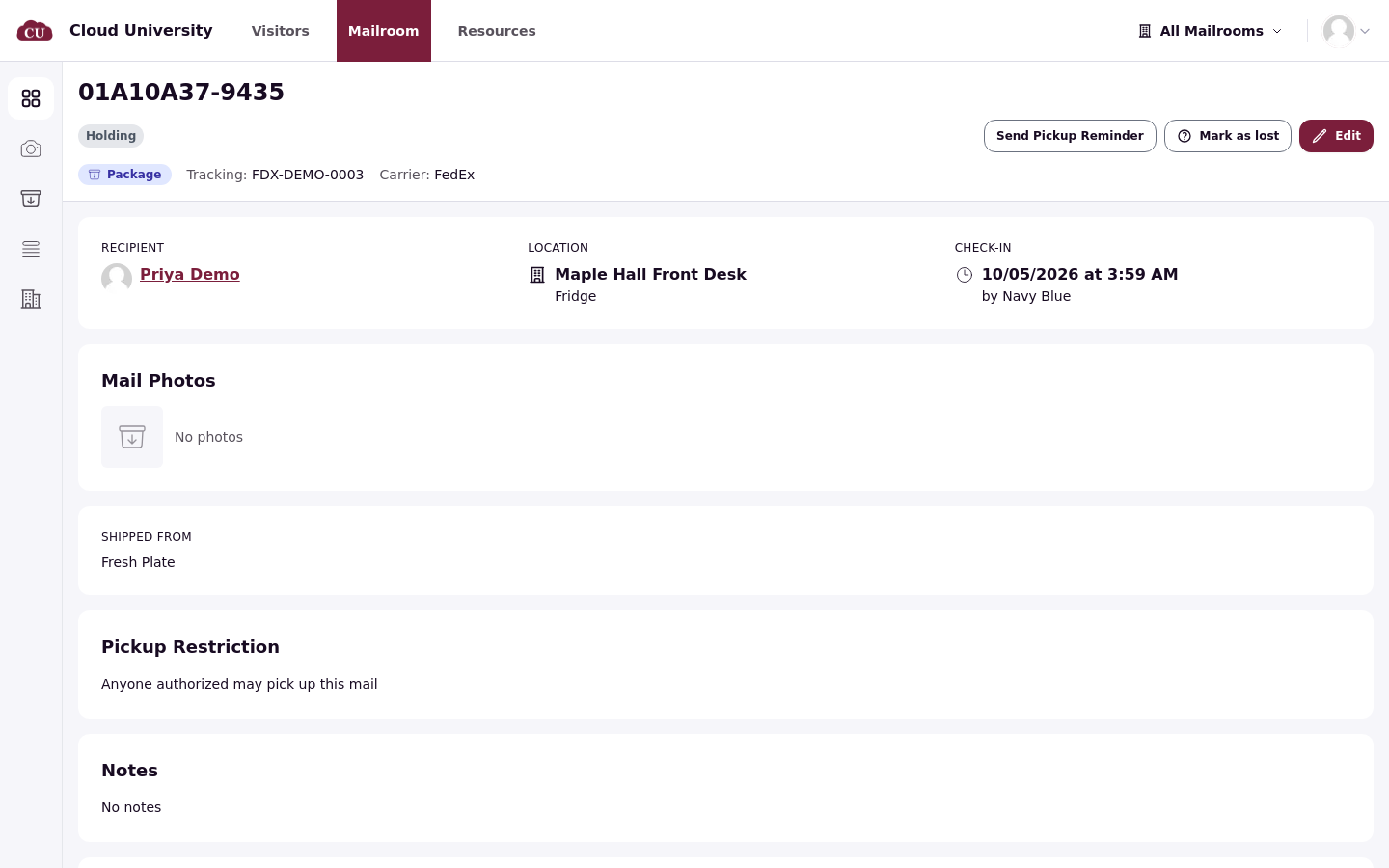
Find the item in All items and open its page. The header shows the mail ID, the status, the mail type, the tracking number and the carrier, with Send Pickup Reminder, Mark as lost and Edit buttons on the right. Below sit the recipient, the location (mailroom and storage location), the check-in time and the staff member who logged it, the Mail Photos area, the Shipped From sender, the Pickup Restriction section and the Notes field.
Edit opens the same fields as a form. A few of them matter day to day:
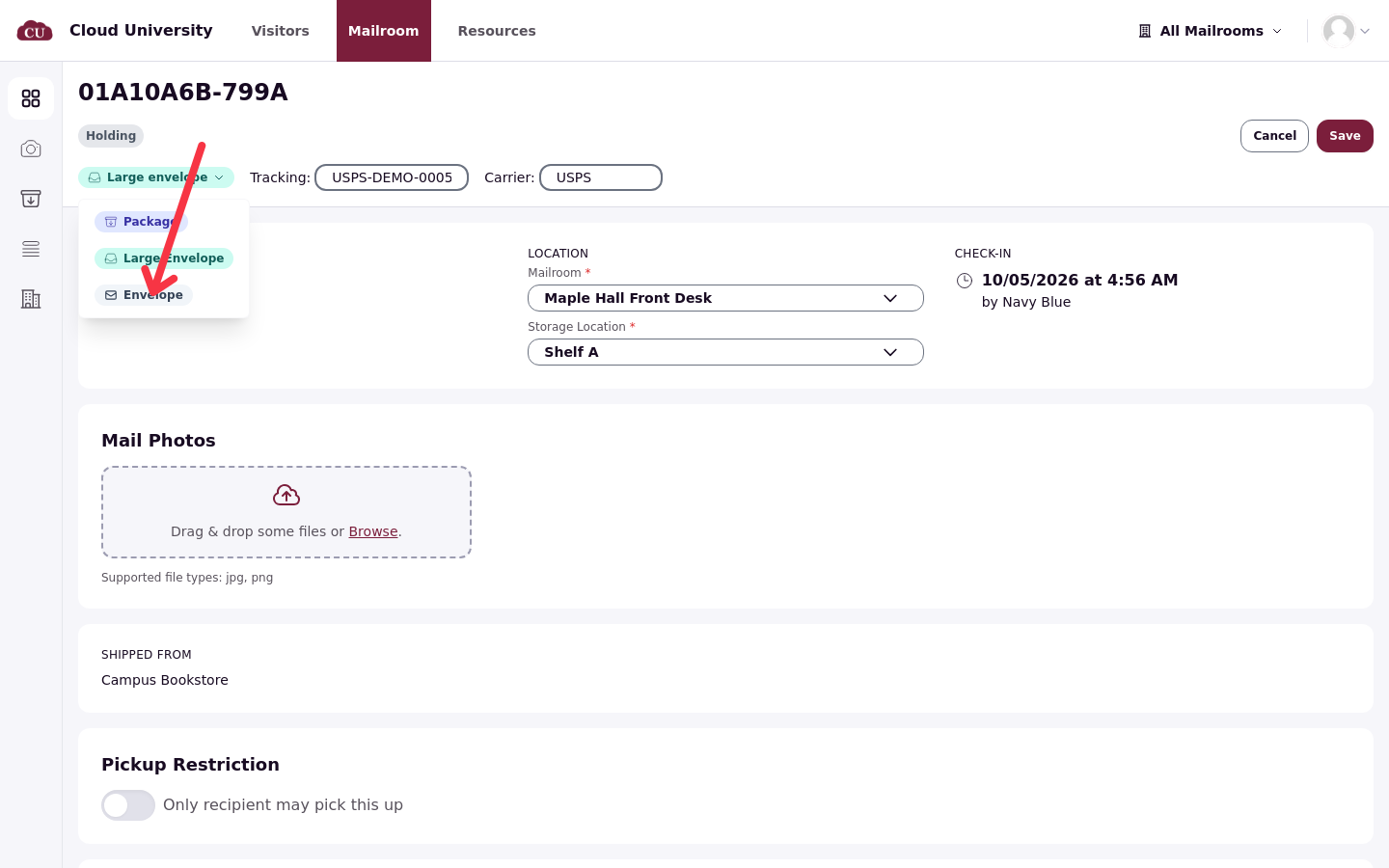
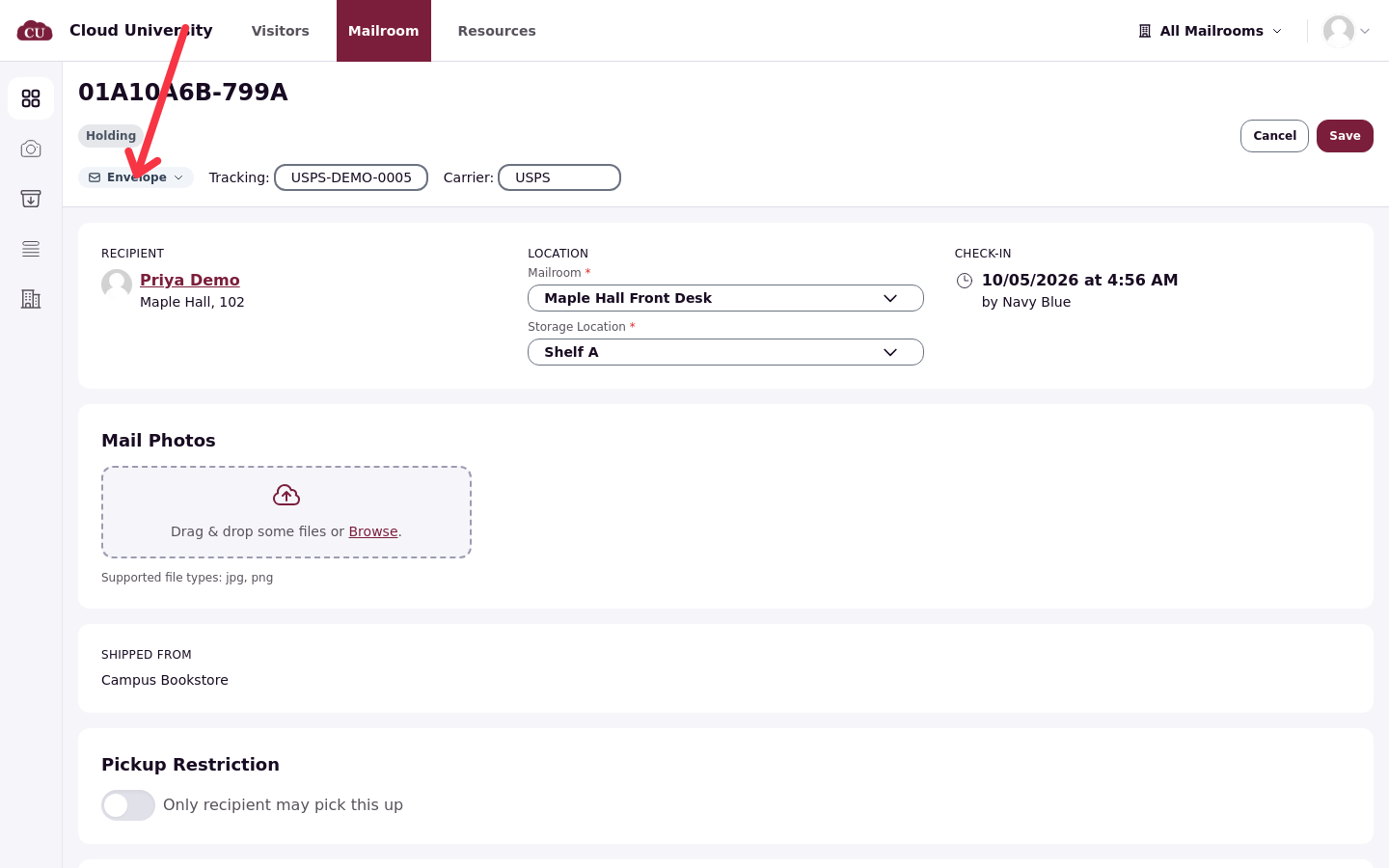
Mail type is Package, Envelope or Large envelope. A letter that arrived in the package flow is switched to Envelope here.
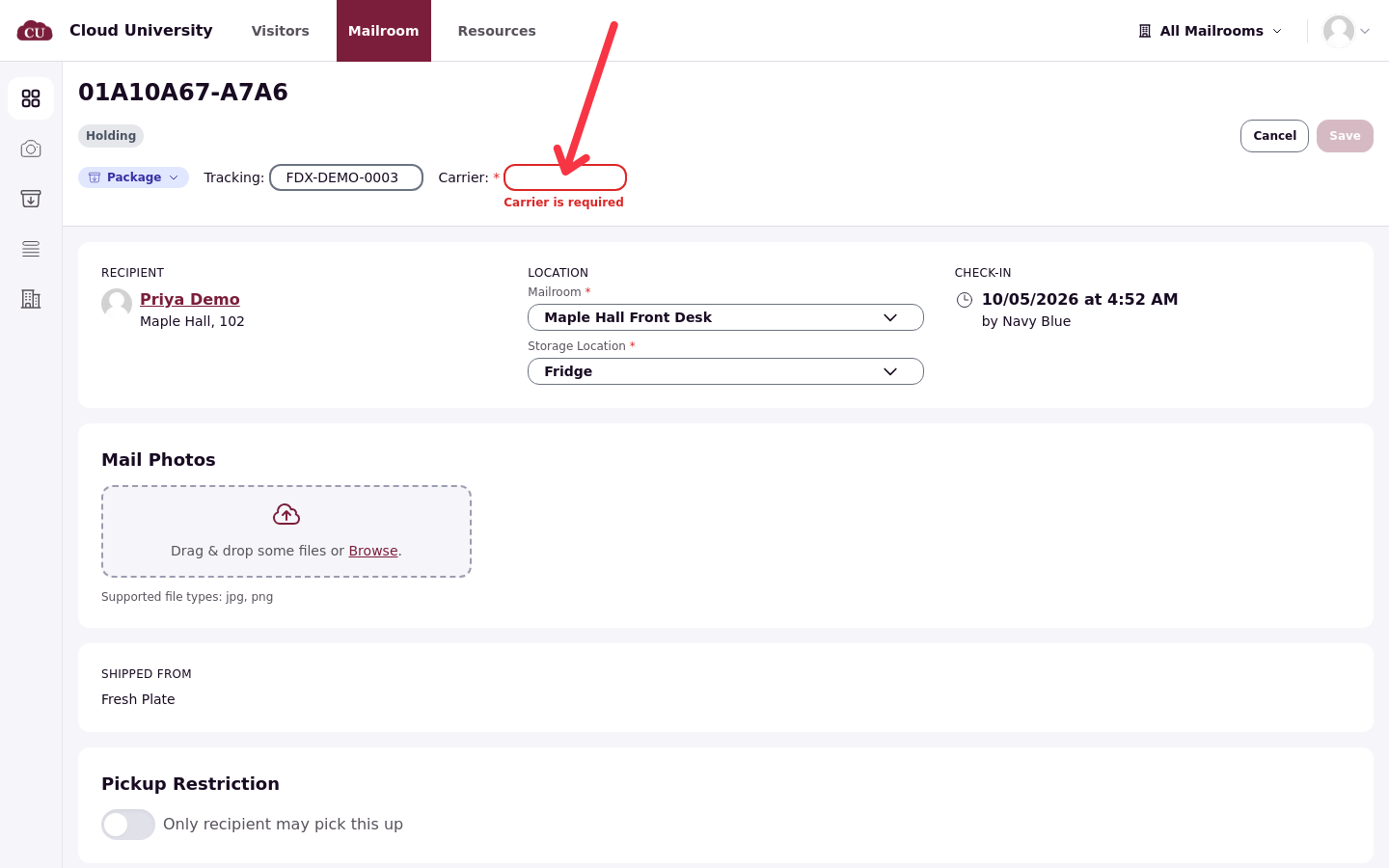
Tracking number and Carrier can be corrected. A package must have a carrier: emptying the field shows "Carrier is required" and blocks the save.
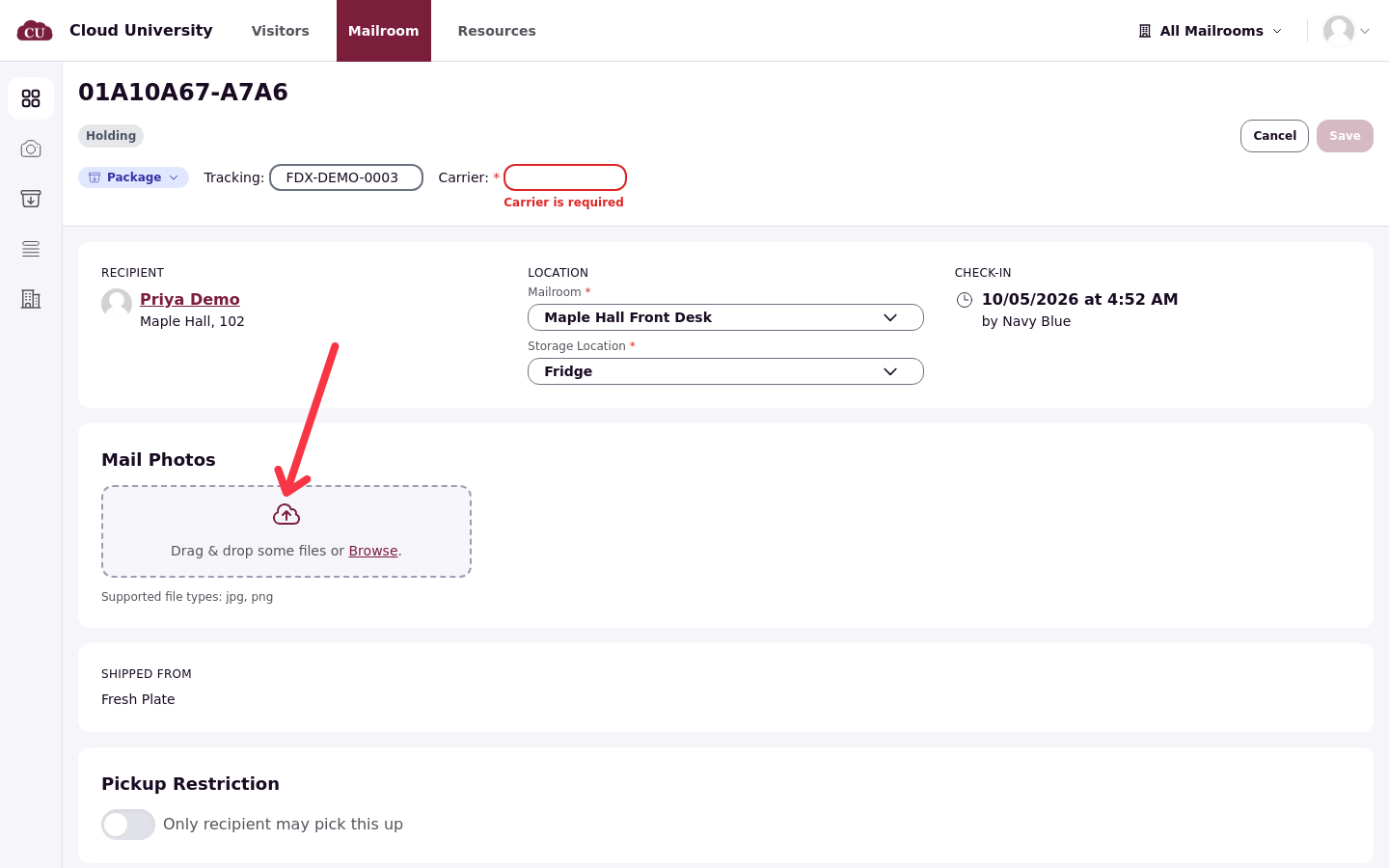
Mail Photos accepts photos of the item itself (jpg or png), added or removed here. A label photographed at scan time stays on the item separately as the scanned label.
Location moves the item to another shelf, or to another mailroom when a package was logged at the wrong desk (see Work Across Several Mailrooms).
Keep a meal kit for the recipient only
Anything a resident should collect personally, such as medication or a shared meal kit, is locked down with the Only recipient may pick this up switch in edit mode. When it is on, the item's Pickup Restriction section reads "Only the recipient may pick up this mail" instead of "Anyone authorized may pick up this mail", and pickup delegates cannot collect the item for the resident.
What saving changes
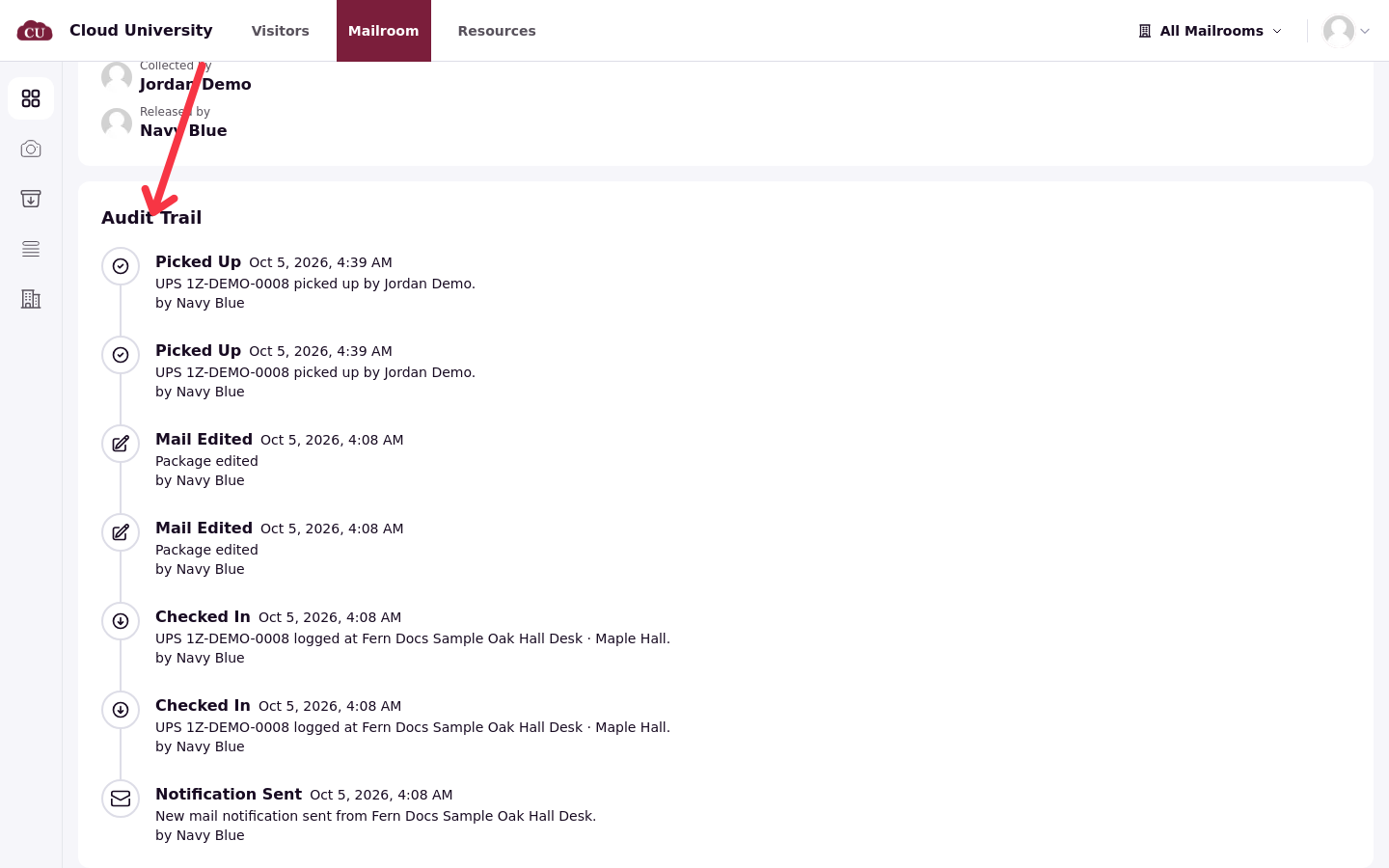
Saving stores the changes and records the edit in the item's Audit Trail as Mail Edited, next to the earlier Checked In and Notification Sent entries. Cancel leaves edit mode without saving anything. The resident is not notified about an edit.
Verify the result on the item page: the note, the mail type and the Pickup Restriction text update as soon as the save lands.