Review and Approve Animal Applications
Last updated: October 8, 2026
Animal applications are what make an animal approved for a housing cycle. When a student submits an animal application, it enters review, and your approval is the step that marks the animal as approved for that cycle. You review these applications in the Applications area under Animal Applications, either one at a time on the application's detail page or in bulk from the table.
Use this workflow once the animal's paperwork is in and a decision is needed. Status changes, bulk actions, tag management, and creating a new application on behalf of an owner all happen from this same area.
Before you start
Access to animal applications depends on three permissions:
Viewing animal applications requires the View animal forms permission together with View animals.
Changing application statuses requires Review animal forms.
Creating applications on behalf of owners requires Send animal forms.
Opening animal applications
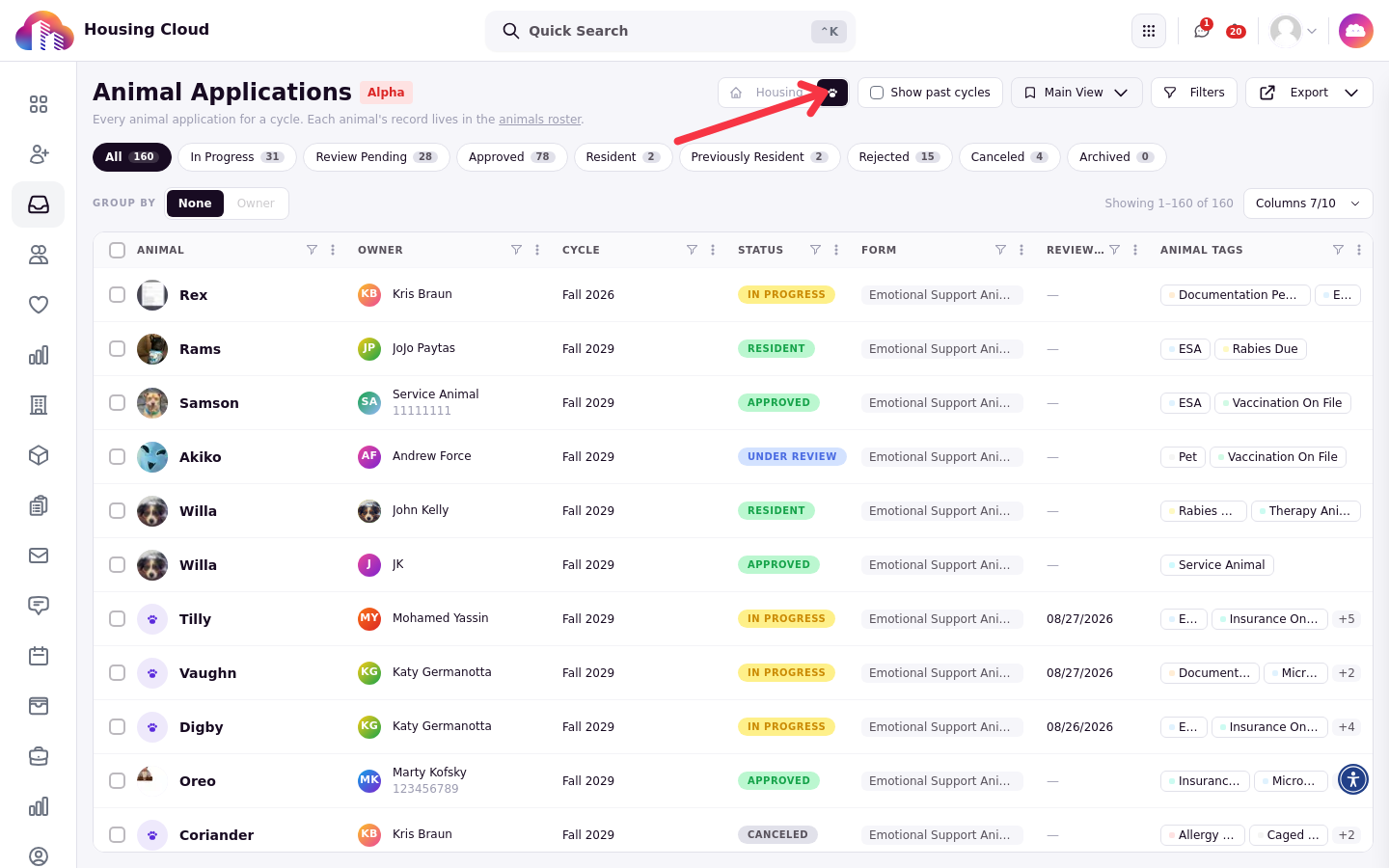
Animal applications are reviewed in the Applications area under the Animal Applications item in the navigation rail.
The table shows one row per application with the default columns Animal, Owner, Cycle, Status, Form, Reviewed On, and Animal Tags. The Columns menu can show or hide the optional Submitted, Required, and Application Tags columns if you want a tighter or fuller view.
Application statuses
Every animal application carries one of these statuses:
In Progress
Review Pending
Approved
Resident
Previously Resident
Rejected
Canceled
Archived
Reviewing an application
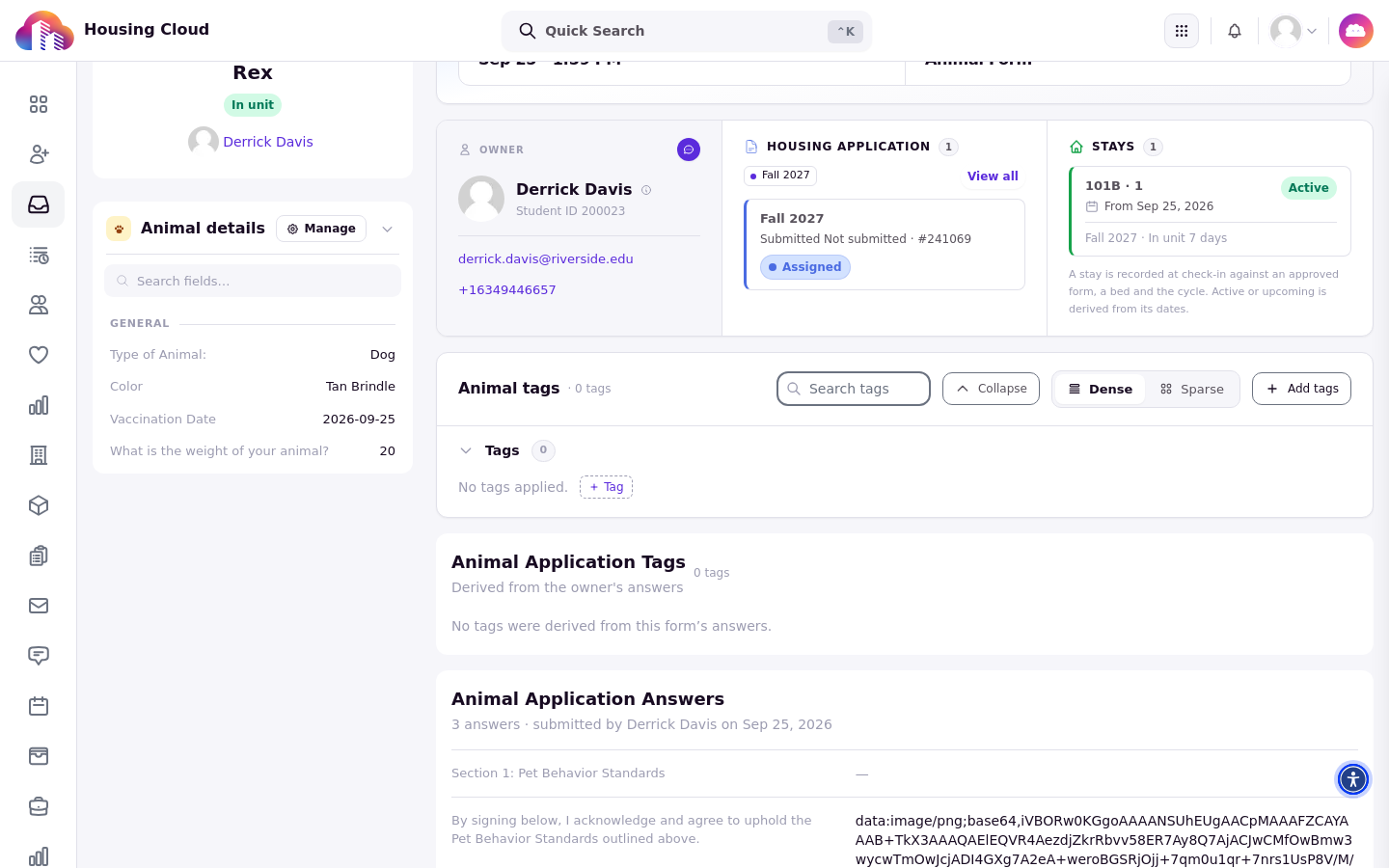
Open the application's detail page to review everything the student submitted before making a decision. The detail page shows the animal's information, its animal tags, and the form responses, including signature answers.
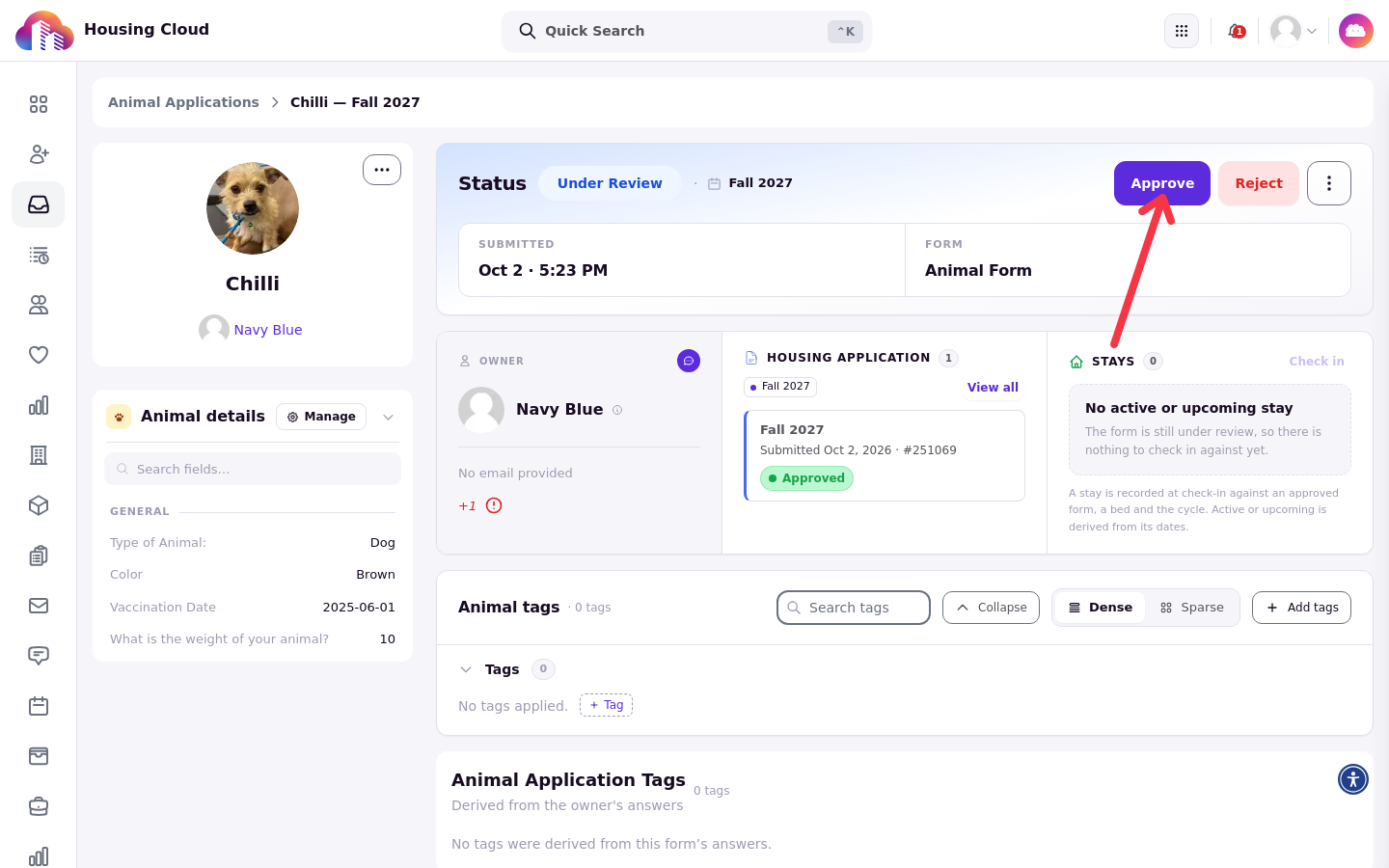
Status changes are made from the application's detail page or from the application's Animals tab, not from the table rows. Approving on the detail page sets the application to Approved.
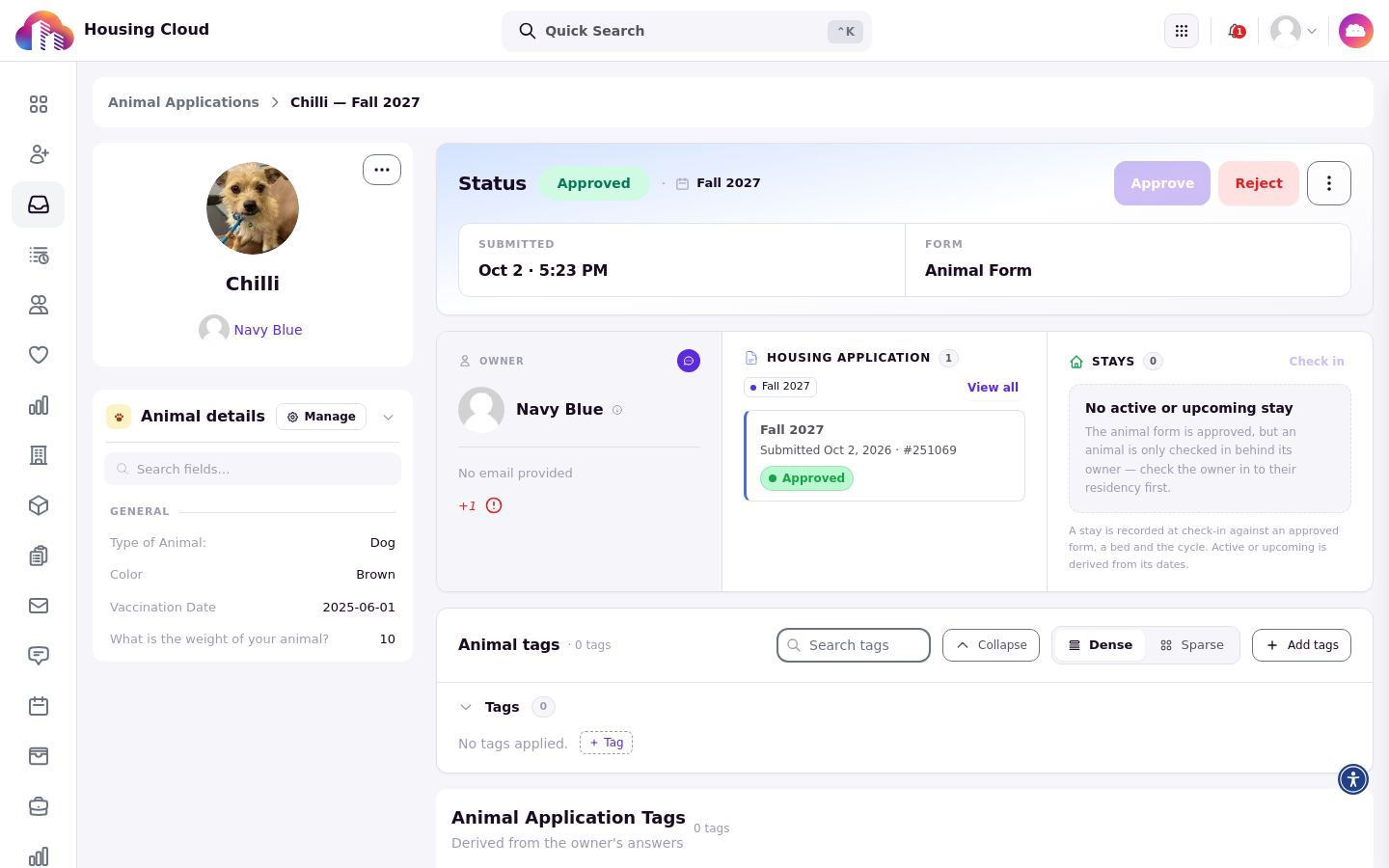
Once the approval is recorded, the status card on the detail page shows the application as Approved.
Changing status in bulk
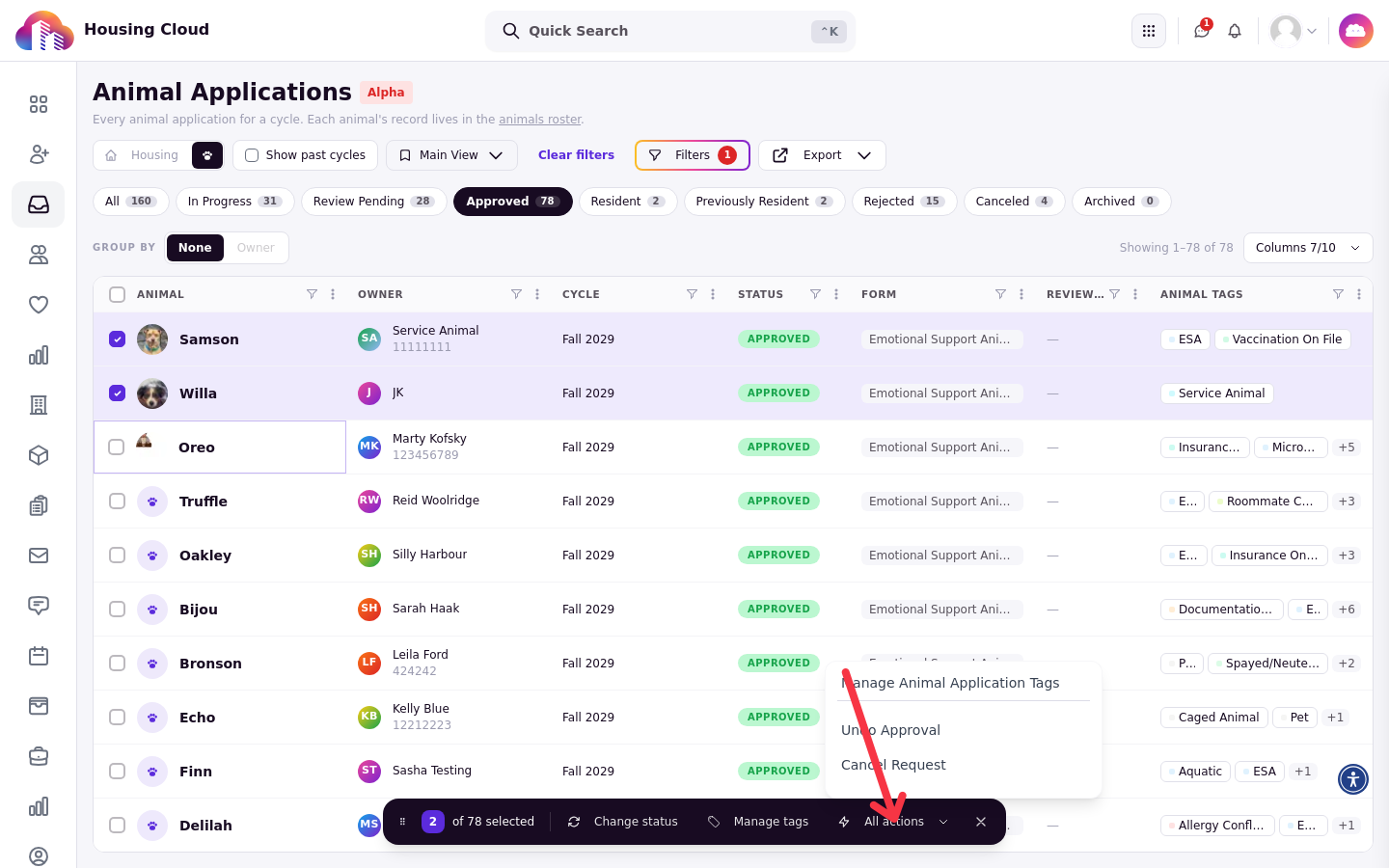
Select a group of applications in the table to open the bulk menu. The available actions are Approve, Reject, Cancel Animal Profile, Return to Applicant, Undo Approval, Undo Rejection, and Archive Animal Profile. The status actions offered depend on the selected status tab, so the menu shows only the actions that apply to the applications in view.
Managing animal application tags
In Animal Applications, selecting applications offers Manage Animal Application Tags, which edits tags on the applications themselves, not on the animals. To edit the tags on the animals, open the animal's record and use the Add tags action on its Animal tags card. Keeping the two separate matters when a tag describes the application process rather than a lasting attribute of the animal.
Creating an application on behalf of an owner
When a student needs to complete another application, for example for a second animal, you can start it for them instead of waiting for them to find it. Create Application on Behalf Of is available in the Actions menu on an animal's profile and in the header of its Forms card. On the Animals roster, selecting animals offers Create Applications on Behalf Of for bulk creation.
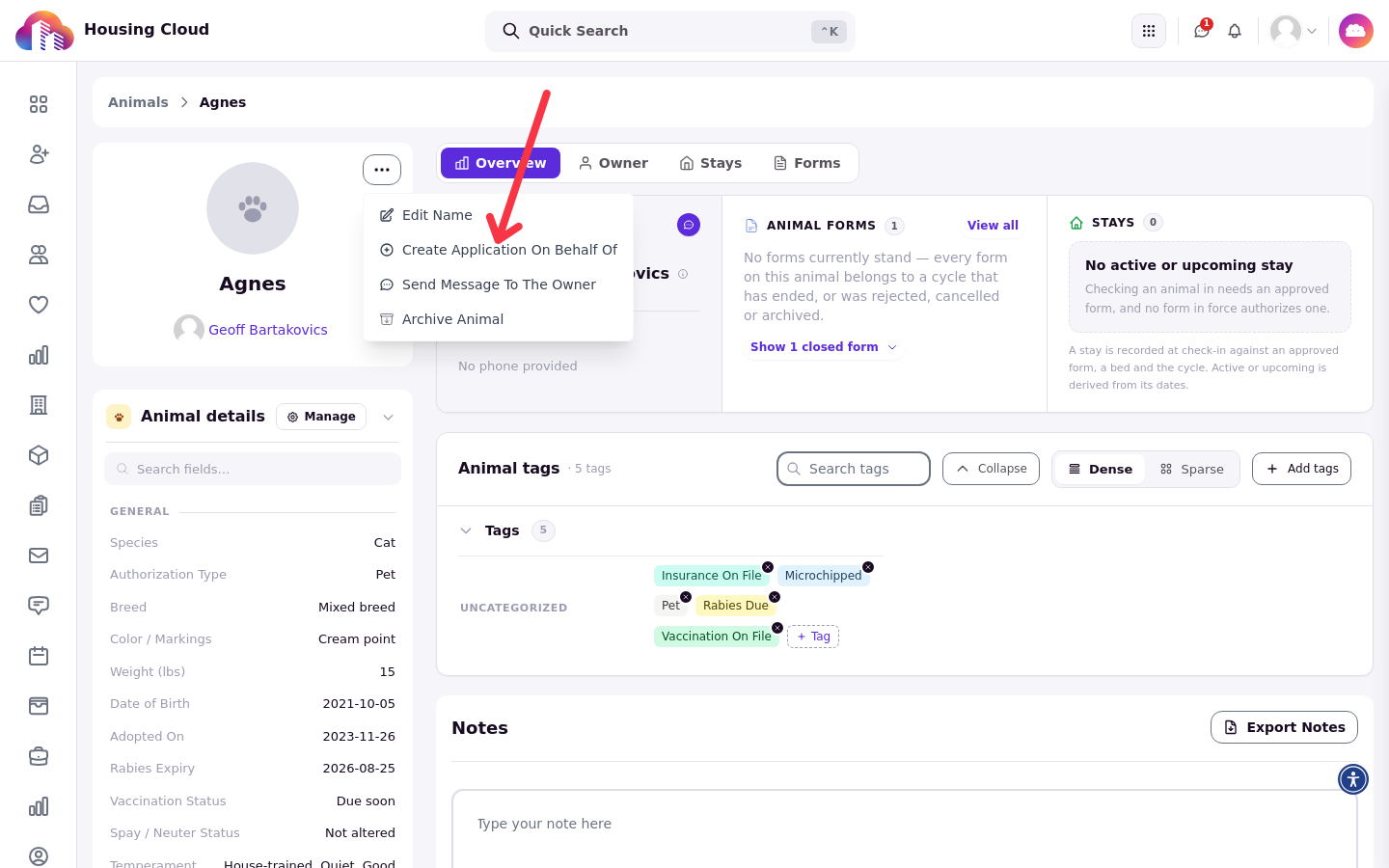
The action is disabled for archived animals with the message "Unarchive this animal before creating a new animal application". Unarchive the animal first, then create the application.
After approval
Once an application is approved, the animal is approved for that cycle. Check-in still happens with the owner's residency. Verify the outcome in Animal Applications, where the application's Status column now shows Approved.