Enable Animal Applications for a Housing Cycle
Last updated: October 8, 2026
Enabling an animal application form on a housing cycle makes that form available to eligible students in that cycle. You attach the form in Setup, under Cycles, and control whether it is optional or required and which students can see it.
Use this when your community collects animal applications, such as support animal agreements, service animal agreements, or pet-friendly housing contracts. The animal application form itself is created separately in the Form Builder; this article covers attaching it to a cycle and setting who must complete it.
Animal applications are tied to a housing cycle. This is how students encounter them: the form appears as part of their application process for that cycle, not as a standalone request.
Before you start
Make sure the following is in place before you attach the form to a cycle:
An animal application form has been published in the Form Builder with the Animals form type. Only forms published with this type are available on the cycle, so an ordinary application form will not appear.
If you plan to restrict the form by tag, you know which tag identifies eligible students, for example students already approved for emotional support animal accommodations.
Open the Animal Applications section
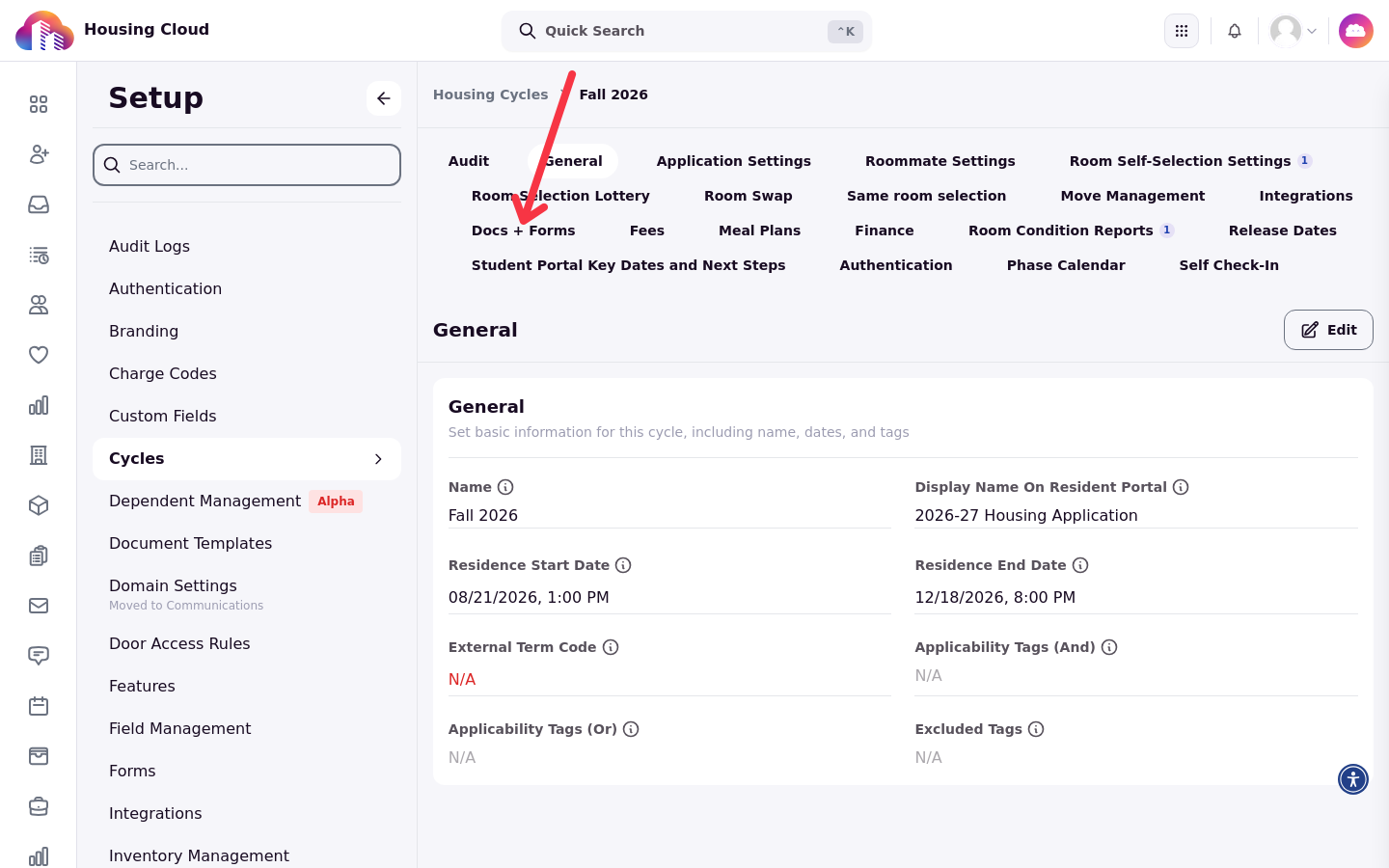
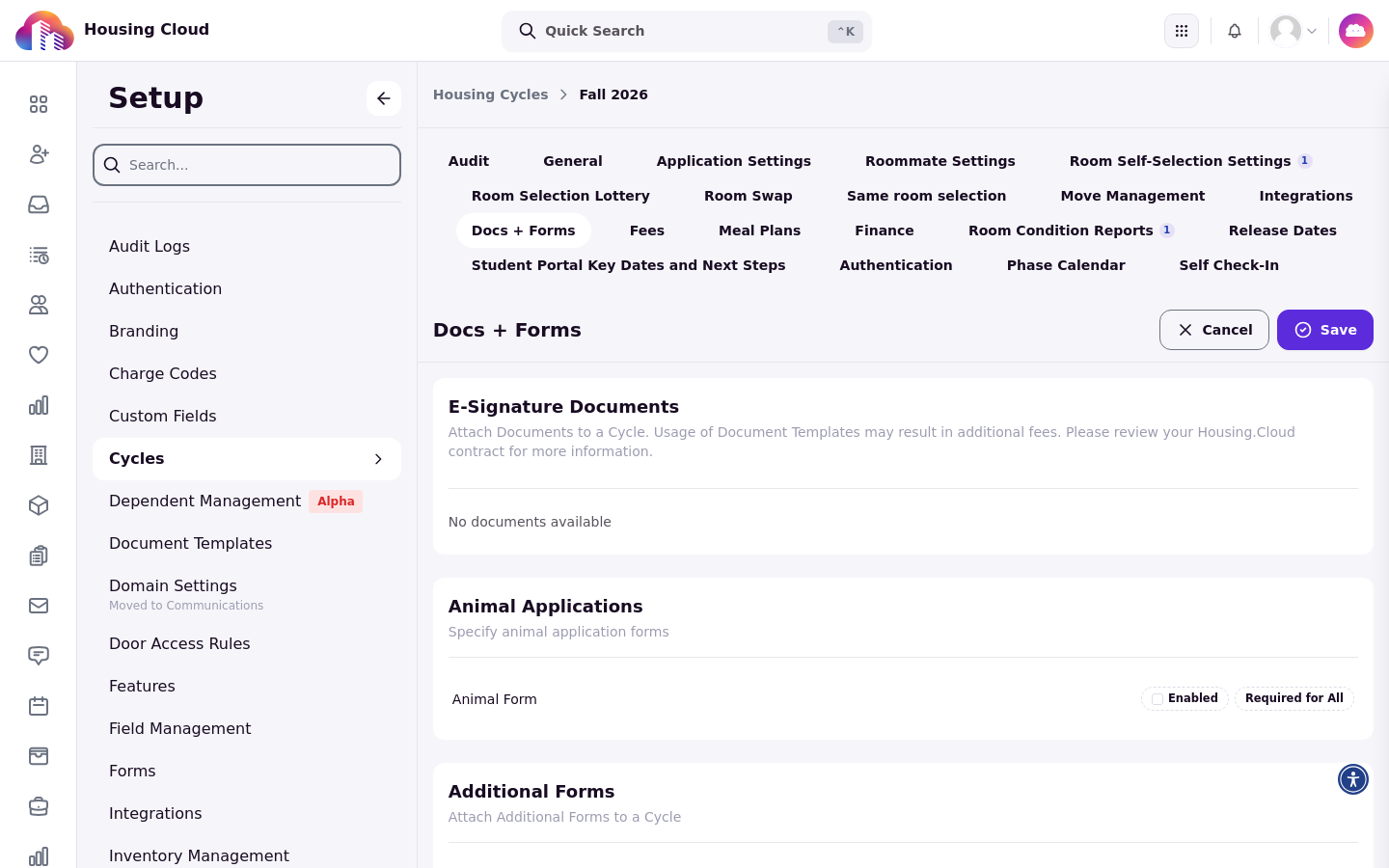
Animal applications are attached to a cycle in Setup, under Cycles. Open the housing cycle you want to configure, then open the Docs + Forms tab. The Animal Applications section carries the subtitle Specify animal application forms.
The section lists every form published with the Animals form type. If no form has been published with that type, the section is empty, and republishing the form as an animal application is the only way to populate it.
Enable the form
Each listed form has an Enabled toggle. Turning it on makes the form available to eligible students in that cycle.
An enabled form is live for any student who meets the eligibility rules described below, so confirm the form content before turning it on.
Mark the form as required
The Required for All toggle marks the form as required. Required means any student who has access to the form must complete it.
The Required for All toggle is only interactive when the form is enabled and the cycle is editable. If the toggle is not clickable, check that Enabled is on and that the cycle is not locked.
Limit who can apply by tag
Under an enabled form, Limit to tags: restricts access to students who have a selected tag on their profile or application. This controls who can apply, so you can limit the form to students whose eligibility has already been confirmed, such as students approved for emotional support animal accommodations.
A student must have the selected tag on their profile or application to see the form.
Use multiple forms in one cycle
Multiple animal application forms can be enabled in the same housing cycle. Each form can carry its own terms and conditions.
Institutions often use separate forms for different animal types, such as support animals, service animals, and pet-friendly housing, because the agreements you need students to sign differ for each type.
What changes after you enable
The enabled form appears for eligible students in the Additional Docs area of their application for that cycle. When tags are configured, students must have every selected tag to see the form. If no tags are configured, all eligible students can see it.
To verify the setup, reopen the housing cycle in Setup > Cycles > Docs + Forms > Animal Applications and confirm the form shows Enabled, and Required for All where you set it.