Billing Schedules Overview
Last updated: August 28, 2026
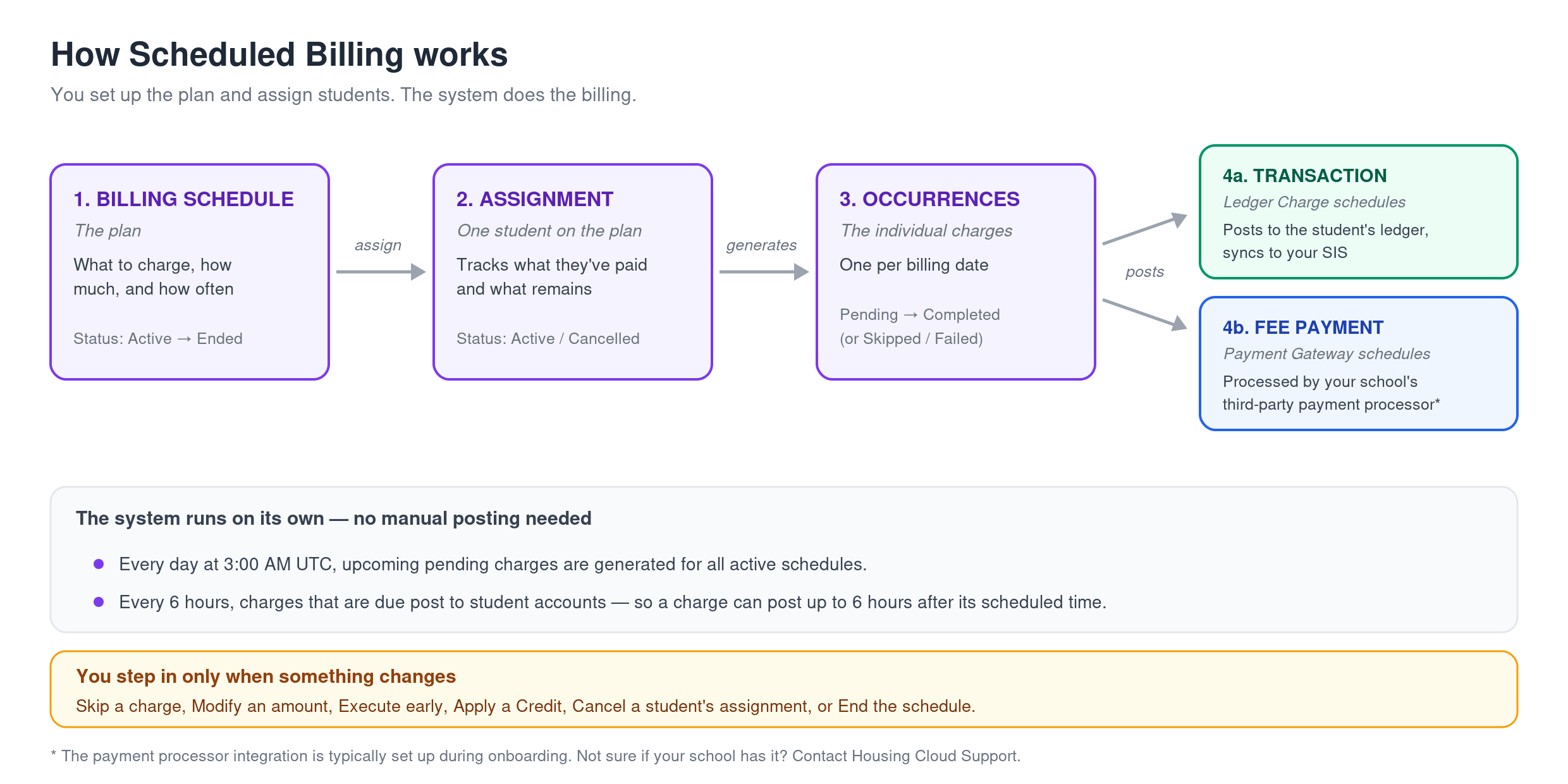
Billing Schedules automates recurring charges on student accounts so your team does not have to post each transaction manually. You define a schedule once—what to charge, how much, and when—and the system generates and processes individual charges on its own. Use it for monthly rent installments, weekly parking fees, payment plans, or any charge that repeats on a fixed cadence.
Billing Schedules fits into the broader finance model alongside one-time fees and automated assignment costs. Where fees trigger at specific workflow events (such as application submission) and assignment costs post when a student receives a room, schedules handle charges that repeat over time regardless of housing actions.
How Billing Schedules work
Schedules
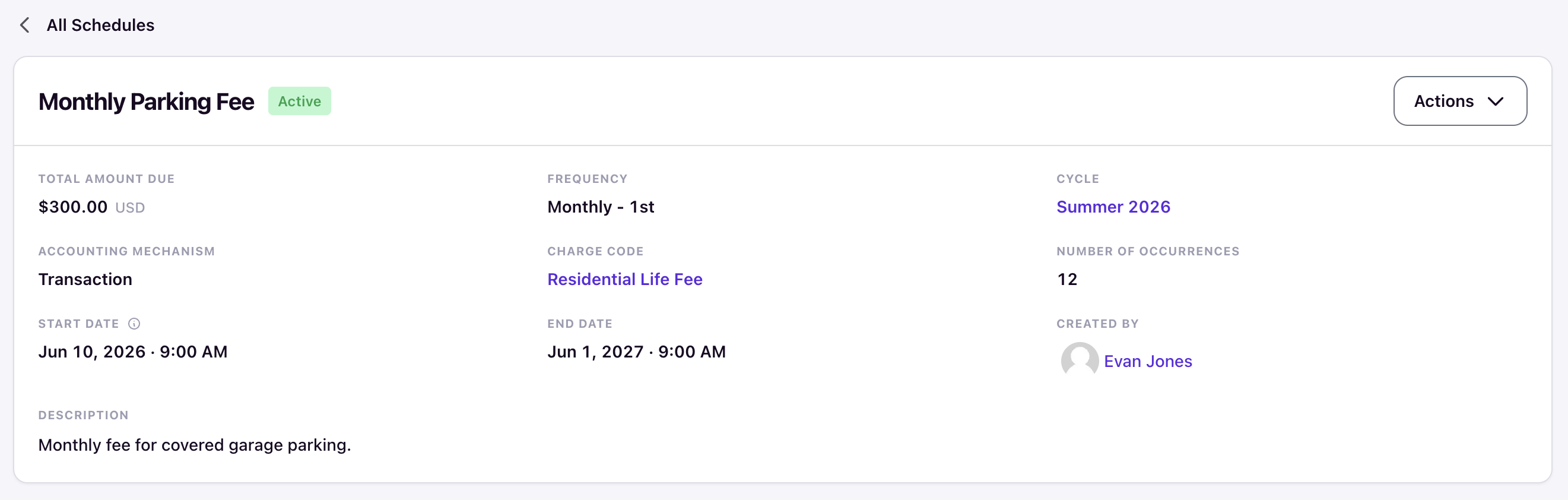
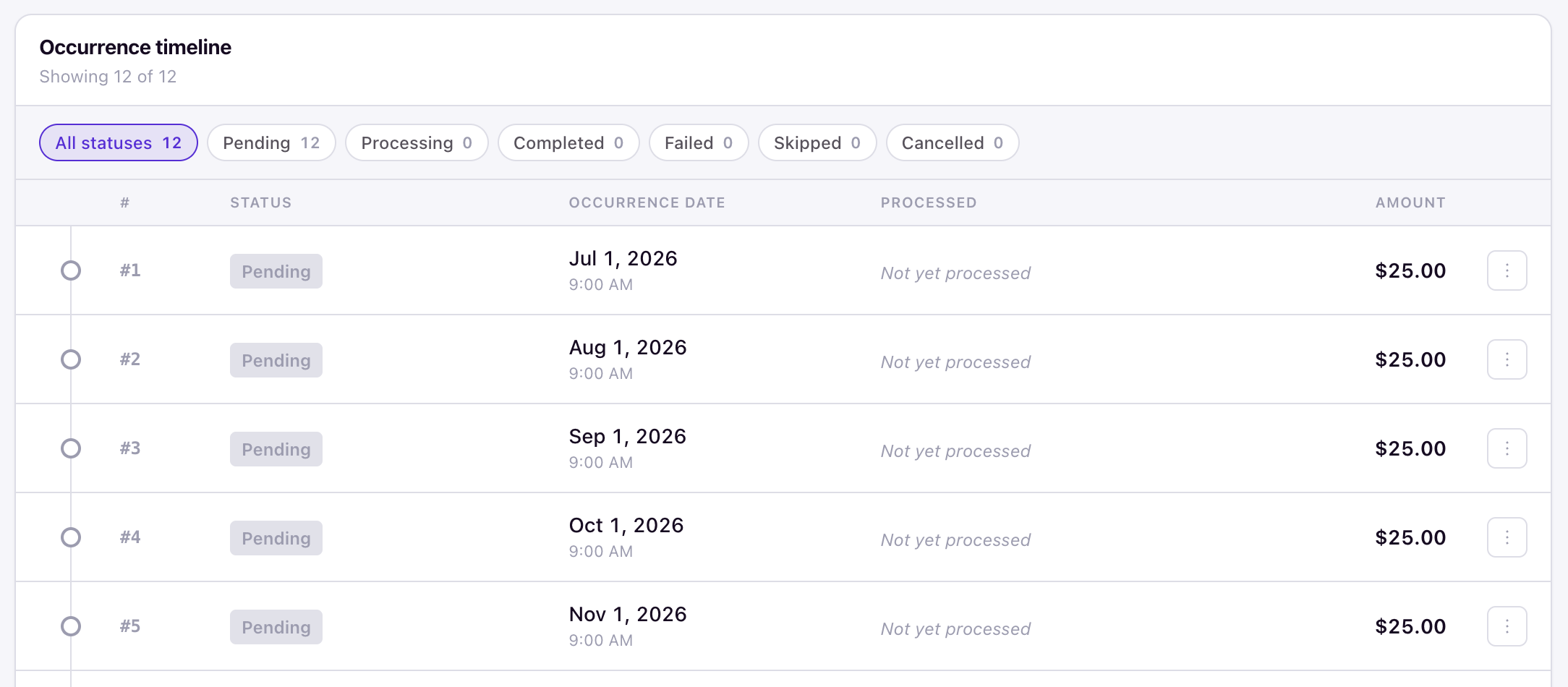
A billing schedule is the template that defines what gets charged, how much, and when. You set the Total Amount Due, the Frequency, the Start Date, and the Number of Occurrences. The system divides the total amount evenly across the occurrences — for example, a $300.00 schedule with 12 monthly occurrences generates twelve $25.00 charges — and calculates the End Date automatically.
Assignments
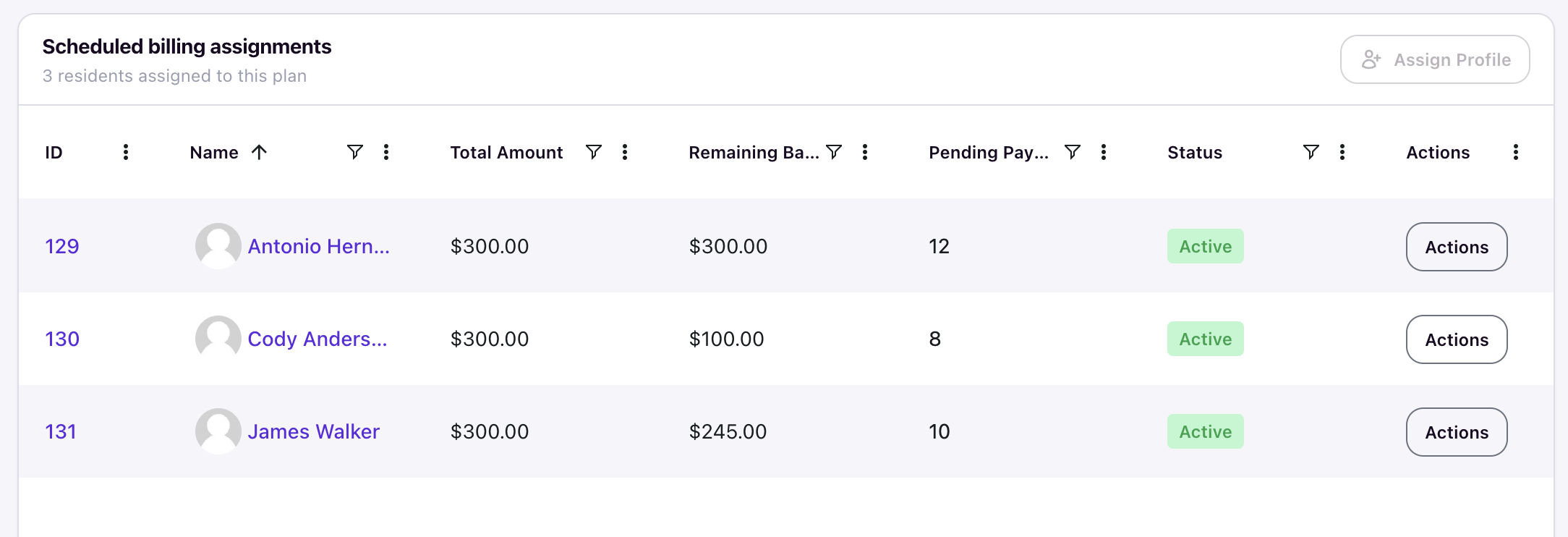
An assignment connects a billing schedule to a specific student profile. When a student is assigned to a schedule, Housing Cloud tracks how much has been collected and how much remains. Each assignment can carry its own total, so one student's amount can differ from the schedule default. A student can only be assigned to the same schedule once — attempting a duplicate shows "Profile is already assigned to this schedule."
Occurrences
Each individual charge generated by a schedule is called an occurrence. Every occurrence has its own scheduled date, effective date, amount, and processing status. You can view, execute, skip, or modify individual occurrences without changing the rest of the schedule. When an occurrence is processed, it creates a transaction on the student's ledger and links to it directly.
Automated background jobs
Housing Cloud runs two automated jobs in the background to keep billing moving without manual intervention.
Daily at 3:00 AM UTC — the system looks ahead and generates upcoming pending occurrences for all active schedules. This prepares the charges before they are due.
Every 6 hours at 12:00 AM, 6:00 AM, 12:00 PM, and 6:00 PM UTC — the system picks up any occurrences that are due and posts them to student accounts. Because of this cadence, there can be up to a 6-hour delay between a charge's scheduled date and when it actually posts and creates in system. This is expected behavior. You do not need to trigger posting manually.
If an occurrence fails to post, it is marked Failed. Failures are most often related to fee payment generation and issues with the integrated third-party payment processor. You can filter the occurrence timeline by Failed status to review these charges.
Schedule statuses
Every billing schedule has a status that controls what the system will do with it next.
| Status | What it means |
|---|---|
| Active | The schedule is running. Occurrences are being generated and processed. |
| Ended | The schedule ran to completion or was ended manually. Ended schedules cannot be edited or resumed. |
There is no pause or cancel at the schedule level — the lifecycle is Active → Ended. To stop billing a specific student, cancel their assignment instead; to stop a single charge, skip the occurrence.
Ended schedules are visible when you enable the Show Completed Billing Schedules toggle in the Billing Schedules tab.
Where to find Billing Schedules
Scheduled Billing appears in several places across the admin portal so you can manage it from the view that matches your current task.
Billing Schedules Section
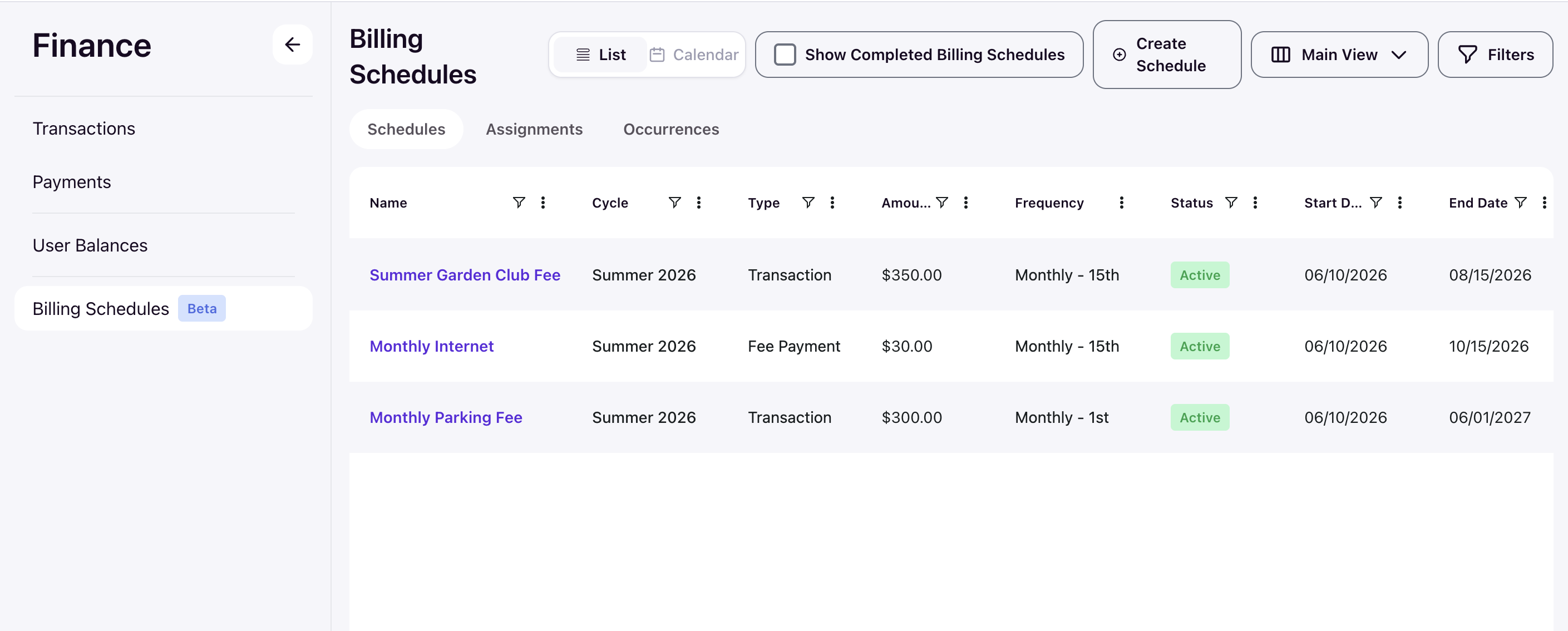
Your primary workspace, under Finance in the left navigation.
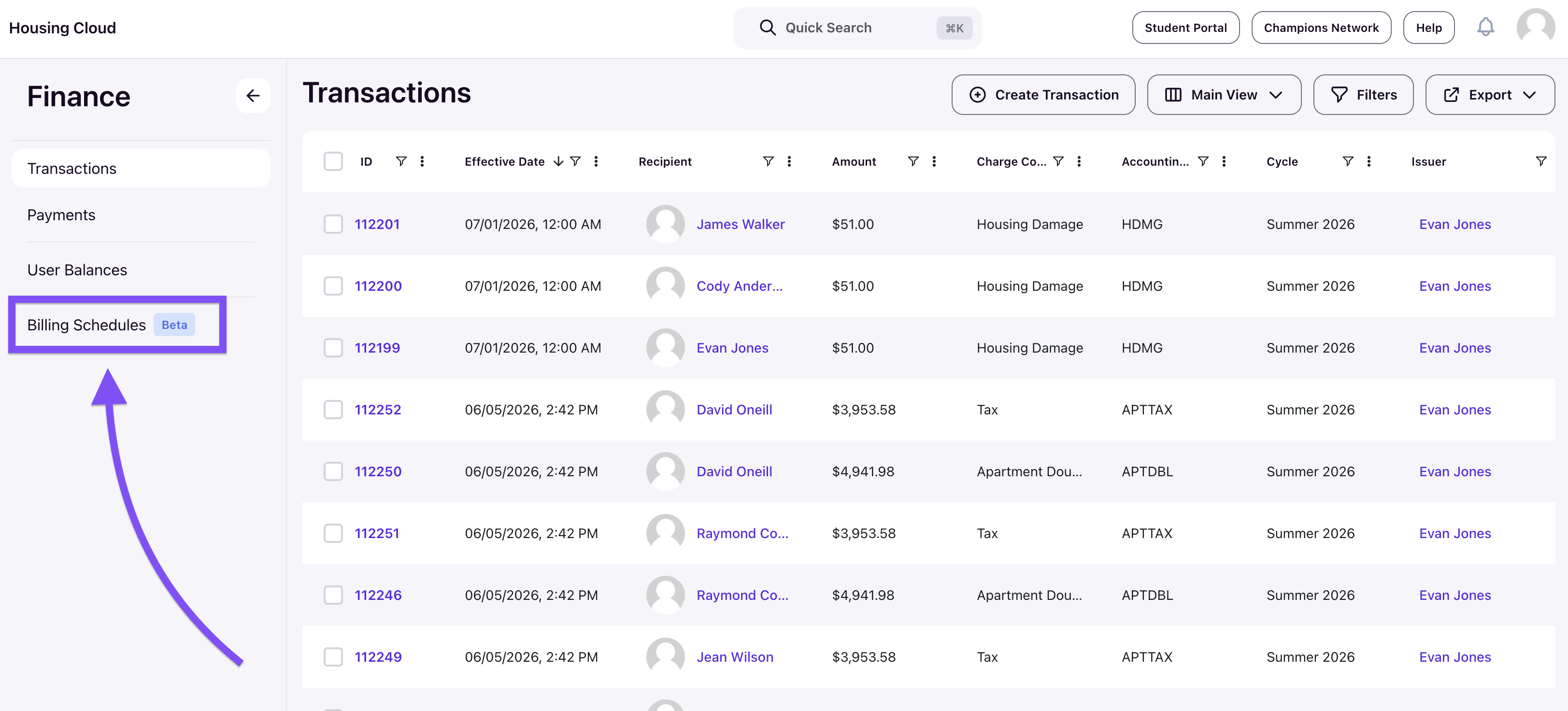
It contains three tabs — Schedules, Assignments, and Occurrences — plus a List/Calendar view toggle and the Show Completed Billing Schedules toggle. Open any schedule to view its details and assigned residents.
Student Profile
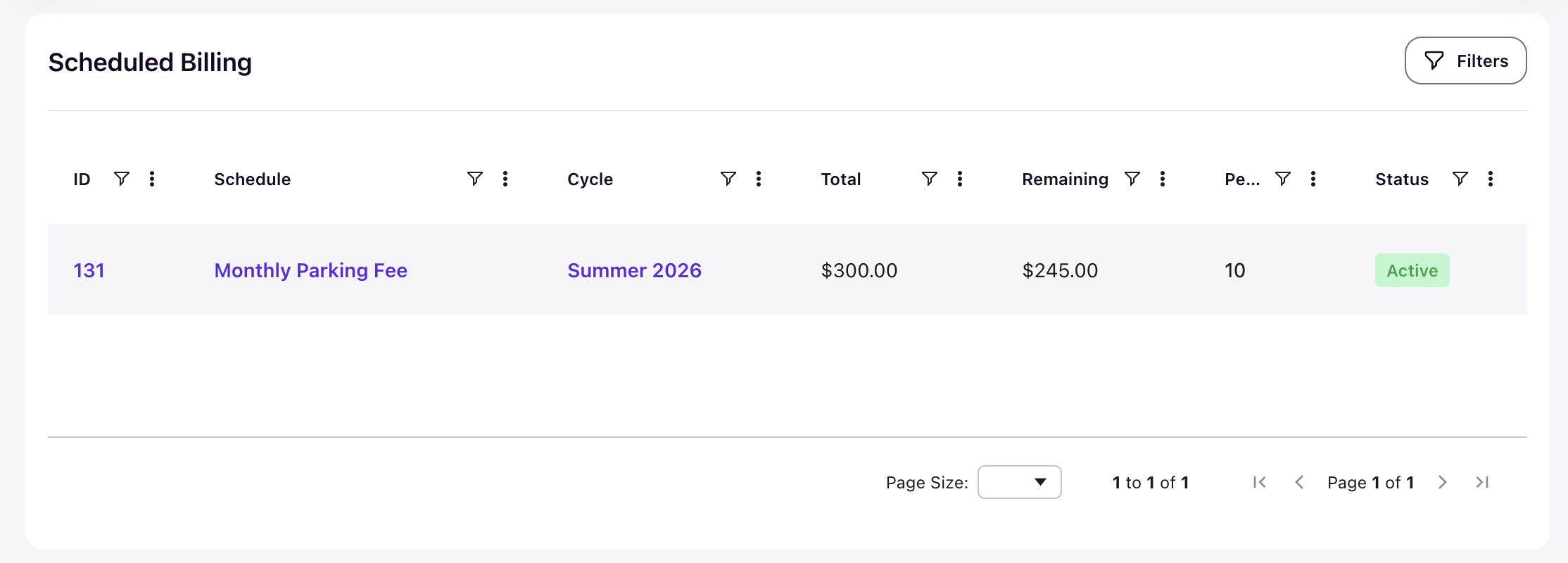
Each student's profile includes a Scheduled Billing card listing their schedule assignments with total, remaining balance, pending count, and status.
User Balances
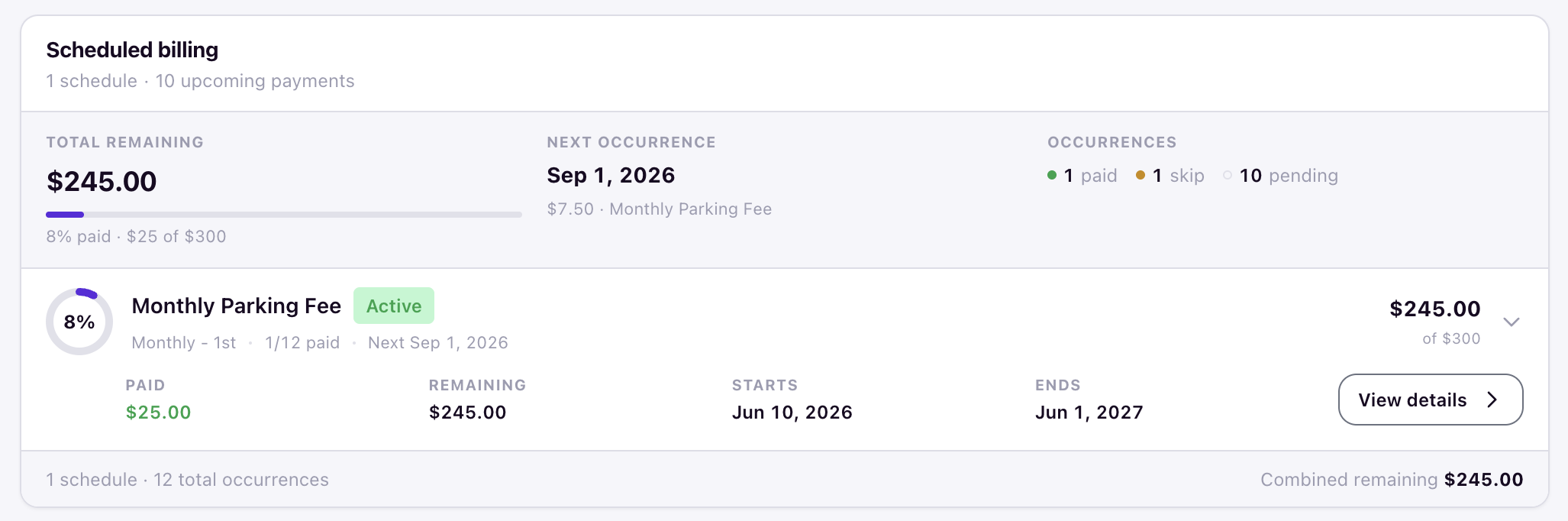
The balance view includes a Scheduled billing card showing the student's total remaining across all schedules, a progress bar, the next occurrence (date, amount, and schedule), occurrence counts (paid / skipped / pending), and a per-schedule breakdown with paid and remaining amounts, start and end dates, and a View details link.
Calendar View
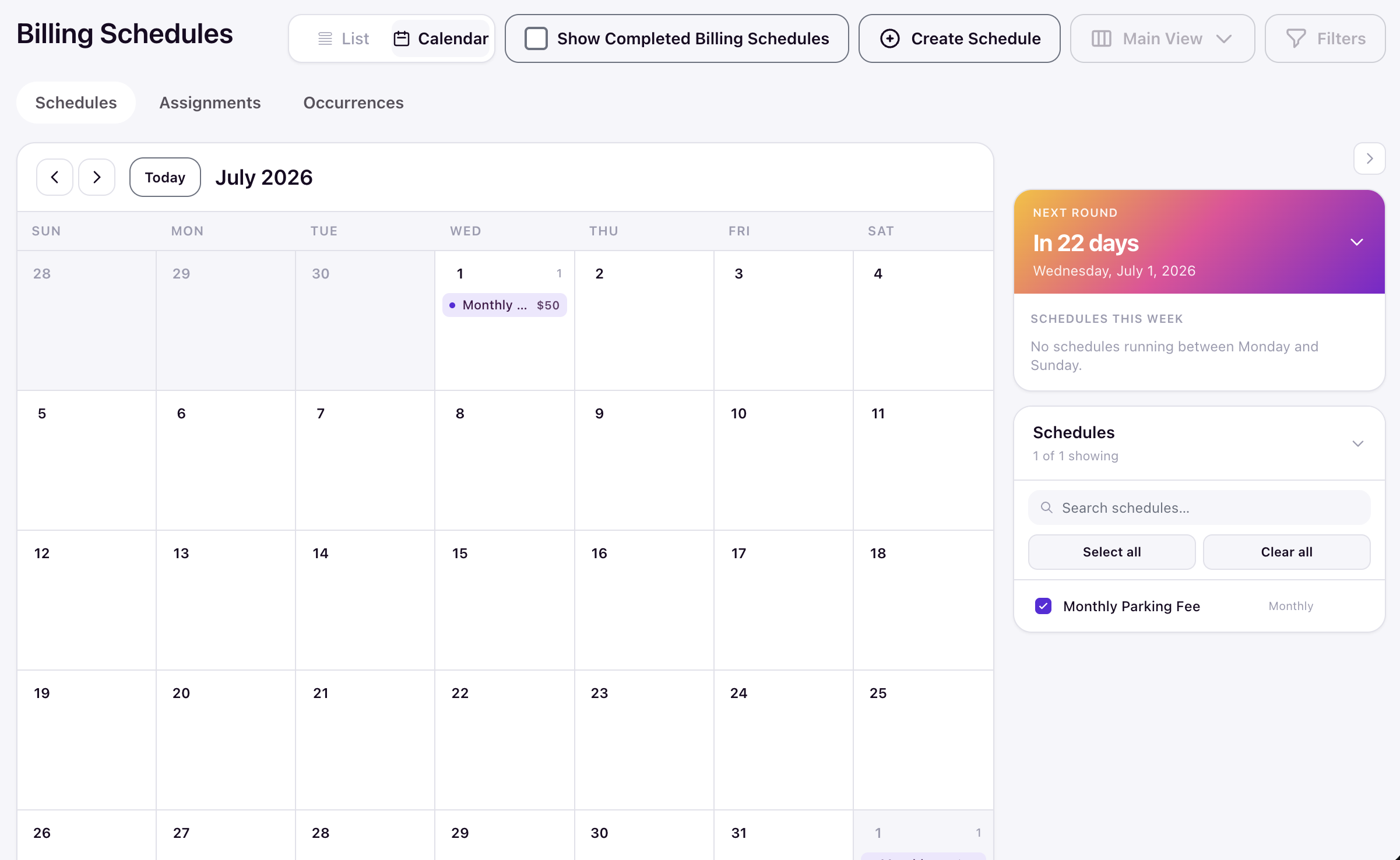
Visualize upcoming billing rounds on a calendar. Click a round to see its total, per-assignment amount, cycle, frequency, assignment count, and the next round dates, with a Schedule details link. A Next Round panel counts down to the next billing date.