Apply a credit to a scheduled billing assignment
Last updated: October 2, 2026
A credit reduces what a student owes under a scheduled billing assignment — for example, compensating for a service interruption or honoring a waiver. Applying a credit posts a Credit (Refund/Payment) transaction to the student's ledger and lets you adjust the student's upcoming occurrences to absorb the credit, all in one guided flow.
Credits apply to an individual student's assignment, not to the schedule as a whole. Other students on the same schedule are not affected.
This workflow differs from skipping or modifying a single occurrence from the timeline because it ties the adjustment to a credit record with a reason, a billing code, and a ledger transaction.
Check eligibility before starting
- The student must have an active assignment on the schedule.
- The assignment must have pending occurrences available to modify or cancel.
- You must know the credit amount and the reason for the credit.
Open the Apply Credit wizard
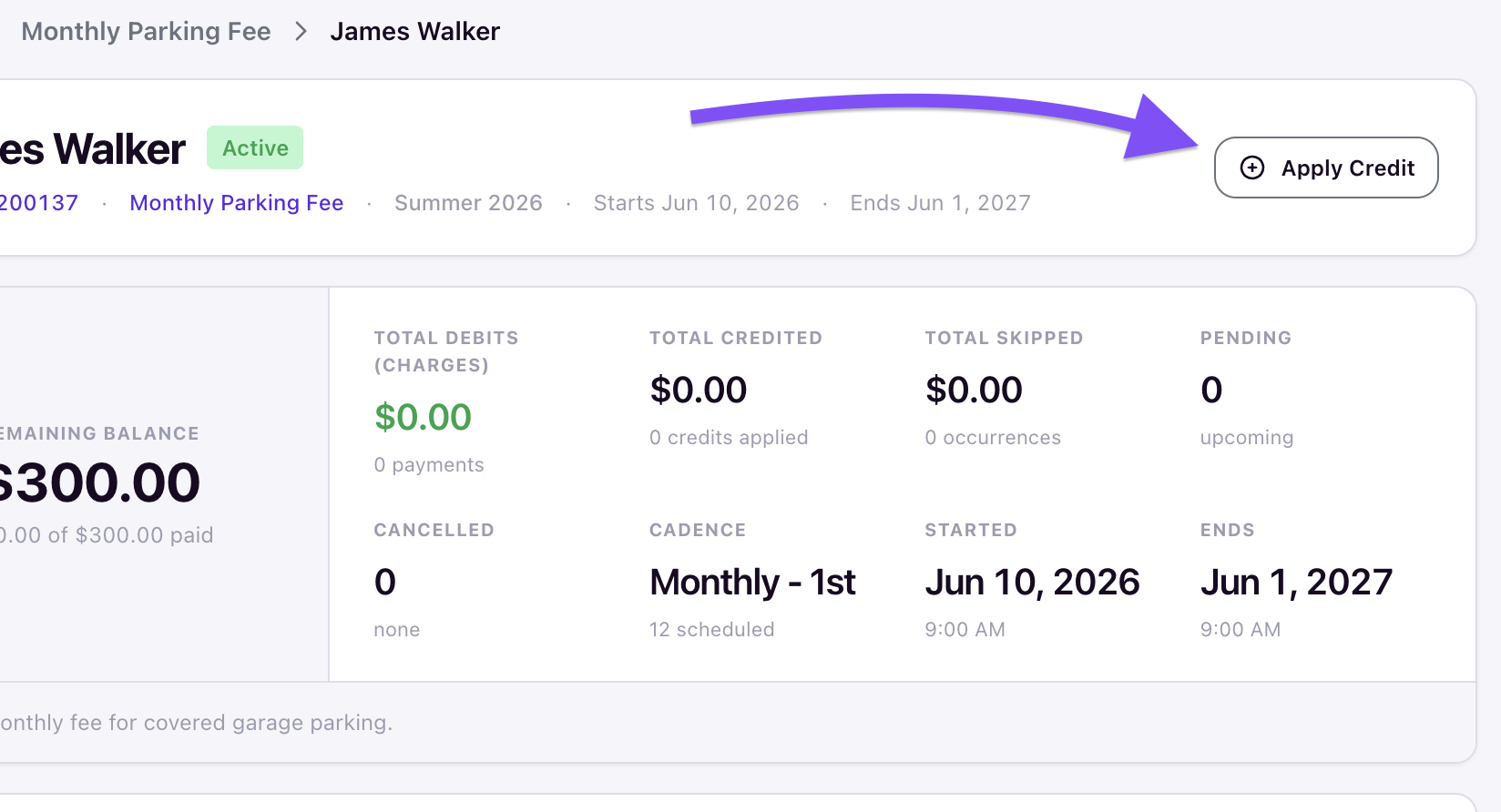
Open the schedule from the Billing Schedules tab, click the student in the assignments table, and click Apply Credit at the top of their assignment page.
Enter credit details
The first step collects the credit itself.
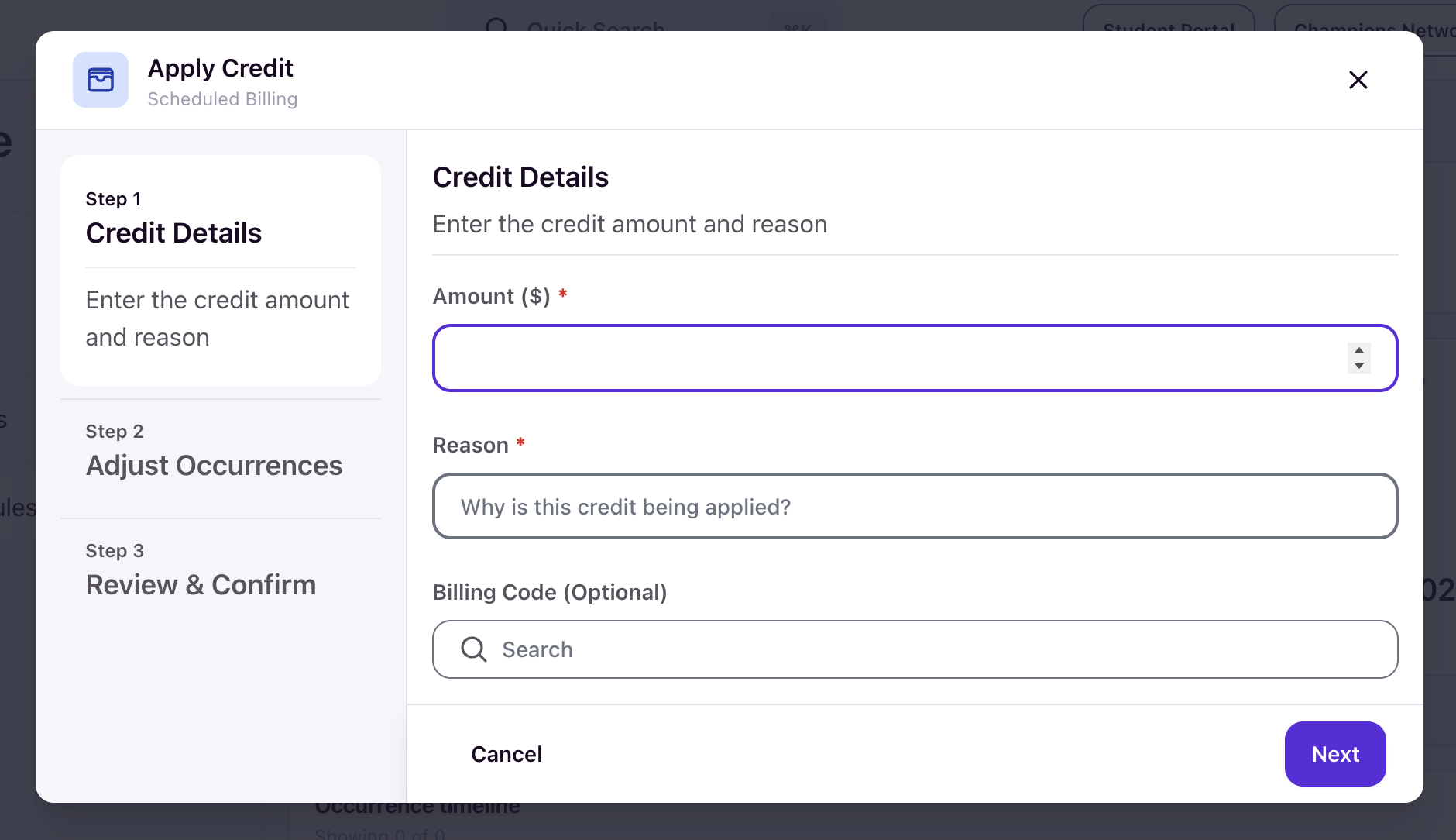
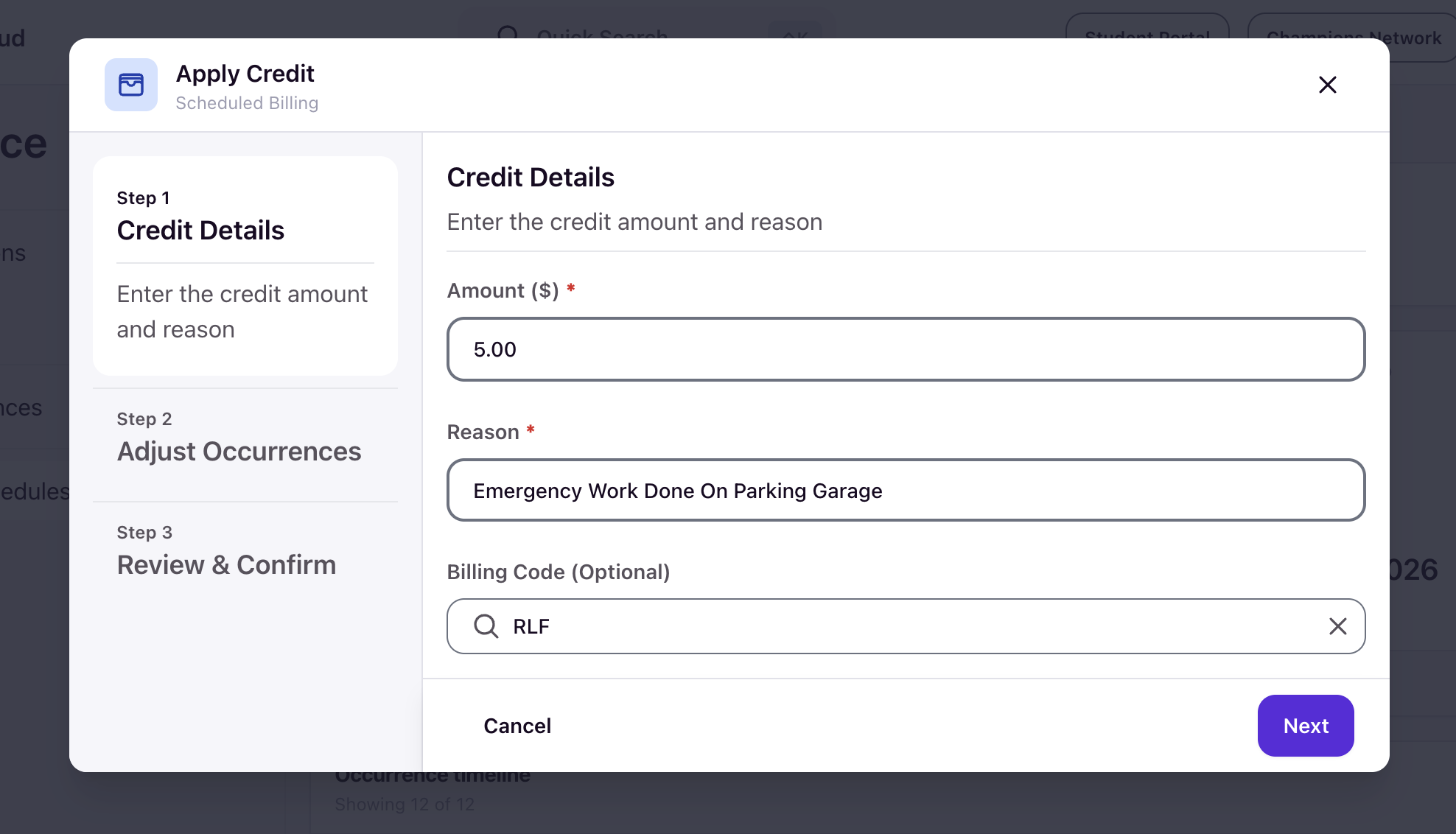
- Amount ($) — the credit amount.
- Reason — why the credit is being applied (required; shown on the credit record and the resulting transaction).
- Billing Code (Optional) — search for a billing code to associate with the credit, such as RLF.
Click Next to continue.
Adjust occurrences
This step lets you optionally cancel or modify the student's pending occurrences so their remaining charges reflect the credit. A summary bar tracks Credit Available, Applied To Schedule, and Remaining Credit, with a utilization meter that fills as you distribute the credit. For each pending occurrence, choose:
No change — leave the charge as scheduled (default).
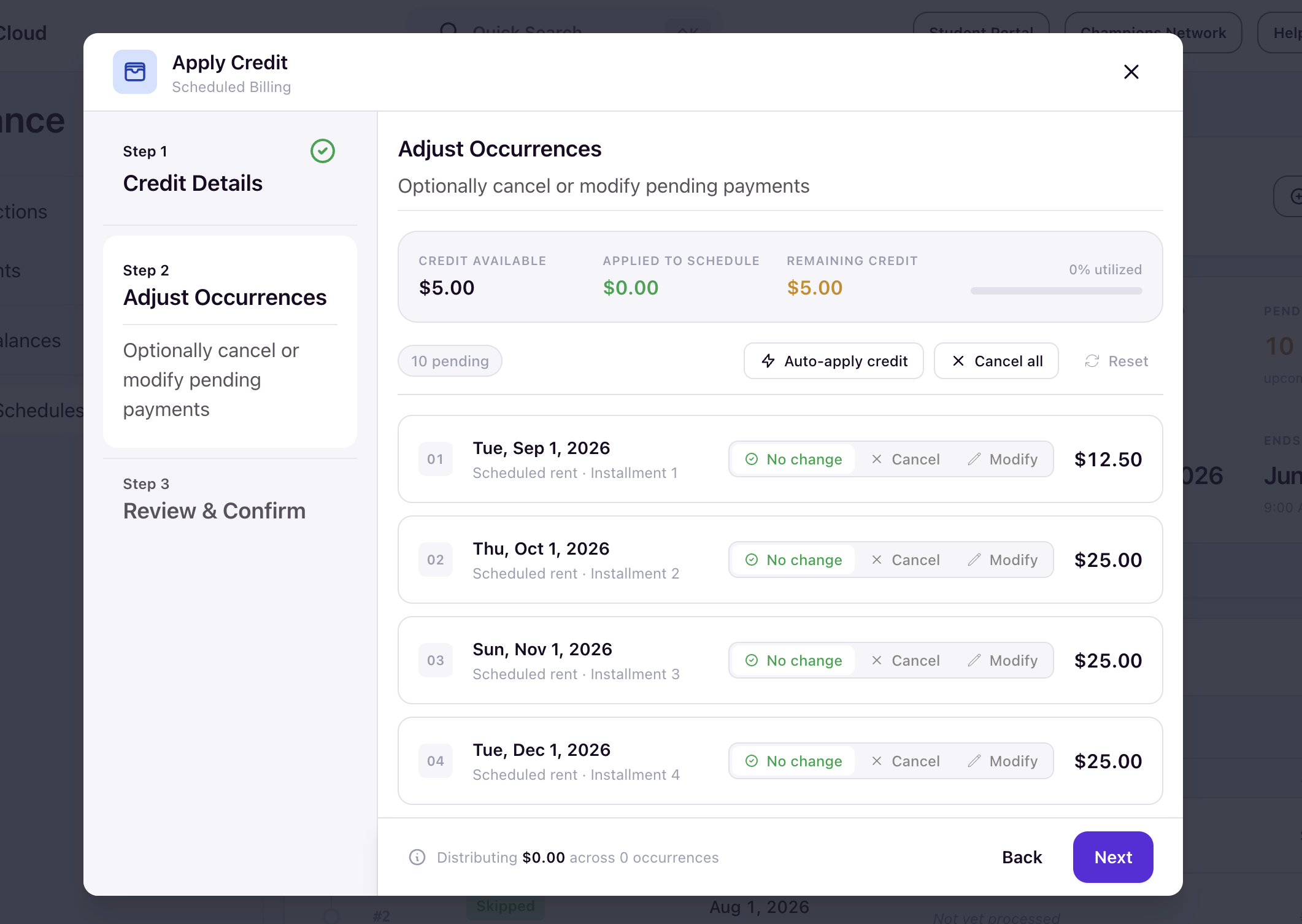
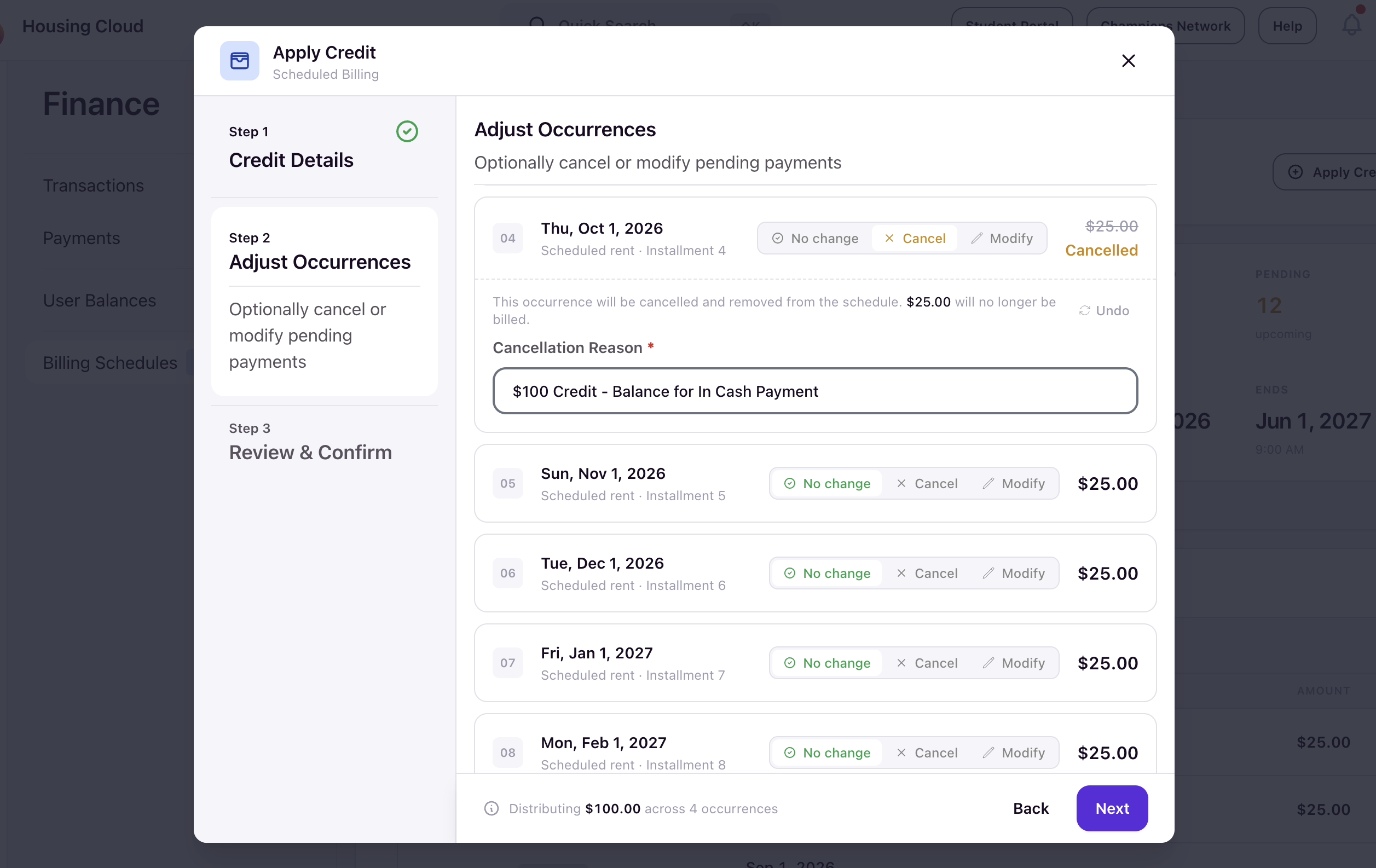
Cancel — remove the charge from the schedule entirely. The row confirms the occurrence will be cancelled and removed from the schedule and that its amount will no longer be billed. A Cancellation Reason is required.
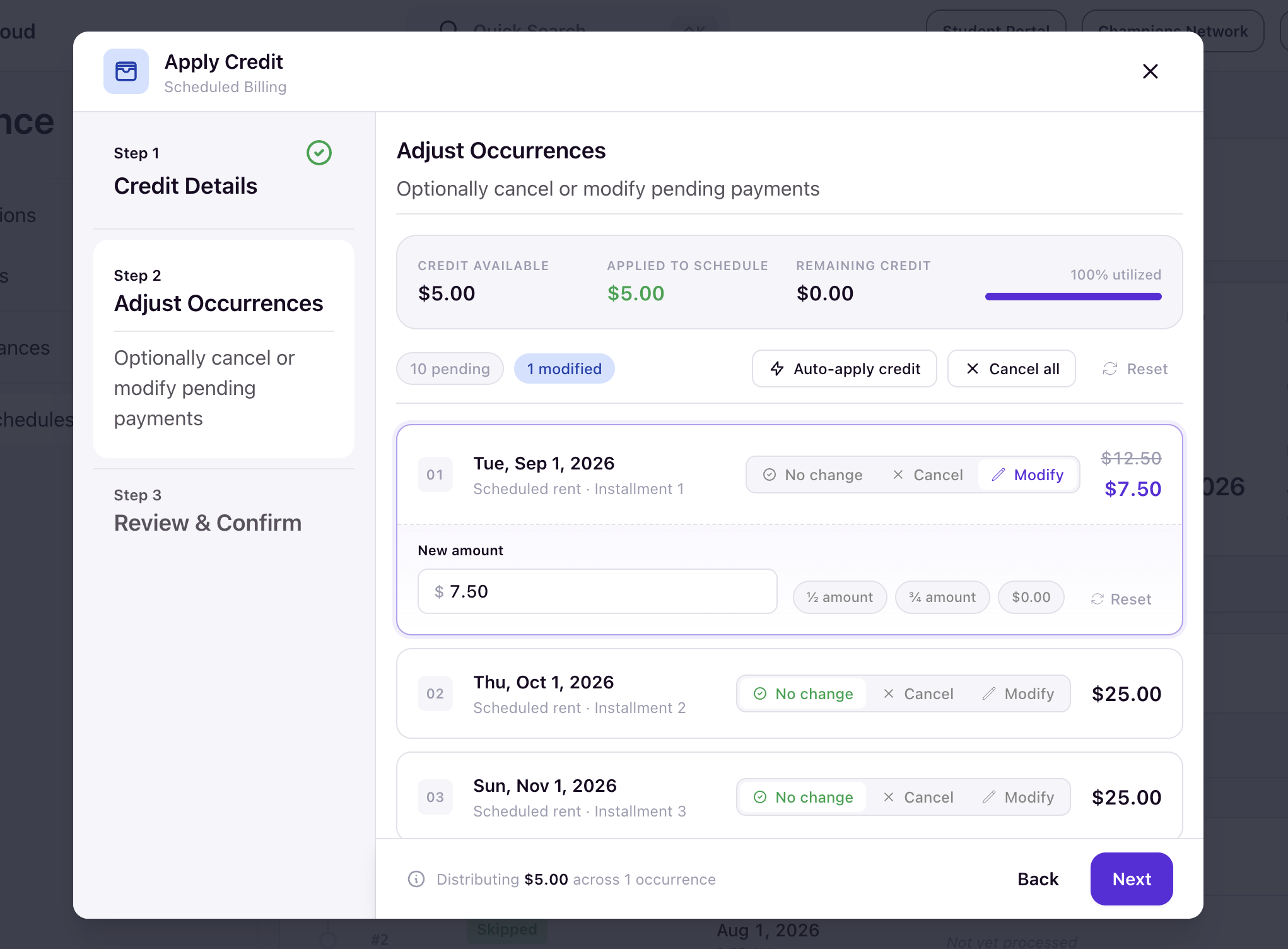
Modify — reduce the charge. A New amount field opens with quick-set shortcuts: ½ occurrence amount, ¾ occurrence amount, and $0.00. The original amount displays struck through next to the new one.
Three bulk controls sit above the list:
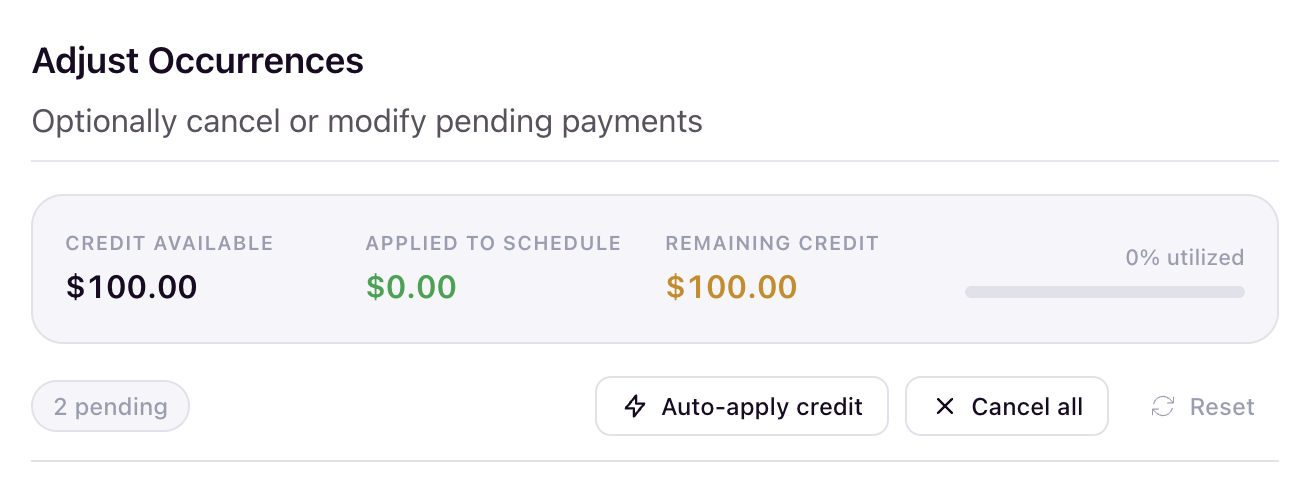
- Auto-apply credit — distributes the credit across pending occurrences automatically.
- Cancel all — cancels every pending occurrence.
- Reset — clears your pending credit adjustments.
The footer shows a running tally, such as Distributing $X.XX across Y occurrence.
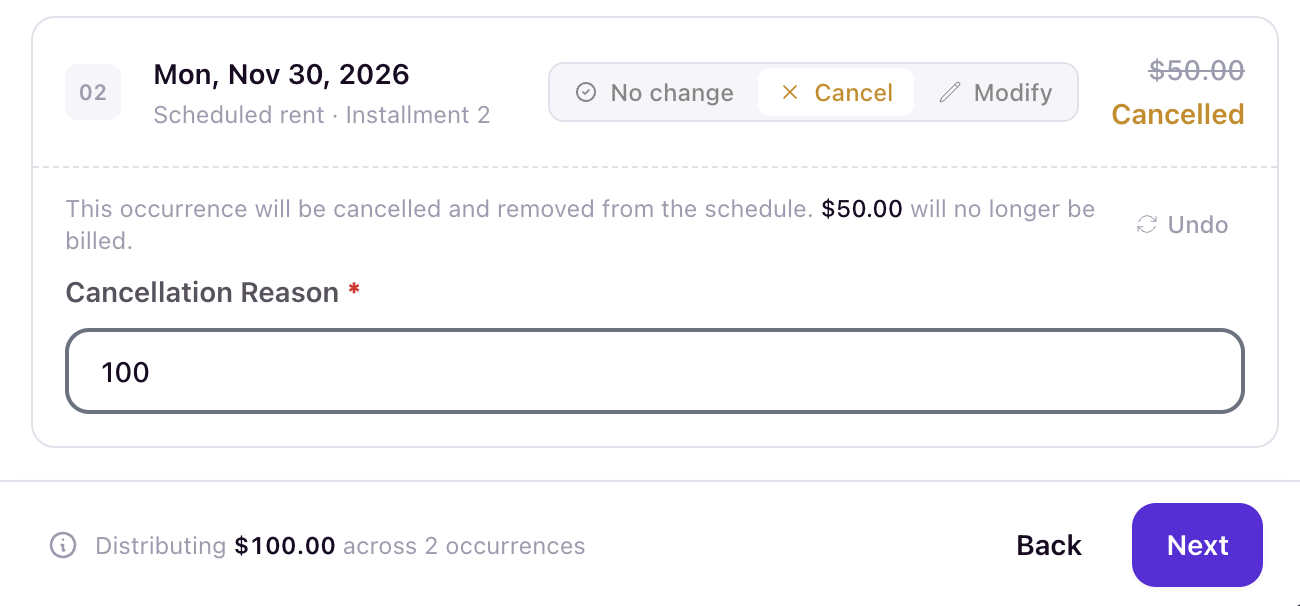
Click Next when you are finished.
Review and confirm
Review everything before applying:
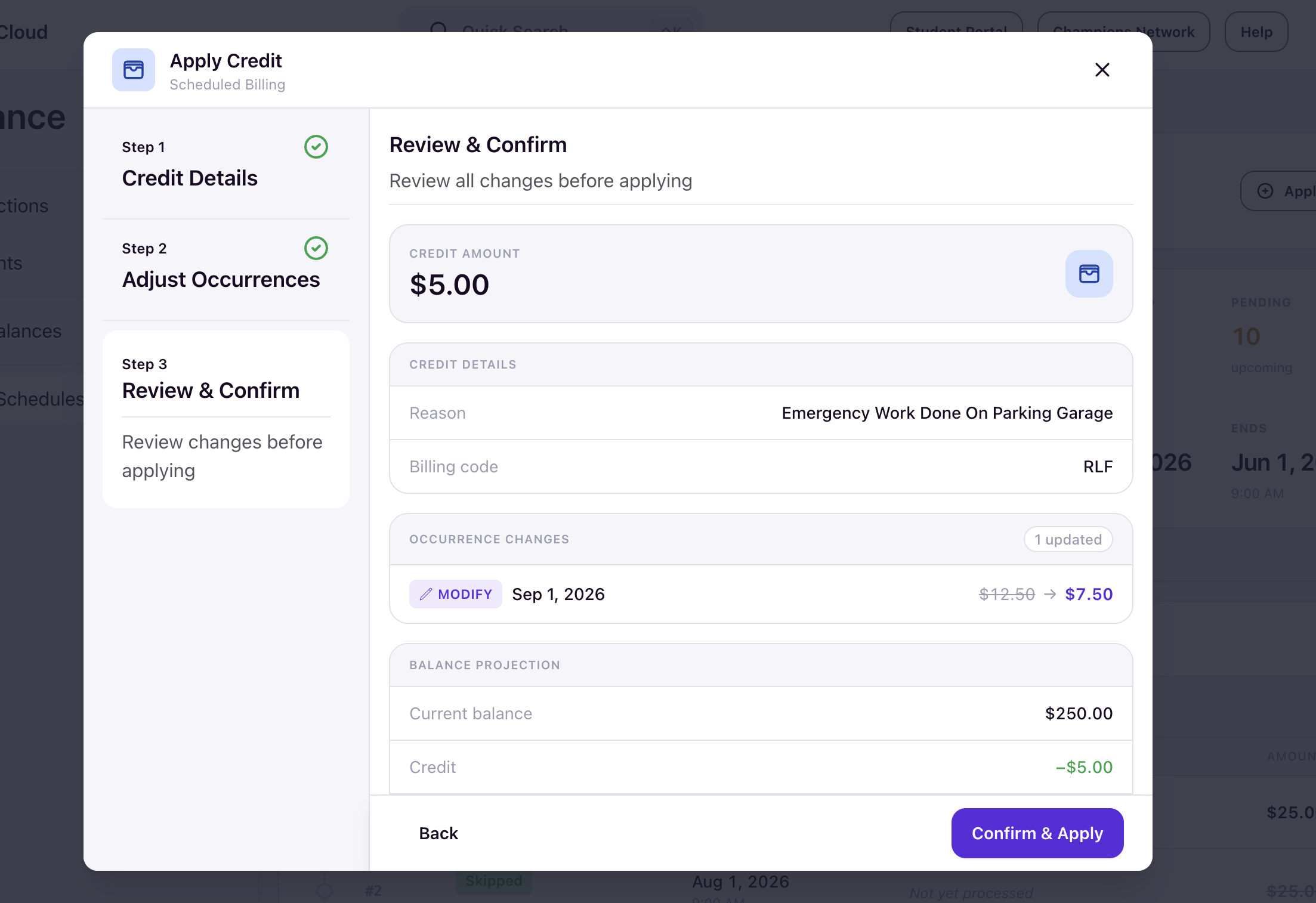
- Credit Amount
- Credit Details — reason and billing code
- Occurrence Changes — each labeled Modify or Cancel with its reason
- Balance Projection — showing the current balance, the credit, and the projected balance
If you cancelled occurrences, a note summarizes the total being removed and reminds you that Cancelled occurrences are not paid by the credit and do not reduce the balance owed.
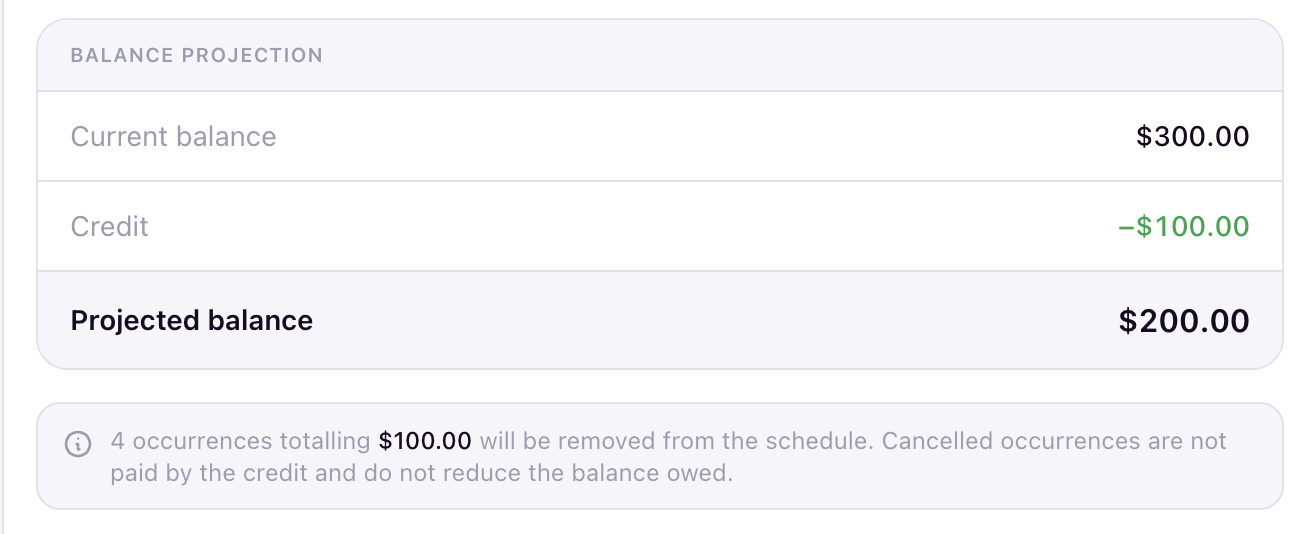
Click Confirm & Apply to finalize the credit.
What happens after you apply
The student's assignment stats update immediately. Total Credited increases, and the Remaining Balance and percent-paid ring recalculate.
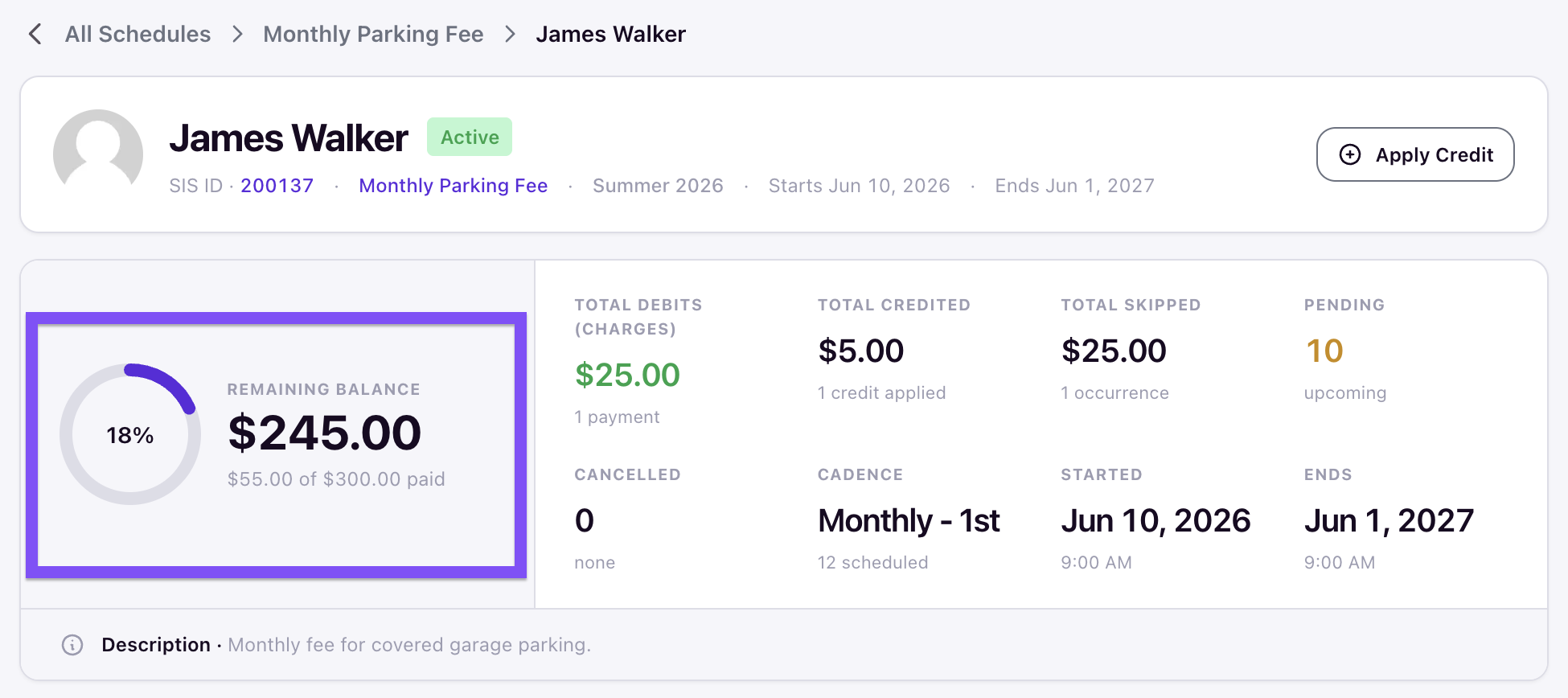
An Applied credits table on the assignment page records the credit with its ID, date, reason, and amount, plus a View link to the transaction.

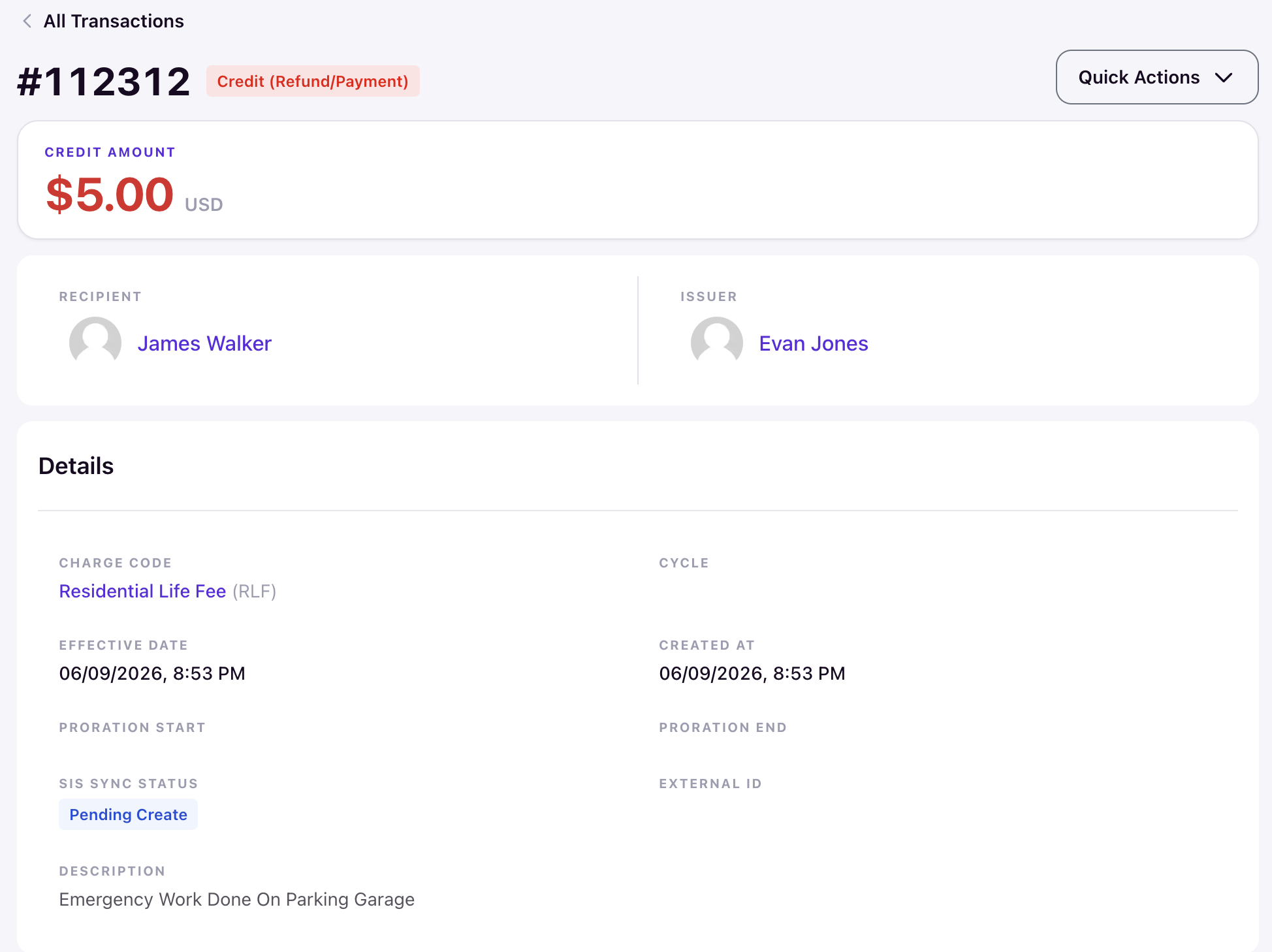
The credit posts to the student's ledger as a Credit (Refund/Payment) transaction showing the credit amount, recipient, issuer, charge code, effective date, and the reason as its description.
Occurrences you modified show their new amount on the occurrence timeline with a note, such as Modified: Adjusted during credit.
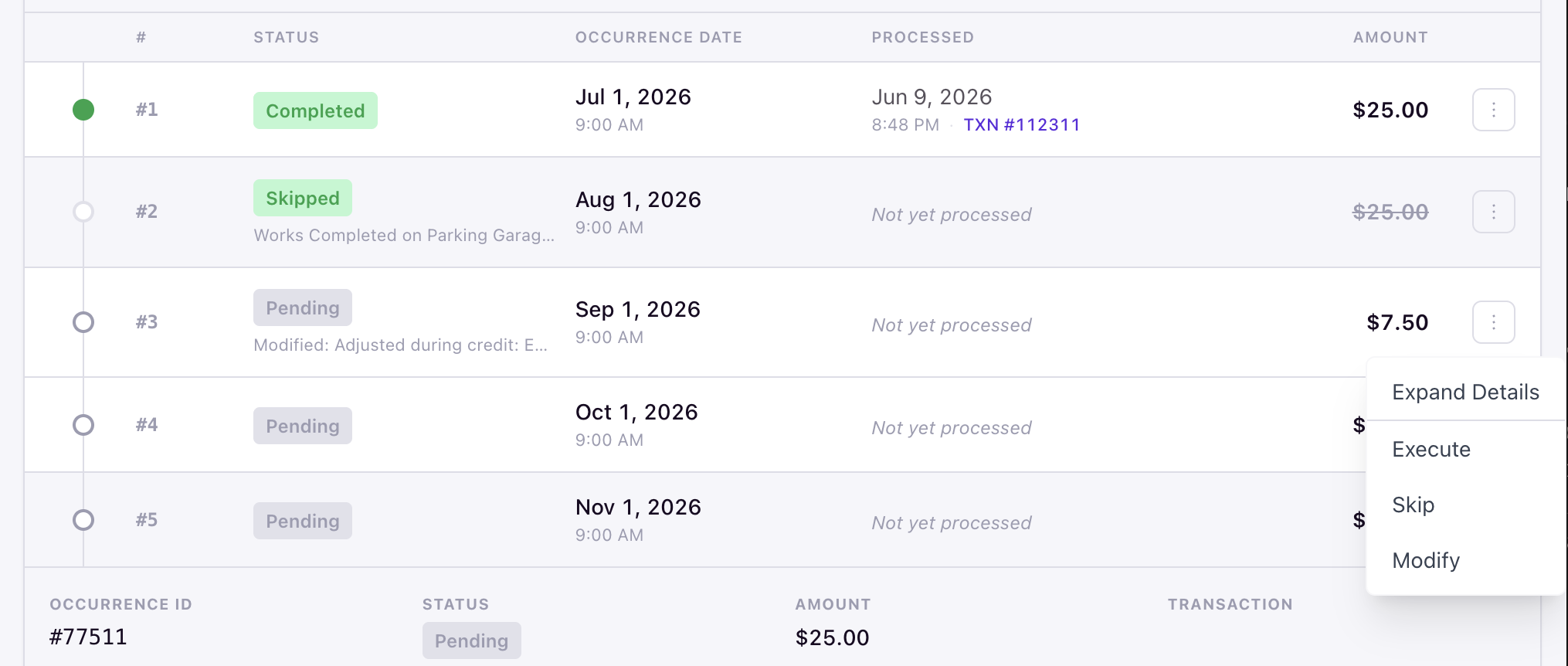
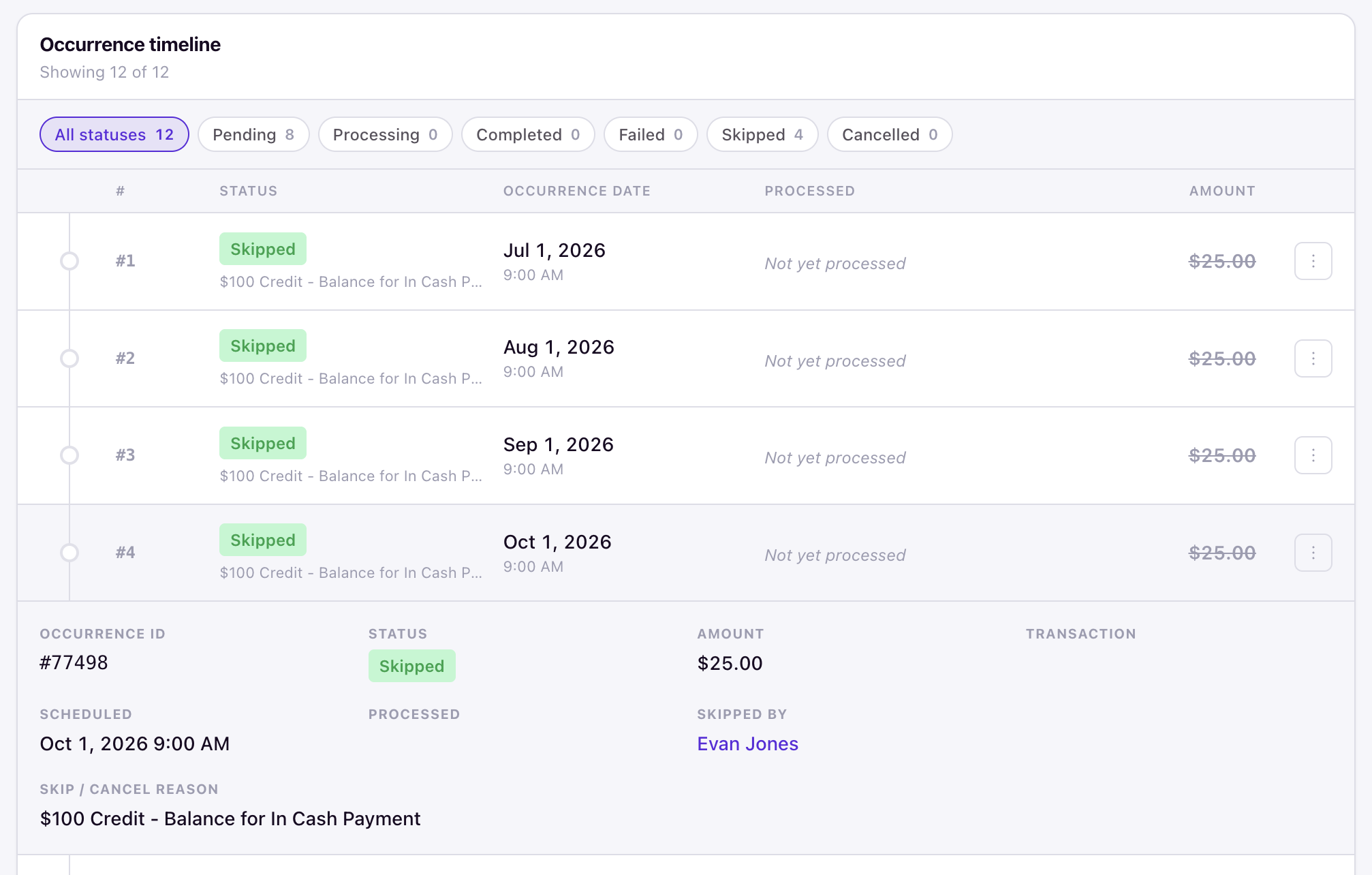
Occurrences you cancelled appear as Skipped, with the credit's reason recorded as their Skip/Cancel Reason, and their amounts count toward the assignment's Total Skipped.