Support in Housing Cloud: Overview
Last updated: October 8, 2026
Support is how your school answers its residents. Residents read help articles, and when an article doesn't answer the question they file a request. Staff work those requests as tasks, and a few days after a request is closed the resident is asked to rate how it went. All of it sits under one admin menu entry, Support, with three sections: Tasks, Satisfaction and Help articles. This page explains how the pieces fit together, the words each part uses, and which switch each part needs.
Before you start
Each part of the kit is switched on by Housing Cloud, per school. No school can switch a part on itself: if you do not see Support in your admin menu, ask your Housing Cloud contact. Which permissions each staff role needs, and why some people see a menu called Tasks instead of Support, are covered in Turn On Support: Switches, Permissions and the Support Menu.
The support loop
One loop covers the whole kit. A resident opens the help center and reads an article. If no article answers the question, they file a request. Staff work that request as a task in the Tasks queue. Three days after a request is closed, the resident is asked to rate how it went, and the rating appears on the Satisfaction page:
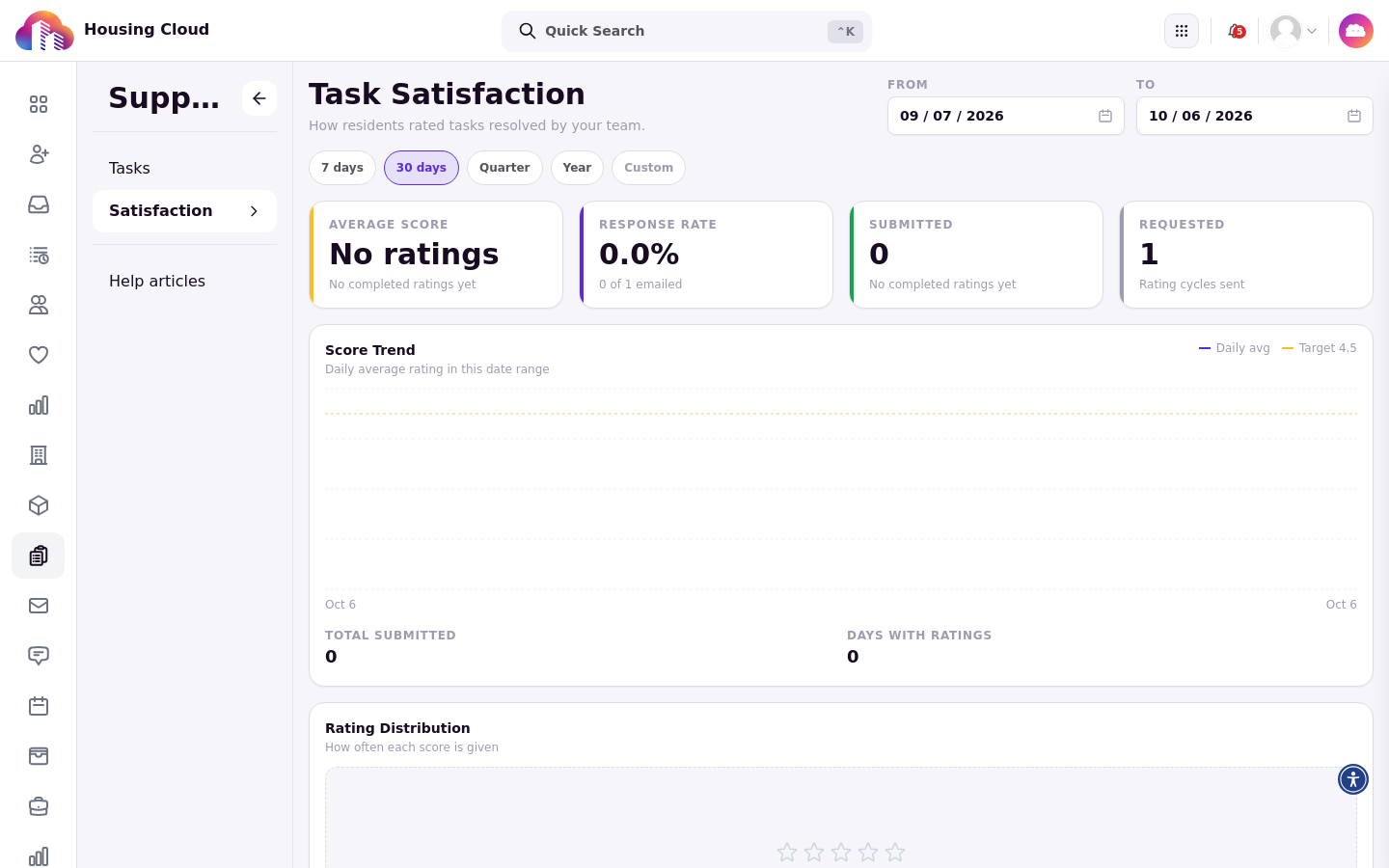
The Satisfaction page: summary cards and the Score Trend dashboard.
The words the kit uses
A request is what a resident files. The same record is a task on the admin side.
A request type is a task category: the type a request belongs to.
A help article lives in a category, the topic residents browse by.
Articles are written and organized in the Help articles section:
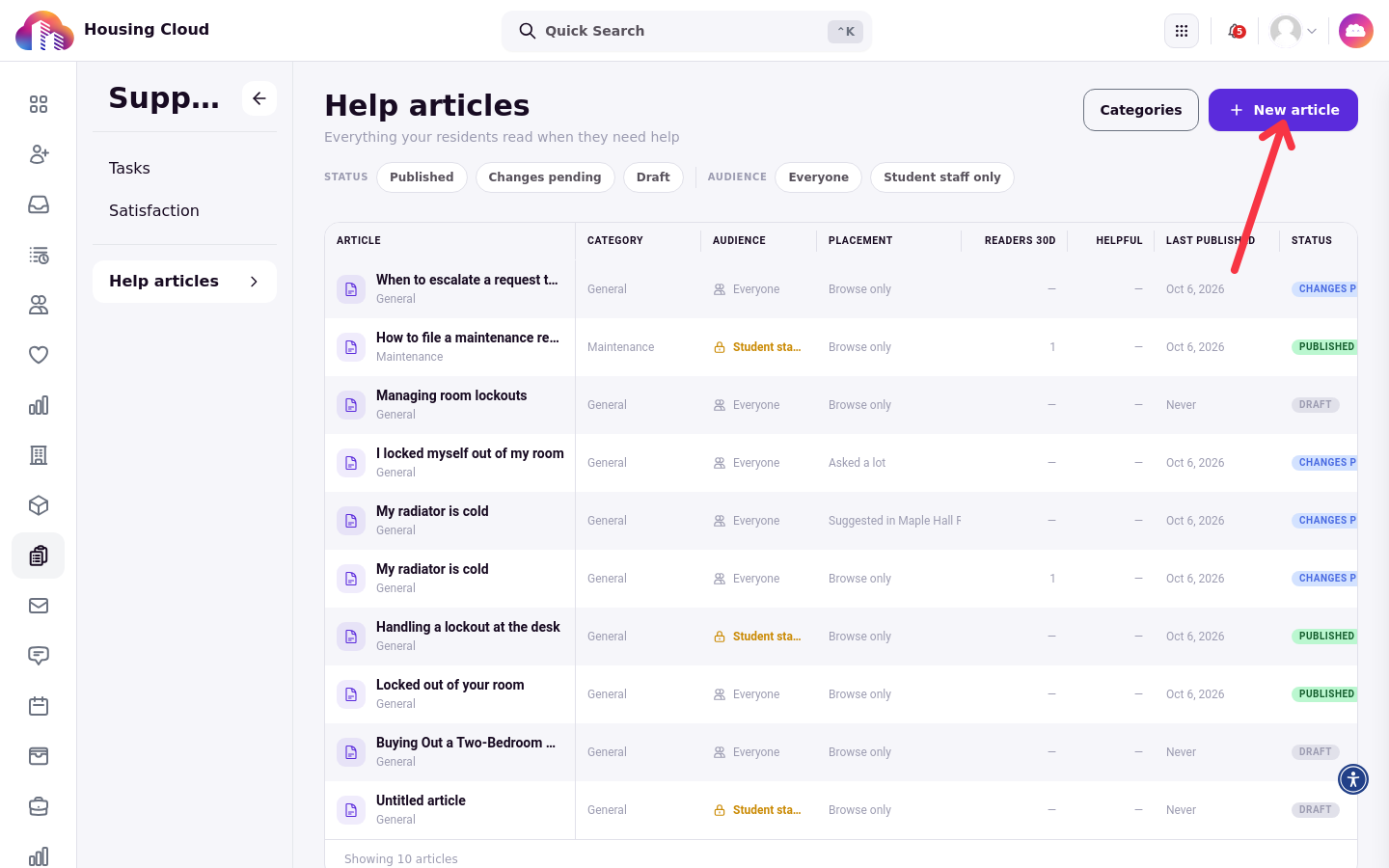
The Help articles list, with each article's category, audience and status.
Where things live
Admins work from the Support menu, which holds Tasks (the queue), Satisfaction (ratings and the dashboard) and Help articles:
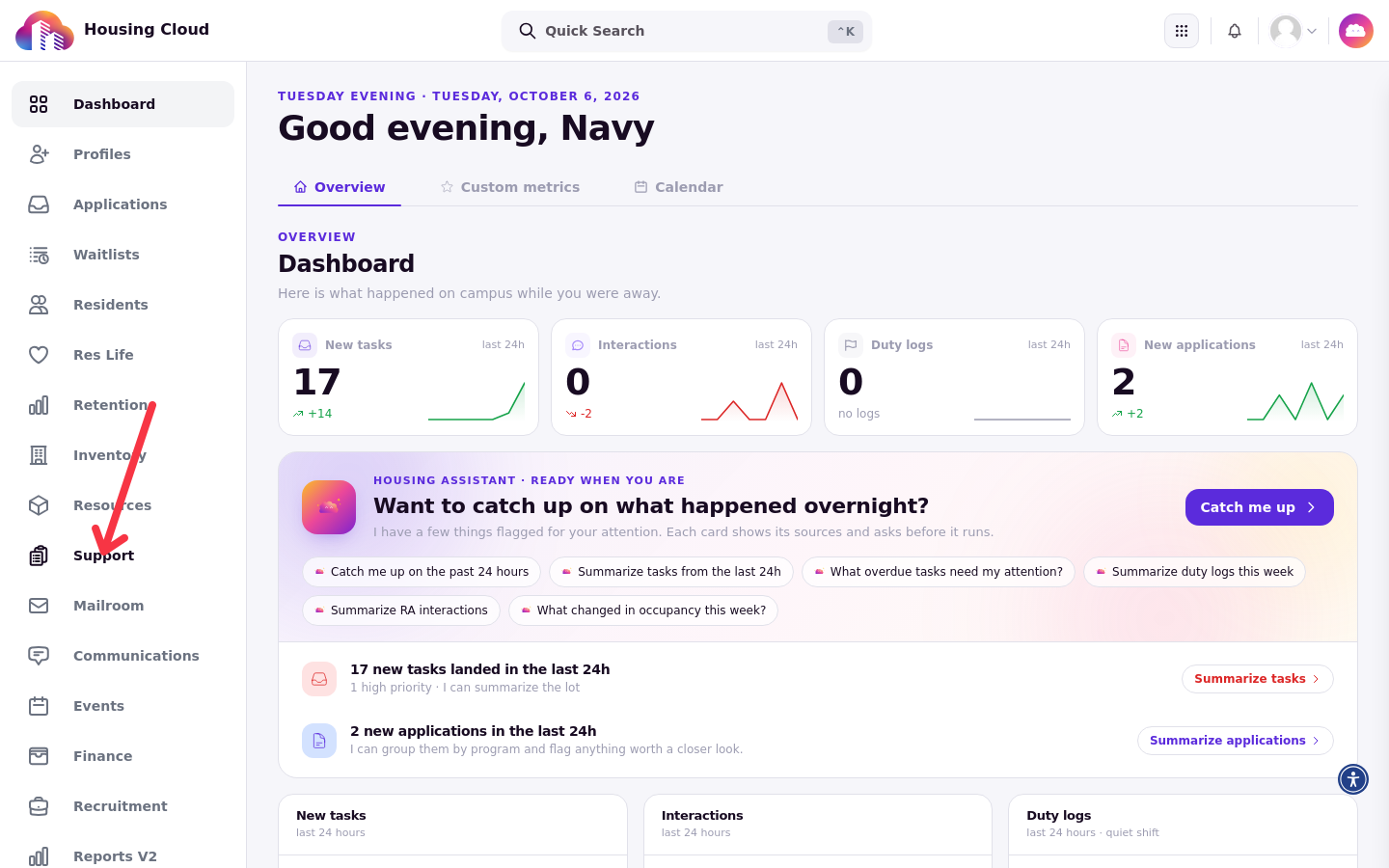
The admin navigation with Support highlighted.
Opening Support shows its three sections in a left rail:
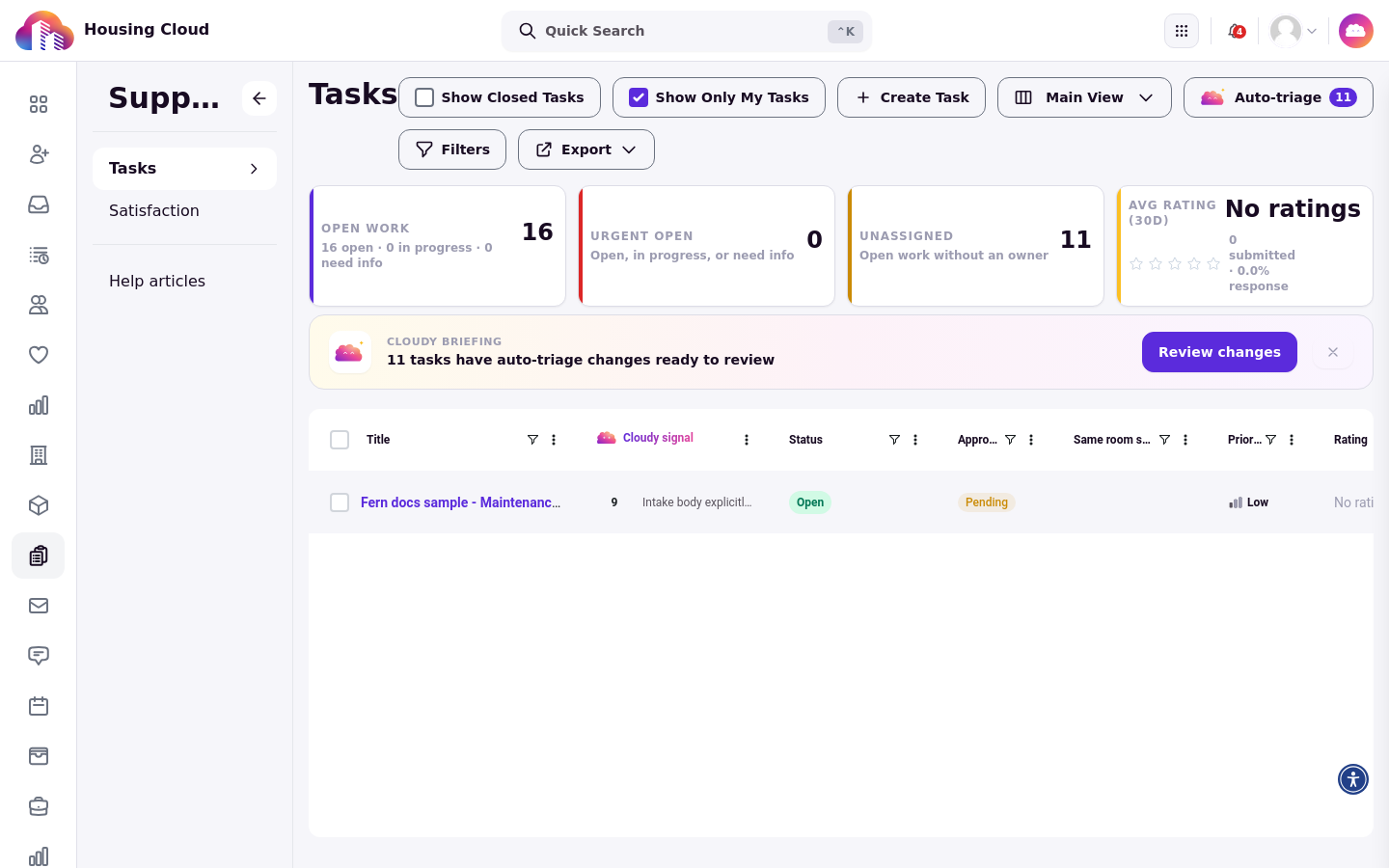
The Support section with Tasks, Satisfaction and Help articles in the left rail.
Request types are set up under Setup → Tasks:
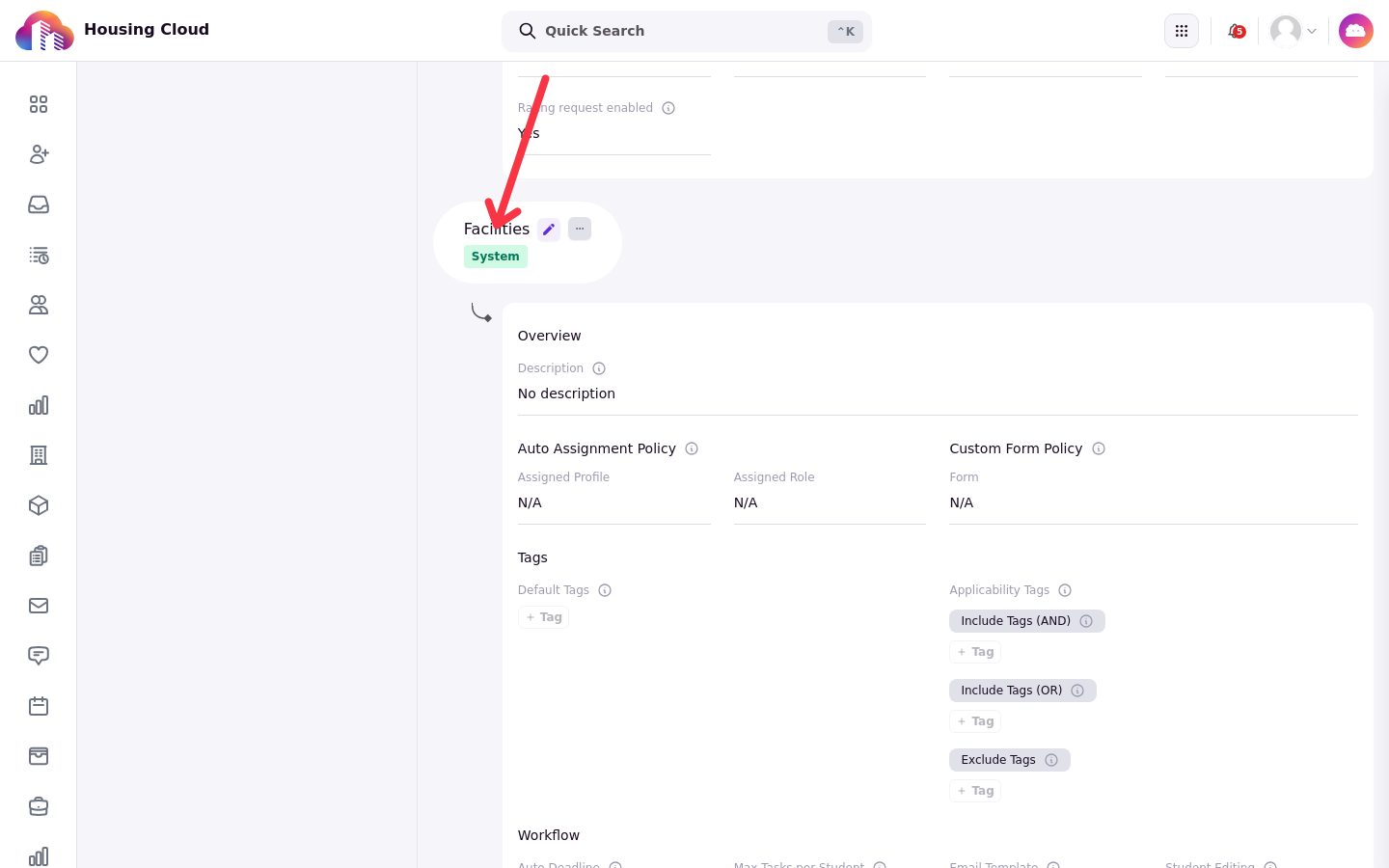
Setup → Tasks, with one request type selected: assignment policy, form policy and workflow.
Residents see a Help menu in their portal; when the help center is switched off, that menu says Requests instead and there are no articles:
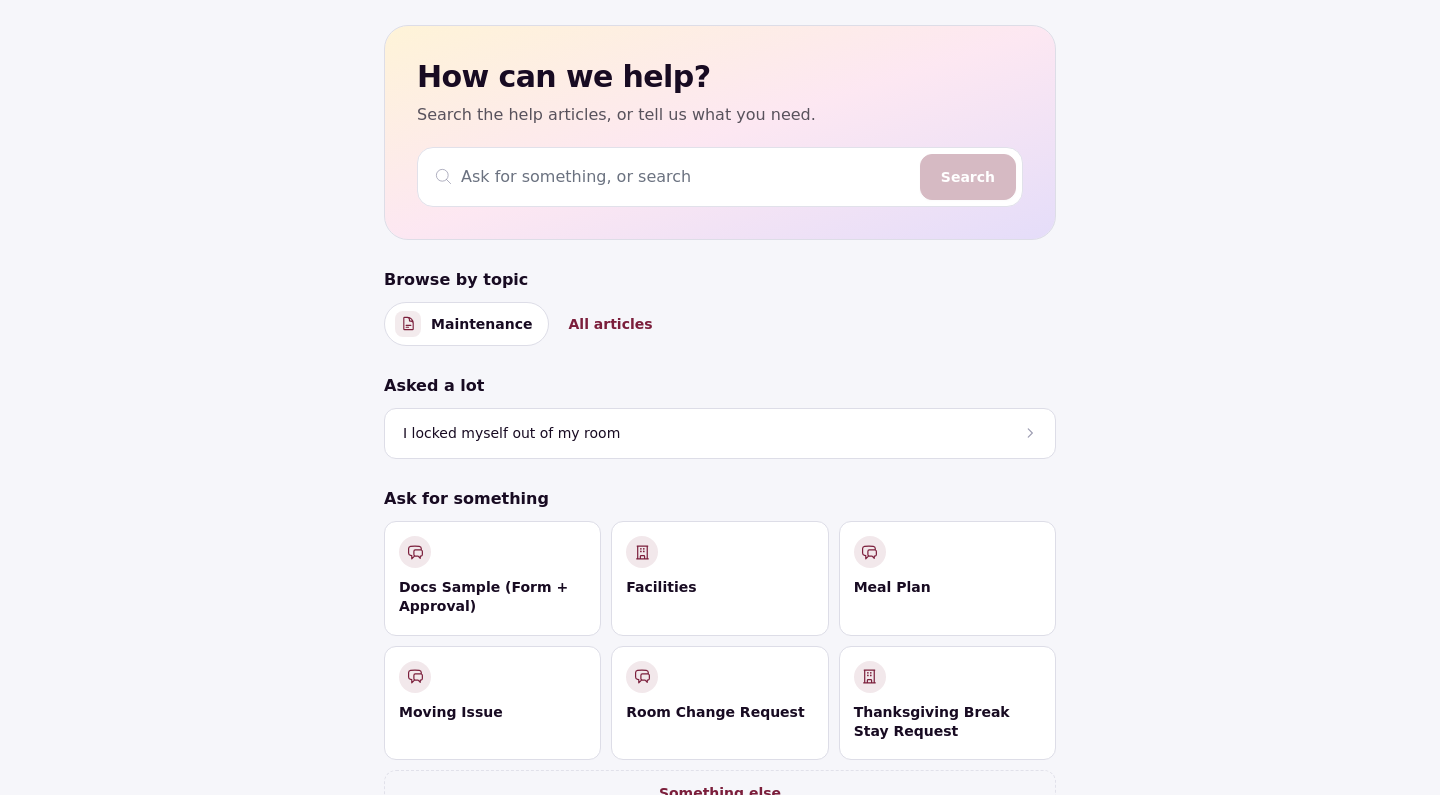
The help center home in the resident portal: search, topics and requests.
The staff portal has its own Requests page, and every request also appears in the Tasks section on the resident's admin profile:
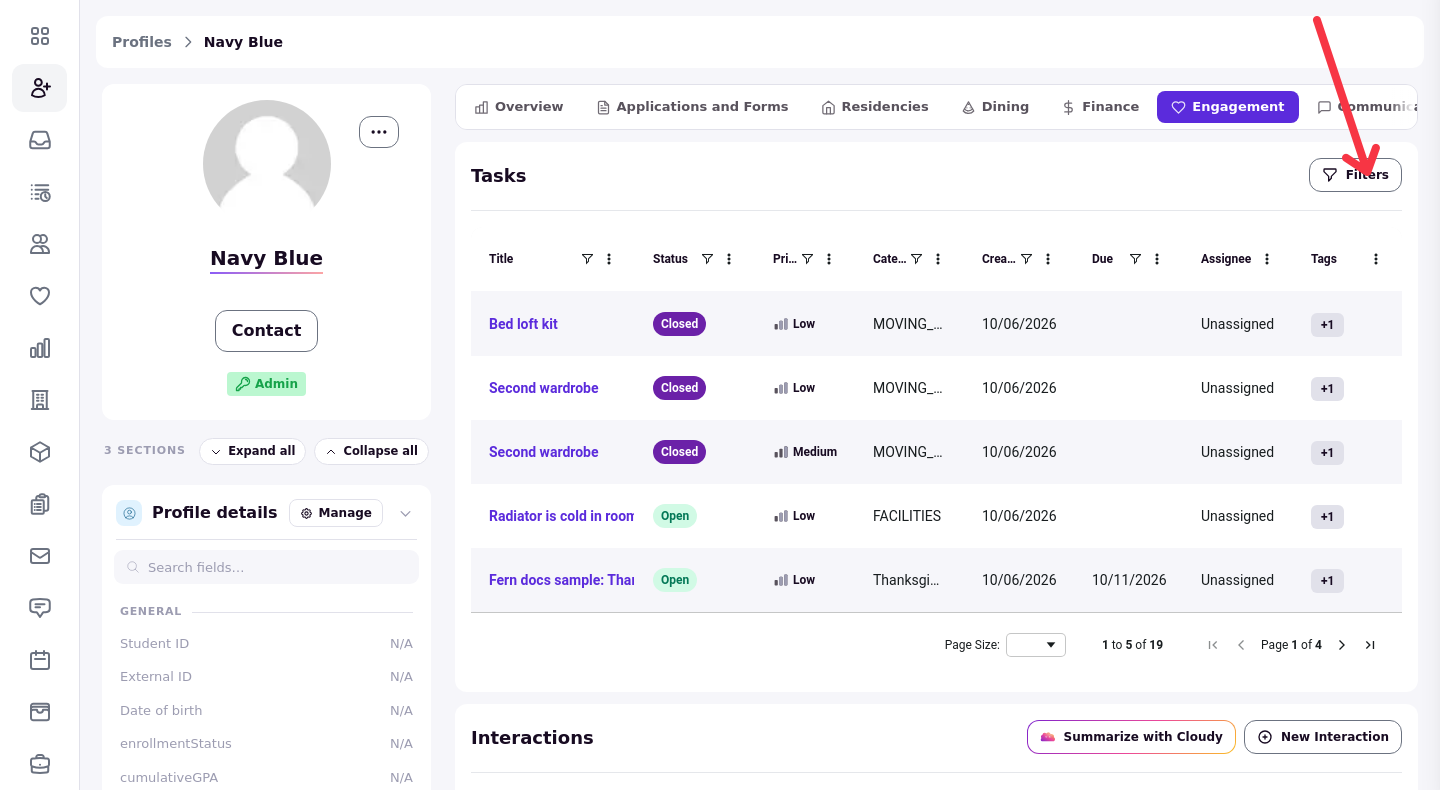
The Tasks section on a resident's admin profile, with its filter control.
Statuses and priorities
Every request moves through the same statuses: Open, In progress, Need More Info, Closed and Cancelled. A task an admin creates but has not sent yet shows as Draft. Priorities are Low, Medium, High and Urgent.
In the Tasks queue, admins filter requests by status and date:
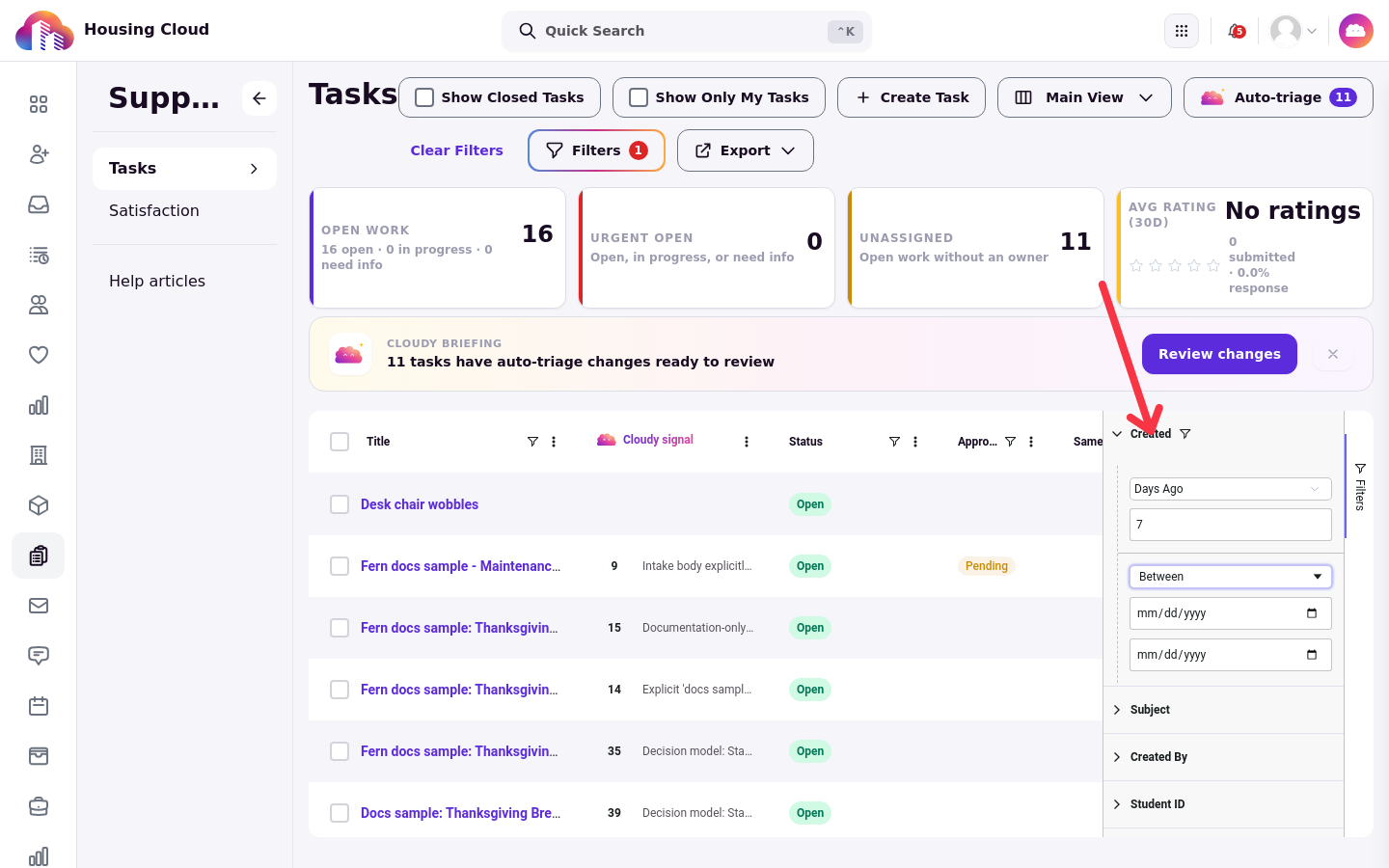
The Tasks queue with the Created date filter open.
Which switch each part needs
Every part below is switched on by Housing Cloud for your school. The single switch your school controls itself is AI answers: you can turn it off on Setup → Features. Nothing else can be turned on or off by the school.
Part |
Who sets the switch |
|---|---|
Help center |
Housing Cloud |
AI answers in the help center |
Housing Cloud turns it on; your school can turn it off on Setup → Features |
Task satisfaction ratings |
Housing Cloud |
Comment themes |
Housing Cloud |
Auto-triage |
Housing Cloud |
Setup order
Set the kit up in this order, checking the resident view before you go live to your halls:
Set up request types, their automatic assignment and their request forms
Write and organize help articles, and choose who sees each one and where it appears
Check what residents see in the help center
Learn the Tasks queue and how to work tasks, from replies and notes to bulk actions and notifications
Read satisfaction ratings on the task, in the queue and on the Satisfaction dashboard
What changed recently
The help center is the biggest recent change, and it arrived with the step-by-step request form residents now use. Around it: Cancel request lets residents withdraw their own open request, Show in Request Picker hides a request type from new requests without making it admin-only, and the queue's old single creator column is now two columns, Subject and Created By.
Good to know
Each part has its own switch, set by Housing Cloud. Without the help center, residents' menu says Requests and there are no articles, suggestions or step-by-step form. A school can turn off only AI answers itself.
Help articles can't be unpublished, but they can be deleted. New article creates one straight away, so a misclick leaves an empty draft. To hide a live article from residents, set it to Student staff only and publish.
Settings go live only when you publish. Audience, category and placement changes wait for Publish changes, including narrowing an article to staff. Renaming a category or changing its icon is live at once.
A link residents can't open blocks publishing. That includes links to drafts, deleted articles, or staff-only articles from an article everyone reads.
Search is simple. English only, published articles only, at most 25 results; image descriptions aren't searched. The admin list has no search box.
Suggested articles follow the request type, not what the resident types. Up to two, only on the step-by-step form.
A type with a form has no Description box. Add an "anything else?" question to the form.
Residents don't set priority. Requests filed in the newer resident portal start Medium; requests from the legacy help form and tasks staff create start Low.
Max tasks per student never resets. It counts every request the resident has ever filed in that type, closed and rejected ones included.
Routing is by request type only. No building, floor or community rules. One type, one automatic assignee.
A task given to a role has no owner. Every member is emailed; it never shows under Show Only My Tasks or on an RA's Requests page; there's no claim button.
RA-filed requests start unassigned. The type's automatic assignee isn't applied unless the RA changes the type while filing.
Show Only My Tasks starts on, per browser. New staff often see an empty queue.
Auto-triage's count and its window disagree. The count is school-wide and includes closed tasks; the window shows only your current view, newest 600 tasks.
Three files per comment. Deleting a comment is permanent and removes its files.
Ratings come three days after closing, by email only. No rate button in the portal; the delay can't be changed. The manual Send task rating now is for Housing Cloud staff only.
On-behalf and staff-made tasks are never rated.
Residents who cancel their own request are asked to rate it.
First rating wins. A resident can't change a submitted rating. The quick picks are saved as part of the comment text.
The dashboard groups by closing date. A rating submitted this week for a request closed last week counts last week. Numbers can lag up to an hour.
AI answers: 20 a day per resident, cited articles only. The question isn't carried into a request, and staff can't yet see what residents asked that went unanswered.