Choose Who Sees an Article and Where It Appears
Last updated: October 8, 2026
At Maple Hall… Sam wants the radiator article to pop up the moment a resident starts a repair request, and the lockout article pinned to the home page. The desk's lockout procedure is for staff only.
Article settings decide who can read a help article and where it appears. Who can read it sets the audience: Everyone or Student staff only. Placement decides where the article shows up: pinned to the help center home under Show in 'Asked a lot', suggested on a request form under Suggest during requests, or neither. This article covers the settings panel, how each option works, and when your changes go live.
Before you start
Writing help articles needs the Manage help-center articles permission and the help center switched on for your school. Housing Cloud turns the help center on per school; ask your Housing Cloud contact if it is off. Residents and student staff need no permission to read the help center.
Open Article settings
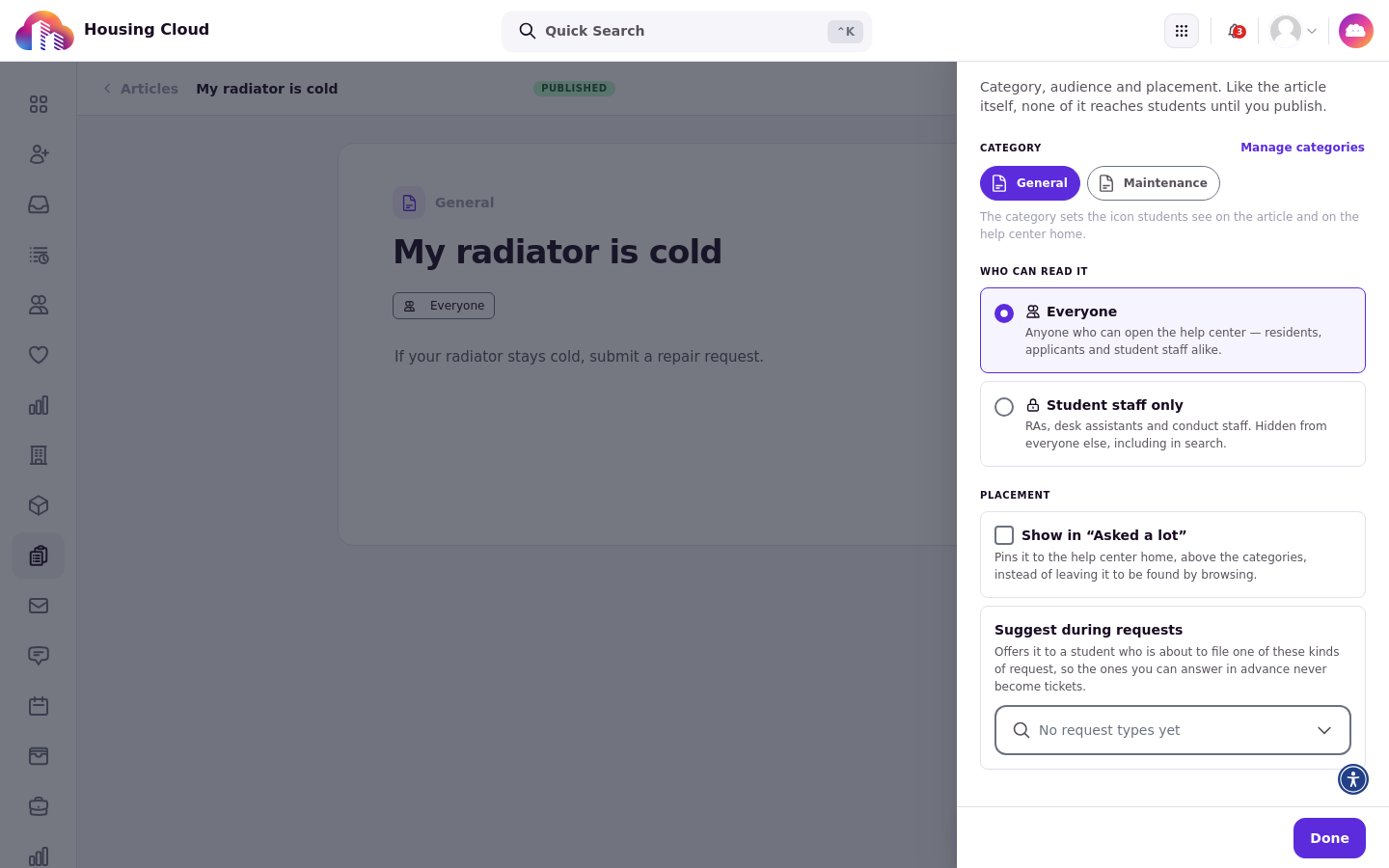
Open Article settings from the header's Settings button or from the audience chip on the article page. Changes save as you make them and go live when you publish. For a published article, choose Publish changes; for a new article, choose Publish.
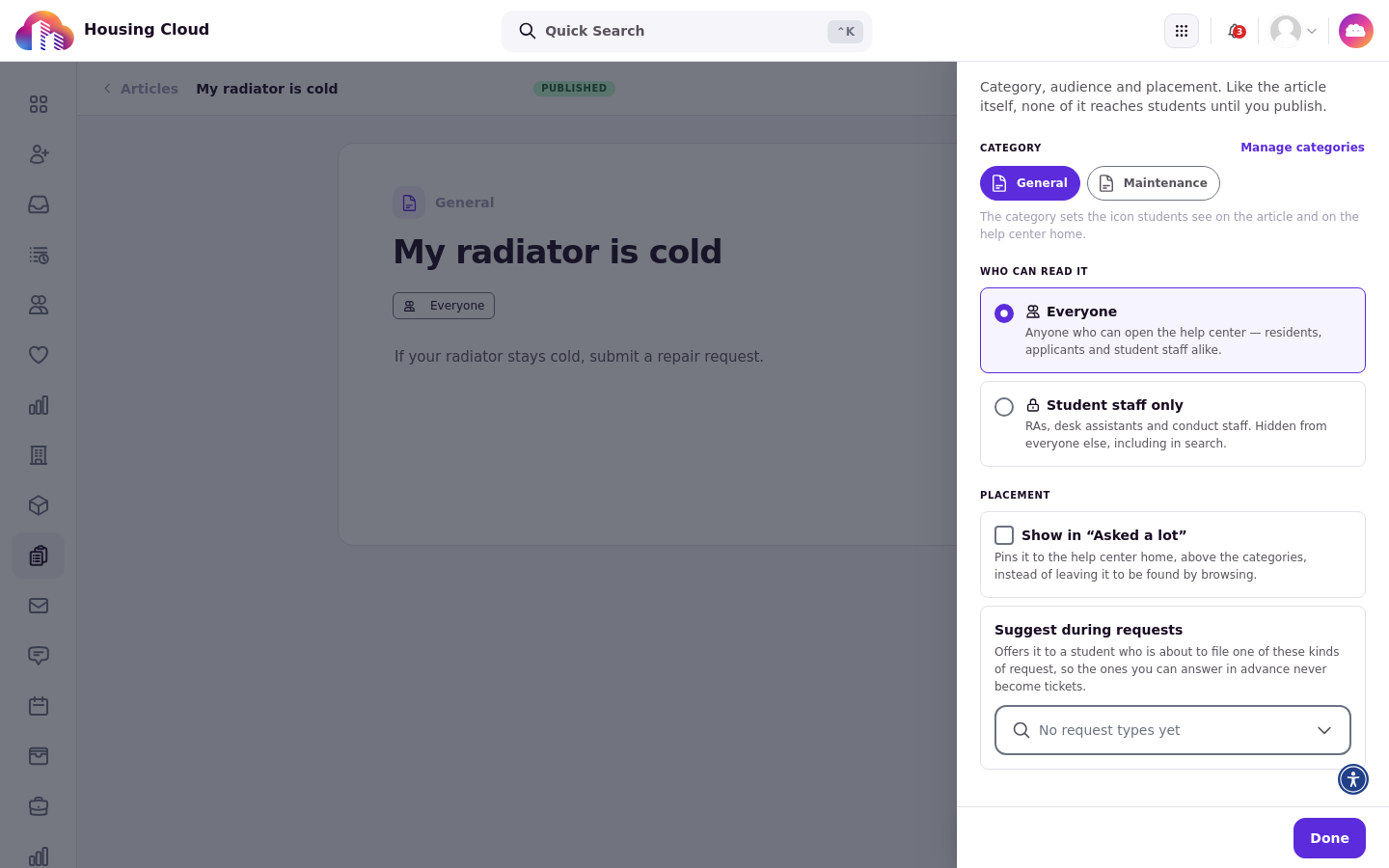
Category
Category sets the shelf the article sits on and the icon residents see next to it. Every article starts on the built-in General shelf until you pick another one. Renaming a category or changing its icon is live at once; moving an article to a different category waits for Publish changes.
Who can read it
Who can read it offers two choices: Everyone (residents, applicants and student staff) or Student staff only (active student staff). A resident who opens a link to a staff-only article gets a "not found" page.
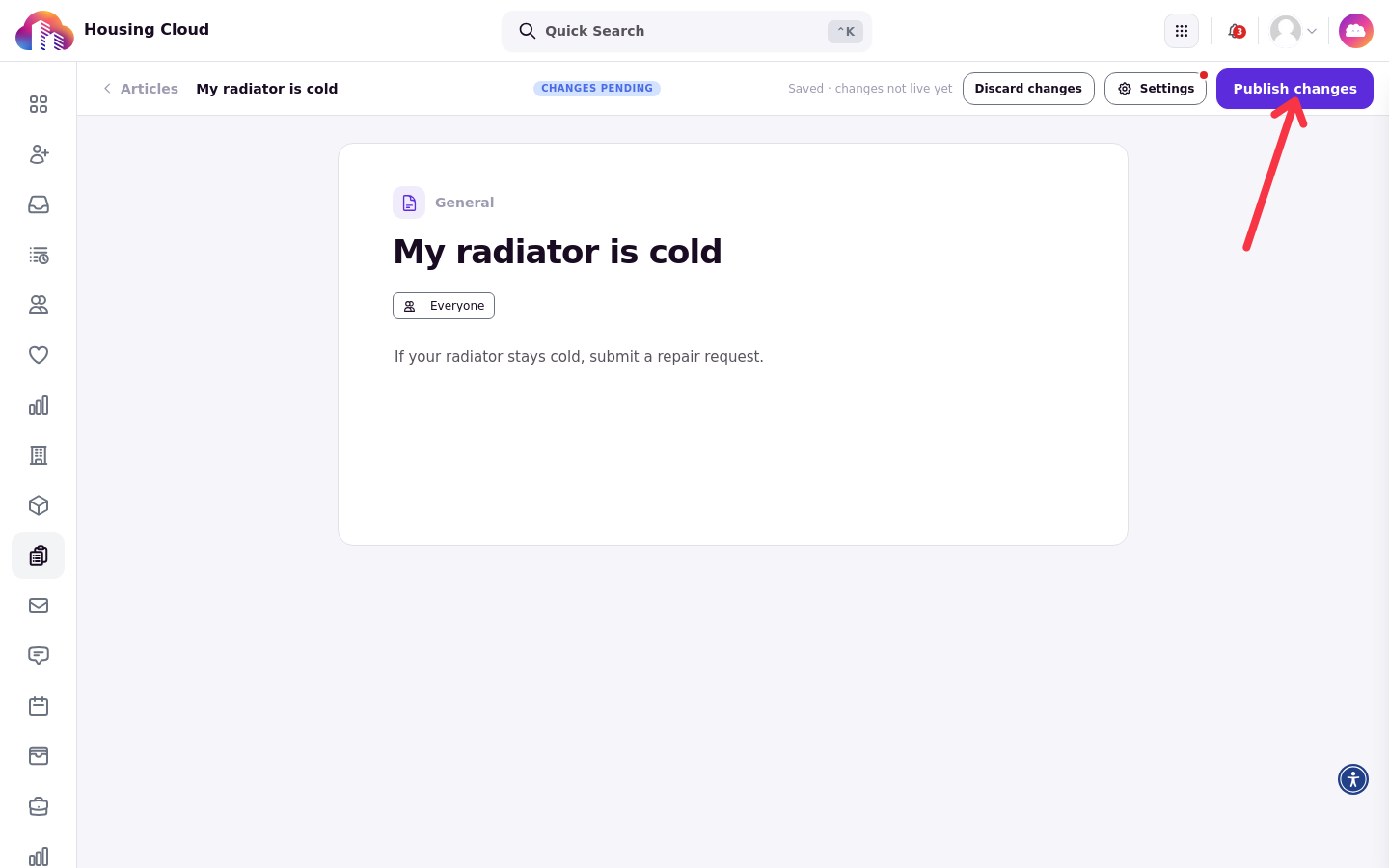
Narrowing an audience takes effect on publish
On a live article, narrowing the audience to student staff takes effect only when you publish it. Until then residents keep seeing the article. A dot on Settings shows that a setting changed since the last publish, next to Publish changes in the header.
Placement
Placement has two options. Show in 'Asked a lot' pins the article to the help center home. Suggest during requests lets you pick request types; up to two matching articles then show as This may already be answered while a resident files that type. With neither option set, the article is "Browse only": residents find it through topics and search.
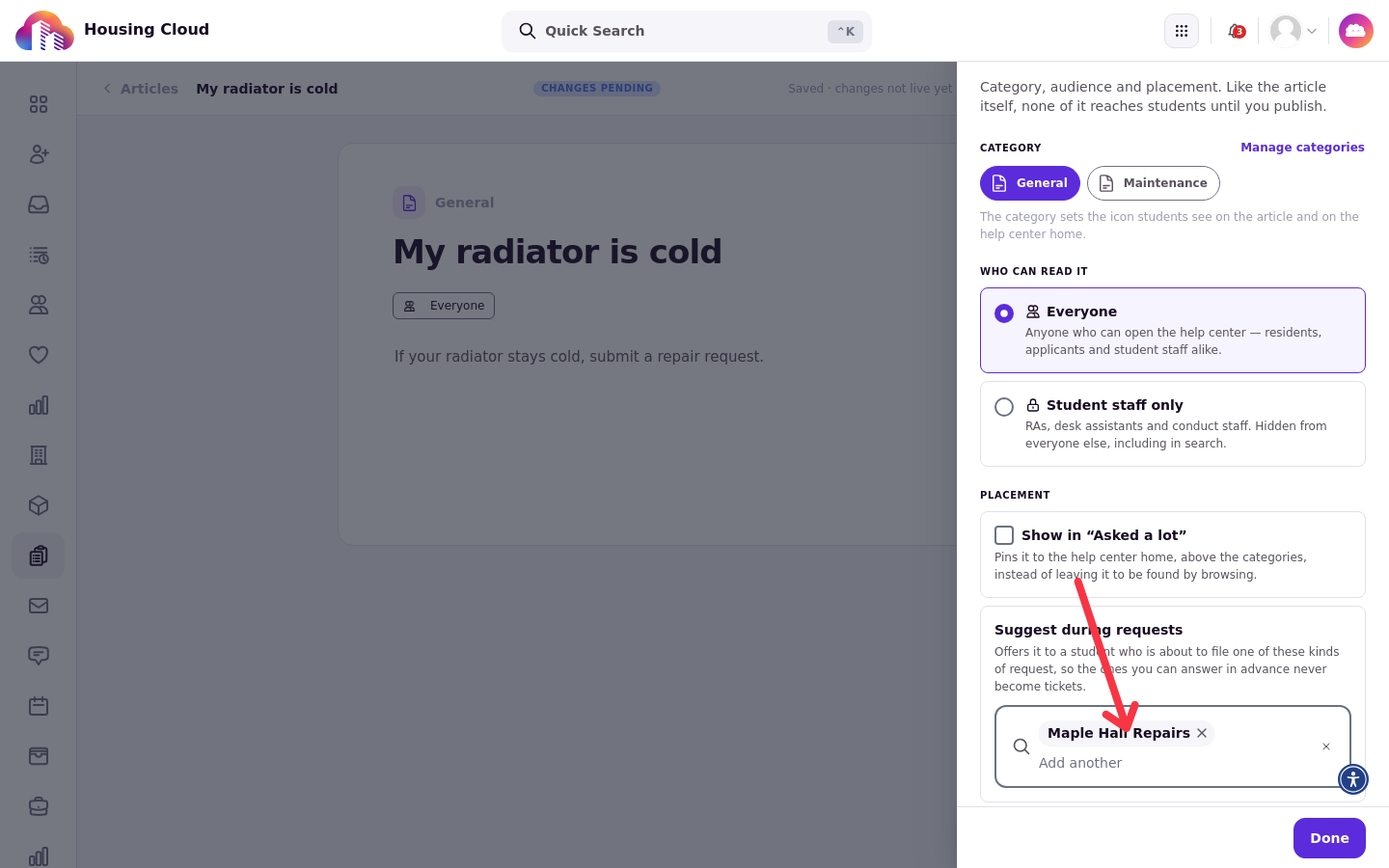
Suggestions on types residents can no longer file
A suggestion tied to a request type residents can no longer file is kept in the settings but does nothing. The settings panel says so.
Good to know
Help articles can't be unpublished or deleted. To hide a live article from residents, set it to Student staff only and publish.
Settings go live only when you publish. Audience, category and placement changes wait for Publish changes, including narrowing an article to staff. Renaming a category or changing its icon is live at once.
Suggested articles follow the request type, not what the resident types. Up to two show, and only on the step-by-step form.