Turn On Support: Switches, Permissions and the Support Menu
Last updated: October 8, 2026
Most of the Support kit is switched on for your school by Housing Cloud, not by you. This article explains which parts Housing Cloud turns on, the switches your school controls themselves, and which permissions decide who sees the Support menu, the Tasks queue and the Satisfaction page.
Before you start
You need two things:
Admin access to Setup → Features, to check or change the switches your school controls.
A role you can open in the page where your school manages roles, to check which task and help-article permissions it holds.
What Housing Cloud switches on
Housing Cloud sets these switches per school, and a school can't switch them on itself. If one of them is missing for your school, ask your Housing Cloud contact:
Help center
AI assistant
Comment themes
Auto-triage
The switches your school controls
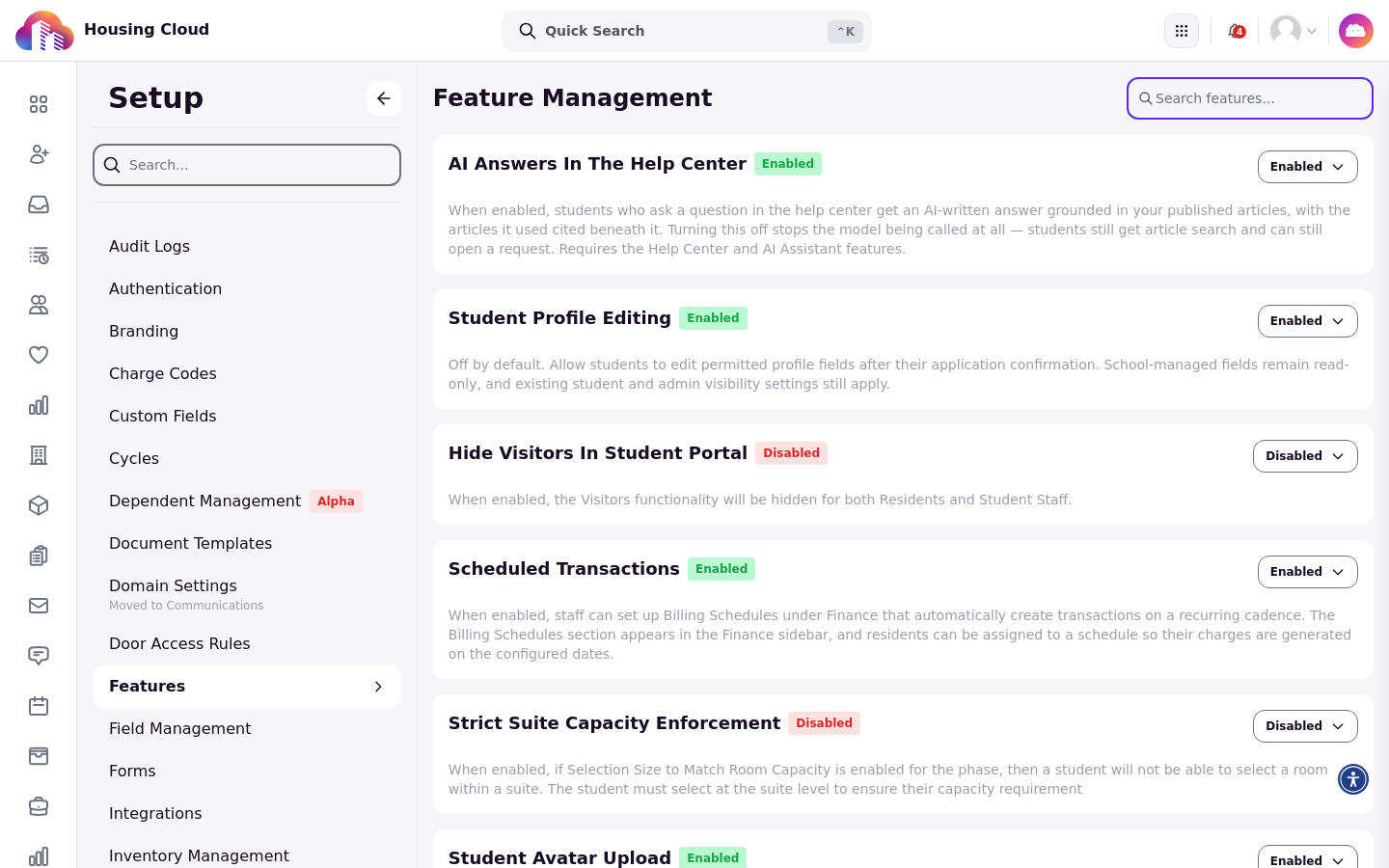
Schools can change two switches themselves on Setup → Features: AI Answers In The Help Center and Task Satisfaction Ratings. The AI Answers card only appears when the help center and the AI assistant are both switched on for your school. When it is disabled, residents get no AI answers; article search and opening a request still work.
Each feature on the Features page carries a status tag and an Enabled / Disabled dropdown. The AI Answers In The Help Center card is shown here:
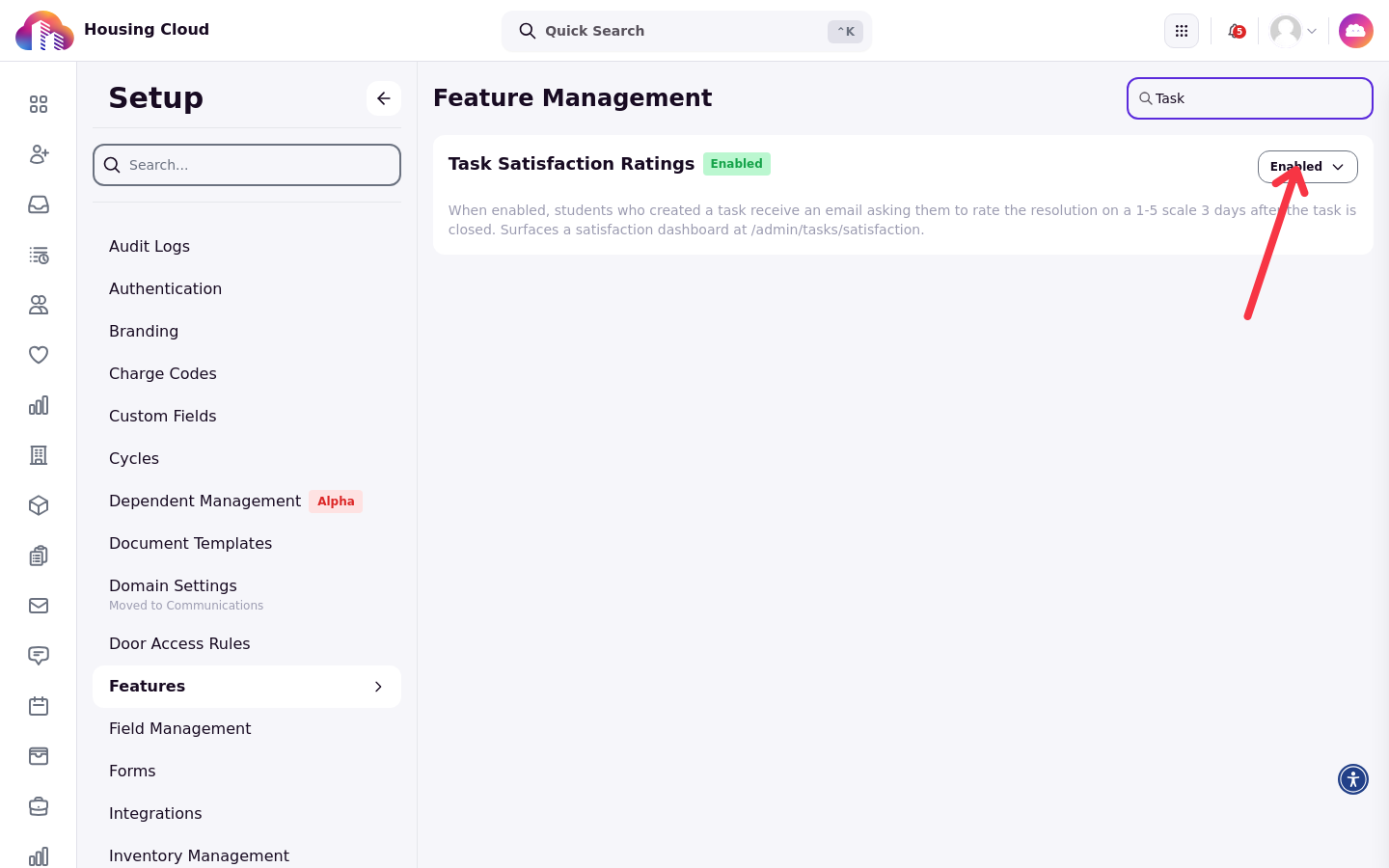
Task Satisfaction Ratings works the same way: an authorized school administrator opens its dropdown and chooses Enabled or Disabled. Filtering the Features page for Task brings up its card:
Task permissions
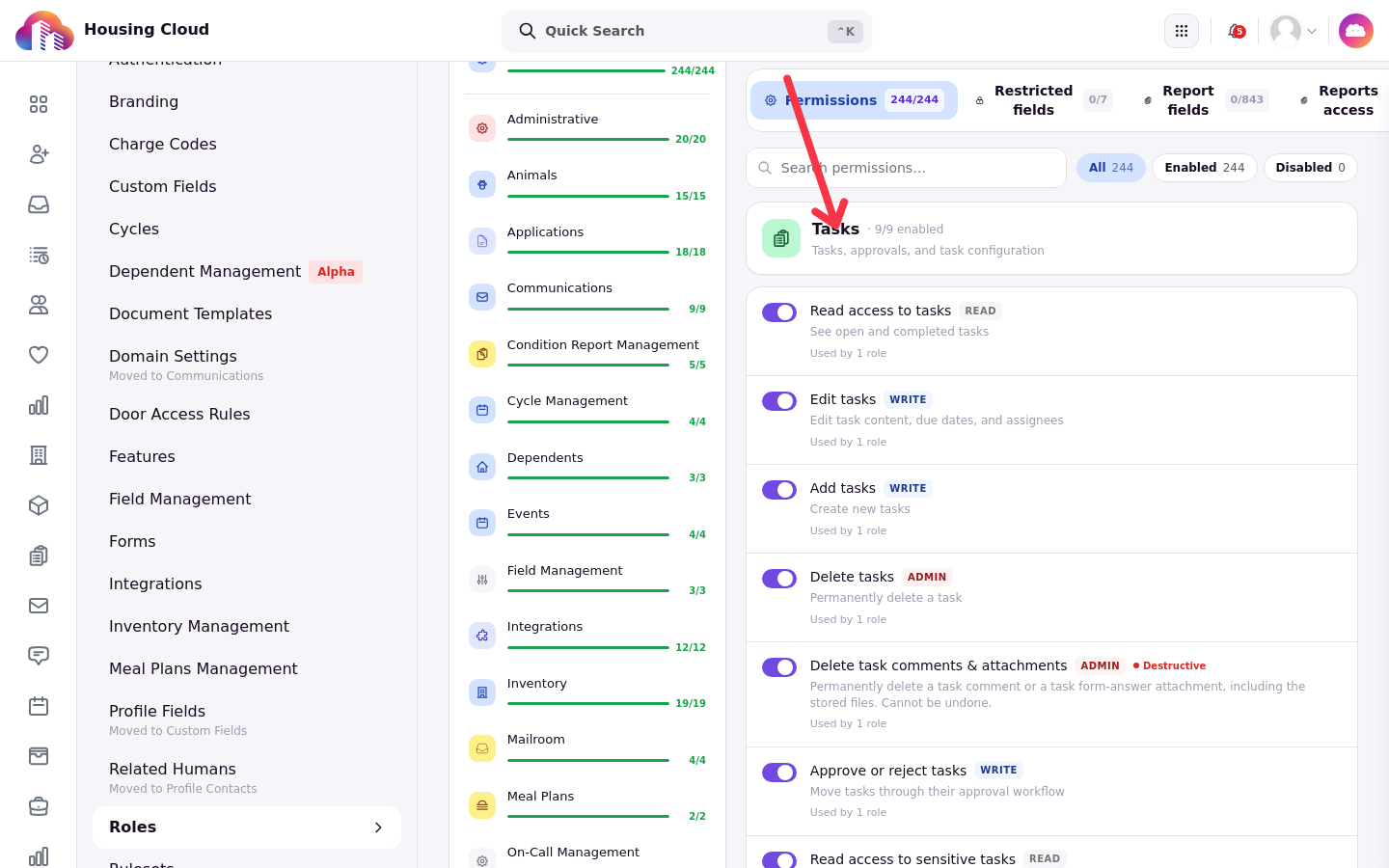
Roles hold task permissions under the Tasks category. Each one controls a different part of working requests:
Read access to tasks
Edit tasks
Add tasks
Delete tasks
Delete task comments & attachments
Approve or reject tasks
Read access to sensitive tasks
Ability to configure task settings
View task satisfaction ratings and dashboard
Selecting the Tasks category on a role page shows its permission rows and their toggles:
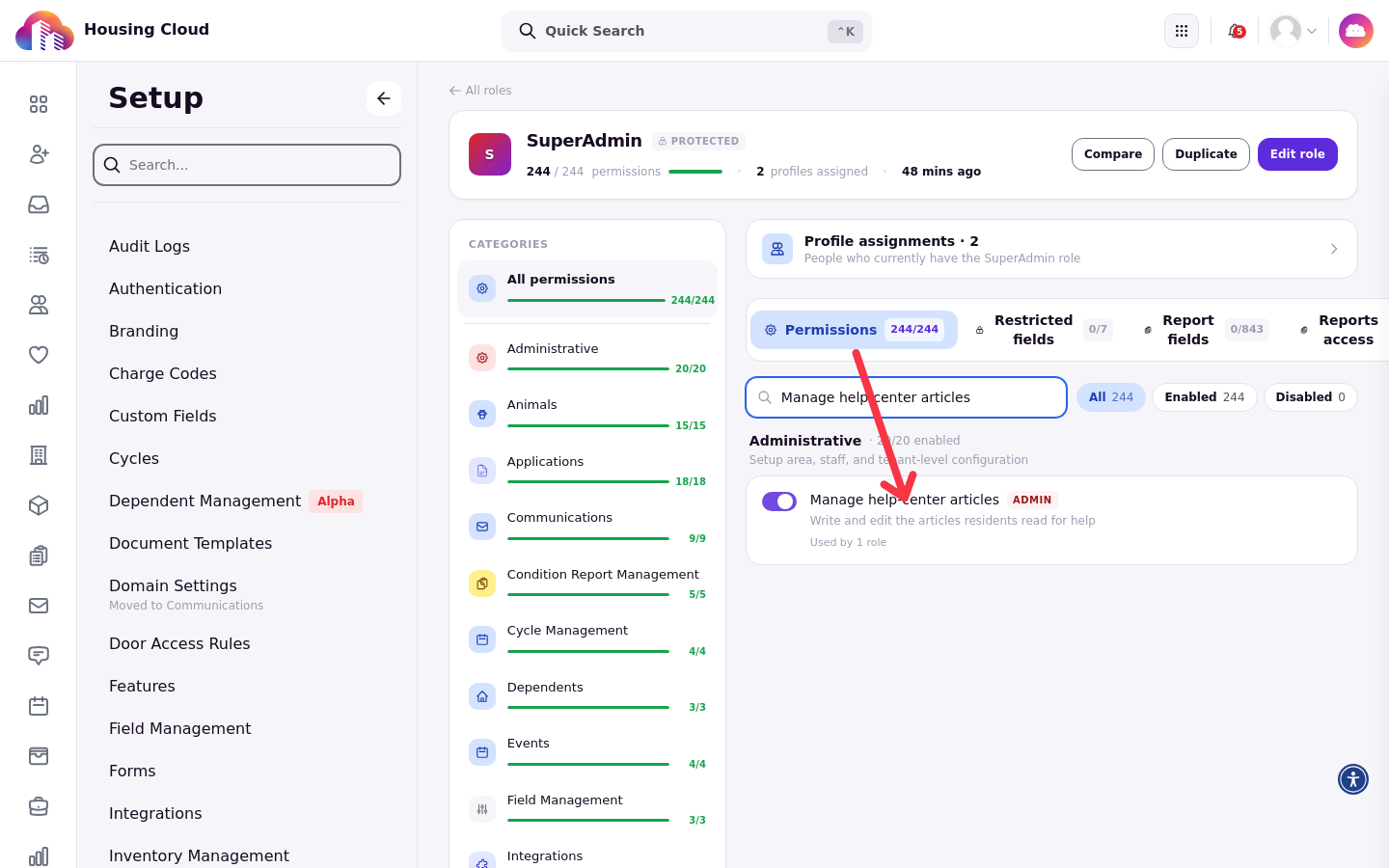
Writing help articles needs its own permission, Manage help articles, which sits in the Administrative permissions group. A role that holds it can write and edit the articles residents read:
Why the menu says Support or Tasks
The Support menu entry appears for anyone who holds Read access to tasks, or who holds Manage help articles while the help center is switched on for your school. Its name depends on the person: it reads Support when the help center is switched on and the person can also write help articles, and Tasks otherwise.
For a person whose role holds both task permissions and Manage help articles, the menu reads Support and the rail lists Tasks, Satisfaction and Help articles:
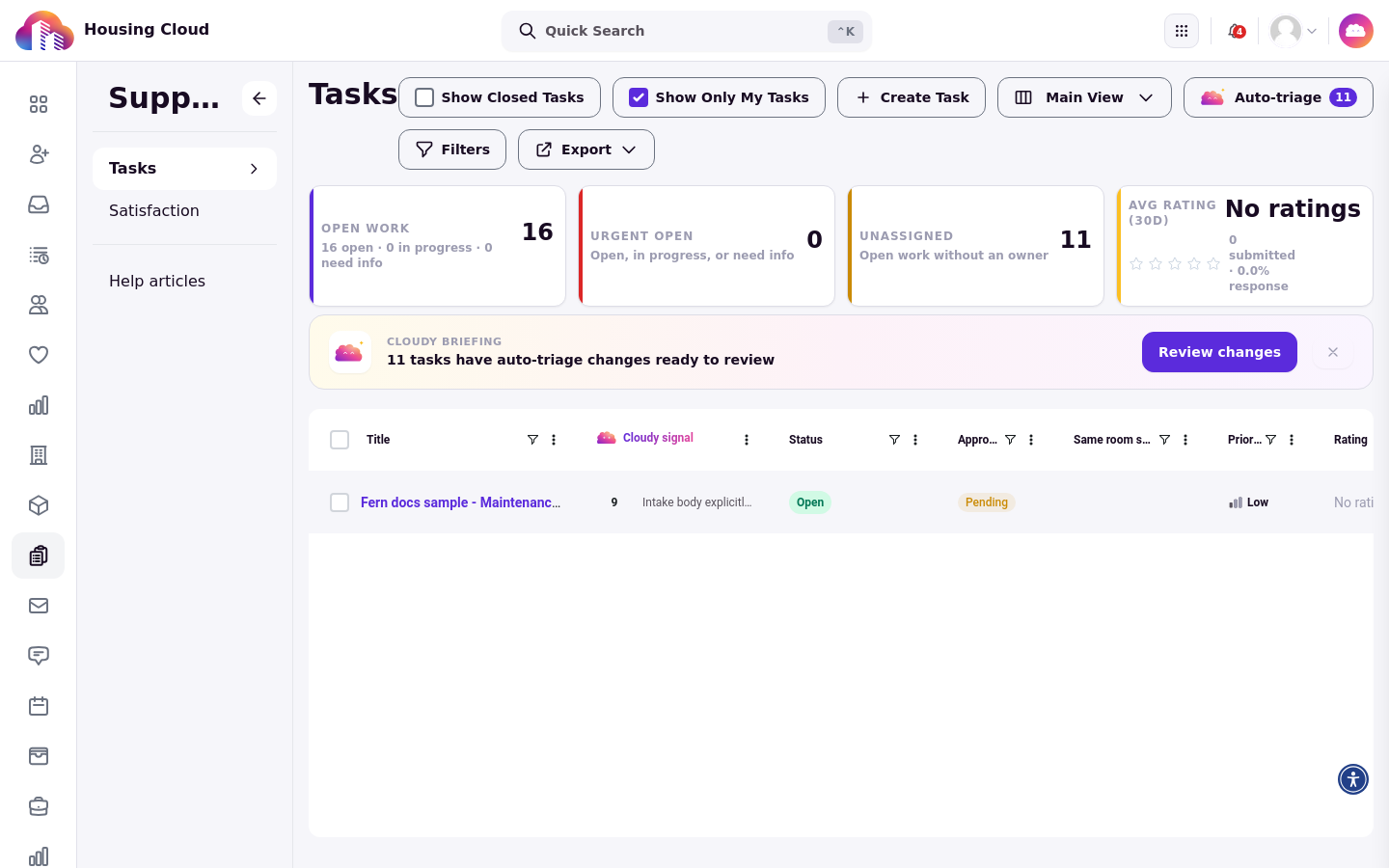
A menu rail with only one item is hidden, except on the Satisfaction page, where the rail stays visible even when it holds a single item. The Task Satisfaction page shows the rail alongside its dashboard:
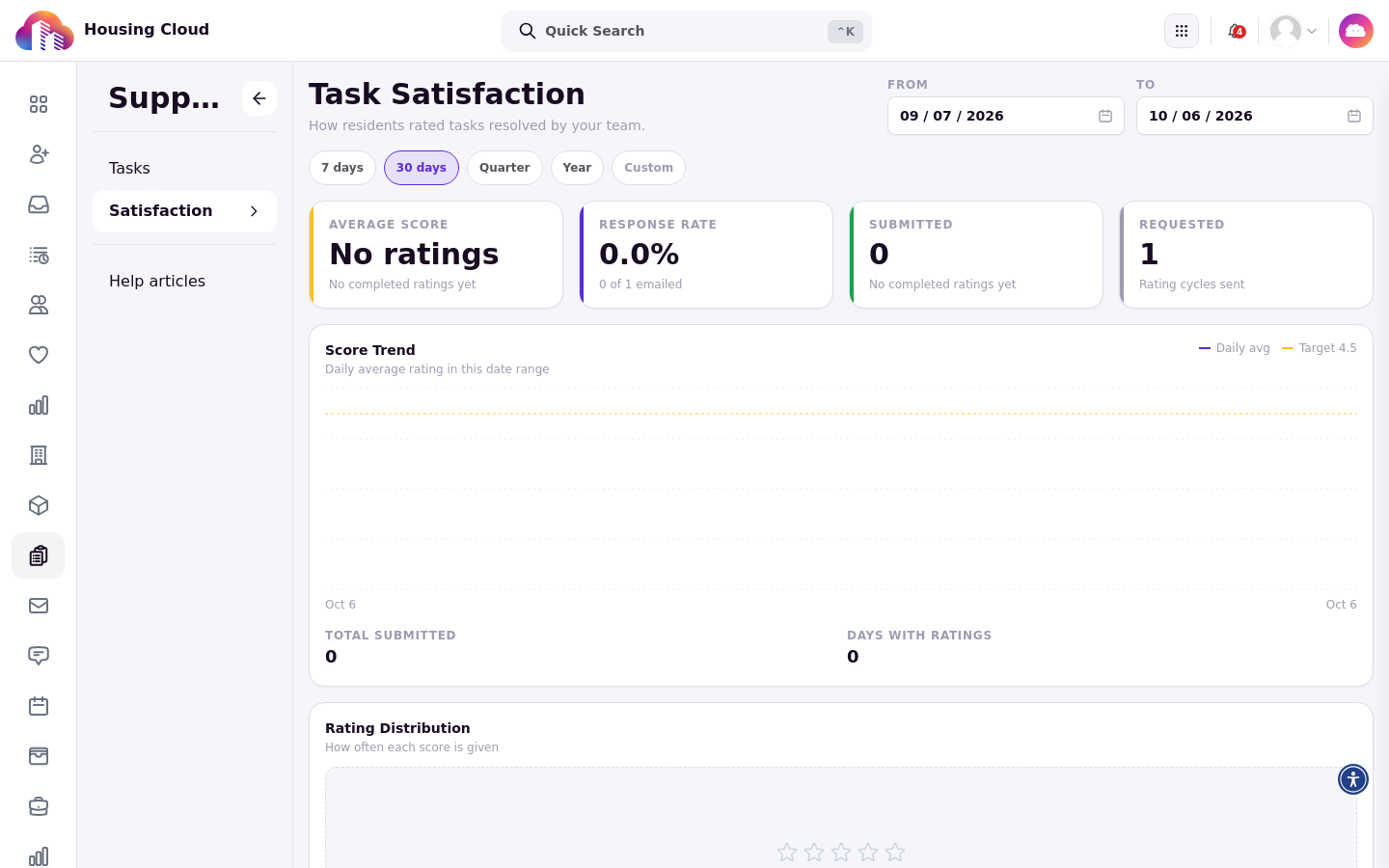
The Satisfaction permission
The View task satisfaction ratings and dashboard permission only exists while Task satisfaction ratings is switched on for your school. Turning ratings on gives the permission to full admins automatically.
Students and student staff
Students and student staff need no permission to use the help center. Each article carries an audience setting: Everyone means any resident, applicant or student staff member who opens the help center, while Student staff only means RAs, desk assistants and conduct staff, hidden from everyone else, including in search.
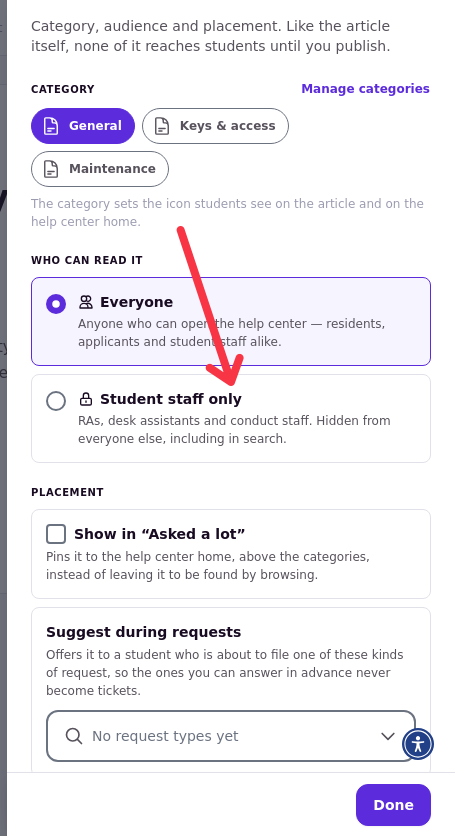
Good to know
Without the help center, residents' menu says Requests and there are no articles, no suggested articles and no step-by-step request form. The help center and the other Housing Cloud switches stay as they are; your school can turn AI answers and task satisfaction ratings off itself.