How User Balances work
Last updated: October 2, 2026
User Balances give you an at-a-glance answer to "how much does this student owe?" — for every student, in every housing cycle, broken down by charge type. Instead of adding up individual transactions each time, the system keeps a running balance that updates automatically as charges and credits post, so the grid loads instantly even with thousands of students. A student has one balance per cycle, made up of their charges and credits per charge type.
Open the User Balances grid
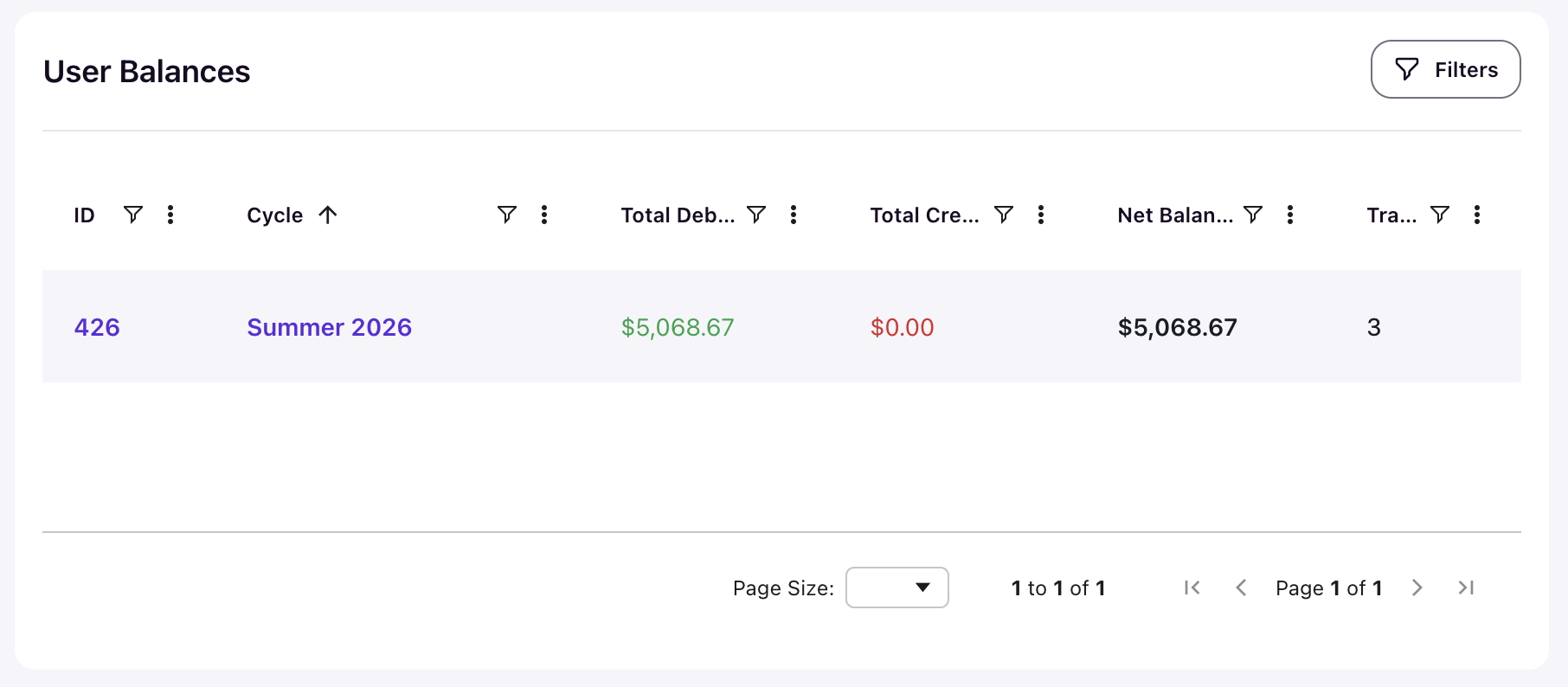
Navigate to Finance > User Balances. The grid shows one row per student per cycle.
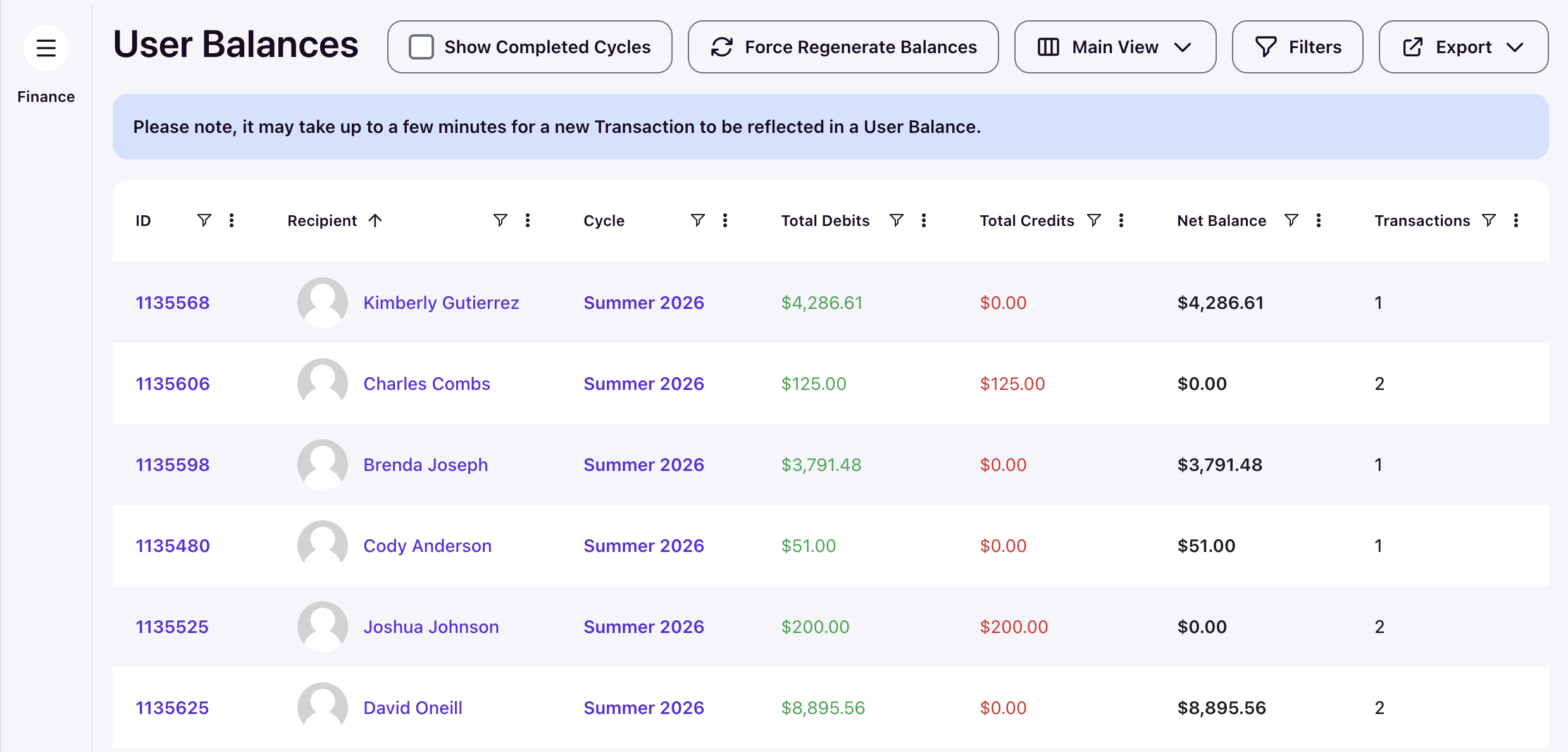
- ID — links to the student's balance detail page
- Recipient — the student's name, linking to their profile
- Cycle — the housing cycle the balance belongs to
- Total Debits — total charges, shown in green
- Total Credits — total refunds and payments, shown in red
- Net Balance — the amount owed, shown in bold
- Transactions — how many transactions make up the balance
The balance detail page
Click a student's ID to open their balance detail page for that cycle.
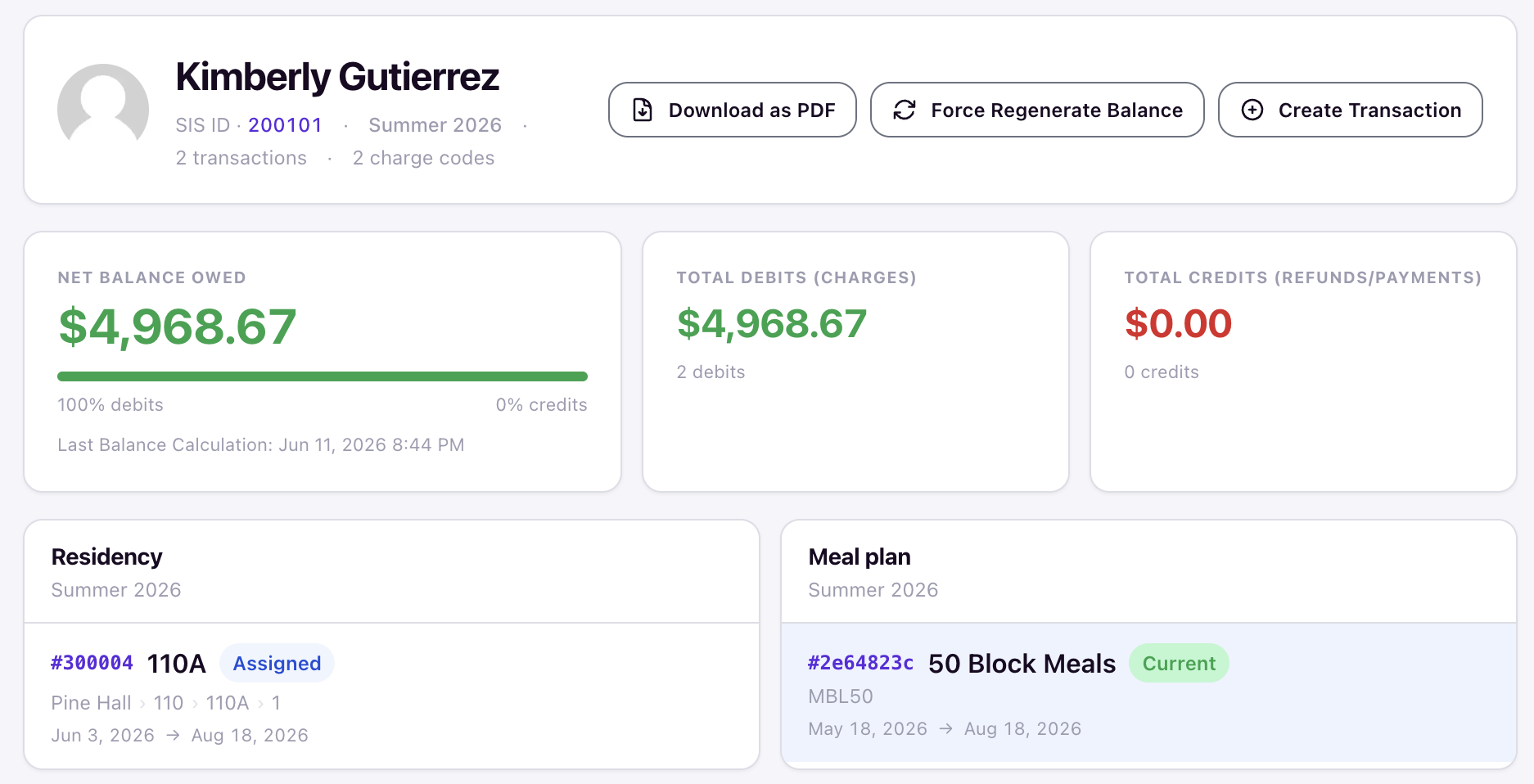
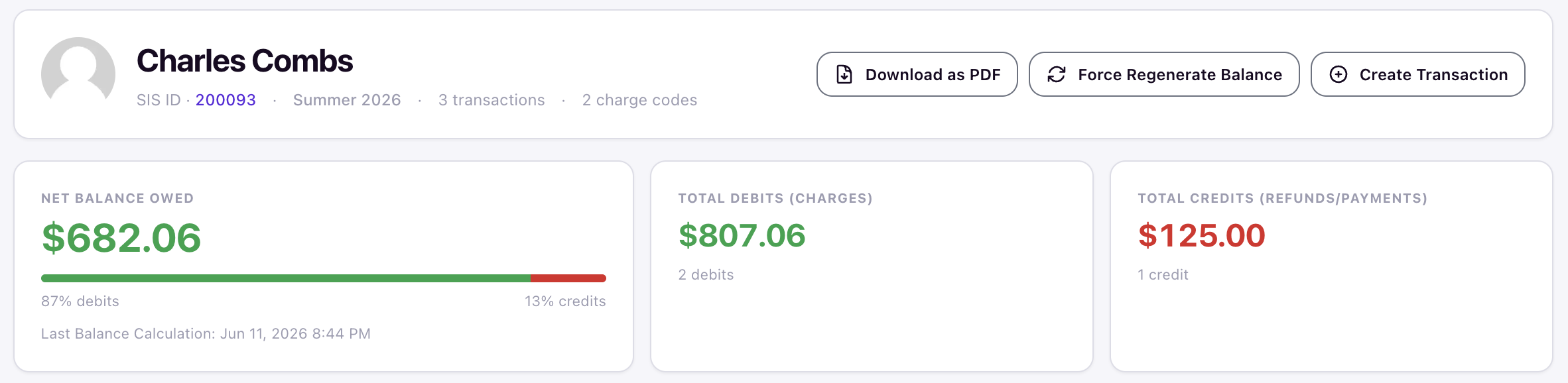
The header shows the student's SIS ID, cycle, transaction count, and charge code count, with three actions: Download as PDF, Force Regenerate Balance, and Create Transaction.
Three cards summarize the cycle: Net Balance Owed (with a debits-vs-credits bar and the Last Balance Calculation timestamp), Total Debits (Charges), and Total Credits (Refunds/Payments).
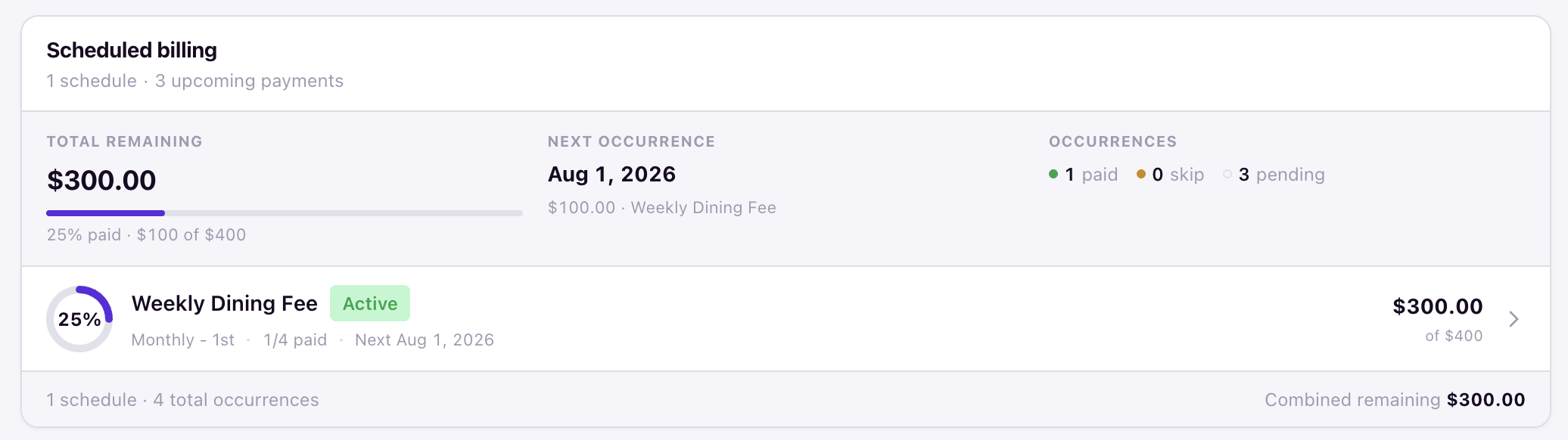
Below the stats, context cards show the student's Residency, Meal plan, and Scheduled billing for the cycle — so you can see why the balance is what it is.

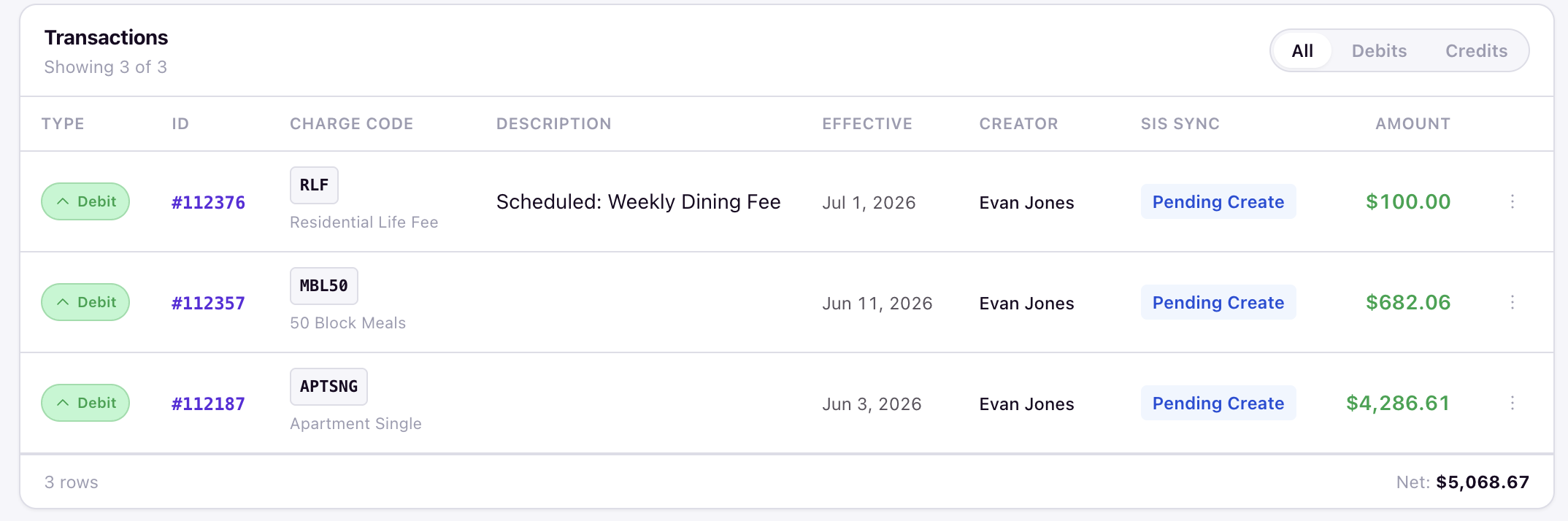
Charges posted by a billing schedule appear in the transactions list with a "Scheduled:" description, and the Scheduled billing card tracks the plan's remaining balance.
Balance by charge code
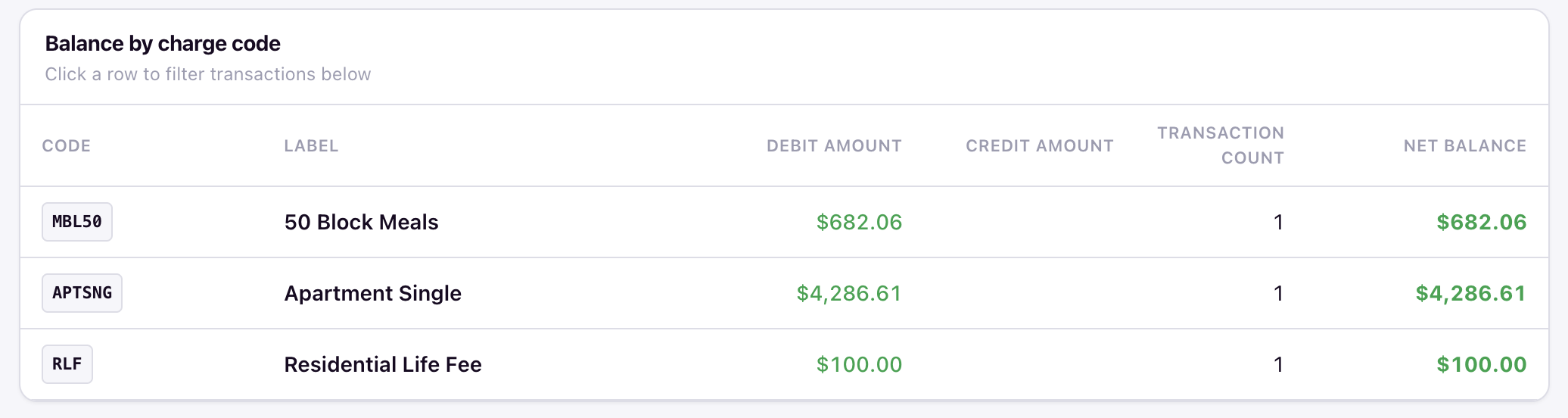
The Balance by charge code table breaks the cycle down by charge type — code, label, debit amount, credit amount, transaction count, and net balance. Click a row to filter the transactions list below to just that charge code.
Transactions
The Transactions table lists every charge and credit behind the balance, with type (Debit/Credit), ID, charge code, description, effective date, creator, SIS sync status, and amount. Use the All / Debits / Credits toggle to filter, and click a transaction ID to open it.
Locate balances elsewhere
Admins can see all user balances related to a student directly on their Profile.
How balances stay current
Balances update automatically a few moments after a transaction is created, refunded, prorated, or deleted — allow up to a few minutes for a new transaction to appear. In addition, a nightly reconciliation runs at 4:00 AM ET and rebuilds balances for the whole system, catching anything a real-time update missed. Test and simulation transactions are always excluded from balances.
If a balance still looks wrong, you can rebuild it yourself — see Troubleshooting below.
Troubleshooting
The grid is empty but we have transactions
Balances are computed as transactions change, so transactions that existed before User Balances was enabled for your school won't have balance rows until a rebuild runs. Use Force Regenerate Balances at the top of the User Balances grid to rebuild them, or wait for the nightly reconciliation.
A student's balance doesn't match a recent transaction
A just-posted charge, credit, or refund can take a few minutes to appear. If the balance still looks outdated, open the student's balance detail page (click their ID in the grid) and click Force Regenerate Balance. This rebuilds the balance for that student and cycle on the spot — the Last Balance Calculation timestamp on the Net Balance card confirms it ran.