Mark transactions as No Transfer
Last updated: August 28, 2026
Marking a transaction as No Transfer prevents it from syncing to your external student information system (SIS). This action only controls export behavior — it does not move money, change the transaction amount, or issue a refund. You can mark one transaction from its detail page or mark several at once from the Transactions table.
Use No Transfer when a charge or credit should remain inside Housing.Cloud and never be sent to your SIS. Examples include camp fees, conference charges, or housing cycle charges that your external system manages separately.
This is different from reversing a charge or editing its amount. To post a new charge or credit, see Creating Transactions. To reverse a charge, see Issuing Refunds.
Marking a transaction as No Transfer cannot be undone. Be certain the transaction should be excluded from SIS export before you confirm.
Mark a single transaction
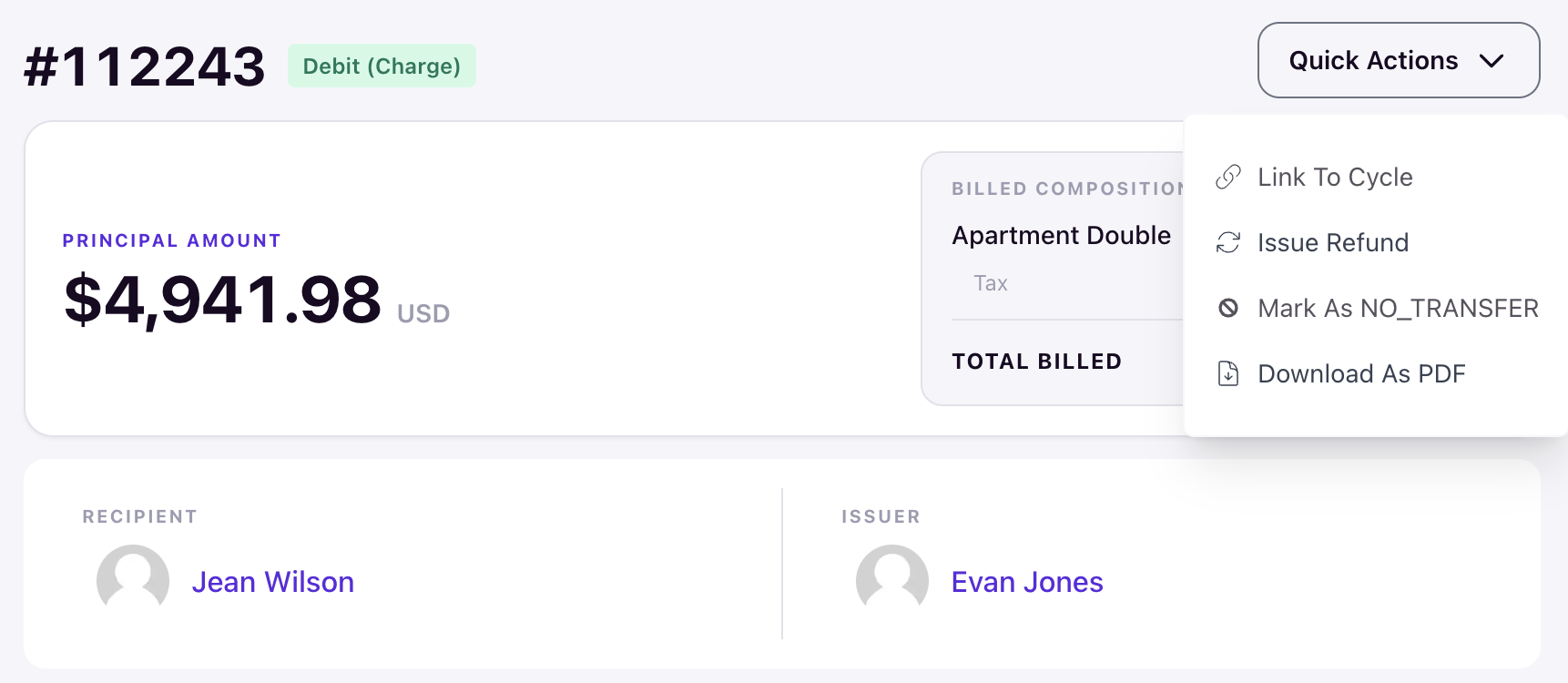
Open the transaction's detail page by clicking its ID in the Transactions table. Then open Quick Actions and choose Mark As NO_TRANSFER. Confirm when prompted. The transaction is marked immediately.
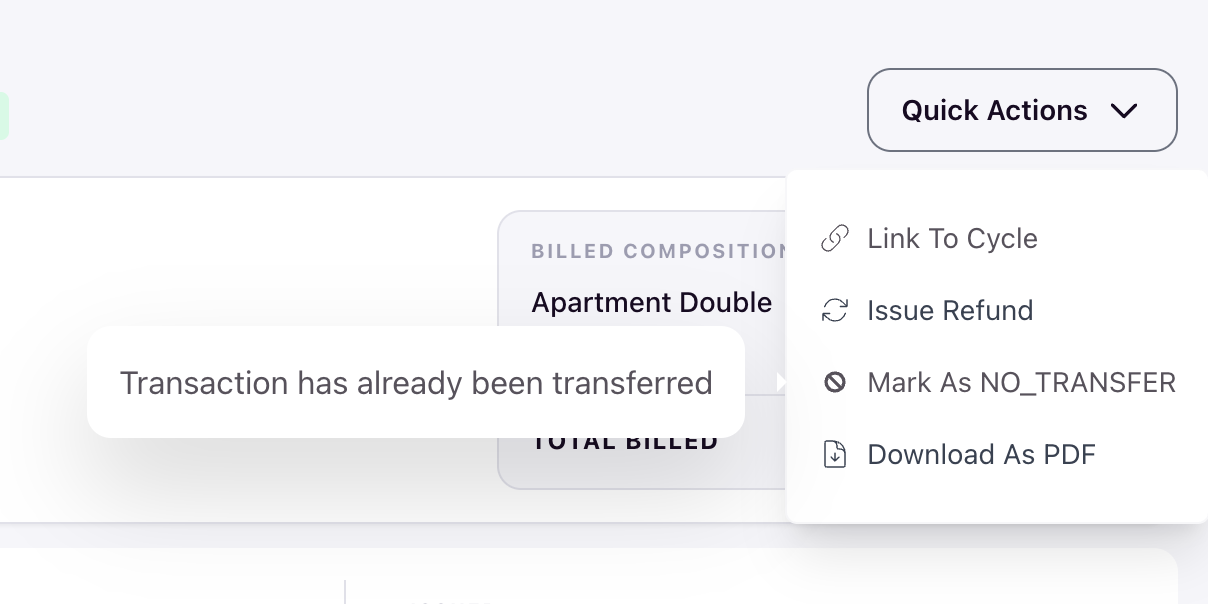
If the transaction has already synced out, the action is unavailable. Hovering over it shows a message that the transaction has already been transferred, so there is nothing to hold back.
Mark several transactions at once
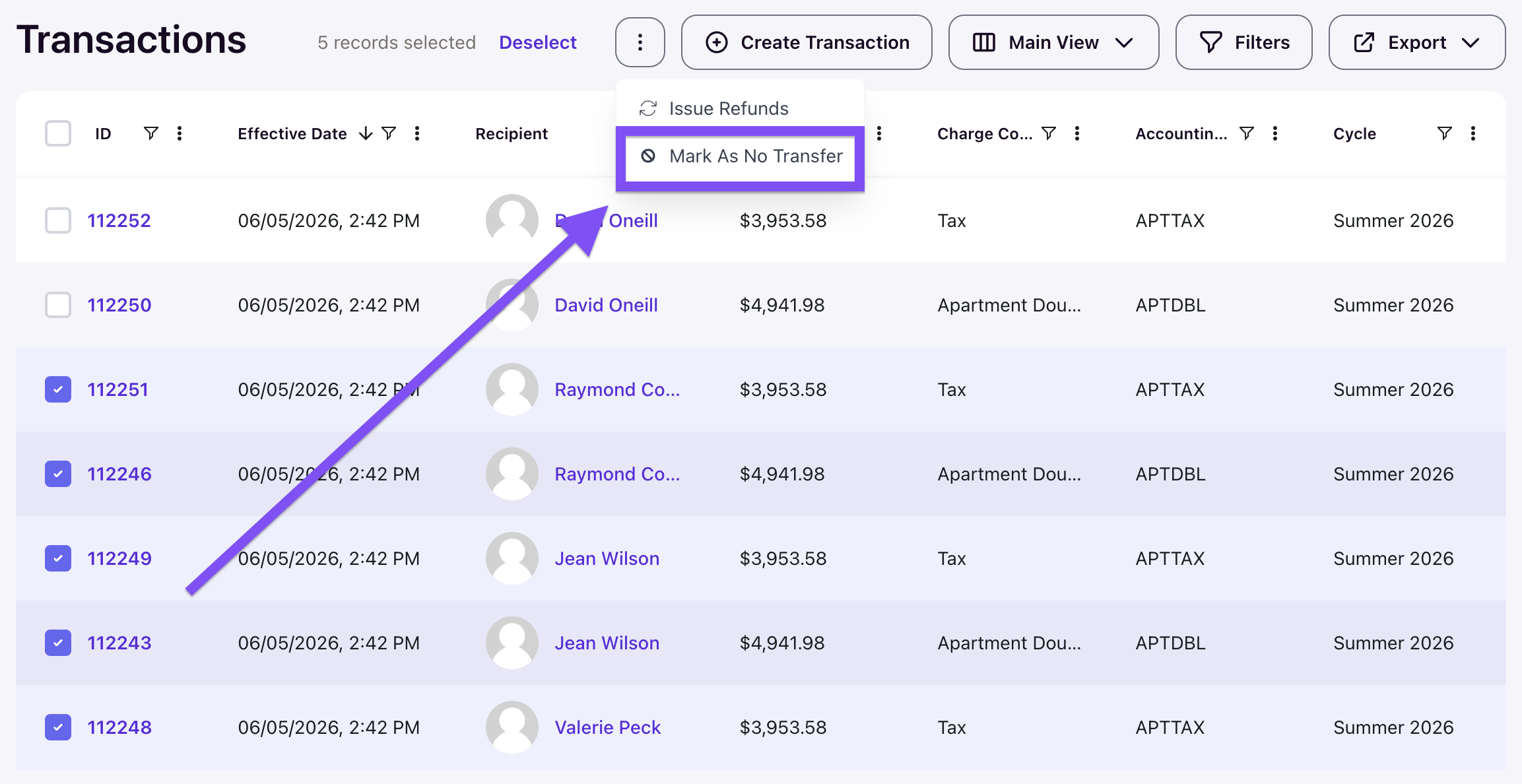
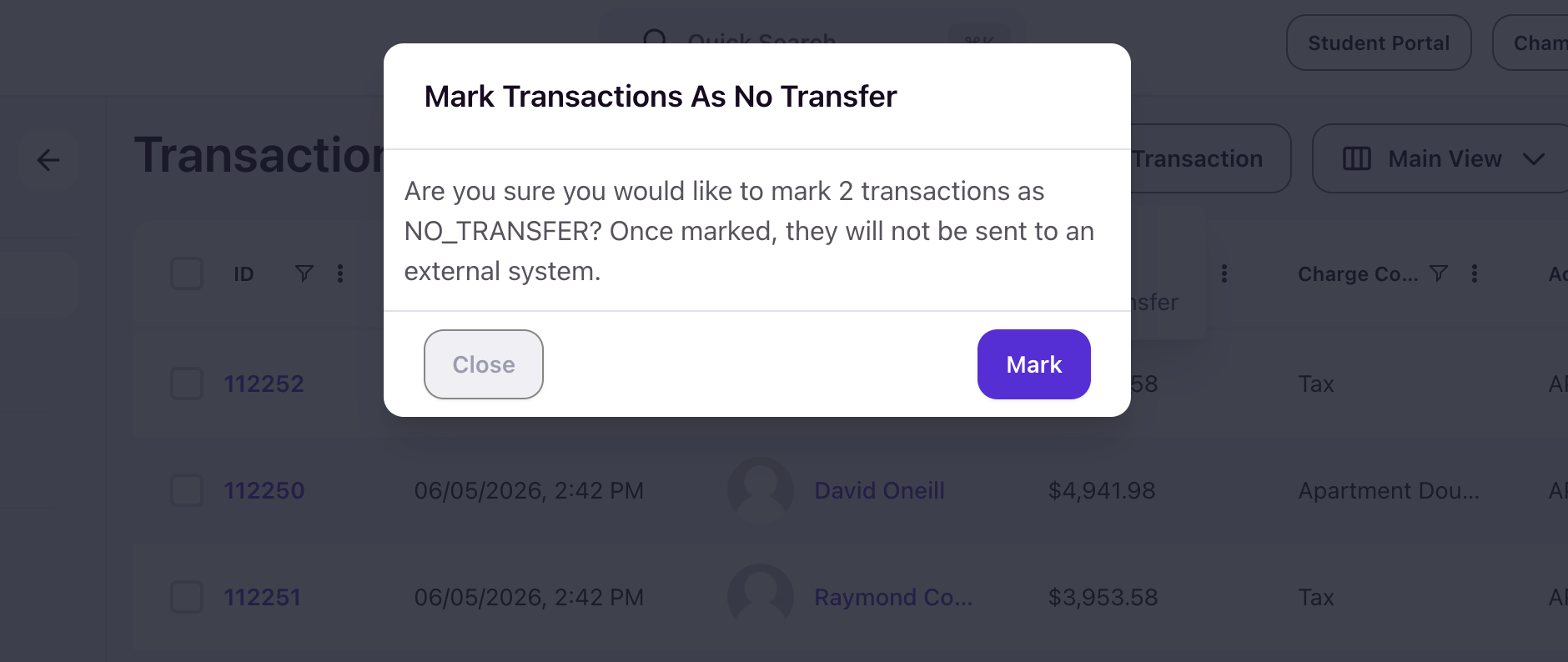
From Finance > Transactions, select the rows you want to exclude. Their rows highlight and a running count appears at the top of the table. Open the overflow menu and choose Mark As No Transfer.
Click Mark to proceed, or Close to back out. Only the eligible, not-yet-transferred transactions in your selection are marked.
Confirm the result
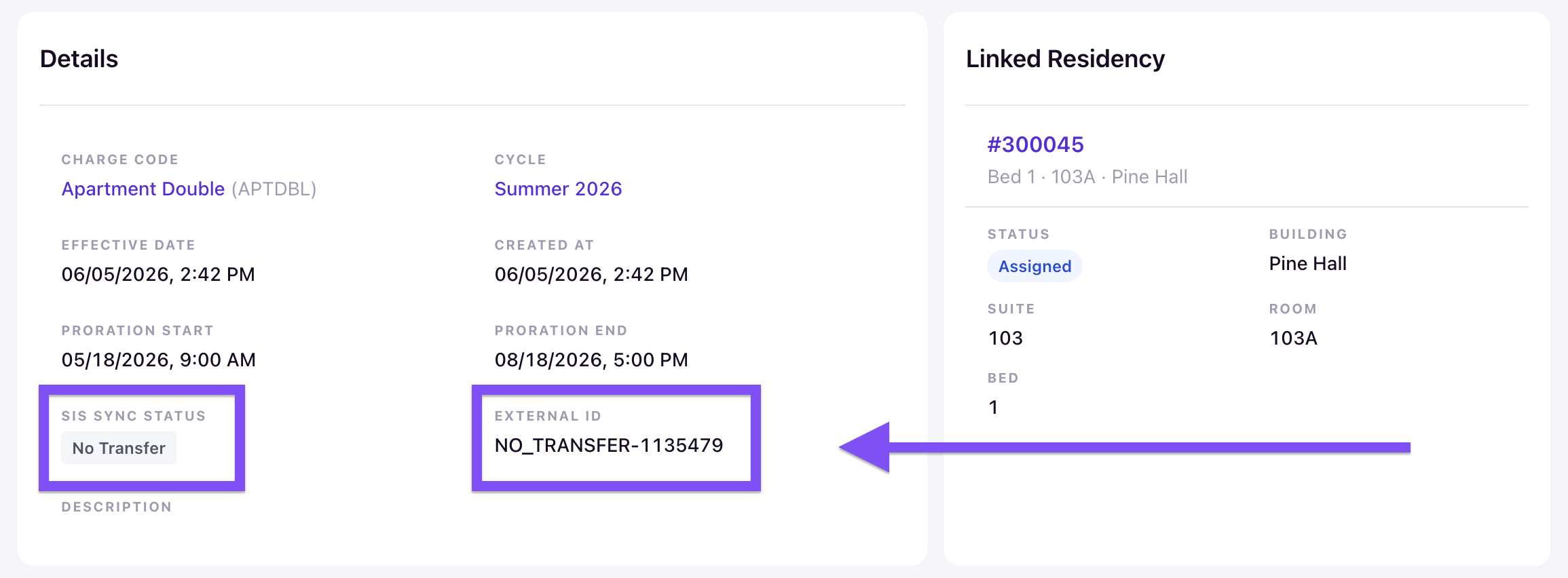
Open any marked transaction's detail page and look at the Details panel. Its SIS Sync Status reads No Transfer, and its External ID is set to a NO_TRANSFER-####### value. That value is a no-transfer identifier assigned in place of an external system ID. Together, those two fields confirm the transaction will be held back from SIS export.