Log Incoming Mail
Last updated: October 8, 2026
Log a package at Scan in the operations portal: photograph or skip the label, confirm the recipient, check where it is going, pick a shelf, and save so the resident is told. The whole flow is one wizard, and saving sends the resident a New Mail Arrived notice by email and in-app.
Only current residents and staff can receive mail. A profile with an active residency appears in the recipient search even without a room. A student who has moved out, with no active residency, is not in the recipient search unless the mailroom option Allow non-resident access is on.
Start at Scan
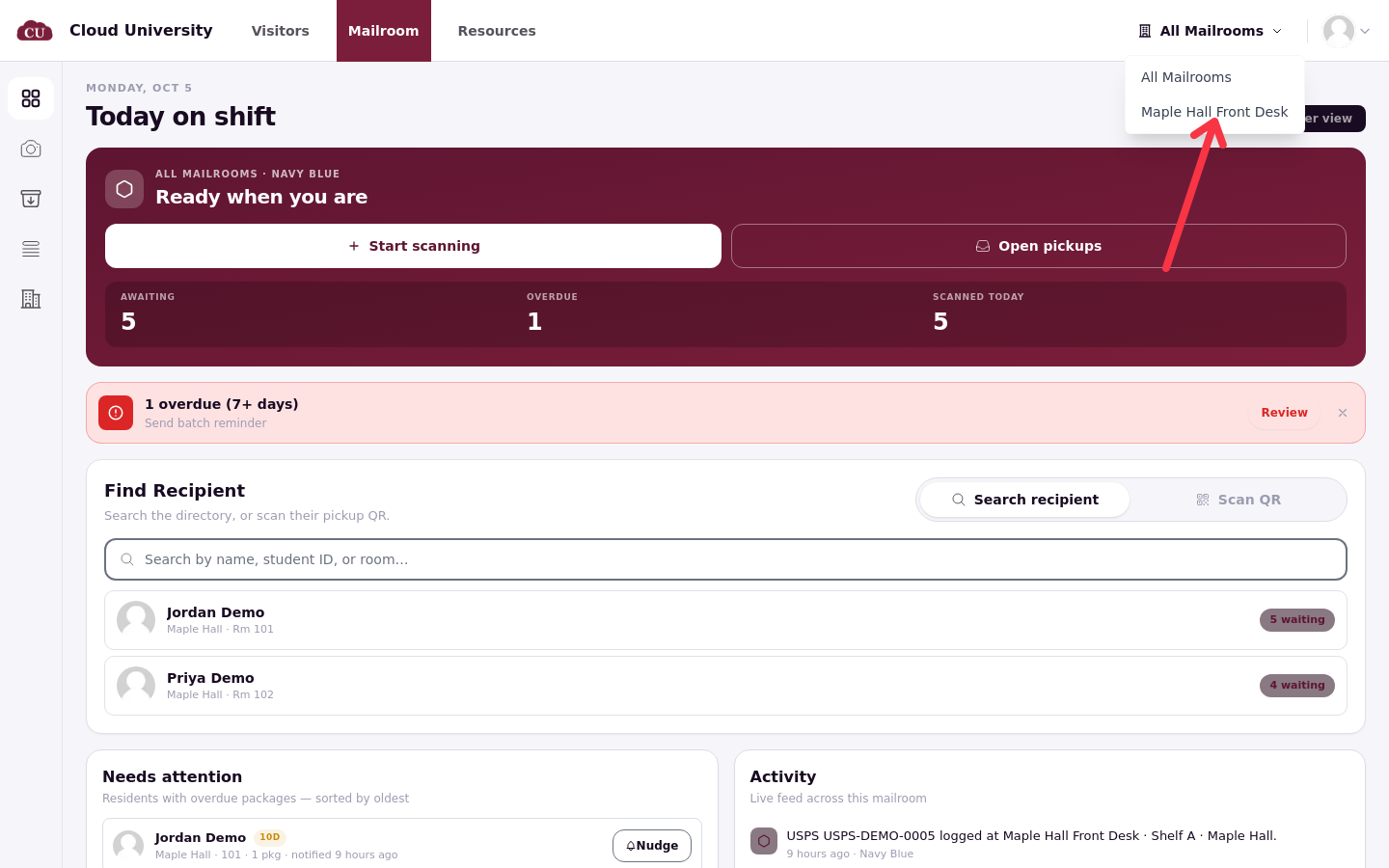
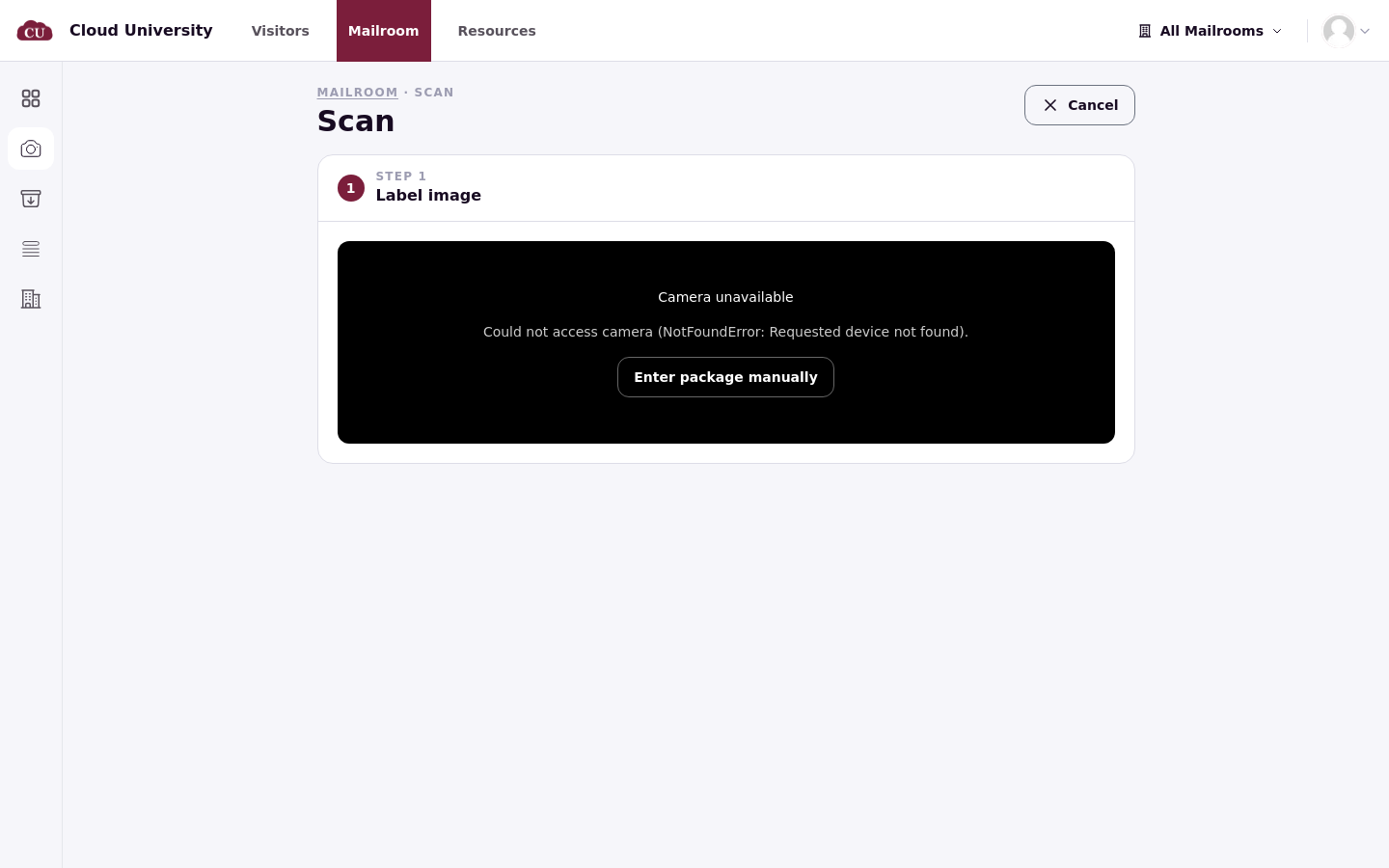
Open Scan in the operations portal and pick your mailroom from the picker at the top right if you work at a single desk. The wizard opens at Label image: fit the whole label inside the camera frame and photograph it, and the Mailroom reads the label and fills the fields for you to check and correct. If the camera is blocked or unavailable, or you would rather type, click Enter package manually, which always works (see Mailroom Troubleshooting).
Confirm the recipient
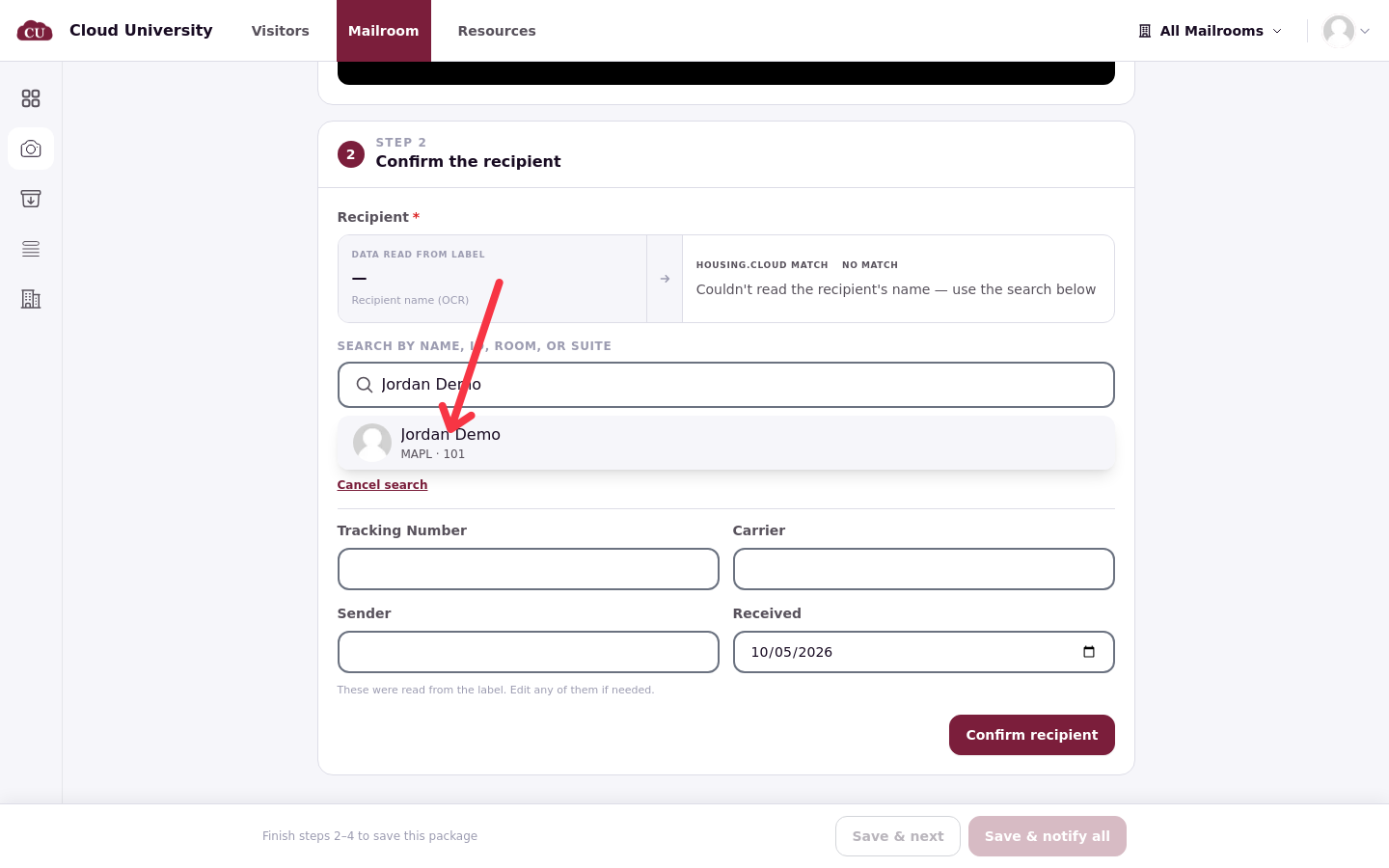
Step 2, Confirm the recipient, compares the name read from the label with your resident directory. The left panel shows what was read (Recipient name (OCR)); the right panel shows the match. When nothing was read, it reads NO MATCH with "Couldn't read the recipient's name — use the search below".
When the read name could match several residents, open the list and choose the right one. Search by name, ID, room, or suite in SEARCH BY NAME, ID, ROOM, OR SUITE and pick the resident from the results, which show their building and room. Once you pick someone the match panel marks it MANUALLY SELECTED, with a CHANGE link if you picked wrong.
Under the search sit Tracking Number, Carrier, Sender and Received. Carrier and sender are free text: there is no carrier list, so type UPS, USPS, FedEx or anything else exactly as you want it to appear later in filters and reports. Received is today by default; when you log from a paper log, pick the day the item really arrived so the record shows the true arrival date. Ageing is calculated from the time since the item was checked in against the mailroom's ageing setting, not from the Received date, so backdating Received does not label an item Ageing when you save it.
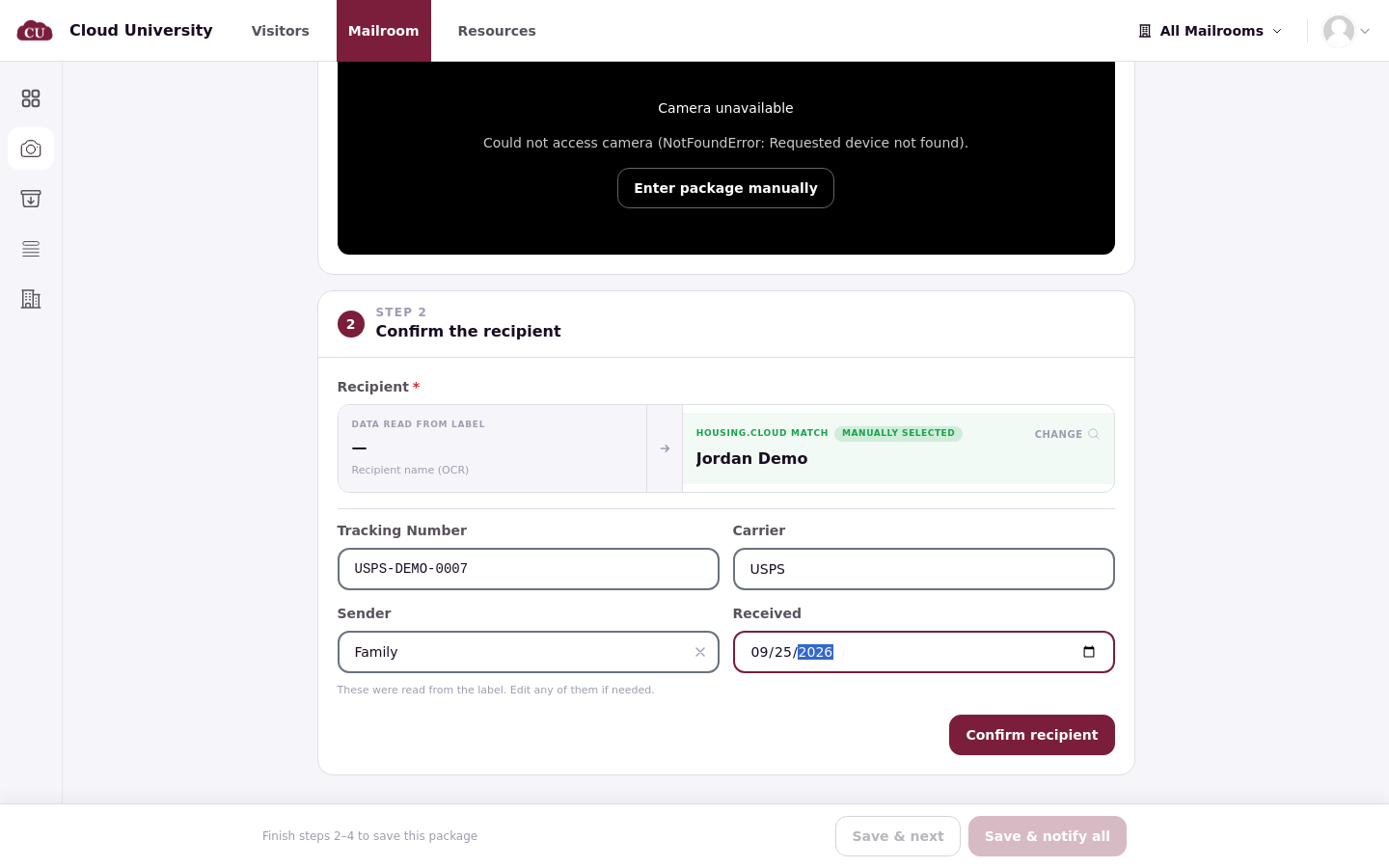
Finish step 2 with the Confirm recipient button.
Check the destination
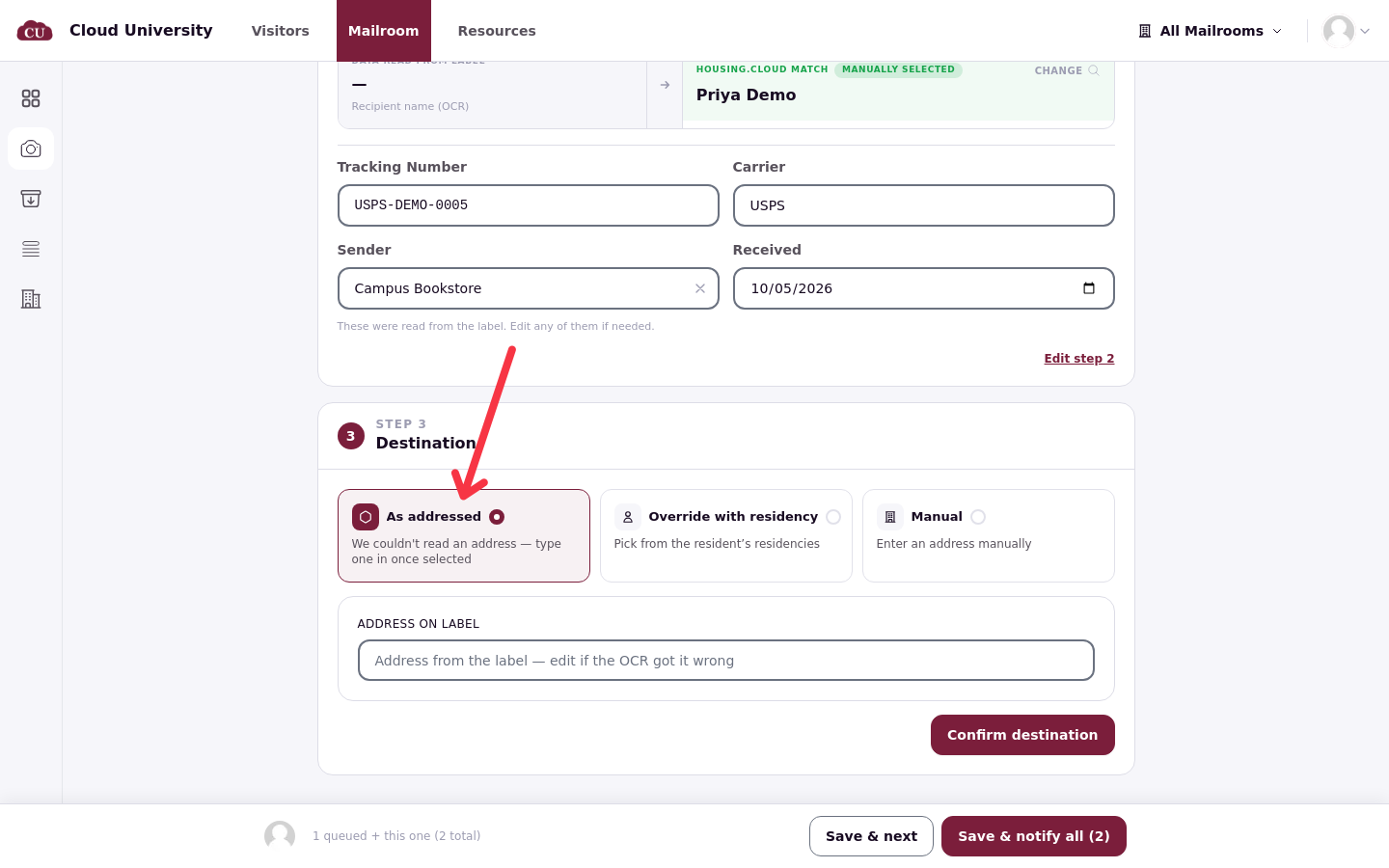
Step 3, Destination, decides where the Mailroom says the item belongs. As addressed uses the address on the label, which for campus mail is the resident's current room; Override with residency picks from the resident's residencies instead; Manual is for an address typed by hand. The destination step shows what the label read, so fix any misread field, including the tracking number and the address, before confirming.
Pick a shelf and save
Step 4 sets Storage location: the Mailroom dropdown and the location, shown as selectable chips. Step 5, Additional photos, is optional and takes jpg or png uploads of the item itself. The footer shows how many packages are ready to save, with Save & next to queue the item and start the next one, and Save & notify all (N) to save and notify in one go.
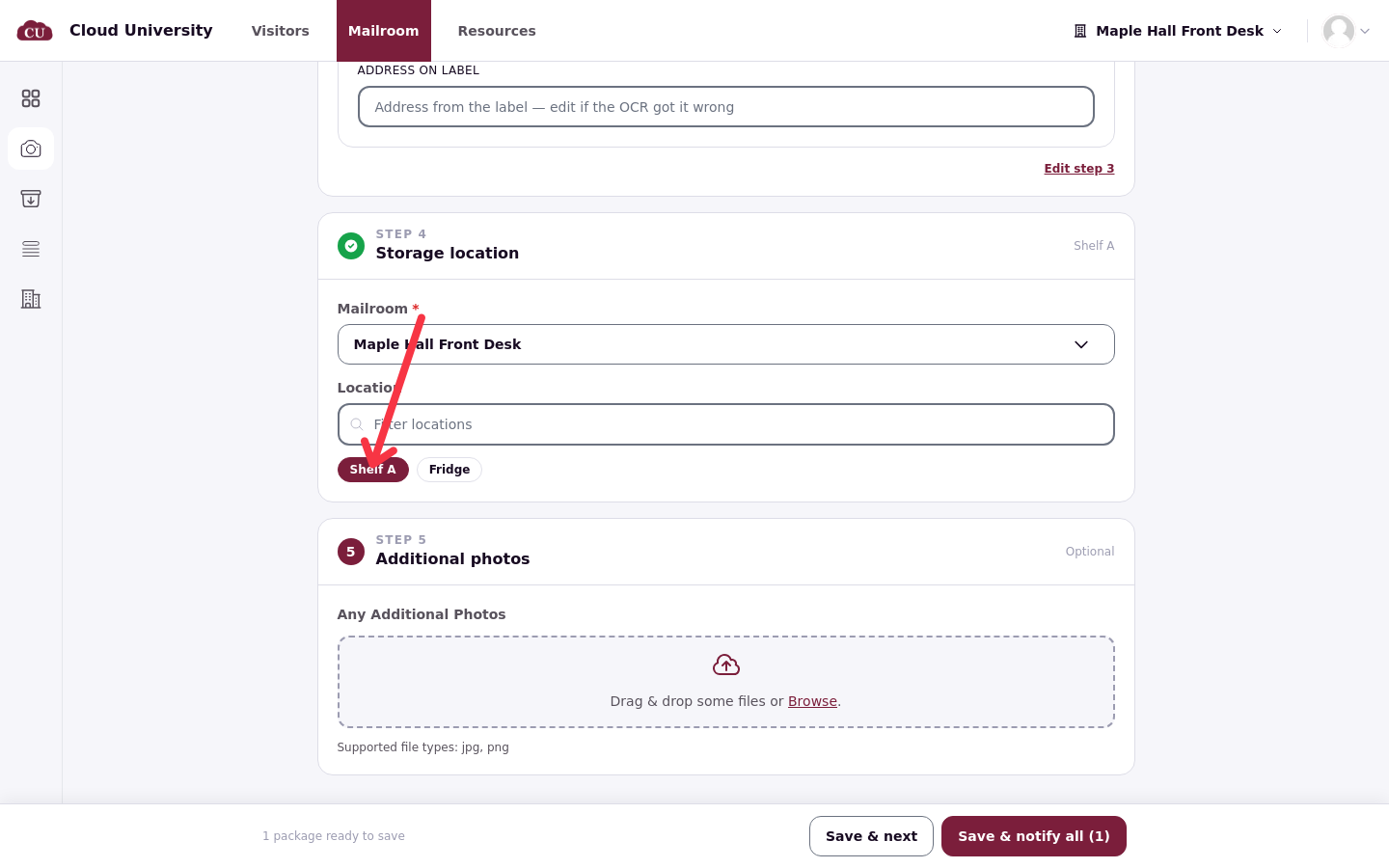
Save & notify all checks the item in, sends the resident a New Mail Arrived email and in-app notification, and returns the wizard to the start with a confirmation such as 1 mail item checked in.
Flag a bad read
Flag scan for review appears on items logged from a real camera scan. Tick what went wrong (the recipient name, carrier, tracking number or sender, the image quality, missing or extra text, or the scan being too slow), say how often it happens, and send the report with the flag button. The flag helps improve the reading; it does not change the item. Items typed by hand have nothing to flag.
Good to know
Mail type, notes and recipient-only are set after logging. The scan steps do not ask for them; open the item and use Edit (see Large, Perishable and Recipient-Only Items).
A scanned label stays on the item. The photo is kept as Scanned Label, and a misread field can be flagged for review.
Saving notifies the resident. The New Mail Arrived notice goes out by email and in-app; reminders are never automatic.
An item appears under the Ageing pill in All items once the time since it was checked in passes the mailroom's ageing setting.
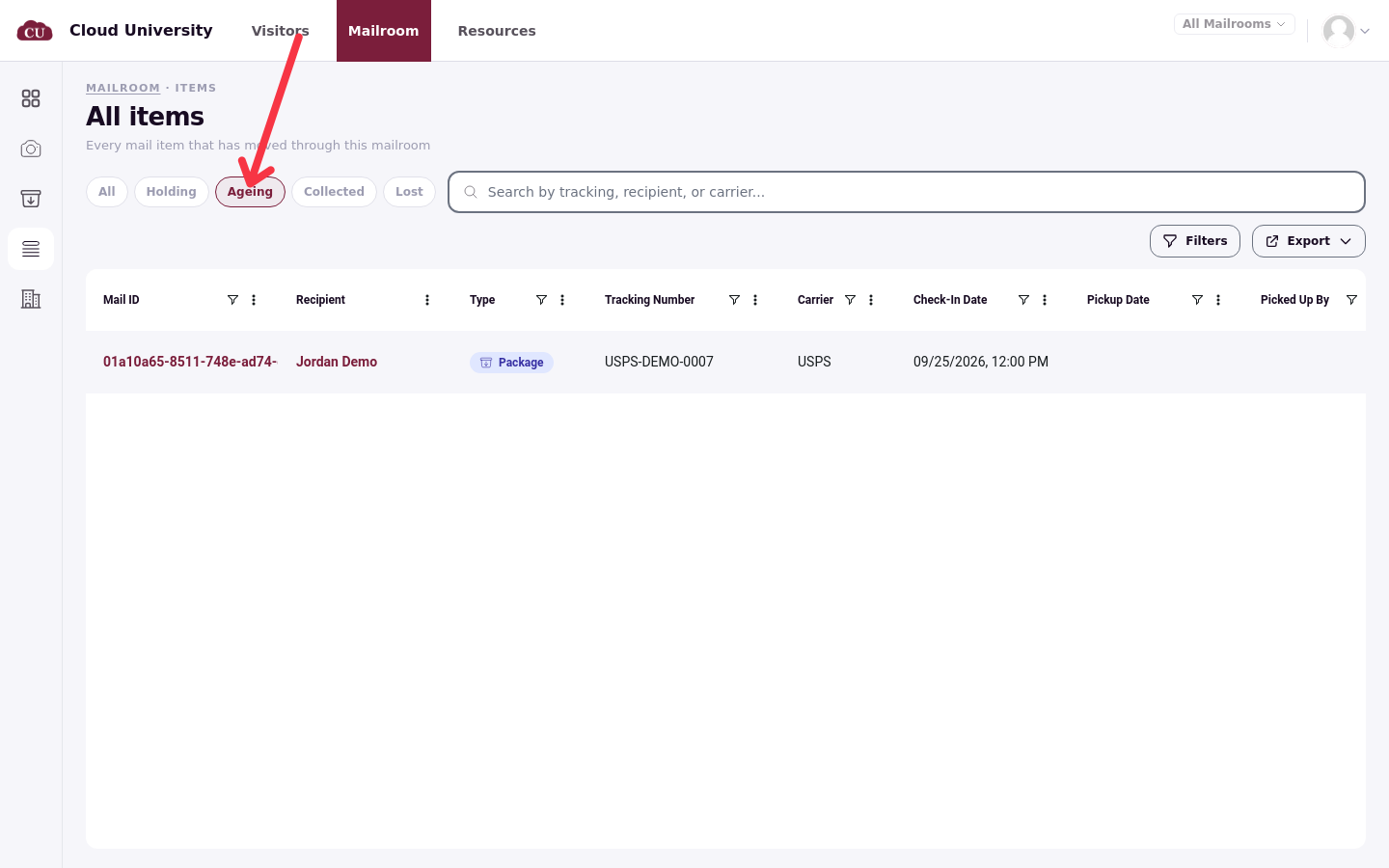
To verify a save, open All items and find the item under Holding by tracking number, recipient or carrier. Its page shows the status, the storage location, and an activity list that starts with Checked In and Notification Sent.