Mailroom Troubleshooting
Last updated: October 8, 2026
Quick answers for what the desk hits first. Each answer names the screen where it happens.
A box arrived for a student who moved out
When the mailroom option Allow non-resident access is off, a moved-out student is not in the recipient search: the search shows "No matches" and the save is refused. When the option is on, former residents can be selected as recipients. There is no forwarding or return-to-sender action; note it and decide offline. If the item was already logged, cancel it from the resident's record.
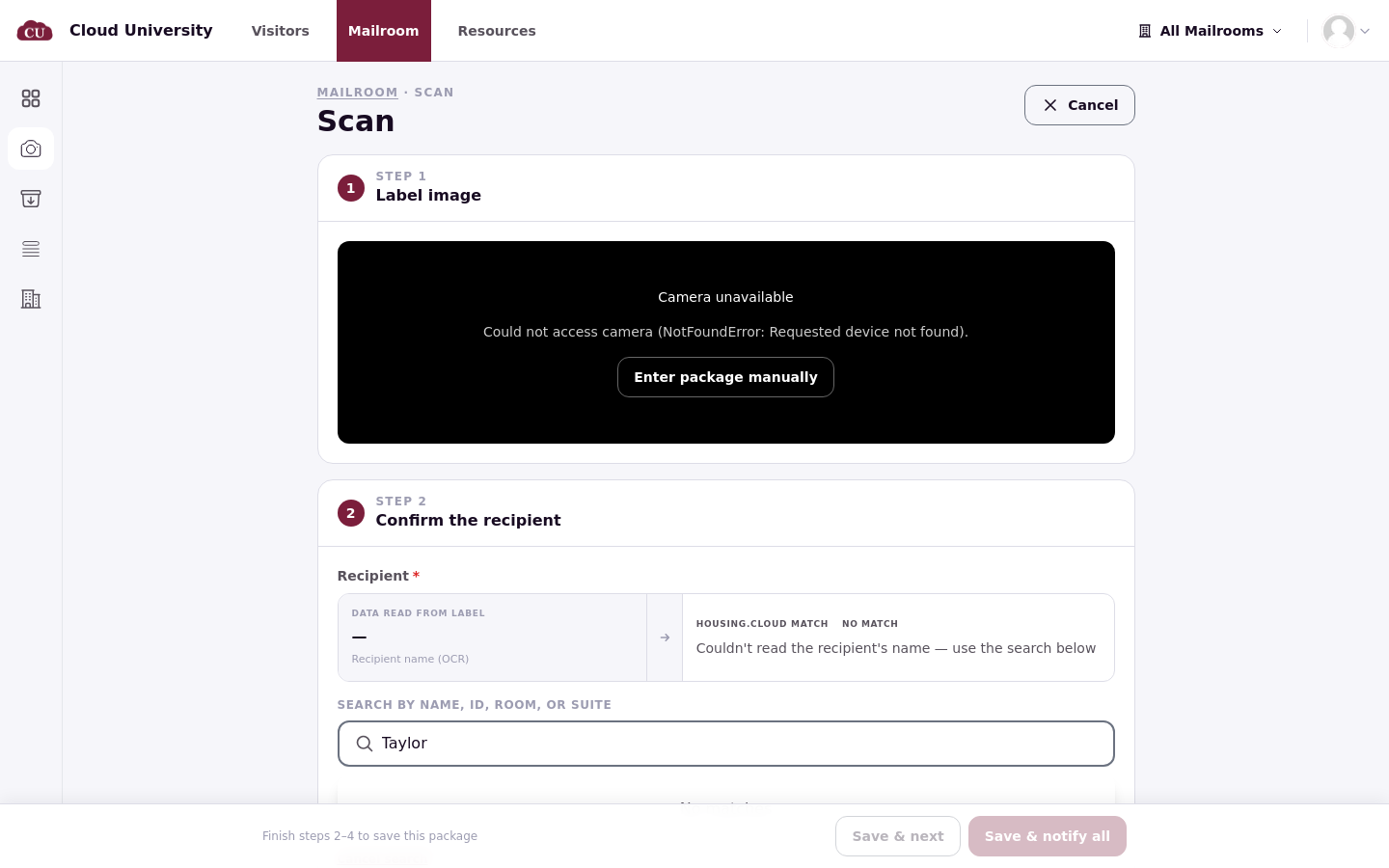
Save is greyed out
The disabled explanation reads "Finish all steps for this package first": the recipient, the destination and the mailroom must all be resolved before saving. The storage location is optional and is not part of the save check. A missing recipient is the usual cause.
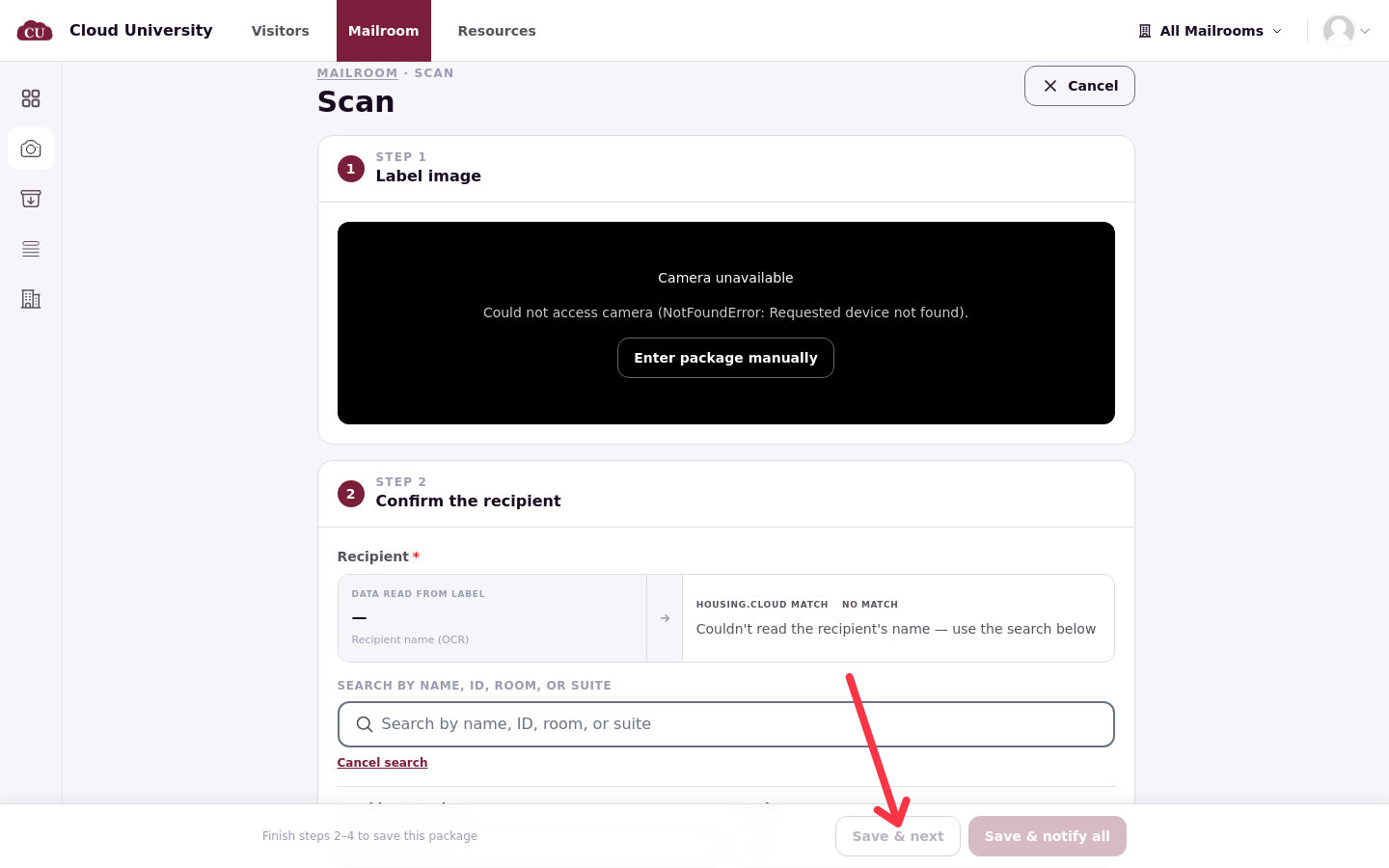
The camera is blocked or unavailable
The Label image step shows "Camera unavailable" or "Camera access is blocked" with the reason underneath. Allow the camera in the browser's site settings and reload, close any app that is using the camera, or click Enter package manually, which always works.
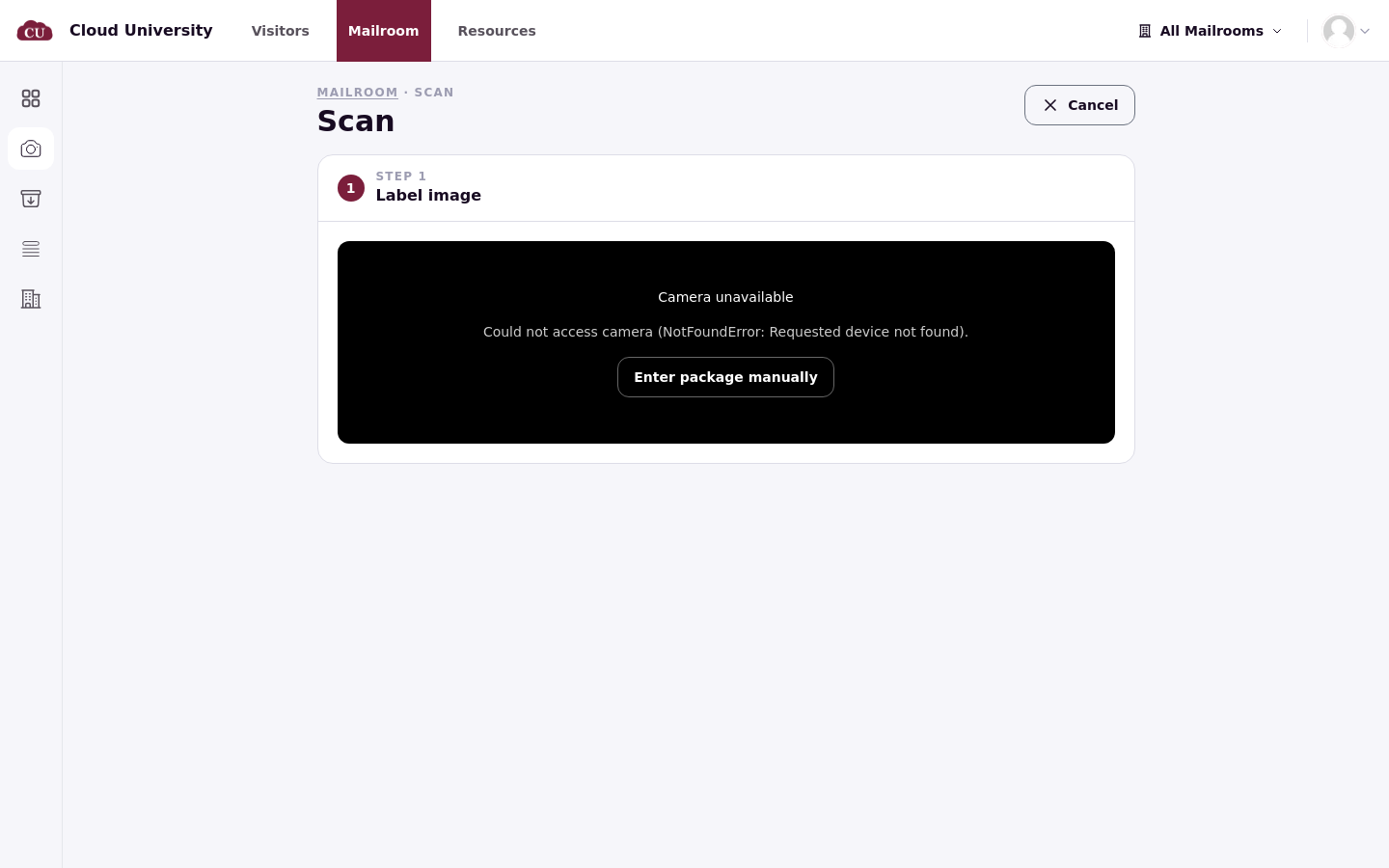
The label was read wrong
Fix the misread field in the wizard before saving, and flag the scan for review so the reading improves (see Log Incoming Mail). Flagging is only offered after a camera scan; items typed by hand have nothing to flag.
Invalid QR code at Pickups
The code scanned is not a Mailroom pickup code. Use Search recipient instead.
I left Scan and lost my queue
Queued items are not saved until Save & notify all is clicked. The browser dialog "You have unsaved scan progress. Leave without saving?" is the warning: leaving with OK discards the queue. Log a Busy Delivery in One Session explains the queue.
This mailroom has no configured locations
The mailroom was created without a storage location. Add one in the admin portal under Mailroom (see Set Up Mailrooms, Storage Locations and Mailroom Options).
The resident's mail is at another desk
The pickup page says the package cannot be picked up here. Move the item by editing its mailroom, or send the resident to the other desk (see Work Across Several Mailrooms).
A delegate cannot see or collect an item
Two causes: the item is marked Only recipient may pick this up, or the mailroom option Allow residents to add pickup delegates is off.
Nobody got a reminder over the weekend
Reminders are never automatic. Staff send them with Send Pickup Reminder or the bulk Nudge (see Remind Residents About Uncollected Mail). Nudge is greyed out when collected, lost or unassigned items are selected; pick only waiting mail.
The item is missing from the shelf
Mark it lost on the item page; mark it found if it turns up.
A resident says they never got it
Open the item: the pickup details show Collected by and Released by, and the Audit Trail shows every step with times and staff names (see Look Up an Item and Proof of Pickup).
There is no overdue alert on the dashboard
The alert appears only when an item has really waited longer than the ageing setting, counted from its received date. Nothing is wrong; nothing has aged yet.
A resident got one reminder for three boxes
By design: one reminder per resident covers all their waiting items.
Residents don't get texts
Mail notices are email and in-app only.
I can't find Manager view or Locations on my phone
Both are desktop-only; phones get the counter tools (see Use the Mailroom on a Phone or Tablet).