Organize Help Articles into Categories
Last updated: October 8, 2026
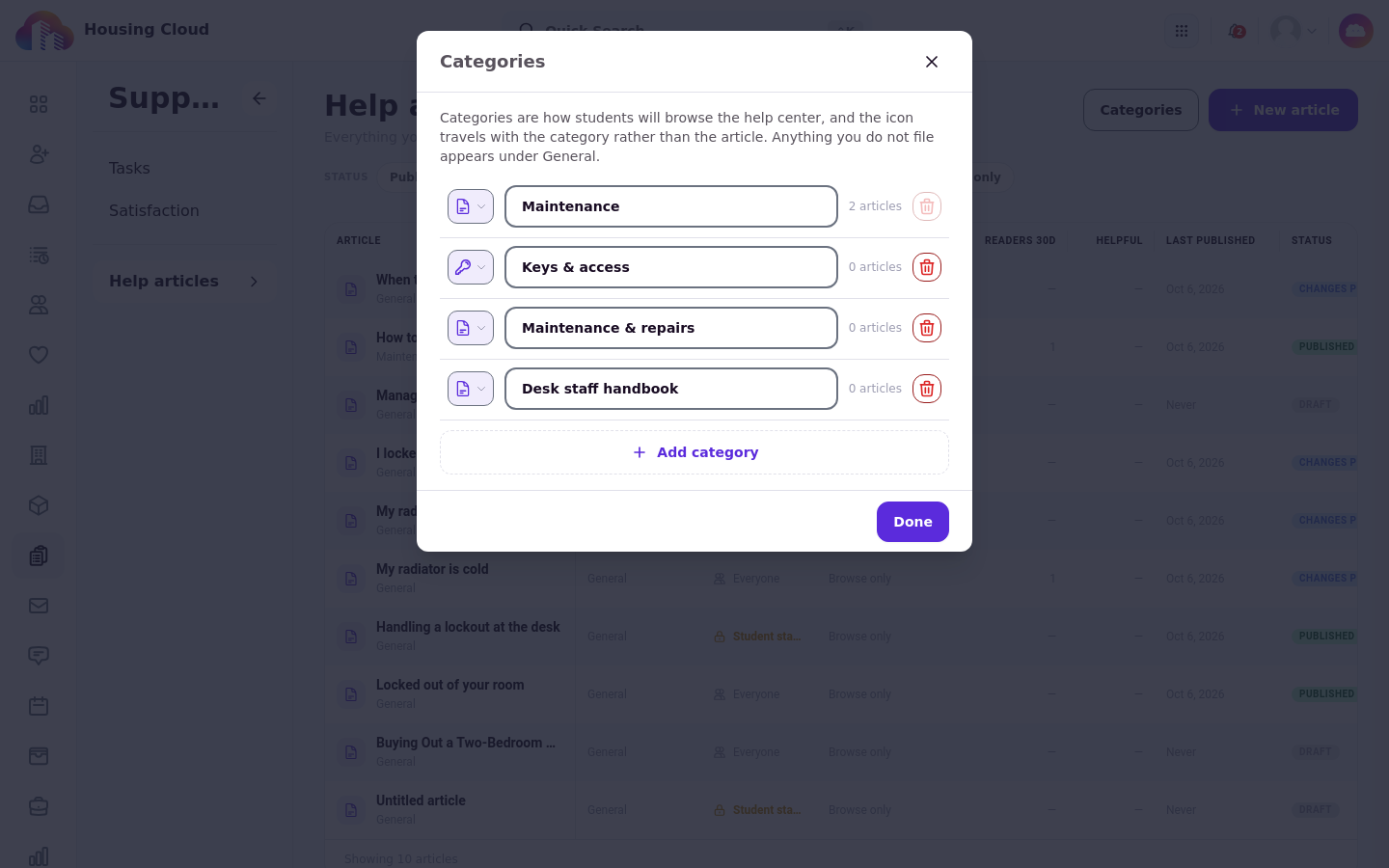
At Maple Hall… Sam wants residents to see "Keys & access" and "Maintenance & repairs" as separate topics, and a "Desk staff handbook" that only RAs and desk staff read.
Help-article categories are the shelves residents browse on the help center home. You create them from the Help articles page, give each one a name and an icon, and file articles onto them to build the topics residents see.
Before you start
Housing Cloud switches the help center on for your school. If you do not see it, ask your Housing Cloud contact.
You need the Manage help-center articles permission.
Open the categories window
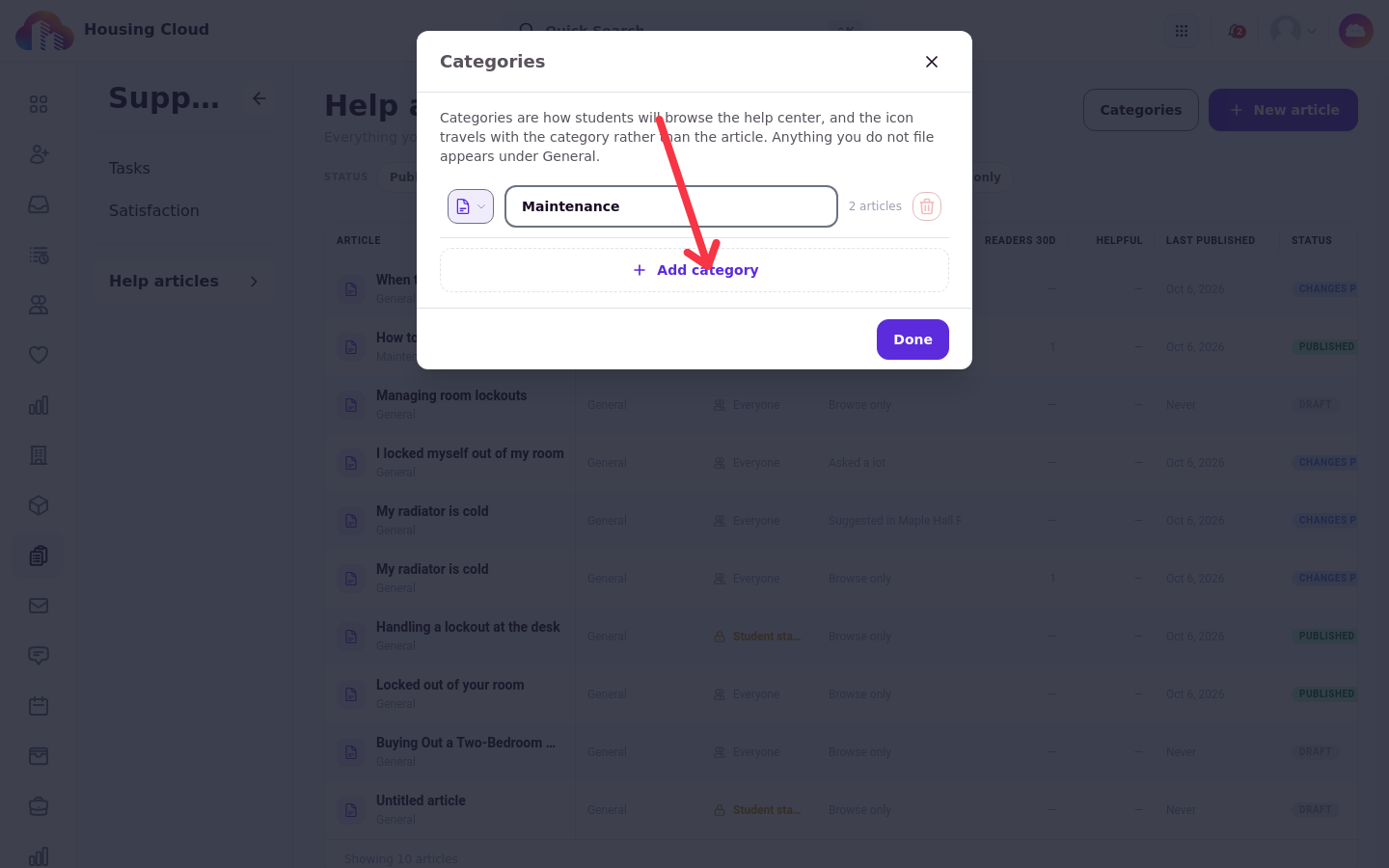
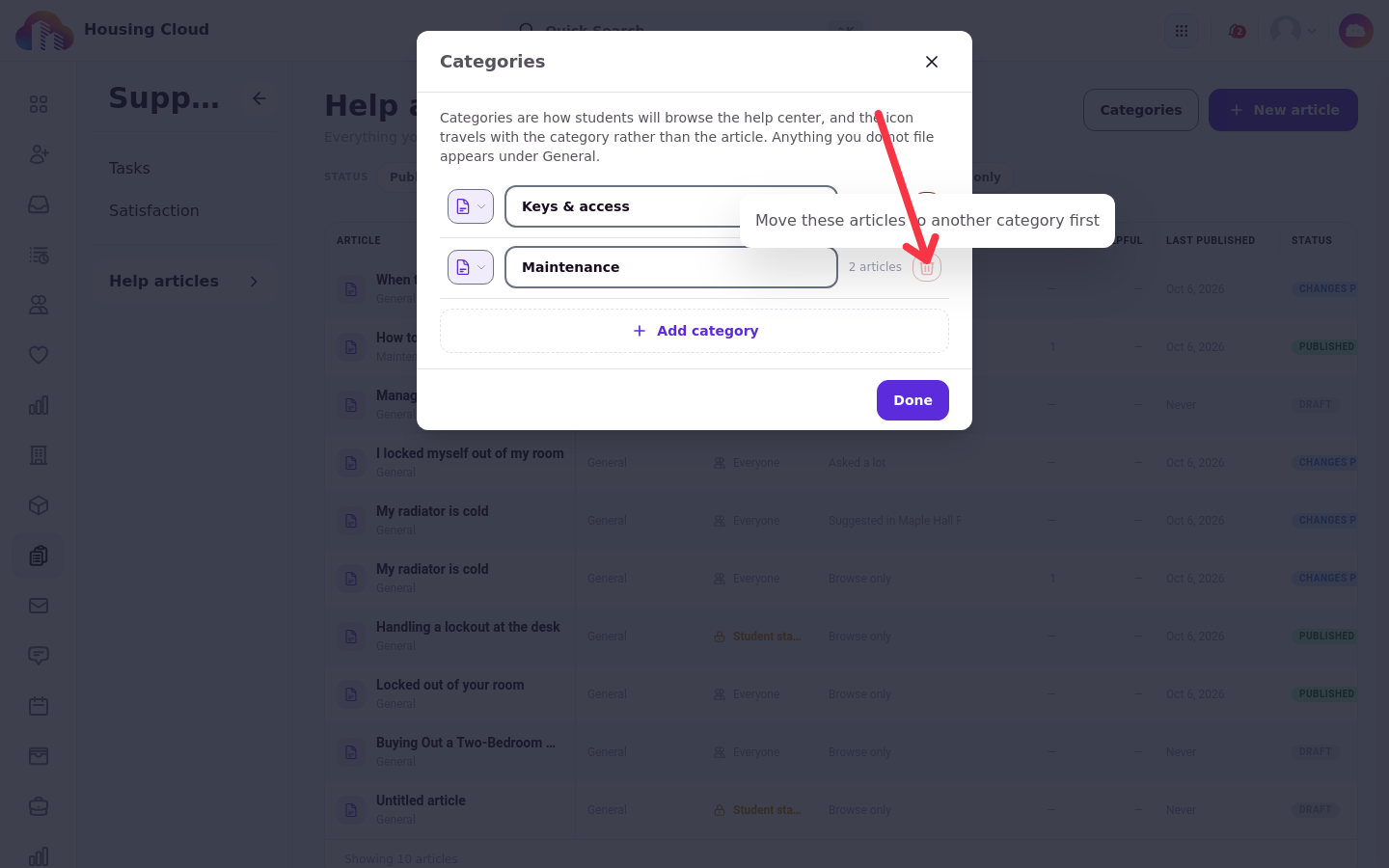
On the Help articles page, click Categories. The window lists managed categories and holds the Add category button. Articles you do not file appear under General.
Add a category
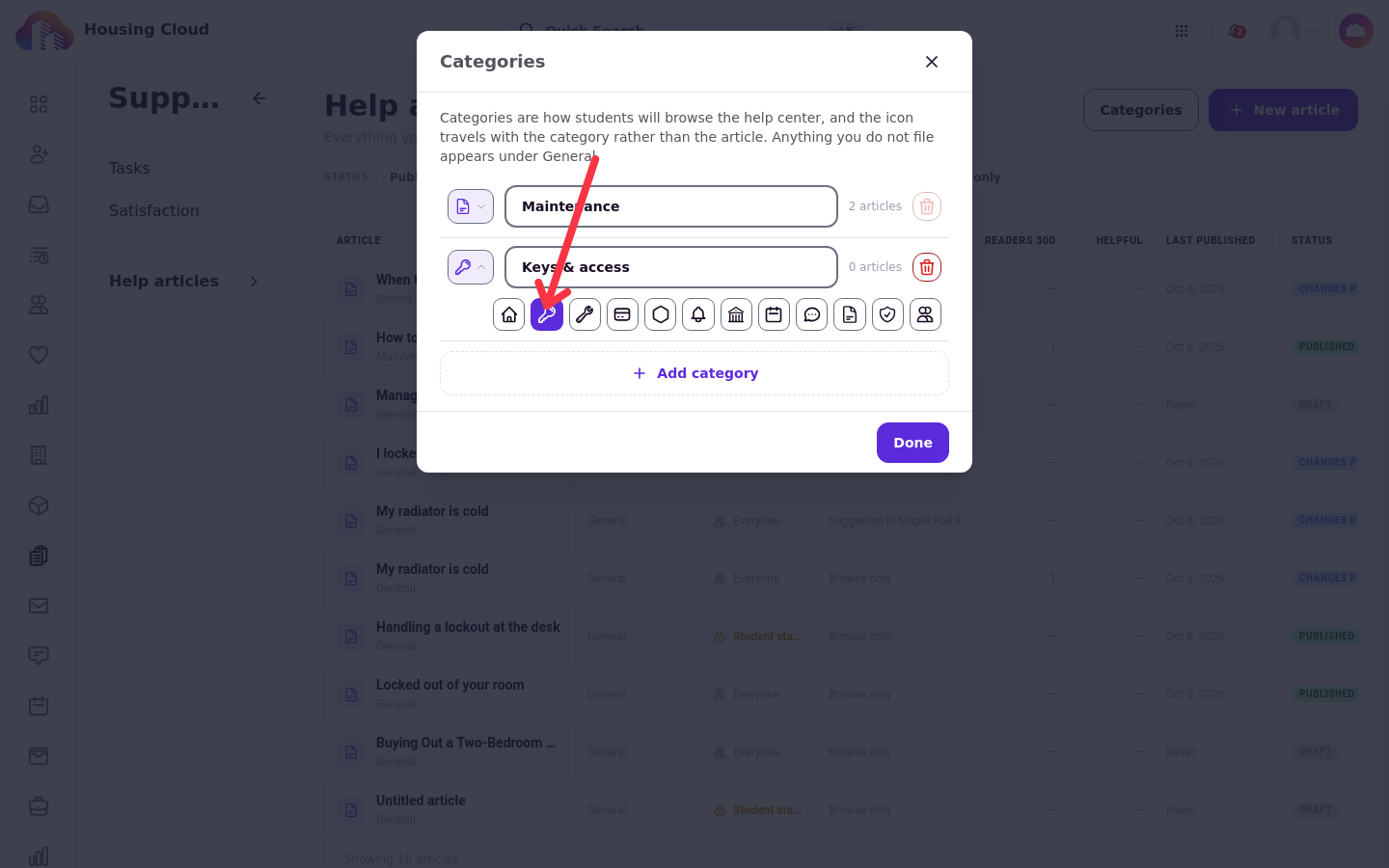
Click Add category, type a name in Name this category, and pick a Category icon from the twelve icons. The window saves every change as you type; Done only closes it.
The General category
Every article starts in General. It is always first in the list, it cannot be renamed or deleted, and "General" cannot be used as the name of a new category.
Category names must be unique
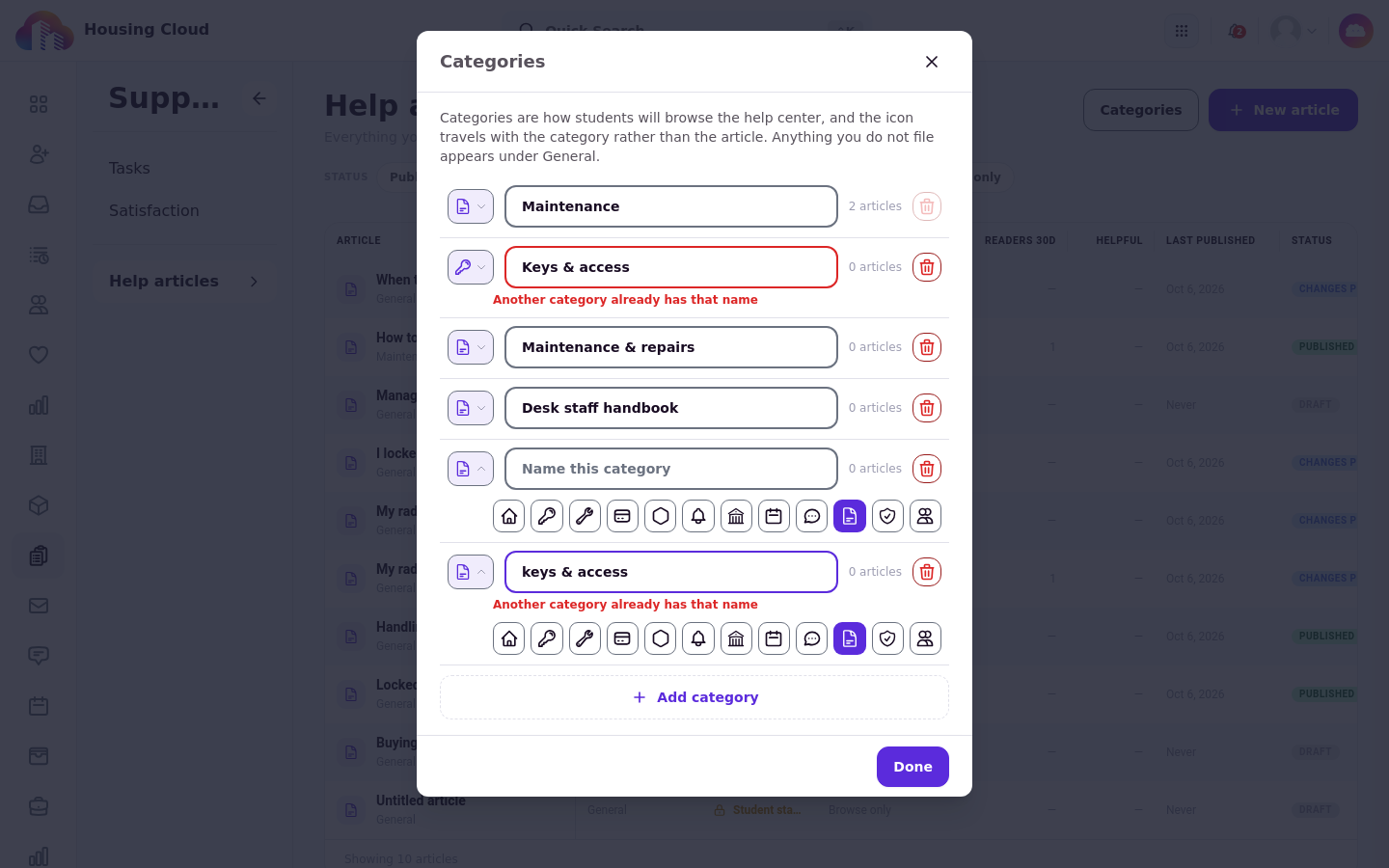
Names are unique even when the capitals differ. Type a name another category already has and the window shows Another category already has that name.
Icons and renaming are live at once
The icon you pick is what residents see on the article page and on the help center home. Renaming a category or changing its icon takes effect at once for every published article on that shelf. Moving an article to a different category works the other way: it waits for Publish changes.
Delete only an empty category
Try to delete a category that still holds articles and the window shows Move these articles to another category first. Published and draft copies both count as articles.
What residents see
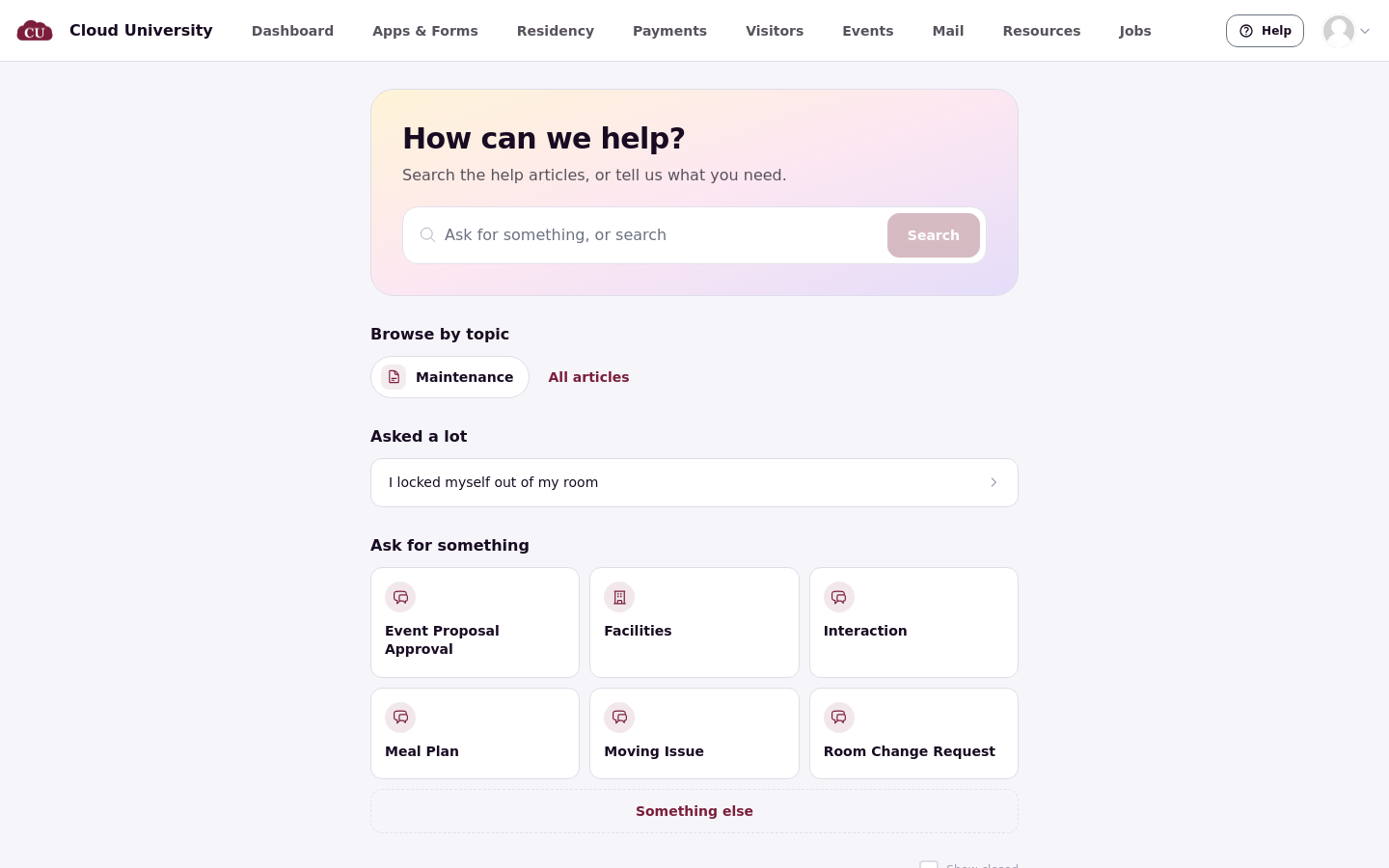
Residents see only the shelves that hold at least one article they can read. Articles you leave in General are still found through search and "All".
Good to know
Settings go live only when you publish. Audience, category and placement changes wait for Publish changes, including narrowing an article to staff. Renaming a category or changing its icon is live at once.
Related articles
6 · Write and Publish a Help Article
8 · Choose Who Sees an Article and Where It Appears
11 · What Residents See in the Help Center