Monitor upcoming and posted charges
Last updated: August 28, 2026
Scheduled Billing posts charges automatically, so most days your job is watching, not doing. Use the Billing Schedules workspace, the student profile, and Finance > Transactions to see what is coming and what has already posted.
Schedules tab
The Schedules tab answers the question: What plans do we have?
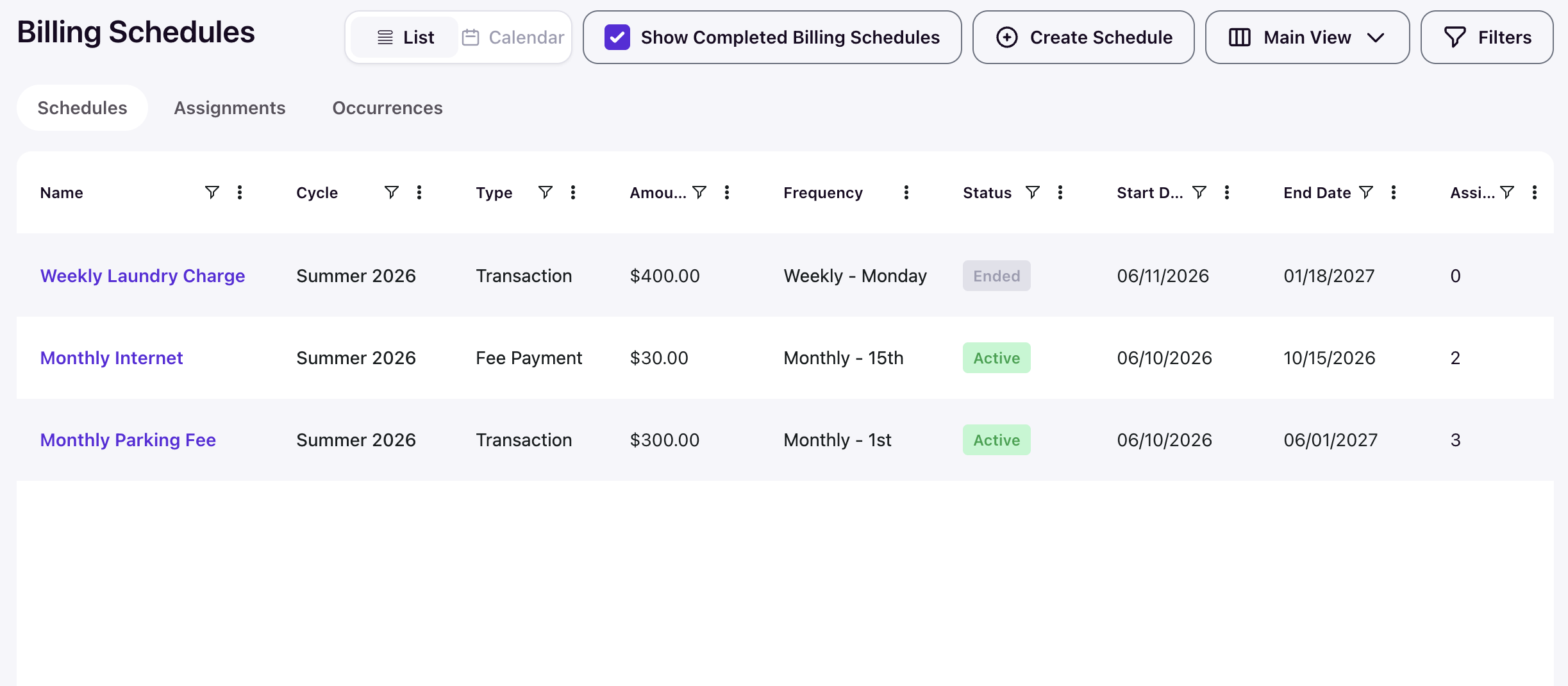
Each row shows a schedule with its Name, Cycle, Type (Transaction or Fee Payment), Amount, Frequency, Status, Start Date, End Date, and Assignments count. Enable Show Completed Billing Schedules to include schedules with an Ended status.
Assignments tab
The Assignments tab answers the question: Who is being billed?
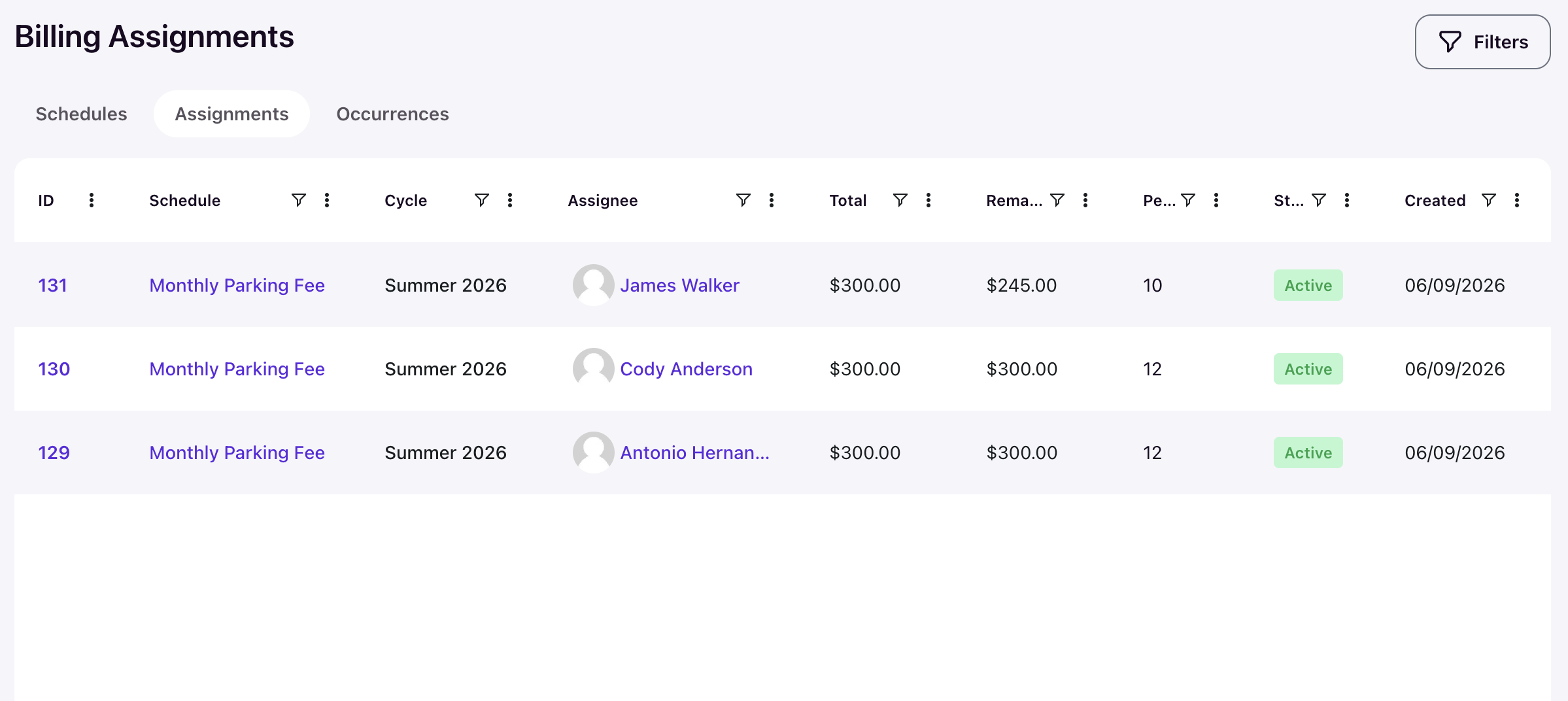
It lists every resident-schedule pairing across all plans, with Total, Remaining balance, Pending payment count, Status, and Created date. Use Filters or the column filters to narrow by schedule, cycle, or student.
Occurrences tab
The Occurrences tab answers the question: Which individual charges exist?
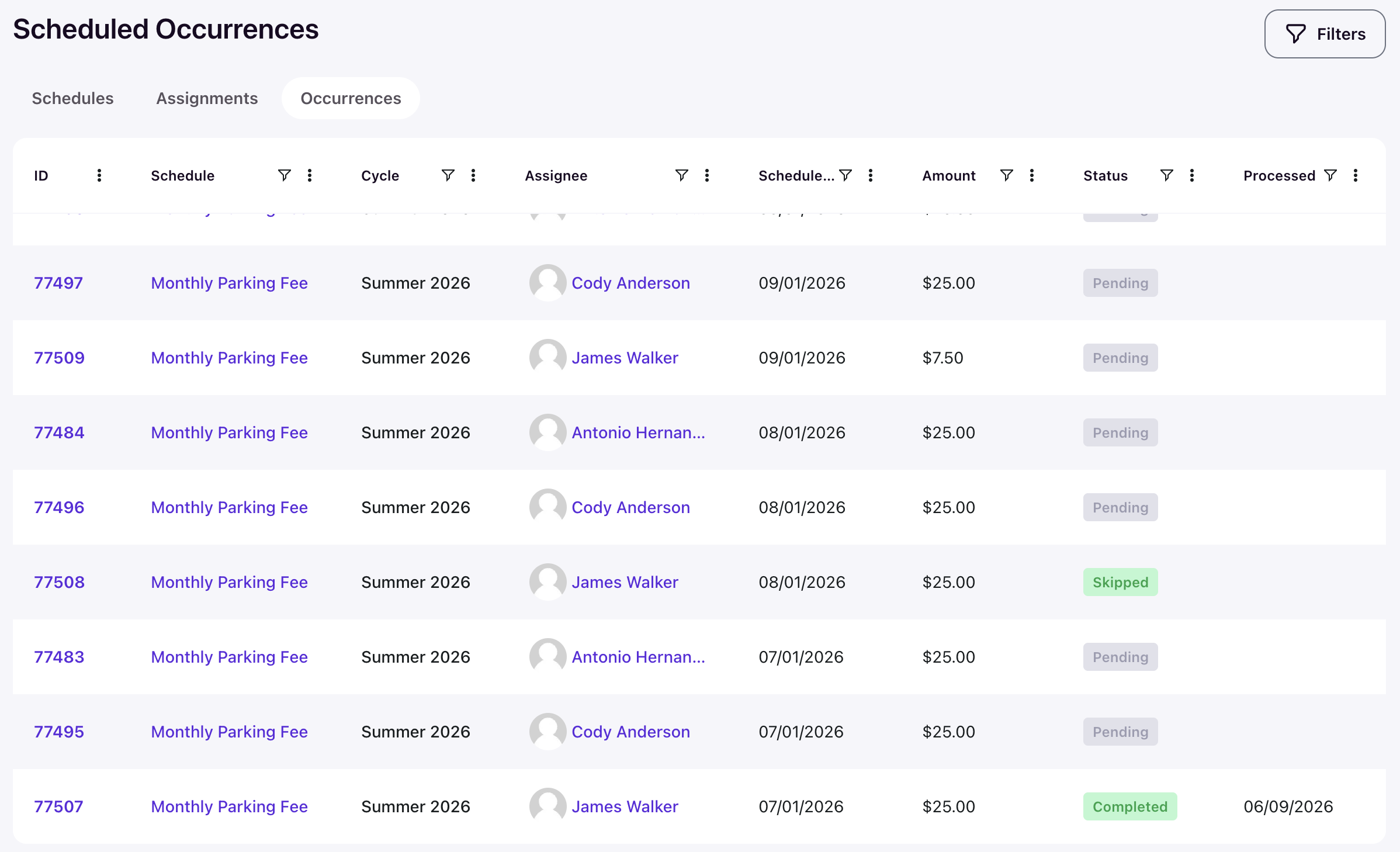
It lists every charge across all schedules with its Schedule, Cycle, Assignee, Scheduled date, Amount, Status, and Processed date. Filter by status to find anything Pending, Skipped, Failed, Completed, or Cancelled.
Calendar view
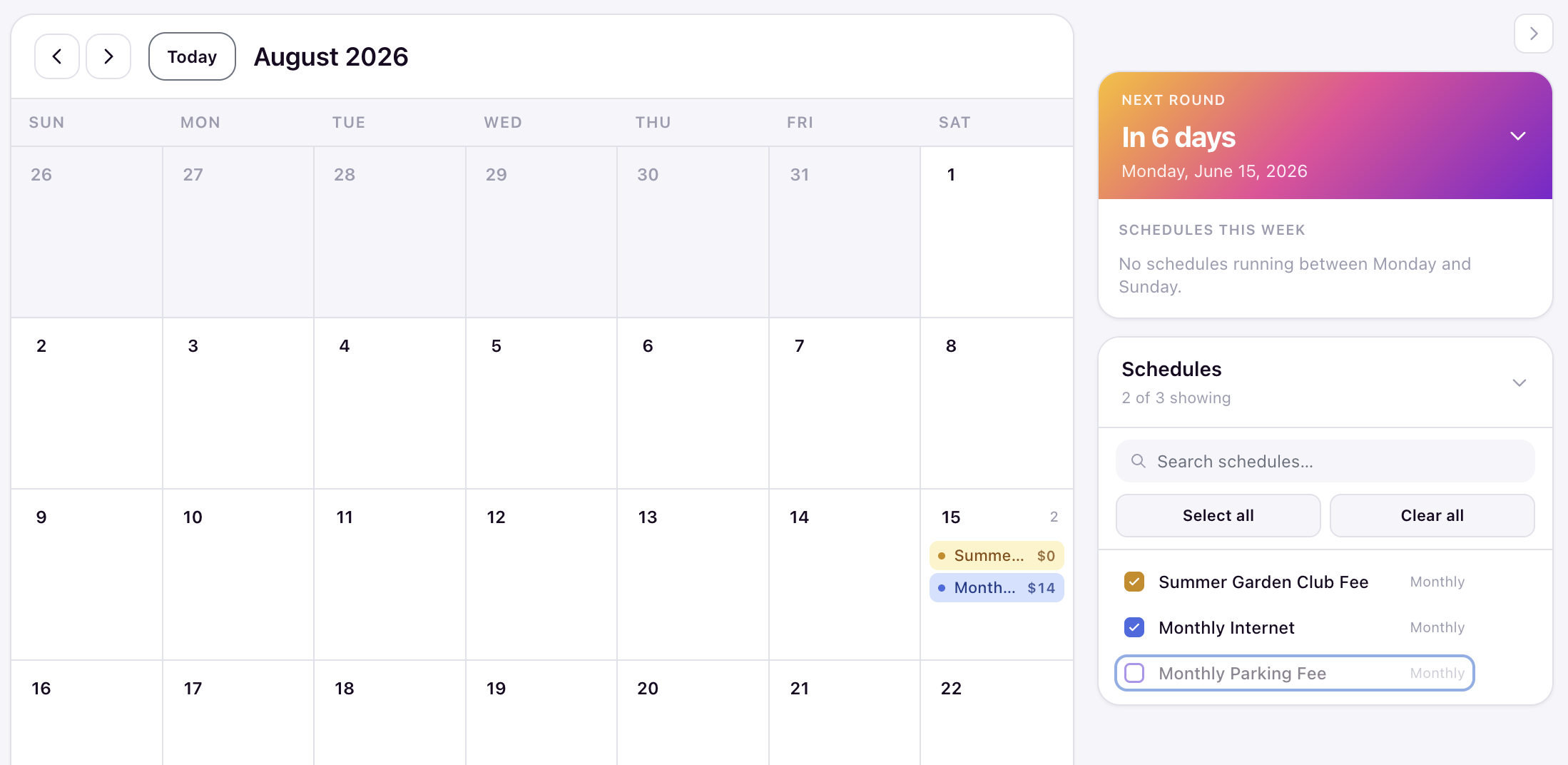
Switch the toggle from List to Calendar for a month grid of upcoming billing rounds.
Each event shows the schedule name and round amount. The right rail shows a Next Round countdown with the date and a Schedules this week summary. Use the schedule checklist (Select all / Clear all) to control which plans display on the grid.
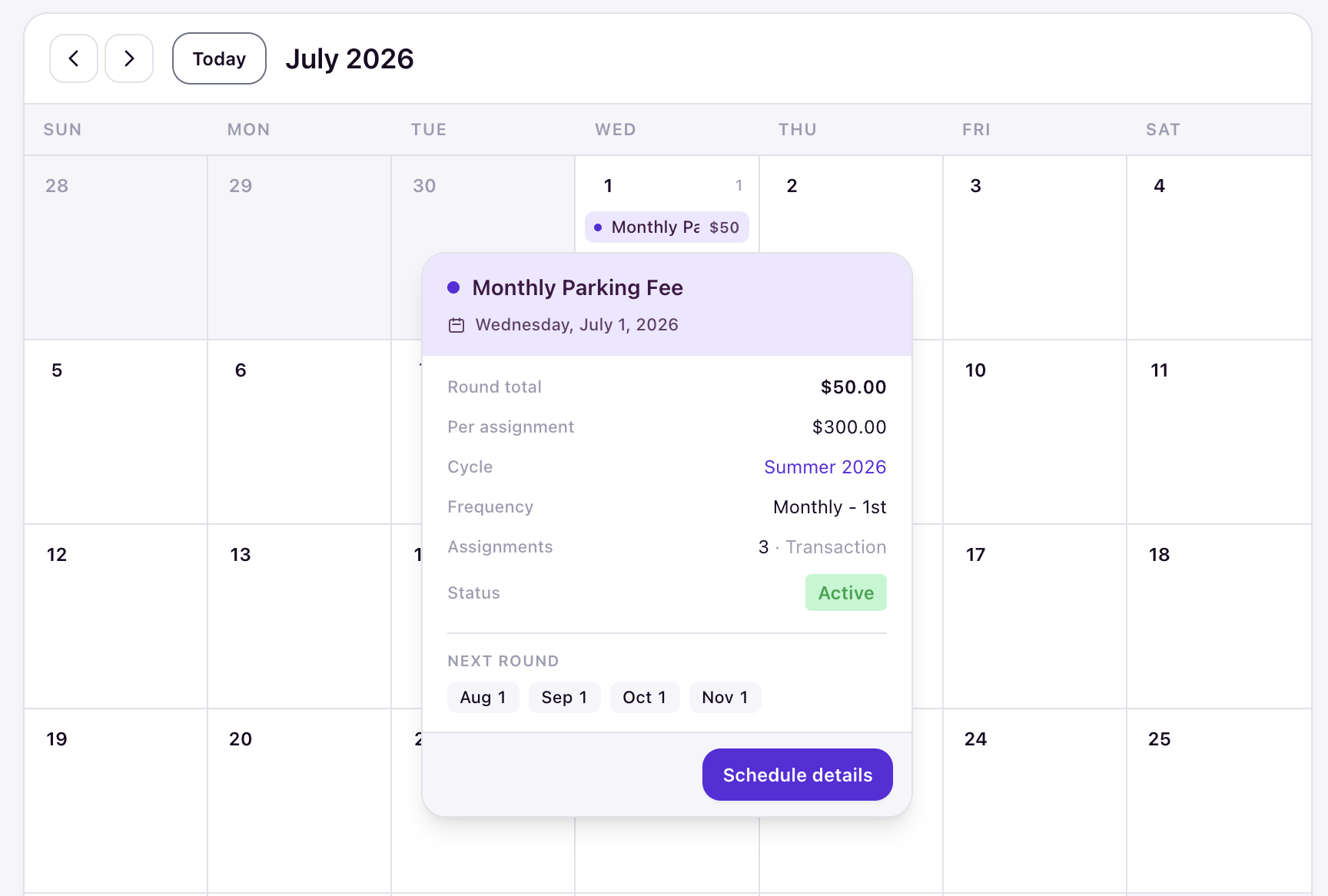
Click an event to open its popover. The popover shows the round total, per-assignment amount, cycle, frequency, assignment count and type, status, and chips for the next round dates. Click Schedule details to jump to the schedule.
Student balance view
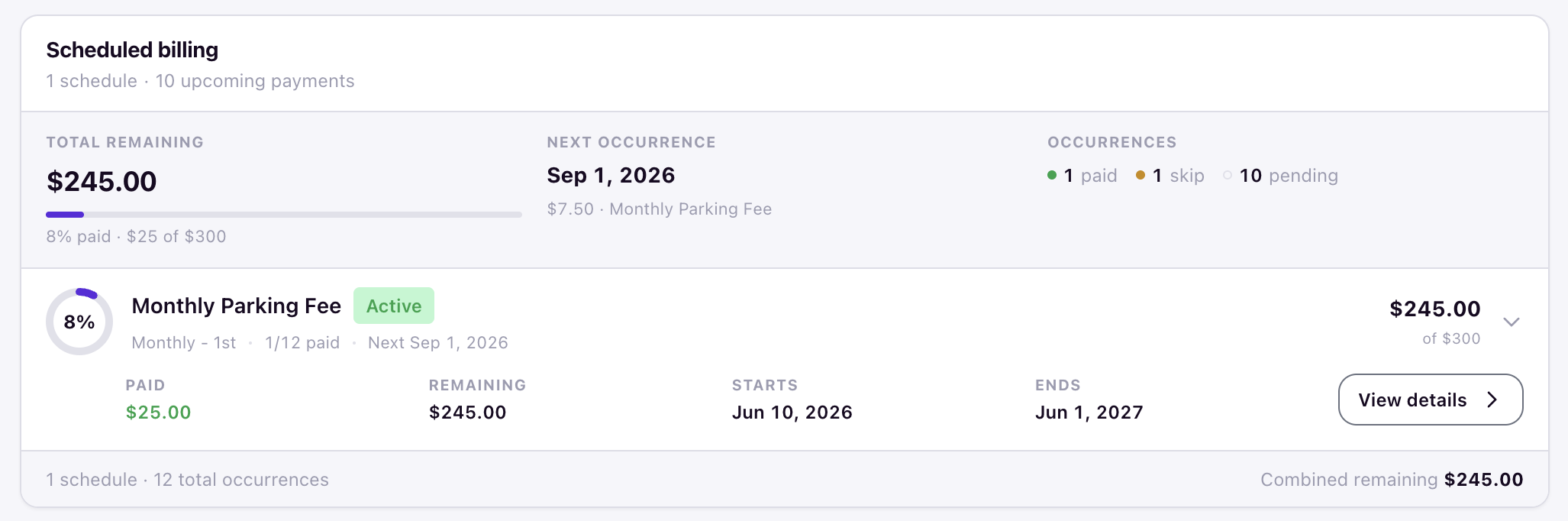
The Scheduled billing card on a student's balance detail view summarizes everything for that student.
It shows the total remaining with a percent-paid bar, the next occurrence (date, amount, and schedule), occurrence counts (paid, skip, pending), and a row per schedule with Paid, Remaining, Starts and Ends dates, and a View details link to the full assignment.
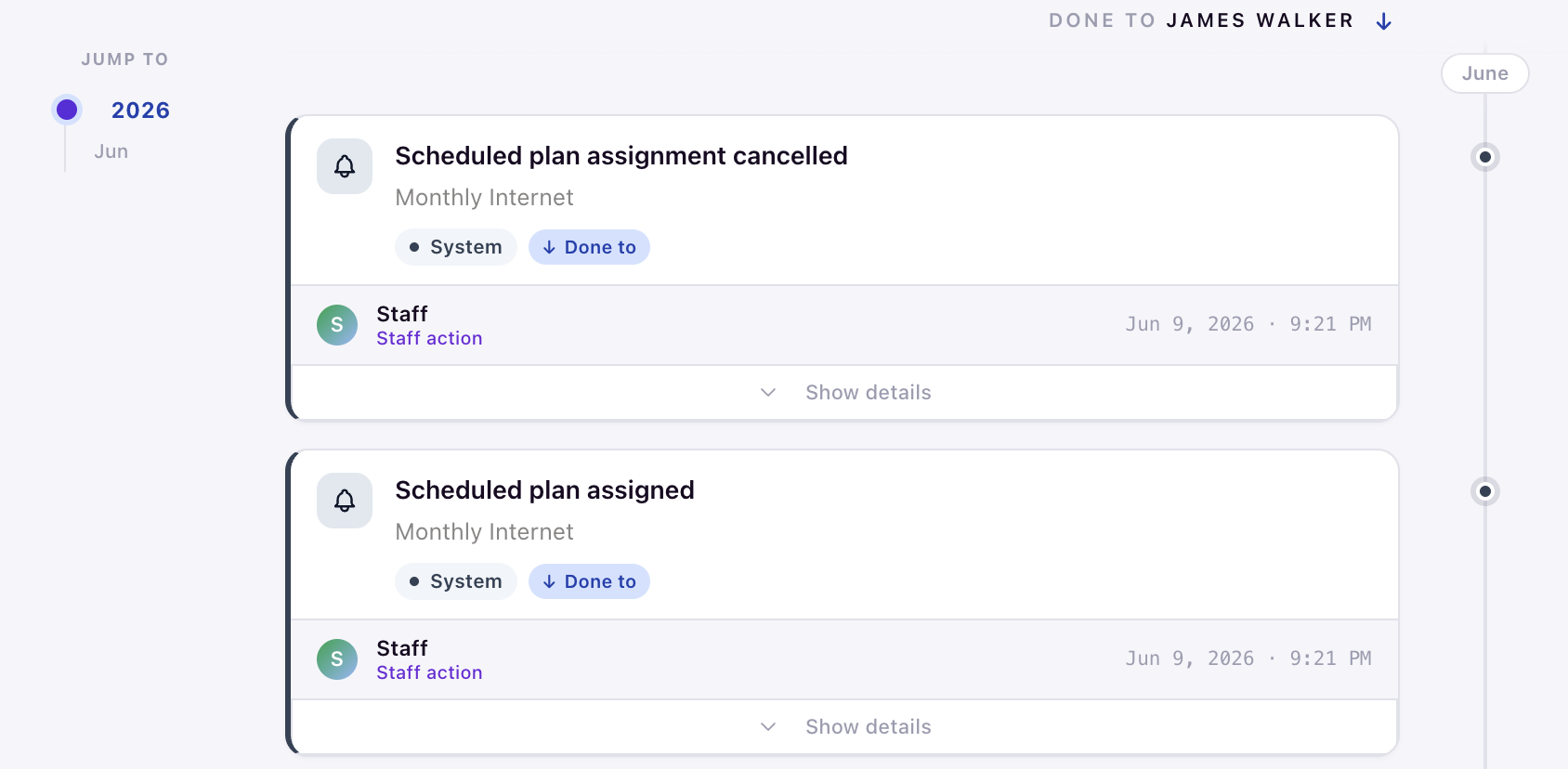
The profile's Recent activity card lists the latest scheduled billing events.
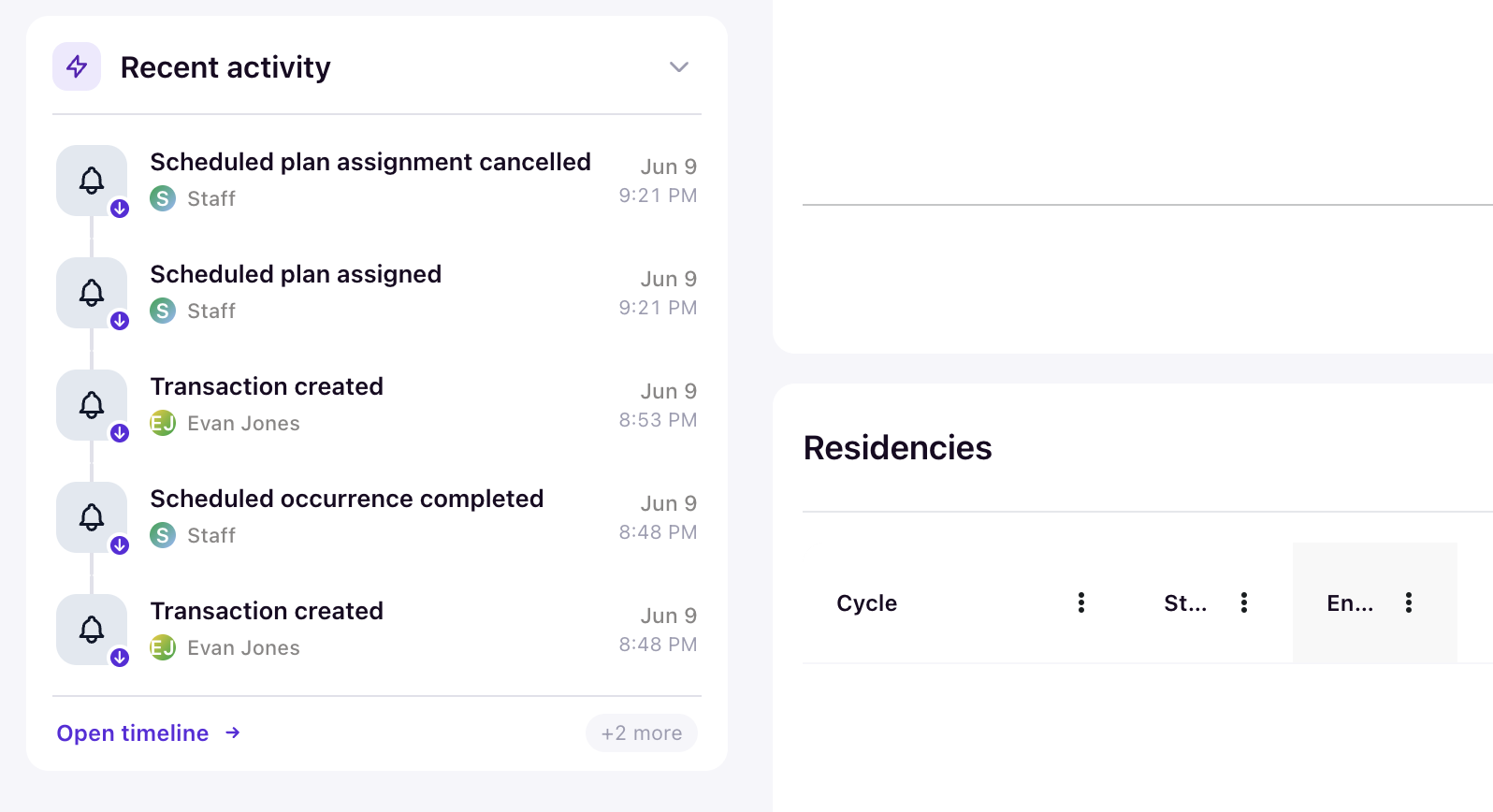
Click the Open timeline link to see the full audit trail.
Trace a posted charge in transactions
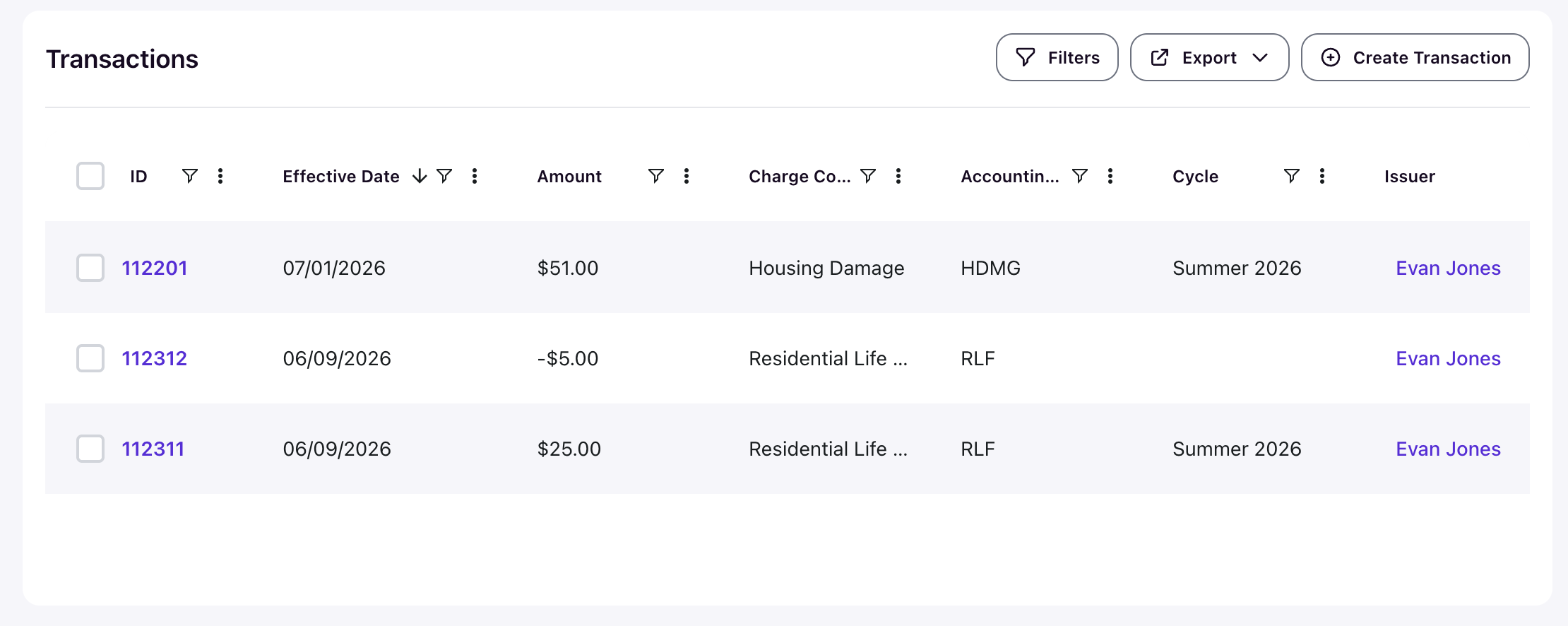
Every completed occurrence links to its transaction (TXN #). In the other direction, scheduled charges appear in Finance > Transactions like any other charge, with their effective date, amount, charge code, cycle, and issuer. Credits show as negative amounts.