Issue refunds
Last updated: August 28, 2026
A refund reverses a charge by posting a credit against a student's balance. You can refund one transaction on its own, or refund many at once.
Refunds differ from applying a credit. A credit is a new adjustment that reduces what a student owes under a scheduled billing assignment. A refund reverses an existing charge already posted to the ledger. If you need to post a new charge or credit instead, use the Create Transaction workflow. If you need to prevent a transaction from exporting to your SIS, use Mark as No Transfer.
Once a refund is issued it cannot be cancelled, so verify the amounts before you authorize.
What can be refunded
A transaction is refundable only when it hasn't already been refunded, isn't itself a credit or refund, and uses a charge code that allows refunds. Some charge codes are configured as non-refundable. When a charge code is set to non-refundable, its transactions are skipped in the bulk wizard and the single-refund action is not offered. Refundability is set on the charge code in Setup › Charge Codes.
A charge code detail page shows the Refundable status and the Refund Accounting Code that will be used when a refund is issued.
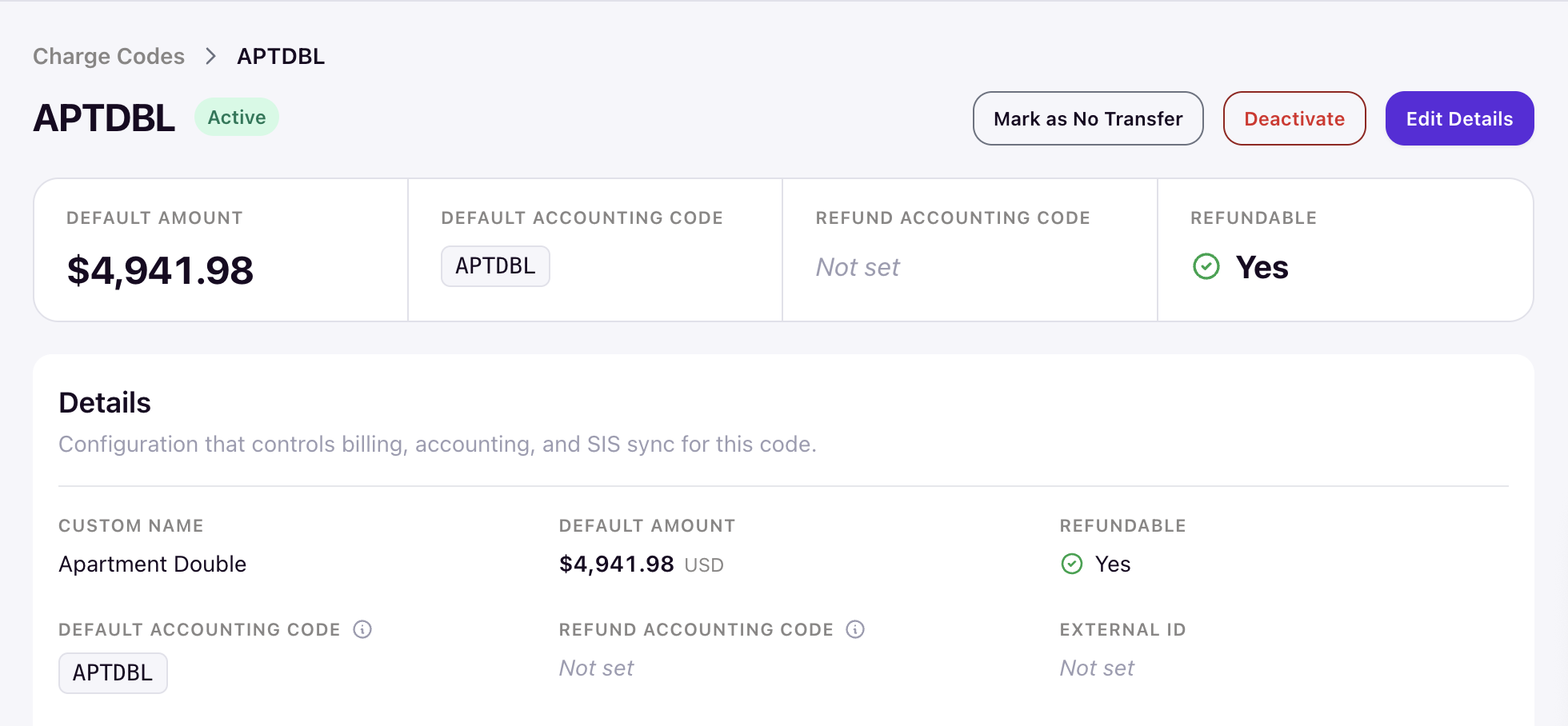
A refund may post against a different accounting code than the original. Depending on how the charge code is set up, the resulting credit can be recorded under a separate refund accounting code rather than the original one. Check the refund summary before you authorize so the credit lands where your accounting expects it.
Coattail Transactions
Refunds cascade automatically to any linked coattail charges. Coattails are always refunded in full, no matter what percentage or amount you set on the parent. The system is idempotent, so a repeated run cannot double-refund a transaction.
Refund a single transaction
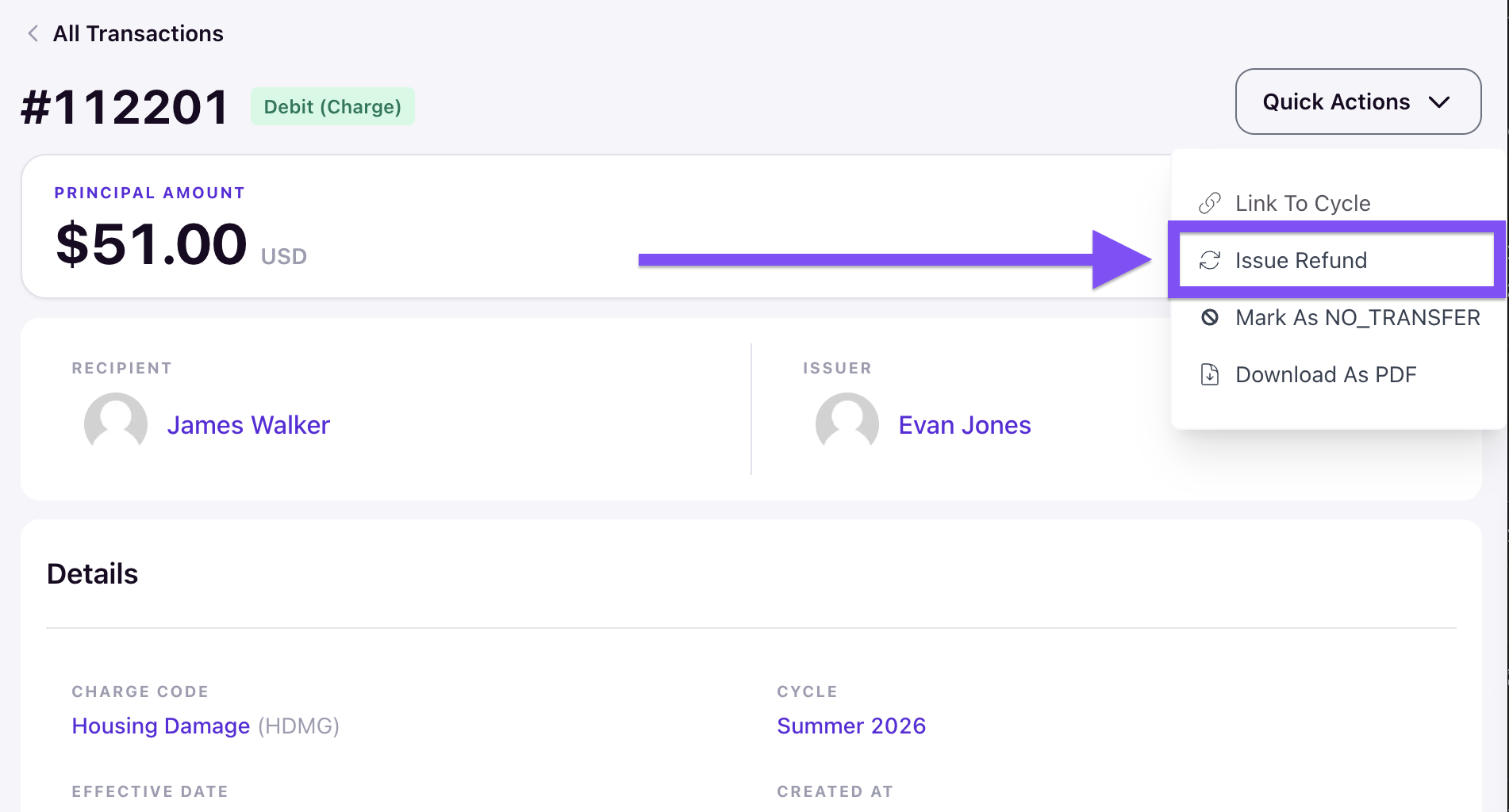
Open the transaction's detail page by clicking the transaction ID , then open Quick Actions and choose Issue Refund.
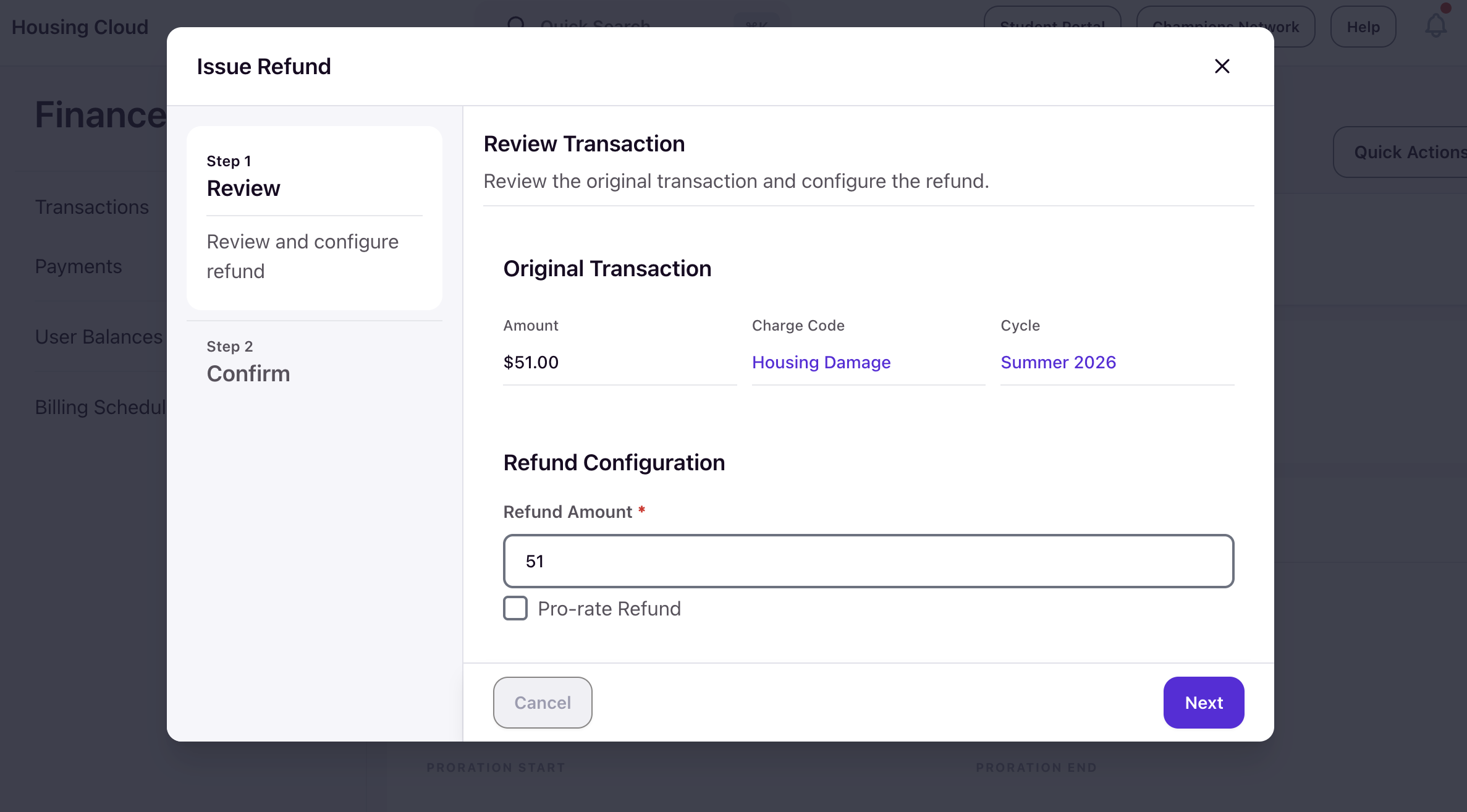
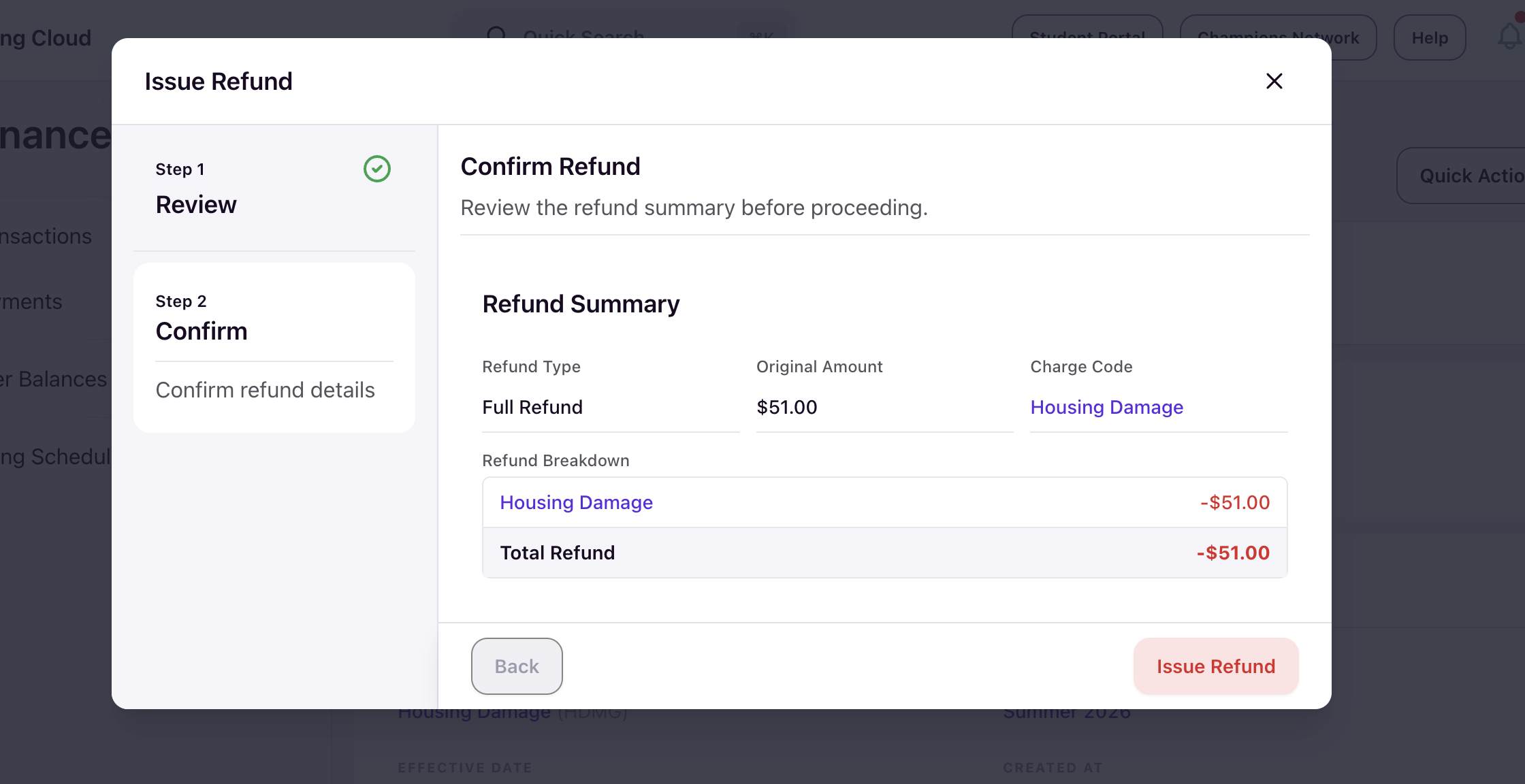
The wizard opens on a review of the original transaction. Enter the Refund Amount, which starts at the full original amount, and tick Pro-rate Refund if you want to prorate it by a date window. Click Next.
Review the refund selections and click Issue Refund.
Refund many transactions at once
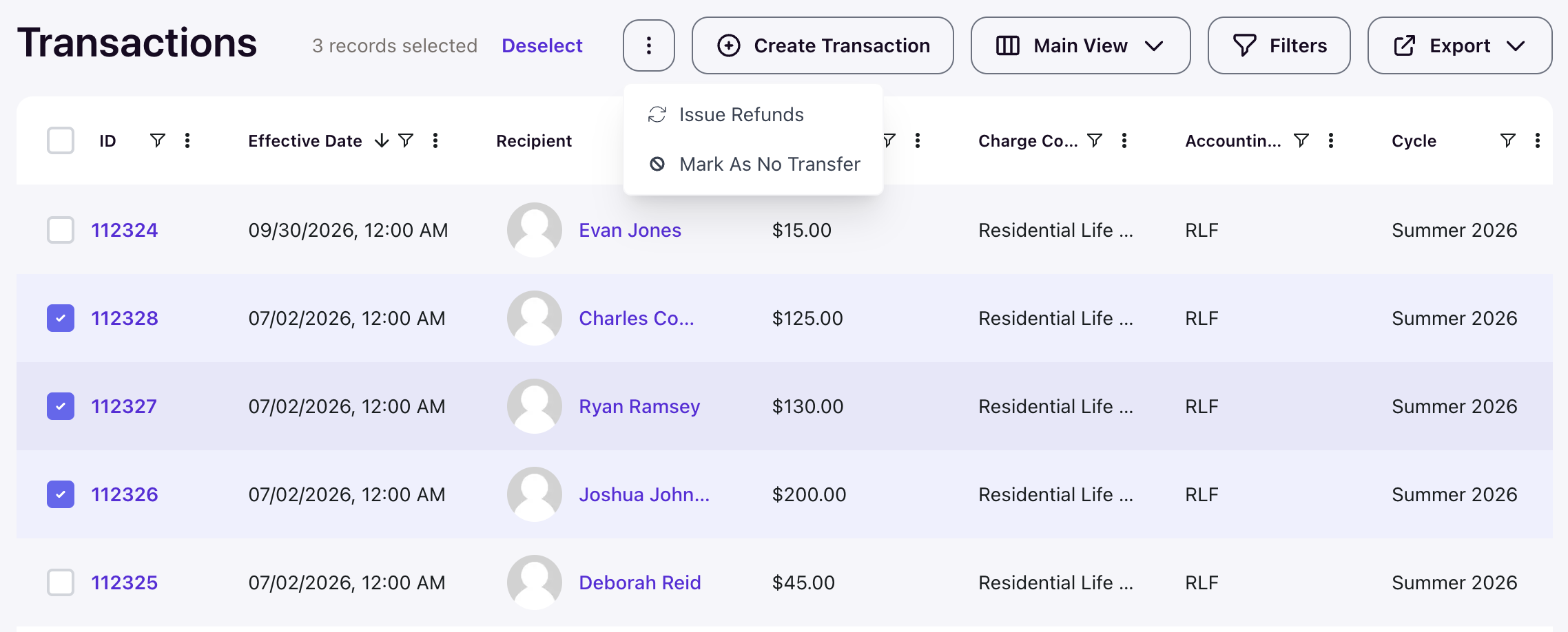
From Finance › Transactions, select the rows you want to refund, open the selection menu, and choose Issue Refunds.
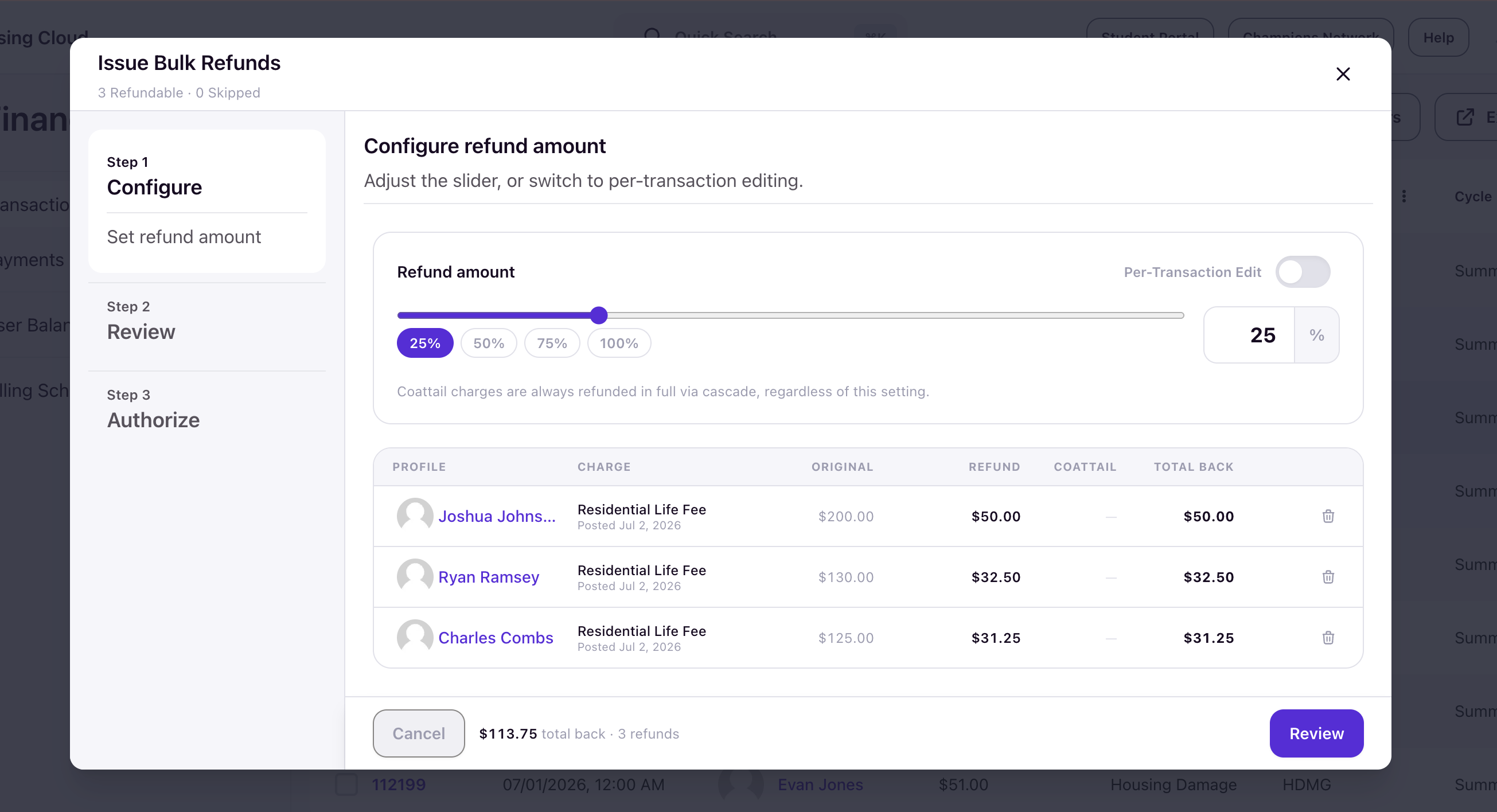
The Issue Bulk Refunds wizard opens and shows an eligibility count at the top — for example, 3 Refundable · 0 Skipped. Anything non-refundable or already refunded is counted as skipped.
Configure the refund amount
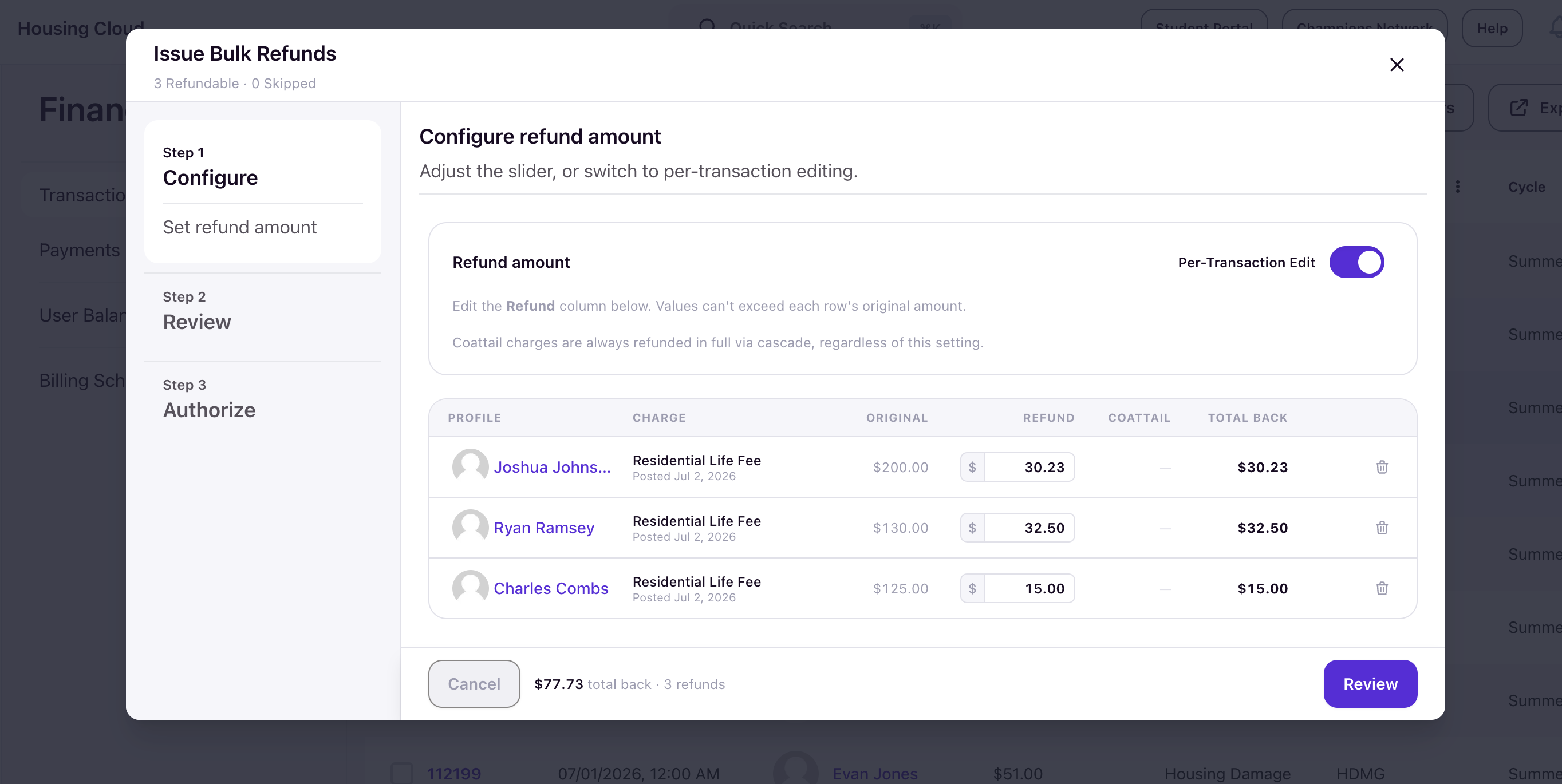
First, set how much to refund. You can drag the refund slider or click a preset — 25%, 50%, 75%, or 100% — and every eligible row is refunded at that share of its original amount, with the per-row figures updating live. Or toggle on Per-Transaction Edit to type an exact dollar amount on each row. The value can't exceed that row's original charge. The footer keeps a running total.
When the amounts are right, click Review.
Review and authorize
The last step restates what you're about to issue and to how many residents, and reminds you that coattail charges will be refunded automatically. Type REFUND to authorize, then click Issue to post.
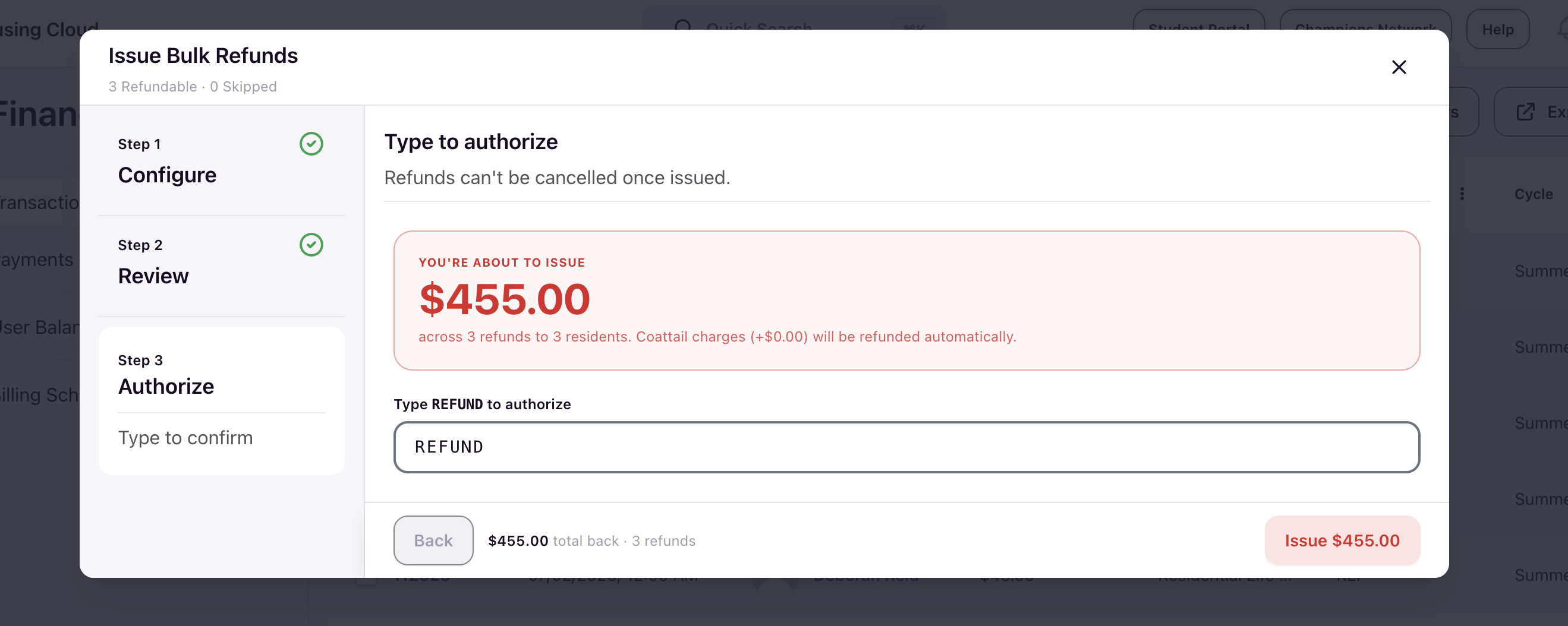
Note: Ten or fewer refunds post right away. Larger batches run in the background and notify you when they finish.
Confirm the result
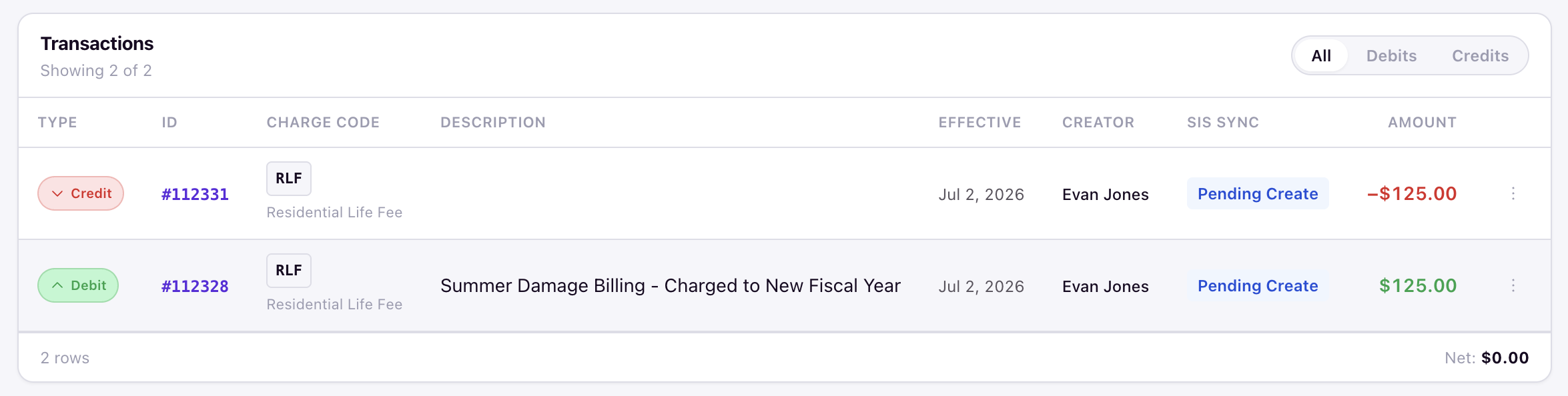
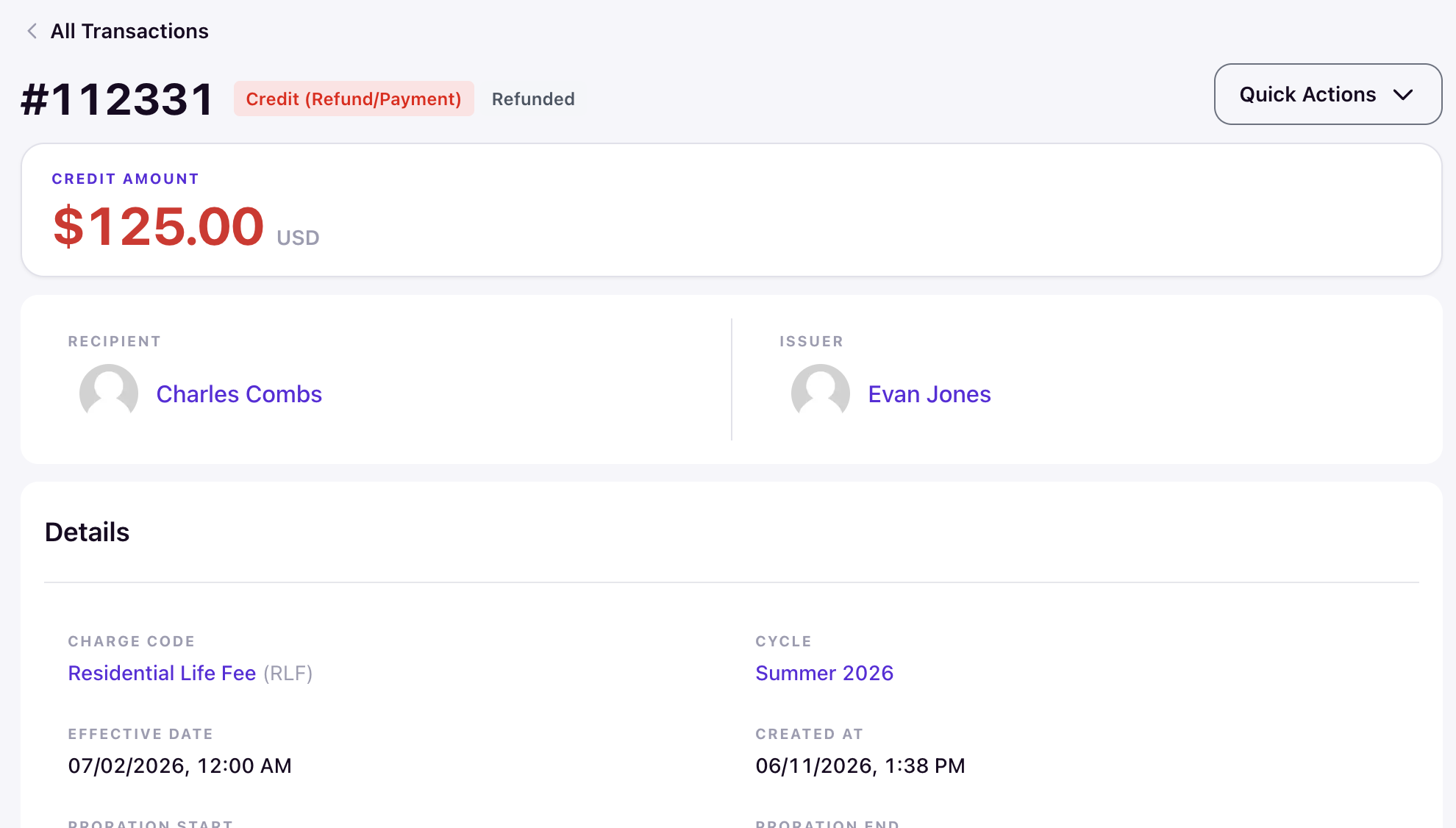
A refund shows up in Finance › Transactions as a credit with a negative amount. Click its ID to open the detail page, where its type reads Credit (Refund/Payment) with a Refunded status.
On the student's User Balance for that cycle, you can compare total debits to total credits for further validation.
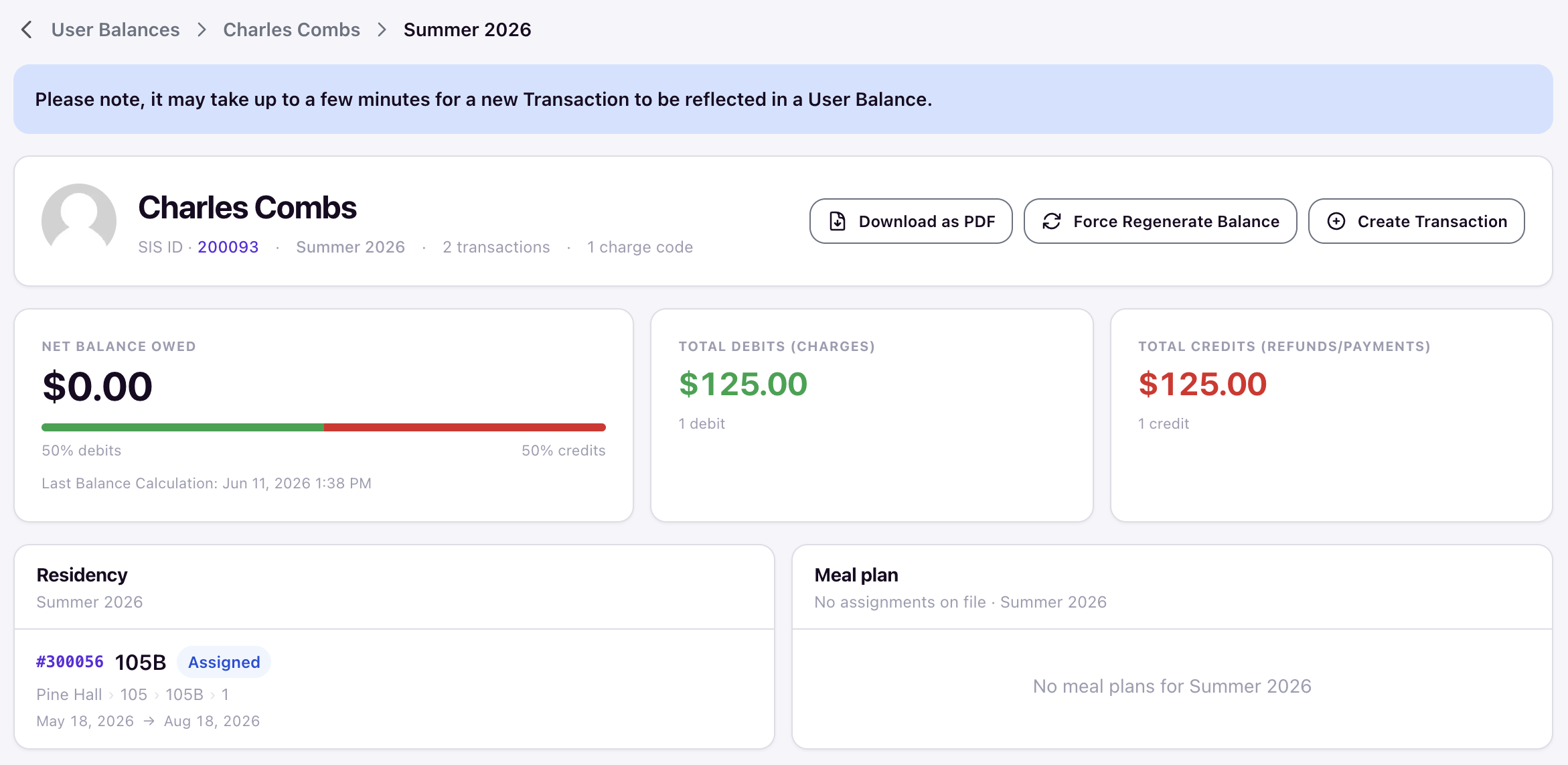
Transactions related to a student's cycle can be easily filtered for further review under User Balances.