Open your test profile and get to know the Test Drive panel
Last updated: October 8, 2026
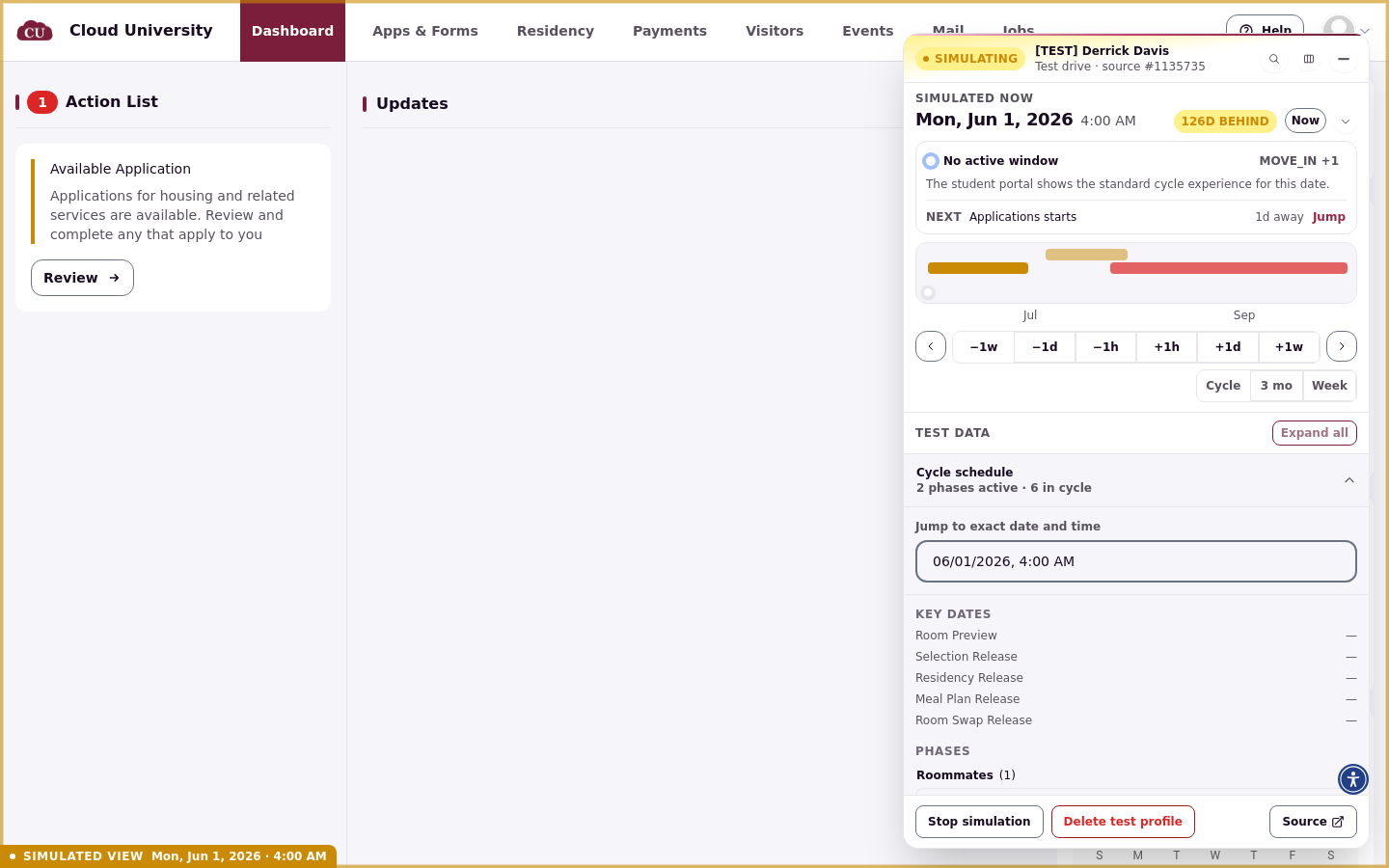
Your test profile is ready when the in-app notification says so. If you have not created one yet, start with Run a Test Drive: create a test profile. Impersonate it like any student, and the portal opens in a simulated view with the Test Drive panel floating over it. The panel is your control room: it shows the simulated date, the cycle schedule, and every piece of test data you can inspect and change.
Find your test profile
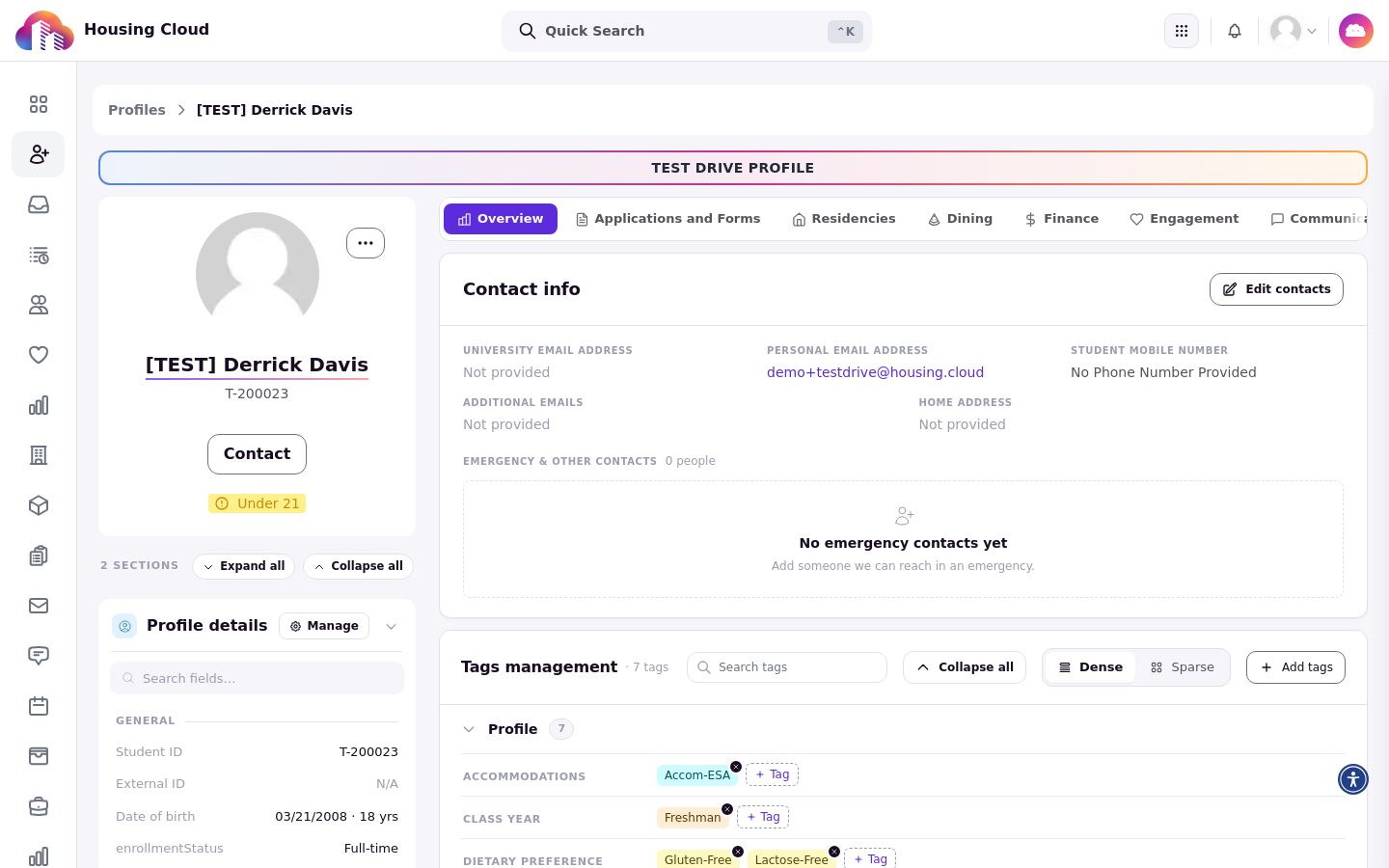
Search Profiles for the test profile's name, which starts with [TEST]. Its admin profile page carries a TEST DRIVE PROFILE banner, so you can always tell a test profile from a real student.
Impersonate it
Click the … Profile actions button and choose Impersonate under Access. A new tab opens on the student portal. If a Run Test Drive window opens instead, the test drive is still active in the wizard: close it with the X and open Profile actions again.
Give it time to build
While the test profile is being built, the panel shows Setting up applications and linked test records… and the rest of it is faded and not clickable. This takes a moment after creating a test drive. When the panel shows Simulation controls couldn't load, click Try again once; if it still fails, see Test Drive troubleshooting.
The ready signals
The simulated portal is ready when all of these are visible:
A thin amber border around the whole page.
A small amber label in the bottom-left corner reading SIMULATED VIEW with the simulated date and time.
The floating panel with an amber SIMULATING pill and the test profile's name, with no loading bars inside it.
Panel header: SIMULATING and the source
The header shows the amber SIMULATING pill, the test profile's name, and the line Test drive · source #… linking back to the student it was cloned from.
Search the panel
The magnifying glass in the header opens a search box that finds any section, record, or action the panel offers, with matching actions listed directly. Use it instead of scrolling when you know what you are looking for.
Dock it or minimize it
The panel normally floats over the portal. The column icon in the header docks it to the right edge so it stops covering the page; the same icon floats it again. The minus button minimizes it to a small pill in the bottom-right corner reading SIMULATING with the date; click the pill's Open button to bring the panel back.
Simulated now and the timeline
The top of the panel shows Simulated now with the simulated date and time, its offset from real time, a Now button, and a status line describing what the portal currently shows. Below it, a timeline spans the housing cycle with the current position marked. Moving this clock is covered in Move the simulated date.
Test data sections
Under Test data, the panel lists Cycle schedule, Roommate group, Residency & billing, Meal plans, Matching rules, and Session activity, each with a one-line summary. Use Expand all or Collapse all to open or close them together. What each section shows and lets you change is covered in Check roommates, rules, residency and meal plans.
Bottom row: Stop, Delete, Source
The bottom of the panel holds Stop simulation, Delete test profile, and Source. Stopping only leaves the portal; deleting removes the test data. The difference is covered in Stop, delete or auto-delete a Test Drive.