Use the Mailroom on a Phone or Tablet
Last updated: October 8, 2026
The operations portal works at the counter from a phone: the same address, /ops/mailroom, switches to a phone layout on narrow screens so a desk assistant can log and hand over mail without the desktop. Screens below 768px wide use the phone layout, and short wide viewports keep it: the desktop layout needs at least 768px width and 501px height. The Scan workflow uses the same height safeguard, switching to its mobile layout when the viewport height is 500px or less.
What the phone gets
The top bar has an All Mailrooms selector, so you can switch mailrooms from any screen.
-
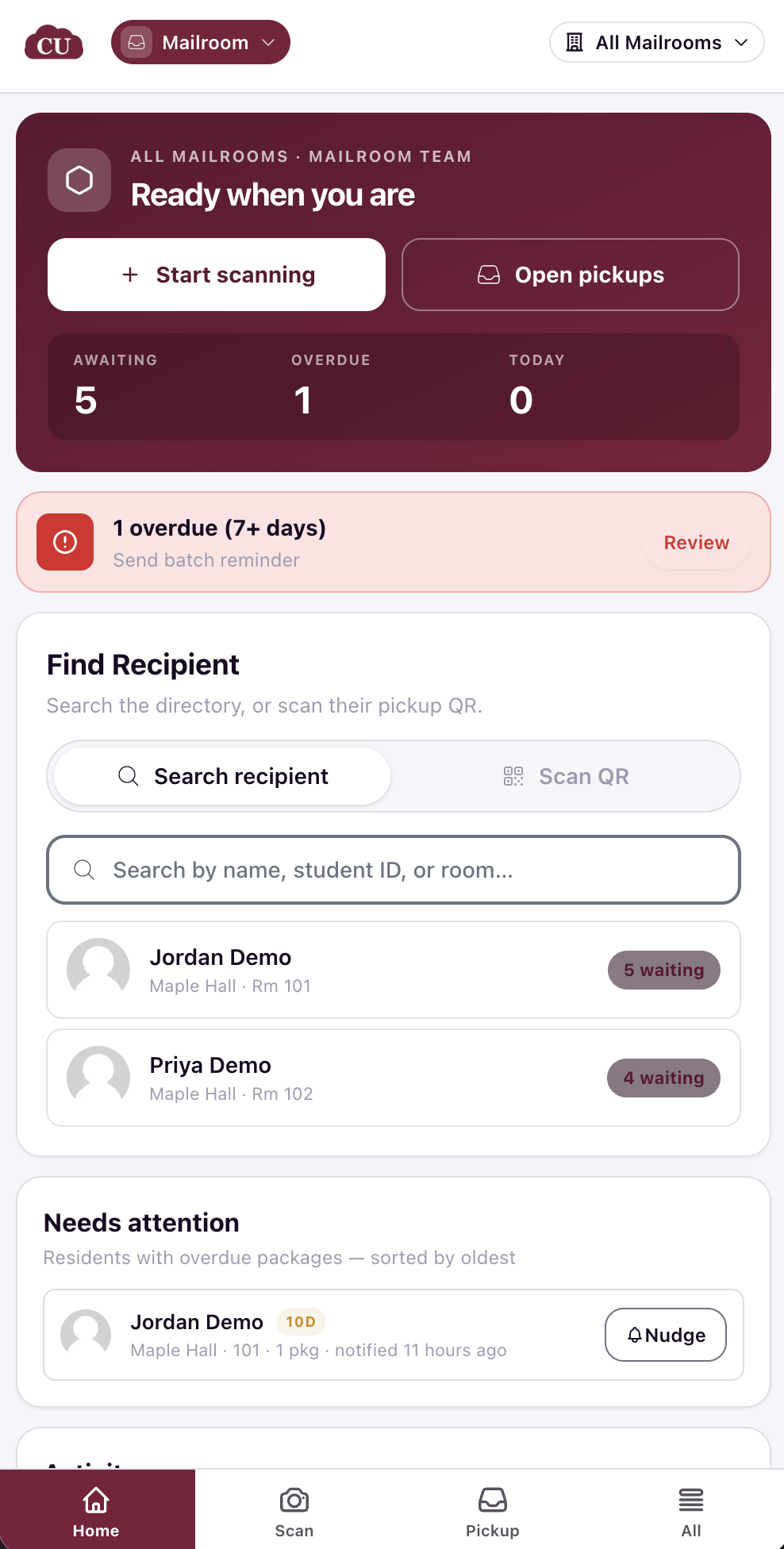
Home: the Clerk view dashboard, with Start scanning and Open pickups buttons, counters for awaiting, overdue, and today's packages, and a Needs attention list of residents with overdue packages, oldest first, each with a Nudge button. Overdue packages also raise an alert panel with a Review action that opens the ageing list. Batch reminders are sent from the All-mail selection flow using Nudge.
Scan: the camera fills the screen, with Enter package manually for typing; the save controls sit stacked at the bottom of the flow
-
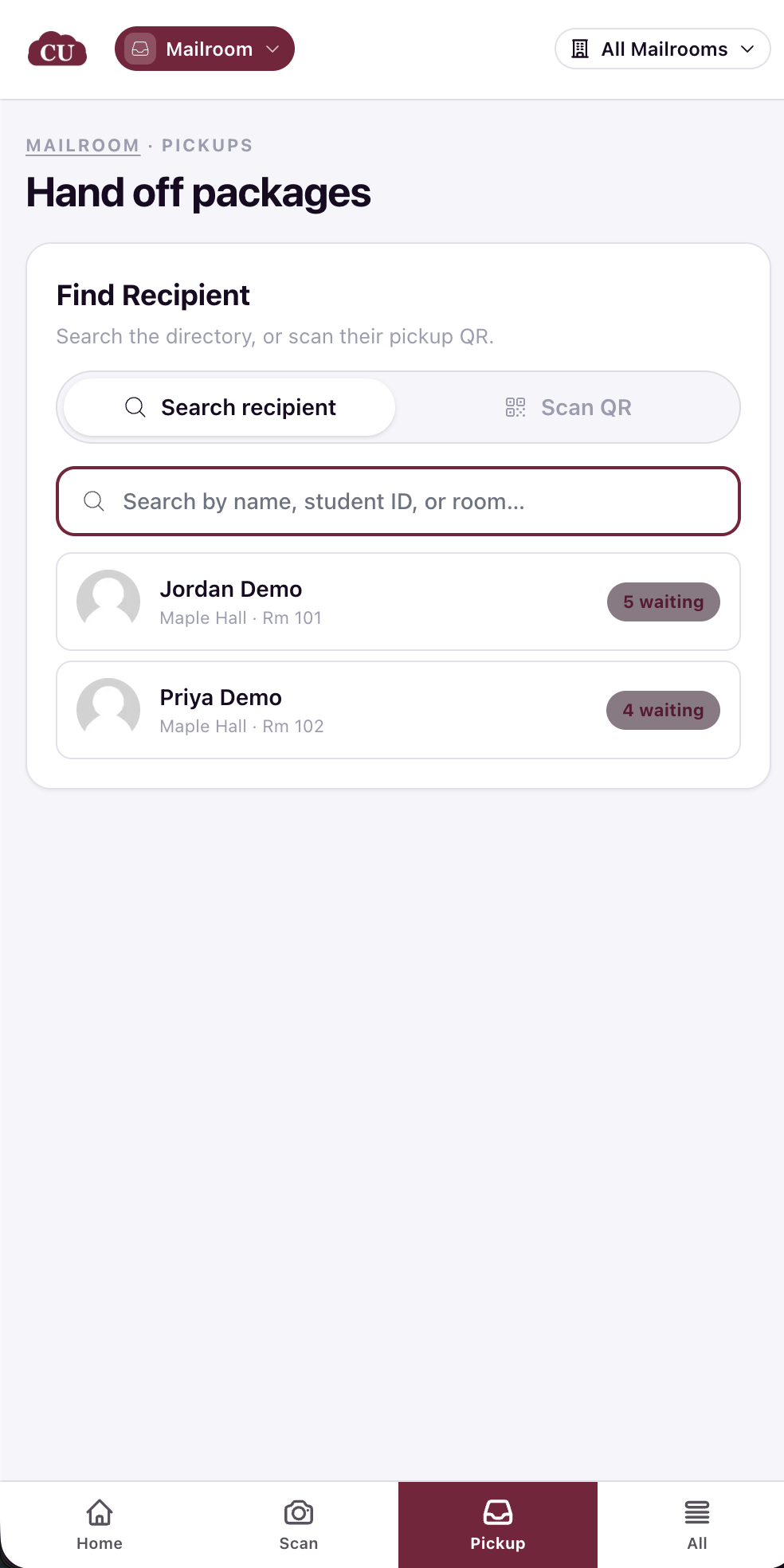
Pickup: find the recipient by searching the directory by name, student ID, or room, or by scanning their pickup QR, then tick items and complete the hand-off.
-
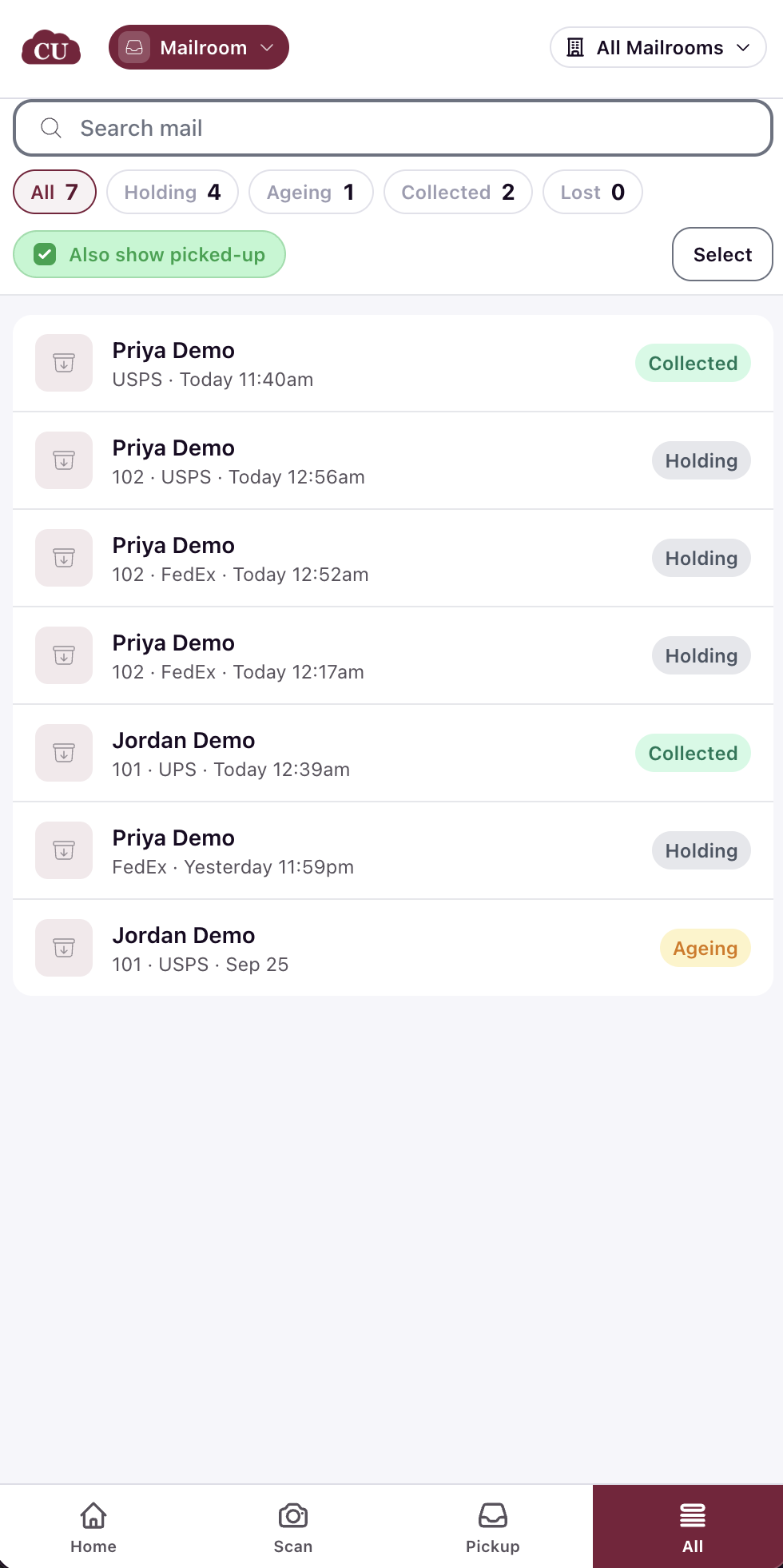
All: the mail list with the status pills and search, filterable by status (Holding, Ageing, Collected, Lost), with an Also show picked-up option to include collected packages. Each entry shows the carrier, the resident's room, and when the package arrived. A select mode turns on tick boxes so you can select items and nudge their residents from the phone.
What stays on the computer
Locations: not in the phone's tab bar
Manager view: the phone's dashboard is always the Clerk view (see Read the Mailroom Dashboard: Clerk and Manager Views)
Mark as cancelled: the cancel action lives on the resident's record in the admin portal, on a computer
Verify the layout by opening /ops/mailroom on the phone: the tab bar at the bottom names the four phone screens.