Read the Mailroom Dashboard: Clerk and Manager Views
Last updated: October 8, 2026
The dashboard at Mailroom in the operations portal has two views: Clerk view for running today's shift and Manager view for how the desk, or every desk, is doing over a day, week or month. The mailroom picker sits at the top of both views, and the Today / Week / Month switch appears only in the desktop Manager view.
Clerk view
The Clerk view leads with the top card naming the mailroom and the signed-in staff member, and holds the shift's numbers:
Awaiting: items waiting for pickup right now
Overdue: items that have waited past the ageing setting
Scanned today: items checked in today
The top card below carries these numbers, with Start scanning and Open pickups beside them.
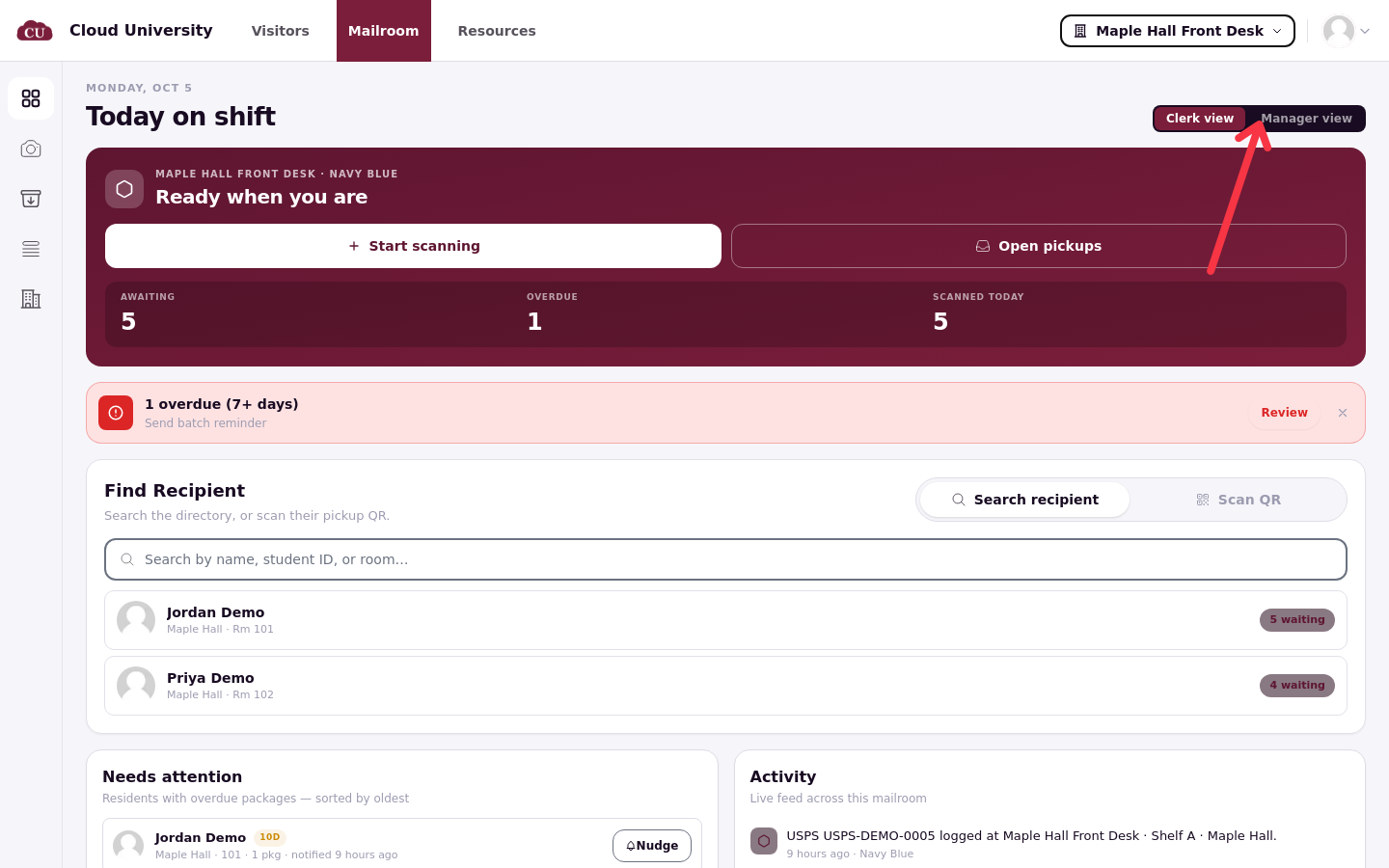
The full Clerk view below shows these numbers in place, with the Find Recipient, Needs attention and Activity cards beneath the top card.
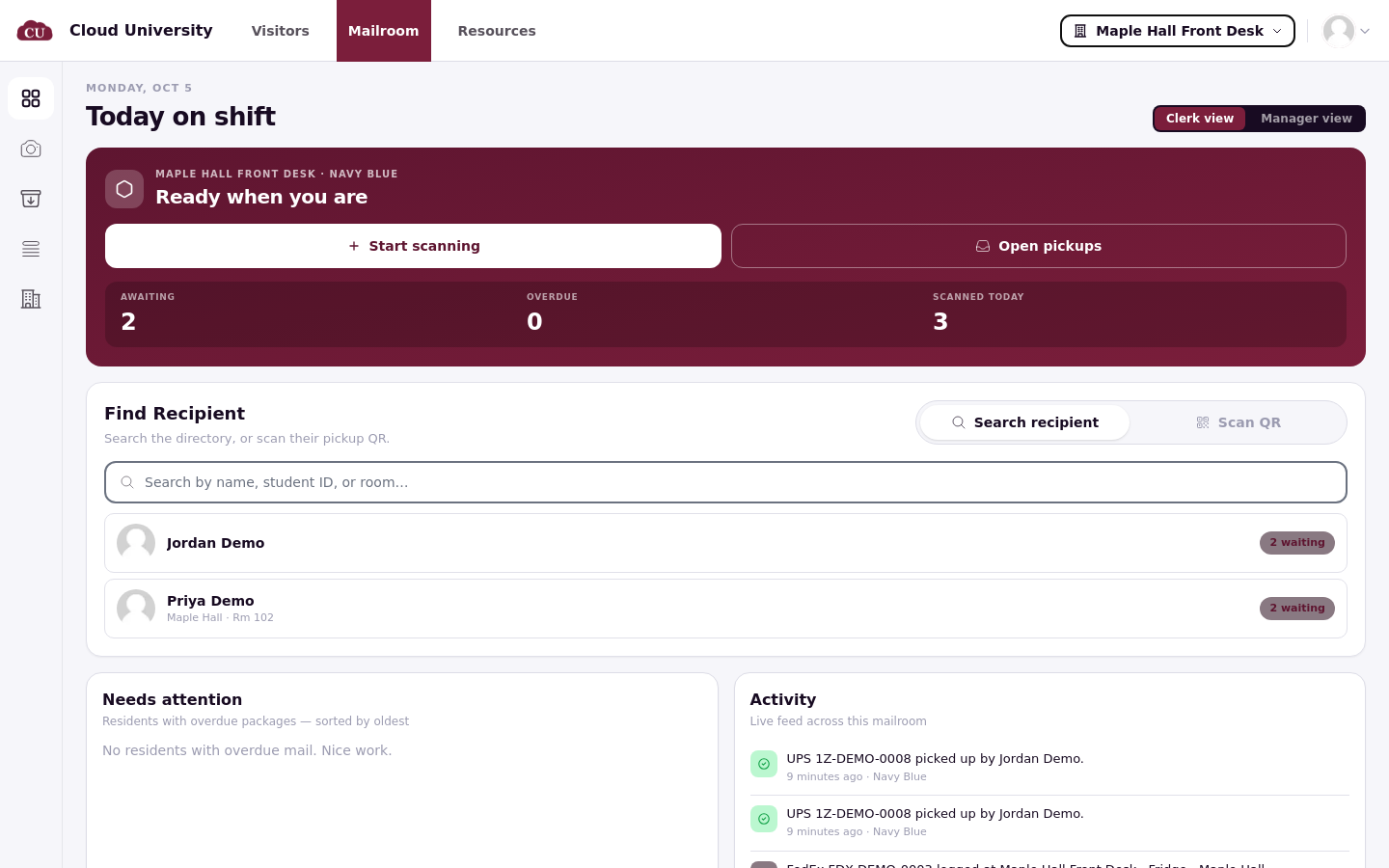
Two buttons start the work: Start scanning opens the scan wizard and Open pickups opens the hand-off page. Below sit the Find Recipient card (search or scan a pickup QR, the same page as Pickups), the Needs attention list ("Residents with overdue packages — sorted by oldest", with a Nudge per resident), and Activity, a live feed across the mailroom showing check-ins, pickups and notifications as they happen.
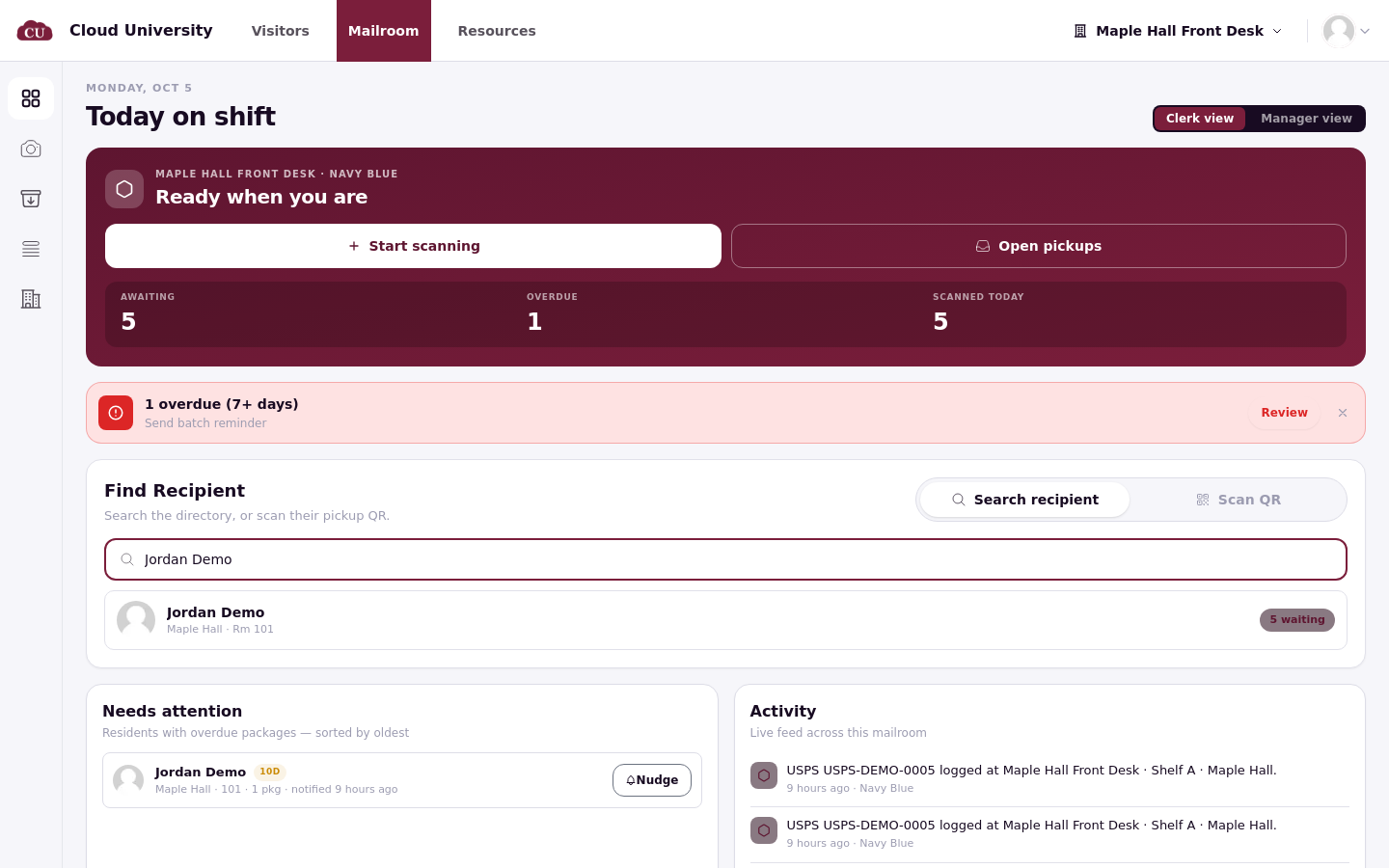
The Needs attention list below pairs each resident who has an overdue package with a Nudge button.
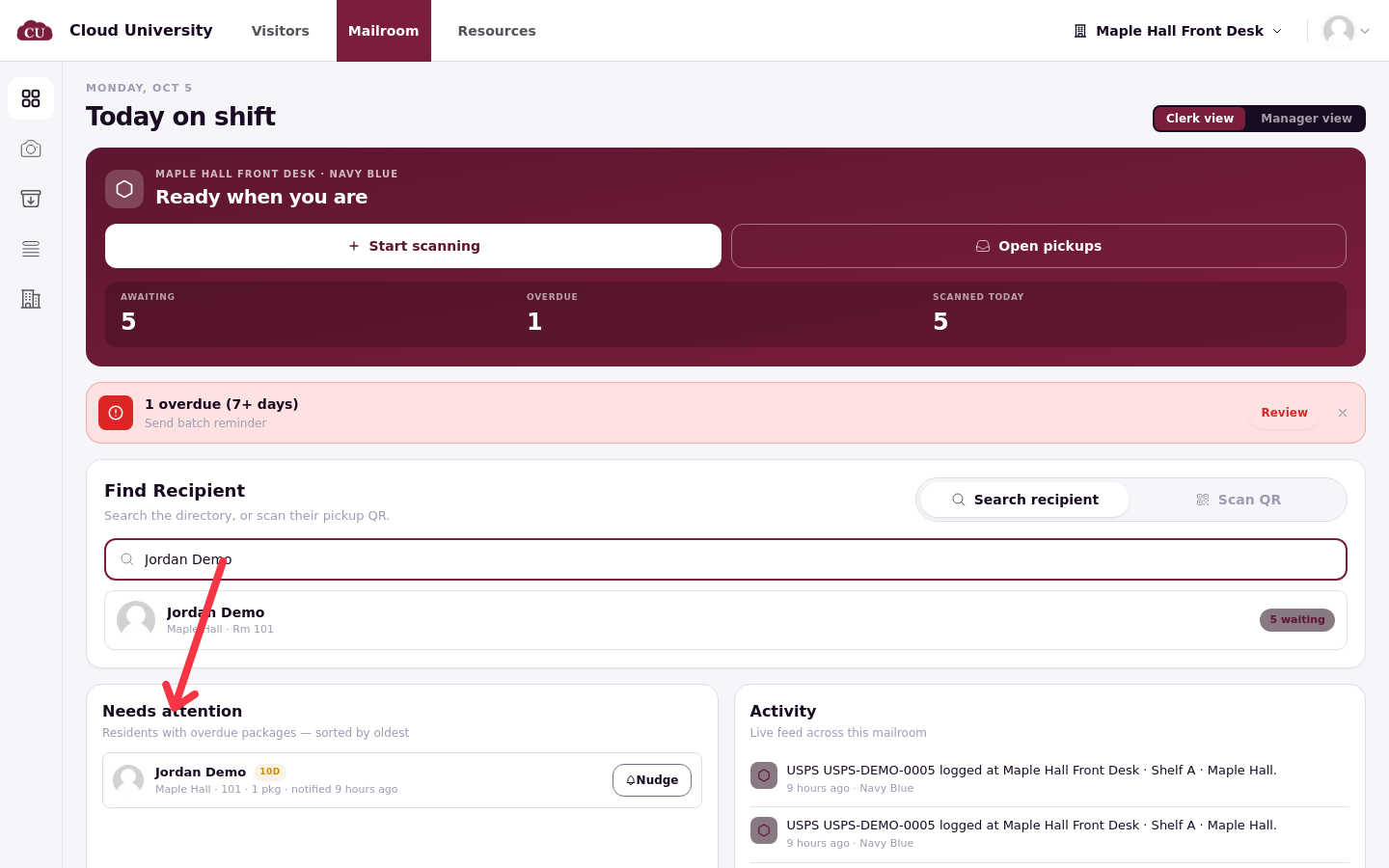
The overdue alert appears between the top card and Find Recipient only when an item has really waited past the ageing threshold; see Remind Residents About Uncollected Mail for what to do with it.
Manager view
Manager view adds four tiles, each with the change against the prior period:
Awaiting · this mailroom: what is waiting now (switches to all mailrooms with the picker)
Volume: items checked in during the selected time window
Avg dwell · this mailroom: the average time from check-in to collection for packages collected in the selected window
SLA compliance: the percentage of packages scanned in the selected window that have since been collected
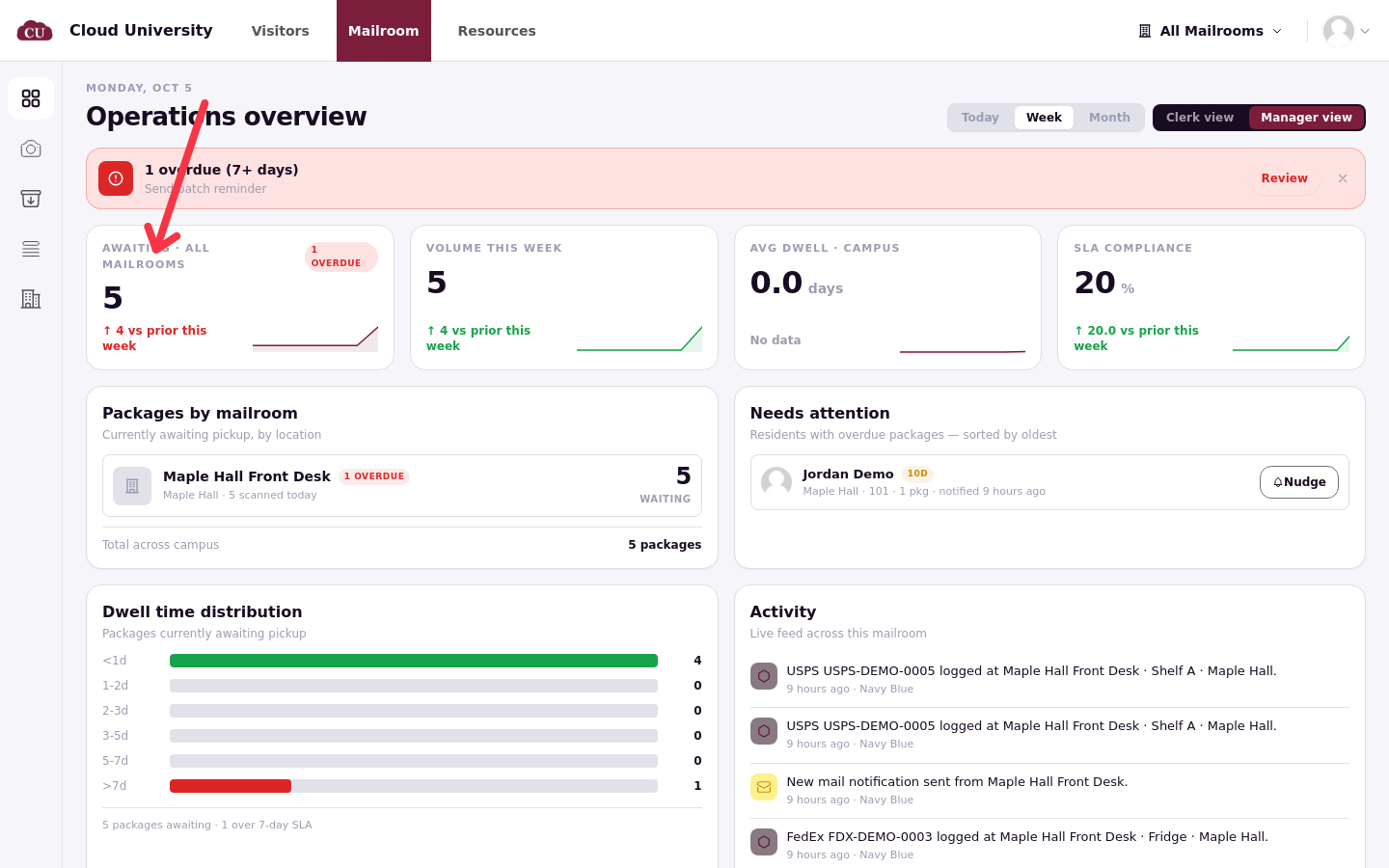
The full Manager view below shows these tiles above Packages by mailroom, Dwell time distribution and Activity.
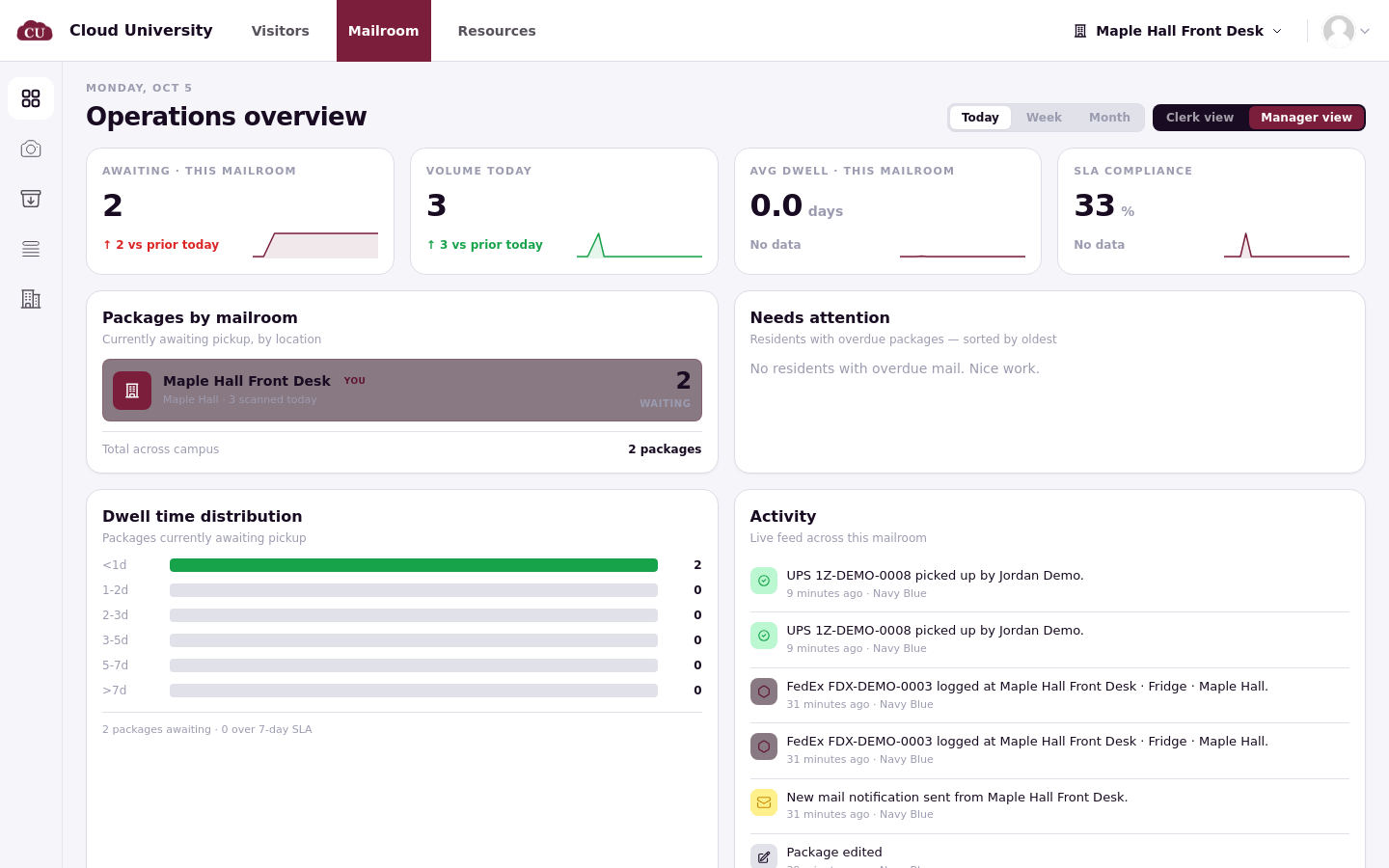
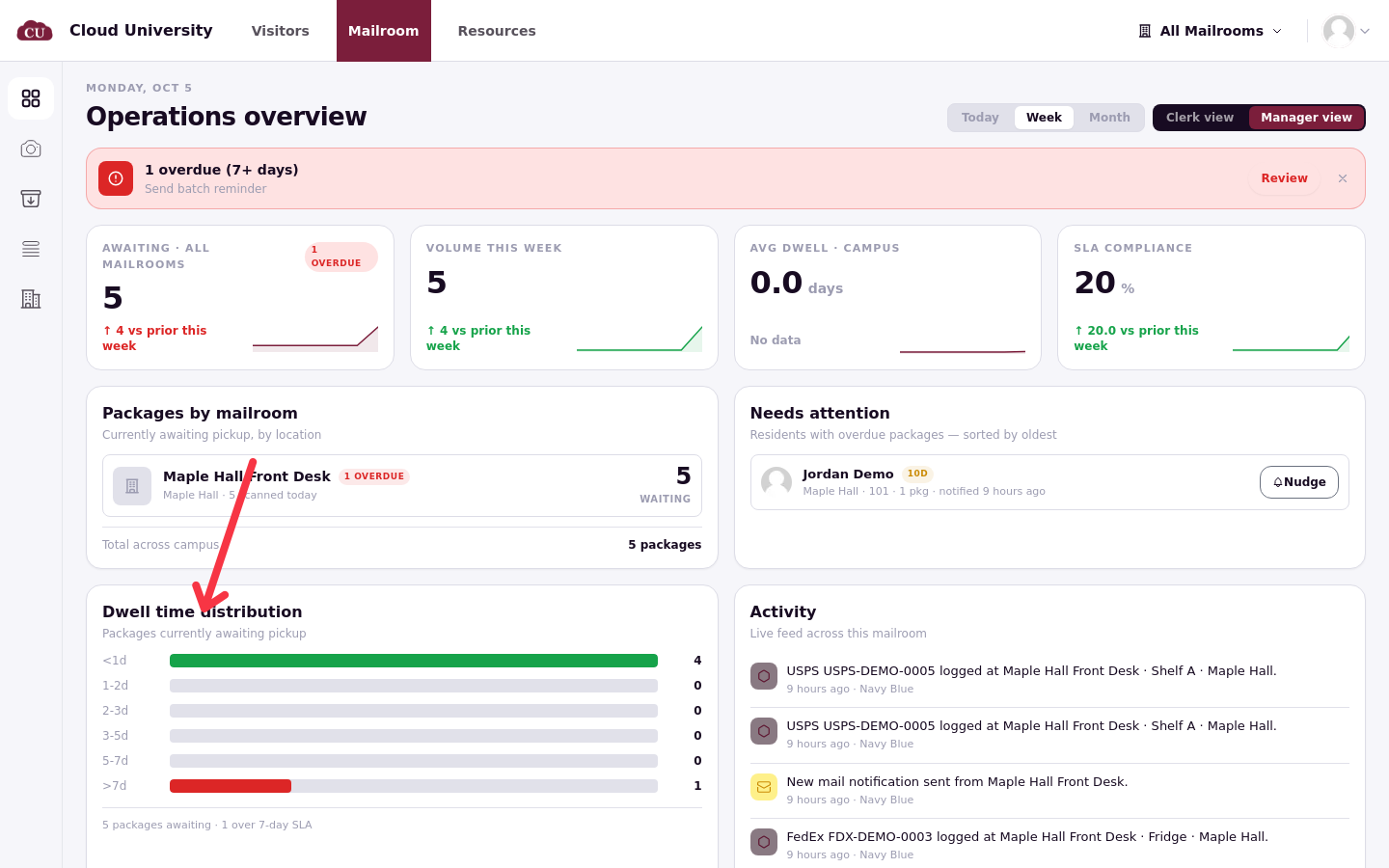
Packages by mailroom ("Currently awaiting pickup, by location") lists every desk with its waiting count and a Total across campus when the picker is on All Mailrooms; the desk you are working at carries a You tag. Dwell time distribution buckets waiting mail into <1d, 1-2d, 2-3d, 3-5d, 5-7d and >7d, with the count over the configured ageing threshold underneath.
Good to know
Manager view is available in the desktop layout. Screens below the md breakpoint show Clerk view only (see Use the Mailroom on a Phone or Tablet).
The overdue numbers fill in honestly. Overdue and the Needs attention list show only mail that has waited past the ageing setting, counted from each item's received date. Awaiting includes all current packages waiting for pickup.
Check the numbers against All items: the Awaiting count matches the Holding pill, and the Ageing pill holds everything the Overdue number counts.