Work a Task: Status, Priority, Due Date, Assignee and Followers
Last updated: October 8, 2026
A request a resident files is a task on the staff side, and the task page is where you work it: it shows who the request is for and where they live, and from here you set the status, priority, due date, assignee and followers and carry the request through to Closed. The page also holds the resident's form answers, the photos they attached, the history of every change, and their rating once they give one.
Before you start
Open tasks from Support → Tasks. You need Read access to tasks to open a task and Edit tasks to change anything on it. A task marked sensitive opens only for staff with Read access to sensitive tasks.
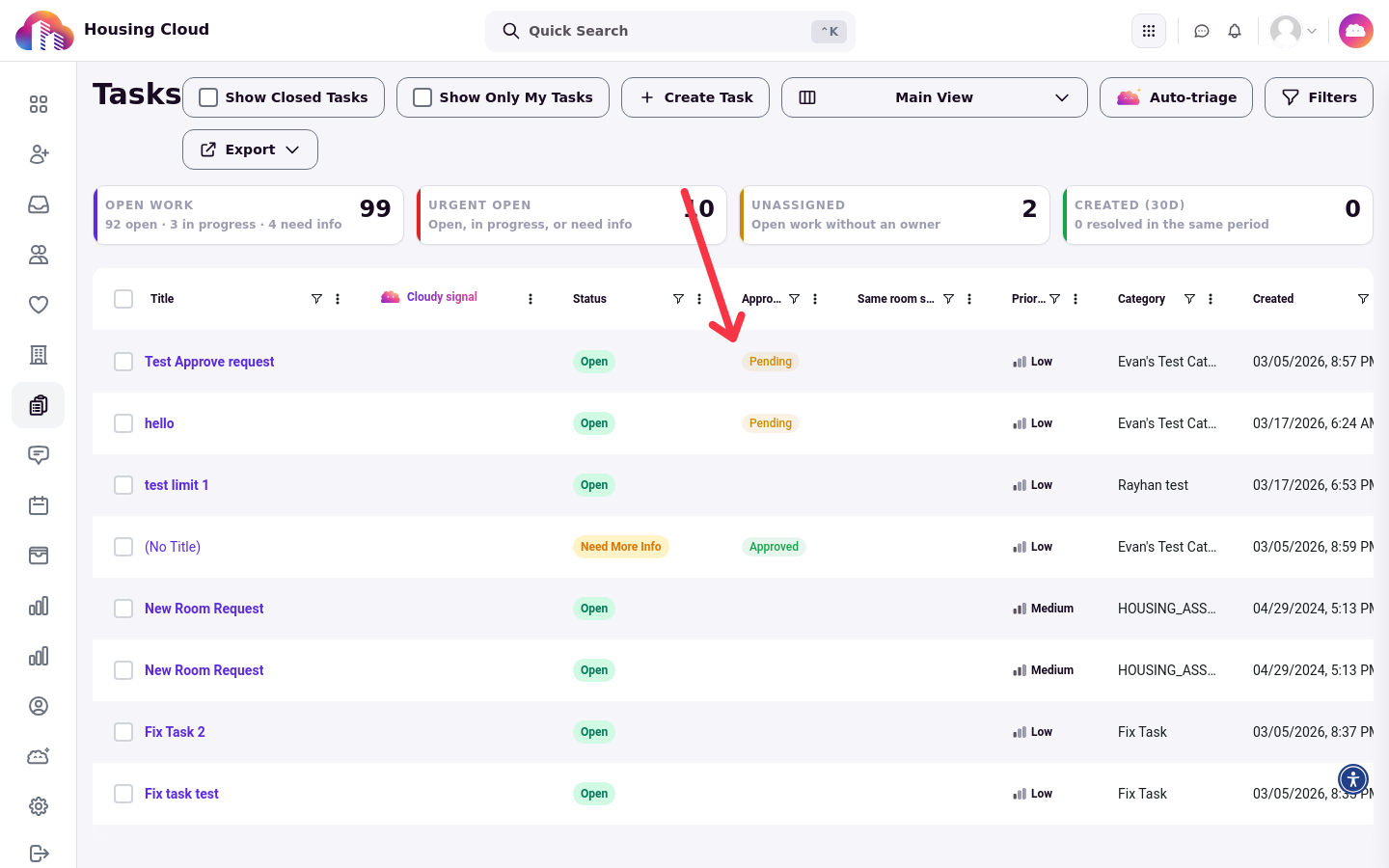
The Tasks queue under Support.
The task page
The header shows the task's title, its number and any flags. Request for names the resident the request is about, and their Residency card shows the Building and Room, with View residency for the details.
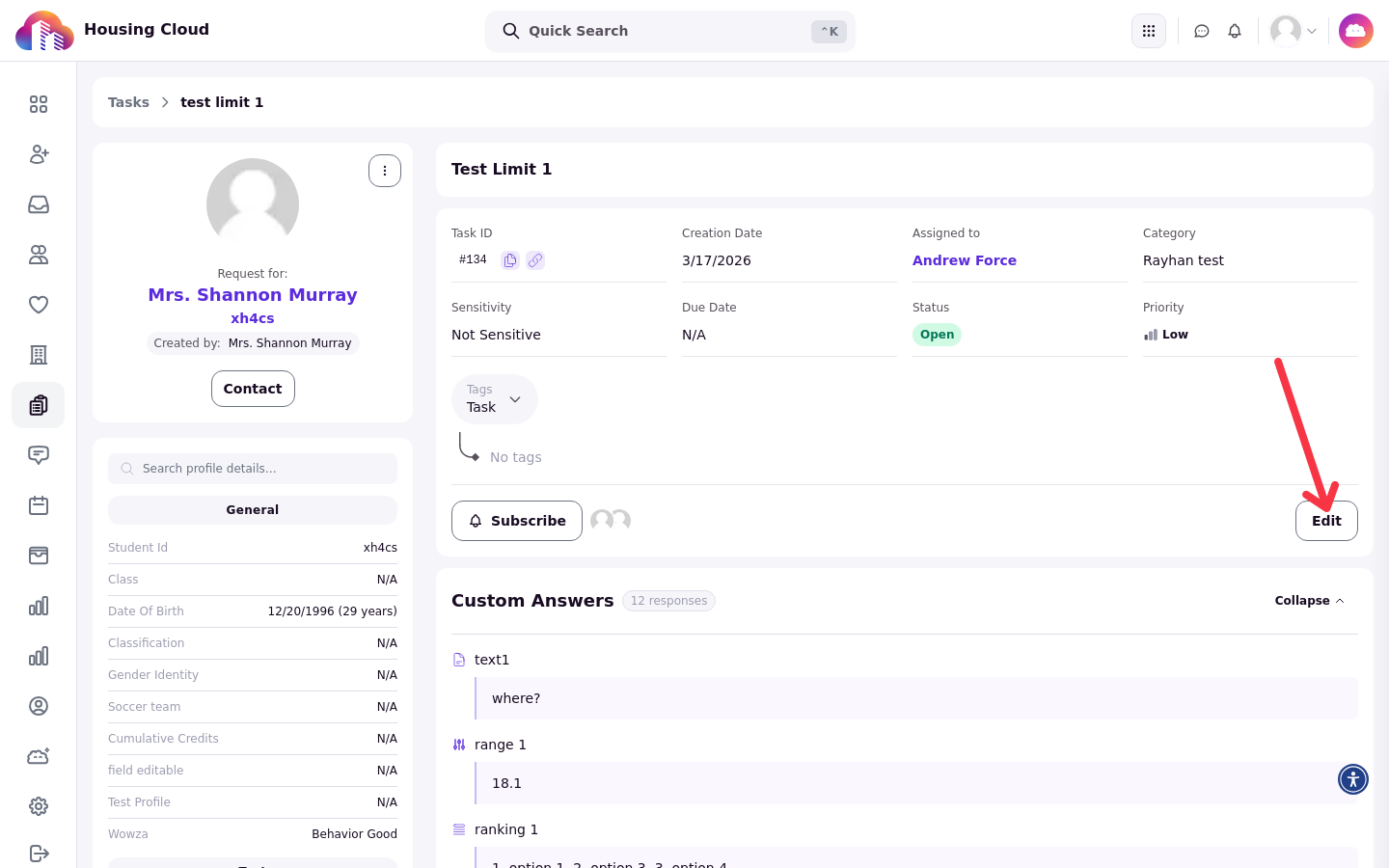
The task page: Request for, the resident profile card, the task details and Edit.
Edit a task
Click Edit to change the status, priority, due date, category, tags, assignee or description, then Save.
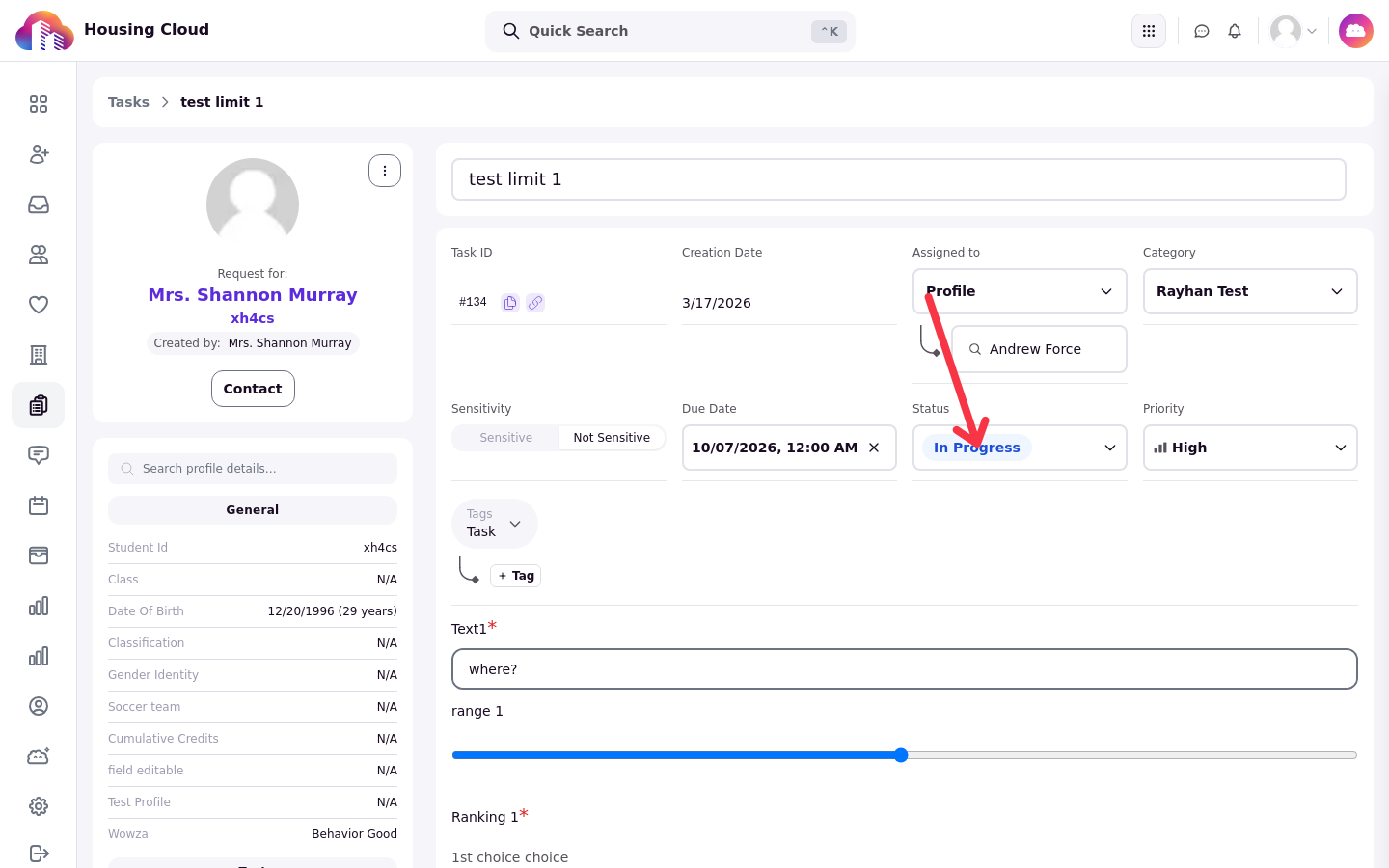
Edit mode: Status, Priority and Due Date.
Statuses
A task moves Open → In progress ↔ Need More Info → Closed, and Cancelled is its own status. Setting the status to Need More Info emails the resident when that switch is on (Task and Request Notifications: Who Gets What).
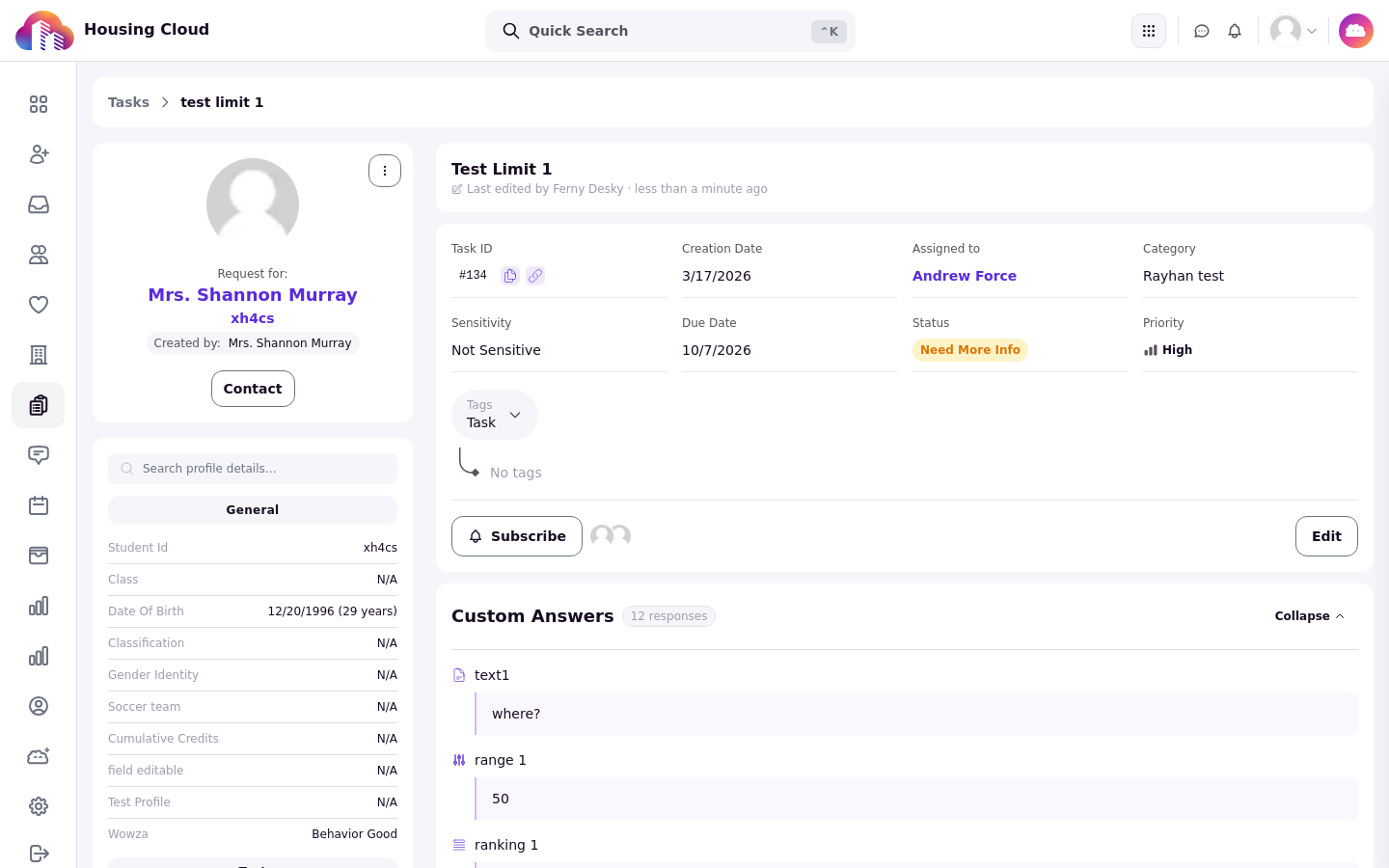
Status saved as Needs info; the badge reads Need More Info.
Priority
Choose Low, Medium, High or Urgent. Requests filed in the newer resident portal start at Medium; requests from the legacy help form and tasks staff create start at Low.
Due date
The due date comes from the request type's auto-deadline, or you set it by hand with Edit. The daily Task Deadline Reminder reaches the assignee and subscribers while the task is open and due within three days.
Assignee
The assignee is a person or a role (Assign and Reassign: A Person or a Role). Changing a task's type re-applies the new type's automatic assignee.
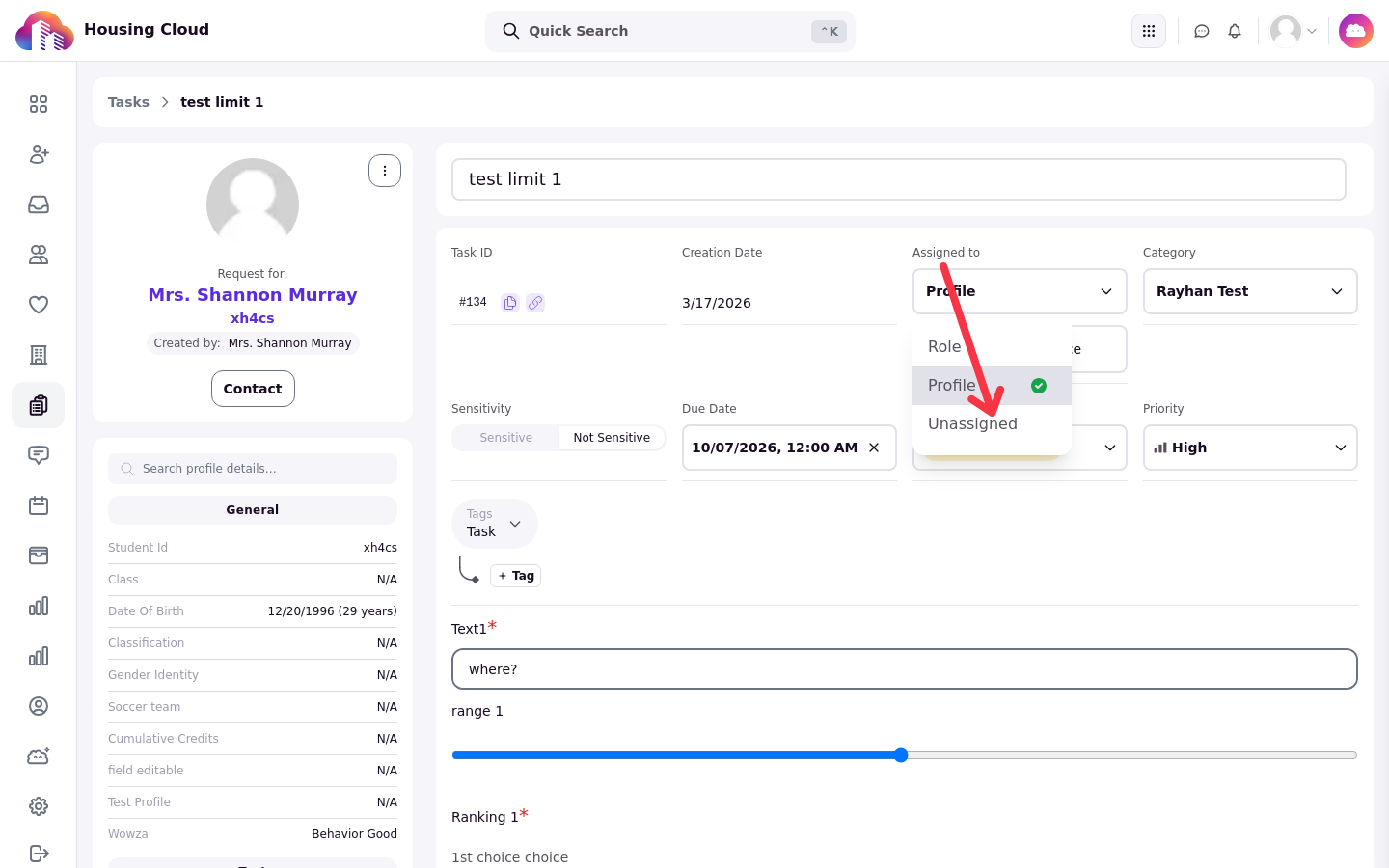
The Assignee picker offers a role, a profile, or no assignee.
Followers
Followers get updates on the task. Use Subscribe to follow it yourself and Manage Subscribers to change who follows it. A resident who follows the task can read it but not change it.
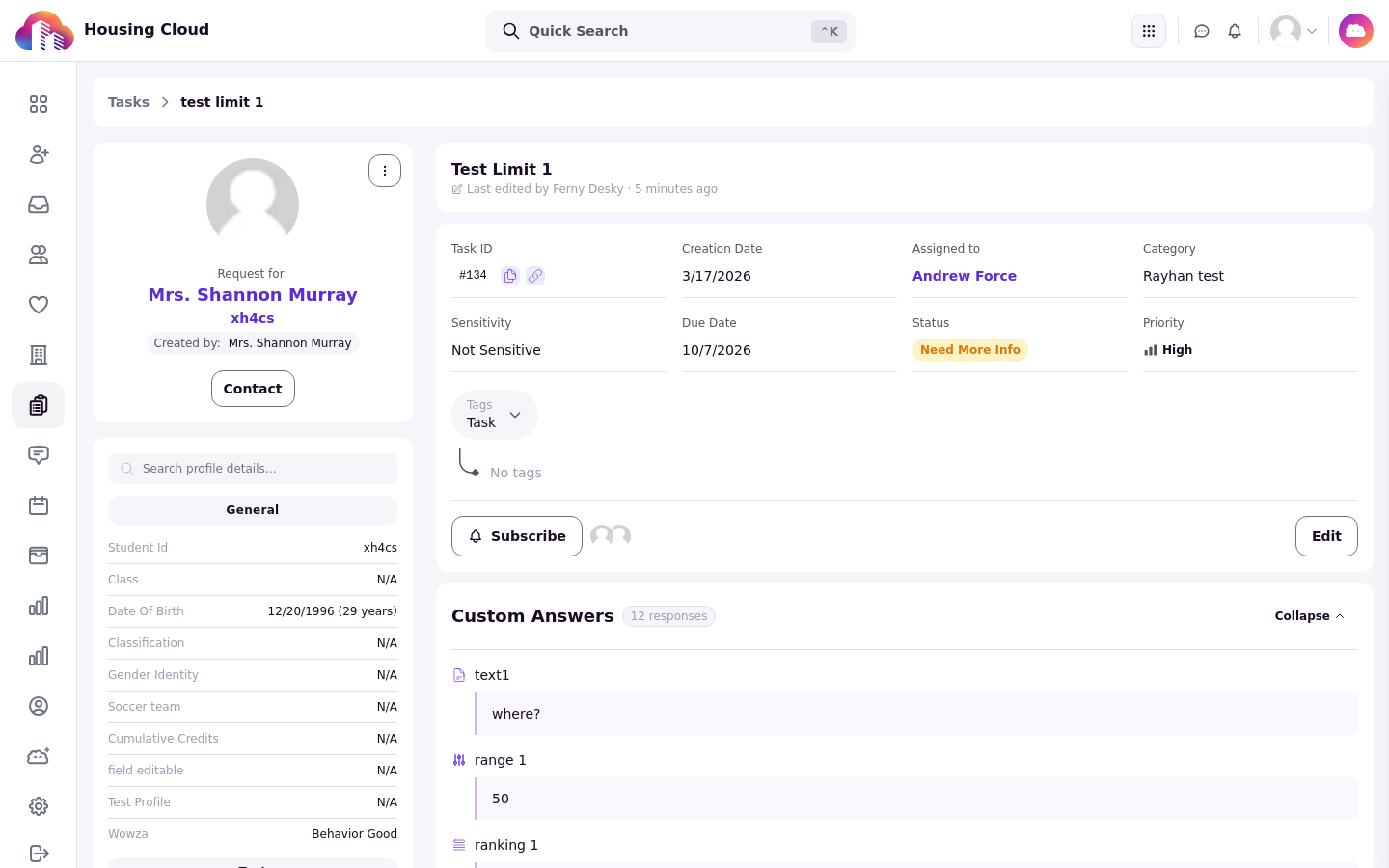
Subscribe and the subscriber avatar stack.
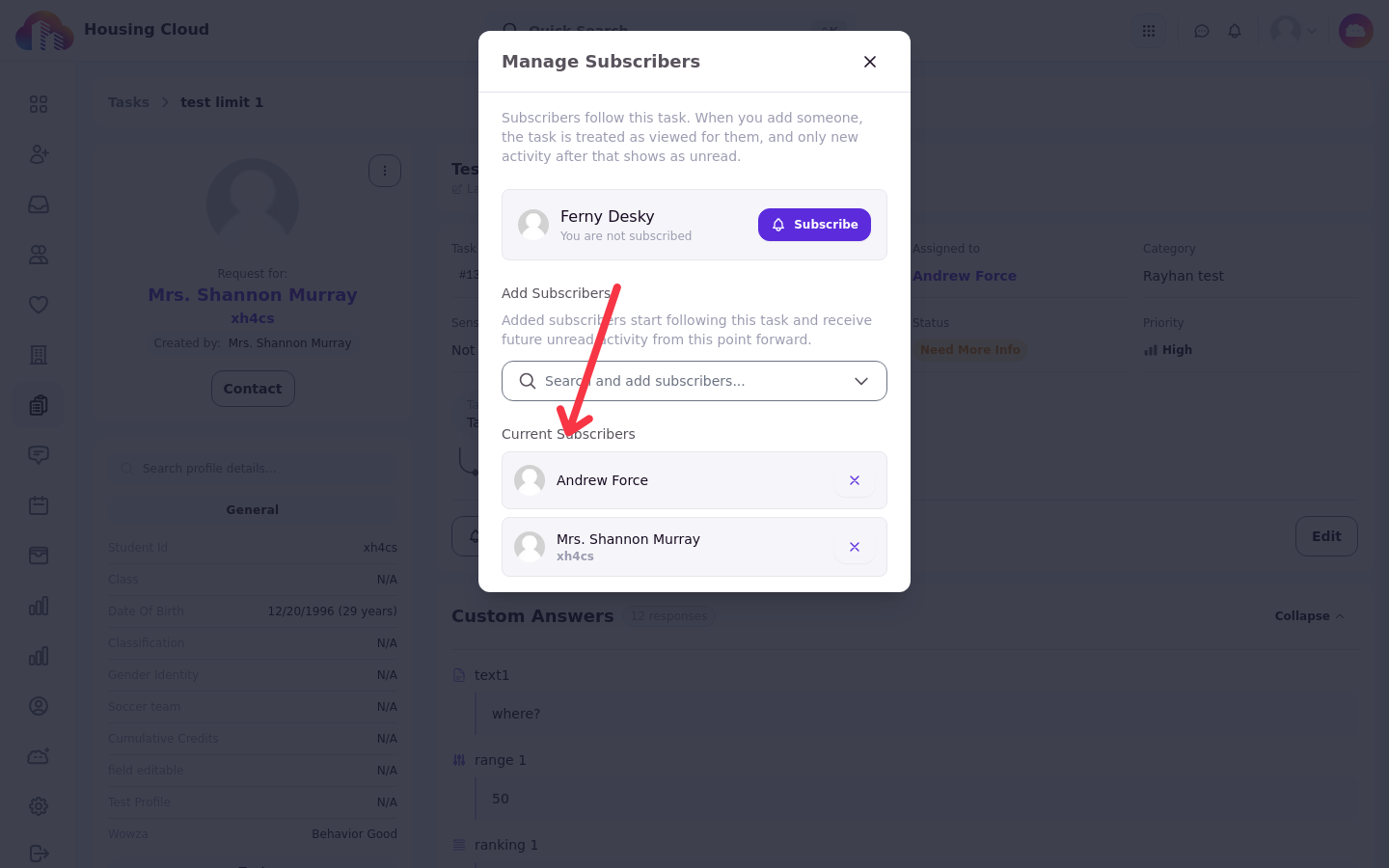
Manage Subscribers: add people with search, remove them with the ×.
Approval
On a request type that needs approval, the task shows Approve and Reject. The status can't move on until the approval is decided.
Form answers, images and history
When the request type has a form, the resident's answers show on the task page, and photos also appear under Images. Edit History lists who changed what, and the rating card appears once the resident rates the request (How Satisfaction Ratings Work).
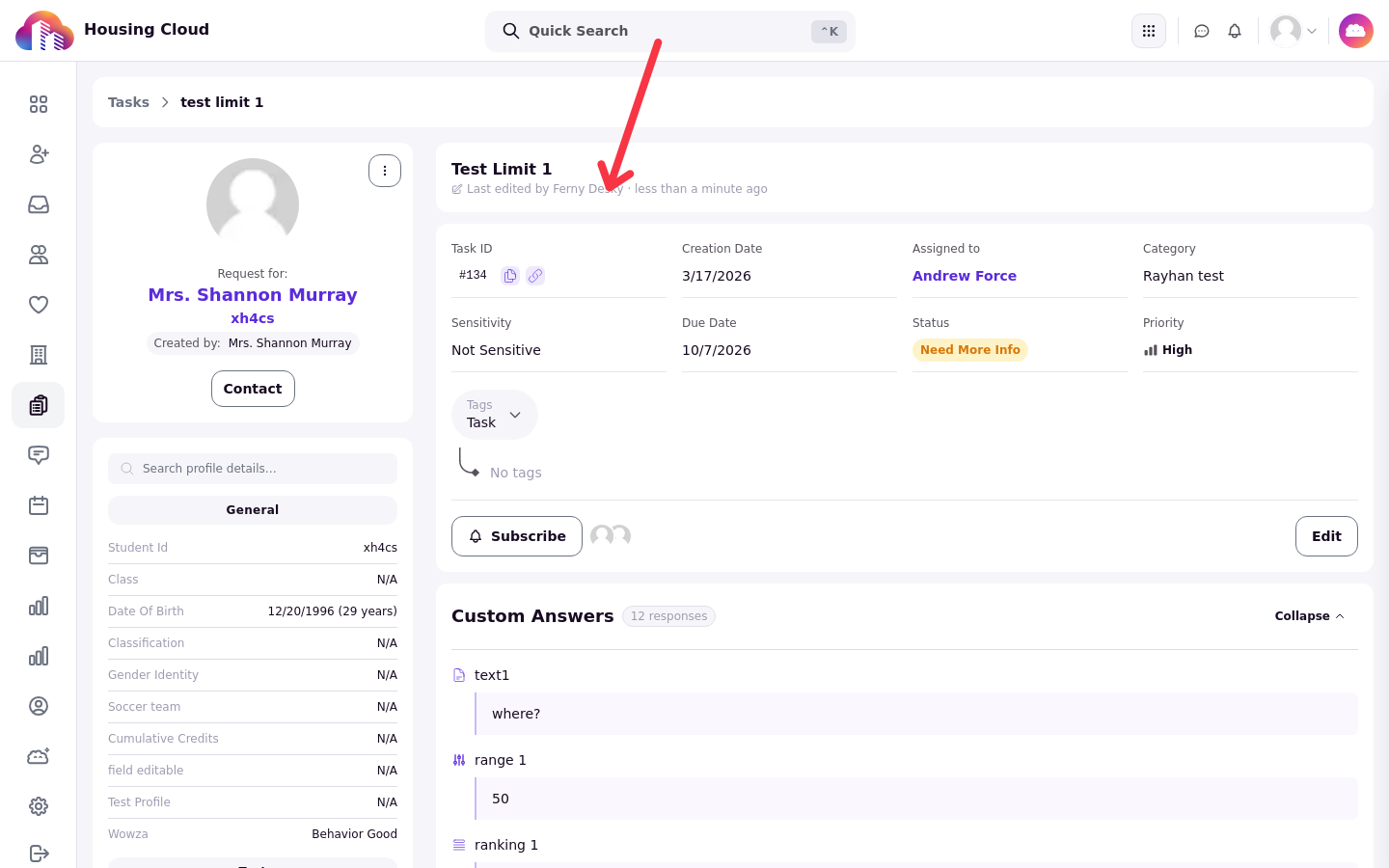
The Last edited by indicator below the task title.
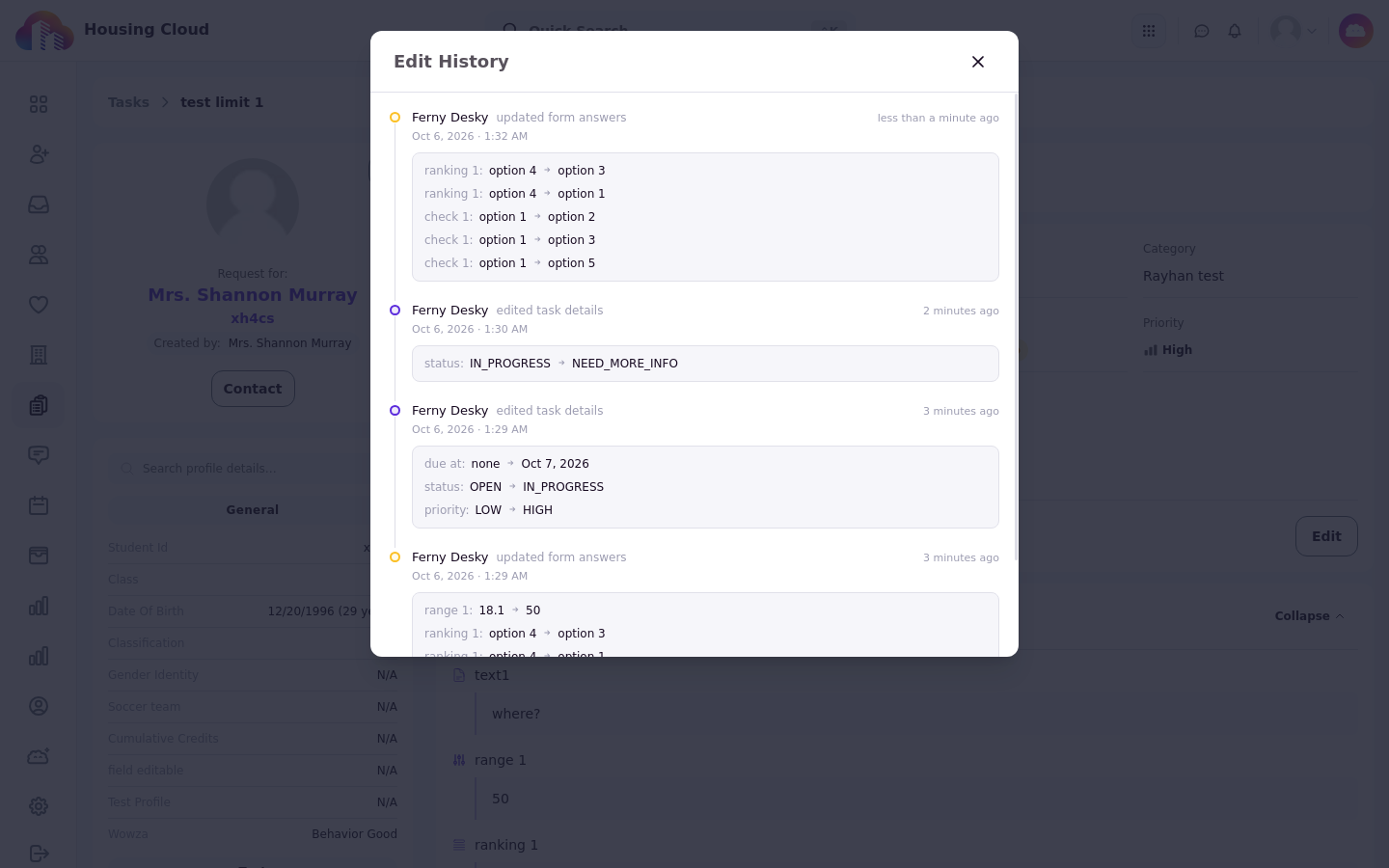
Edit History lists who changed what.
Closing a task
Set the status to Closed when the work is done. Closing sends nothing to the resident at once: the rating email follows three days later (How Satisfaction Ratings Work). Reopening the task cancels a rating email that hasn't gone out yet.
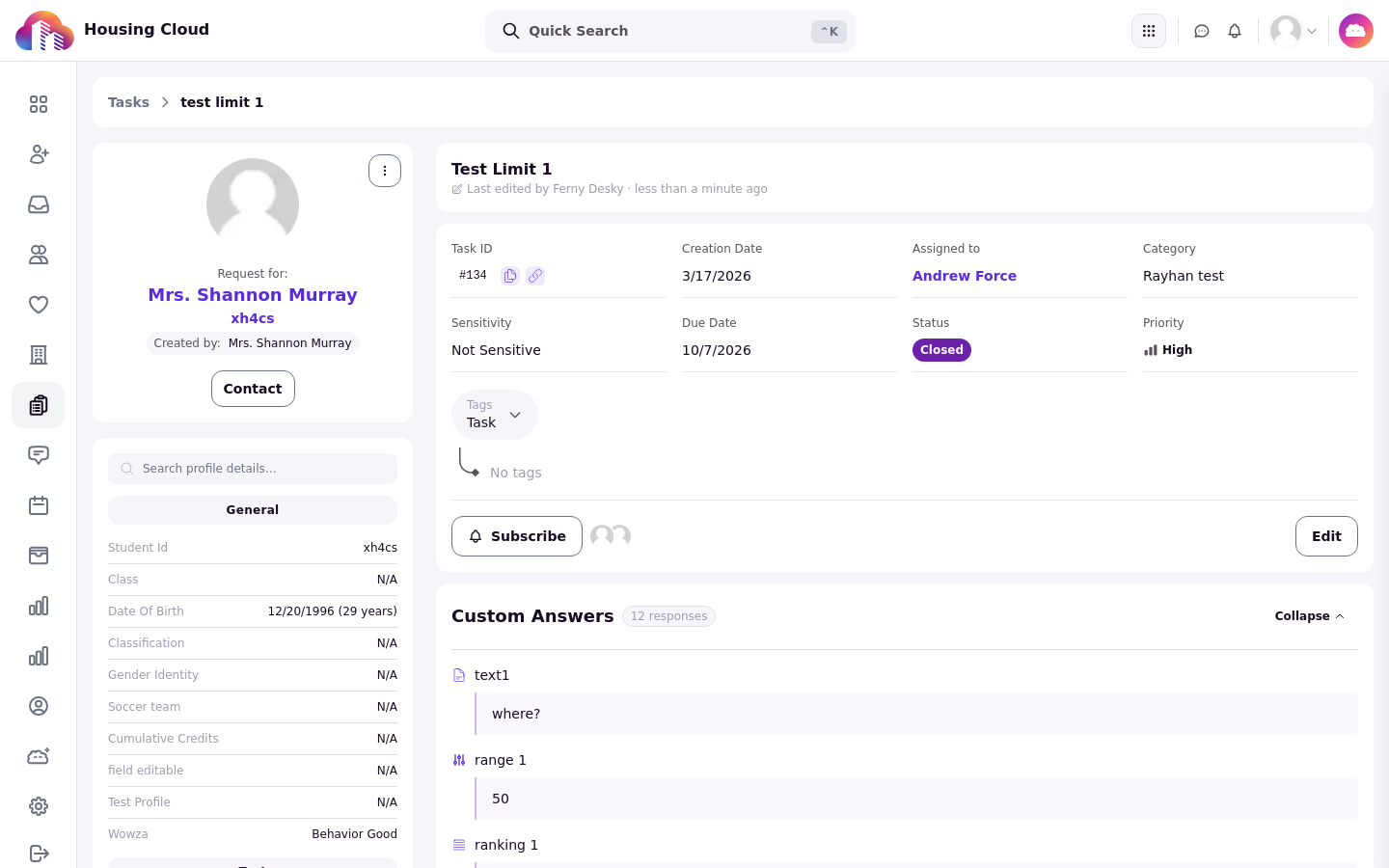
Status Closed.
Good to know
Residents don't set priority. Requests filed in the newer resident portal start Medium; requests from the legacy help form and tasks staff create start Low.