Student Staff and Requests: The Requests Page and "My Residents"
Last updated: October 8, 2026
As a Resident Assistant you see requests in two places: the Requests page in the staff portal, which lists requests assigned to you by name, and the optional My residents tab, which shows the open requests of the residents you are in charge of. This article explains what each place shows, what your school admin has to switch on, and what you can and cannot change.
Before you start
You need an active student staff assignment in the staff portal. The My residents tab only appears once your school admin turns on Show student staff their residents' open requests in Res Life → Student Staff → Configuration.
Requests assigned to you
Open the staff portal and go to Staff → Requests. The page lists requests assigned to you by name, with filters for urgency and status.
The Assigned to me tab lists those requests as cards:
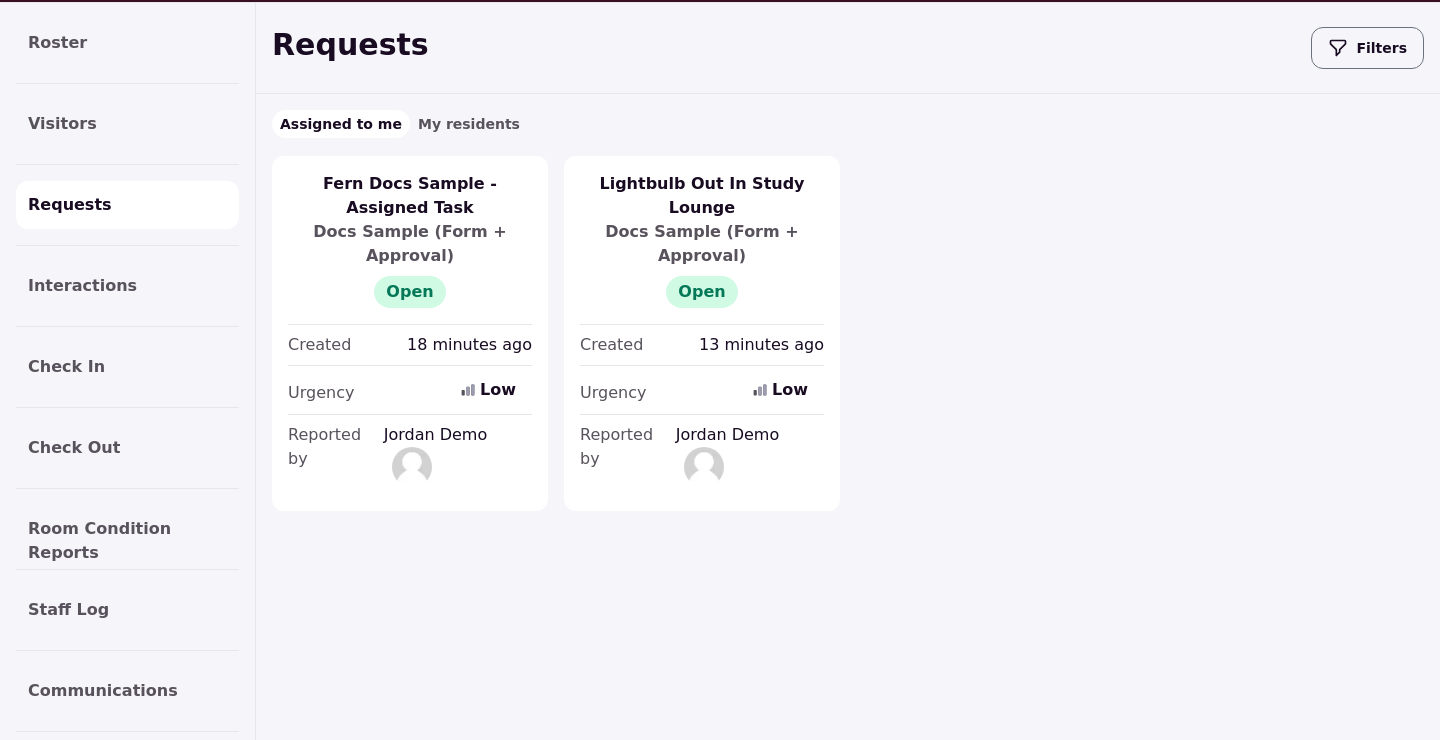
Two kinds of request never appear here: requests given to a role, and requests you filed on a resident's behalf. A role-assigned task belongs to the role, not to one person, so it shows for none of the role's members. A request you filed for a resident shows up only if someone assigns it to you by name.
The My residents tab
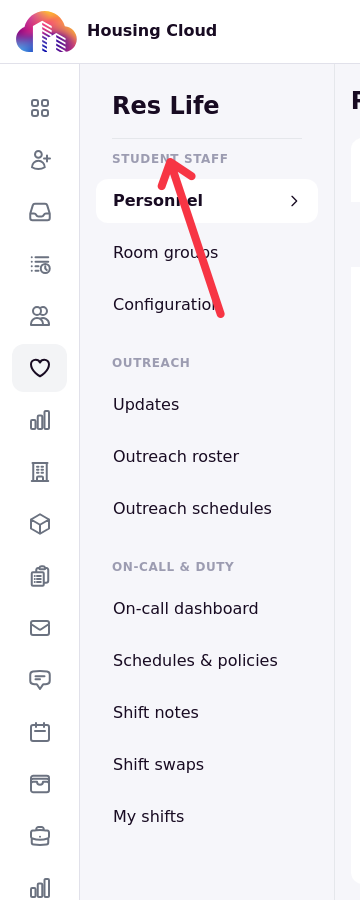
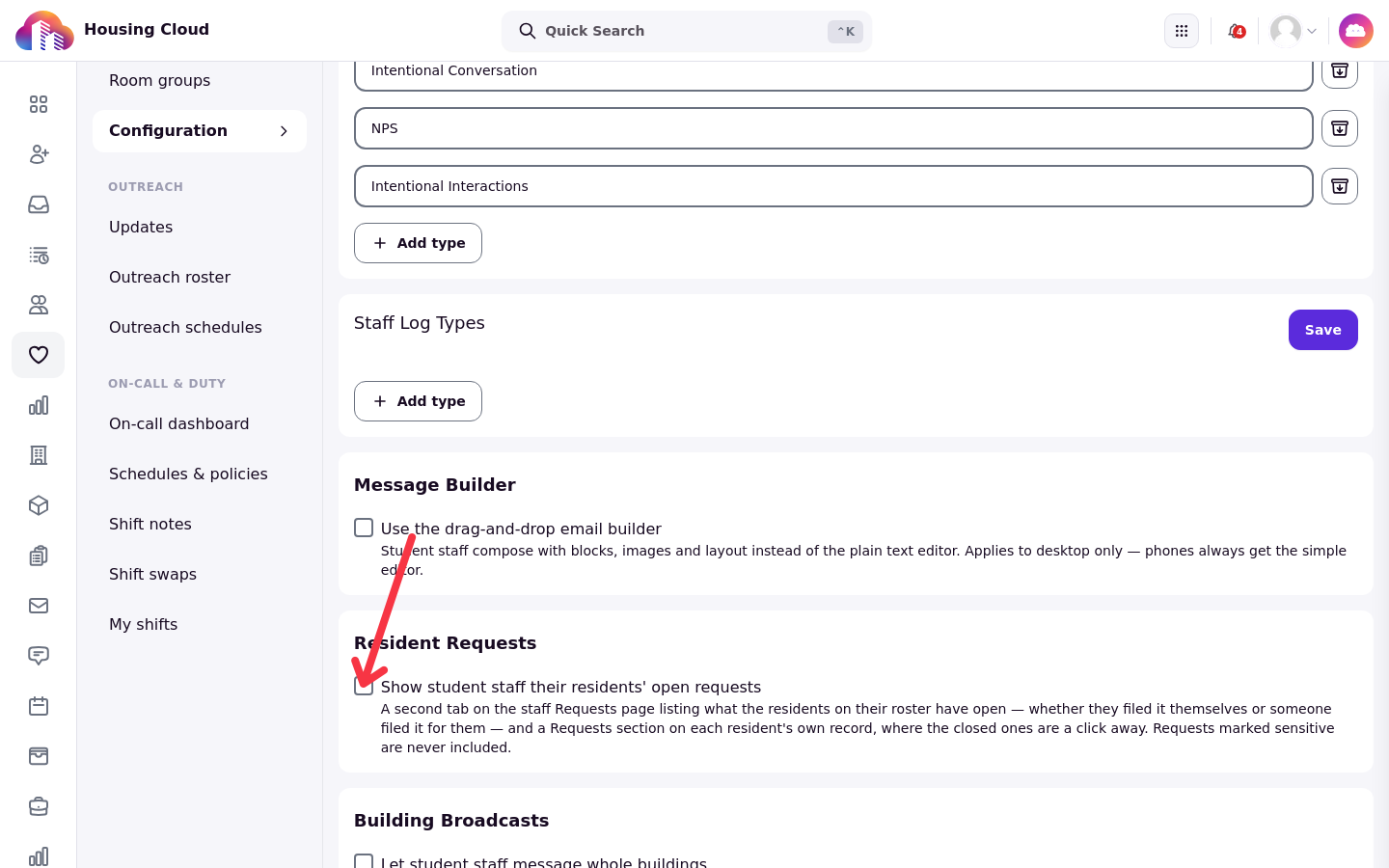
Your school admin turns this on in Res Life → Student Staff → Configuration with Show student staff their residents' open requests. The setting adds the My residents tab to your Requests page, covering the residents you are in charge of, and adds a Requests section to each resident's record in the staff portal. Sensitive requests are never shown there.
The Res Life group in the admin sidebar holds Student Staff and its Configuration page:
The Resident Requests card on that page holds the checkbox:
Checking the box saves immediately and shows a confirmation that resident requests are enabled:
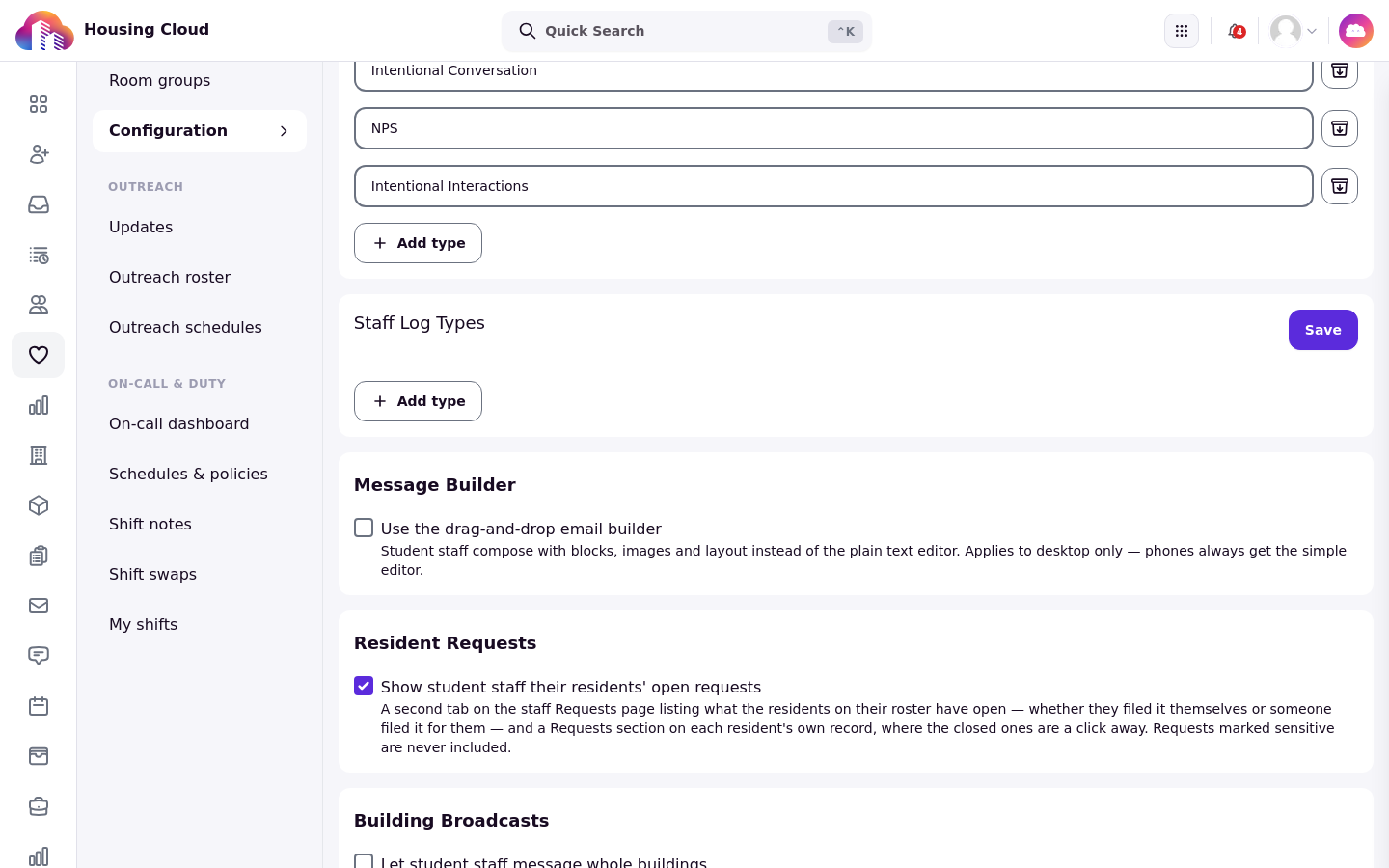
With the setting on, your Requests page gains the My residents tab:
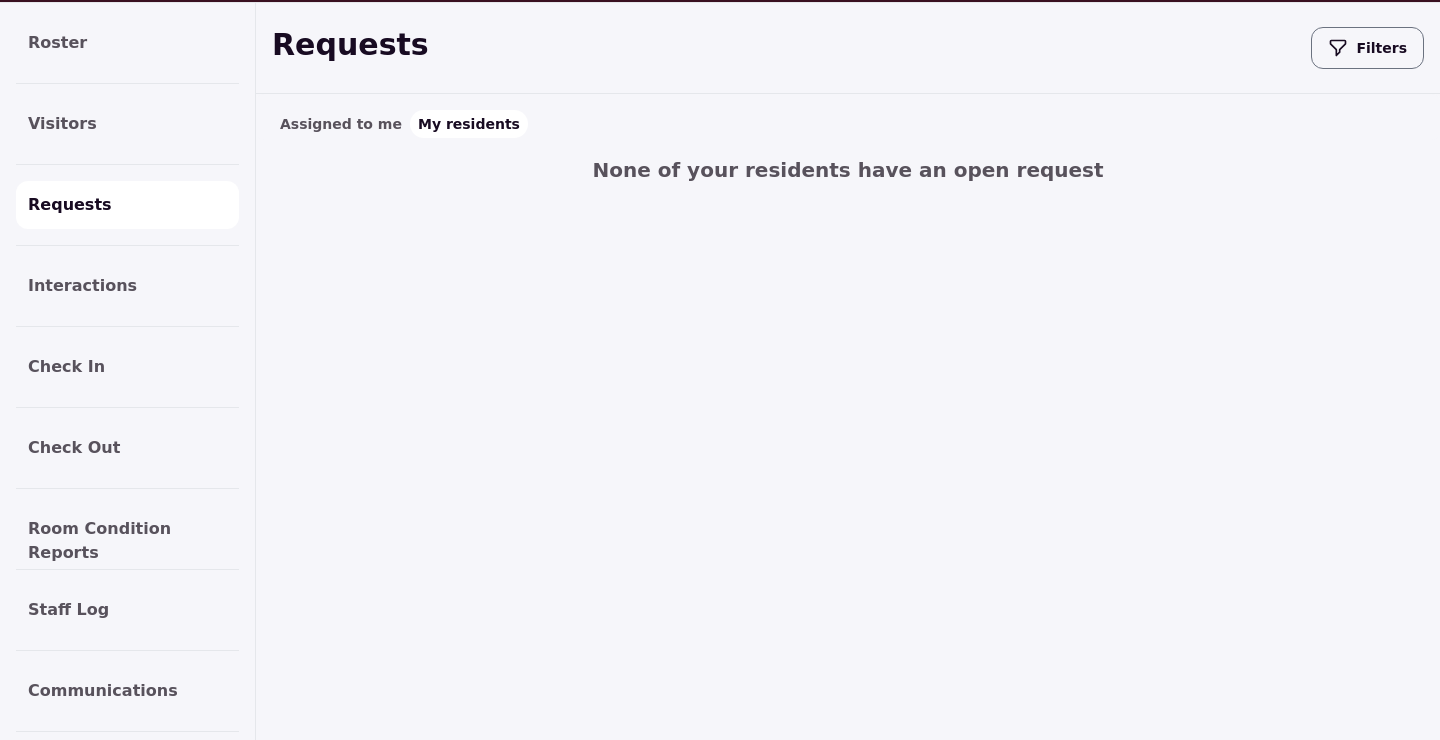
When one of your residents has an open request, it appears here as a card.
What the cards show
Each card on My residents shows Reported by (the resident the request is about) and Filed by (who sent it in). The cards don't open the request itself, on purpose: the tab is a status view of your floor's open requests, not a task list. To read the full request, open it from the resident's record or ask the person it is assigned to.
Read or change
An RA can read a request they follow but not change it. Assignees and otherwise authorized staff can update a request's status. A creator can only cancel their own live request. If something needs doing on a request that isn't yours, tell the assignee instead of editing it.
Help articles for staff
In the portal's Help section you also see articles marked Staff only, such as desk procedures residents aren't meant to read. Residents never see them. See Choose Who Sees an Article and Where It Appears for how those articles are set up.
The article list marks them with a Staff only badge:
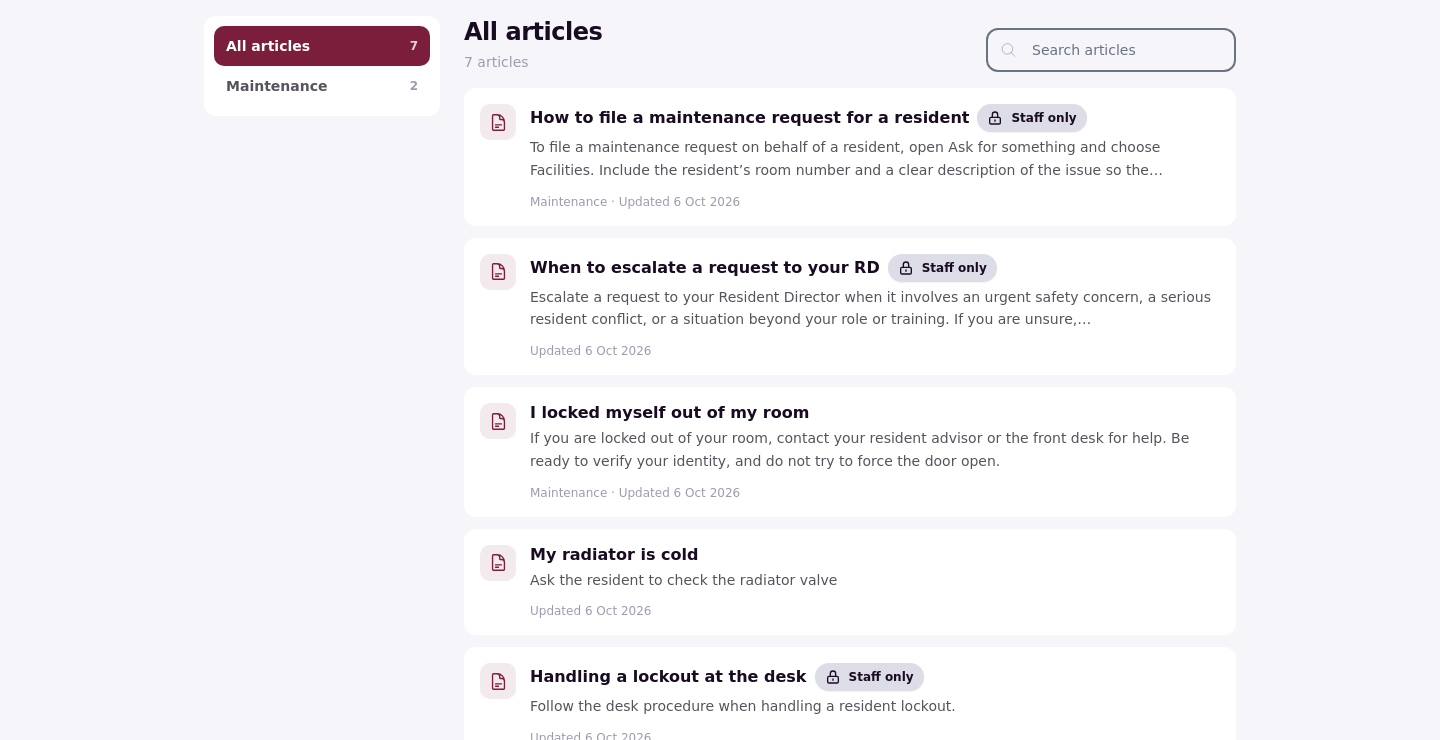
The newer staff portal
The newer staff portal lists requests but its rows can't be opened yet, so use the older portal for request work.
Good to know
A task given to a role has no owner. It never shows under Show Only My Tasks or on an RA's Requests page, and there is no claim button.
RA-filed requests start unassigned. The request type's automatic assignee isn't applied unless the RA changes the type while filing.