Change a Household Member's Role, Sign-in and Owner
Last updated: October 8, 2026
Each member of a dependent group has an assignment, and each assignment has its own detail window on the group's Members Overview tab. Use it to change one person's role, turn their portal sign-in on or off, or move group ownership, without touching anyone else in the household.
Group-level work, such as creating the group or assigning several members at once, is covered in Create and Manage a Dependent Group. This article is for changing one person.
Before you start
Changing assignments, sign-in, and ownership requires the Create and manage dependent groups permission.
The person must be an active member of the group; a removed member's assignment is inactive and can't be edited.
Open a member's detail window
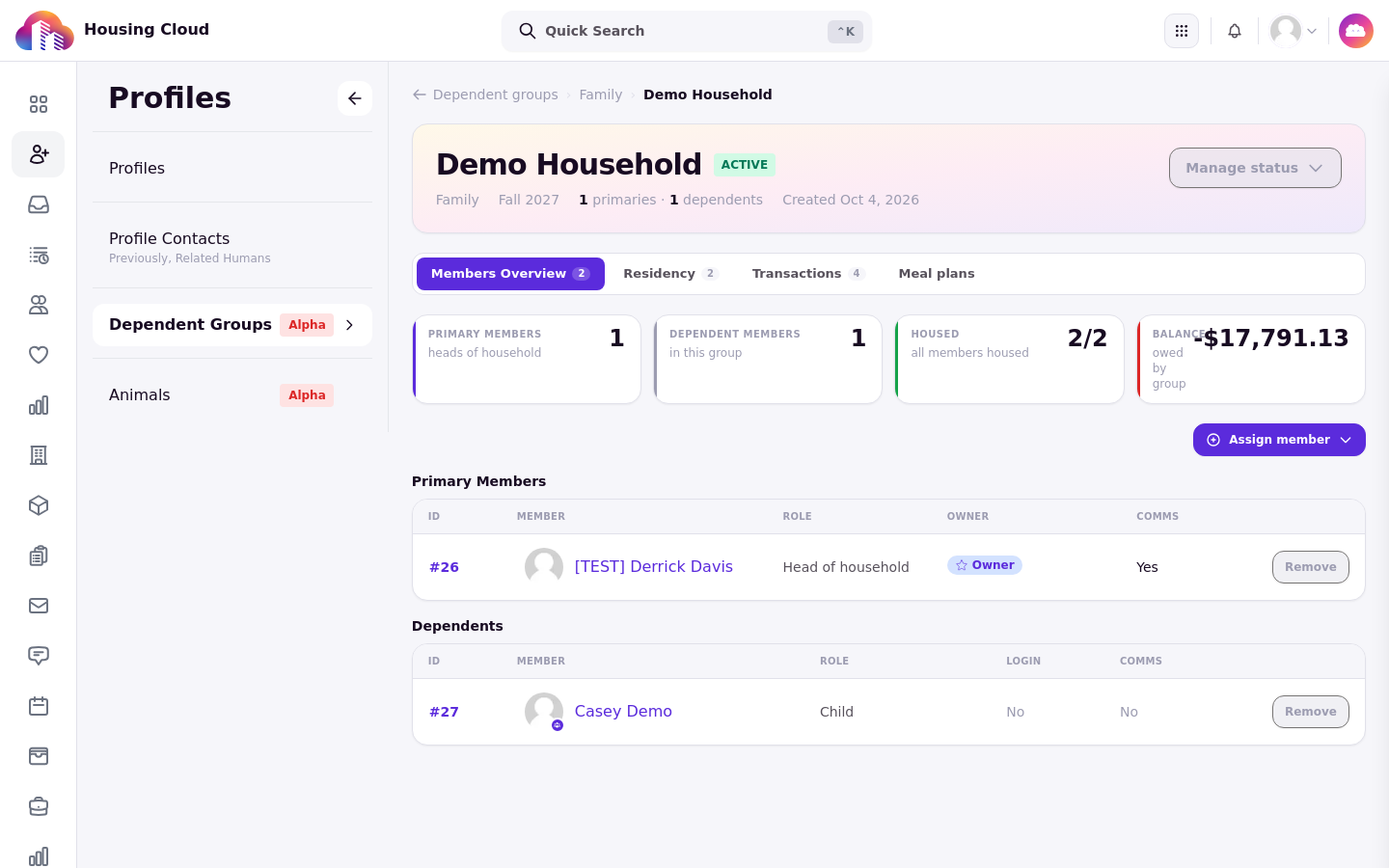
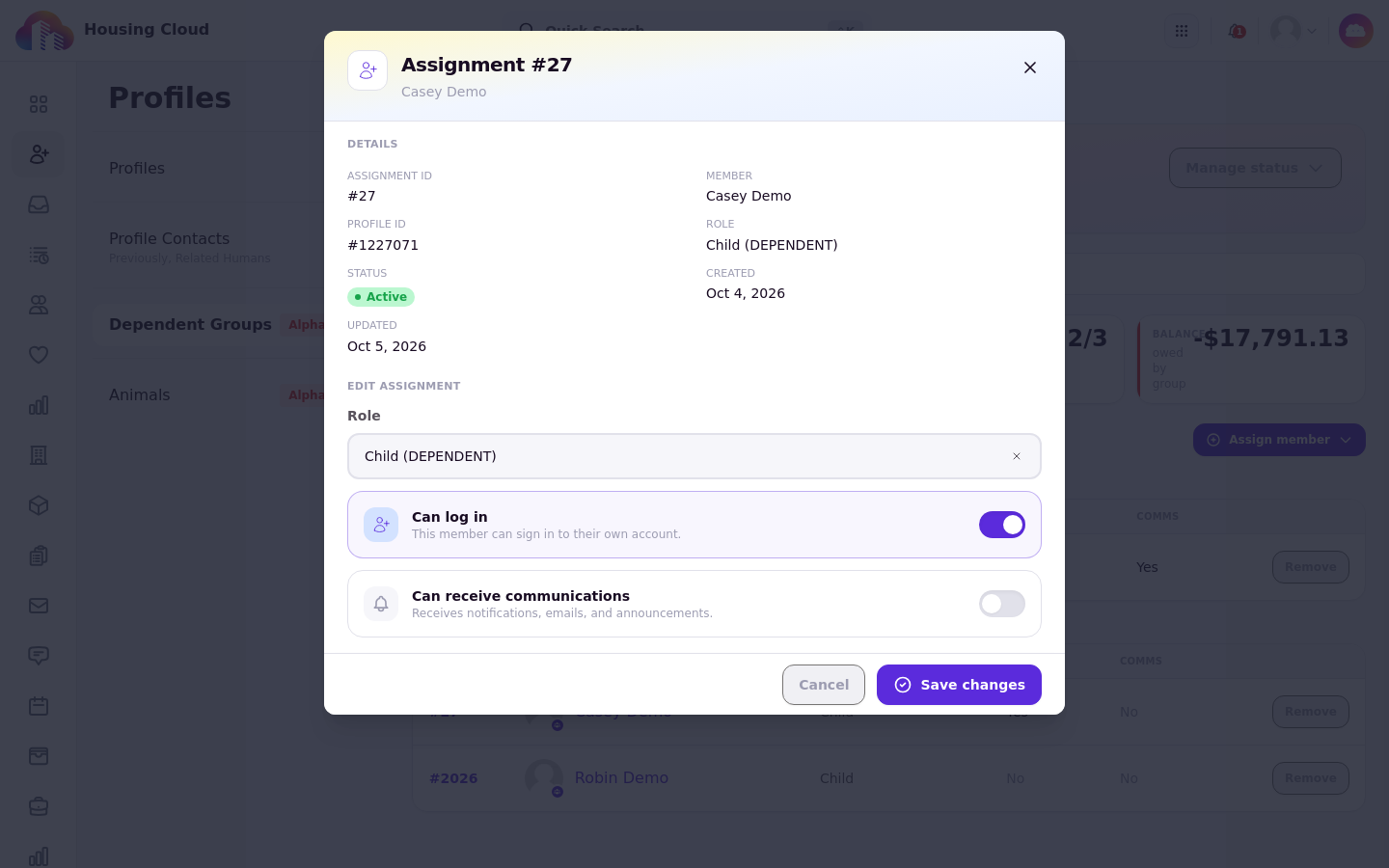
On the group's Members Overview tab, the Primary Members table shows Member, Role, Owner, and Comms, and the Dependents table shows Member, Role, Login, and Comms. Click the member's assignment number, for example #123, to open the window titled "Assignment" followed by that number. It shows the Details section with Assignment ID, Member, Profile ID, Role, Status, Created, and Updated, and the Edit assignment section below.
Change a member's role
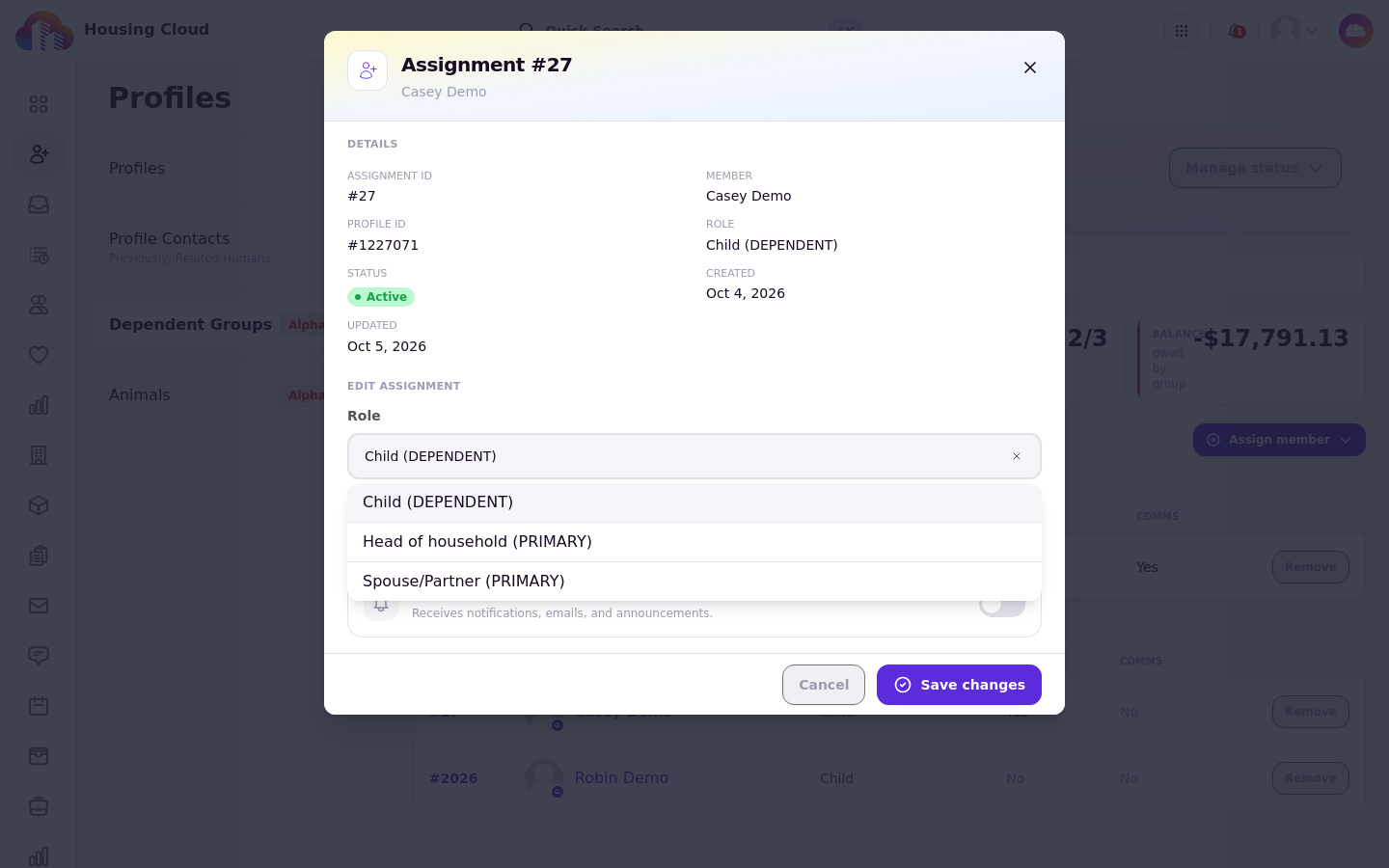
In Edit assignment, open the Role list. It shows every role with its kind, for example "Child (DEPENDENT)", and you can pick a role of a different kind. Changing to a primary role moves the row to the Primary Members table, and changing to a dependent role moves it to the Dependents table. Saving shows "Assignment updated."
A role change ends the old assignment and starts a new one. The change is refused when the new role is inactive or would take the group over its type's maximum.
Turn sign-in on or off for one person
The Can log in switch, described as "This member can sign in to their own account.", overrides the role's setting for that person only. Primary members can always sign in, so the switch doesn't appear for them.
The Can receive communications switch is saved per person, and the member's Comms column shows the resulting Yes or No value. Messaging a whole household isn't available yet, so the switch changes this person's setting only.
Change the group owner
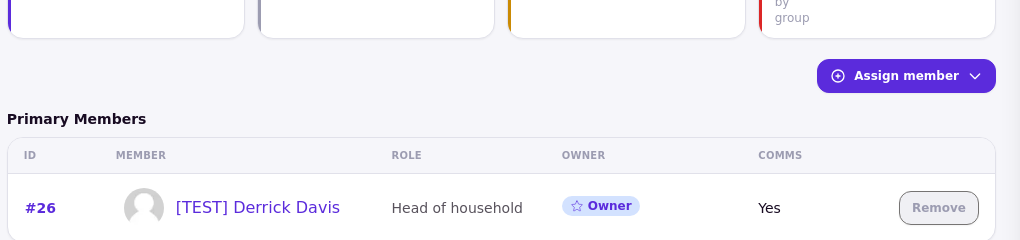
A household has one owner, and the owner is always a primary member. In the Primary Members table the current owner carries an Owner badge and other primaries show Make owner. Clicking Make owner moves ownership immediately with the confirmation "Group owner updated.", and the owner banner on the person's profile, application, and residency moves with it; see How Households Show Up on Profiles, Applications and Residencies.
Make owner is refused for someone who is not an active primary member, with "The group owner must be an active primary member of the group."
Add or remove a member
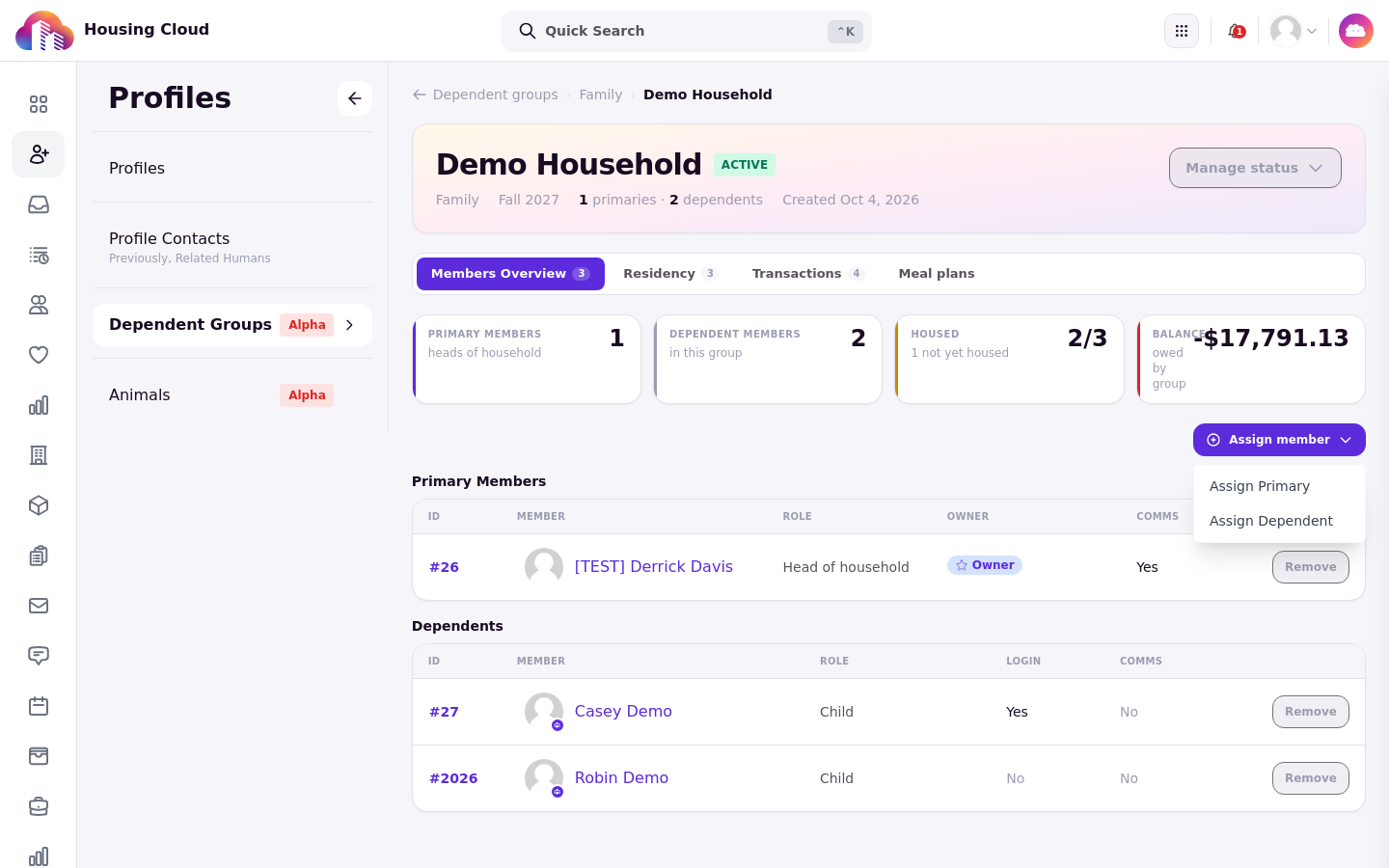
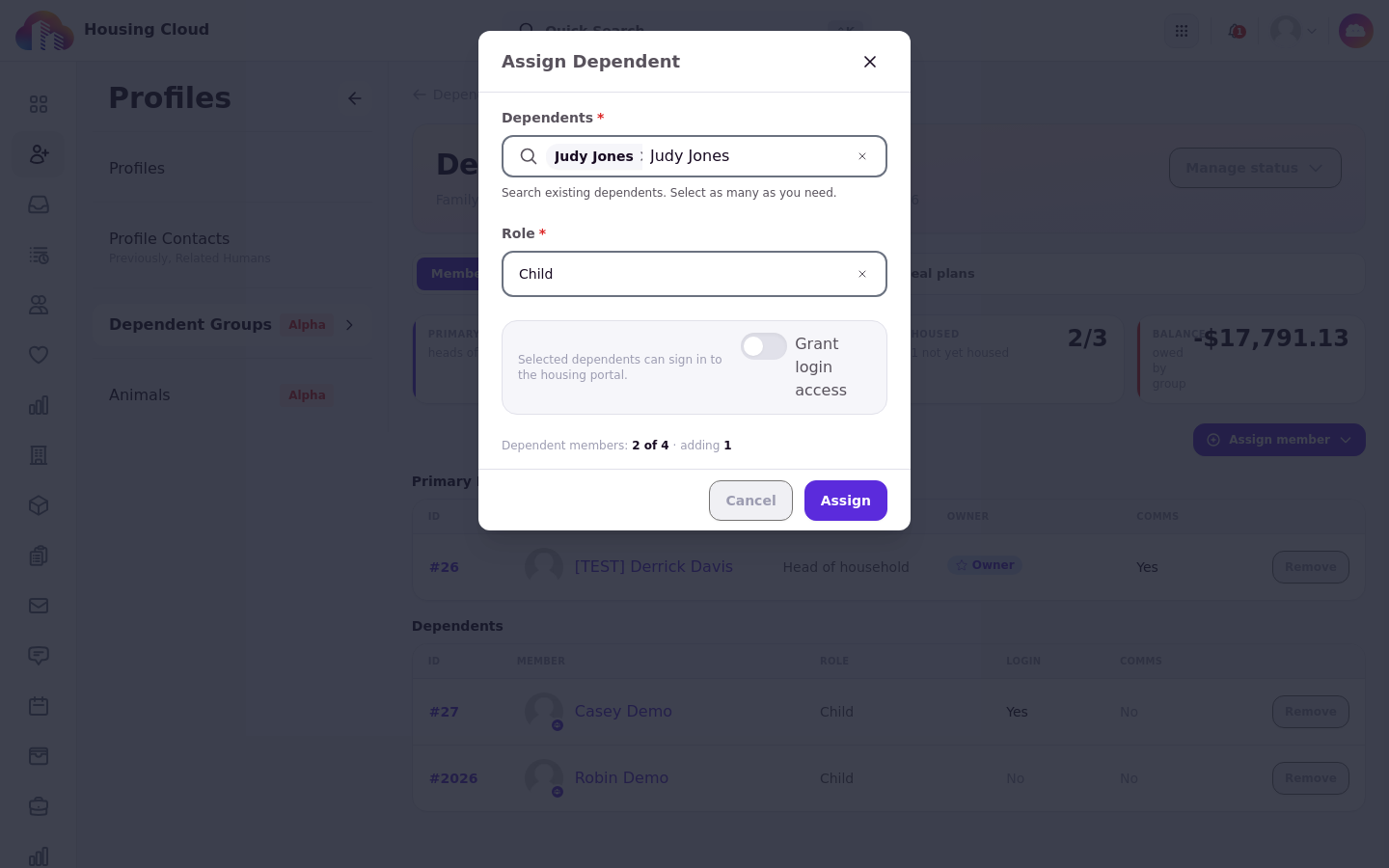
Assign member offers Assign primary, which searches residents and applicants, and Assign dependent, which searches existing dependent profiles. Choose a role; for dependents, Grant login access is optional. The window counts what the type allows, for example "Dependent members: 2 of 2 · adding 1".
Going over the type's maximum is blocked with a red banner such as "Assigning 1 dependent member would exceed this group type's maximum of 2. Remove one to continue.", and Assign stays greyed out until you remove someone from the selection.
Remove on a member row acts immediately, with no confirmation, and shows "Member removed.". The person's history is kept, and re-adding them brings them back with the role's current settings, not their old ones. Primary members can be removed only by an administrator; residents can remove dependents themselves on My Household (see Help Residents Use the My Household Page).
Verify
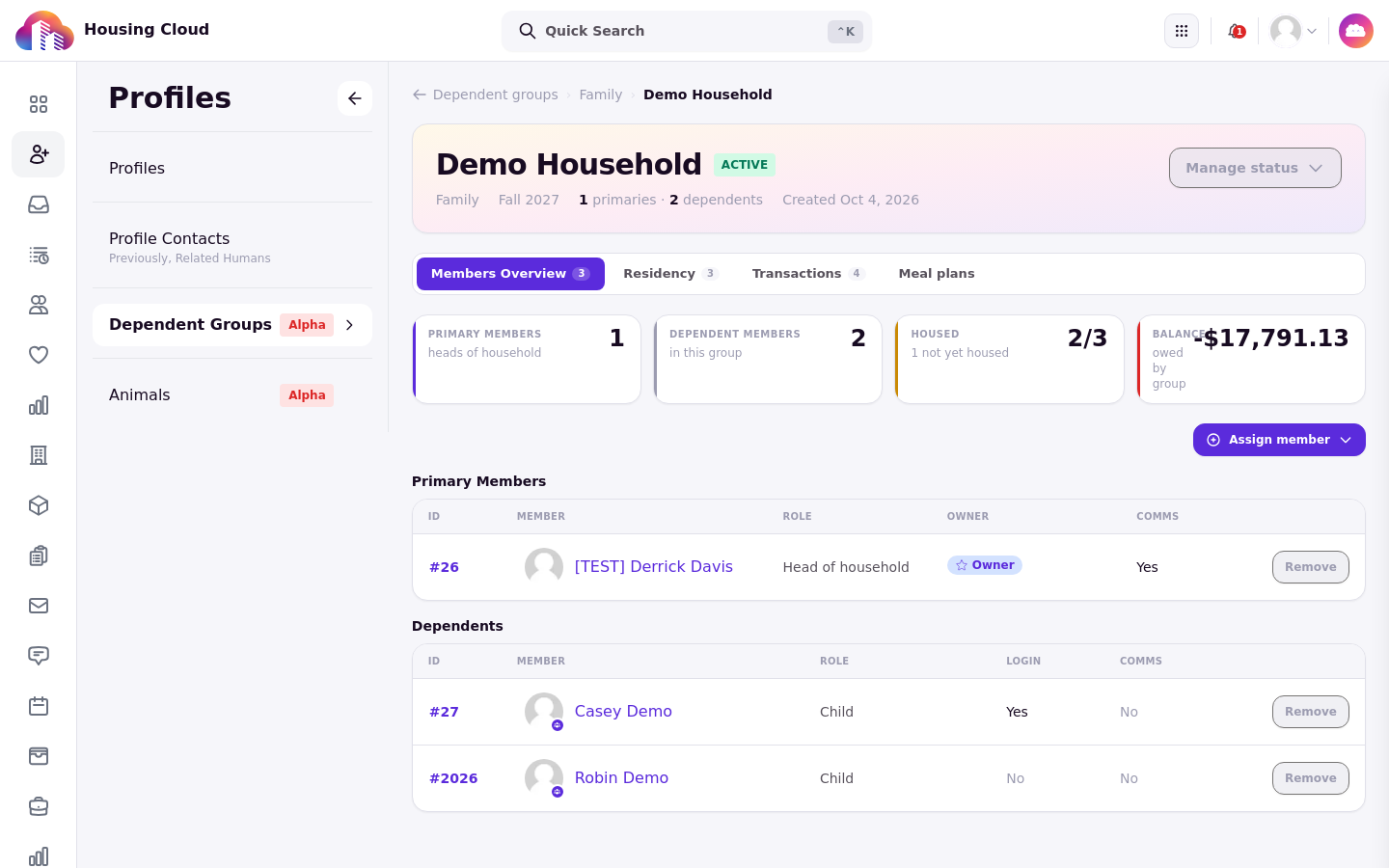
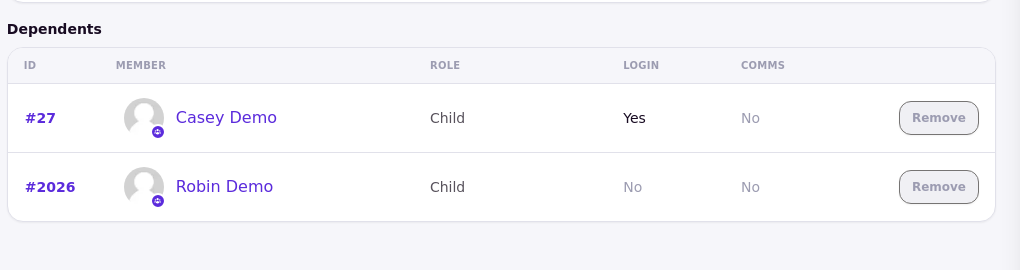
The member tables on Members Overview show the change at once: the new role, the Login value for dependents, the Owner badge after an ownership move, and the updated Comms values.