Create and Manage a Dependent Group
Last updated: October 8, 2026
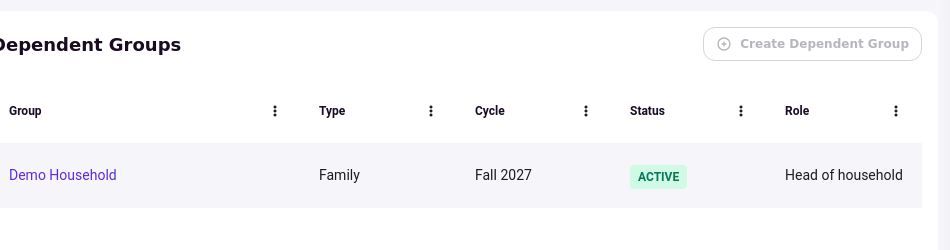
A dependent group ties one or more primary members to the dependents who accompany them, such as a household, a camp, or a conference group. You create the group from the Dependent Groups roster under Profiles, and the group's detail page handles everything afterwards: seating members, granting portal access, removing people, and choosing the owner.
Use a dependent group when a set of people needs to move through housing together. Only groups with the Active status can be assigned to beds during application review, so the group is also the unit your room assignment works from.
A dependent group is not a roommate group. A person who is a member or owner of a roommate group cannot be added to a dependent group until they are removed from the roommate group first.
Before you start
Access to dependent groups is controlled by permissions, and two pieces of setup must exist before a group can be created.
Viewing the Dependent Groups roster requires the View dependent groups and members permission.
Creating groups and managing their members require the Create and manage dependent groups permission.
A group type must exist before you can create a group. Create one under Setup > Dependent Management.
A cycle must exist, because every group belongs to a cycle. Create one under Cycles.
Create the group
Under Profiles, open Dependent Groups and select New Dependent Group. A multi-step modal titled New Dependent Group opens.
There is a second starting point: the Create Dependent Group button on an application or profile. It fills in the cycle and the applicant for you, and it is greyed out with an explanation when the applicant already belongs to a dependent group in that cycle.
The first step collects the group's details. Group name, Group type, and Cycle are required; the cycle field explains that it is the cycle (term) the group belongs to. Display name is optional and is the friendly name shown in place of the group name. Description and Tags are also optional. Status offers Draft, Active, Inactive, and Archived.
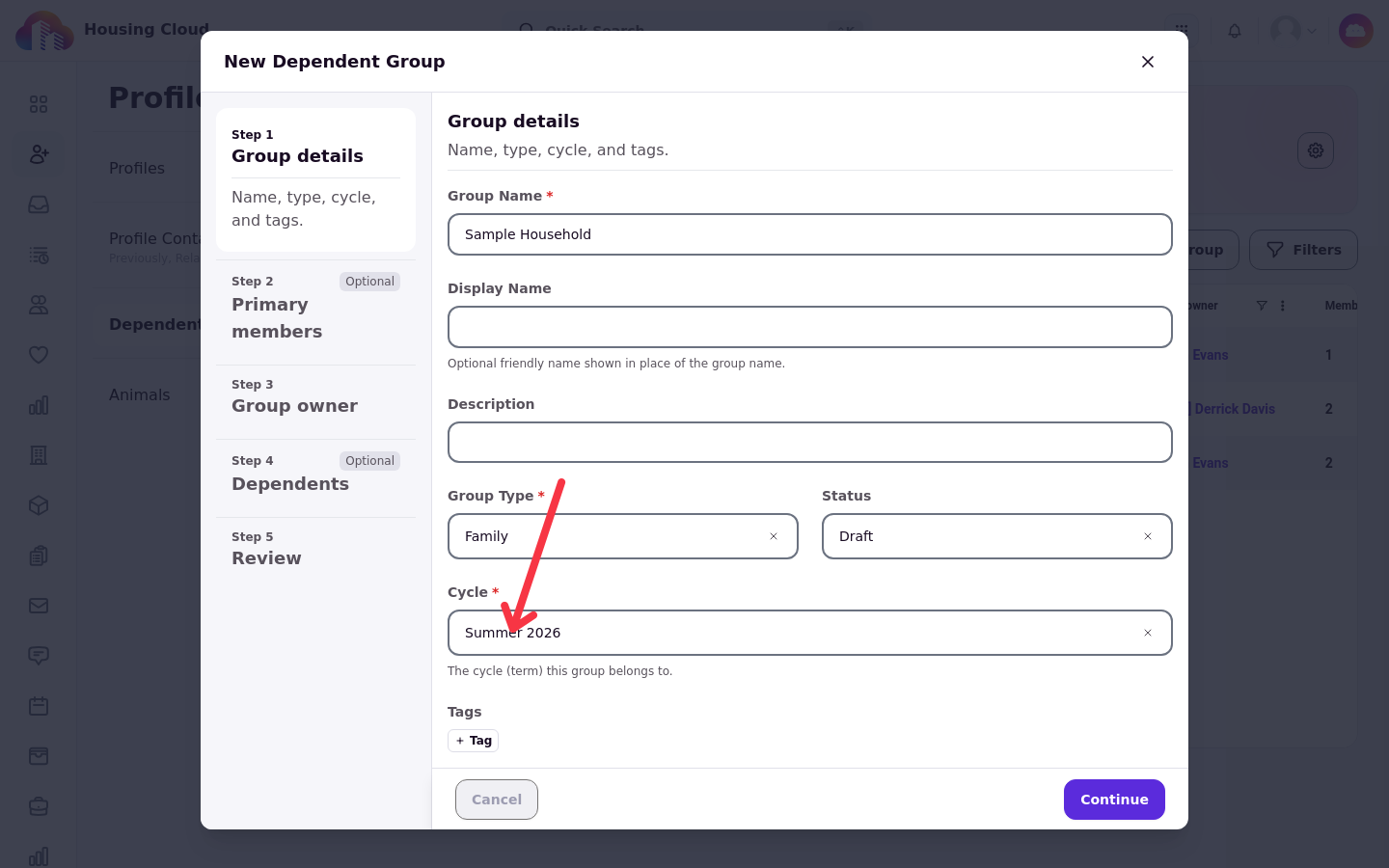
Every new group is saved as Draft first, and the status you select applies right after creation.
Seat the members during creation
The later steps of the modal seat the group's people, and all of them are optional at this stage. Primary members are chosen from residents and applicants. Dependents are chosen from existing dependent profiles, so create those profiles first if they do not exist yet; see Add Dependent Profiles.
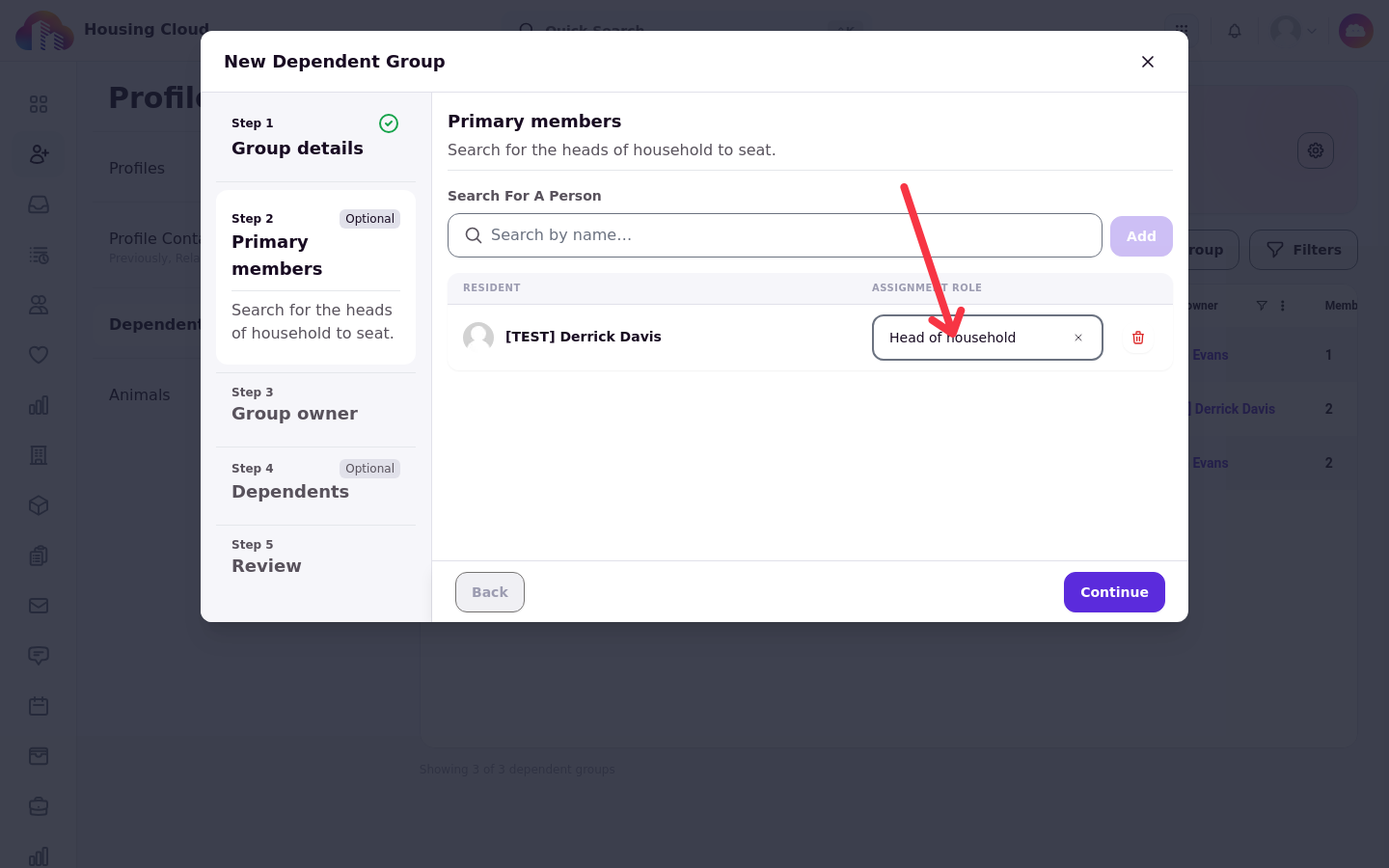
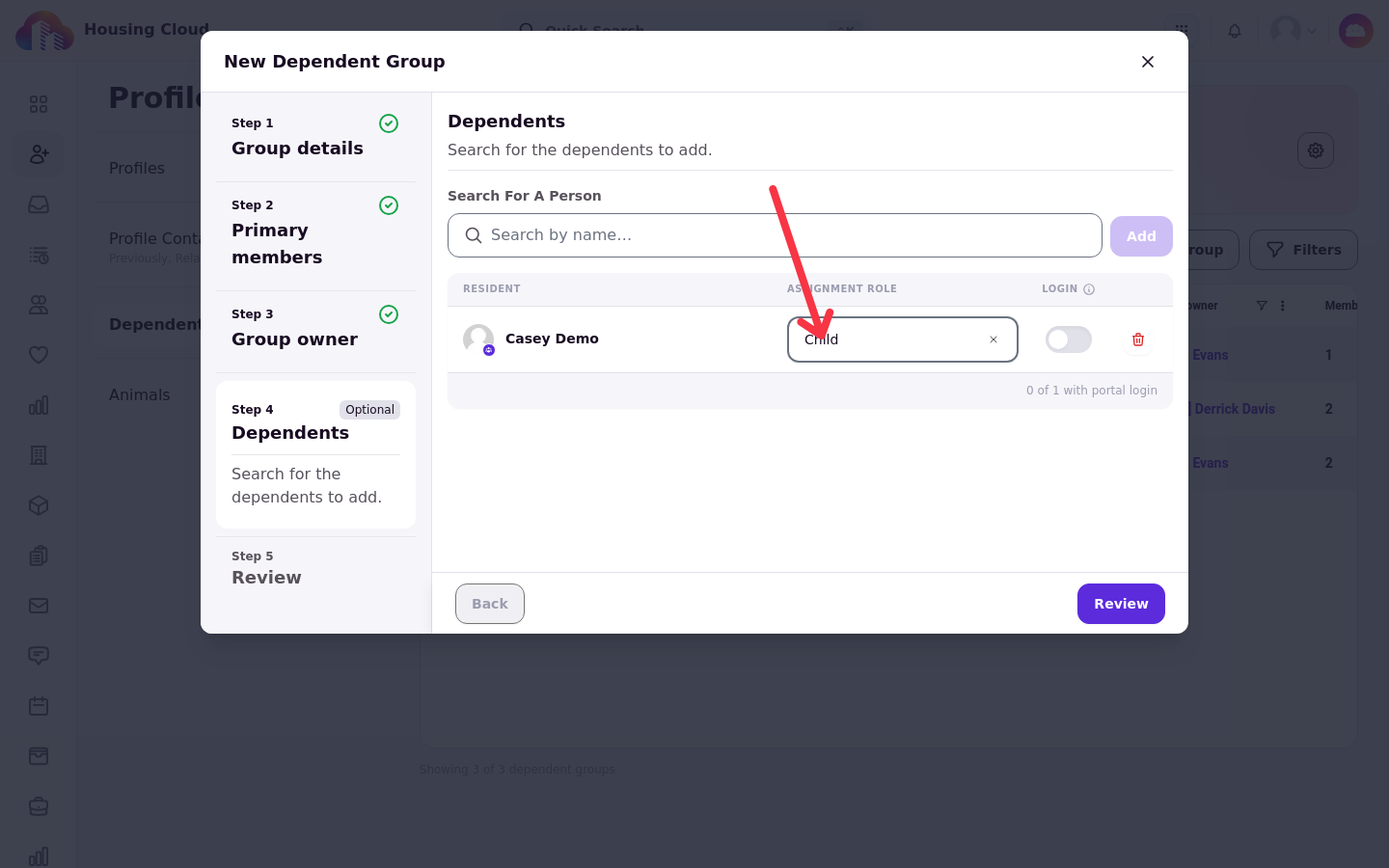
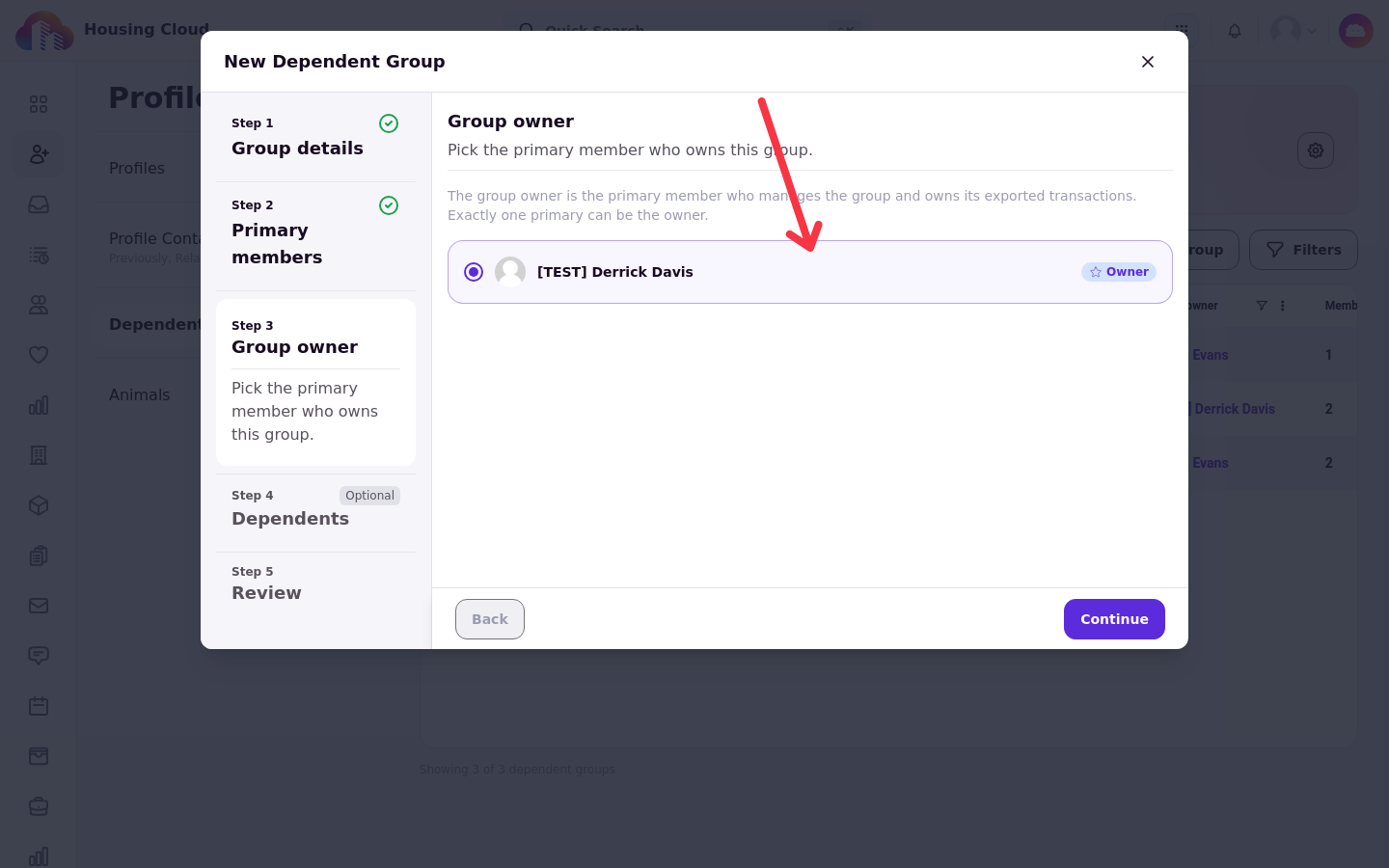
When at least one primary member is seated, the Group owner step becomes required: choose which primary member owns this group. The final step is Review.
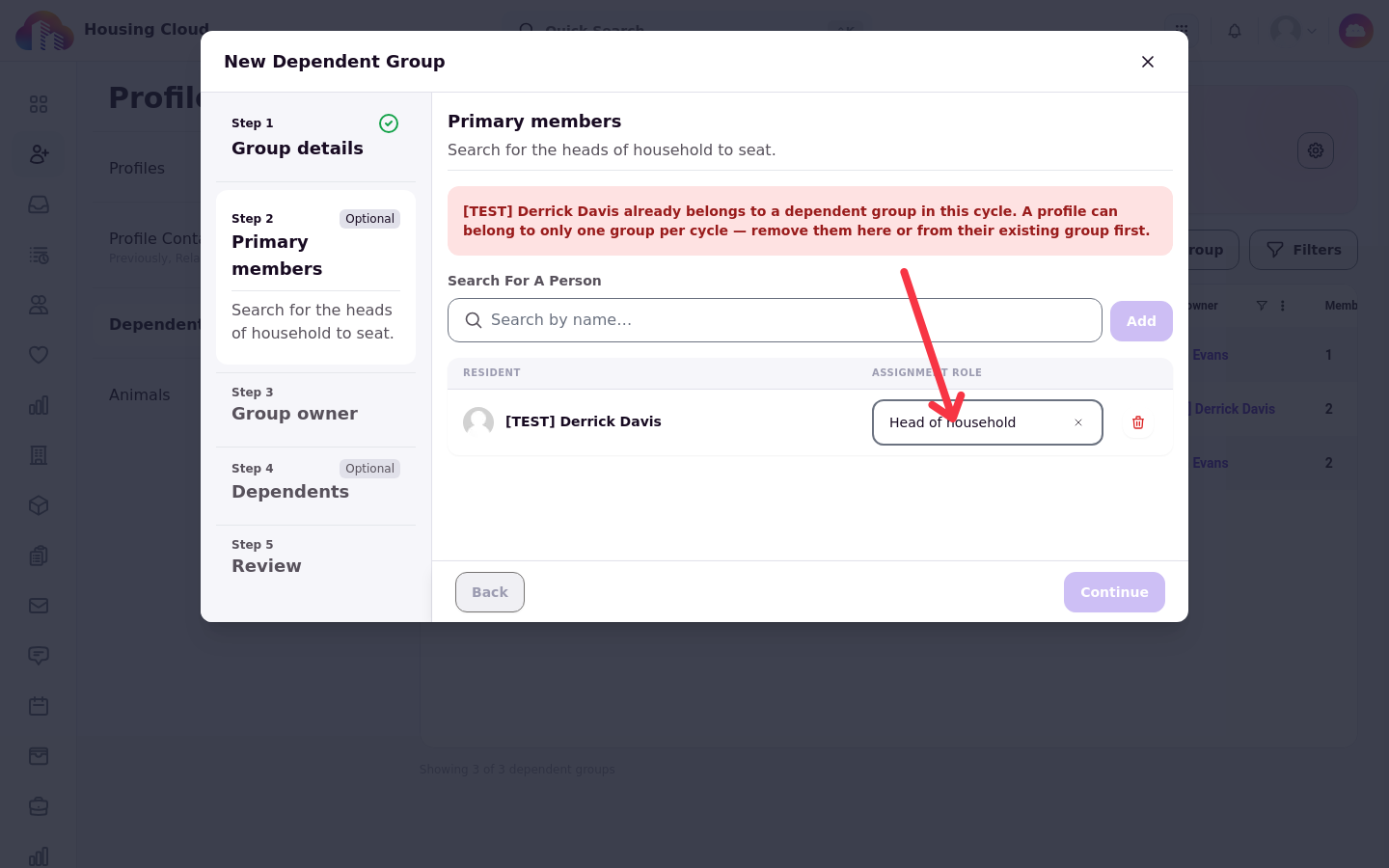
Three limits apply while you select people. The group type's maximum applies, and the modal tells you how many primaries or dependents the type allows at most. Adding the same person twice shows "This person is already added." A person who already belongs to a dependent group in the same cycle cannot be added: the modal explains that a profile can belong to only one group per cycle, and that you can remove the person here or from their existing group first. If an add is blocked this way and you cannot resolve it, see Dependents Troubleshooting.
Only one member per group can hold a role with Group manager by default. If two primary members hold it, a red banner reading “The “Head of household” role designates the group owner, so only one member can hold it. Reassign or remove the extra primary members.” stops you, so give the second primary a role without that switch.
Creating the group with the Active status is blocked while the group violates its composition rules. The modal shows "Activating this group needs a few more changes:" followed by what to fix, such as adding at least one primary member. Draft, Inactive, and Archived do not enforce composition at creation.
When creation succeeds, the confirmation reads "Dependent group created." and the group's detail page opens.
A group created as Draft shows a Resolve before activating box on its page until it meets its type's minimums. The box lists what is missing, such as "Add at least 1 primary member", and the group stays in Draft until every issue is fixed.
Assign members later
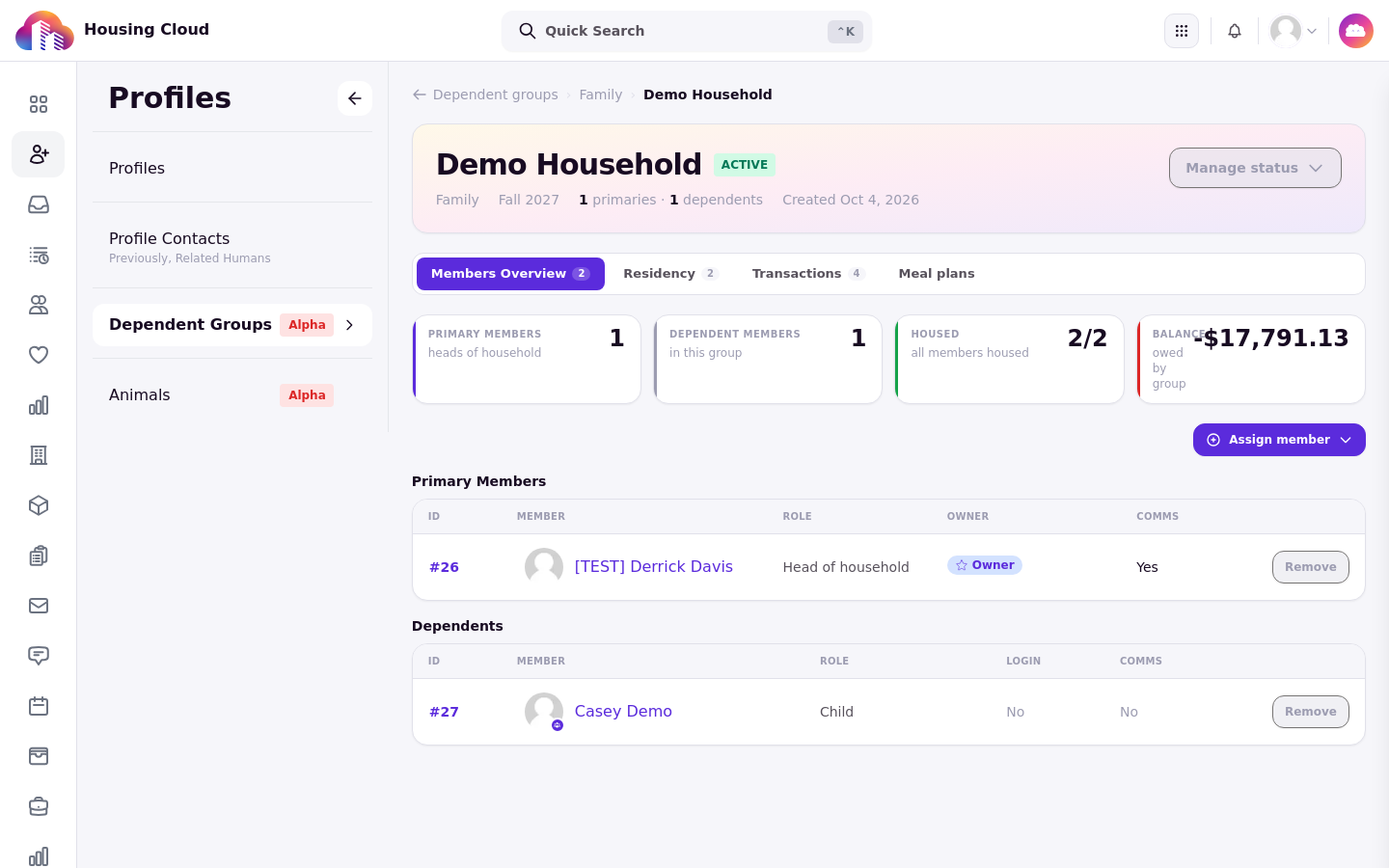
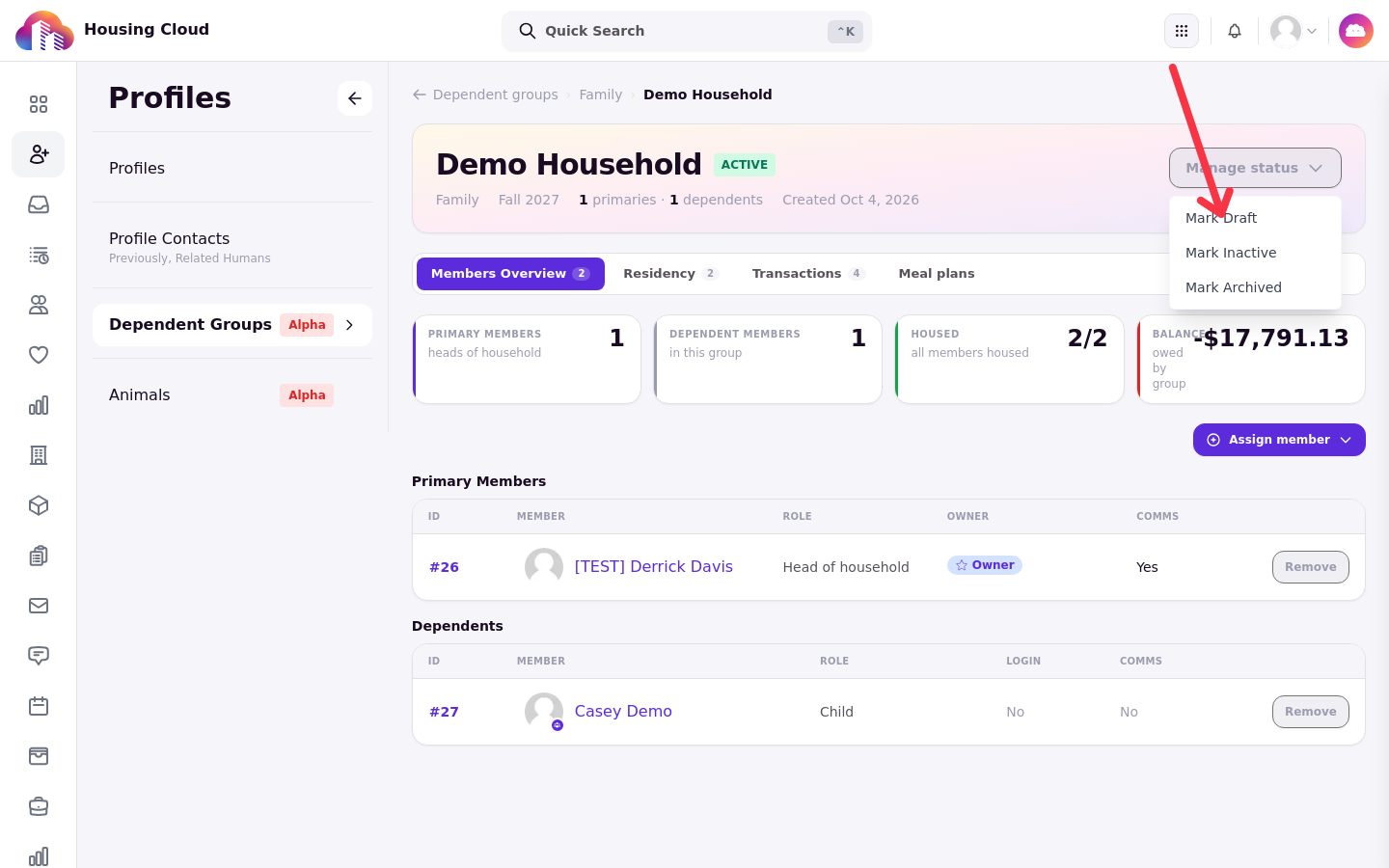
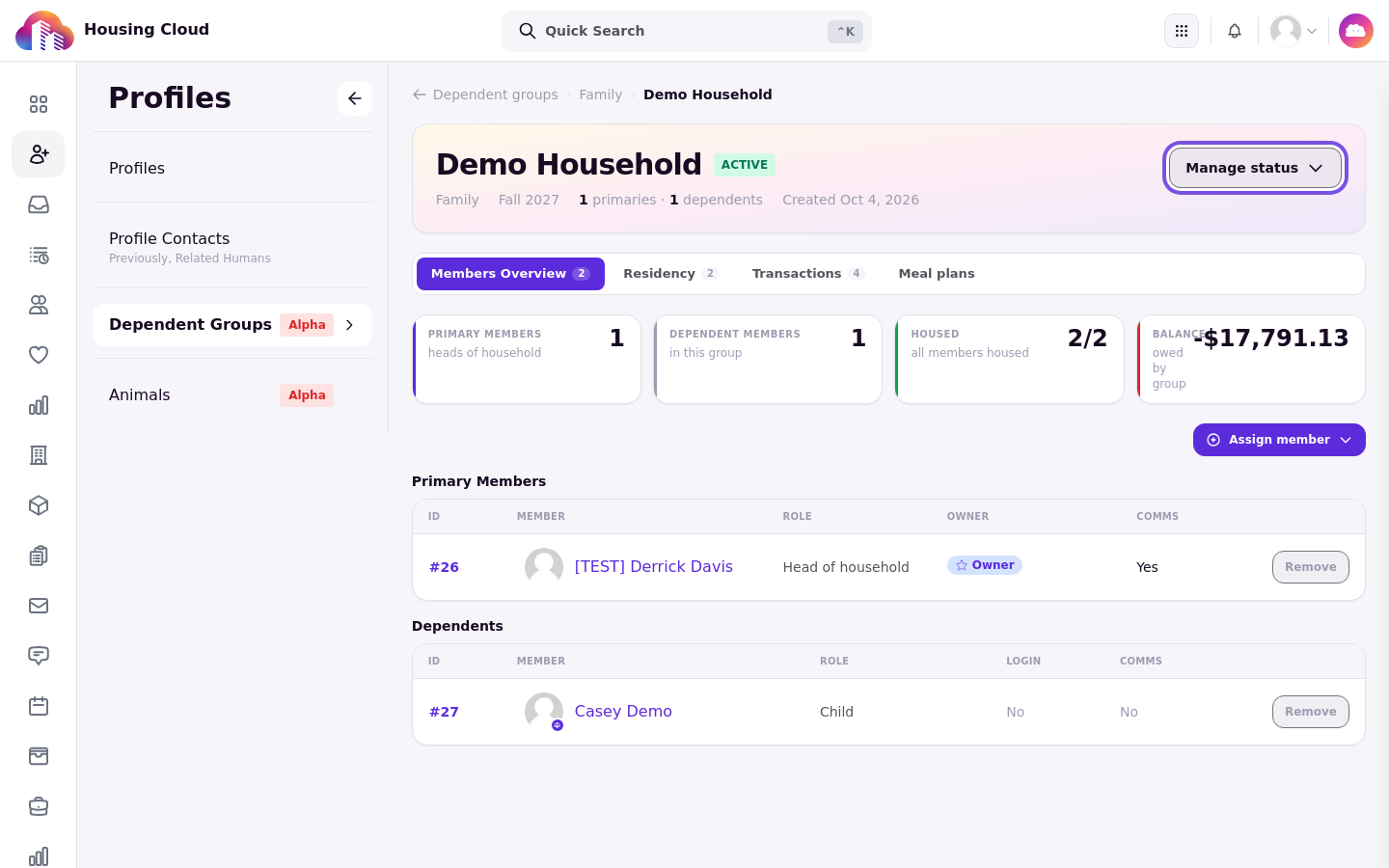
Member management lives on the group's detail page, on the Members Overview tab, which holds the Primary Members and Dependents tables. Assigning members, removing them, and changing the owner all require the Create and manage dependent groups permission.
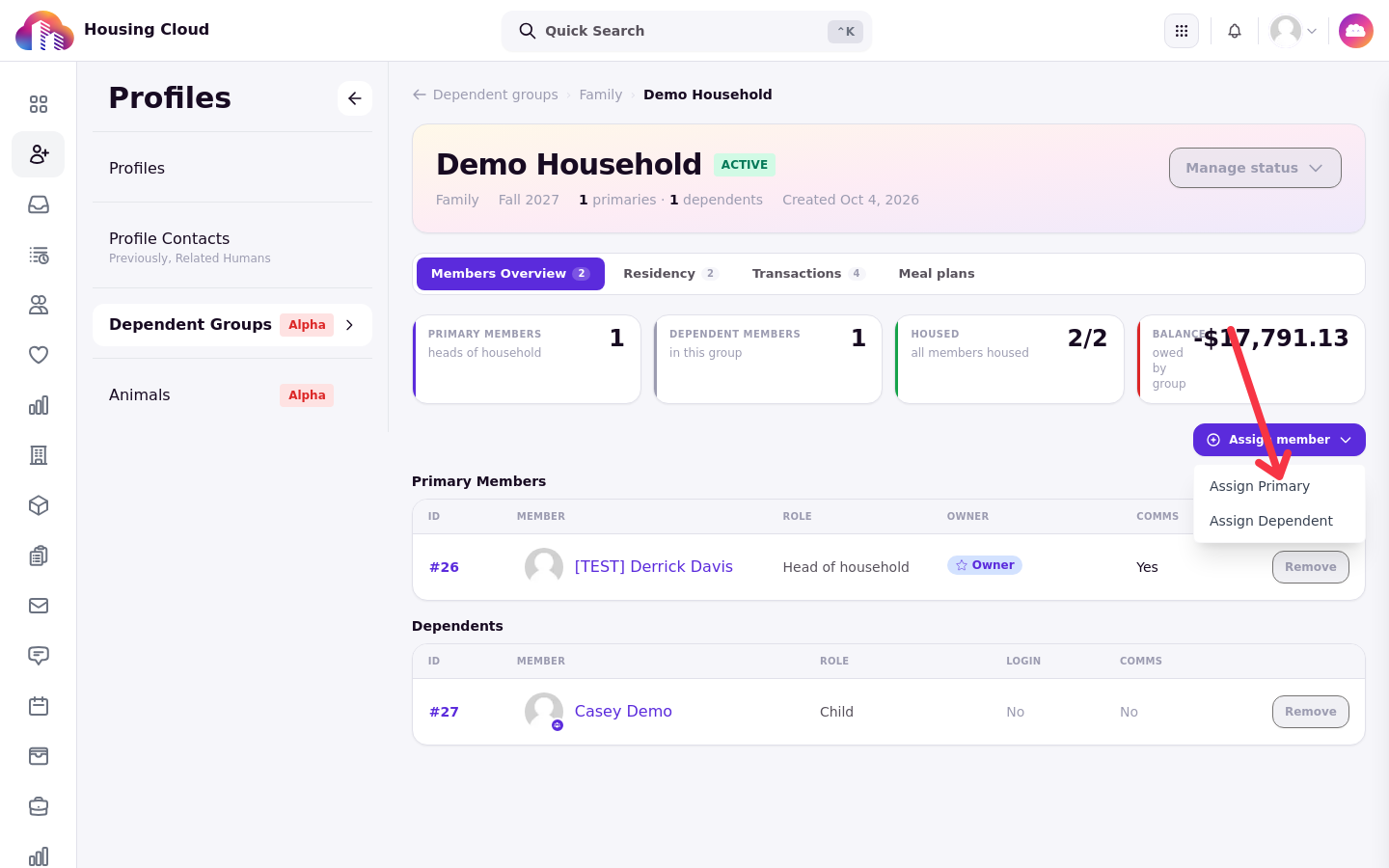
Select Assign member and choose Assign primary or Assign dependent. The primary picker is labeled People and searches residents and applicants; people already assigned as dependents are hidden. The dependent picker is labeled Dependents and searches existing dependents, and you can select as many as you need. Both pickers accept multiple profiles and need at least 2 characters before search results appear.
The Role field is required and lists only the active roles that match the assignment type. If no suitable role exists, the picker directs you to create a primary-type or dependent-type role under Setup > Dependent Management.
The submit button reads Assign, or Assign with the number of selected profiles, and stays disabled with the reason shown: "No roles configured", "Select at least one profile", or "Selection exceeds the maximum". On save, a confirmation names the assignment or the number of profiles assigned. Adding a person who was previously removed reactivates their earlier assignment rather than creating a new one.
Grant login access (Optional)
The Grant login access switch appears only when you assign dependents, and it is off by default. Turning it on lets the selected dependents sign in to the housing portal. Primary assignments always receive login access, so no switch is shown for them.
Remove a member
Remove is available on both the Primary Members and Dependents tables. Removal takes effect immediately: there is no confirmation dialog. The assignment is deactivated, an end date is set, and the confirmation reads "Member removed." Re-adding the person later reactivates the original assignment.
Choose the group owner
Make owner appears only on rows in the Primary Members table, and the current owner carries an Owner badge. The group owner must be an active primary member of the group. Changing the owner clears the previous owner automatically, and the confirmation reads "Group owner updated."
Group statuses
A group moves through four statuses: Draft, Active, Inactive, and Archived. The type's maximums are checked whenever a member is added, and a group can be marked Active only when it meets its type's minimums and maximums; only Active groups can be assigned to beds in application review. The Manage status button on the group page opens a menu with the other statuses; on an active group it offers Mark Draft, Mark Inactive, and Mark Archived. Every move can be undone: an Inactive group can be marked Active again as long as it still meets the member limits, and even an Archived group can be brought back from Manage status. Archived groups don't count toward the one-group-per-cycle rule.
Groups can be archived but not deleted, and the name, cycle, and tags can't be changed after creation; to change them, create a new group and archive the old one.
When your group is ready to be placed into rooms, see Assign a Household to Rooms.
Verify the group
The group's detail page confirms the result. The Members Overview tab lists everyone in the Primary Members and Dependents tables, with the Owner badge on the owner's row. On the roster, the group appears with the status you selected at creation, and you can return to its detail page at any time to assign or remove members.